What Is a Project?
A Project is a container that holds all your landing pages, funnels, and related settings.
Think of it like a folder on your computer—everything related to one campaign or business goal lives in one project.
Why Create Projects?
Organization:
✓ Group related pages together
✓ Easier to find and manage
✓ Clean, organized workspace
Functionality:
✓ Project settings apply to all pages in it
✓ Shared domain, code, integrations
✓ One project = one funnel or campaign
Business:
✓ Separate campaigns from each other
✓ Track pages by purpose/product
✓ Easy to enable/disable entire projects
Step-by-Step: Create a Project
Step 1: Go to Projects
- Log into FlexiFunnels
- You're on the Dashboard
- Look for "Projects" in the main menu (left sidebar or top)
- Click it
You're now on the Projects page showing all your projects.
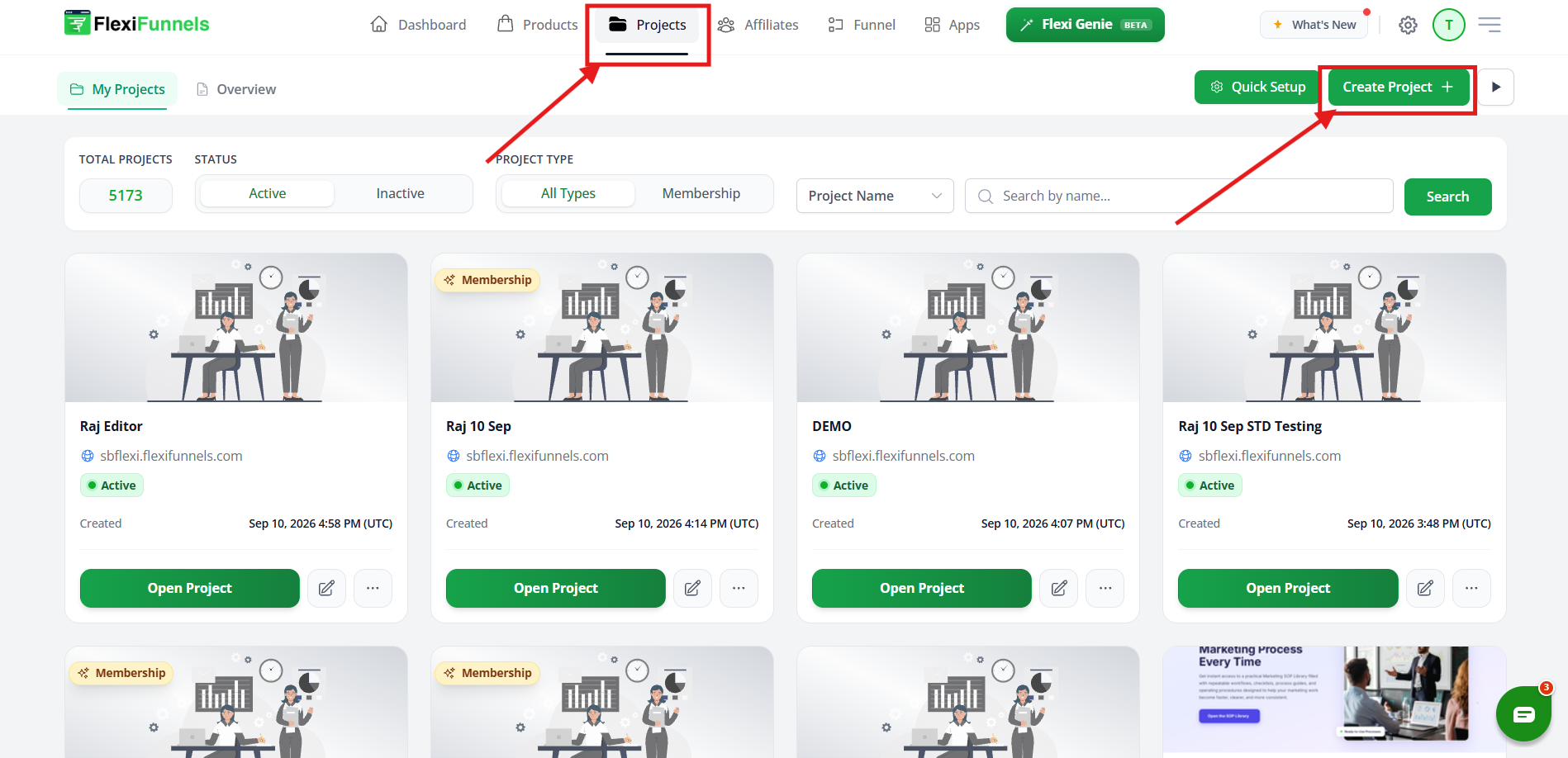
Step 2: Click "Create New Project"
- Look for a button labeled "+ Create New" or "+ New Project"
- Click it
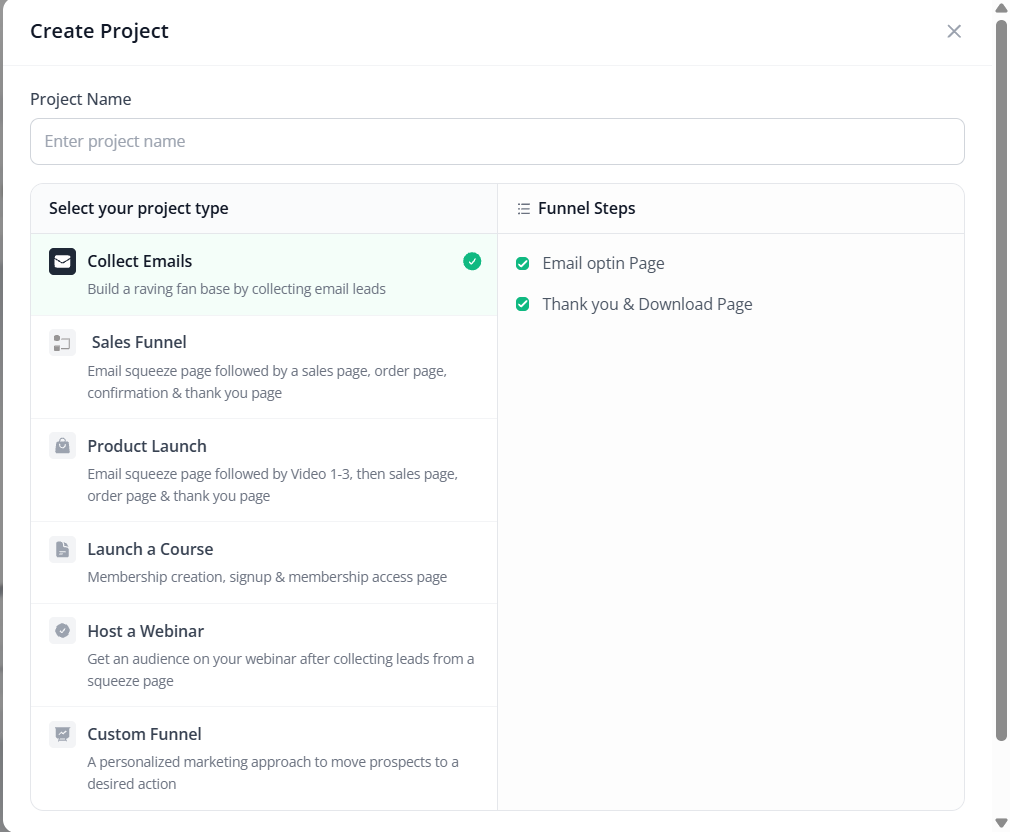
A form or dialog appears asking for project details.
Step 3: Enter Project Name
- Find the "Project Name" field
- Enter a descriptive name for your project
Naming best practices: ✓ Clear and specific
✓ Include purpose/product name
✓ Include date if relevant
Good examples:
- "Lead Magnet - Email Course"
- "Product Launch - Courses 2025"
- "Webinar Registration - January"
- "Sales Funnel - High Ticket"
Avoid:
✗ Generic names (Project1, Test, etc.)
✗ Too long (hard to find)
✗ Unclear purpose
Step 4: Choose Project Type (If Available)
- Some versions show "Project Type" option
- Choose the type that matches your goal:
- Sales Funnel
- Landing Page
- Webinar
- Membership
- Etc.
Step 5: Create Project
- Click "Create Project" or "Add Project"
- FlexiFunnels creates the project
- You're taken to project setup or template selection
✓ Project is now created!
Step-by-Step: Add Your First Landing Page
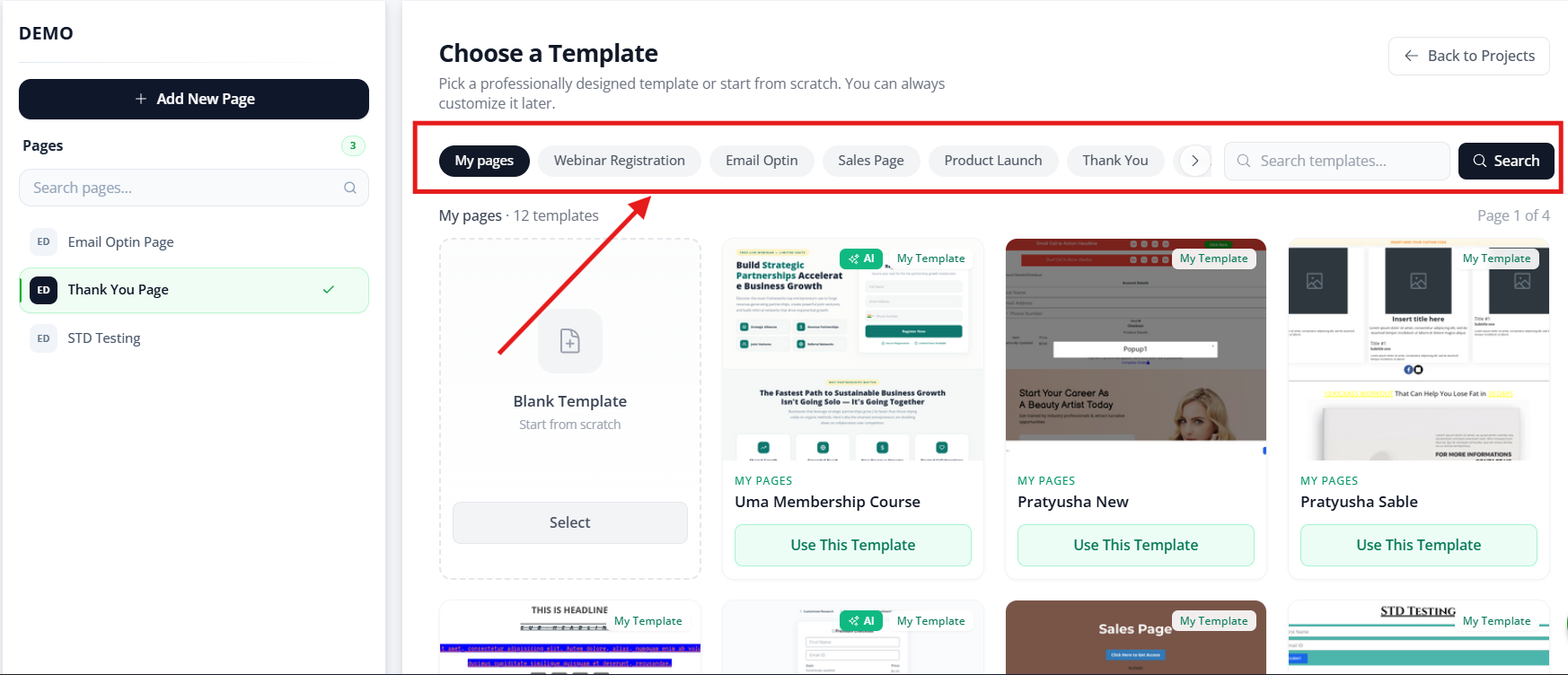
Step 6: Select Landing Page Category
- After creating project, you see landing page options
- Look for "Landing Page" category/option
- Click it
You see available landing page templates.
Step 7: Browse and Select a Template
Available template categories:
- Sales Pages (product selling)
- Opt-in Pages (email capture)
- Webinar Pages (event promotion)
- Service Pages (service showcase)
- Portfolio Pages (showcase work)
- SaaS Pages (software features)
- And many more
Step 8: Confirm Template Selection
- You see your selected template
- Confirm it's the right choice
- Look for "Use This Template" or "Create Page" button
- Click it
FlexiFunnels creates the page from the template.
Step 9: Enter Page Name (If Prompted)
- Some versions ask for a page name
- Enter a descriptive name
- Examples: "Main Sales Page", "Opt-in Page", "Thank You Page"
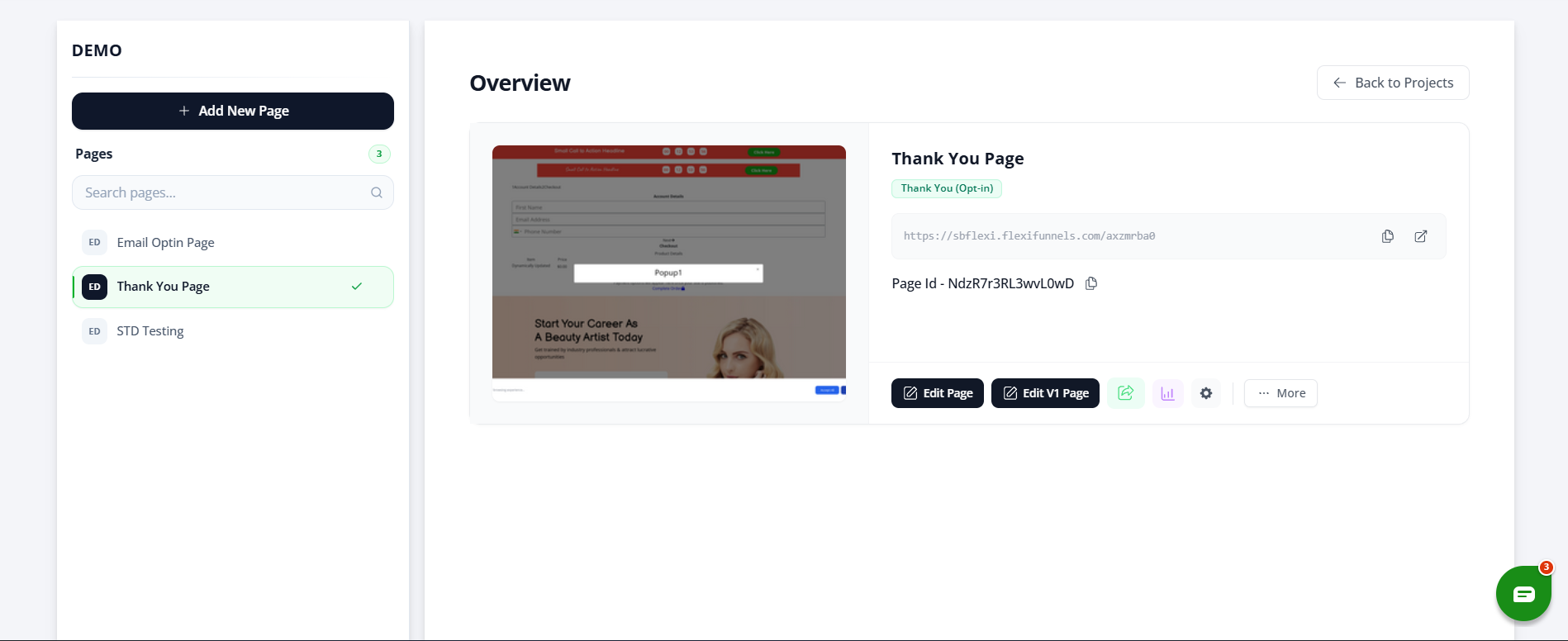
Step 10: Launch the Editor
- Click "Edit Page" or the page opens automatically
- You're now in the page editor
- This is where you customize your page
✓ Landing page is now created!
Mobile Responsiveness
Your page automatically adjusts for mobile, but you should optimize it.
Step 1: Switch to Mobile View
- Look at top of editor
- Find "Mobile" button or view toggle
- Click it
- Preview switches to mobile view (narrow screen)
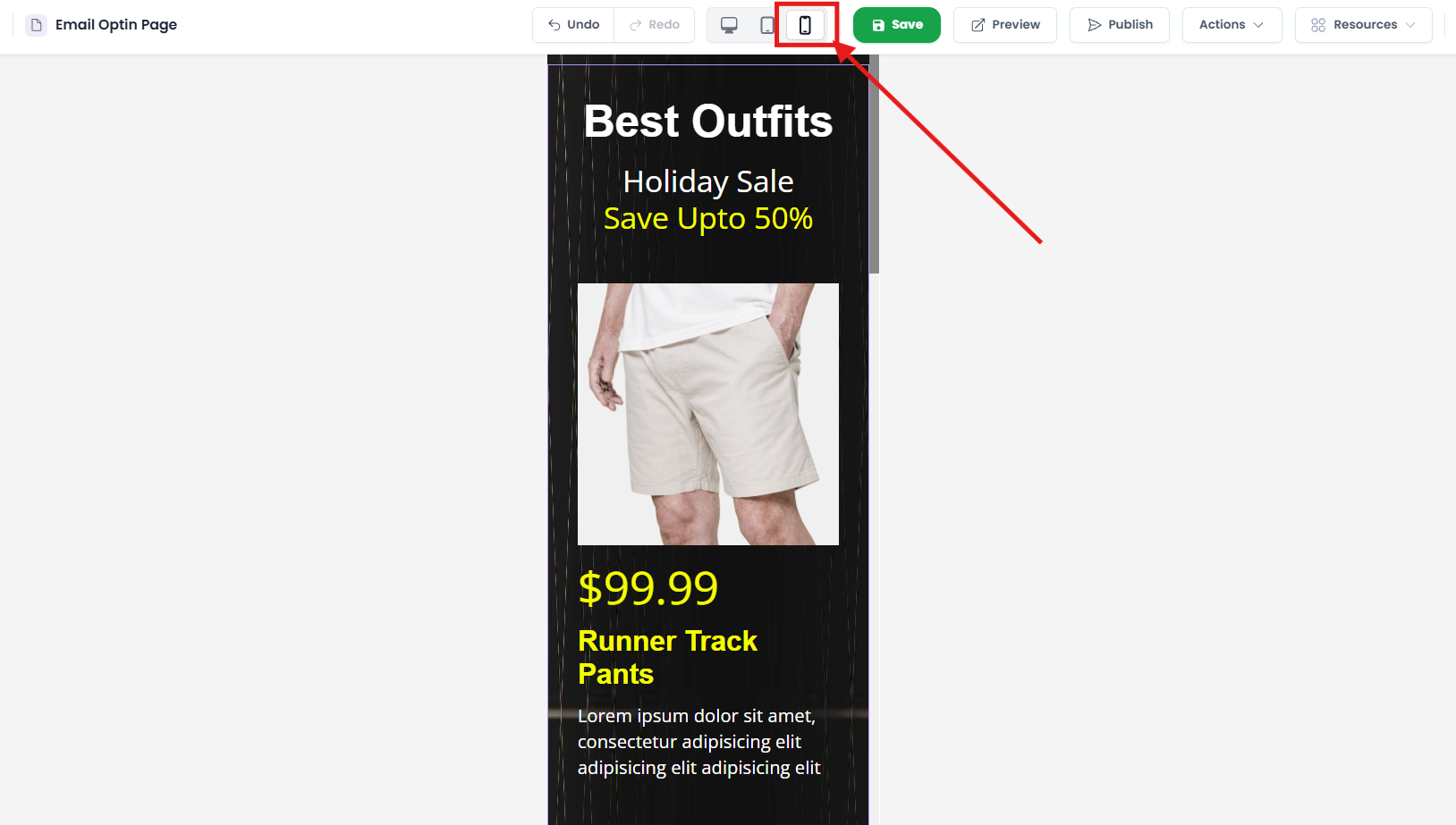
Step 2: Identify Issues
- Look at mobile view
- What looks wrong?
- Text too small?
- Image too large?
- Button hard to tap?
- Spacing wrong?
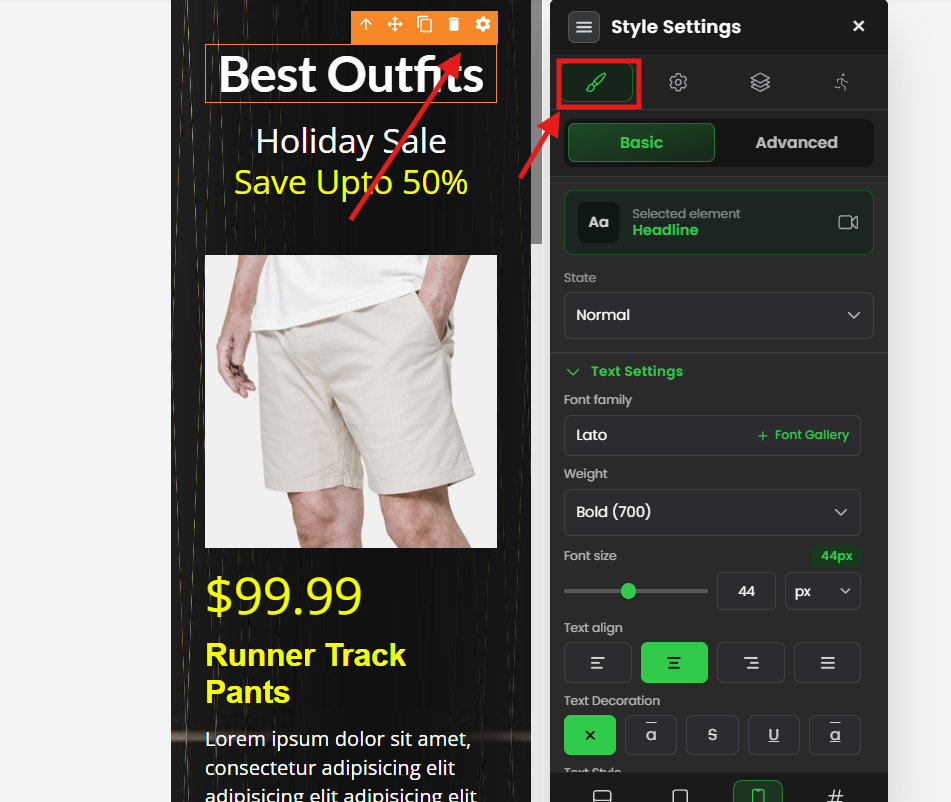
Step 3: Make Adjustments
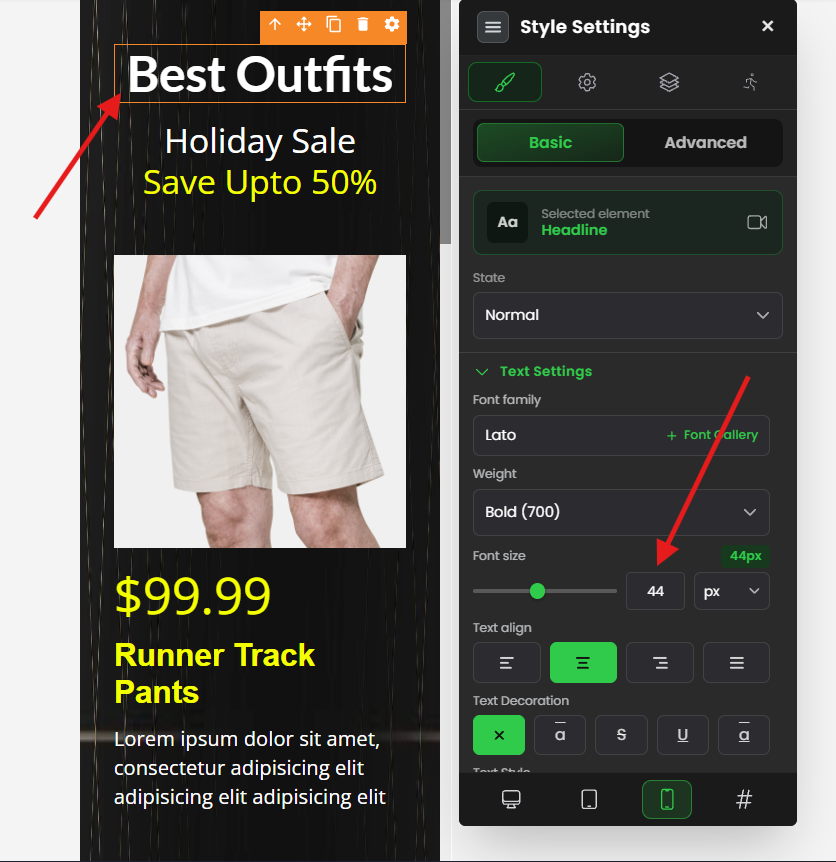
For text size:
- Click text element
- Right sidebar opens
- Find "Font Size"
- Click and change size
- See mobile preview update
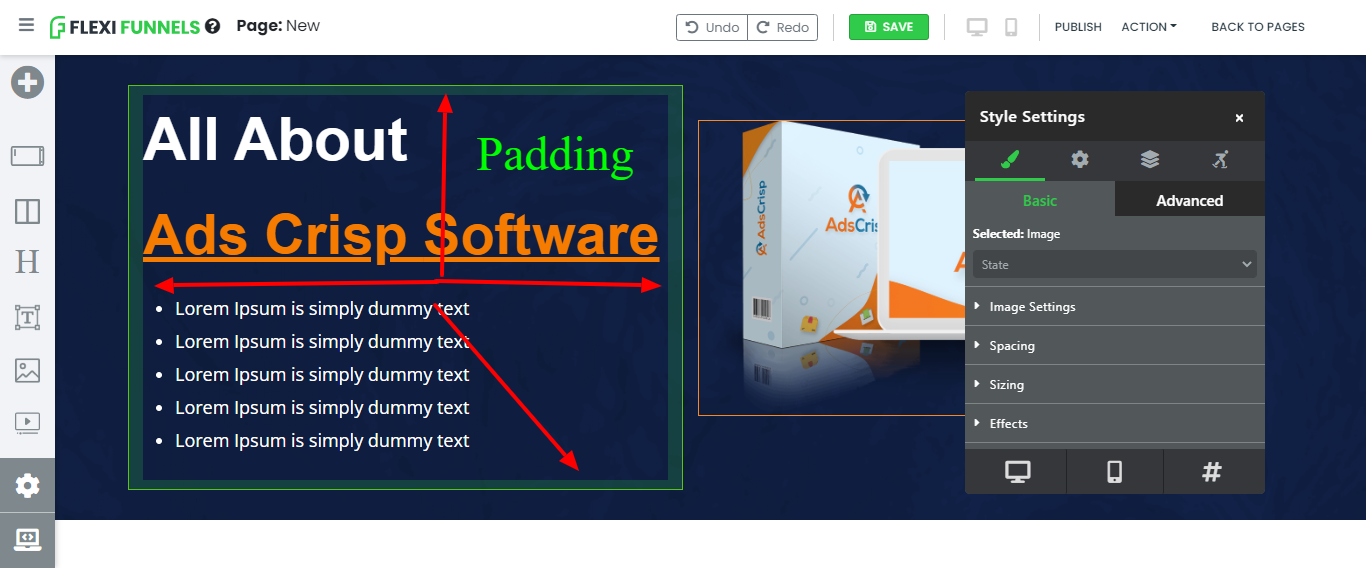
For spacing:
- Click element
- Find "Padding" (inside spacing) or "Margin" (outside spacing)
- Adjust values
- Preview updates
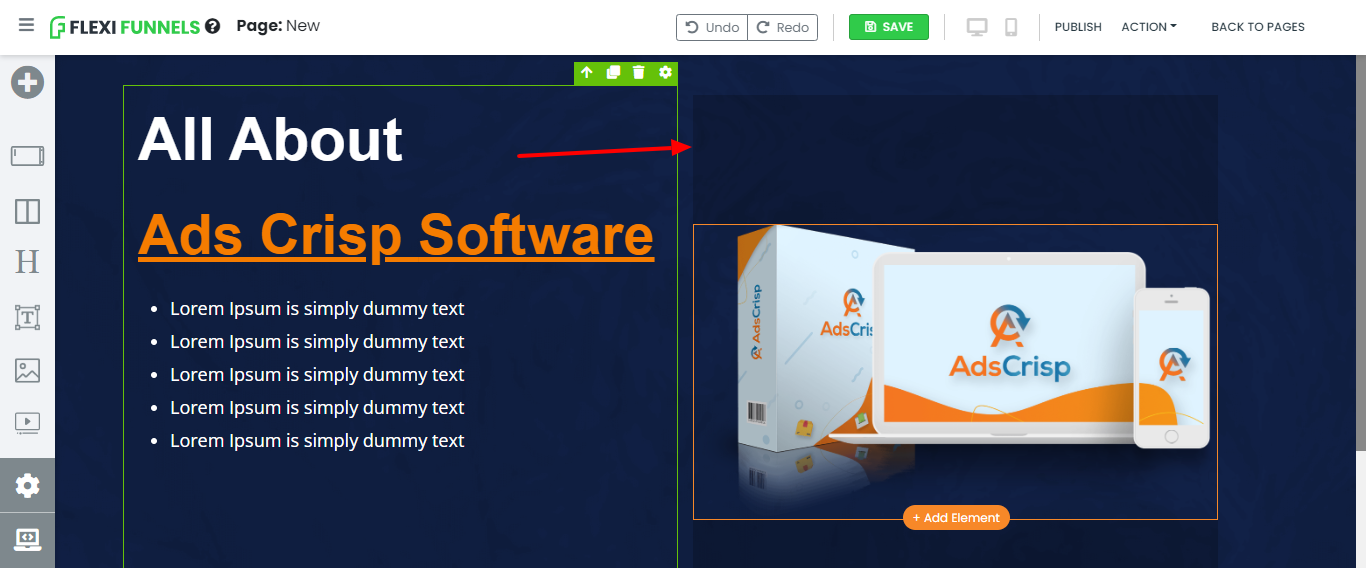
For image size:
- Click image
- Find "Width" or "Size"
- Make image responsive (auto-scales)
- Test on mobile
Recommended Mobile Font Sizes
For optimal readability on phones:
Headline: 28px - 36px
Subheadline: 20px - 26px
Body text: 16px - 18px
Button text: 14px - 16px
Common Situations & Quick Fixes
Situation 1: "I Created a Project, But I Can't Find It"
What's happening: Project created but hard to locate.
Diagnostic steps:
- Go to Projects page
- Click "Projects" in main menu
- You should see all projects listed
- Look for your project
- Scroll through list
- Is it there?
- Search if available
- Some versions have search
- Type project name
- Check sorting
- Projects might be sorted by date
- Your new project might be at bottom
- Scroll down
Situation 2: "Which Template Should I Choose?"
What's happening: Too many templates, unsure which fits.
Decision tree:
Do you want to capture emails? → YES: Choose "Opt-in" template
Do you want to sell a product? → YES: Choose "Sales Page" template
Do you want to promote an event? → YES: Choose "Webinar" or "Event" template
Do you want to showcase services? → YES: Choose "Service" or "Professional" template
Unsure? → START: Choose "Sales Page" (most flexible) → CUSTOMIZE: Make it fit your needs
Situation 3: "Can I Create Multiple Pages in One Project?"
Answer: Yes, absolutely!
Steps to add another page:
- Go to your project
- Look for "+ Add Page" or "Create Page" button
- Click it
- Choose template for new page
- New page is created
Common multi-page funnels:Project: "Sales Funnel"
├─ Page 1: Landing page (hook)
├─ Page 2: Sales page (convince)
├─ Page 3: Checkout (sell)
└─ Page 4: Thank you (confirm)
Situation 4: "I Want to Change My Landing Page Later"
Answer: You can edit it anytime.
To edit:
- Go to Projects
- Find your project
- Click on the page you want to edit
- Click "Edit Page"
- Make changes in editor
- Publish when done
Or change the entire design:
- Go to page settings
- Look for "Change Template" option
- Select new template
- Old design is replaced (can't undo)
Was this article helpful?
That’s Great!
Thank you for your feedback
Sorry! We couldn't be helpful
Thank you for your feedback
Feedback sent
We appreciate your effort and will try to fix the article