What is the Image Slider, and why use it?
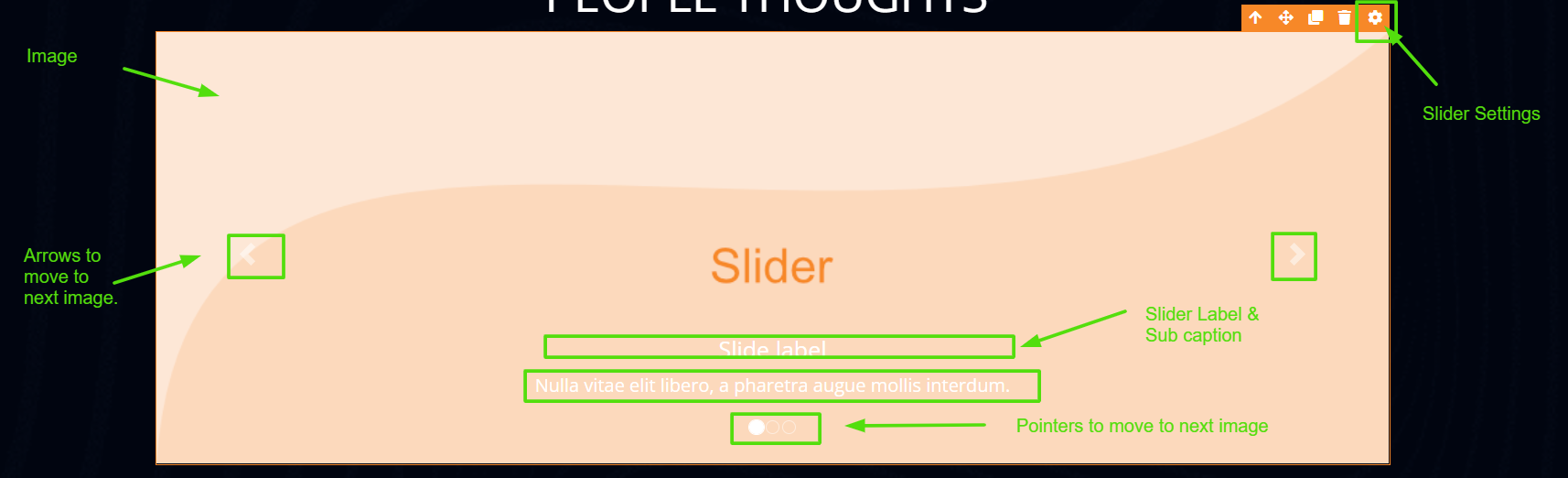
An Image Slider (also called a carousel) is a single space on your page that shows multiple images one at a time — they slide across automatically, or visitors can click through them. Think of it like a digital photo frame that flips between pictures.
Why use it? Because it lets you show several images in the space of one. Instead of stacking five product photos down the page (making visitors scroll forever), you put them all in one slider. It's perfect for product galleries, customer testimonials, before-and-after shots, event photos, or a rotating set of featured offers.
Quick reminder on where elements live: Every FlexiFunnels page follows the Section → Row → Element structure. A Section is a horizontal band of the page, a Row sits inside it, and an Element (like this Slider) sits inside a Row. So have a Row ready before adding the slider.
Quick Video:
STEPS TO USE SLIDER
Step 1: Add the Slider to your page
In the FlexiFunnels Page Editor, find the Slider element and drag it into the Row where you want it.
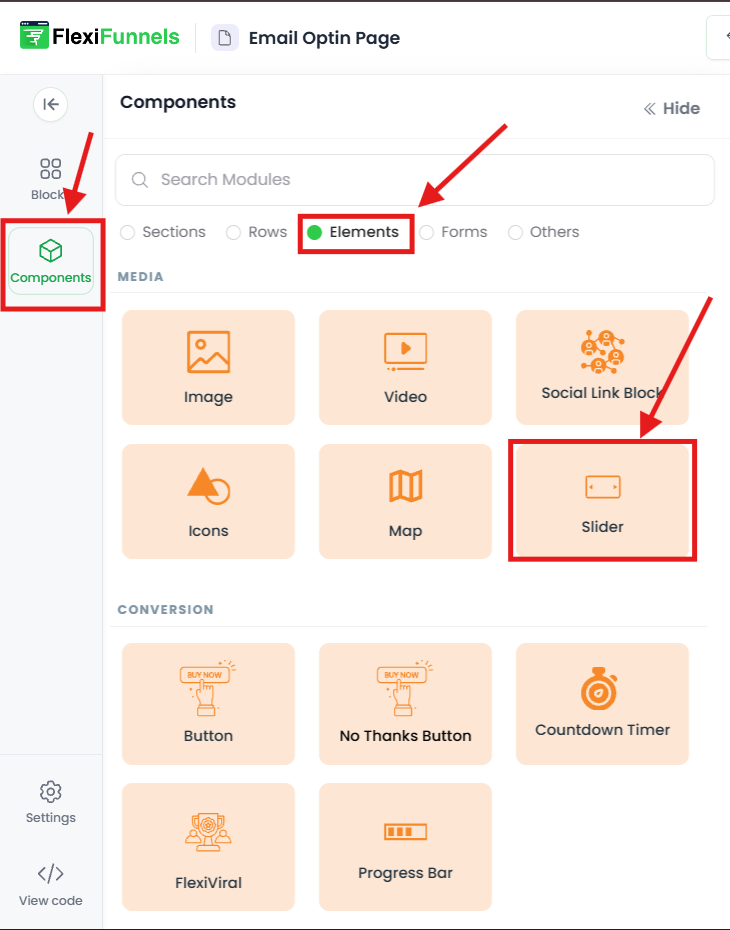
Step 2: Add your images (Advanced Settings)
Click the slider to open its settings, then go to the Advanced Settings tab. This is where you load in the pictures and control how they move.
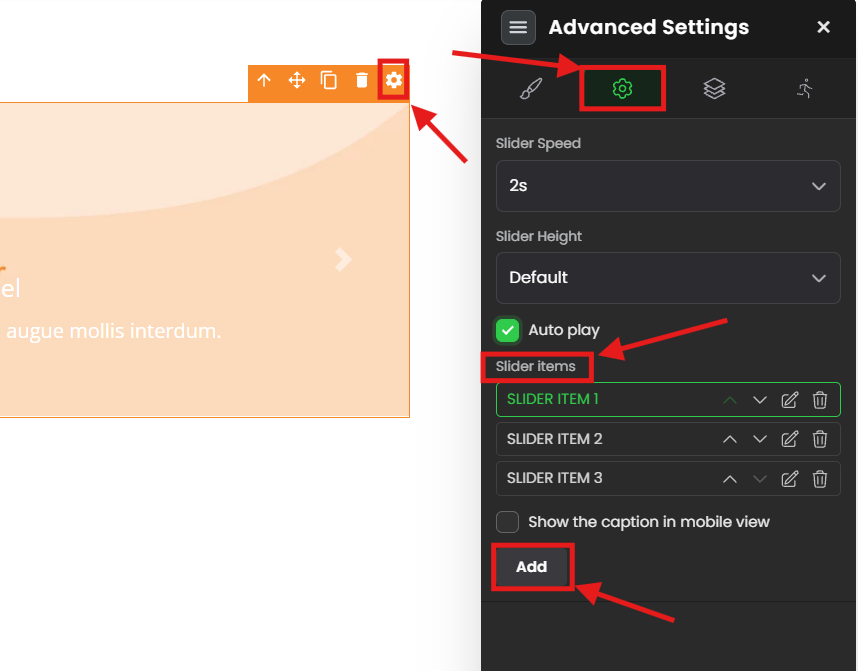
- Slider Items— This is your list of images. Each picture in the slider is one "item."
- Click Edit on an item to upload or replace its image.
- Click Delete to remove an item.
- Click Add to create a new slot and upload another image.
- Autoplay — Turn this toggle ON to make the images advance on their own. Turn it OFF if you want visitors to click through manually.
- Slider Speed — How many seconds each image stays on screen before sliding to the next. (Only matters when Autoplay is ON.) A common comfortable setting is 3–5 seconds — long enough to read, short enough to keep moving.
- Slider Height — The height of the slider area: Small, Medium, Large, or Extra Large. Pick the one that fits your images best.
Step 3: Style the captions (Style Settings)
Click on Slider settings from style settings, to edit label and subcaption style settings.
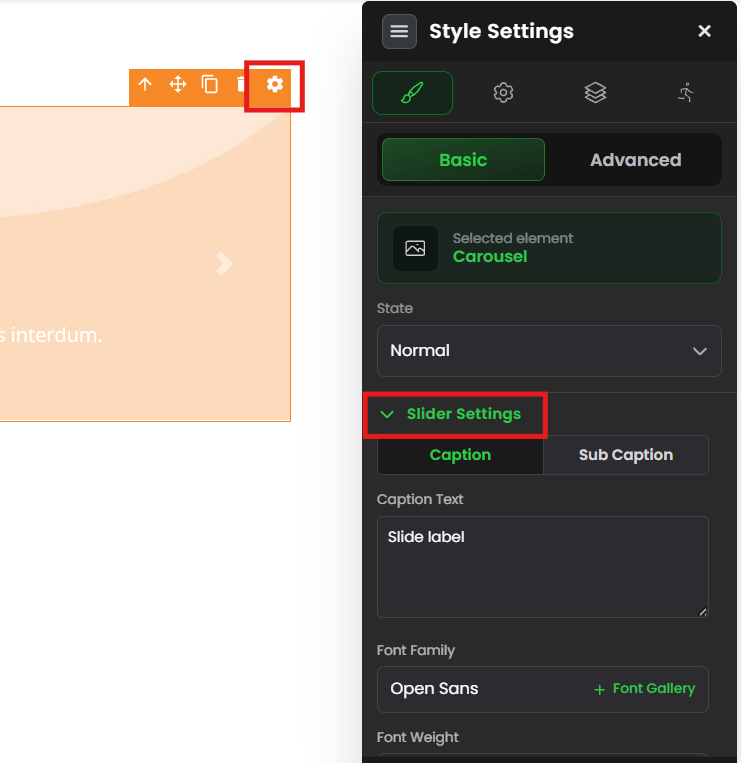
Each slide can show a Caption (the main line of text) and a Sub Caption (a smaller line underneath). To style them, go to Style Settings → Slider Settings.
- Caption Text — The main text shown on the slide.
- Sub Caption Text — The smaller supporting text below the caption.
- Font Family — The typeface for both caption and sub-caption.
- Font Weight — How thick the text is: Thin, Normal, Bold, etc.
- Size — How big the text appears.
- Text Color — The color of the text.
- Text Style — Turn the text italic (slanted) if you like.
---------------------------------
Most Asked Question on Slider
How do I get consistent image dimensions in my slider?
This is the single biggest cause of "my slider looks messy." Here's why it happens and how to fix it.
Why it happens: A slider shows every image in the same fixed box. If your images are different shapes and sizes — one tall, one wide, one square — the slider has to squish, stretch, or crop each one to fit. That's what makes them look jumpy or distorted as they slide.
The fix: Make all your images the same dimensions (the same width and height in pixels) before you upload them.
How to do it:
- Decide on one size for every slide. A common widescreen choice is 1280 × 720 pixels (a 16:9 ratio). For square sliders, use something like 1080 × 1080 pixels. The exact number matters less than using the same one for all images.
- Resize each image to that exact size before uploading. You can use any free image editor — built-in tools like Photos (Windows) or Preview (Mac), or free online tools like Canva, Photopea, or an online image resizer.
- Match the file shape to your Slider Height. A "tall" image won't sit well in a "Small" slider. Pick a Slider Height that suits the shape you chose, then keep all images that shape.
- Re-upload the resized images as your Slider Items.
What's a "pixel"? A pixel is one tiny dot on a screen. Image size is measured in pixels — "1280 × 720" means 1280 dots wide and 720 dots tall. Matching these numbers across all your images is what keeps the slider clean.
Common situations & quick fixes
Check these before contacting support.
"My slider images look stretched, squished, or cropped." → Your images are different sizes. Resize them all to the same width and height before uploading (see the section above). This fixes the vast majority of slider appearance problems.
"The slider isn't moving on its own." → Check that Autoplay is toggled ON. If it's off, images only advance when a visitor clicks.
"The images change too fast / too slow." → Adjust Slider Speed (in seconds). Try 3–5 seconds as a starting point.
"My images look fine in the editor but blurry on the live page." → Your source images may be too small and getting stretched up. Upload images at least as large as the slider box (e.g., 1280px wide for a full-width slider). Always check the published/preview page, not just the editor.
"My captions aren't showing." → Open each item and confirm you've actually entered Caption Text. An item with an empty caption field shows nothing.
"The slider looks too big or too small on the page." → Adjust Slider Height (Small / Medium / Large / Extra Large) to match your images.
"It looks broken on mobile." → Switch to mobile view in the editor and check. Very tall images often don't
fit small screens well — a wider, shorter ratio (like 16:9) usually behaves better on phones.
"My slider loads slowly." → Large image files slow the page down. Compress each image (a free tool like TinyPNG works) so the file size is smaller, while keeping the same pixel dimensions.
Need more help?
If your slider still isn't behaving after the steps above, submit a ticket and include:
- The page URL where the slider appears
- A screenshot of your Advanced Settings (Slider Items list)
- The dimensions of the images you uploaded
- What you expected vs. what actually happened
Was this article helpful?
That’s Great!
Thank you for your feedback
Sorry! We couldn't be helpful
Thank you for your feedback
Feedback sent
We appreciate your effort and will try to fix the article