Overview
The Retargeting Code feature allows you to add third-party tracking scripts to your Membership Project. These scripts help you track conversions, measure campaign performance, and build remarketing audiences using platforms like Meta, Google, and other analytics tools.
You can add tracking codes such as:
- Meta (Facebook) Pixel
- Google Tag Manager (GTM)
- Google Analytics
- LinkedIn Insight Tag
- TikTok Pixel
- Pinterest Tag
- Other third-party tracking scripts
Before You Begin
Before adding your tracking code, ensure that:
- Your Membership Project has been created.
- You have access to the tracking code from your analytics or advertising platform.
- The Membership Thank You Page is available in your project.
- Your Membership Project has been published after making changes.
Steps to Add Retargeting Codes in Membership
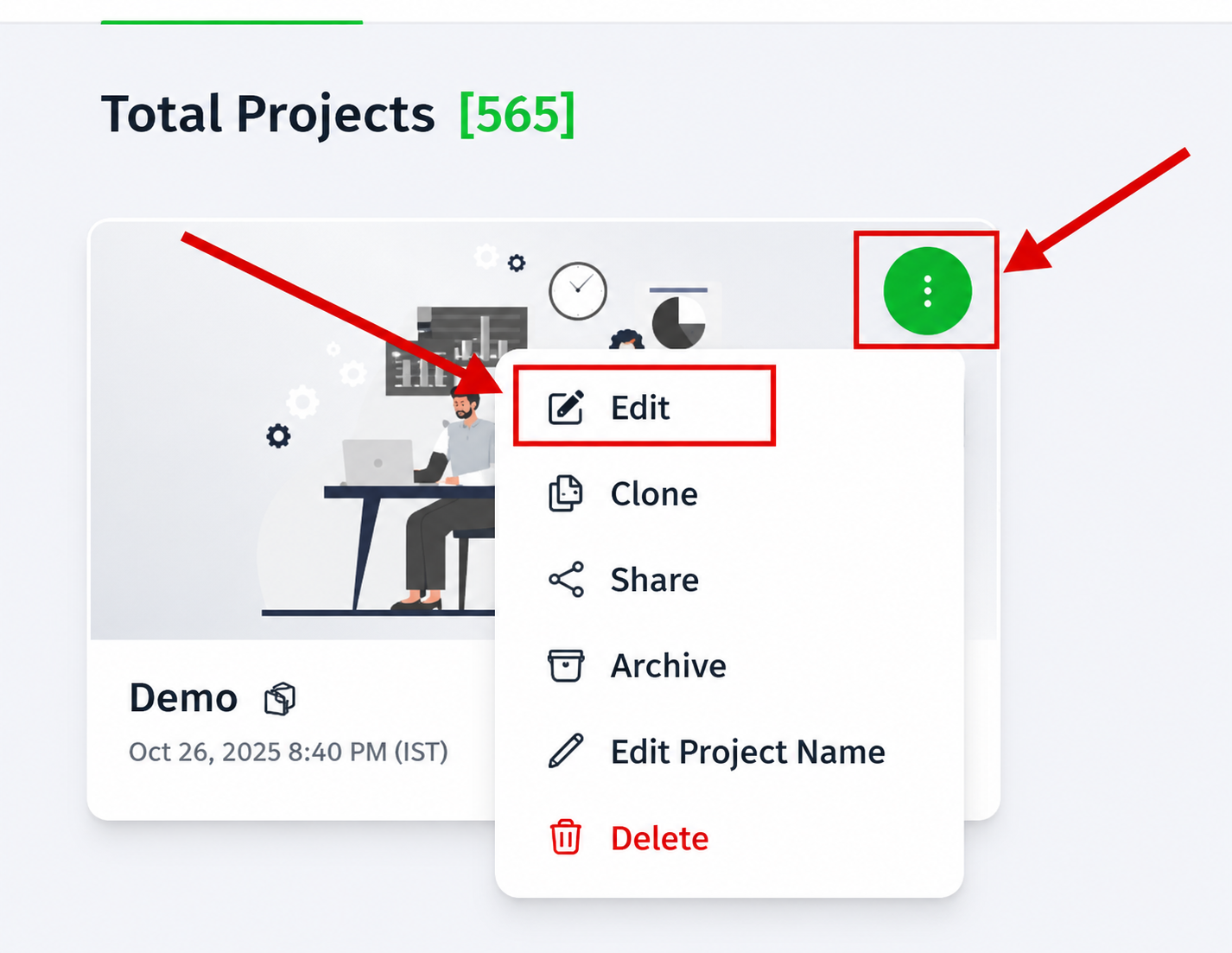
Step 1: Open Your Membership Project
- Log in to your FlexiFunnels account.
- Navigate to Membership from your dashboard.
- Open the Membership Project where you want to install the tracking code.
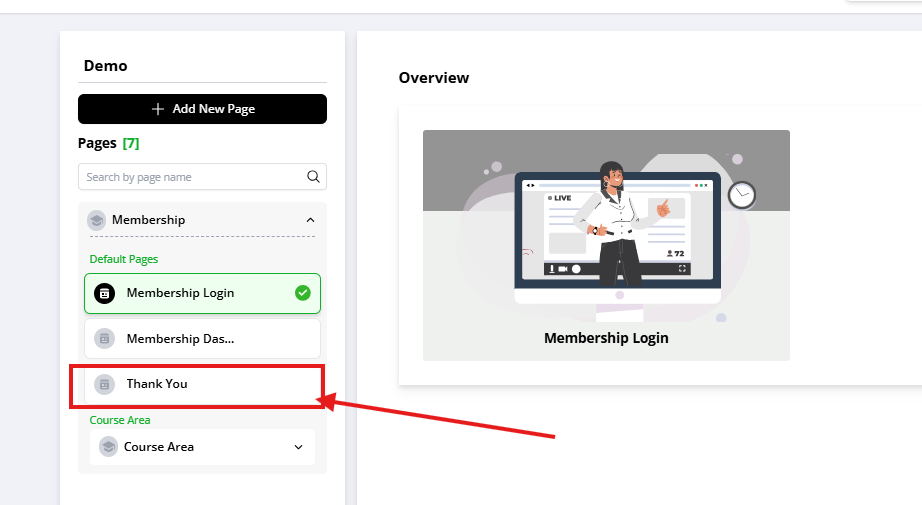
Step 2: Open the Membership Pages
Inside the Membership Project, you'll find several default system pages, such as:
- Membership Login
- Membership Dashboard
- Thank You Page
Open the Thank You Page.
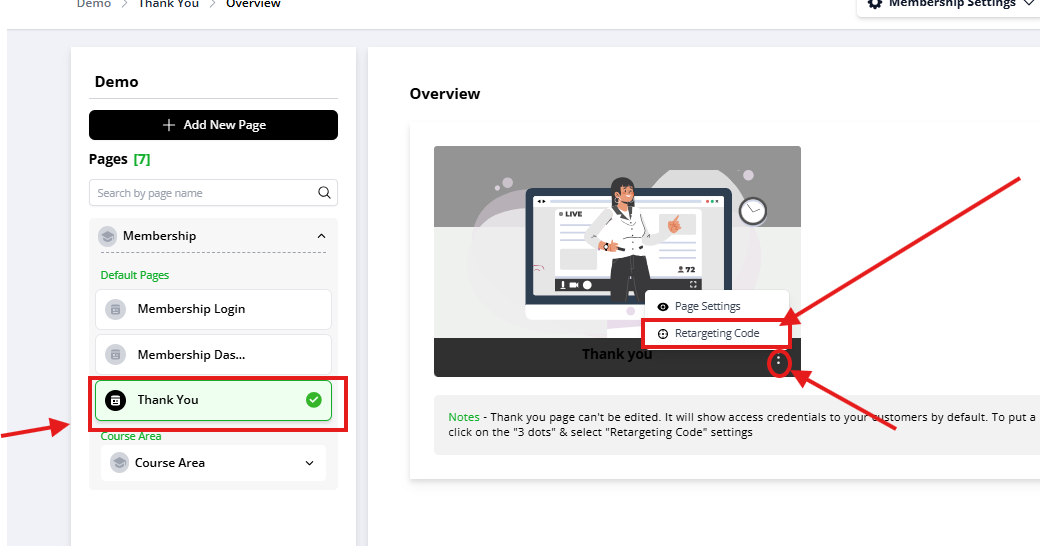
Step 3: Add Your Retargeting Code
Inside the Thank You Page, locate the Retargeting Code section.
Paste the complete tracking code provided by your advertising or analytics platform.
Examples include:
- Meta Pixel
- Google Tag Manager
- Google Analytics
- LinkedIn Insight Tag
- TikTok Pixel
Important: Copy and paste the entire code exactly as provided. Modifying the script may prevent it from working correctly.
Step 4: Save and Publish
After adding the code:
- Click Save Changes.
- Publish your Membership Project.
Your tracking code will become active once the updated page is published.
Verify That Your Tracking Code Is Working
After publishing, it's recommended to verify that your tracking code is firing correctly.
You can use the following browser extensions:
- Meta Pixel Helper (for Meta Pixel)
- Google Tag Assistant (for Google Tag Manager and Google Analytics)
These tools help confirm whether your tracking code has been installed successfully and is sending events.
Common Scenarios
My Meta Pixel or Google Tag is not detecting any activity.
Check the following:
- Did you publish the Membership Project after adding the code?
- Was the complete tracking code pasted without any modifications?
- Are you visiting the published Membership Thank You Page instead of the editor preview?
- Is your browser blocking tracking scripts through an ad blocker or privacy extension?
My tracking code is not firing.
Verify that:
- The code was pasted into the Retargeting Code section.
- The script is complete and not truncated.
- The page has been published after saving.
- Your browser cache has been cleared or you're testing in an Incognito/Private window.
My conversion isn't showing inside Meta or Google.
Please note that analytics platforms may take some time to process incoming events.
Also verify:
- The correct Pixel ID or Measurement ID is being used.
- The event is configured correctly in your advertising platform.
- Your browser isn't blocking cookies or tracking scripts.
I added the code, but nothing happens in Preview Mode.
Most tracking scripts only execute on the published live page.
Always test using the live URL instead of the page editor or preview mode.
Best Practices
- Always use the latest tracking code provided by your advertising platform.
- Avoid installing the same tracking script multiple times, as this may result in duplicate events.
- Test your tracking setup before launching advertising campaigns.
- Keep a backup copy of your tracking codes for future updates.
Before Contacting Support
Before reaching out to our support team, please verify the following:
- ✅ The tracking code has been pasted completely.
- ✅ The code was added to the Membership Thank You Page.
- ✅ The Membership Project has been published after saving.
- ✅ You're testing the live published page.
- ✅ Your browser doesn't have an ad blocker or privacy extension preventing the script from loading.
- ✅ You've verified the installation using Meta Pixel Helper or Google Tag Assistant.
If the issue still persists, please provide:
- The Membership Project URL.
- The name of the tracking platform (Meta Pixel, GTM, Google Analytics, etc.).
- A screenshot of the Retargeting Code section.
- A screenshot from Meta Pixel Helper or Google Tag Assistant (if available).
- A brief description of the issue and the steps you've already tried.
Was this article helpful?
That’s Great!
Thank you for your feedback
Sorry! We couldn't be helpful
Thank you for your feedback
Feedback sent
We appreciate your effort and will try to fix the article