Connect Claude to your FlexiMembership account. Then ask Claude to build courses, set up memberships and find members, all in chat.
It works through an MCP server URL — like a phone number ?. Claude uses it to reach your account.
Before You Start
- You need a FlexiMembership account. Sign in as the account owner.
- You need a Claude account.
- Setup takes about a minute and is only needed once.
Steps
1Open your Profile
- Sign in to FlexiMembership.
- Click your profile circle at the top right.
- Click Profile.
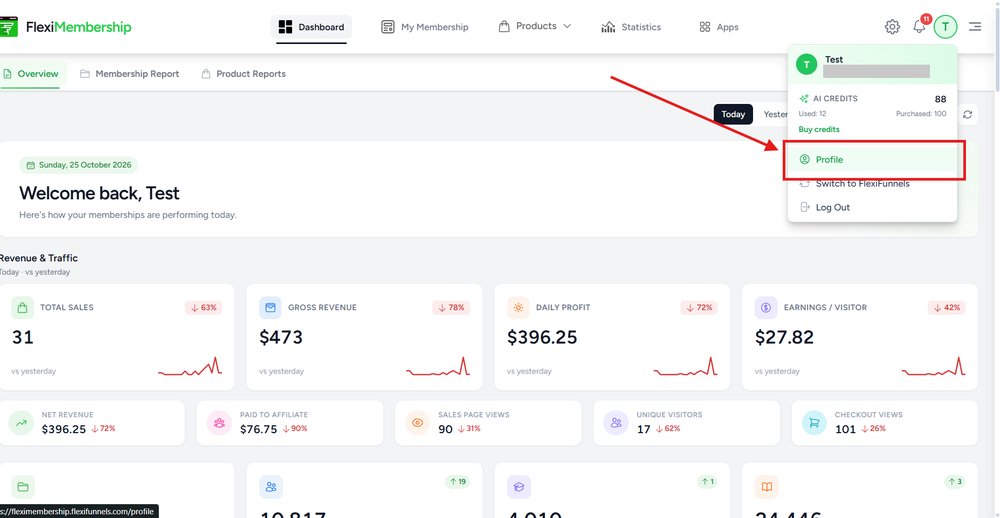
Click Profile in the menu.
2Open Connect AI Assistant
- In the left menu, find AI ASSISTANT.
- Click Connect AI Assistant.
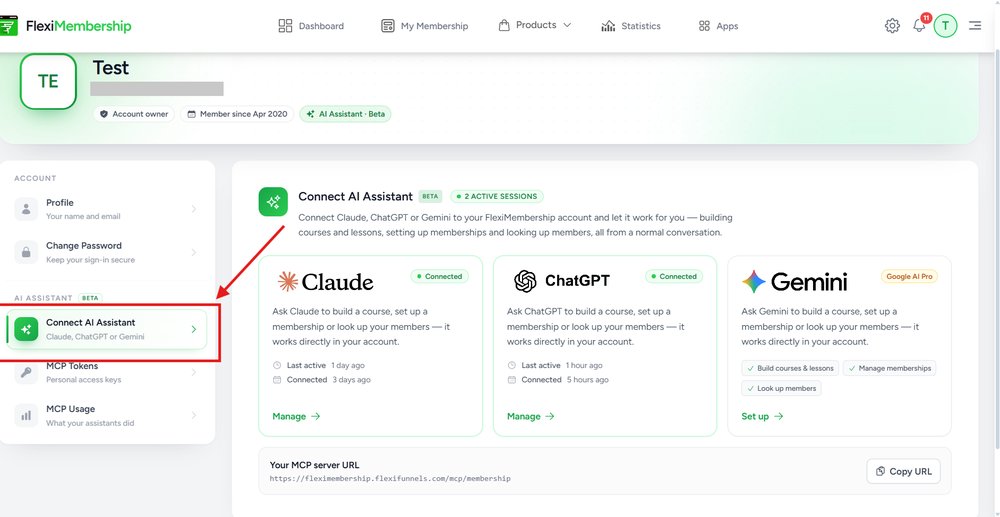
Connect AI Assistant is under AI ASSISTANT.
You will see: Cards for Claude, ChatGPT and Gemini.
3Open the Claude card
- Find the Claude card.
- Click Manage if it says Connected.
- Click Set up if Claude is not connected yet.
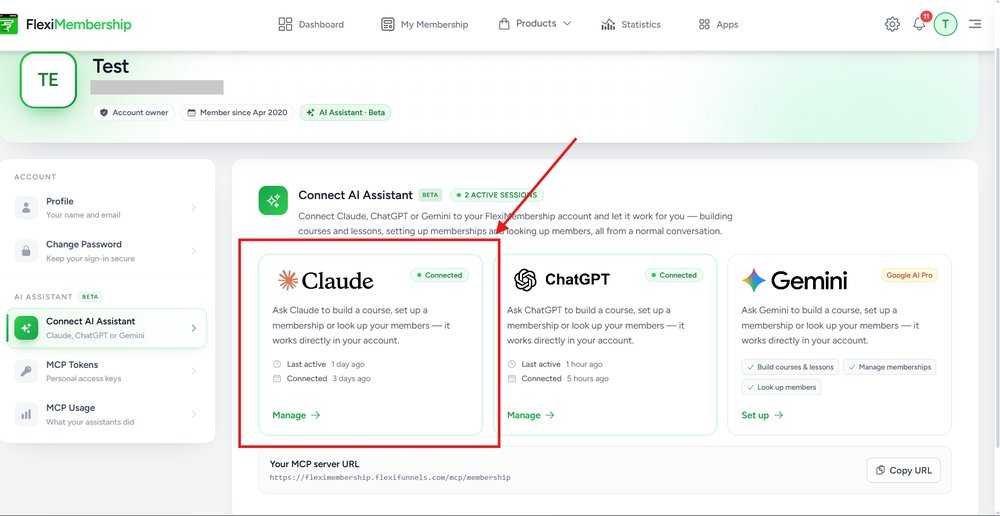
The Claude card.
4Click Setup guide
- Click Setup guide at the top right of the Claude box.
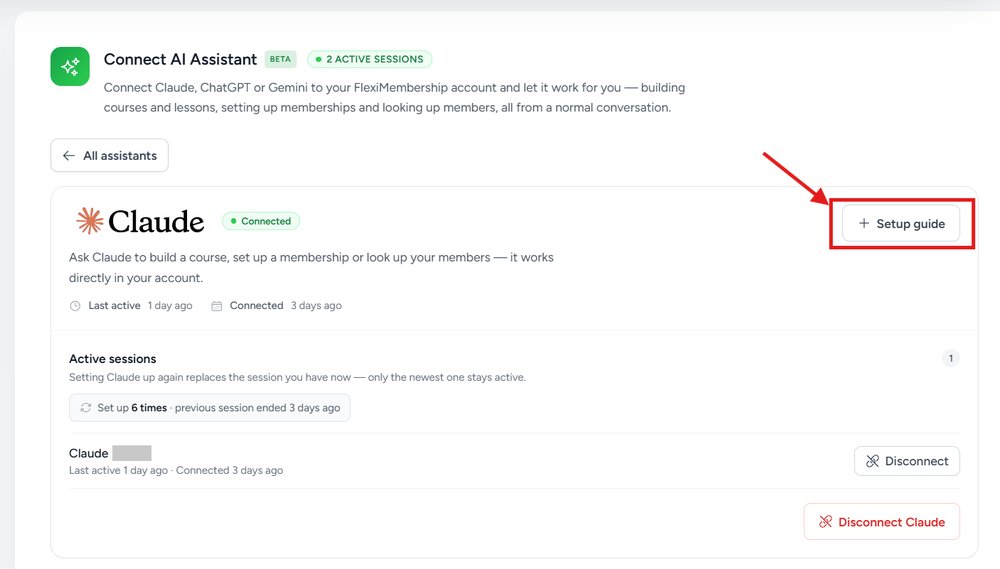
The Setup guide button.
You will see: A box called Connect to FlexiMembership with 4 steps.
5Copy the Name and the URL
- Find Name and MCP Server URL in the guide.
- Click the copy button next to each one when you need it.
| Field | Value |
|---|---|
| Name | FlexiMembership |
| MCP Server URL | https://fleximembership.flexifunnels.com/mcp/membership |
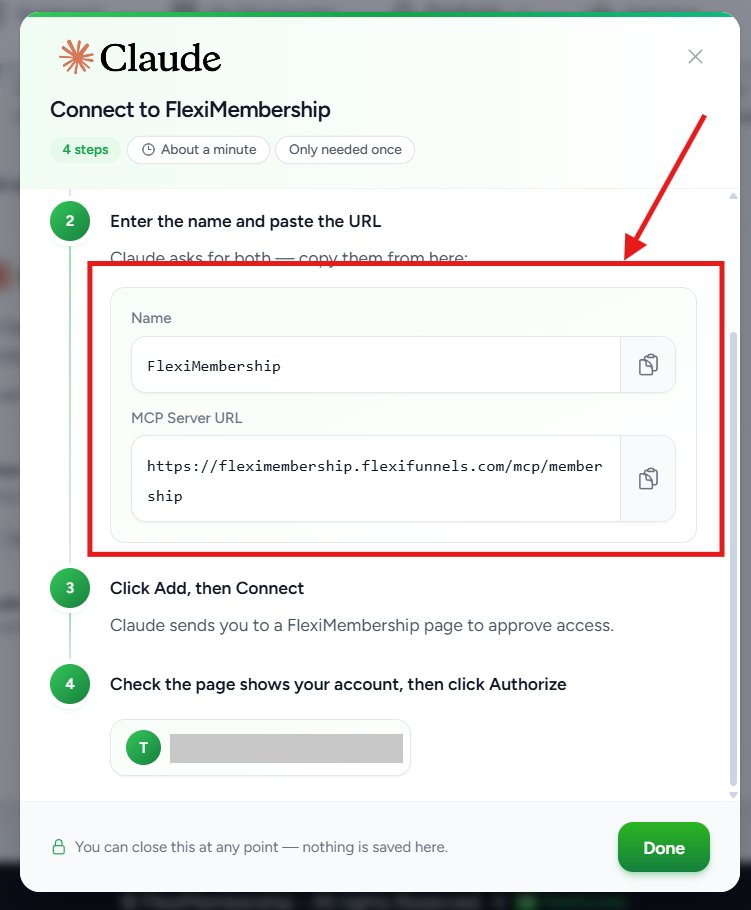
Name and MCP Server URL.
6Open Connectors in Claude
- Open Claude.
- Go to Settings → Connectors (under Customize).
- Click + Add at the top right.
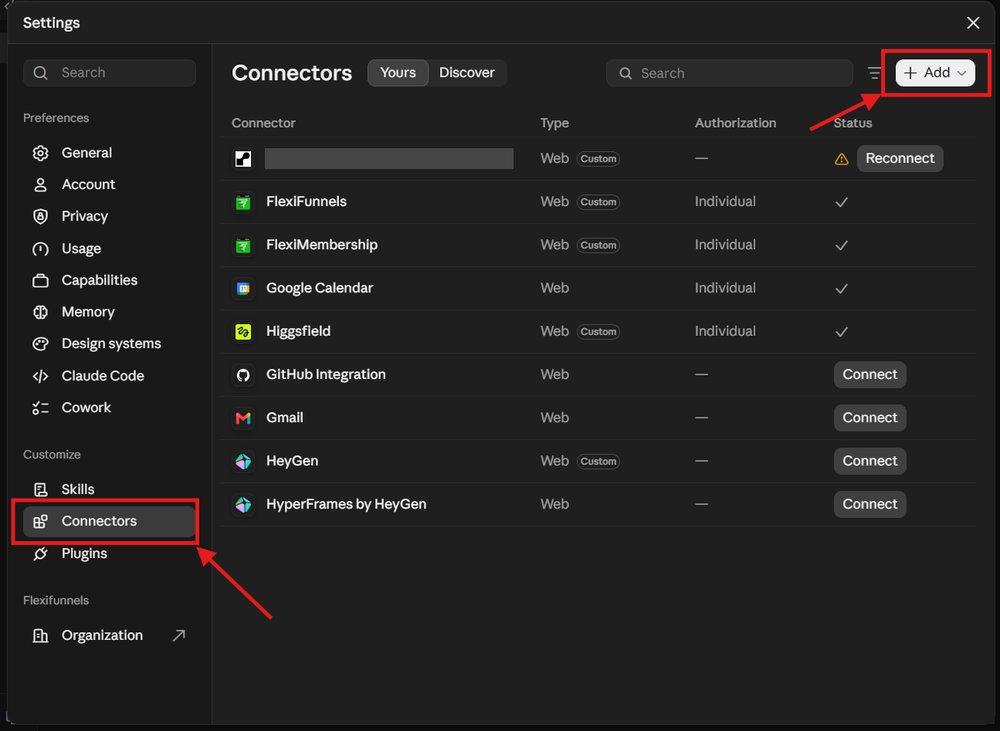
Settings → Connectors → Add.
You will see: A box called Add custom connector.
7Paste the Name and the URL
- In the first box, enter
FlexiMembership. - In the second box, paste
https://fleximembership.flexifunnels.com/mcp/membership. - Click Continue.
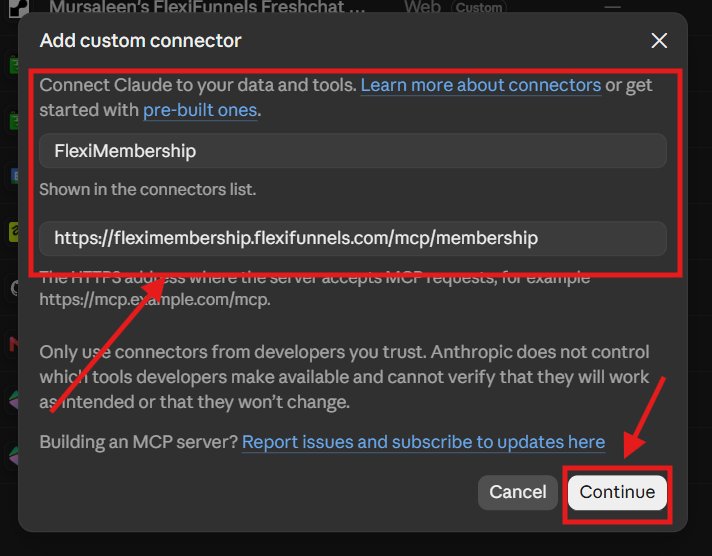
Fill both boxes, then click Continue.
8Approve access
- Claude opens a FlexiMembership page.
- Check that the page shows your account email.
- Click Authorize
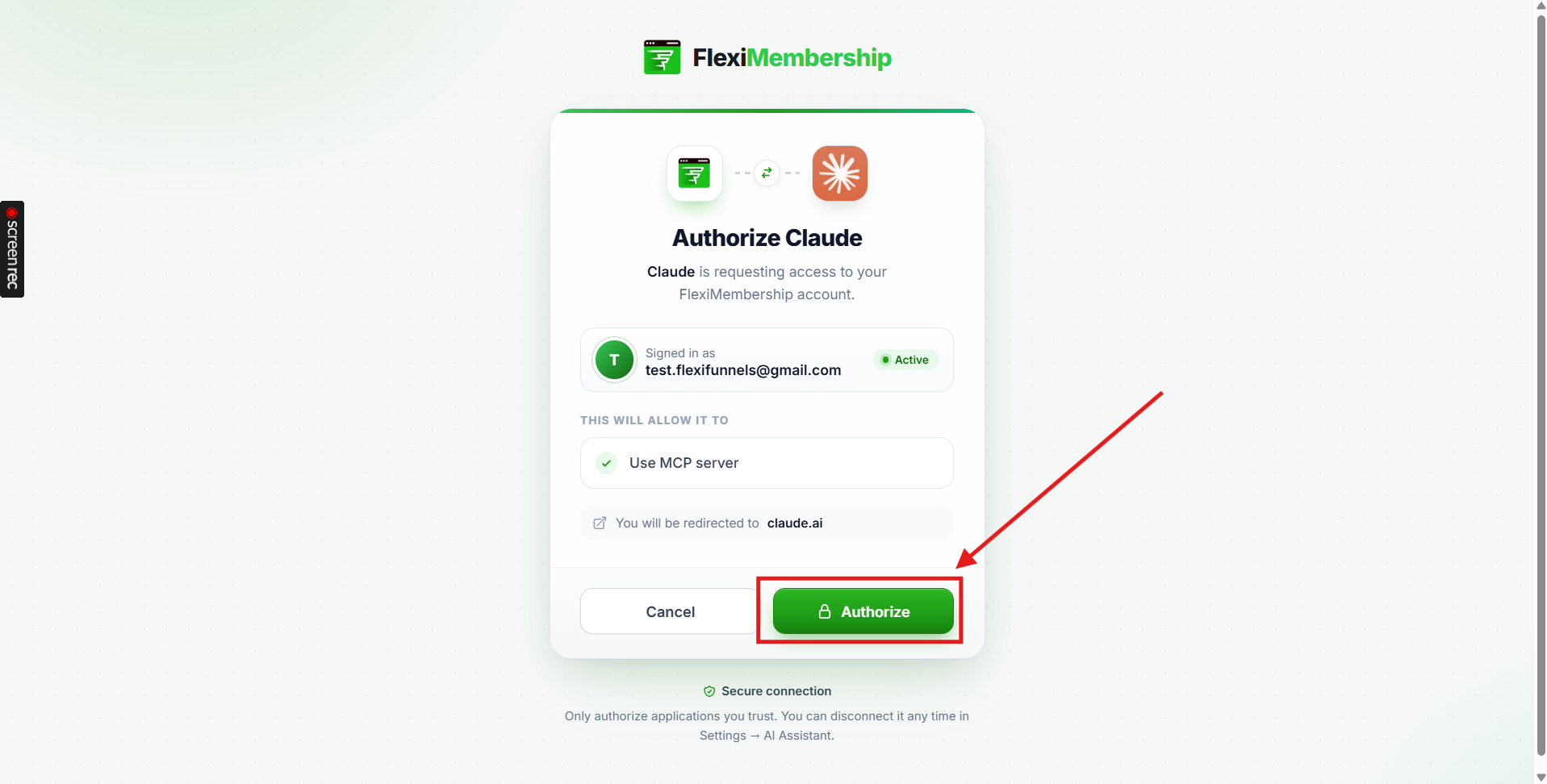
You will see: FlexiMembership in your Claude connectors list. On FlexiMembership, the Claude card says Connected.
Good to knowSetting Claude up again replaces your current session. Only the newest one stays active.
DisconnectTo disconnect, open Connect AI Assistant → Claude → Manage. Click Disconnect Claude.
Little words, big meanings
| Word | What it means |
|---|---|
| MCP server URL | The address Claude uses to reach your account |
| Connector | A link between Claude and another app |
| Authorize | Say yes to let Claude use your account |
Was this article helpful?
That’s Great!
Thank you for your feedback
Sorry! We couldn't be helpful
Thank you for your feedback
Feedback sent
We appreciate your effort and will try to fix the article