The Video element lets you embed a video anywhere on your page — a sales video, a welcome message, a product demo, a testimonial. This guide shows you how to add one, choose where the video comes from, set how it plays, and turn on the "floating" video that follows the visitor as they scroll.
Prefer to watch? Here's the video walkthrough:
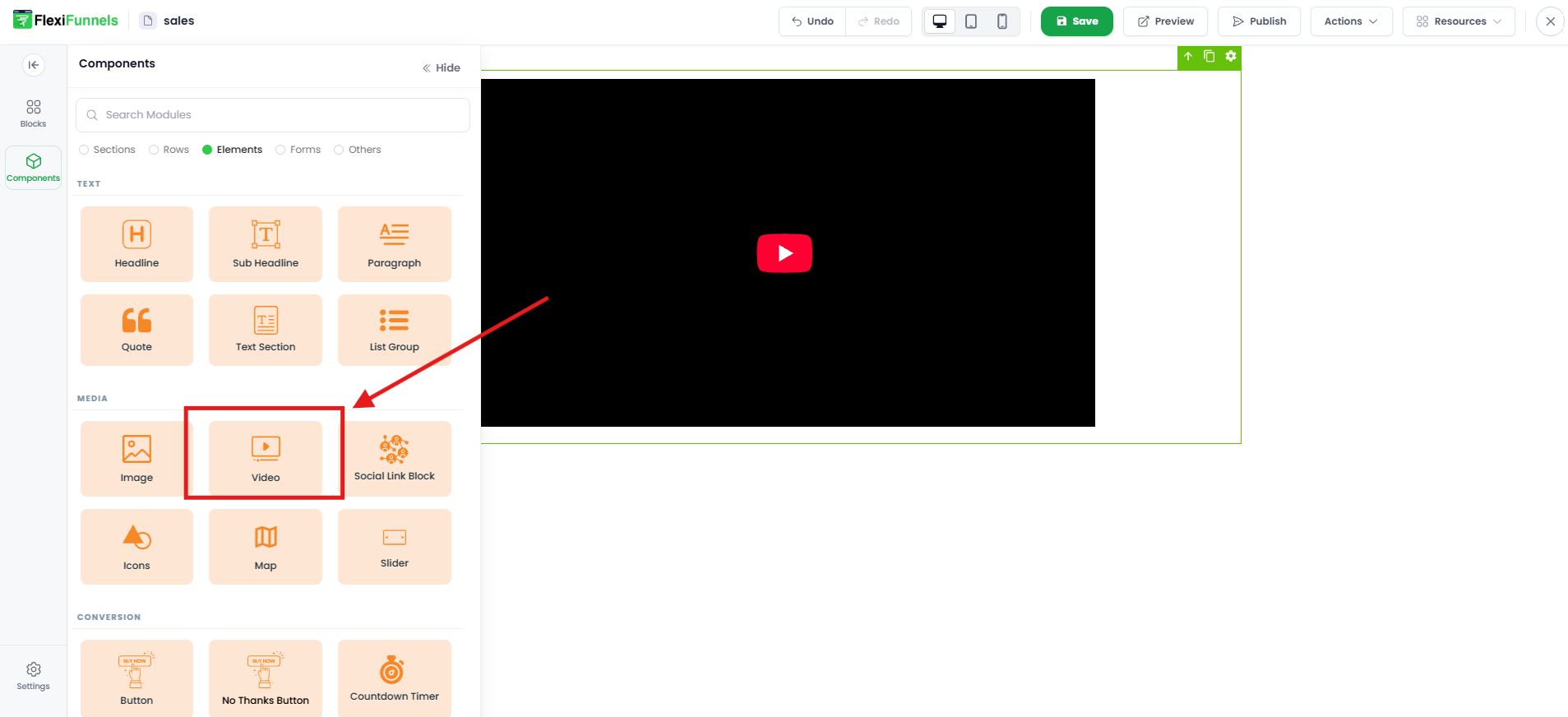
Note on adding the video first: Like any element, the Video element needs a row with a column to sit in. Drag it in from Components → Elements, then open its settings.
Check this quick video to create a landing page using MCP/Flexi Genie:
Adding a Video Element to Your Landing Page: A Step-by-Step Guide
This guide will walk you through adding a video element to your landing page and customizing its appearance and behavior.
Steps:
Step 1 — Drag and drop the Video element
In the editor, drag the Video element to the spot on your page where you want it.
Step 2 — Open its settings
Click the gear icon on the video element to open its settings panel.
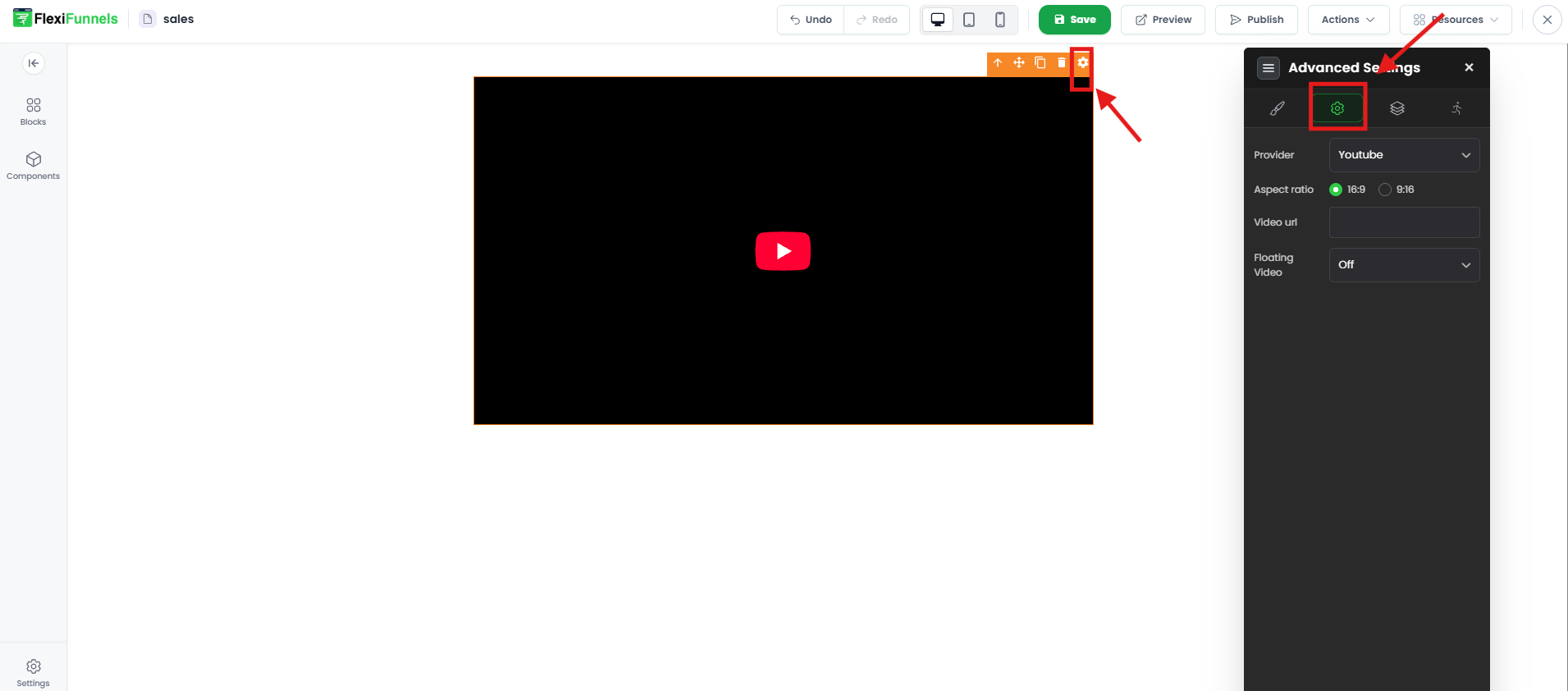
Step 3 — Advanced Settings (this is where the main choices live)
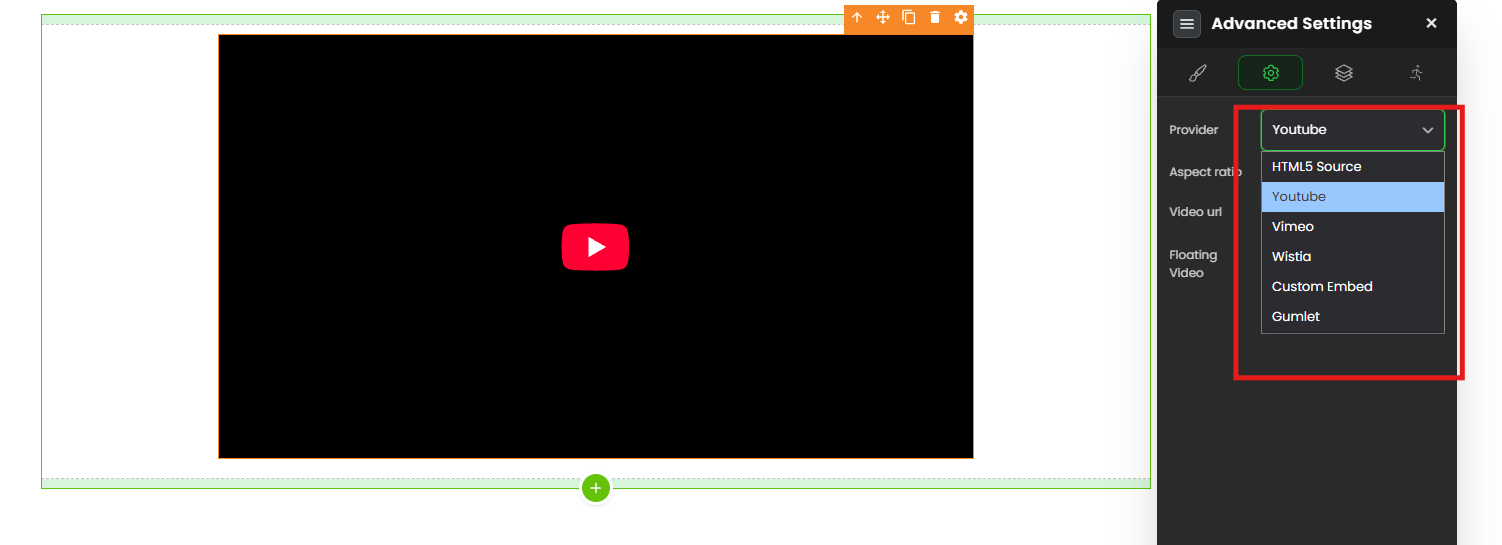
Provider — where your video comes from
This is the first and most important choice: how is your video being added? Pick the option that matches where your video already lives:
- YouTube / Vimeo / Wistia — your video is already uploaded to one of these. You just paste its URL. Easiest option, but note YouTube may show its own branding and suggested videos.
- Custom Embed — paste the embed code from any other video host that isn't in the list above.
- HTML5 Source — upload your own video file (MP4 or WEBM) directly. Choose this when you want full control over autoplay, looping, and a poster image.
- Flexi Video — FlexiFunnels' own video hosting. You pick from your uploaded video list. This gives a clean, distraction-free player with no outside branding — ideal for sales and VSL pages. (It's powered by Gumlet — see How to Integrate Gumlet with FlexiFunnels.)
Aspect Ratio (YouTube and Vimeo only)
Pick the shape of the video frame so it displays without black bars or cropping:
- 16:9 — standard widescreen (landscape). Use this for most videos.
- 9:16 — vertical (portrait), like a phone reel or short.
Video Source
What you enter here depends on the provider you chose: a URL (YouTube, Vimeo, Wistia), an embed code (Custom Embed), a video from your list (Flexi Video), or an uploaded MP4/WEBM file (HTML5 Source).
Poster Image (HTML5 Source only)
Upload an image to show before the video plays — a clean thumbnail instead of a black box. A good poster frame makes people more likely to hit play.
Playback Options
- Autoplay — the video starts on its own when someone lands on the page. ⚠️ Important: web browsers block videos from auto-playing with sound. For autoplay to actually work, the video almost always has to start muted — so turn on mute as well if you want autoplay reliable.
- Loop — the video automatically replays from the start when it ends.
- Controls — show or hide the player controls (play/pause, volume, etc.). Hiding them is common for autoplay background videos; keep them on for anything the viewer should control.
Floating Video
A toggle that makes the video keep playing in a small floating window as the visitor scrolls down the page (covered in detail below).
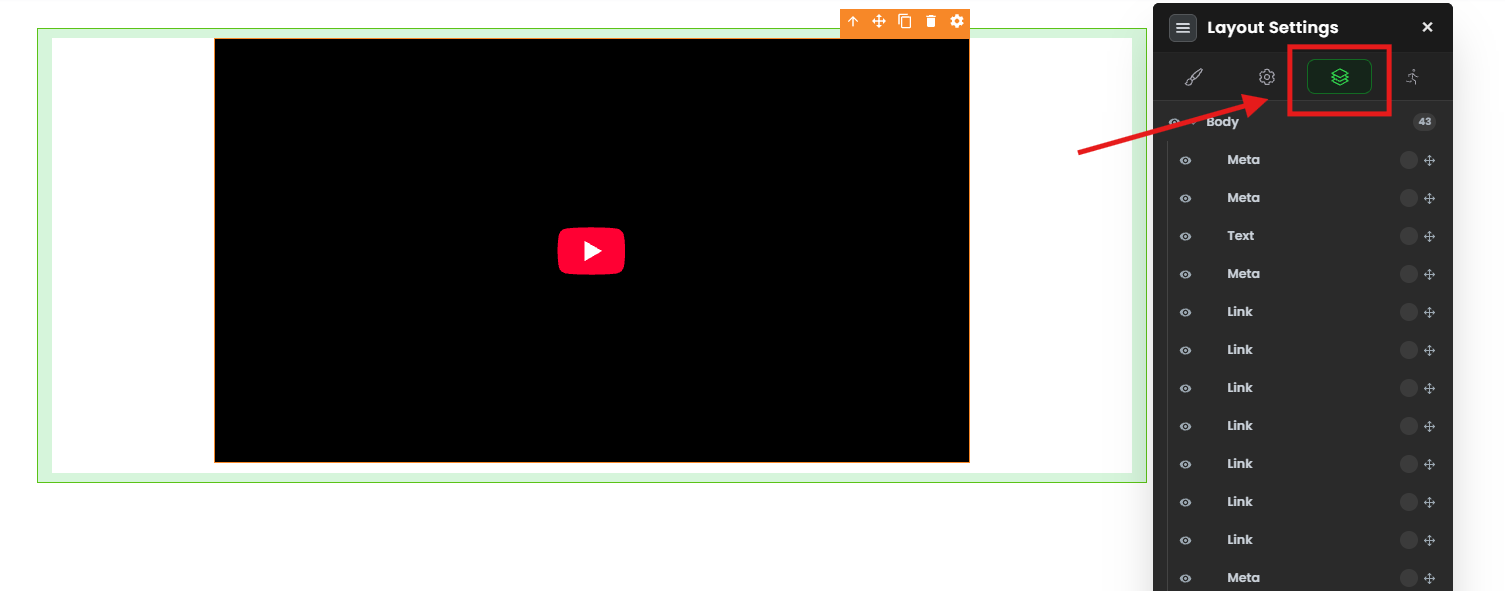
Step 4 — Layer Settings (stacking order)
Controls whether the video sits in front of or behind other elements — useful for overlay effects. This is the video's Z-index; if it's overlapping or hidden behind something unexpectedly, adjust it here (see How to Use the Z-Index in FlexiFunnels).
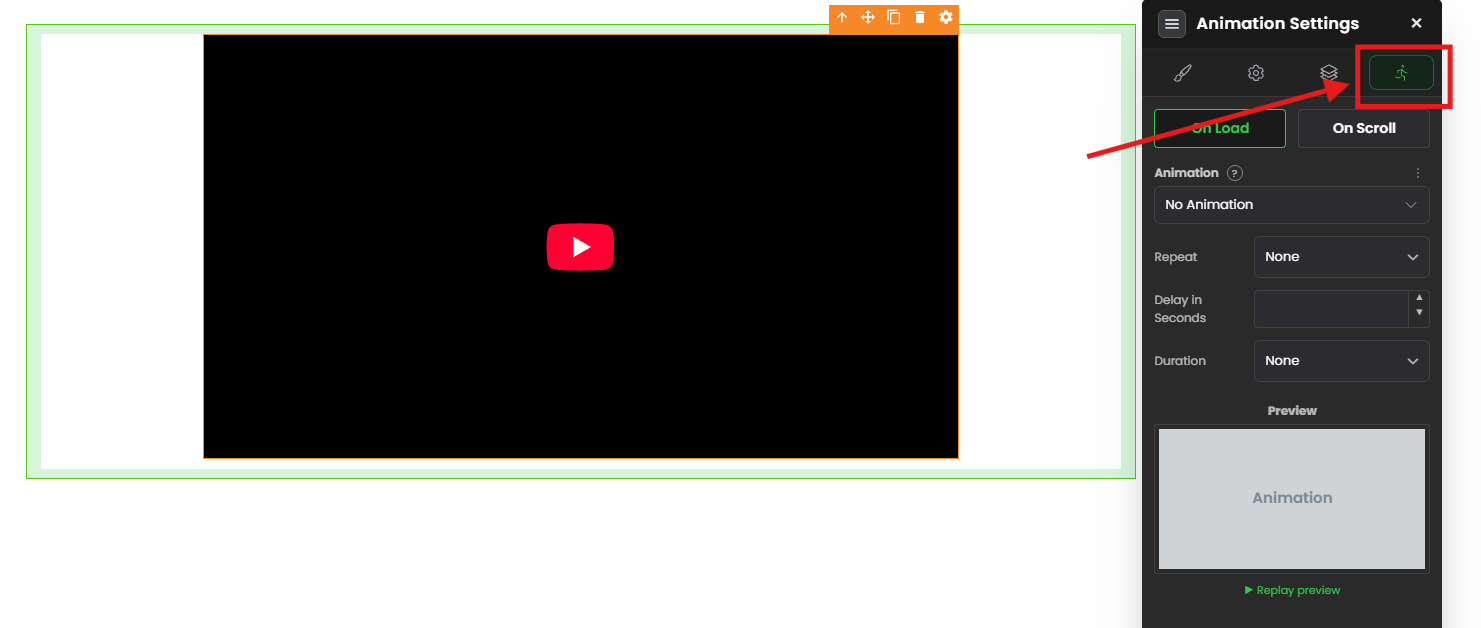
Step 5 — Animation Settings
Add an entrance effect — fade in, slide in, etc. — that plays as the video scrolls into view, for a bit of polish.
Floating Video options
Floating Video keeps your video stuck in a set position on screen as the visitor scrolls — so your sales message keeps playing even after they scroll past it.
Prefer to watch?
Once Floating Video is on, you can set:
- Width — the size of the floating player: extra small, small, medium, or large.
- Floating Position — which corner it sits in: top-right, top-left, bottom-right, or bottom-left.
- Floating Style — the border around the floating player: black border, white border, black transparent border, or white transparent border.
- Close Button—
- ON: the visitor can close the floating video with an "X".
- OFF: there's no close button, so the floating video stays put. (Use this thoughtfully — some visitors find a video they can't close annoying.)
Common situations & quick fixes
"The Video element won't drop onto the page." It needs a row with a column to sit in. If your section is empty, add a row first (Plus icon → Components → Rows), then drop the video into a column.
"My autoplay video won't auto-play." This is almost always the browser blocking sound-on autoplay. Turn on mute along with autoplay — a muted video is allowed to play automatically, a video with sound usually isn't. (Some phones also restrict autoplay regardless.)
"My video shows a blank box / won't load." Double-check the Video Source: paste the correct share/watch URL for the provider, or the full embed code for Custom Embed. Also check the video's privacy settings on the host — a private or restricted video (e.g. a Vimeo video not allowed to embed on your domain) won't display.
"There's no Poster Image option." The poster image is only available with the HTML5 Source provider. If you're on YouTube/Vimeo/Wistia, the thumbnail comes from that platform instead.
"There's no Aspect Ratio option." Aspect Ratio appears only for YouTube and Vimeo. Other providers display the video at its native shape.
"My video looks cropped or has black bars." The aspect ratio doesn't match the video. For a normal landscape video choose 16:9; for a vertical/portrait video choose 9:16.
"My uploaded video is slow or laggy." Self-hosted MP4 files can be heavy. Compress the file before uploading, or host it with Flexi Video (Gumlet), which is built to stream smoothly.
"I can't close the floating video." The Close Button is set to OFF. Turn it ON so visitors can dismiss it.
"My video overlaps or hides behind another element." Adjust the Layer / Z-index setting so the video sits at the right level (higher Z-index sits on top).
"My changes aren't showing on the live page." Edits need to be saved and published before visitors see them. After editing, save and re-publish if the page is already live.
Still stuck?
If a video won't play, display, or float the way you expect after trying the steps above, submit a ticket and tell us which page you're editing, which provider you're using, and what's happening — a screenshot of your video settings helps us pinpoint it fast.
Was this article helpful?
That’s Great!
Thank you for your feedback
Sorry! We couldn't be helpful
Thank you for your feedback
Feedback sent
We appreciate your effort and will try to fix the article