Overview
The Gumlet integration connects your Gumlet account to FlexiFunnels. After connecting the integration with your Gumlet API key, you can select Gumlet-hosted videos directly in FlexiFunnels pages and membership courses, or add videos by using their embed code.
Before You Begin
- An active FlexiFunnels account with access to Settings, pages, and courses.
- An active Gumlet account containing the videos you want to use.
- Your Gumlet API key.
- At least one Gumlet collection, playlist, and video when using the direct integration.
Video Tutorial
Step 1: Open the Gumlet Integration in FlexiFunnels
Open the integration settings first so you can connect the Gumlet account that stores your video content.
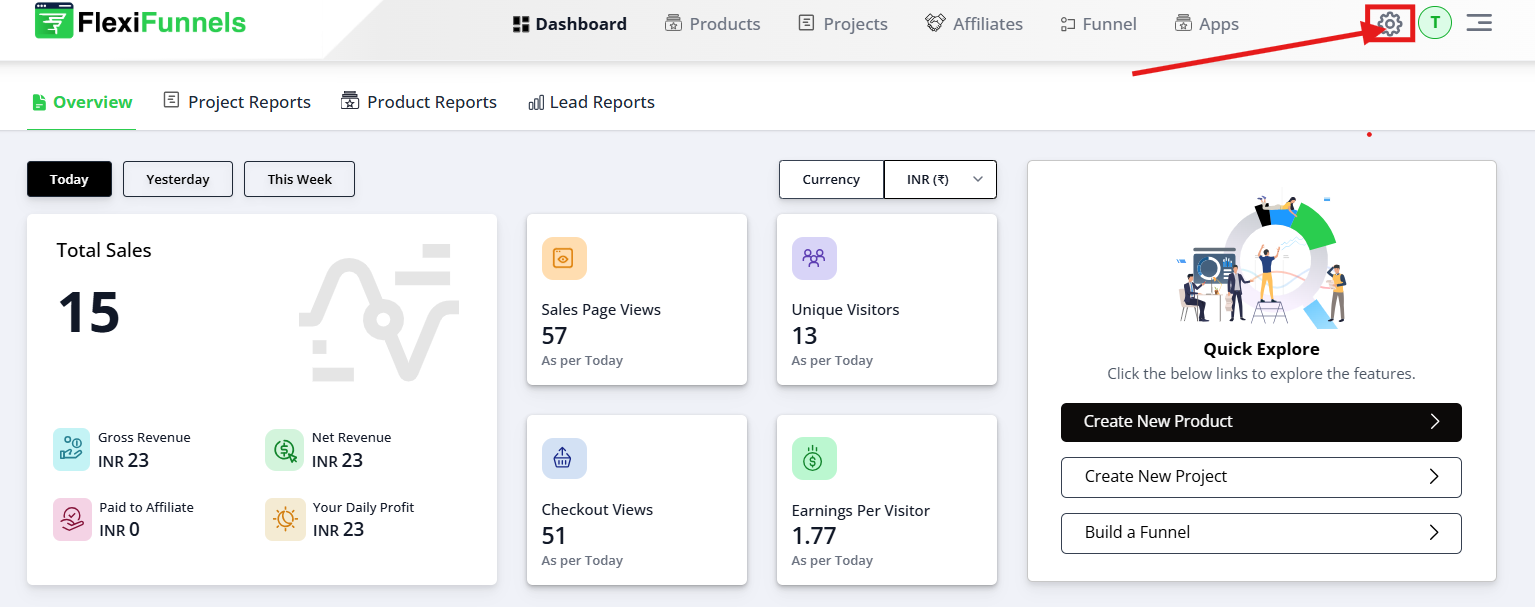
- Sign in to your FlexiFunnels account.
- Select the Settings gear icon near your profile area.
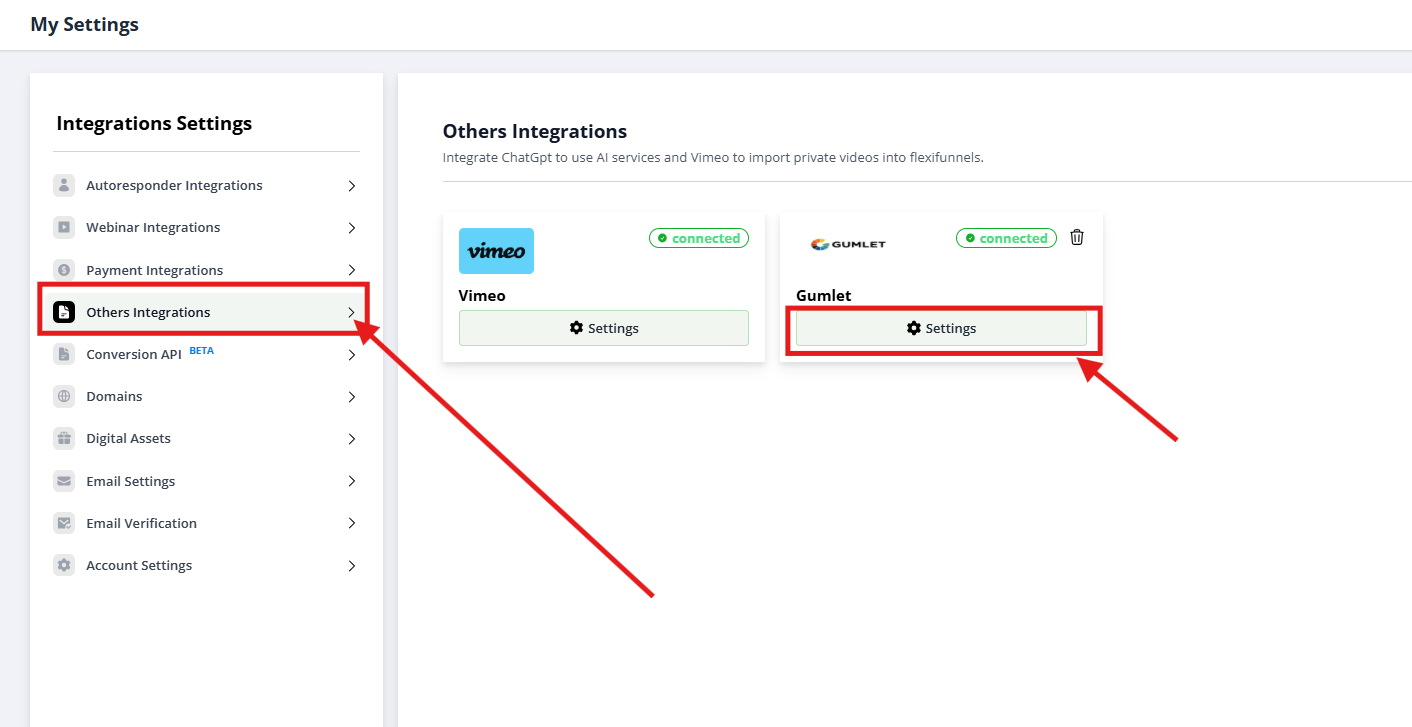
- Open Other Integrations.
- Select Gumlet Integration.
Step 2: Copy Your Gumlet API Key
The API key authorizes FlexiFunnels to access the collections, playlists, and videos available in your Gumlet account.
- Open Gumlet in a new browser tab and sign in.
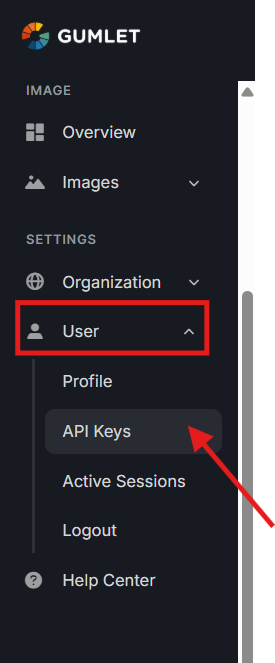
- From the left navigation menu, select User.
- Open the API section.
- Copy your API key.

Important: Treat your Gumlet API key as a credential. Do not share it in public messages, screenshots, or unprotected documents.
Step 3: Connect Gumlet to FlexiFunnels
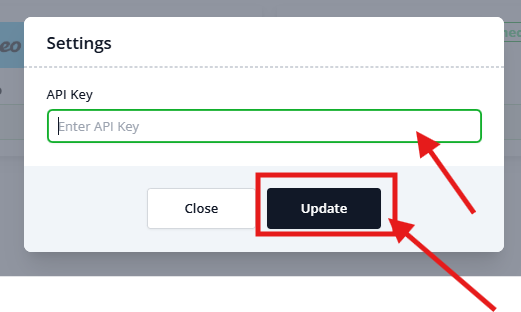
Return to FlexiFunnels, paste the API key into the Gumlet Integration field, and select Update. After the connection is saved, FlexiFunnels can retrieve videos from the connected Gumlet account.
Step 4: Add a Gumlet Video to a Page Using the Video Element
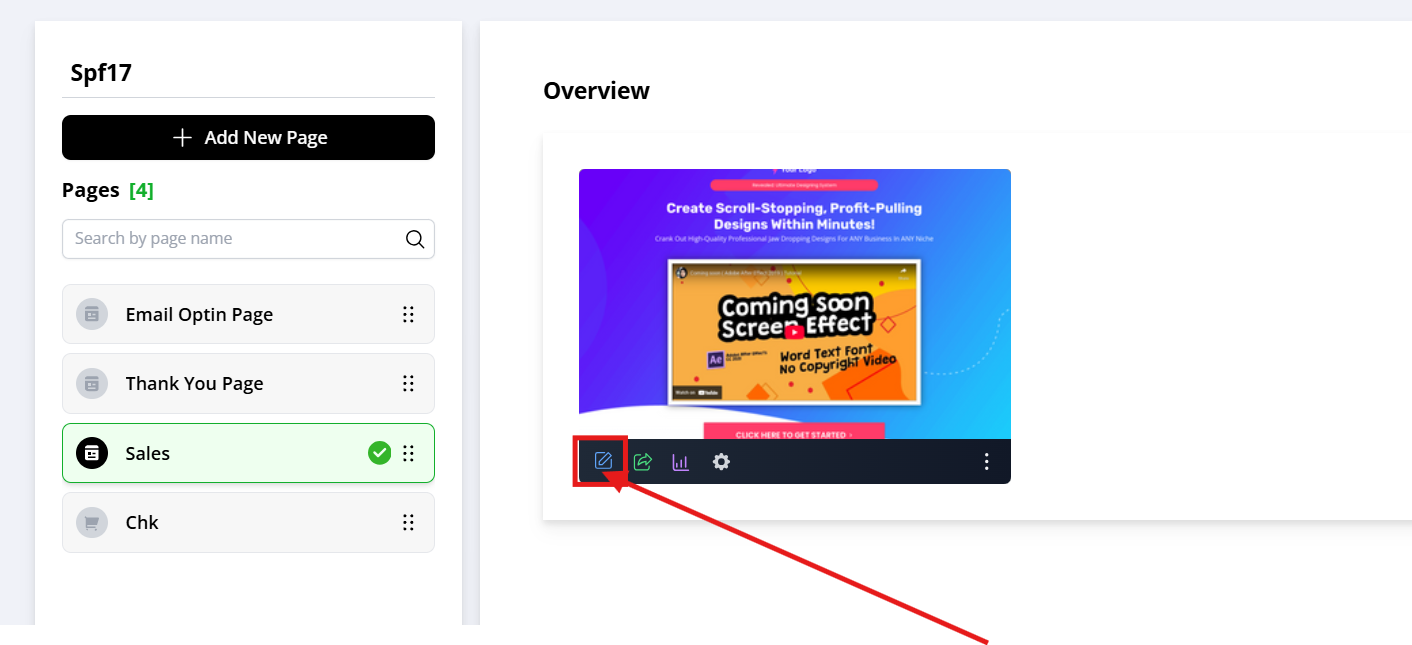
- Open the Page Editor. Open the FlexiFunnels page where the video should appear.
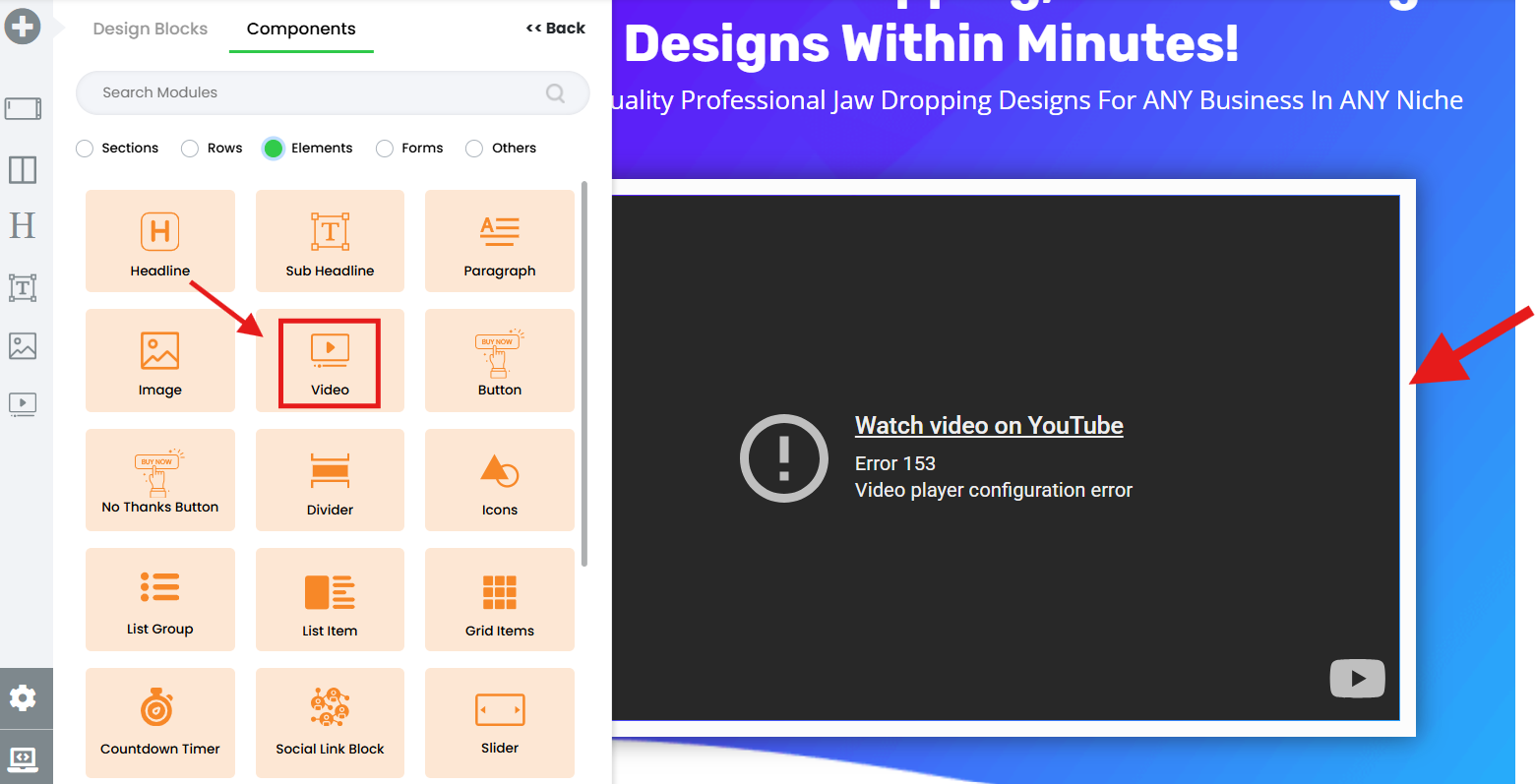
- Add the Video element. Drag the Video element to the required position on the page.
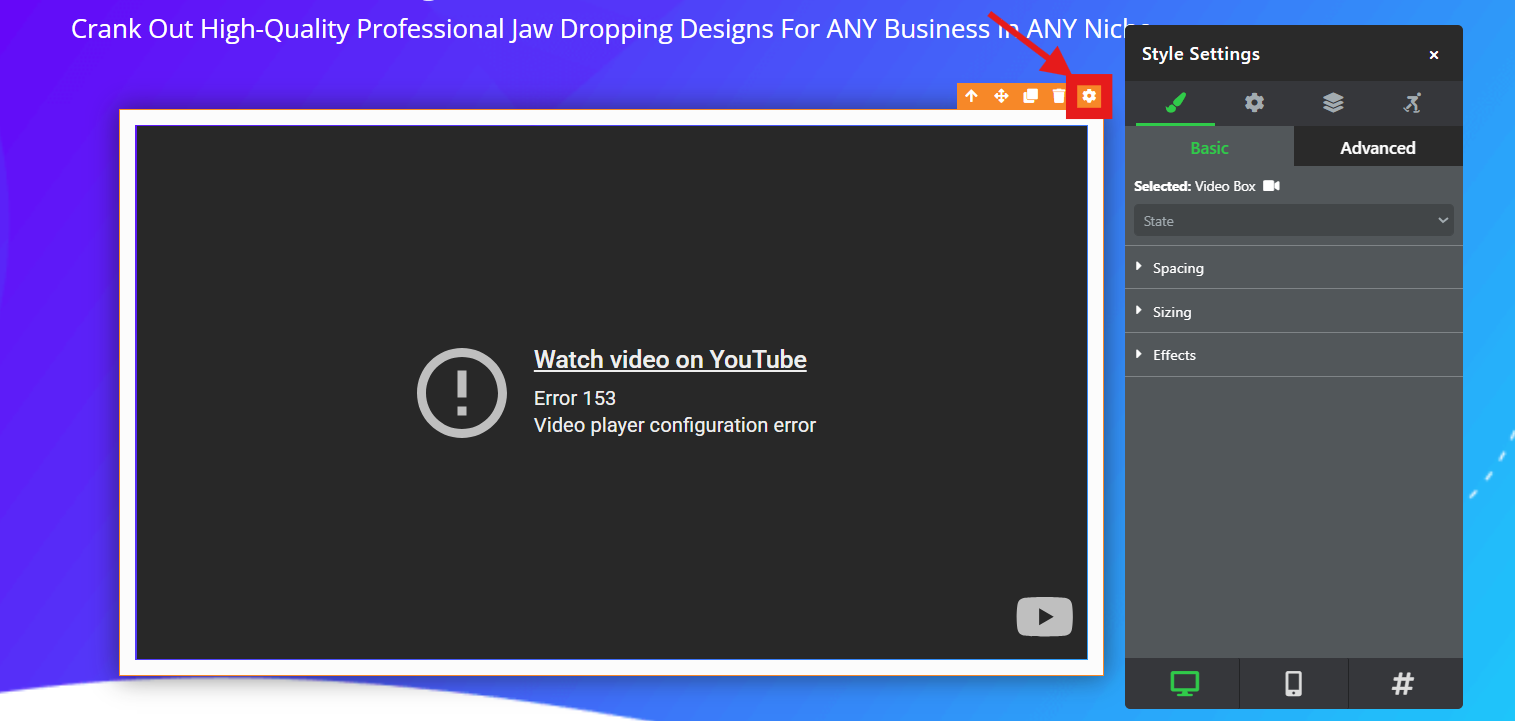
- Open Video Settings. Select the Video element to display its configuration panel.
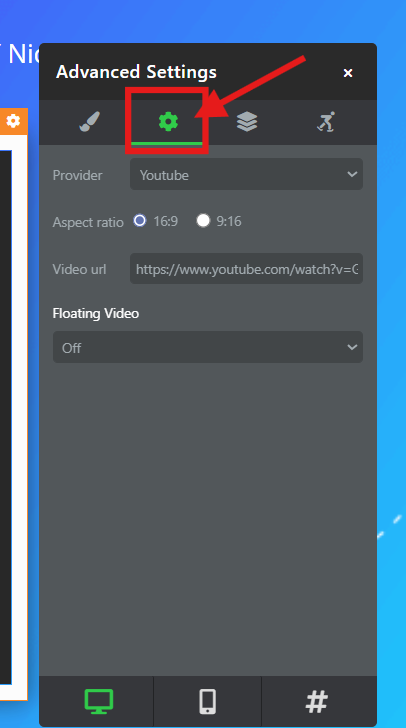
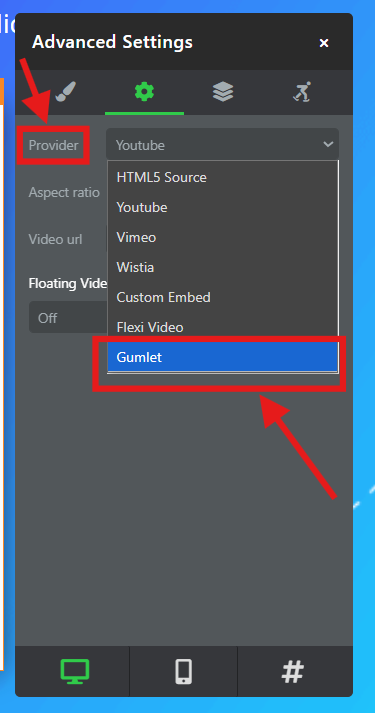
- Open Advanced Settings. Use this section to choose the video provider.
- Select Gumlet. Choose Gumlet as the video provider.
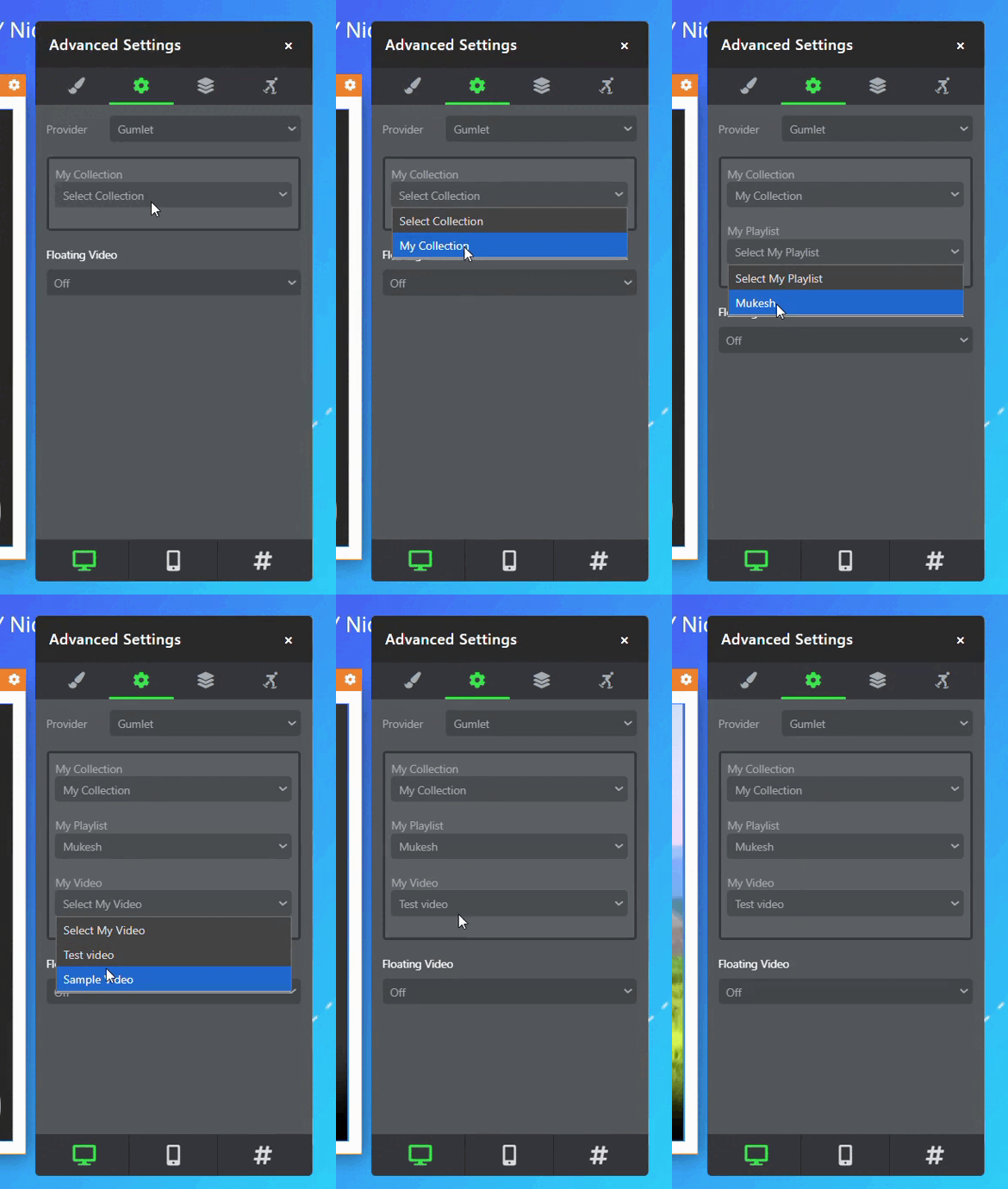
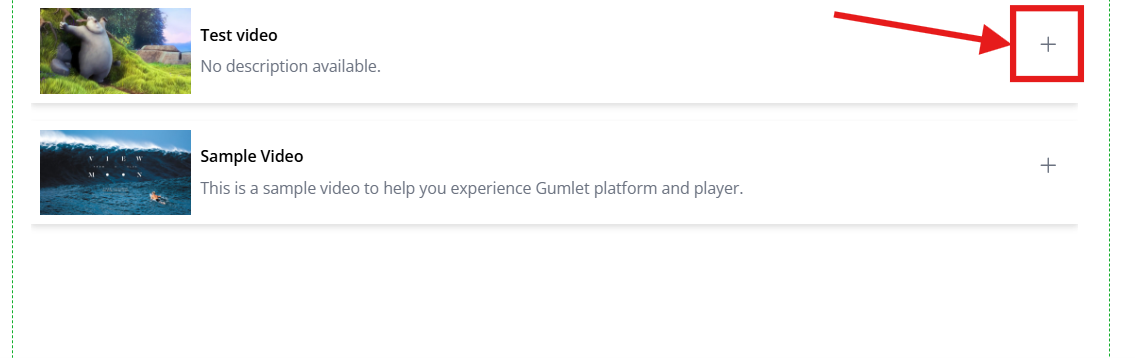
- Select the video. Select the required Collection, then Playlist, then Video.
- Save and publish. Save the page changes and publish the page.
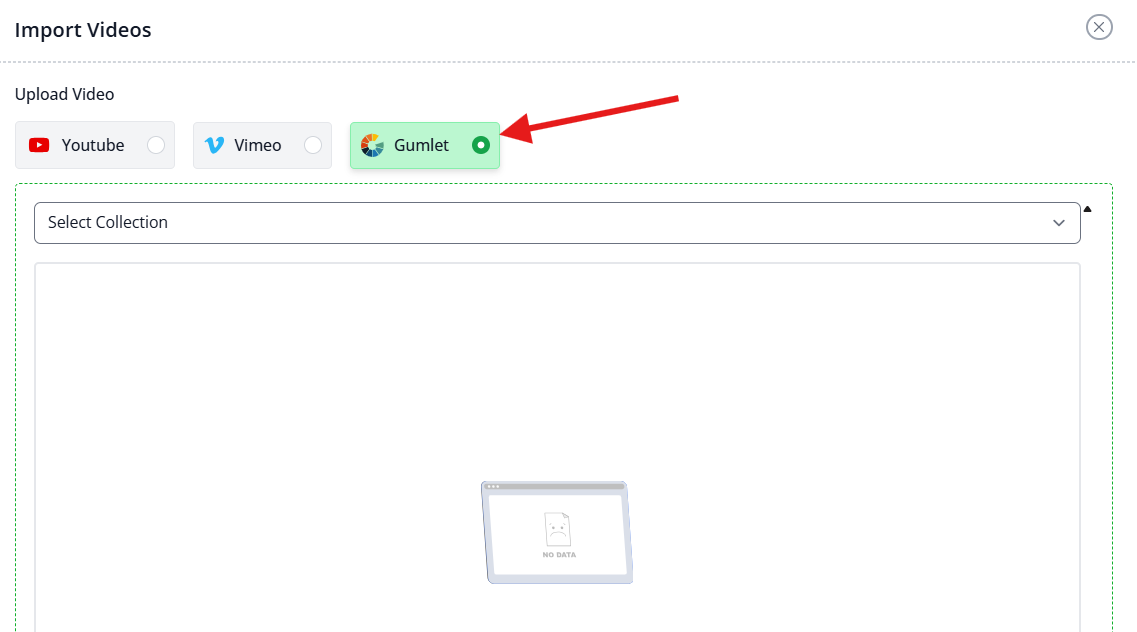
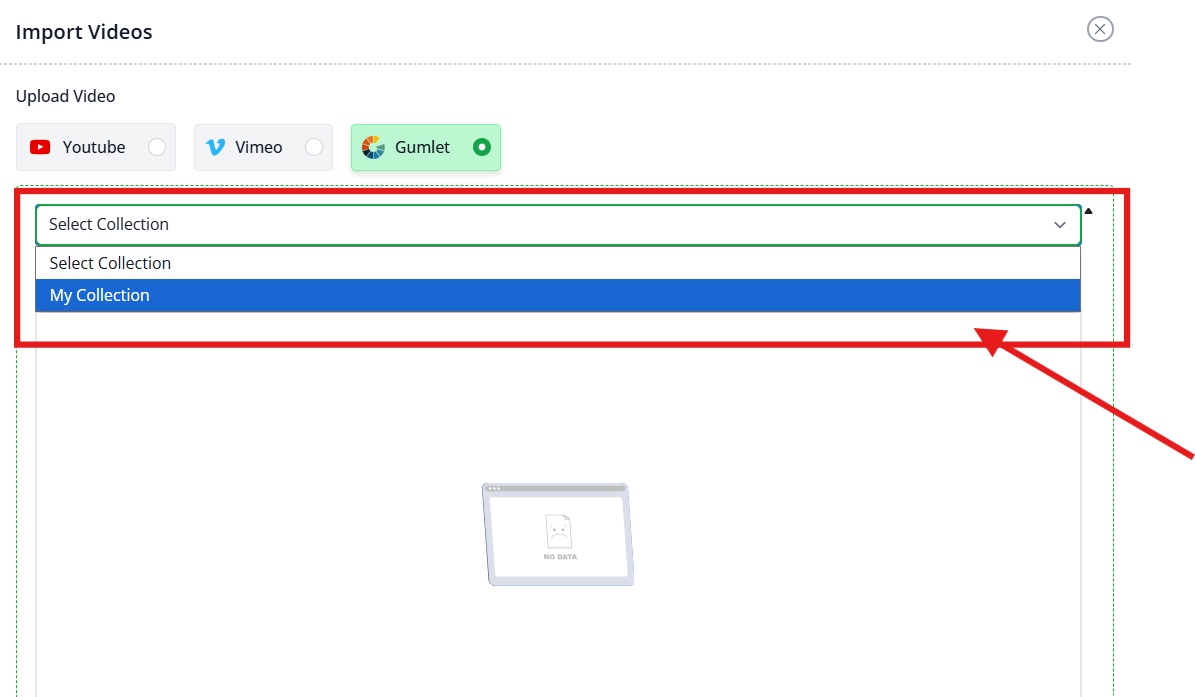
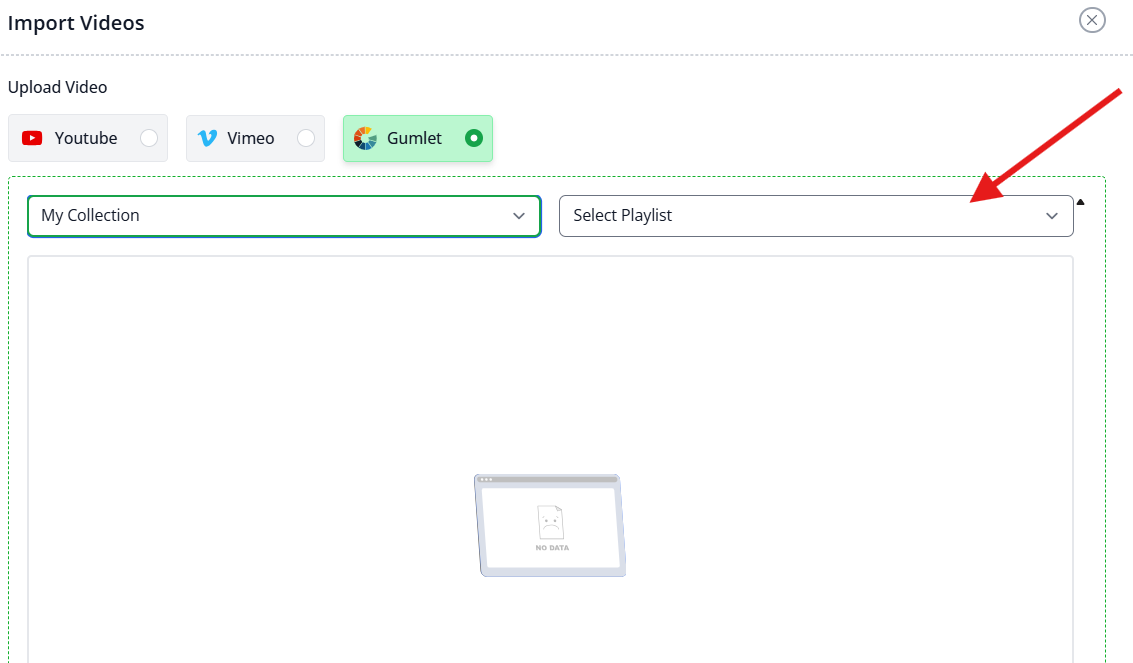
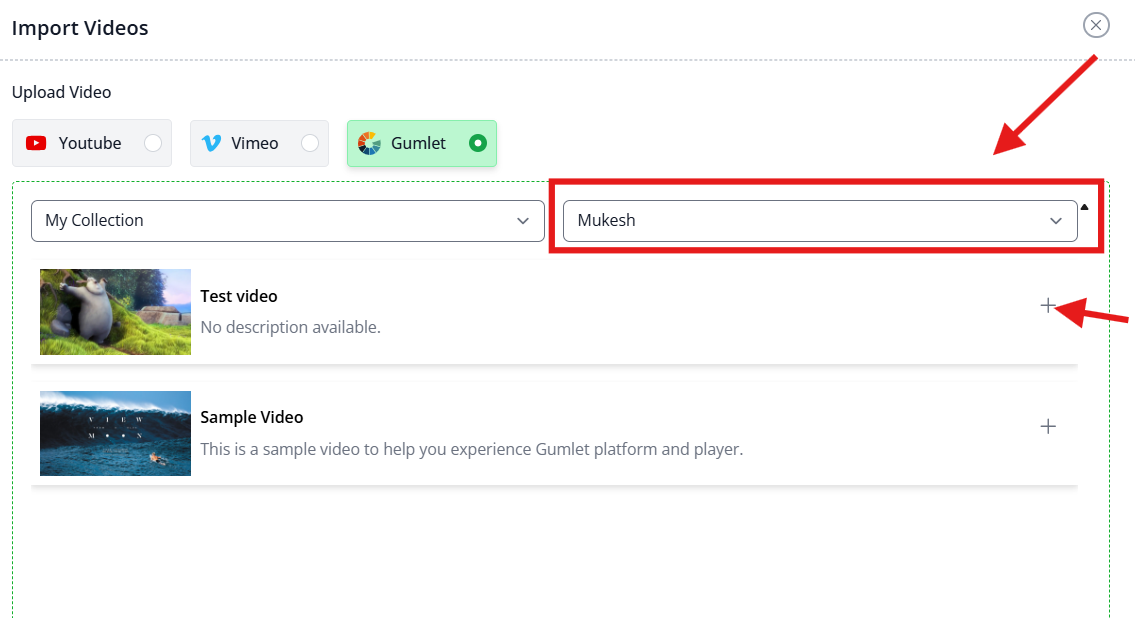
Step 5: Add a Gumlet Video to a Membership Course Using Import Videos
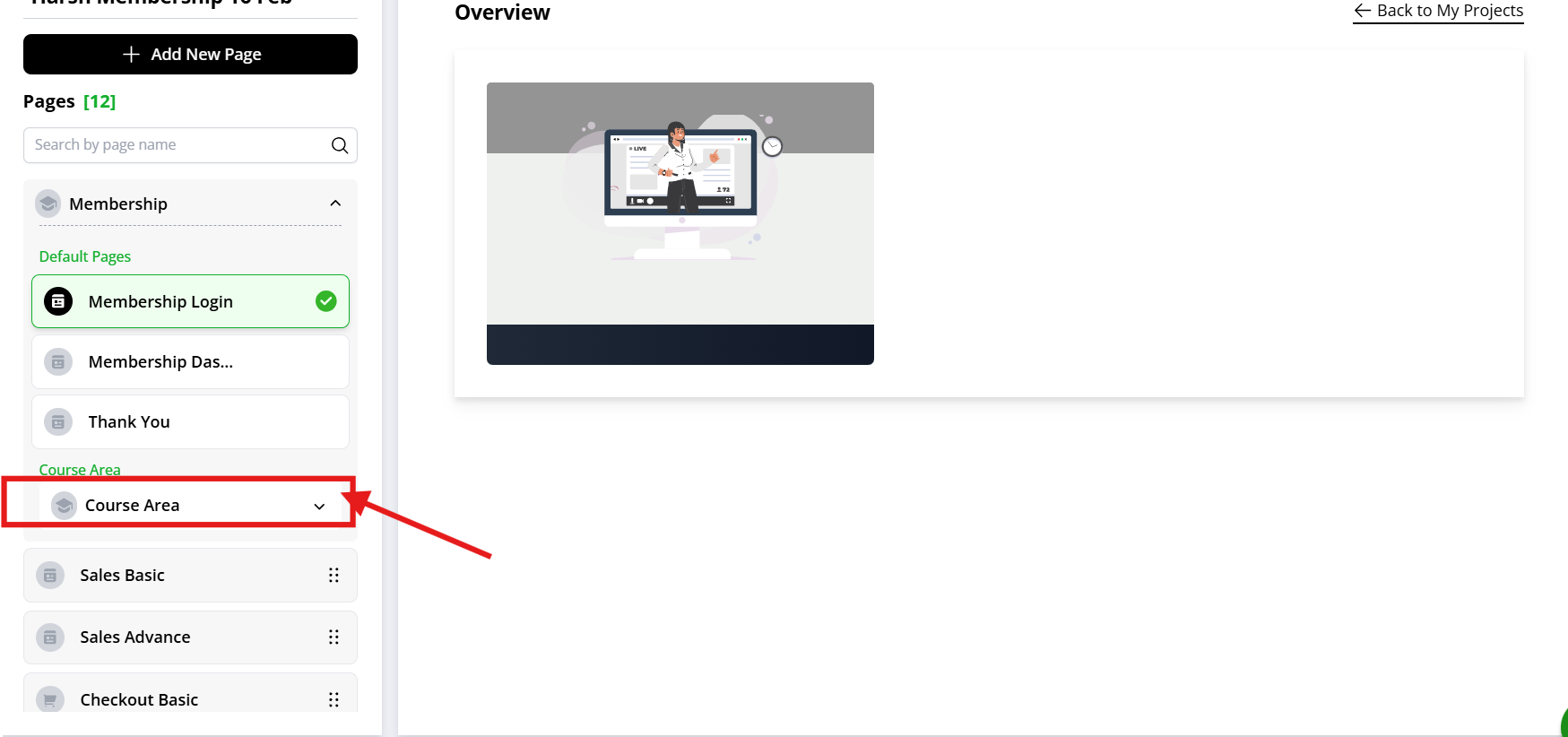
- Open the course dashboard. Navigate to the membership course that requires the video.
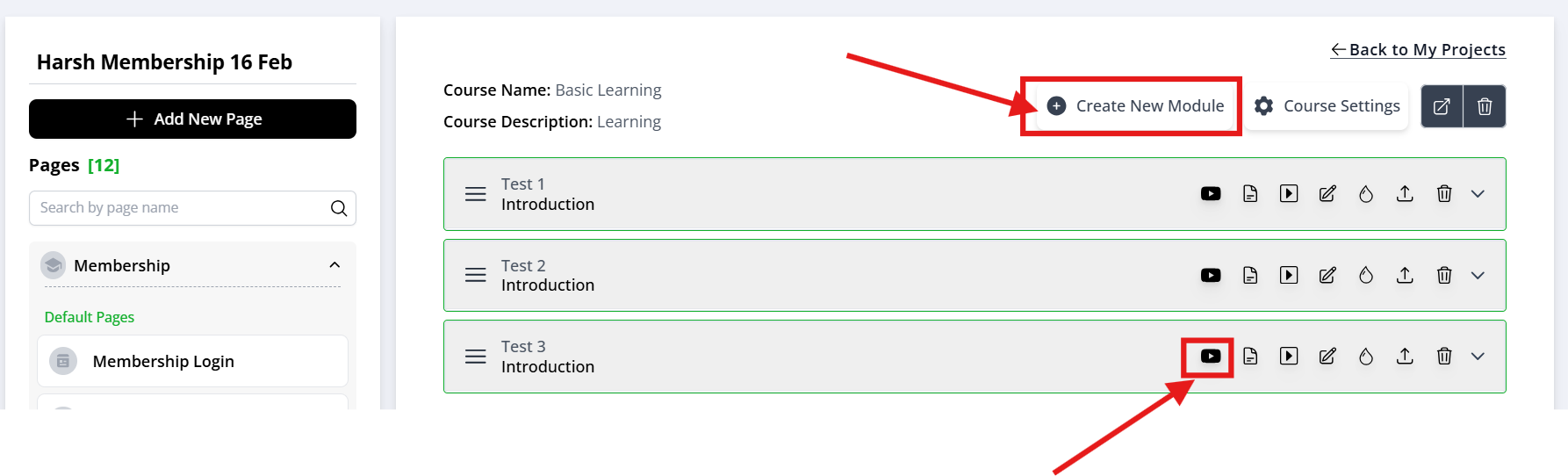
- Add a module. Select Add Module, then choose Import Videos.
- Select Gumlet. In the import window, choose Gumlet as the provider.
- Select a collection. Choose the Gumlet collection that contains the video.
- Select a playlist. Choose the applicable playlist.
- Select the video. Choose the video to import into the course.
- Save the changes. Confirm the selection to add the video to the course.
Step 6: Add a Gumlet Video to a Page Using Embed Code
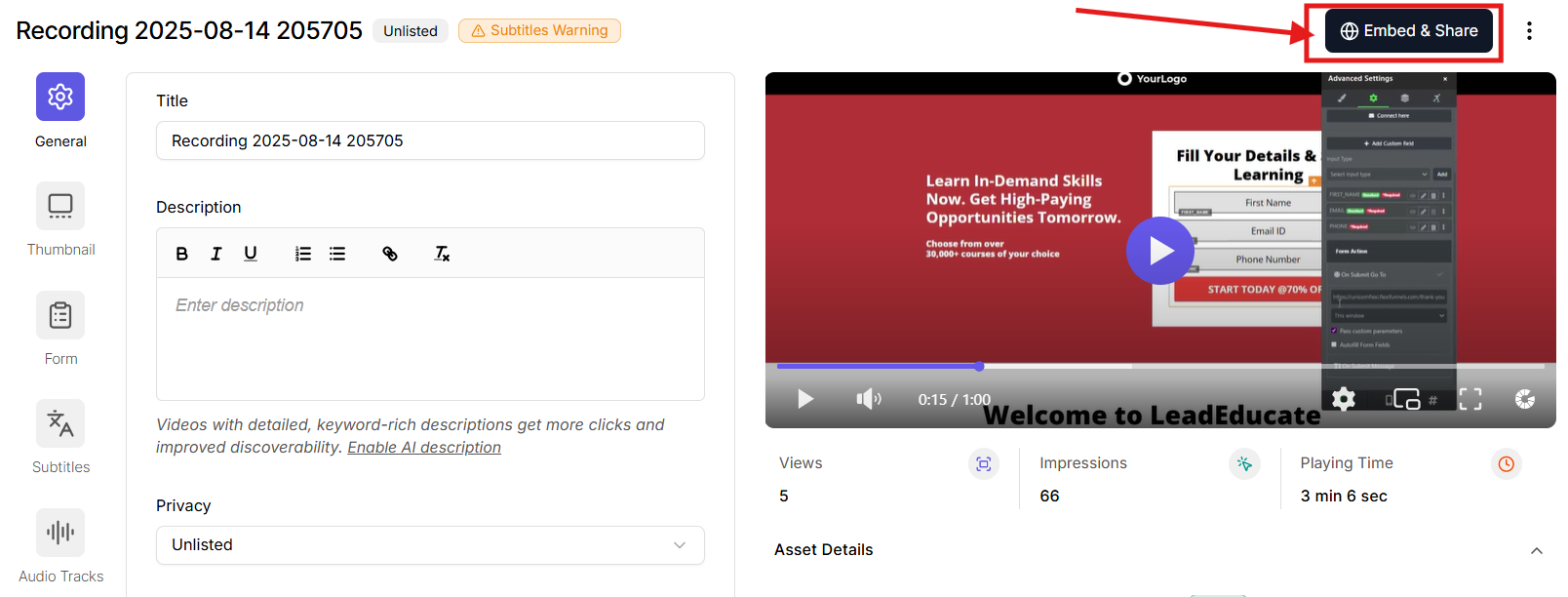
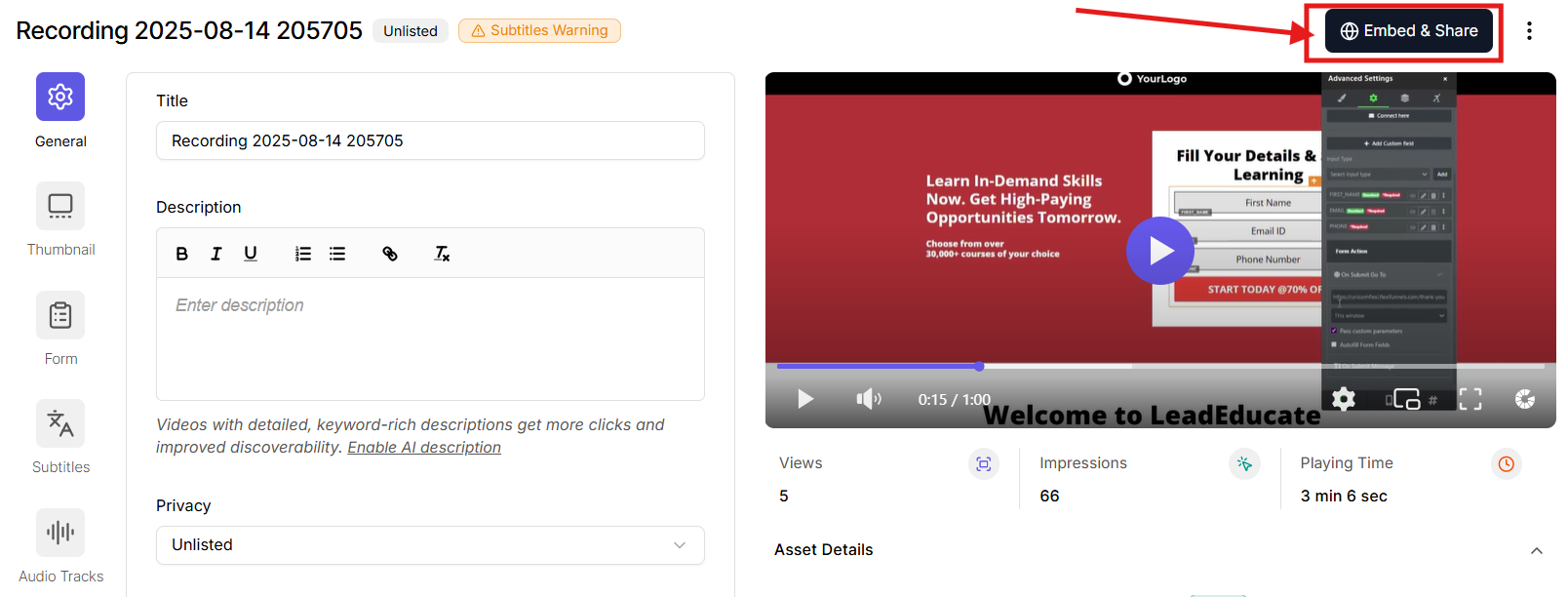
- Copy the embed code from Gumlet. Open the required video in Gumlet and copy its embed code.
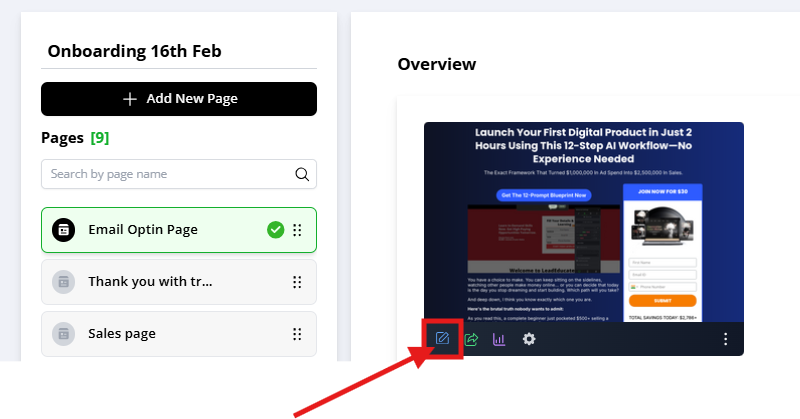
- Open the Page Editor. Open the FlexiFunnels page where the video should be displayed.
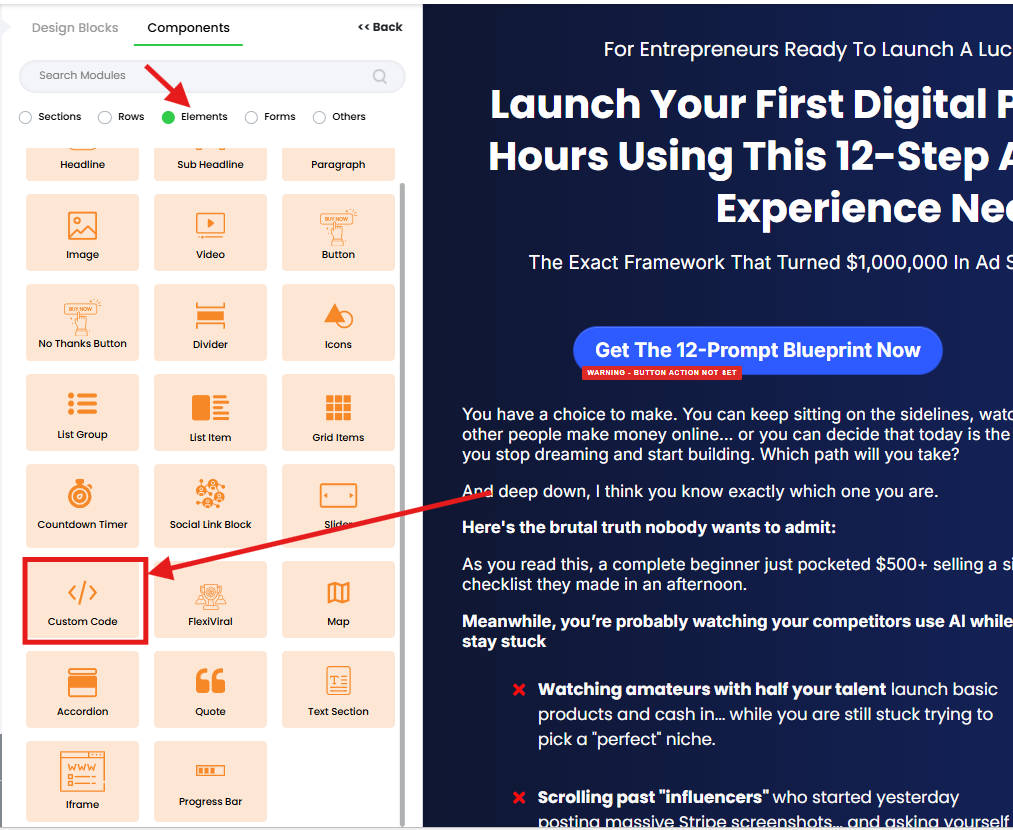
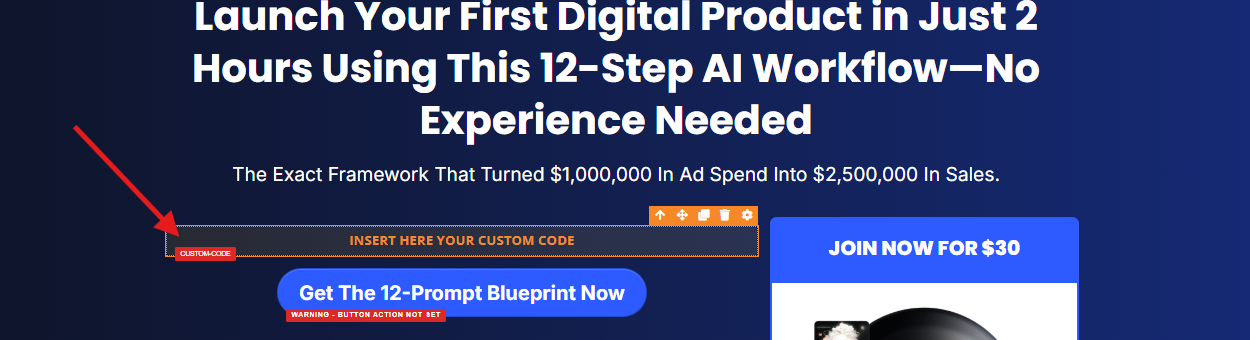
- Add a Custom Code element. Drag the Custom Code element to the required page location.
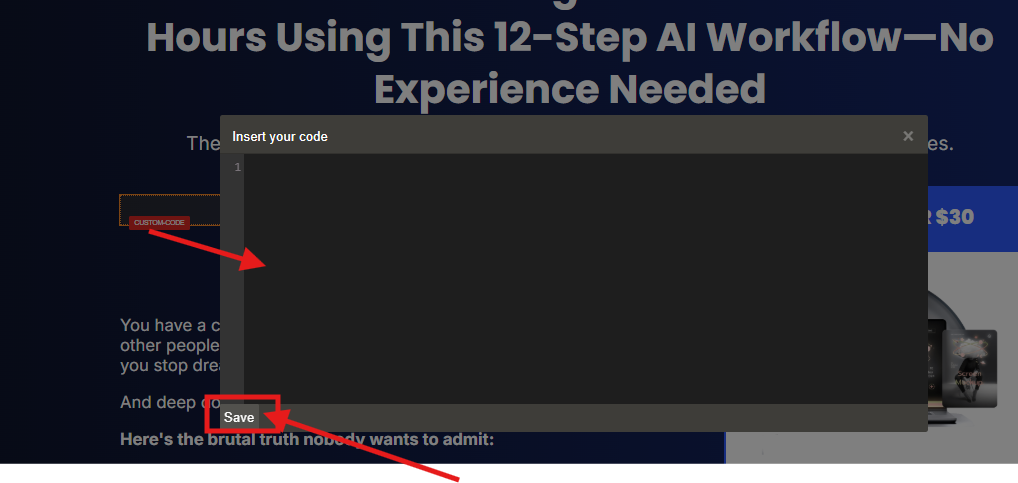
- Paste the embed code. Paste the copied Gumlet code into the Custom Code element.
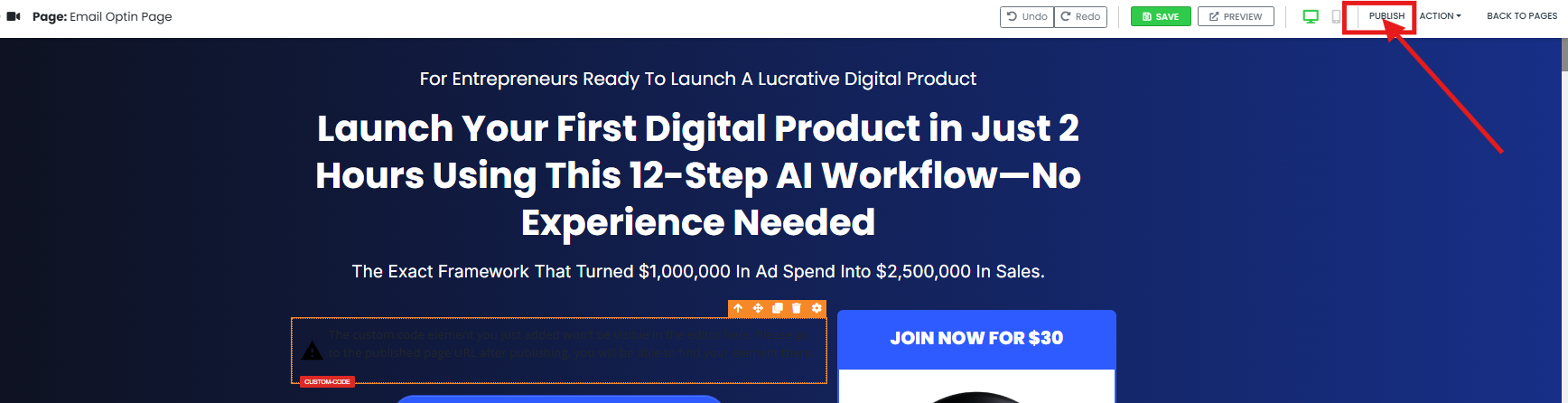
- Save and publish. Publish the page after saving your changes.
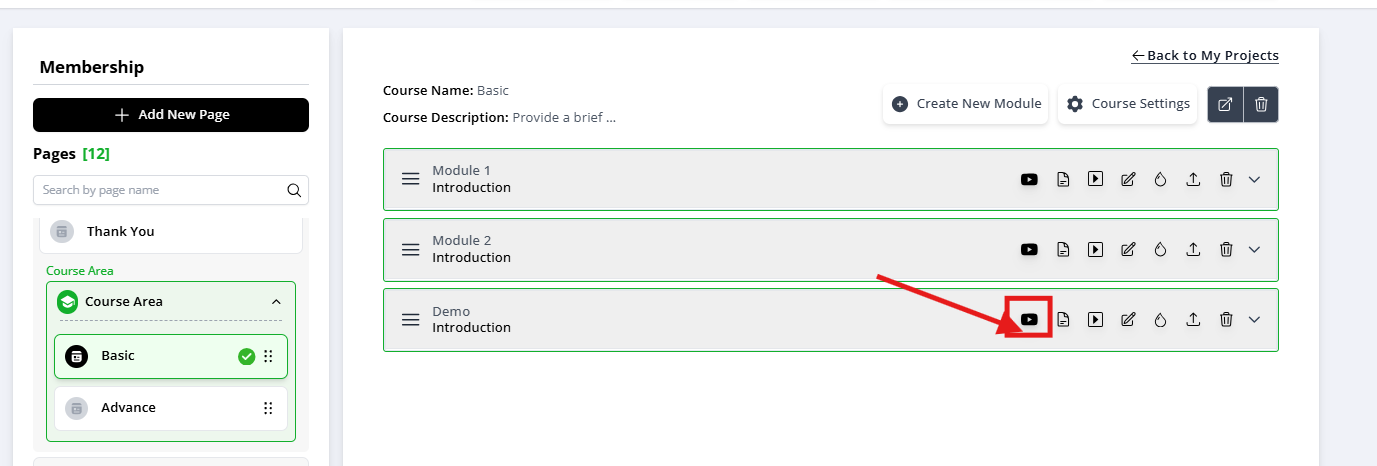
Step 7: Add a Gumlet Video to a Course Using Embed Code
- Copy the embed code from Gumlet. Copy the embed code for the required Gumlet video.
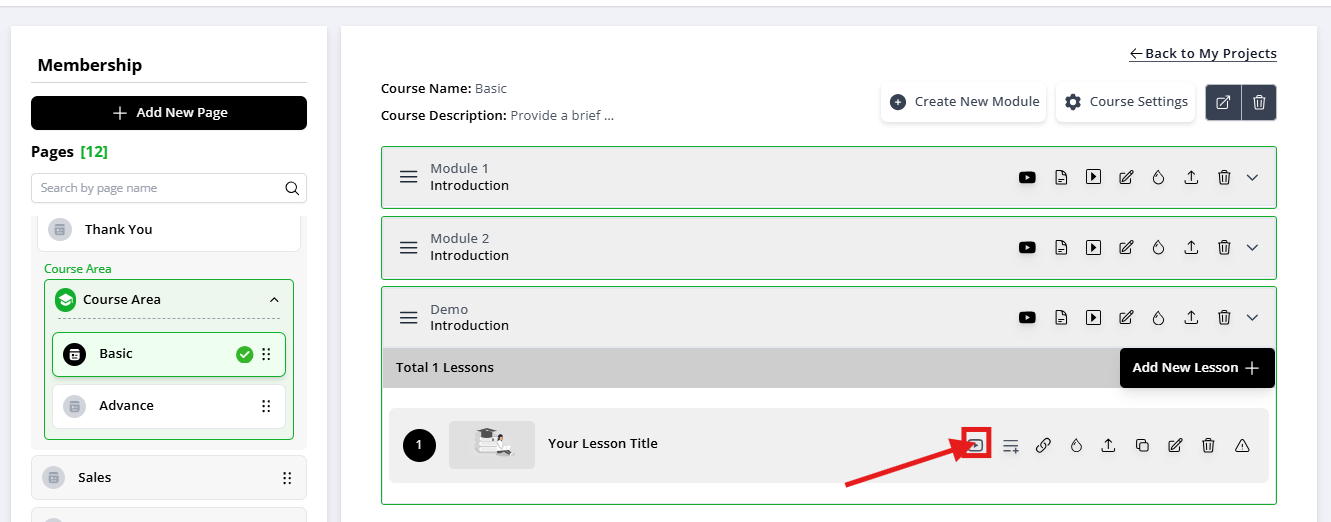
- Open the course dashboard. Navigate to the course where the video lesson belongs.
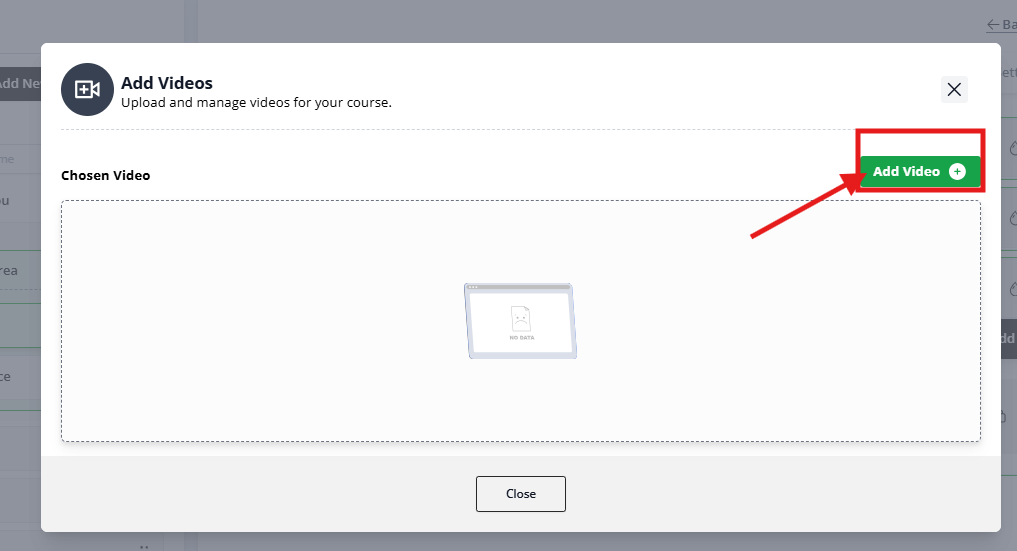
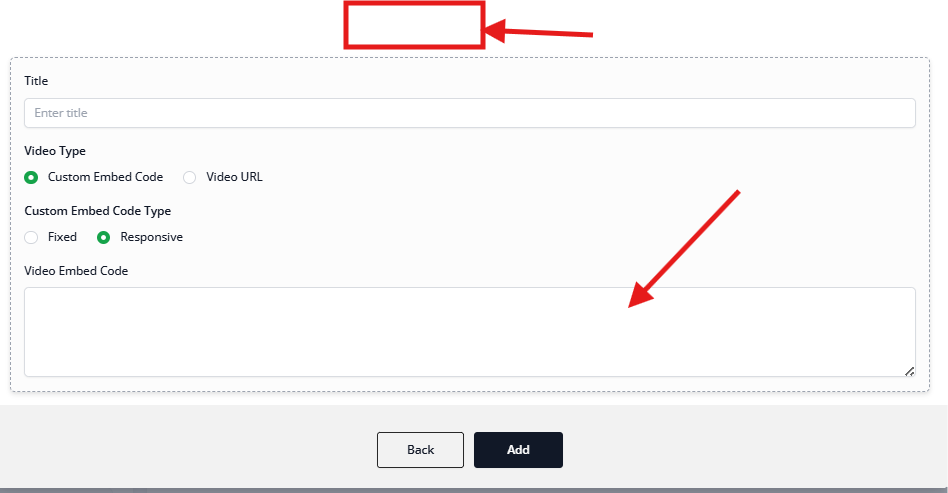
- Add a video lesson. Select Add Lesson, then choose Video Lesson.
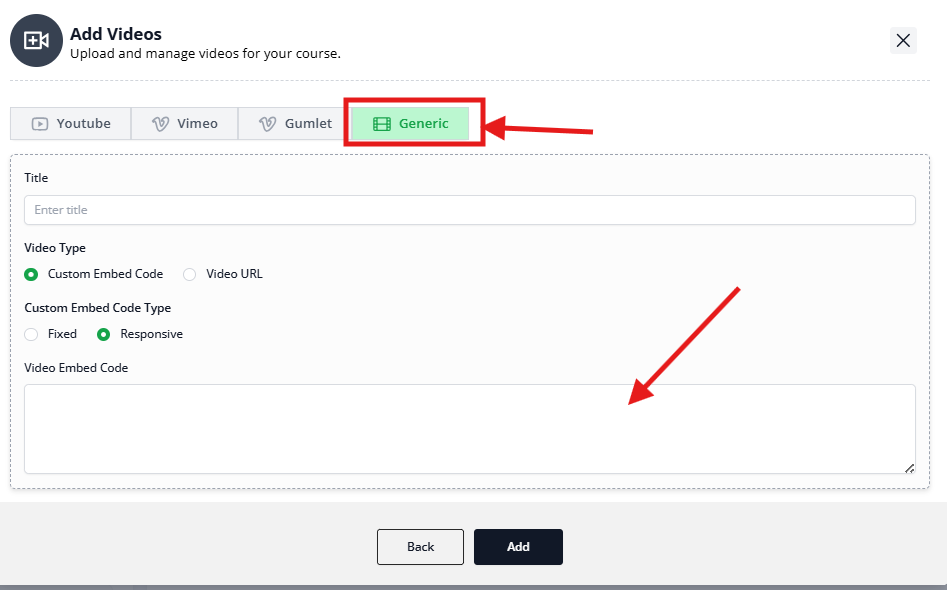
- Select Generic Video. In the selection window, choose Generic Video.
- Enter the video details. Add a title and paste the Gumlet embed code into the provided field.
- Save the lesson. Select Add to add the video lesson to the course.
Verify the Configuration
- Confirm that the Gumlet integration is saved in FlexiFunnels Settings.
- Open a page or course editor and confirm that Gumlet appears as an available provider.
- Preview the published page or course lesson and confirm that the selected video loads and plays.
- For embed-code videos, confirm that the complete Gumlet embed code was pasted without modification.
Common Scenarios
- Sales pages: Add a Gumlet video to demonstrate an offer, product, or service.
- Webinar registration: Use a video element to display an event introduction or replay.
- Membership training: Import videos directly from a Gumlet collection into course modules.
- Custom layouts: Use the embed-code method when you need to place a video inside a Custom Code element or Generic Video lesson.
Best Practices
- Keep your Gumlet API key confidential.
- Use clear collection and playlist names in Gumlet to simplify video selection.
- Preview every page or lesson after publishing.
- Use the direct Gumlet provider when you want to select videos from FlexiFunnels.
- Use the embed-code method only when the direct provider does not meet the required layout or lesson configuration.
- Maintain video titles that clearly describe the lesson or page content.
Before Contacting Support
- ✓ Confirm that the API key is valid and saved in the Gumlet Integration settings.
- ✓ Confirm that the Gumlet account contains the expected collection, playlist, and video.
- ✓ Confirm that the selected video is available to the connected Gumlet account.
- ✓ Confirm that the page or course is saved and published.
- ✓ Test the video in an incognito browser window.
- ✓ For embed-code videos, verify that the complete code was copied from Gumlet.
Expected Outcome
After completing the integration, you can add and publish Gumlet videos in FlexiFunnels pages and membership courses. Visitors and enrolled students can view the selected videos from the published page or course lesson.
Related Articles
- FlexiFunnels page editor documentation
- FlexiFunnels membership course documentation
- FlexiFunnels integrations documentation
Was this article helpful?
That’s Great!
Thank you for your feedback
Sorry! We couldn't be helpful
Thank you for your feedback
Feedback sent
We appreciate your effort and will try to fix the article