Overview
Connecting your own domain to FlexiFunnels allows you to publish your funnels, websites, checkout pages, and membership areas using your own branded URL instead of the default FlexiFunnels subdomain.
You can connect either:
- A Root Domain (example.com)
- A Subdomain (www.example.com, app.example.com, members.example.com)
Once your domain is verified, FlexiFunnels automatically provisions an SSL certificate, allowing your website to load securely over HTTPS.
Before You Begin
Before connecting your domain, please ensure the following:
- You own the domain you want to connect.
- You have access to your domain registrar (such as GoDaddy, Namecheap, Cloudflare, Hostinger, BigRock, etc.).
- You can edit your domain's DNS records.
Important: If your domain is currently pointing to another website or hosting provider, updating its DNS records may stop that website from working until you restore the previous DNS configuration. Review your existing DNS records before making any changes.
Updated Information: If you're following an older video tutorial, please use the latest FlexiFunnels IP address:
37.16.0.21
Root Domain vs. Subdomain
Before you begin, it's important to understand the difference:
| Domain Type | Example |
|---|---|
| Root Domain | example.com |
| WWW Subdomain | www.example.com |
| Custom Subdomain | blog.example.com, app.example.com, members.example.com |
Step 1: Access Domain Integration Settings
On the top-right corner of your dashboard, click on the Profile Icon.
From the dropdown, select Settings (Gear Icon).
Inside the Settings section, click on “Integration Settings” from the left sidebar.
Now click on the “Domains” tab.
Hit the “+ Add New Domain” button.
Step 2: Add Your Domain or Subdomain
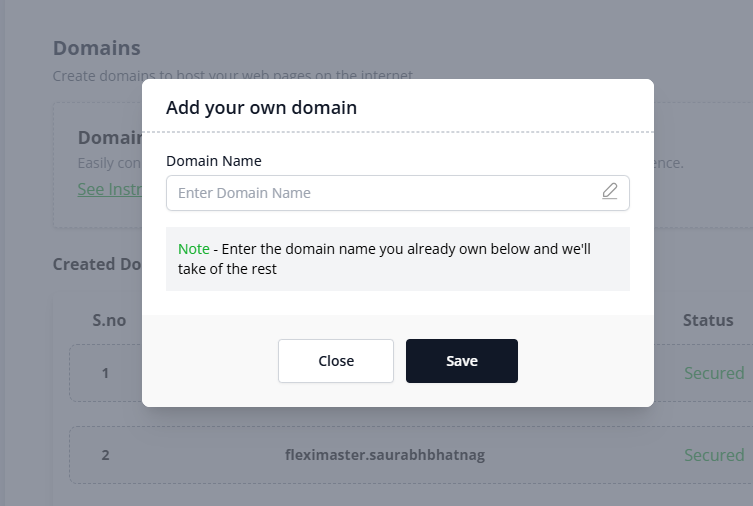
You’ll now see a screen to enter your domain details.
Primary Domain: This is your root domain like
yourdomainname.com.Subdomain: This is a subset of your root domain, like
www.yourdomainname.comorstore.yourdomainname.com.
? Examples:
www.yourdomainname.com→ “www” is the subdomainabc.yourdomainname.com→ “abc” is the subdomain
?️ Enter your domain/subdomain and click the “Save” button.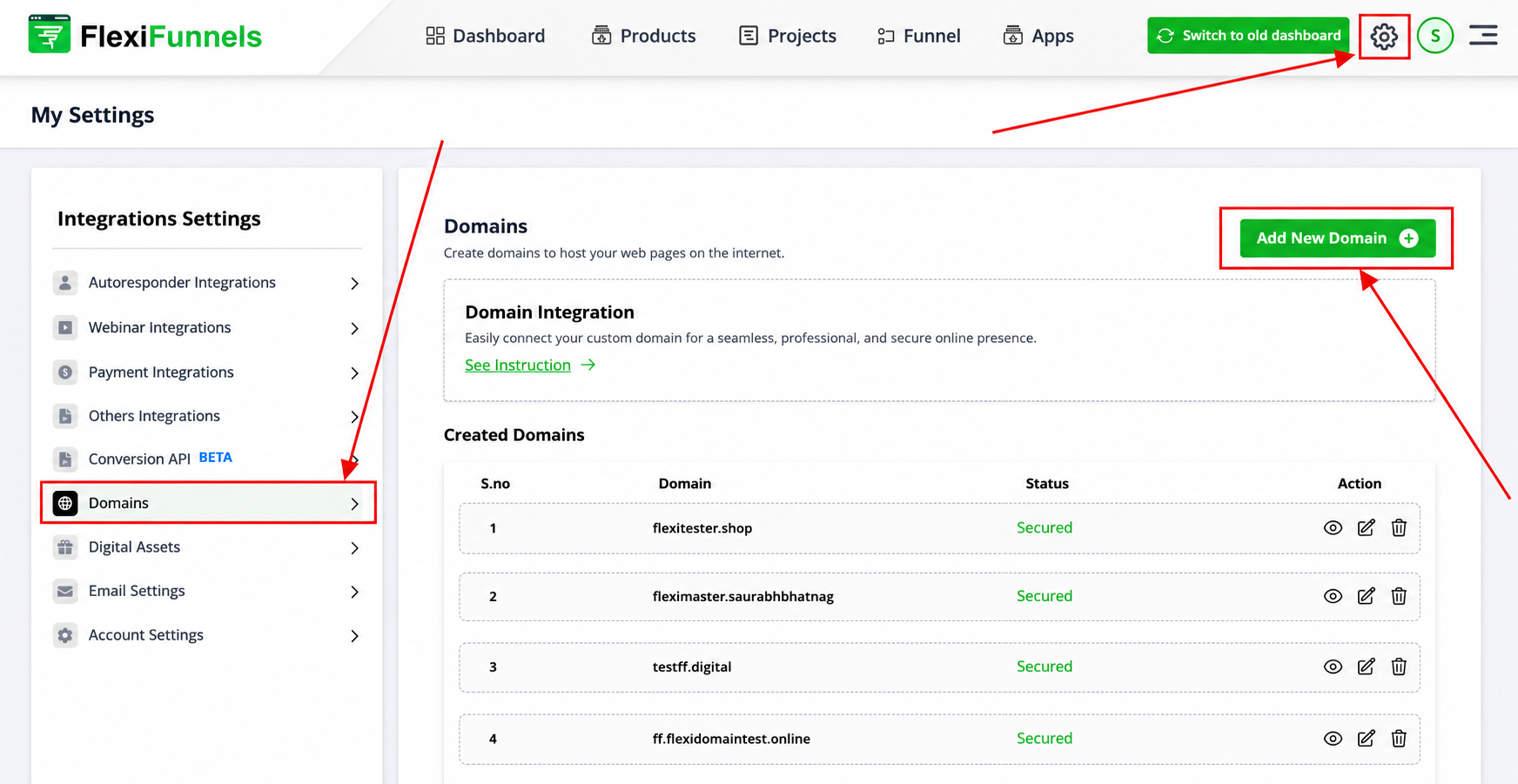
Step 3: Configure DNS Settings
Now it’s time to connect your domain from your domain registrar (like GoDaddy, Namecheap, BigRock, etc.) to FlexiFunnels.
✅ If You're Adding a Primary Domain
Login to your Domain Registrar account.
Head to DNS Settings or DNS Management.
Add a New A Record:
Host:
@Value/IP Address:
137.66.21.168
Save the record.
Now return to your FlexiFunnels dashboard and click “Click to Verify” next to your domain.
Once verification is complete, your domain will show as “Secured” inside FlexiFunnels.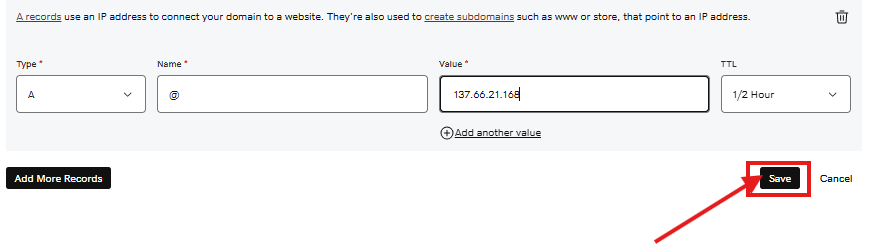
✅ If You're Adding a Subdomain
Login to your Domain Registrar account.
Head to DNS Settings or DNS Management.
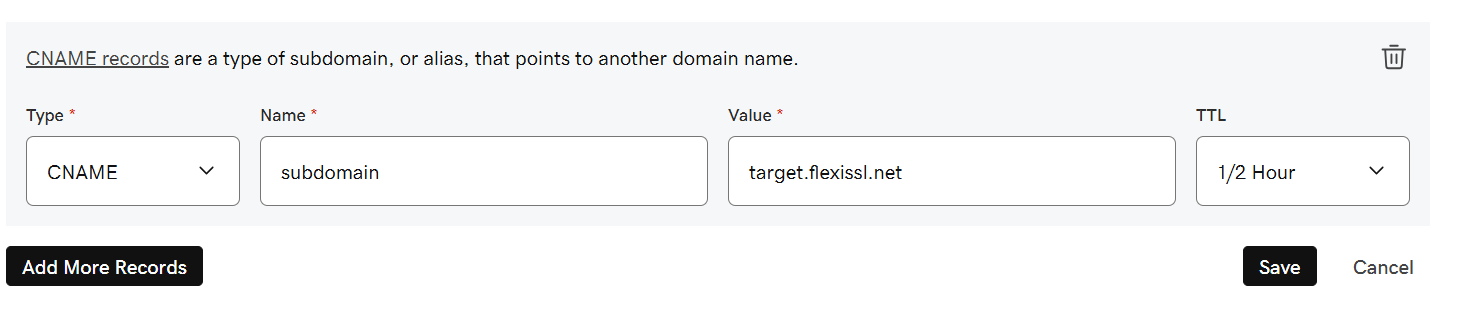
Add a New CNAME Record:
Host: Your subdomain (e.g.,
wwworstore)Points to: target.flexifunnels.com
Save the record.
Now return to your FlexiFunnels dashboard and click “Click to Verify” next to your subdomain.
Once verification is complete, your subdomain will show as “Secured” inside FlexiFunnels.
? Pro Tip: DNS changes might take a few minutes to a few hours to reflect. Be patient before retrying the verification.
Other Domain integration articles:
GoDaddy Domain integration- https://help.flexifunnels.com/support/solutions/articles/36000548646-godaddy-domain-integrations-with-flexifunnels
Cloudflare Domain integration-
https://help.flexifunnels.com/support/solutions/articles/36000548650-cloudflare-domain-integrations-with-flexifunnels
WPX Domain integration
https://help.flexifunnels.com/s
upport/solutions/articles/36000548652-wpx-domain-integrations-with-flexifunnels
Hostinger Domain integration
https://help.flexifunnels.com/support/solutions/articles/36000548647-hostinger-domain-integrations-with-flexifunnels
Bigrock Domain integration
https://help.flexifunnels.com/support/solutions/articles/36000548649-bigrock-domain-integrations-with-flexifunnels
Verify Your Domain
Your domain has been connected successfully when:
- The status changes to Secured.
- Your website loads successfully.
- HTTPS works correctly without browser security warnings.
Understanding Domain Slots
FlexiFunnels treats your root domain and its corresponding www version as a single domain.
Example
If you've already connected:
- example.com
You can also use:
without consuming an additional domain slot.
The Following Subdomains Use Separate Slots
Each of these counts as a separate connected domain:
- blog.example.com
- app.example.com
- members.example.com
- courses.example.com
Common Scenarios
My domain isn't verifying.
Check the following:
- Is the correct DNS record added?
- Did you enter the correct IP address (37.16.0.21)?
- Did you save the DNS changes?
- Has DNS propagation completed?
- Are there duplicate A or CNAME records causing conflicts?
My SSL certificate is still pending.
SSL certificates are generated only after the domain has been verified.
If your domain was connected recently, wait for DNS propagation to complete before SSL is issued.
My website still opens the old website.
This usually indicates one of the following:
- DNS propagation is still in progress.
- Your browser has cached the old DNS records.
- Your domain is still pointing to another hosting provider.
Try refreshing the page, clearing your browser cache, or testing in an Incognito window.
I added an A Record, but verification still fails.
Verify that:
- The Host is @
- The IP Address is 37.16.0.21
- There aren't multiple conflicting A Records for the root domain.
My subdomain isn't working.
Check that:
- You're using a CNAME record.
- The CNAME points to target.flexifunnels.com
- The Host field contains only the subdomain (for example, www, blog, or members).
Can I connect both example.com and www.example.com?
Yes.
Both versions are treated as a single domain and do not consume additional domain slots.
Best Practices
- Remove conflicting DNS records before adding new ones.
- Wait for DNS propagation before retrying verification.
- Use the latest IP address (37.16.0.21) when connecting root domains.
- Keep a backup of your existing DNS records before making changes.
- Test your domain after it shows Secured.
Before Contacting Support
Before reaching out to our support team, please verify the following:
- ✅ The correct DNS record has been added.
- ✅ The correct IP address (37.16.0.21) or CNAME target (target.flexifunnels.com) is being used.
- ✅ The DNS changes have been saved.
- ✅ DNS propagation has been allowed enough time to complete.
- ✅ There are no conflicting A or CNAME records.
- ✅ Your domain status is not already showing Secured.
- ✅ You have refreshed the page or tested in an Incognito window.
If the issue still persists, please provide:
- Your domain name.
- Your domain registrar (GoDaddy, Cloudflare, Hostinger, etc.).
- A screenshot of your DNS records.
- A screenshot of the Domains section inside FlexiFunnels.
- Any error message displayed during verification.
Was this article helpful?
That’s Great!
Thank you for your feedback
Sorry! We couldn't be helpful
Thank you for your feedback
Feedback sent
We appreciate your effort and will try to fix the article