How to manage payment gateway integrations, connect custom domains, and control where your pages live — all through chat.
Overview
Before you can accept payments or publish pages on your own web address, you need payment gateways and domains properly set up. This article covers adding, renaming, enabling, and disabling payment integrations, along with adding and verifying custom domains (including email-sending domains) and setting default homepages.
This article covers:
- Adding a new payment gateway integration
- Renaming a payment integration
- Enabling or disabling a payment integration
- Adding and verifying a custom domain
- Adding and verifying an email-sending domain
- Viewing all your domains and email domains
- Setting the default homepage for a domain (default or custom)
What You Can Do
- Add a new payment gateway (e.g. Razorpay, Stripe) to your account
- Rename an existing payment integration for clarity
- Enable or disable a payment integration without removing it
- Add a custom domain to your FlexiFunnels account
- Verify a domain's DNS configuration and activate SSL
- Add and verify a domain specifically for sending emails
- View a list of all domains and email domains connected to your account
- Set which page acts as the homepage for your default FlexiFunnels domain or a custom domain
Why This Is Useful
Payment and domain setup are one-time (or occasional) tasks, but they're critical — a missing or misconfigured connection can mean lost sales or emails landing in spam. Flexi Genie lets you handle this setup conversationally and double-check your configuration whenever needed.
Before You Begin
- You need an active FlexiFunnels account, logged in.
- Have your payment gateway account credentials ready (e.g. API keys) if adding a new integration.
- Have access to your domain's DNS settings (through your domain registrar) if adding or verifying a custom domain.
Step-by-Step: Common Payment & Domain Tasks
Step 1: Add a Payment Integration
- Tell Flexi Genie which payment gateway you want to connect.
- You'll need your gateway's credentials on hand.
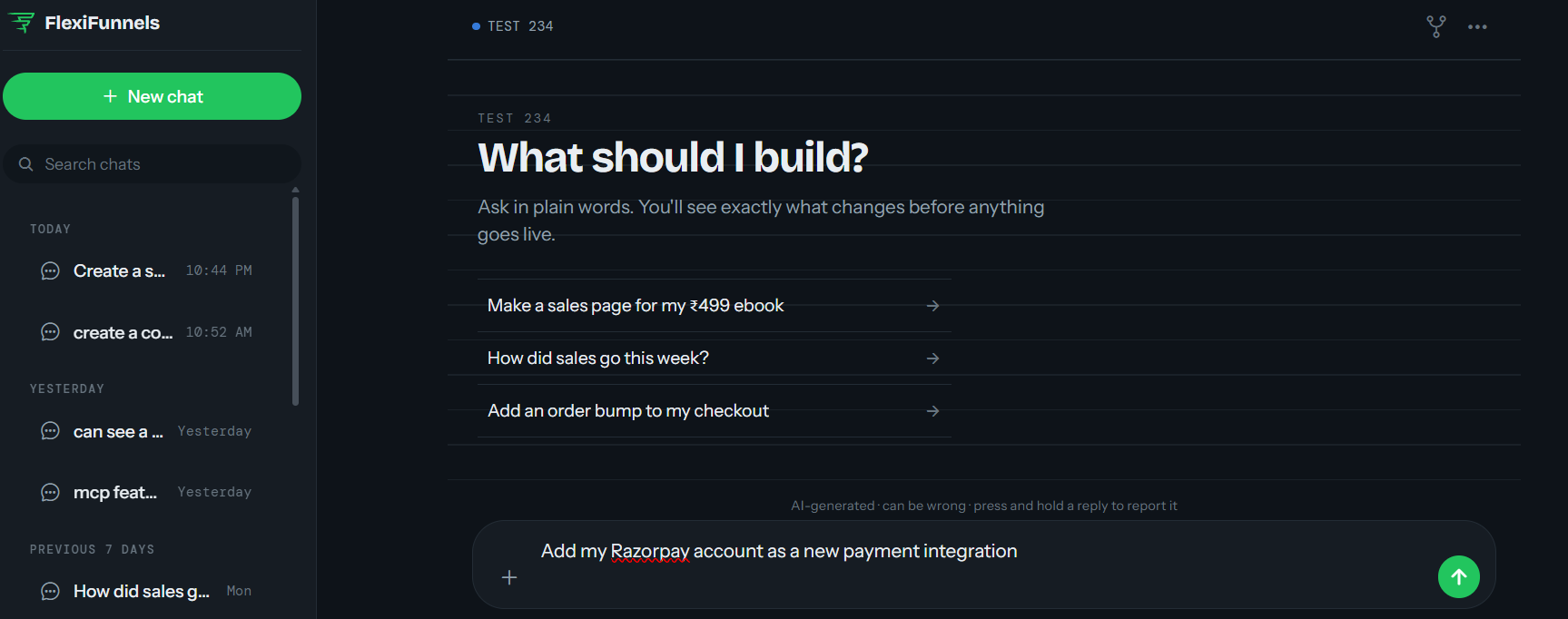
Example Prompt: "Add my Razorpay account as a new payment integration."
Step 2: Rename, Enable, or Disable a Payment Integration
- Rename an integration to make it easier to identify (e.g. if you have multiple gateways connected).
- Disable an integration temporarily without deleting it, and re-enable it later.
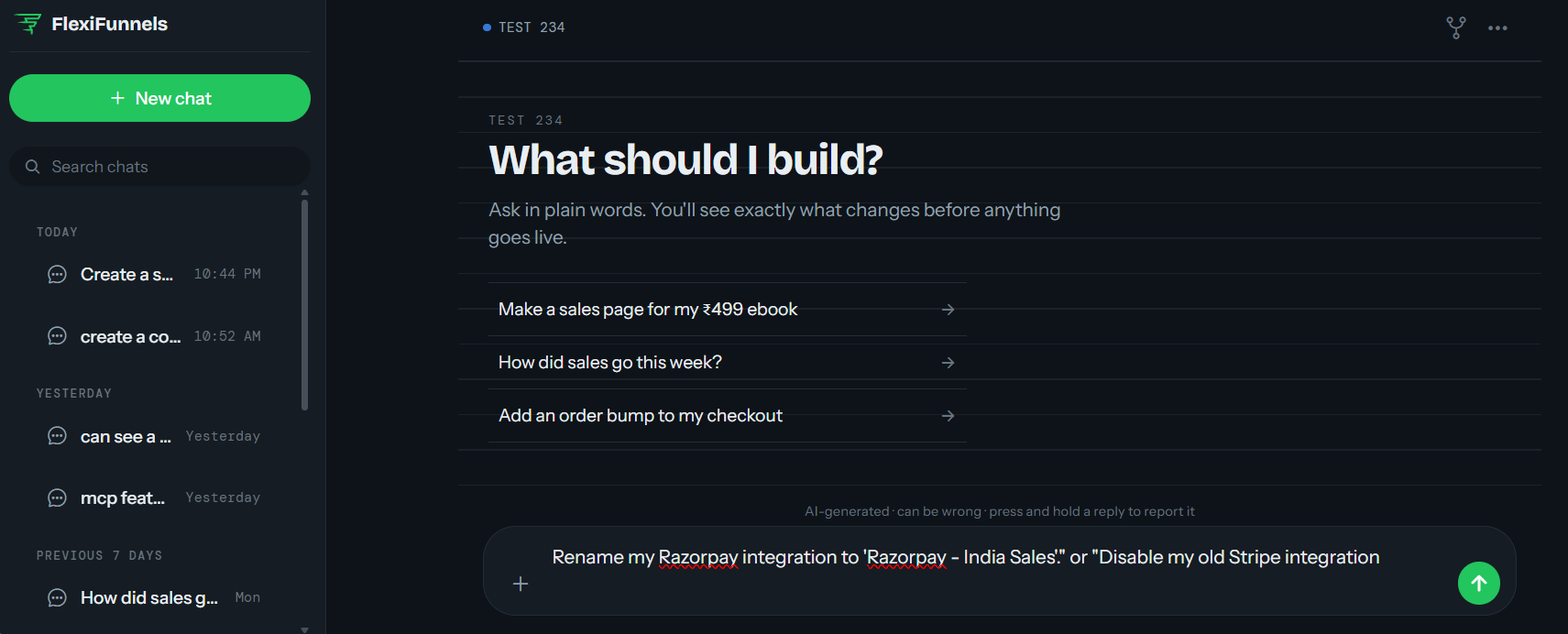
Example Prompt: "Rename my Razorpay integration to 'Razorpay - India Sales'." or "Disable my old Stripe integration."
Be Careful: Disabling a payment integration that's actively connected to a live product will prevent customers from completing checkout on that product.
Step 3: Add and Verify a Custom Domain
- Add your domain to FlexiFunnels.
- Update your domain's DNS settings as instructed (through your domain registrar).
- Ask Flexi Genie to verify the domain once DNS changes have been made.
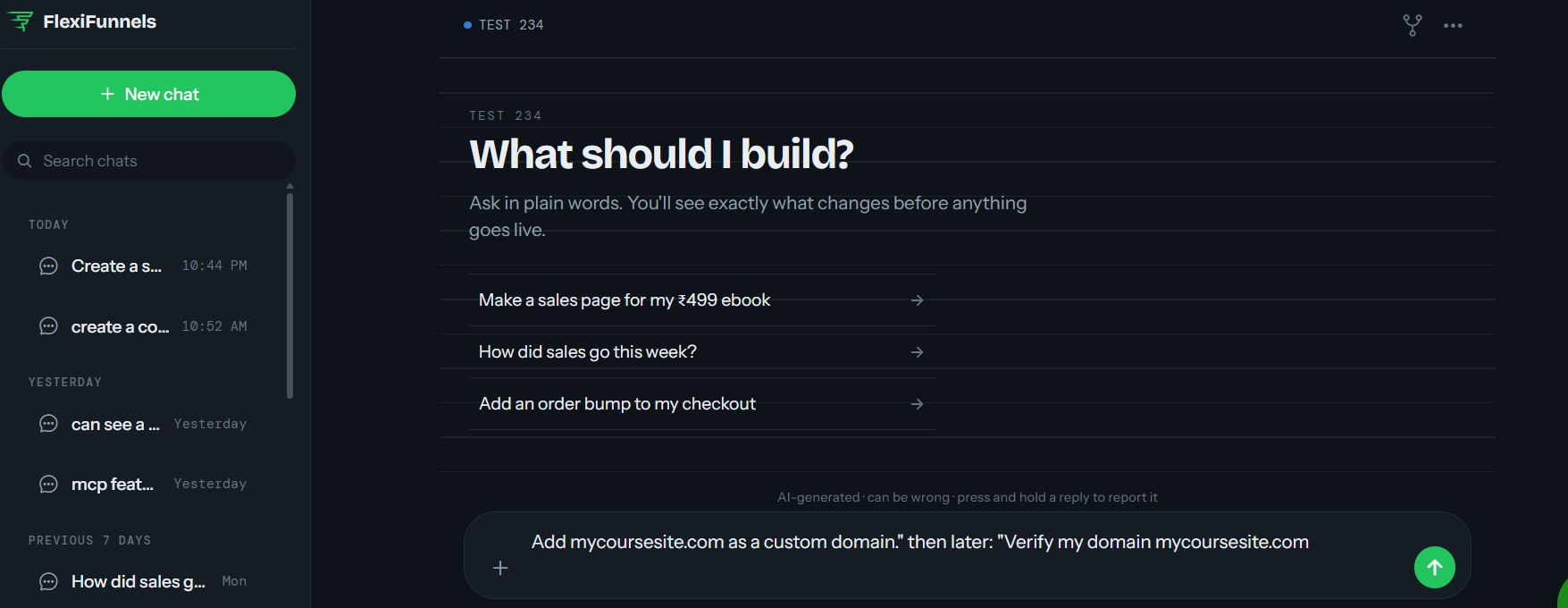
Example Prompt: "Add mycoursesite.com as a custom domain." then later: "Verify my domain mycoursesite.com."
Tip: DNS changes can take some time to propagate. If verification fails right after updating your DNS records, wait a while and try again.
Step 4: Add and Verify an Email-Sending Domain
- This is separate from your page-hosting domain and is used specifically for sending automated emails.
- Follow the same add-then-verify process as a regular domain.
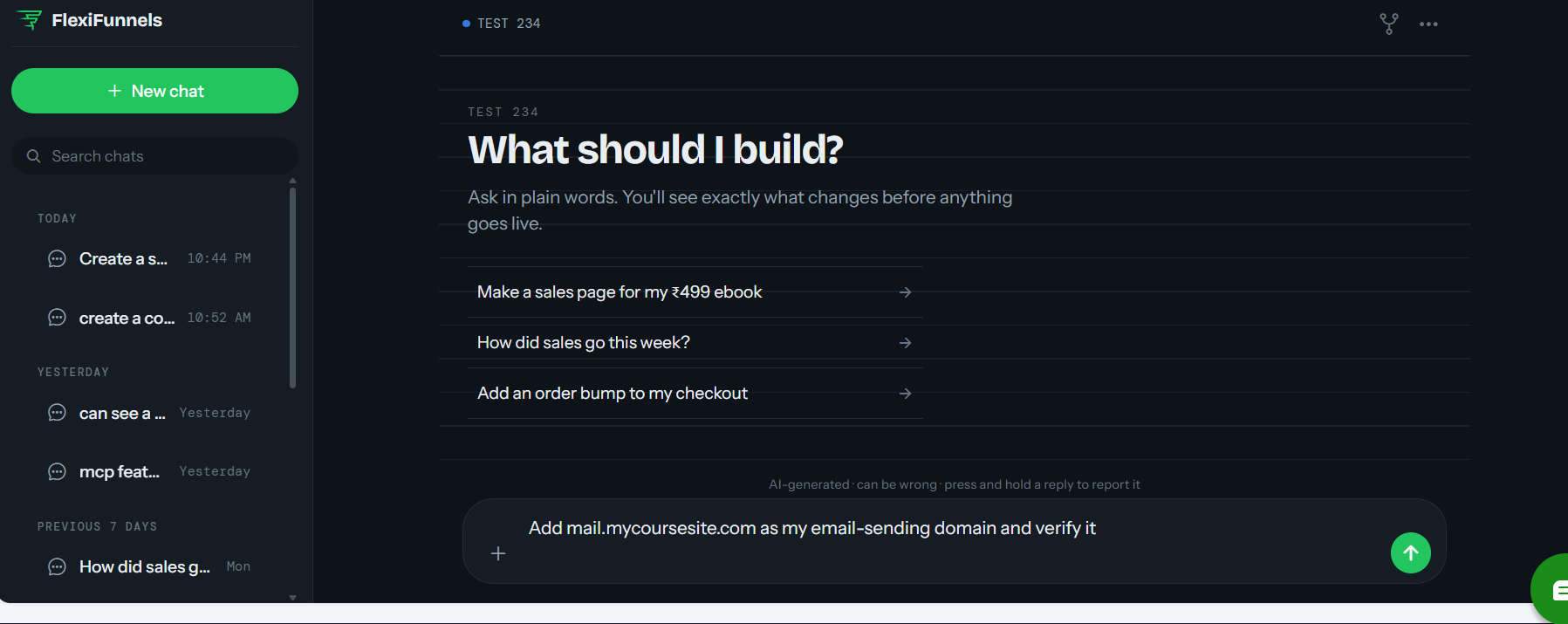
Example Prompt: "Add mail.mycoursesite.com as my email-sending domain and verify it."
Step 5: View Your Domains
- Ask for a list of all domains, or specifically your email domains, to review what's currently connected.
Example Prompt: "Show me all the domains connected to my account."
Step 6: Set a Default Homepage
- Choose which page loads when someone visits your domain directly, without a specific page path.
- This applies separately to your default FlexiFunnels domain and any custom domain you've connected.
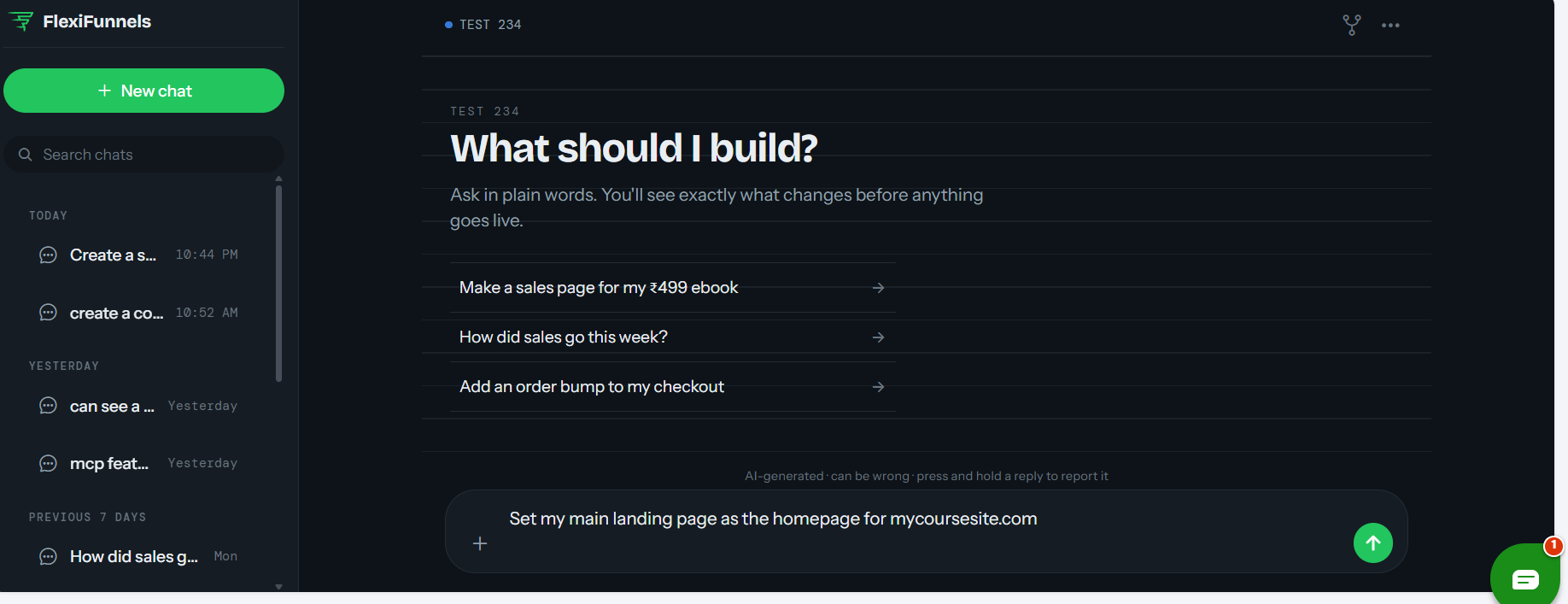
Example Prompt: "Set my main landing page as the homepage for mycoursesite.com."
Behind the Scenes — MCP Tools Involved
| Task | Related MCP Tool(s) |
|---|---|
| Add a payment integration | add_payment_integration |
| Rename a payment integration | rename_autoresponder (naming), payment-specific rename: To be verified |
| Enable a payment integration | enable_payment_integration |
| Disable a payment integration | disable_payment_integration |
| View available payment gateways | get_payment_gateways |
| View connected payment integrations | get_payment_integrations |
| Add a custom domain | add_domain |
| Verify a domain | verify_domain |
| Add an email-sending domain | add_email_domain |
| Verify an email domain | verify_email_domain |
| View all domains | get_domains |
| View all email domains | get_email_domains |
| Set default homepage (default domain) | set_default_homepage |
| Set homepage for a custom domain / connect domain to a project | set_project_domain |
| Get current default homepage | get_default_homepage |
Good to Know: You never need to know these tool names to use Flexi Genie — this table is just for anyone curious about what's happening behind the scenes.
Ready-to-Use Prompts
"Add my Stripe account as a new payment gateway."
"Connect the domain mybrand.com to my FlexiFunnels account."
"Verify my domain mybrand.com now that I've updated the DNS records."
"Set my sales page as the homepage for mybrand.com."
"Show me every domain currently connected to my account."
Tips for Better Results
- Double-check gateway credentials before adding a payment integration — incorrect credentials can prevent successful transactions.
- Keep your email-sending domain separate and verified properly to reduce the chance of automated emails landing in spam.
- After connecting a new domain, verify it promptly — an unverified domain won't serve your pages correctly.
Common Issues / Troubleshooting
Domain Verification Failing: Confirm your DNS records match exactly what FlexiFunnels requires, and allow time for DNS changes to propagate before retrying.
Checkout Not Working After Adding a Gateway: Confirm the payment integration is enabled and correctly attached to the specific product being sold.
Limitations / Important Notes
- Renaming a payment integration through a dedicated action is not yet confirmed against a specific MCP tool — this will be updated once verified.
- Domain verification depends on DNS changes made outside of FlexiFunnels, at your domain registrar.
Curious what else Flexi Genie and AI assistants can do inside FlexiFunnels? See the full Possibilities with Flexi Genie & AI Assistance reference document.
Was this article helpful?
That’s Great!
Thank you for your feedback
Sorry! We couldn't be helpful
Thank you for your feedback
Feedback sent
We appreciate your effort and will try to fix the article