How to create new projects, build pages from templates, and keep track of your existing projects — all through chat.
Overview
In FlexiFunnels, a project is the container that holds your pages, funnels, and related settings for a specific offer or business initiative — think of it as a folder for everything related to one funnel or campaign.
This article covers:
- Creating a new project
- Creating a page inside a project using a starter template
- Finding an existing project by name
- Viewing a list of all your projects
- Viewing the pages that belong to a specific project
- Cloning an entire project
What You Can Do
- Create a new project, optionally starting from a template
- Build a page inside a project using a pre-designed template as the starting point
- Search for a project by its name instead of scrolling through your dashboard
- List out all your current projects
- View which pages exist inside a specific project
- Clone an entire project — including its pages — to reuse as a starting point for something new
Why This Is Useful
If you regularly launch similar offers — a new course cohort, a seasonal promotion, or a client campaign — you don't need to rebuild everything from scratch each time. You can quickly spin up a new project, use a template to save time, or clone a previous project that already has the structure you want.
Before You Begin
- You need an active FlexiFunnels account, logged in.
- Have a clear name in mind for your new project — this makes it easier to find later.
- If cloning a project, know which existing project you want to duplicate.
Step-by-Step: Common Project Tasks
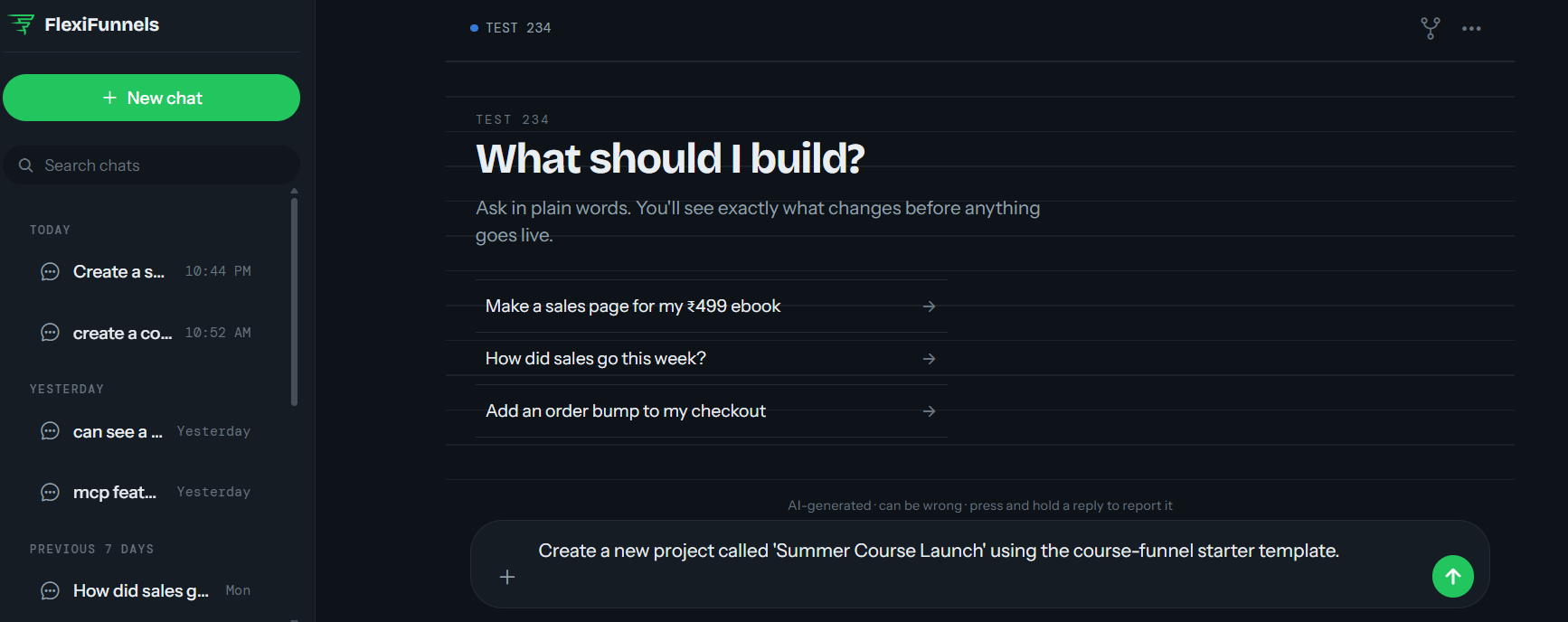
Step 1: Create a New Project
- Open Flexi Genie and describe the project you want to create.
- Mention the purpose of the project (e.g. a course launch, a webinar campaign, a lead-generation offer).
- You can optionally ask for it to start from one of FlexiFunnels' starter templates.
Example Prompt: "Create a new project called 'Summer Course Launch' using the course-funnel starter template."
Step 2: Create a Page Using a Template
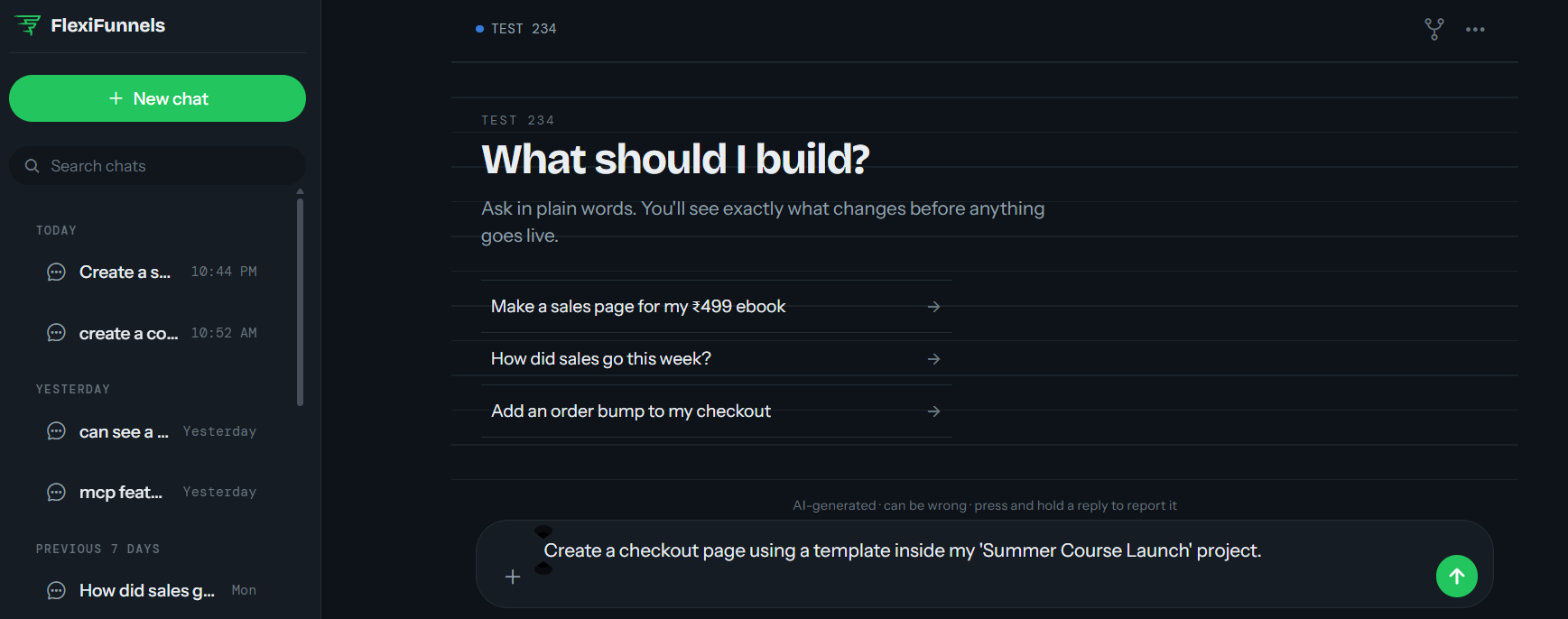
- Instead of building a page from a blank canvas, ask Flexi Genie to create one from an existing template.
- Describe which project the page should belong to and what type of page you need.
Example Prompt: "Create a checkout page using a template inside my 'Summer Course Launch' project."
Tip: Templates give you a head start on layout and structure — you can still ask Flexi Genie to customize the content afterward.
Step 3: Search for a Project by Name
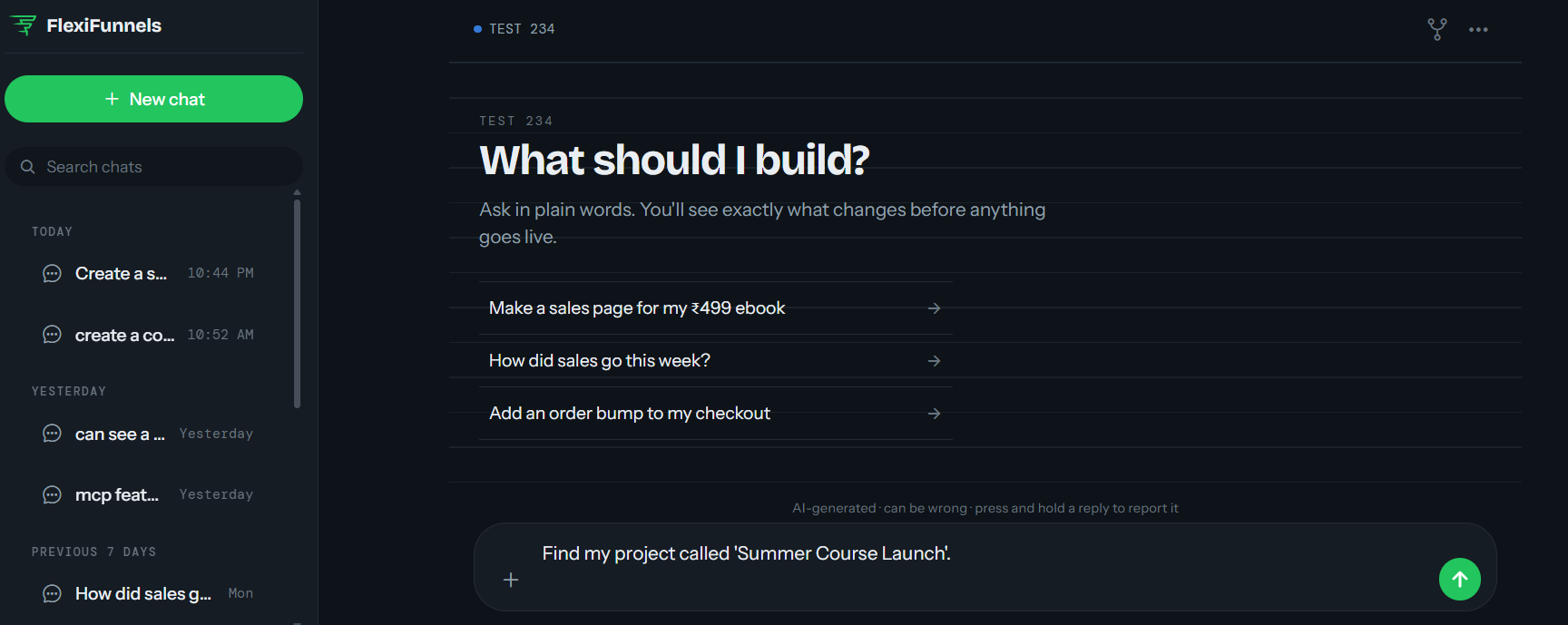
- If you have many projects, you don't need to scroll through your dashboard manually.
- Simply ask Flexi Genie to find the one you're looking for by name.
Example Prompt: "Find my project called 'Summer Course Launch'."
Step 4: List All Your Projects
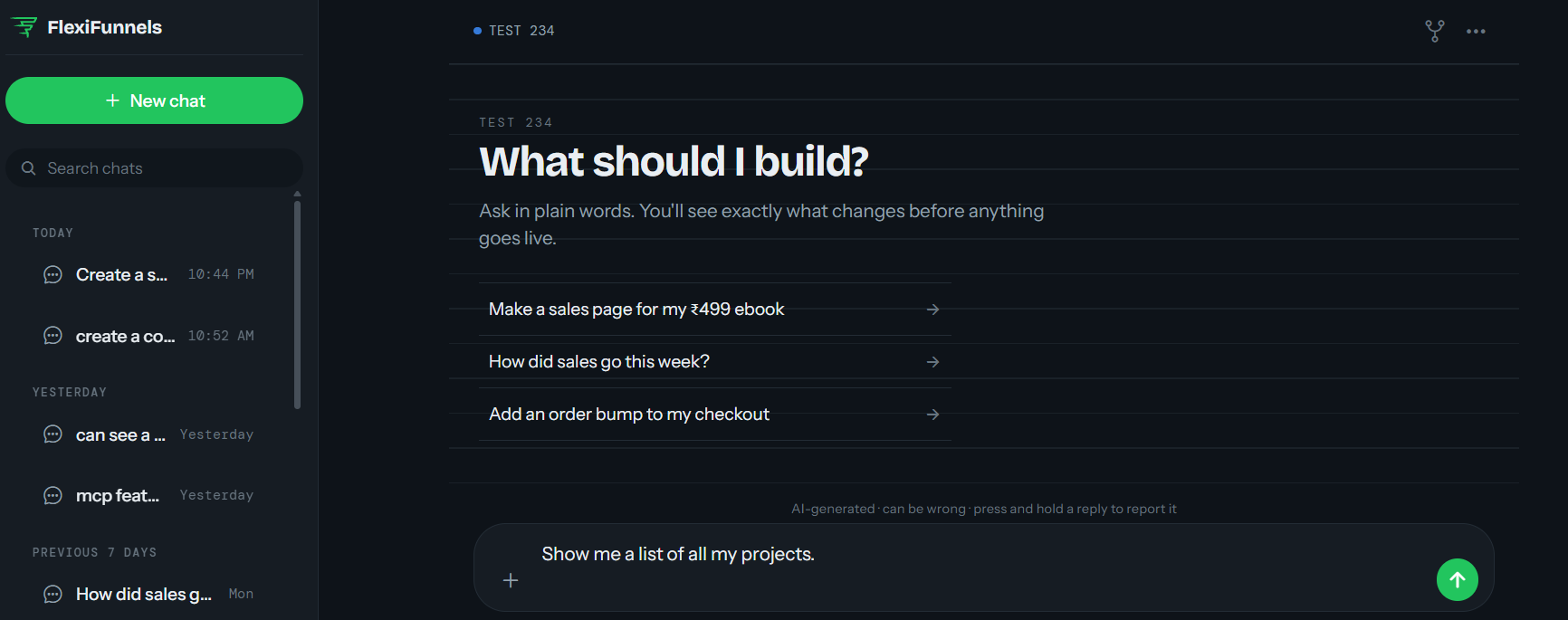
- Ask for a full list if you want a quick overview of everything currently set up in your account.
Example Prompt: "Show me a list of all my projects."
Step 5: View the Pages Inside a Project
- Once you know which project you're working with, ask to see the pages that belong to it.
- Useful for getting your bearings before making edits or checking a funnel's structure.
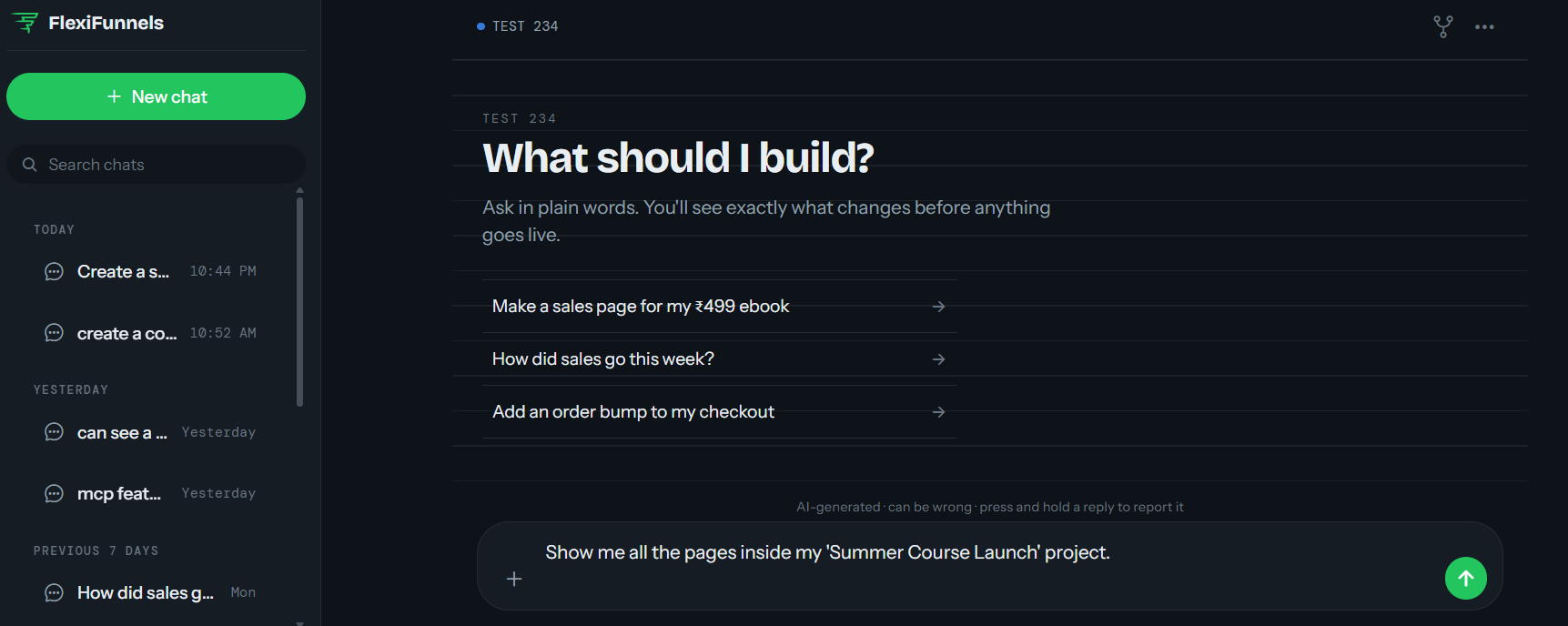
Example Prompt: "Show me all the pages inside my 'Summer Course Launch' project."
Step 6: Clone an Entire Project
- If you want to reuse the structure of an existing project — its pages and setup — ask Flexi Genie to clone it.
- This is useful for running a similar campaign again, or creating a variant for a different audience.
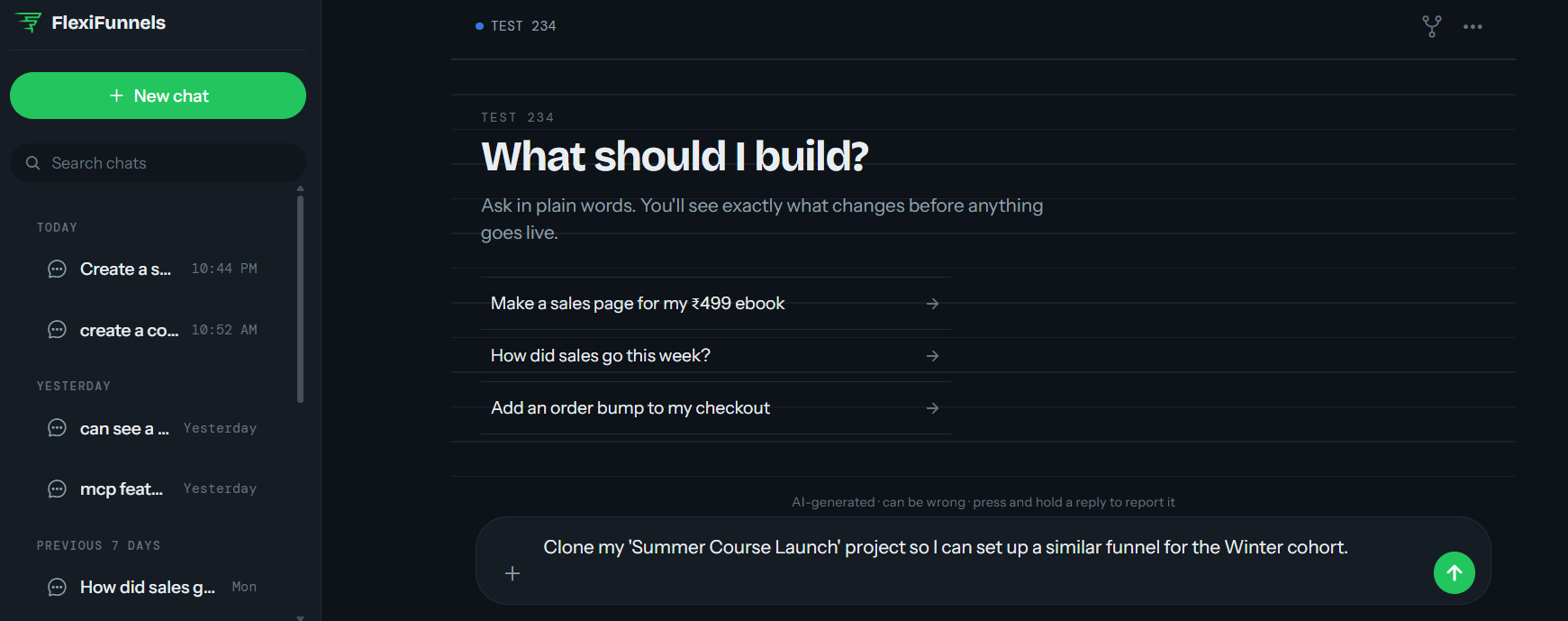
Example Prompt: "Clone my 'Summer Course Launch' project so I can set up a similar funnel for the Winter cohort."
Be Careful: Cloning a project duplicates its pages, but the cloned pages are not automatically published live. Review and publish the pages you want to go public.
Behind the Scenes — MCP Tools Involved
| Task | Related MCP Tool(s) |
|---|---|
| Create a new project | create_project |
| Create a page from a template | create_agentic_page, list_project_templates |
| Search for a project by name | To be verified |
| List all projects | list_membership_projects (for membership/course projects) |
| View pages inside a project | get_funnel_pages, list_pages_for_product_picker |
| Clone a project | clone_project |
Good to Know: You never need to know these tool names to use Flexi Genie — this table is just for anyone curious about what's happening behind the scenes when you make a request.
Ready-to-Use Prompts
"Create a new project for my upcoming webinar, called 'Q4 Webinar Funnel'."
"Build a landing page using a template inside my 'Q4 Webinar Funnel' project."
"List all the projects in my account."
"Show me every page inside my 'Q4 Webinar Funnel' project."
"Clone my 'Q4 Webinar Funnel' project as a starting point for next quarter."
Tips for Better Results
- Use clear, distinct project names — this makes searching and referencing them later much easier.
- When starting from a template, mention the type of offer (webinar, course, coaching, ebook, etc.) so Flexi Genie can suggest a relevant one.
- Before cloning a project, confirm the name of the source project to avoid duplicating the wrong one.
Common Issues / Troubleshooting
Can't Find a Project by Name: Double-check the exact project name as it appears in your dashboard. If it still can't be found, list all your projects and locate it manually.
Cloned Project Pages Not Visible Publicly: This is expected — cloned pages start as drafts. Publish the pages you want to make live.
Limitations / Important Notes
- Searching for a project by name is a common-sense capability but not yet confirmed against a specific MCP tool — this will be updated once verified.
- Cloning a project duplicates its structure and pages but does not automatically carry over live publish status.
Curious what else Flexi Genie and AI assistants can do inside FlexiFunnels? See the full Possibilities with Flexi Genie & AI Assistance reference document.
Was this article helpful?
That’s Great!
Thank you for your feedback
Sorry! We couldn't be helpful
Thank you for your feedback
Feedback sent
We appreciate your effort and will try to fix the article