How to create, edit, publish, and organize your FlexiFunnels pages using Claude or ChatGPT, once connected via MCP.
Overview
Once Claude or ChatGPT is connected to your FlexiFunnels account via MCP, you can create new pages, edit existing ones, publish updates, and manage page details — all by chatting in plain language, the same way you would with Flexi Genie.
This article covers:
- Creating a new page
- Making changes to an existing page
- Publishing and republishing pages
- Checking a page's status and version history
- Cloning pages, and updating a page's name, type, or URL slug
Before You Begin
- Make sure FlexiFunnels is connected to Claude (as a Connector) or ChatGPT (as a Plugin). See Connecting Claude to FlexiFunnels via MCP or Connecting ChatGPT to FlexiFunnels via MCP if you haven't done this yet.
- Know which project the page belongs to (or should belong to).
- Have a clear idea of the page's purpose before asking — the more specific your request, the better the result.
Step-by-Step: Common Page Tasks
Step 1: Create a New Page
- Start a new chat in Claude or ChatGPT.
- Describe the page you want — its purpose, key sections, and any specific details (price, offer, headline, etc.).
- If you set your tools to require approval, you'll be asked to confirm before the page is actually created.
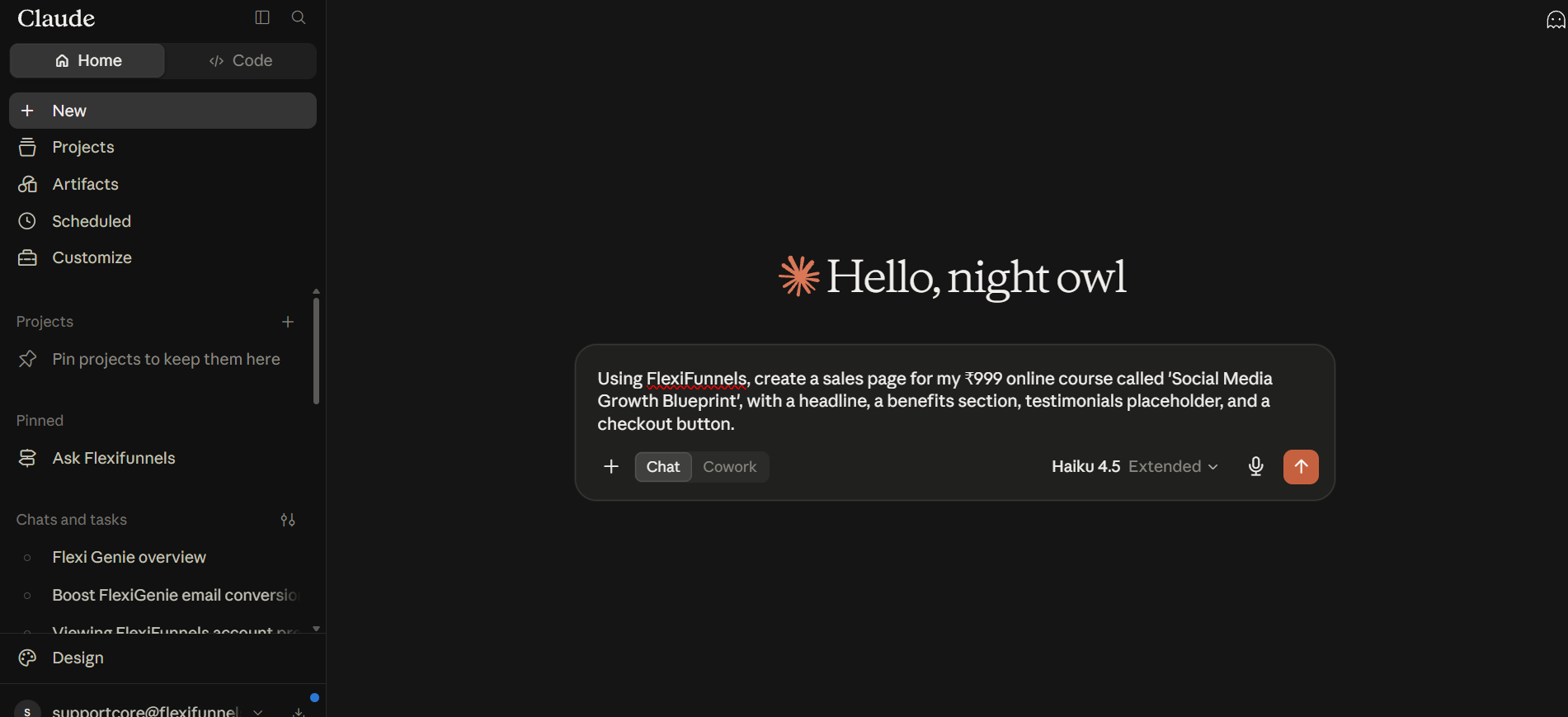
Example Prompt: "Using FlexiFunnels, create a sales page for my ₹999 online course called 'Social Media Growth Blueprint', with a headline, a benefits section, testimonials placeholder, and a checkout button."
Step 2: Customize an Existing Page
- Tell Claude or ChatGPT which page you want to edit, and describe the specific change.
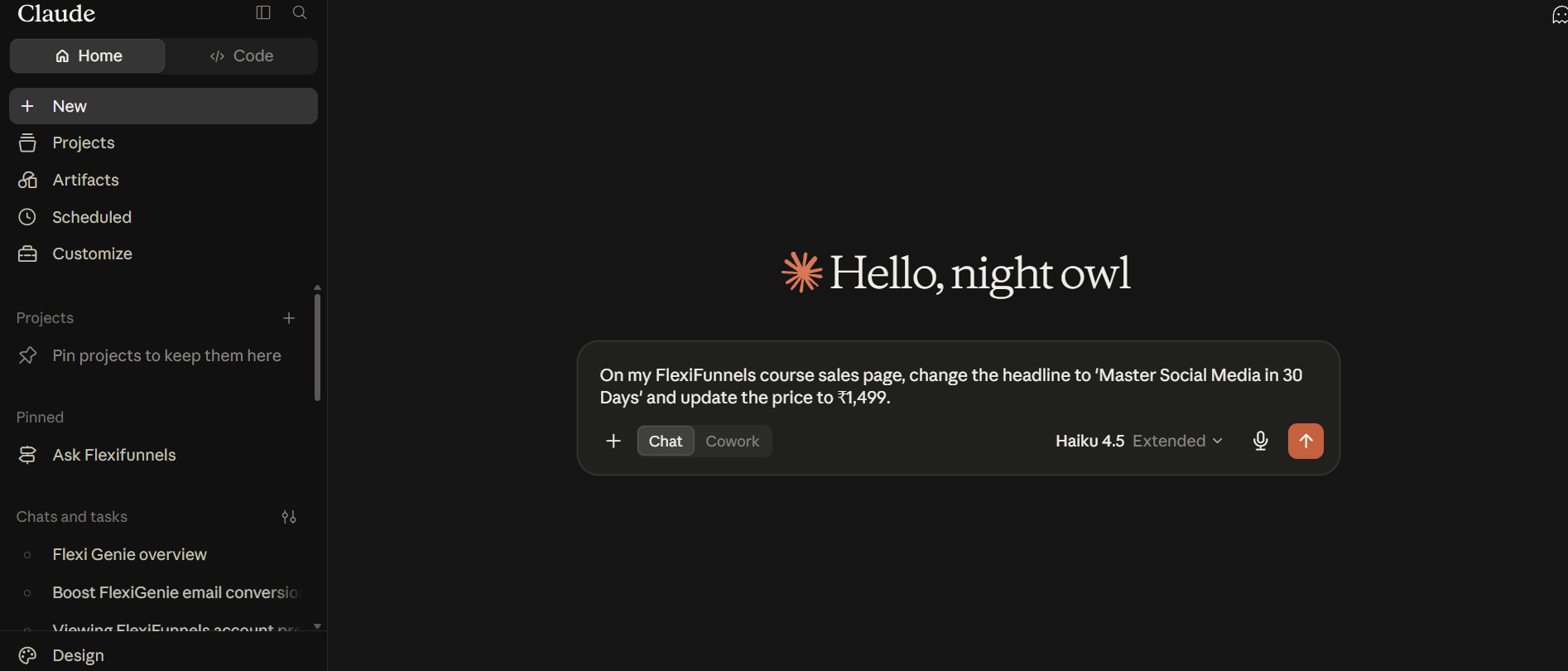
Example Prompt: "On my FlexiFunnels course sales page, change the headline to 'Master Social Media in 30 Days' and update the price to ₹1,499."
Step 3: Publish or Republish a Page
- Once you're happy with a page, ask Claude or ChatGPT to publish it.
- If you've made further edits to a live page, ask it to republish so the live version updates.
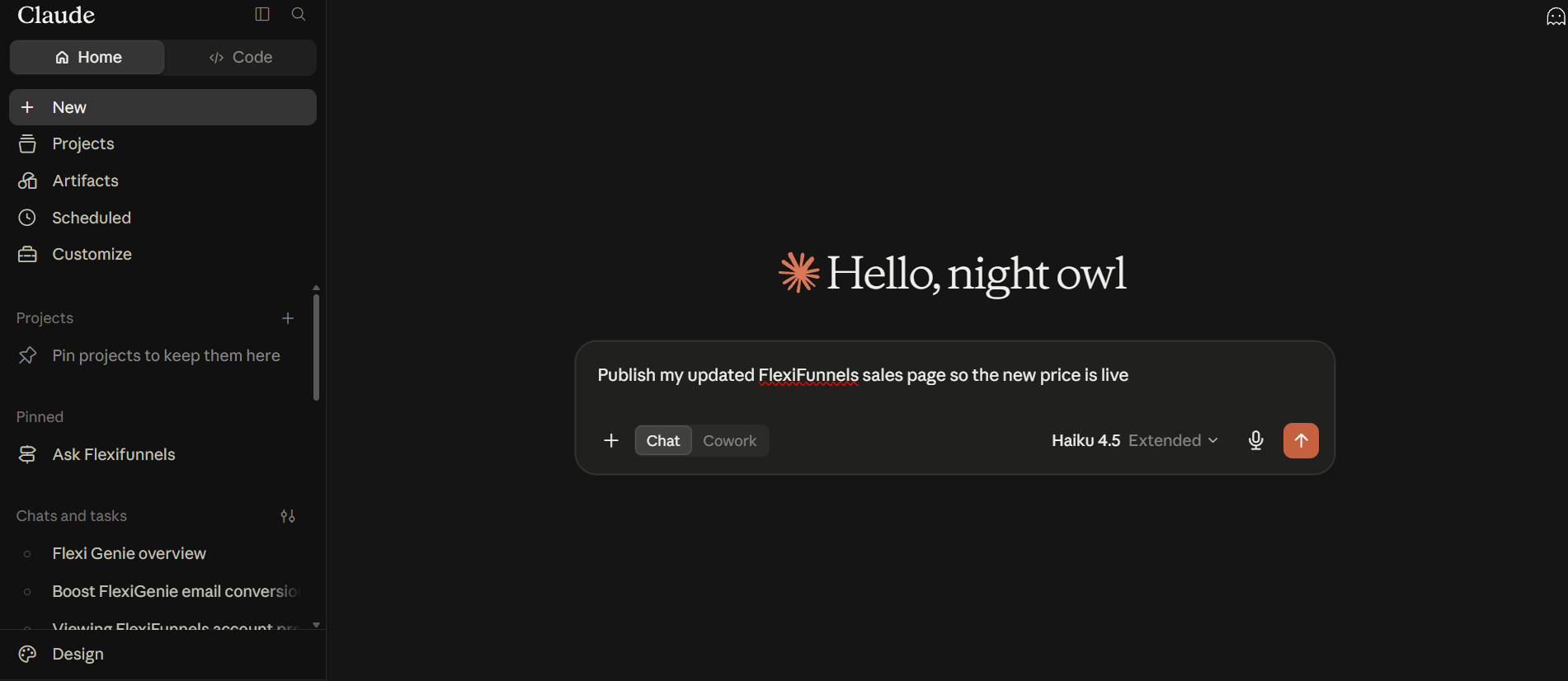
Example Prompt: "Publish my updated FlexiFunnels sales page so the new price is live."
Tip: Editing a page doesn't automatically make it live. Always confirm you've asked for the page to be published or republished after making changes.
Step 5: Page's Status
- If a page was just generated, ask whether it's ready — useful for longer or more complex pages that take a moment to generate.
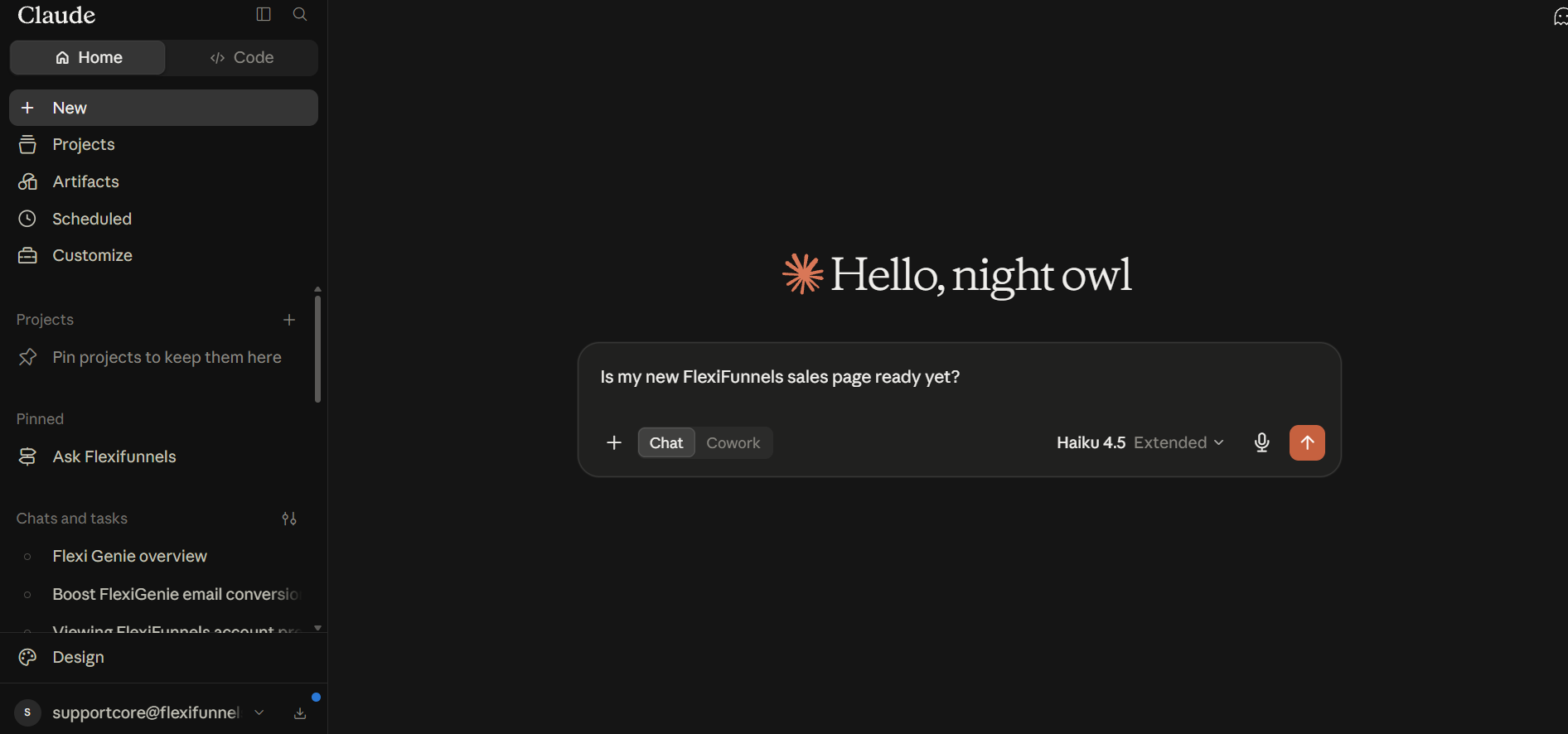
Example Prompt: "Is my new FlexiFunnels sales page ready yet?"
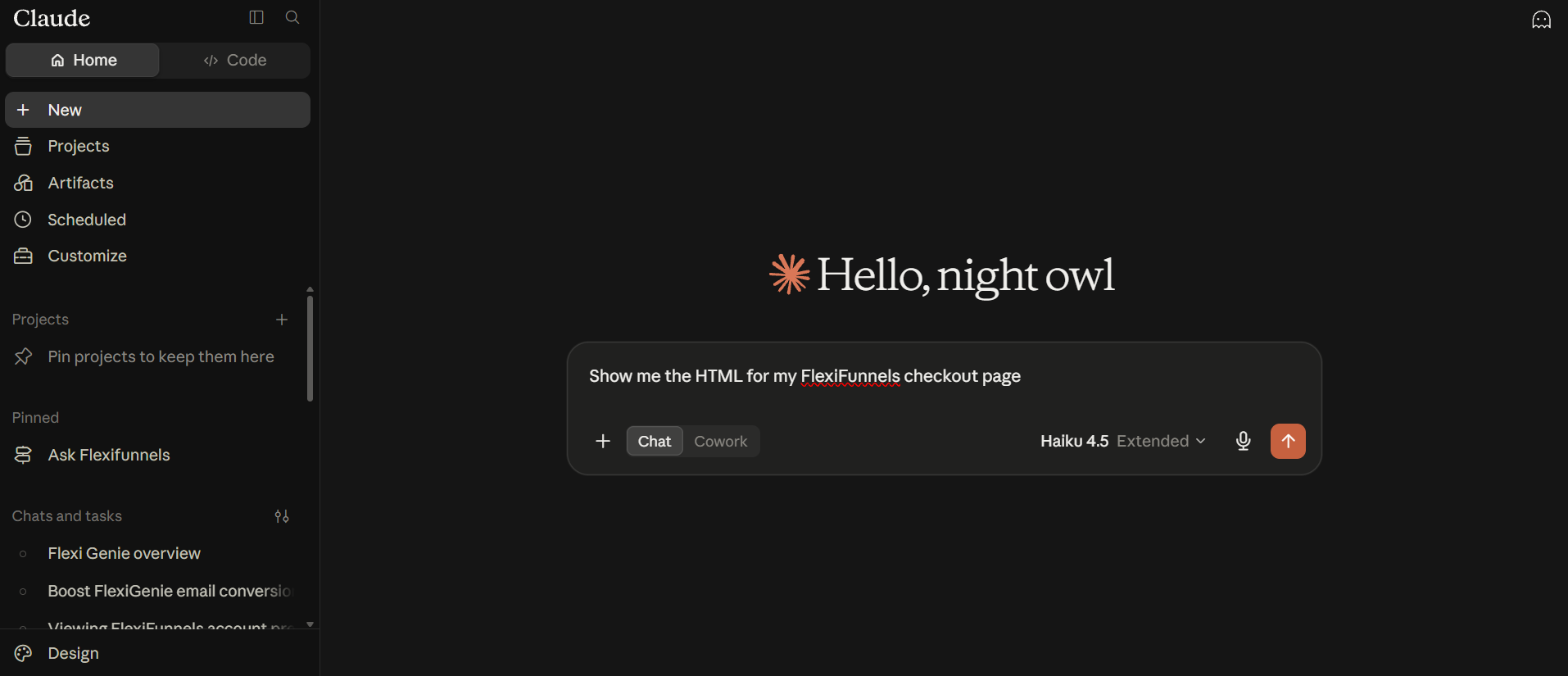
Step 5: View Page HTML
- Ask Claude or ChatGPT to show you the underlying HTML of a page — useful if you or a developer wants to inspect or reuse the code elsewhere.
Example Prompt: "Show me the HTML for my FlexiFunnels checkout page."
Step 6: View a Page's Version History
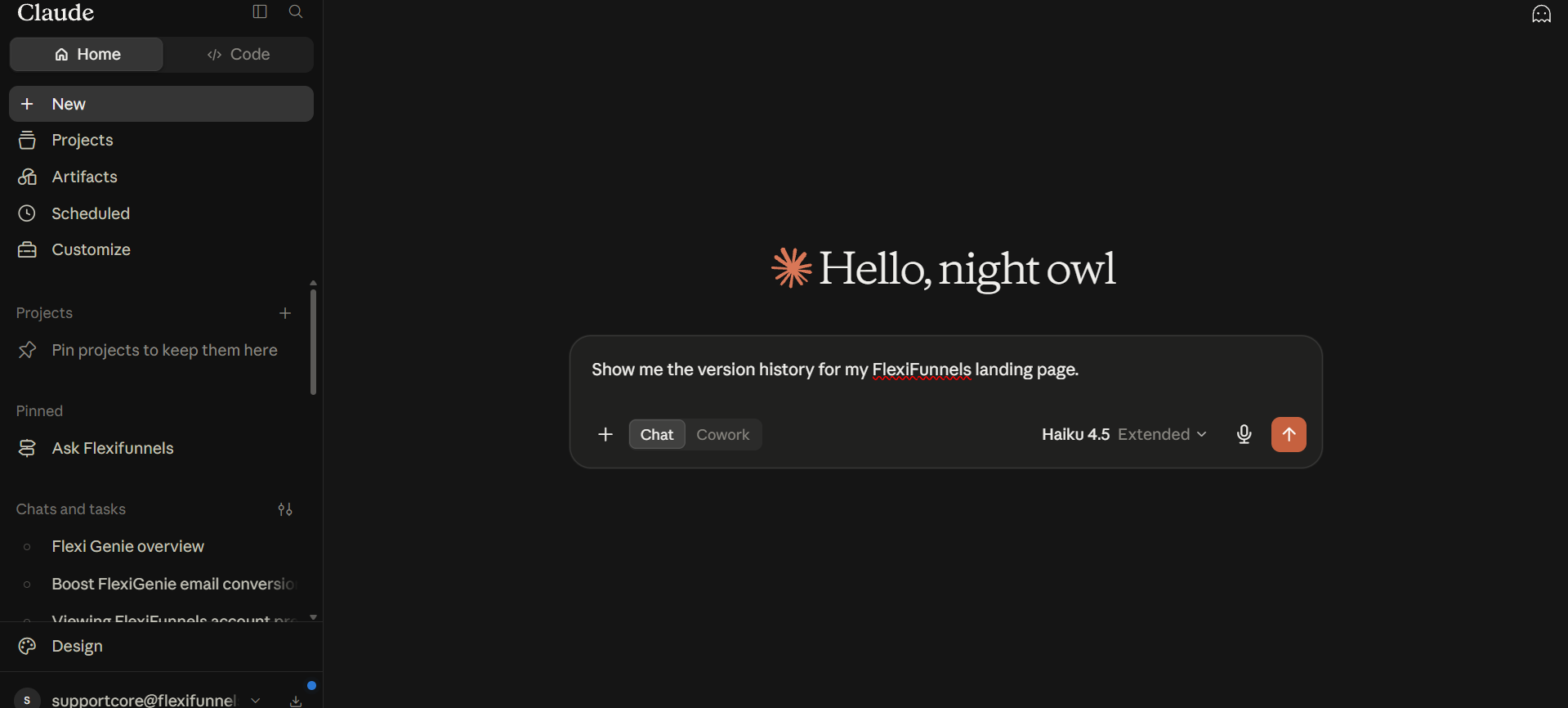
- Ask to see a page's version history to track changes over time or confirm what was published and when.
Example Prompt: "Show me the version history for my FlexiFunnels landing page."
Step 7: Clone an Existing Page
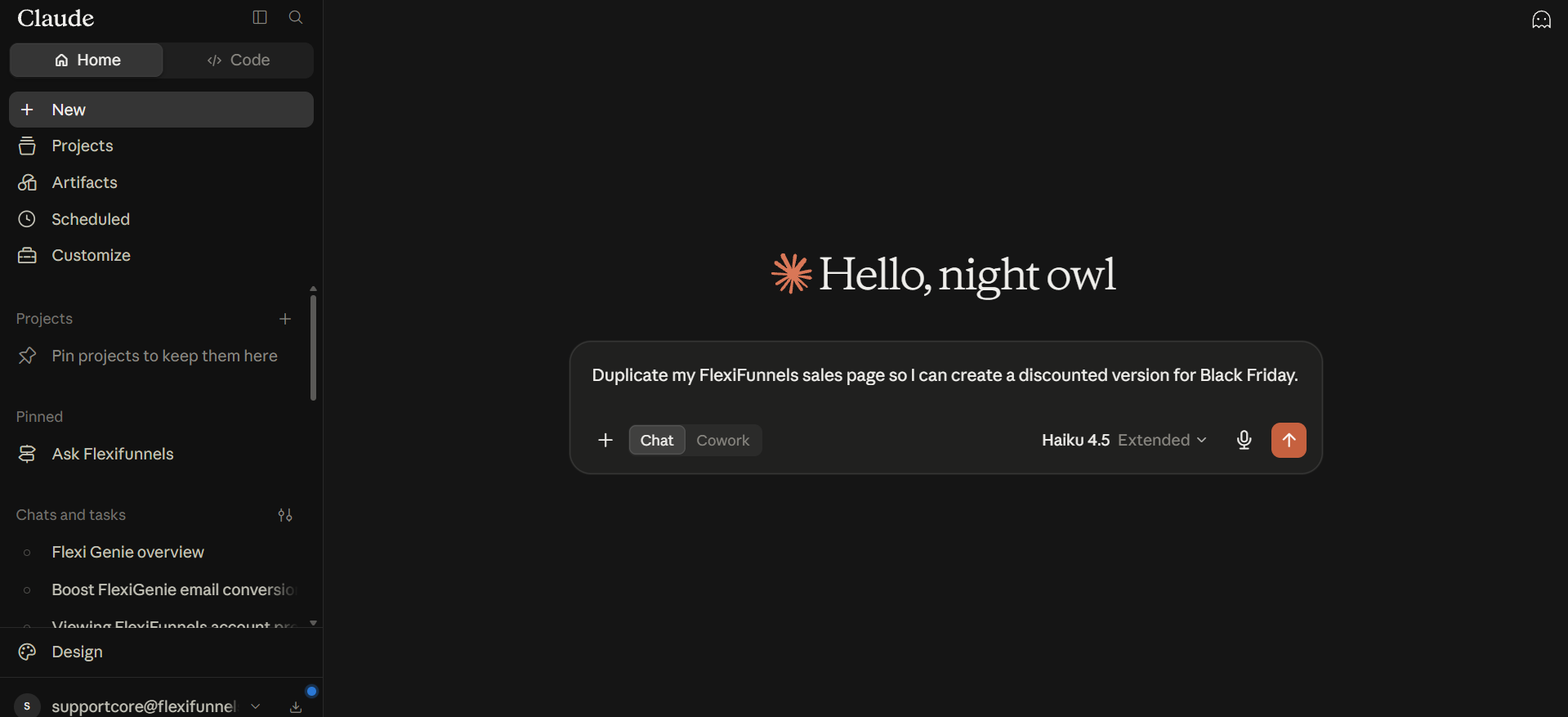
- Instead of building a similar page from scratch, ask for an existing one to be duplicated within the same project.
Example Prompt: "Duplicate my FlexiFunnels sales page so I can create a discounted version for Black Friday."
Step 8: Rename a Page, Change Its Type, or Update Its Slug
- Page name — the internal label you see in your dashboard.
- Page type — e.g. sales page, checkout page, thank-you page, opt-in page.
- Page slug — the part of the URL specific to that page.
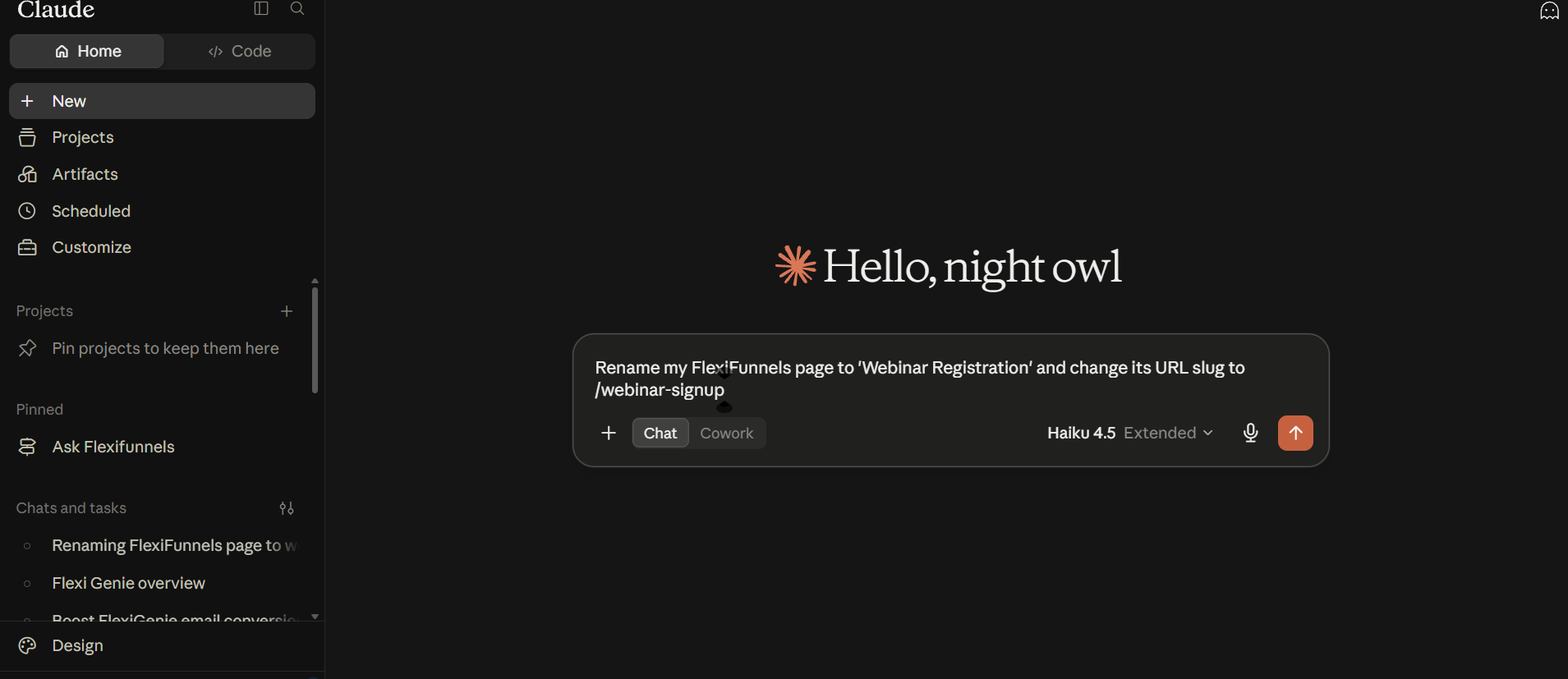
Example Prompt: "Rename my FlexiFunnels page to 'Webinar Registration' and change its URL slug to /webinar-signup."
Be Careful: Changing a page's slug changes its live URL. If the old URL is already shared anywhere, visitors using the old link may no longer reach the page.
Behind the Scenes — MCP Tools Involved
| Task | Related MCP Tool(s) |
|---|---|
| Create a new page | create_agentic_page |
| Customize/edit an existing page | update_agentic_page, customize_ai_page |
| Publish / republish a page | publish_funnel_page, publish_page_by_url |
| Check page generation status | get_ai_page_status |
| View page HTML | get_page_html, get_ai_page_html |
| View page version history | get_page_versions, get_ai_page_versions |
| Clone a page | duplicate_page |
| Update page name, type, or slug | update_page_settings |
Good to Know: These are the same MCP tools used by Flexi Genie — Claude and ChatGPT simply give you a different chat interface to access them from.
Ready-to-Use Prompts
"In FlexiFunnels, create a checkout page for my ₹499 ebook with an order bump for a bonus template pack."
"Update the testimonials section on my FlexiFunnels sales page with these 3 new reviews: [paste reviews]."
"Republish my FlexiFunnels landing page now that I've updated the pricing."
"Clone my FlexiFunnels webinar registration page so I can create a version for a different audience."
Tips for Better Results
- Mention "FlexiFunnels" or "in FlexiFunnels" in your request, especially if you have other connectors/plugins active in the same chat — this helps Claude or ChatGPT pick the right tool.
- Ask for one page change at a time rather than bundling several distinct edits into one request.
- Always review a proposed change or approval prompt before confirming, especially for actions that publish something live.
Common Issues / Troubleshooting
Changes Not Showing on the Live Page: Confirm the page was published or republished after the edit — edits update the draft first.
Request Seems to Do Nothing: Confirm the FlexiFunnels connector/plugin is still connected and authorized — connections can occasionally need to be reconnected.
Limitations / Important Notes
- Assigning a page to a specific project through a direct request is not yet confirmed as a standalone action.
- Bundling multiple distinct page-editing requests into a single message can be unreliable — ask for changes one at a time.
Curious what else Flexi Genie and AI assistants can do inside FlexiFunnels? See the full Possibilities with Flexi Genie & AI Assistance reference document.
Was this article helpful?
That’s Great!
Thank you for your feedback
Sorry! We couldn't be helpful
Thank you for your feedback
Feedback sent
We appreciate your effort and will try to fix the article