How to connect your FlexiFunnels account to Claude in just a few clicks, so you can manage your funnels directly from Claude's chat interface.
Connect and Authorize ChatGPT Integration in FlexiFunnels
How to Configure Claude by adding skill and creating project
How to use Flexi Genie in Claude
Important resources link: https://docs.google.com/document/d/1KIYpkhpgi_uNOJ4J-QB10HToh31aSKGpFhlLGQzFRmo/edit?tab=t.0
Overview
FlexiFunnels can be connected to Claude (Anthropic's AI assistant) using MCP. In Claude, this is called a Connector. Once connected, you can ask Claude to create pages, manage products, check reports, and more — using the same underlying FlexiFunnels tools available through Flexi Genie, but from inside Claude's own interface.
This article covers:
- Connecting FlexiFunnels to Claude as a Connector
- Authorizing the connection with your FlexiFunnels account
- Choosing your tool permission level
- Using FlexiFunnels tools inside a Claude chat
Before You Begin
- You need an active FlexiFunnels account.
- You need a Claude account, accessed through a web browser. This connection works on Claude's free plan as well as paid plans.
- Have your FlexiFunnels MCP connection URL ready (available from inside your FlexiFunnels dashboard).
Step-by-Step: Connecting Claude to FlexiFunnels
Step 1: Open Claude's Connector Settings
- In Claude, click your profile icon.
- Go to Settings.
- Under the Customize section, click Connectors.
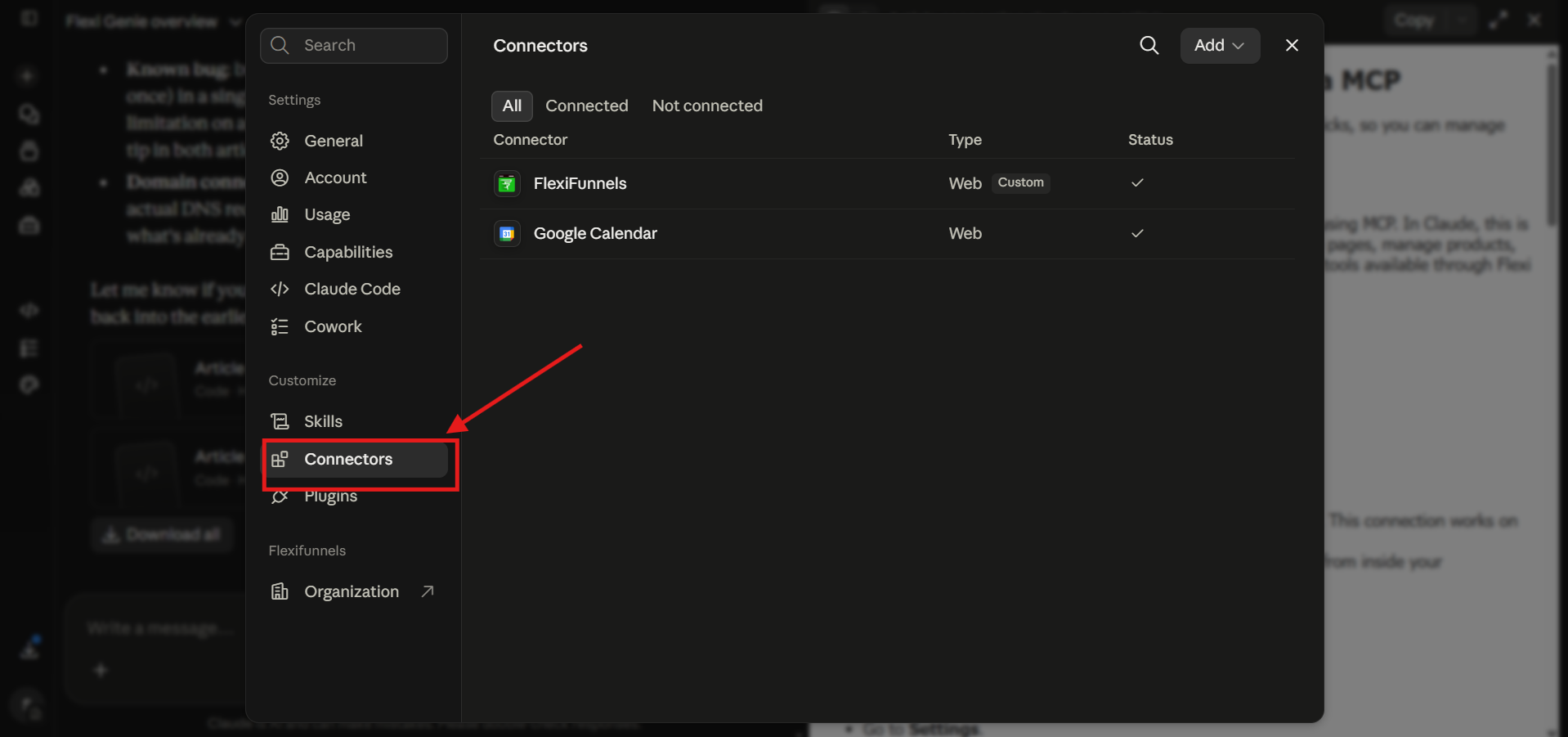
Step 2: Add FlexiFunnels as a Connector
- From your FlexiFunnels dashboard, find the option to open Claude and copy your MCP connection URL — FlexiFunnels copies this URL automatically and opens Claude's Add Connector screen for you.
- In Claude's Add Connector screen, type a name for the connector — for example, "FlexiFunnels".
- Paste the connection URL (it looks like
app.flexifunnels.com/mcp/flexi...). - Click Add.

Good to Know: You don't need an OAuth Client ID or similar technical detail to set this up — FlexiFunnels handles this automatically.
Step 3: Connect and Authorize
- After adding the connector, click Connect.
- This redirects you to FlexiFunnels, showing the account you're currently logged into.
- Click Authorize to approve the connection.
- This may take up to 10–20 seconds to complete.
Good to Know: The connection is tied to whichever FlexiFunnels account you're logged into and authorize with at this step. If someone else uses the same connector URL on a different device, they'll be prompted to log into and authorize their own FlexiFunnels account — the two connections stay separate and each only accesses its own account's data.
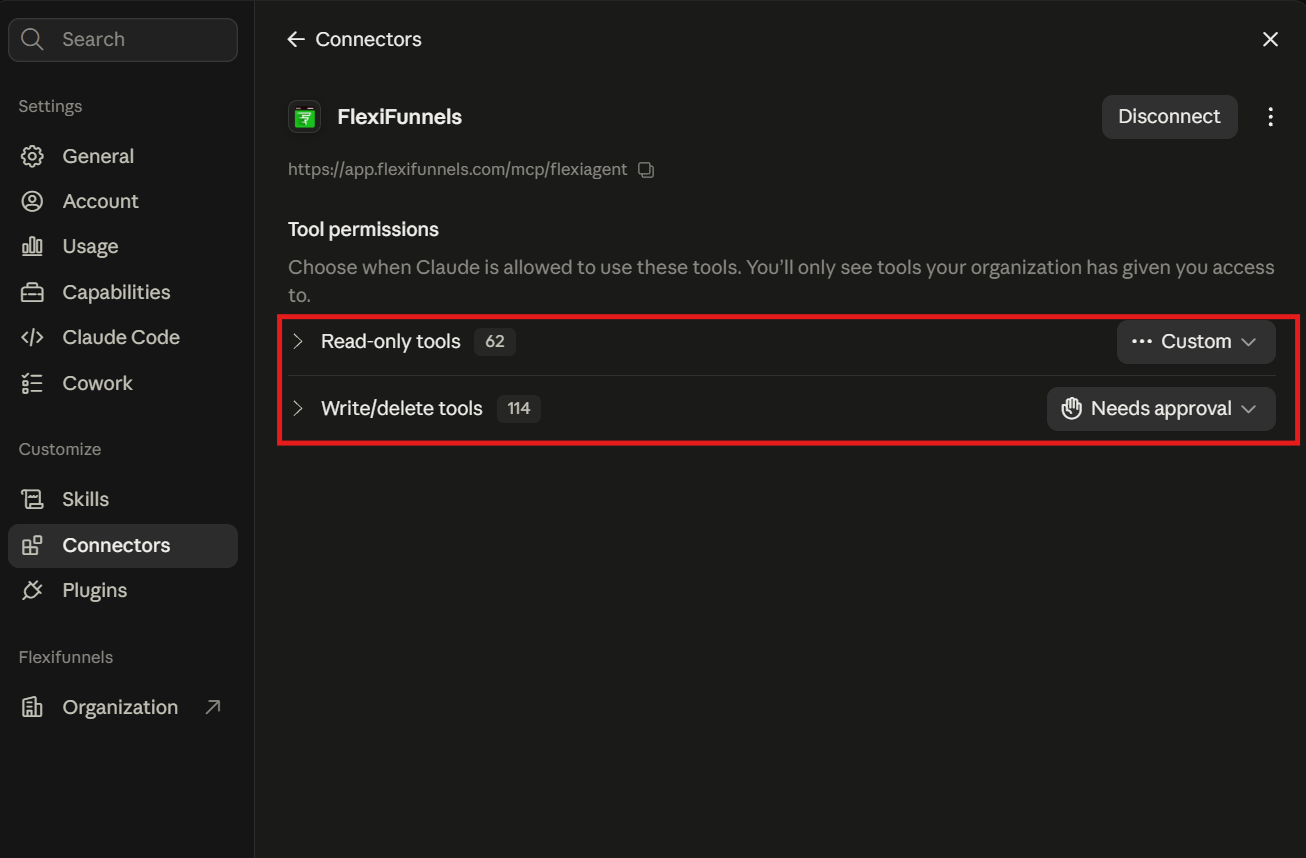
Step 4: Choose Your Tool Permission Level
- Once connected, Claude shows you the available FlexiFunnels tools, split into read-only tools (viewing information) and write tools (creating or changing things).
- You can choose how much control to give Claude:
- Allow all tools without asking permission each time
- Require approval before each tool is used
- Block specific tools entirely
Be Careful: If you're just getting started, setting tools to require approval is a safer option — you'll be asked to confirm before Claude makes any real change in your account.
Step 5: Start Using FlexiFunnels Tools in Claude
- Start a new chat in Claude.
- Ask Claude to perform a FlexiFunnels task in plain language.
- If you set tools to require approval, you'll see a prompt to allow the action (once, or for the rest of the conversation) before it happens.
Example Prompt: "Show me all my FlexiFunnels projects."
Ready-to-Use Prompts
"Show me all my FlexiFunnels projects."
"Create a sales page for my new digital product."
"List all my products in FlexiFunnels."
Tips for Better Results
- Ask for one task at a time. Asking Claude to perform several distinct actions in a single request (for example, creating three separate products at once) can be unreliable and may not complete correctly.
- Review what Claude is about to do before approving a write action, especially early on while you're getting a feel for how it interprets your requests.
- Start a new chat for unrelated tasks to keep things organized and easier to review later.
Common Issues / Troubleshooting
Connector Shows as Disconnected or Missing: If a connector was removed without properly disconnecting first, try removing it completely and adding it again from scratch.
A Multi-Step Request Fails Partway: This is a known limitation — AI assistants can struggle with several distinct actions bundled into one request. Break the request into individual steps instead.
Limitations / Important Notes
- AI assistants can occasionally misunderstand a request or make a mistake ("hallucinate"). Review proposed actions, especially ones that change live data.
- Requests involving multiple similar actions at once (e.g. creating several products in a single message) are not currently reliable — this is being worked on by the FlexiFunnels team.
- The exact number of available tools may change as FlexiFunnels continues to expand MCP support — this will be updated as new confirmed details become available.
Curious what else Flexi Genie and AI assistants can do inside FlexiFunnels? See the full Possibilities with Flexi Genie & AI Assistance reference document.
Was this article helpful?
That’s Great!
Thank you for your feedback
Sorry! We couldn't be helpful
Thank you for your feedback
Feedback sent
We appreciate your effort and will try to fix the article