How to look up subscription details and manage active subscriptions using Claude or ChatGPT, once connected via MCP.
Overview
If you sell subscription-based products, you'll often need to look up a customer's subscription status or make a change on their behalf. Once Claude or ChatGPT is connected to your FlexiFunnels account via MCP, you can review and act on subscriptions directly from your chat.
This article covers:
- Viewing your list of subscriptions
- Viewing details of one specific subscription
- Pausing a subscription
- Cancelling a subscription
- Refunding a subscription payment
- Extending a subscription's billing date
Before You Begin
- Make sure FlexiFunnels is connected to Claude (as a Connector) or ChatGPT (as a Plugin). See Connecting Claude to FlexiFunnels via MCP or Connecting ChatGPT to FlexiFunnels via MCP if you haven't done this yet.
- Know the customer's email address or subscription ID to quickly locate their subscription.
- Confirm your refund/cancellation policy before taking action.
Step-by-Step: Common Subscription Tasks
Step 1: View Your Subscriptions
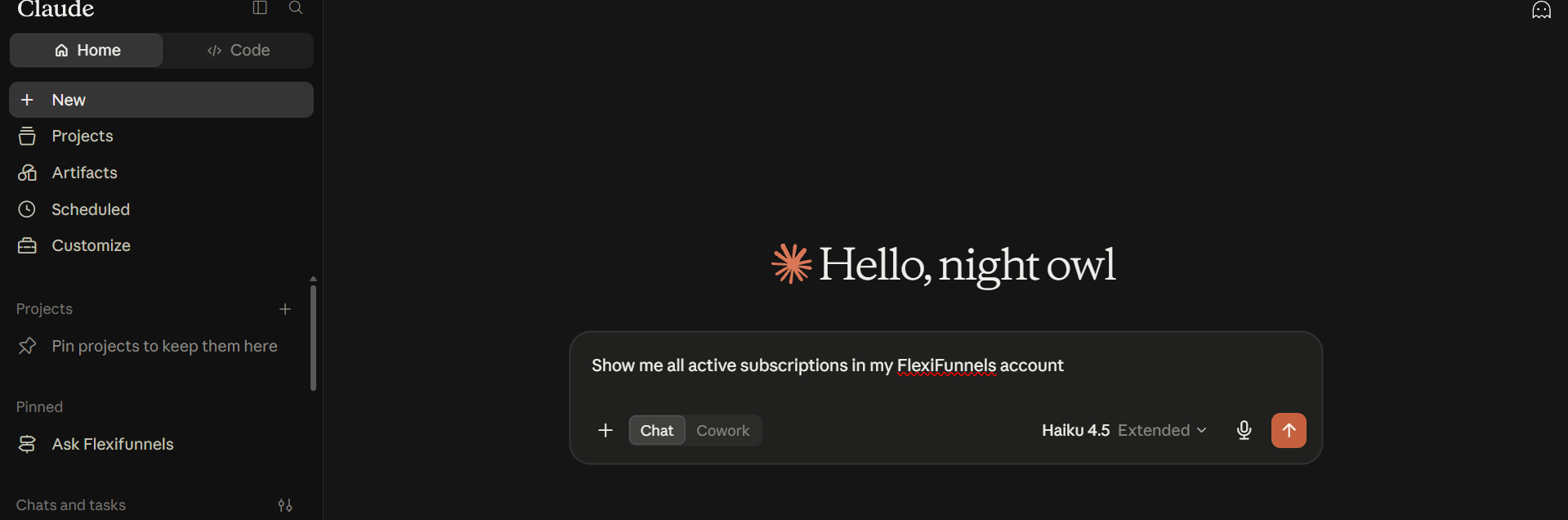
- Ask for a list of all active (or all) subscriptions.
Example Prompt: "Show me all active subscriptions in my FlexiFunnels account."
Step 2: View One Specific Subscription
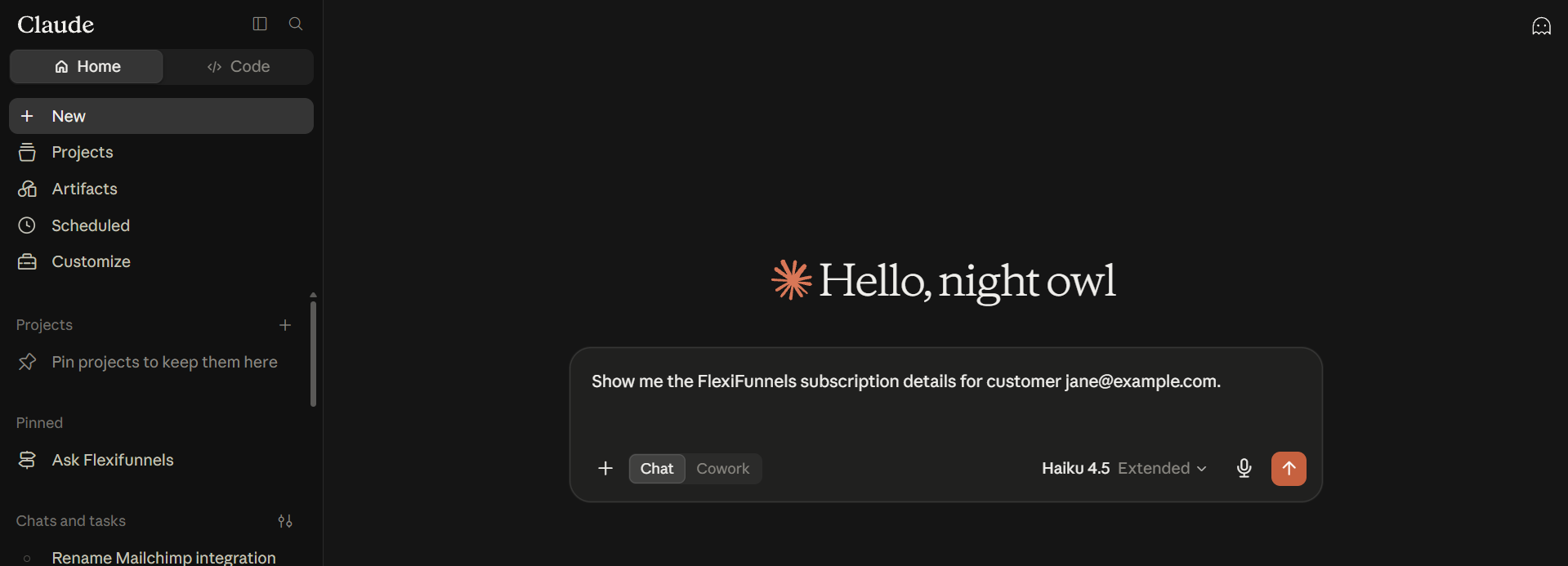
- Look up a specific customer's subscription by their email or subscription ID.
Example Prompt: "Show me the FlexiFunnels subscription details for customer jane@example.com."
Step 3: Pause a Subscription
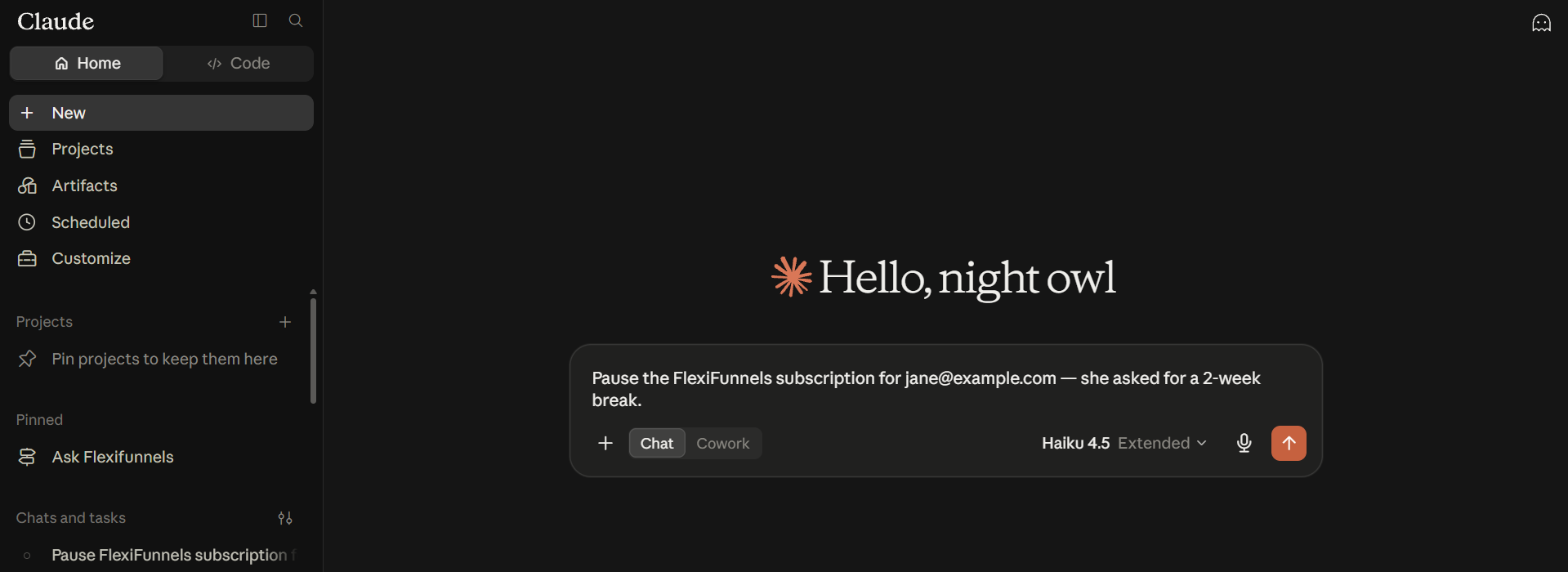
- Pause a subscription instead of cancelling it if a customer needs a temporary break.
Example Prompt: "Pause the FlexiFunnels subscription for jane@example.com — she asked for a 2-week break."
Step 4: Cancel a Subscription
- Cancel a subscription permanently when a customer wants to stop entirely.
Example Prompt: "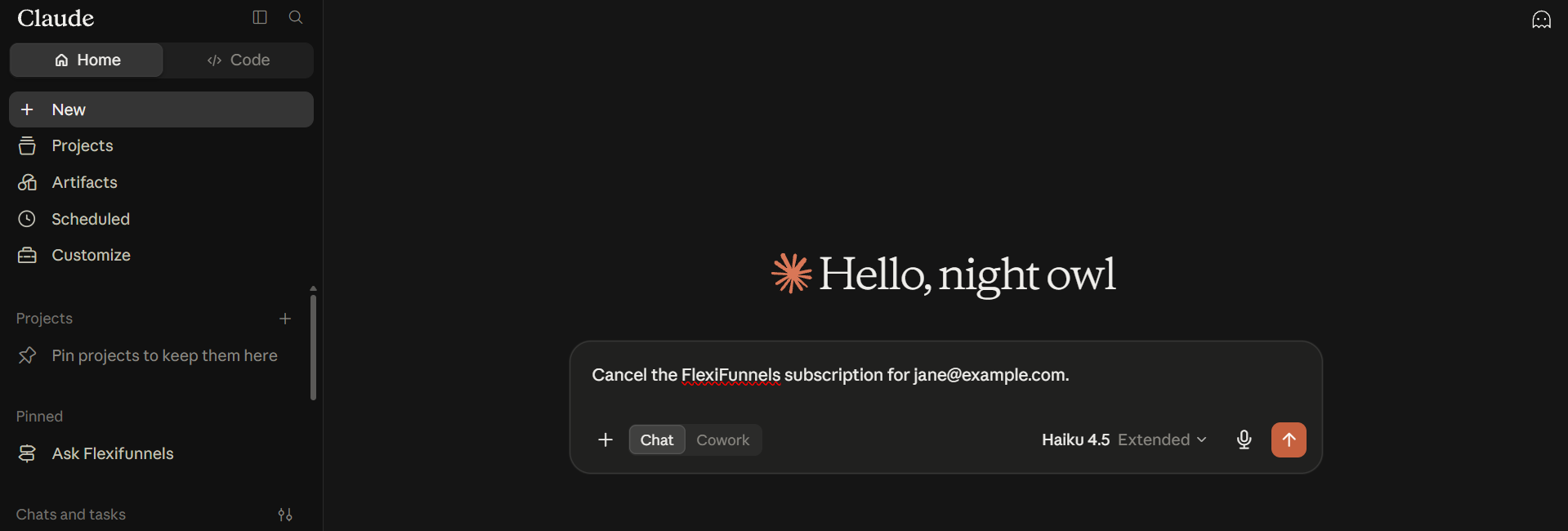
Be Careful: Cancelling a subscription is typically not reversible in the same way pausing is. Confirm this is what the customer wants before proceeding.
Step 5: Refund a Subscription Payment
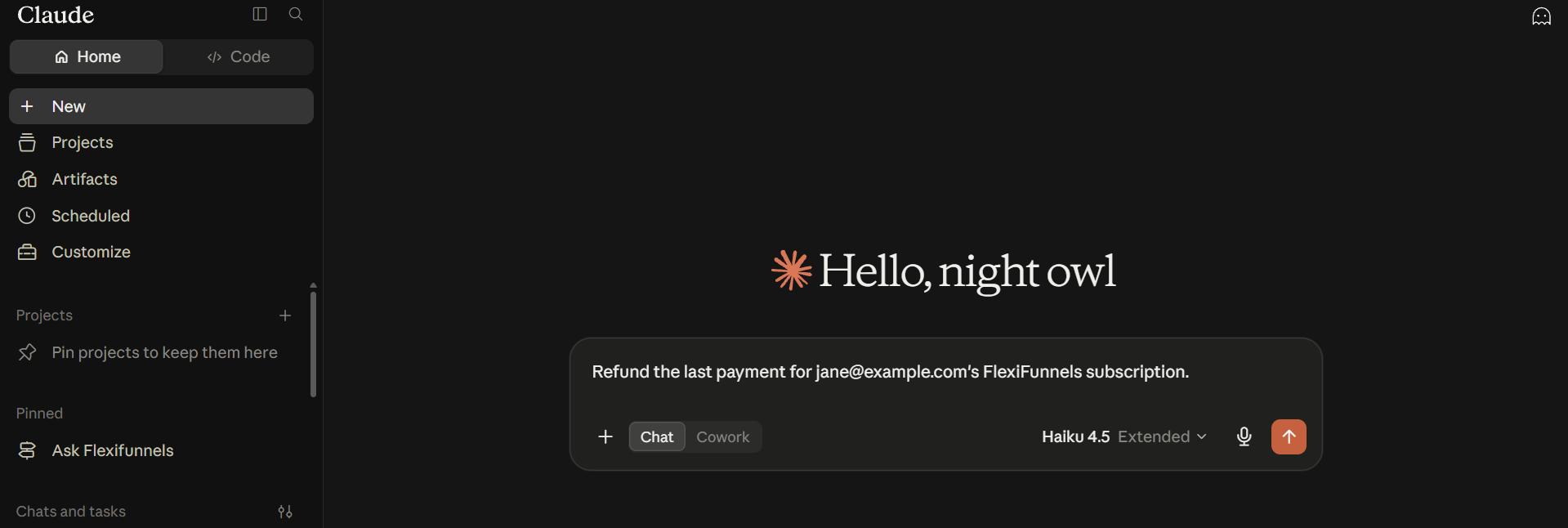
- Issue a full or custom-amount refund for a specific subscription payment.
Example Prompt: "Refund the last payment for jane@example.com's FlexiFunnels subscription."
Step 6: Extend a Subscription's Billing Date
- Push back the next billing date by a set number of days.
Example Prompt: "Extend jane@example.com's FlexiFunnels billing date by 7 days."
Behind the Scenes — MCP Tools Involved
| Task | Related MCP Tool(s) |
|---|---|
| View all subscriptions | get_subscriptions |
| View one subscription in detail | get_subscription |
| Pause a subscription | pause_subscription |
| Cancel a subscription | cancel_subscription |
| Refund a subscription payment | refund_subscription |
| Extend the billing date | extend_subscription_billing |
Good to Know: These are the same MCP tools used by Flexi Genie — Claude and ChatGPT simply give you a different chat interface to access them from.
Ready-to-Use Prompts
"Show me all FlexiFunnels subscriptions that are currently active."
"Cancel the FlexiFunnels subscription for customer john@example.com — he's requested to stop."
"Issue a full refund for john@example.com's most recent FlexiFunnels subscription payment."
Tips for Better Results
- Mention "FlexiFunnels" explicitly if you have other connectors/plugins active in the same chat.
- Always confirm the customer's exact email address before taking action.
- Consider whether pausing (rather than cancelling) better serves a customer who just needs a temporary break.
Common Issues / Troubleshooting
Can't Find a Customer's Subscription: Double-check the email address used for the purchase — it may differ from the one currently being searched.
Customer Still Being Billed After Cancellation: Confirm the cancellation was successfully processed and check the subscription's current status.
Limitations / Important Notes
- Cancelling and refunding are typically final actions — always confirm details with the customer beforehand.
- Refund availability and amount limits may depend on your connected payment gateway's own policies.
Curious what else Flexi Genie and AI assistants can do inside FlexiFunnels? See the full Possibilities with Flexi Genie & AI Assistance reference document.
Was this article helpful?
That’s Great!
Thank you for your feedback
Sorry! We couldn't be helpful
Thank you for your feedback
Feedback sent
We appreciate your effort and will try to fix the article