How to create discount coupons, attach them to products, and manage active promotions using Claude or ChatGPT, once connected via MCP.
Overview
Coupons let you offer discounts on your products — for launches, seasonal sales, or special audiences. Once Claude or ChatGPT is connected to your FlexiFunnels account via MCP, you can create, manage, and review coupons directly from your chat.
This article covers:
- Creating a new coupon
- Assigning a coupon to one or more products
- Enabling or disabling a coupon
- Updating an existing coupon's settings
- Cloning a coupon
- Viewing your full list of coupons
Before You Begin
- Make sure FlexiFunnels is connected to Claude (as a Connector) or ChatGPT (as a Plugin). See Connecting Claude to FlexiFunnels via MCP or Connecting ChatGPT to FlexiFunnels via MCP if you haven't done this yet.
- Know which product(s) the coupon should apply to.
- Decide on the discount type (percentage or fixed amount) and validity period before creating the coupon.
Step-by-Step: Common Coupon Tasks
Step 1: Create a New Coupon
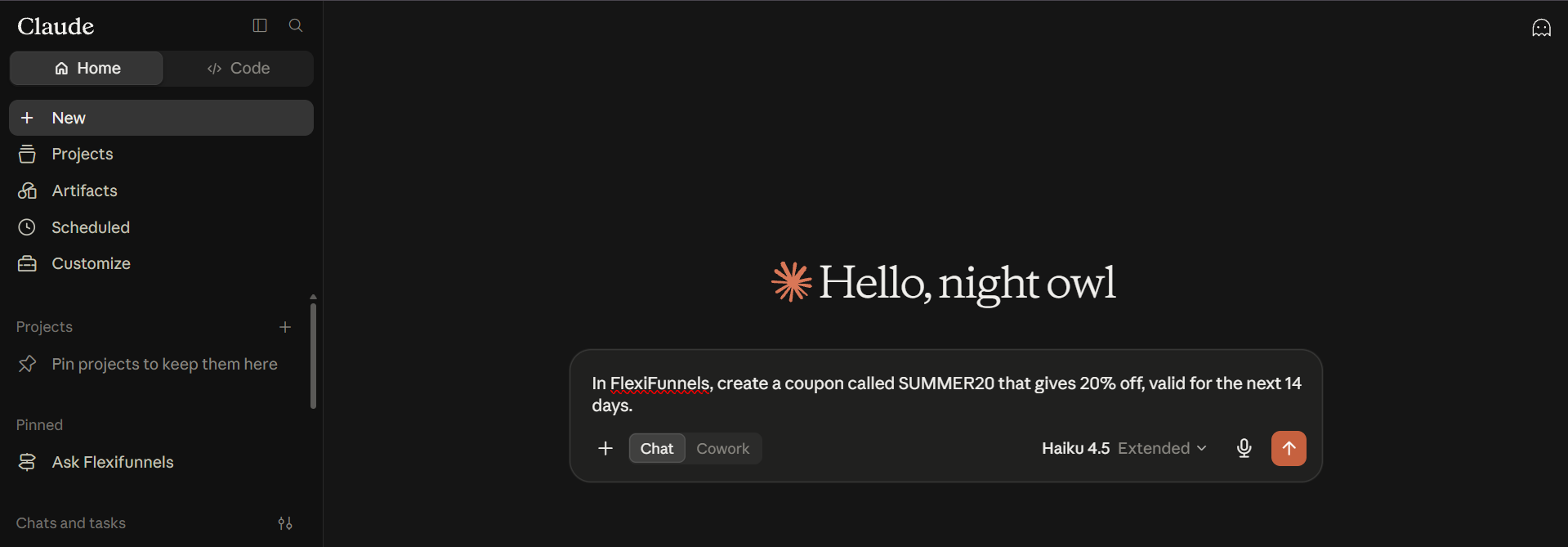
- In a Claude or ChatGPT chat, describe the coupon you want — the code, the discount, and how long it should run.
Example Prompt: "In FlexiFunnels, create a coupon called SUMMER20 that gives 20% off, valid for the next 14 days."
Step 2: Assign the Coupon to Products
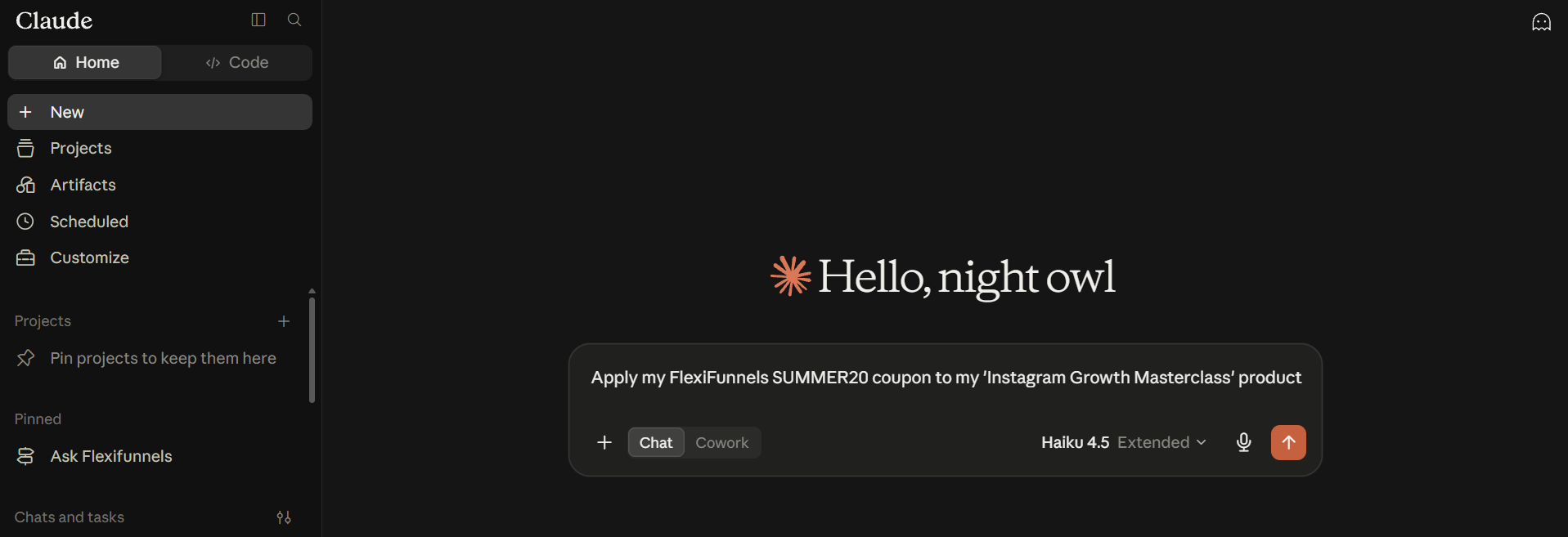
- Tell Claude or ChatGPT which product(s) the coupon should apply to.
Example Prompt: "Apply my FlexiFunnels SUMMER20 coupon to my 'Instagram Growth Masterclass' product."
Step 3: Enable or Disable a Coupon
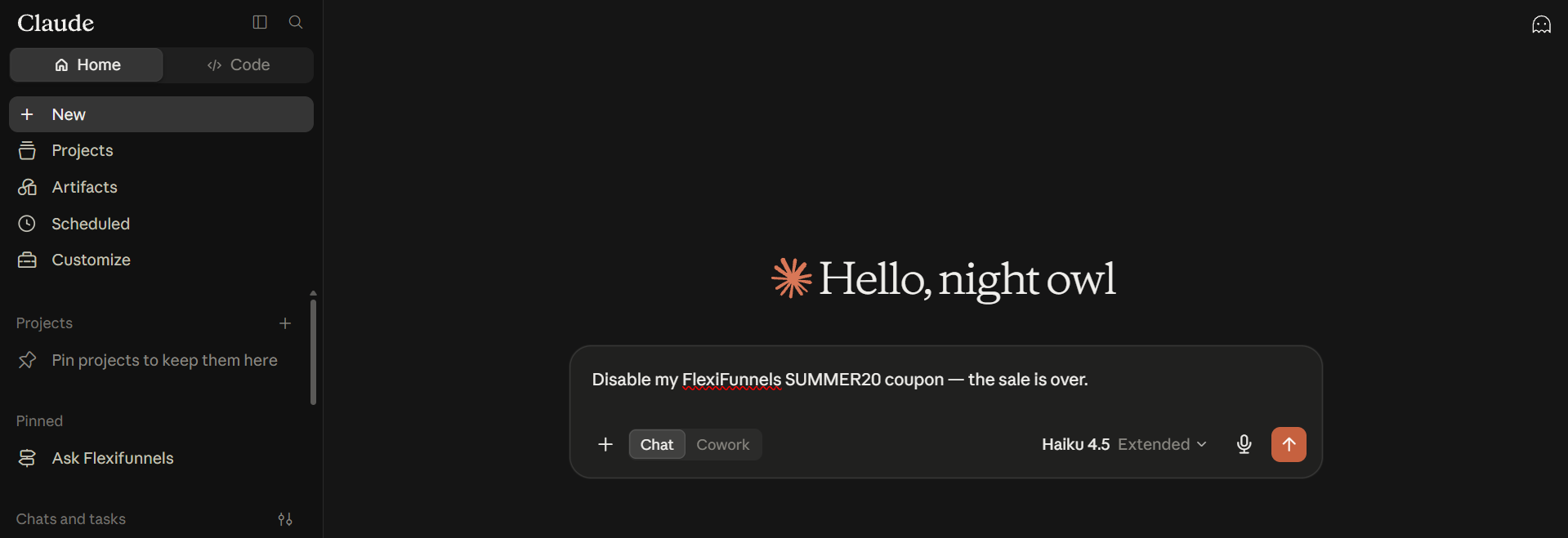
- Disable a coupon to stop it from working without deleting it, and re-enable it later if needed.
Example Prompt: "Disable my FlexiFunnels SUMMER20 coupon — the sale is over."
Be Careful: Disabling a coupon takes effect immediately. If it's currently advertised anywhere, customers trying to use it will no longer get the discount.
Step 4: Update an Existing Coupon
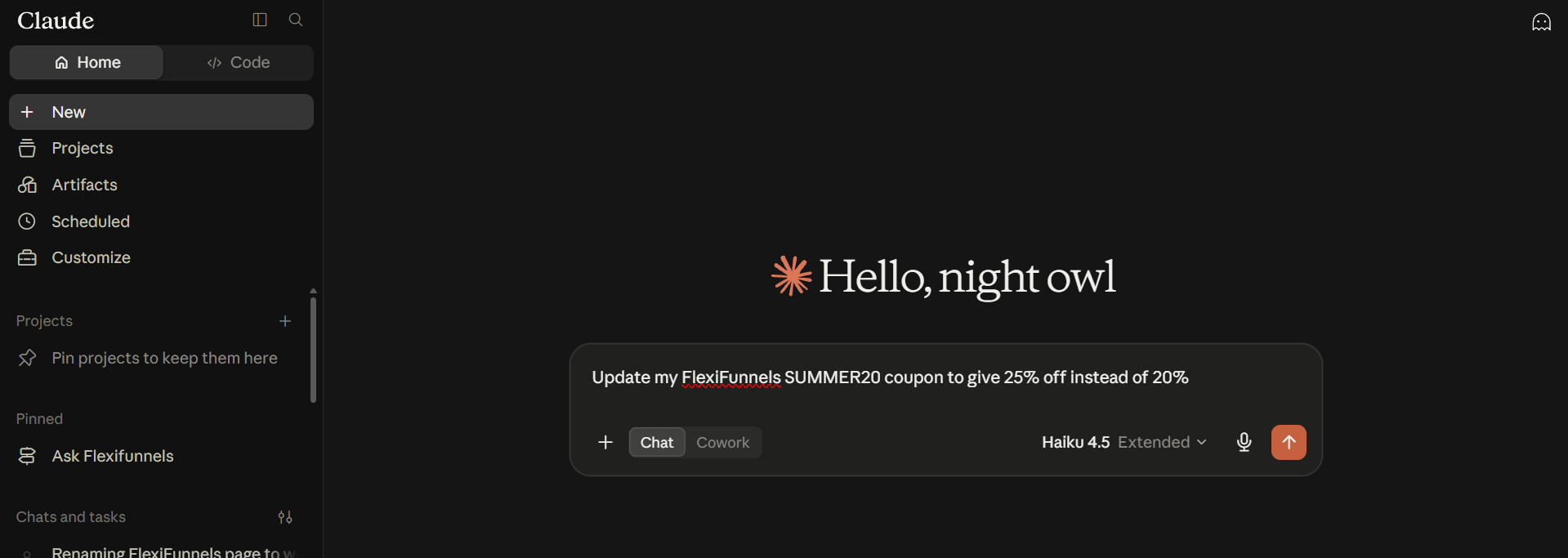
- Change a coupon's discount value, validity period, or other settings without recreating it.
Example Prompt: "Update my FlexiFunnels SUMMER20 coupon to give 25% off instead of 20%."
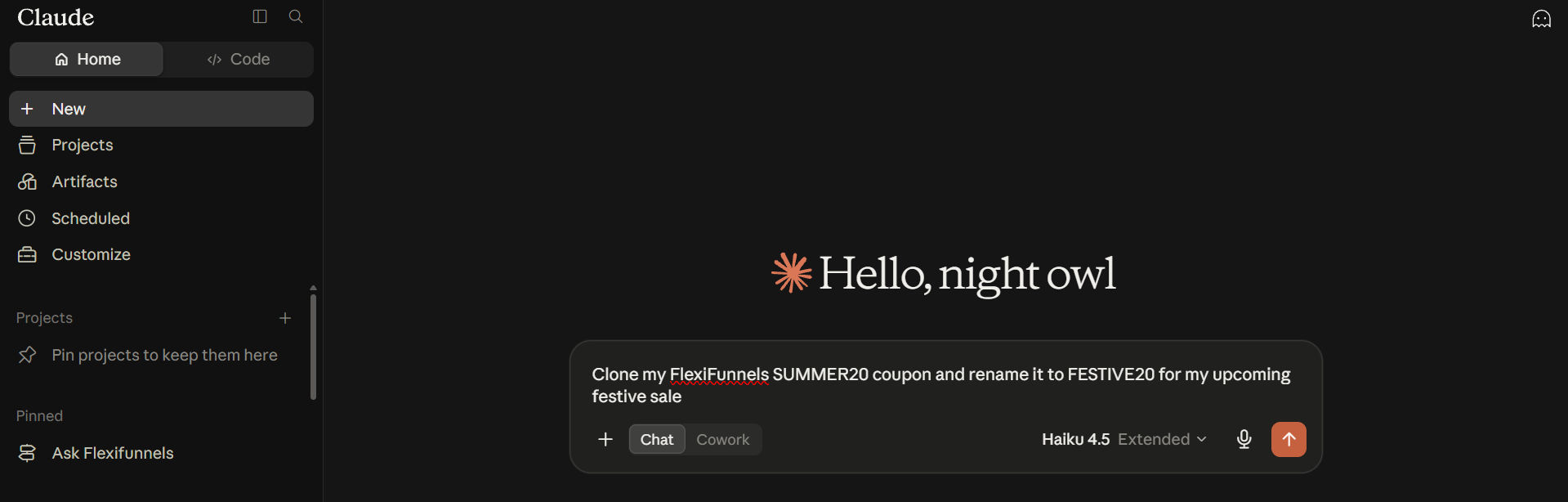
Step 5: Clone a Coupon
- If you want a similar coupon for a different product or promotion, clone an existing one instead of starting from scratch.
Example Prompt: "Clone my FlexiFunnels SUMMER20 coupon and rename it to FESTIVE20 for my upcoming festive sale."
Step 6: View All Your Coupons
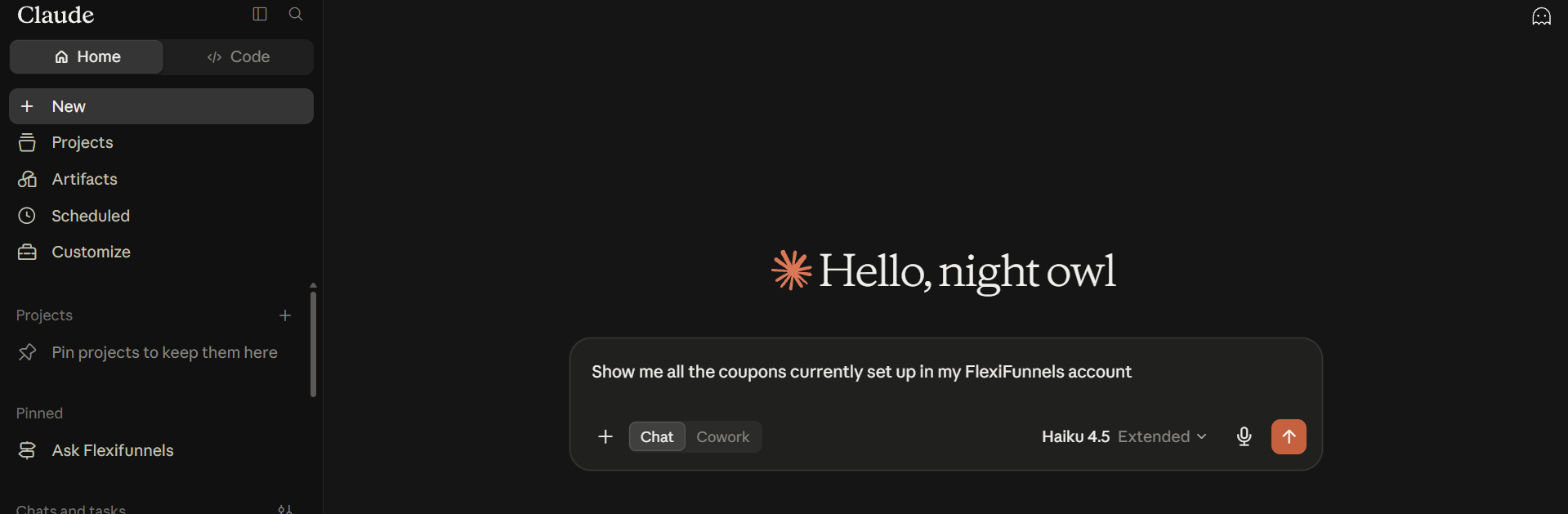
- Ask for a list of your current coupons to review what's active, expired, or upcoming.
Example Prompt: "Show me all the coupons currently set up in my FlexiFunnels account."
Behind the Scenes — MCP Tools Involved
| Task | Related MCP Tool(s) |
|---|---|
| Create a new coupon | create_coupon |
| Assign coupon to products | assign_coupon_products |
| Enable a coupon | enable_coupon |
| Disable a coupon | disable_coupon |
| Update coupon settings | update_coupon |
| Clone a coupon | clone_coupon |
| View all coupons | get_coupons |
Good to Know: These are the same MCP tools used by Flexi Genie — Claude and ChatGPT simply give you a different chat interface to access them from.
Ready-to-Use Prompts
"In FlexiFunnels, create a coupon called FESTIVE30 for 30% off, valid until the end of the month."
"Apply my FlexiFunnels FESTIVE30 coupon to all my course products."
"Show me a list of all active FlexiFunnels coupons."
Tips for Better Results
- Mention "FlexiFunnels" explicitly if you have other connectors/plugins active in the same chat.
- Use clear, memorable coupon codes — this makes them easier to reference later.
- If applying a coupon to multiple products, consider doing this as a separate step after the coupon is created, especially if it's a long list of products.
Common Issues / Troubleshooting
Coupon Not Applying at Checkout: Confirm the coupon is enabled and correctly assigned to the specific product being purchased.
Coupon Still Working After a Sale Ended: Check whether the coupon was disabled, and confirm its expiry date is set correctly.
Limitations / Important Notes
- A coupon must be both enabled and assigned to a product to work at checkout.
- Cloning a coupon copies its settings, but you should review the discount value, code, and expiry before activating the clone.
Curious what else Flexi Genie and AI assistants can do inside FlexiFunnels? See the full Possibilities with Flexi Genie & AI Assistance reference document.
Was this article helpful?
That’s Great!
Thank you for your feedback
Sorry! We couldn't be helpful
Thank you for your feedback
Feedback sent
We appreciate your effort and will try to fix the article