How to connect your FlexiFunnels account to ChatGPT, so you can manage your funnels directly from a ChatGPT conversation.
How to Configure ChatGPT by adding Custom Instruction
How to use Flexi Genie in ChatGPT
Overview
FlexiFunnels can also be connected to ChatGPT using MCP. In ChatGPT, this is referred to as a Plugin (in Claude, the equivalent is called a Connector). Once connected, you can ask ChatGPT to create pages, manage products, and perform other FlexiFunnels tasks — using the same underlying tools available through Flexi Genie.
This article covers:
- Enabling Developer Mode in ChatGPT (a required one-time step)
- Adding FlexiFunnels as a connector in ChatGPT
- Authorizing the connection with your FlexiFunnels account
- Refreshing the connection the first time you use it
- Using FlexiFunnels tools inside a ChatGPT chat
Before You Begin
- You need an active FlexiFunnels account.
- You need a ChatGPT account. Whether a free ChatGPT account supports custom connectors is not yet confirmed — this section will be updated once verified. A paid ChatGPT plan (e.g. Go or higher) is confirmed to support this.
- Have your FlexiFunnels MCP connection URL ready (available from inside your FlexiFunnels dashboard).
Step-by-Step: Connecting ChatGPT to FlexiFunnels
Step 1: Enable Developer Mode in ChatGPT
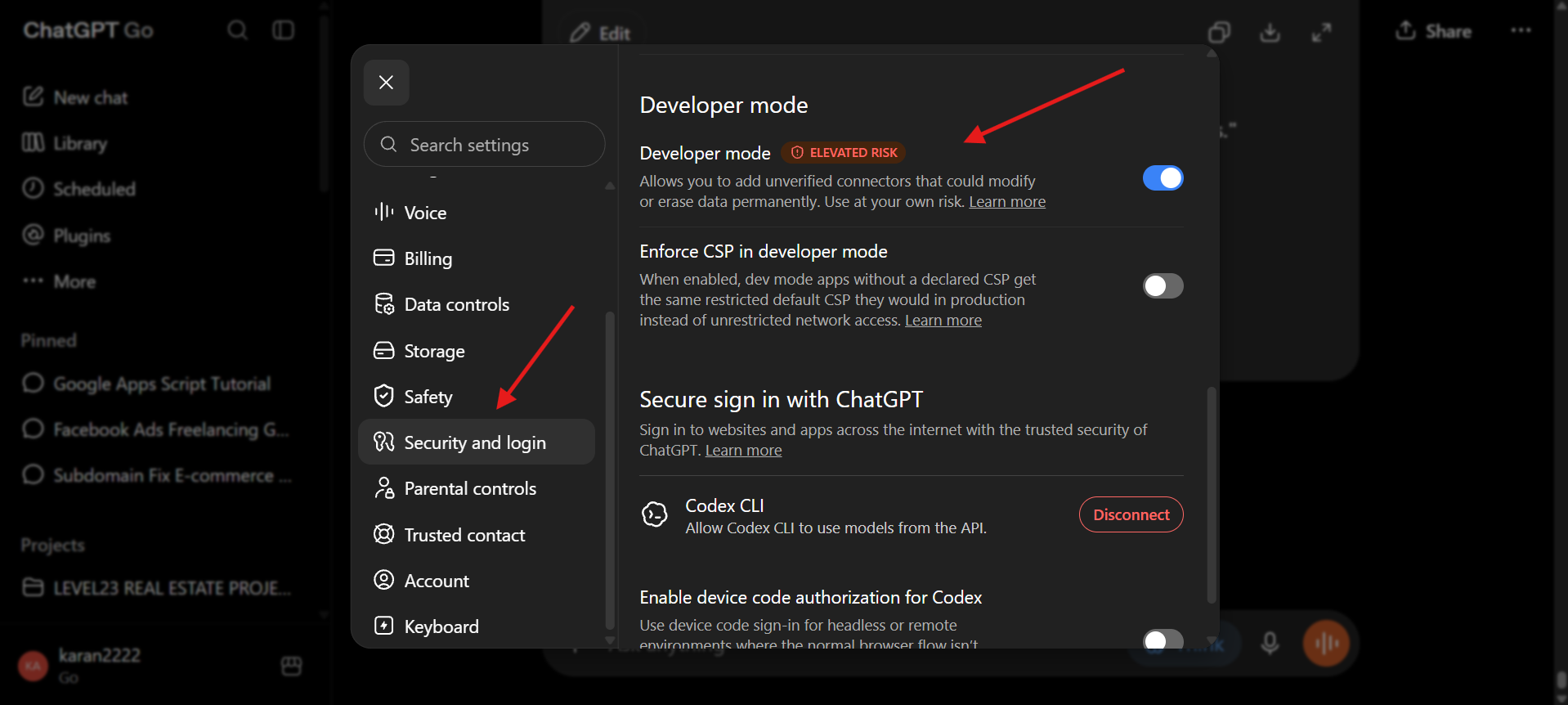
- ChatGPT keeps custom connectors behind a setting called Developer Mode, which must be turned on before you can connect FlexiFunnels.
- Open ChatGPT's settings, then go to Settings > Security and Login > Developer Mode.
- Turn it on.
Good to Know: This is a one-time setup step. Once enabled, you won't need to turn it on again for future connectors.
Step 2: Add FlexiFunnels as a Connector
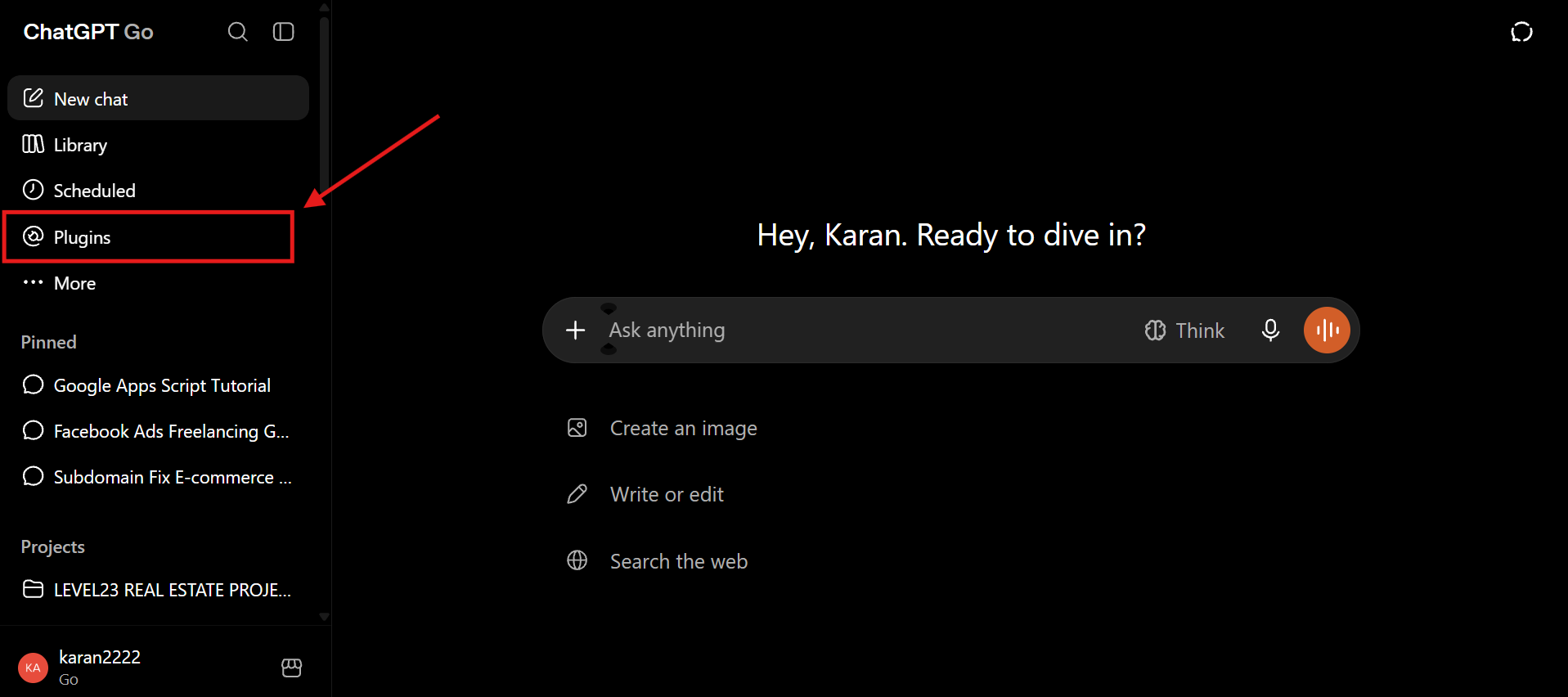
- In ChatGPT home page, Click Plugins.
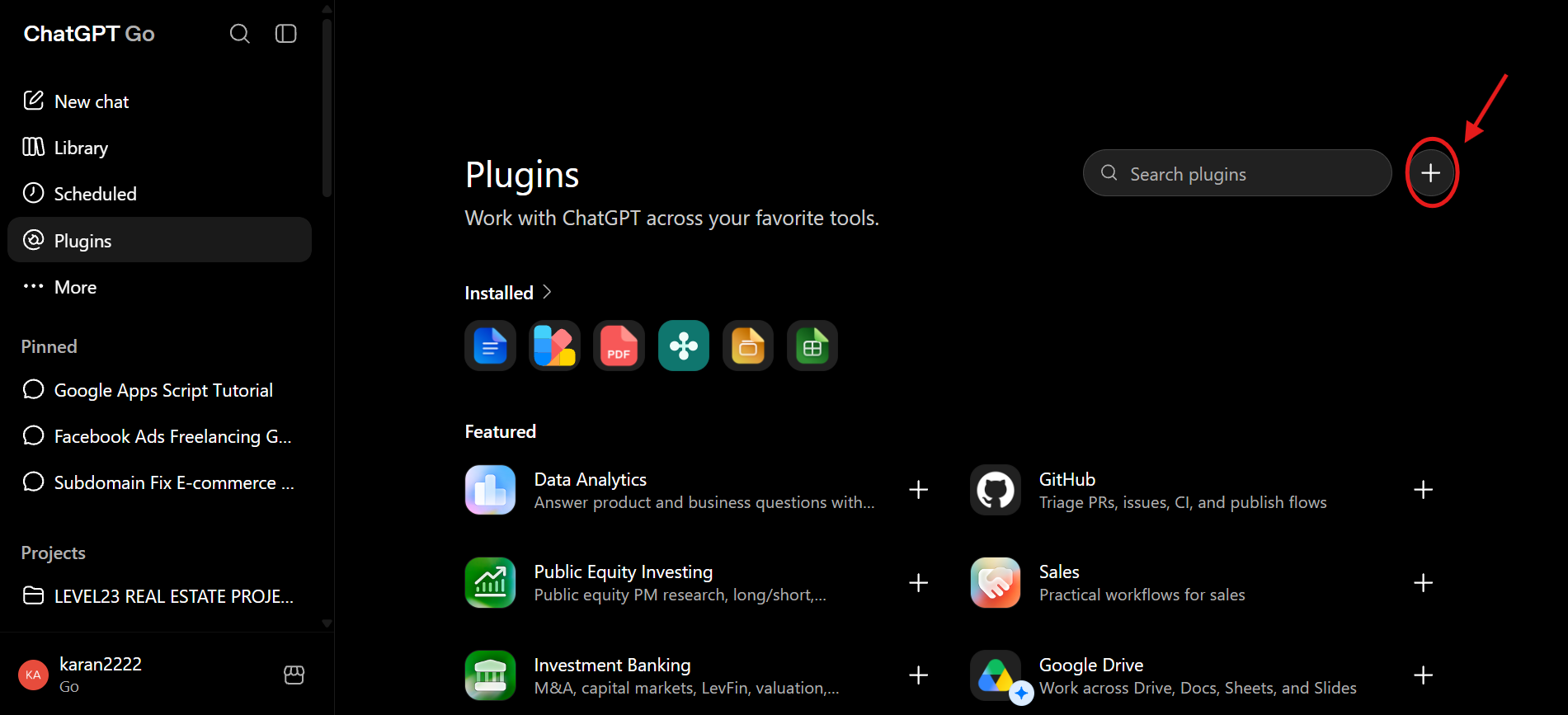
- Find and click on the "+" icon.
- Give name "Flexifunnels' to the Plugin and add the MCP Connection URL (https://app.flexifunnels.com/mcp/flexiagent).
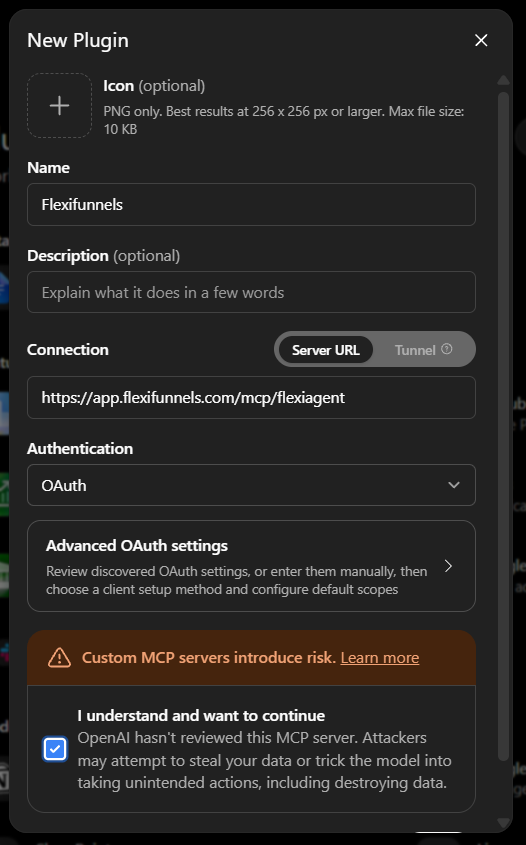
- Check the confirmation checkbox.
- Click Create.
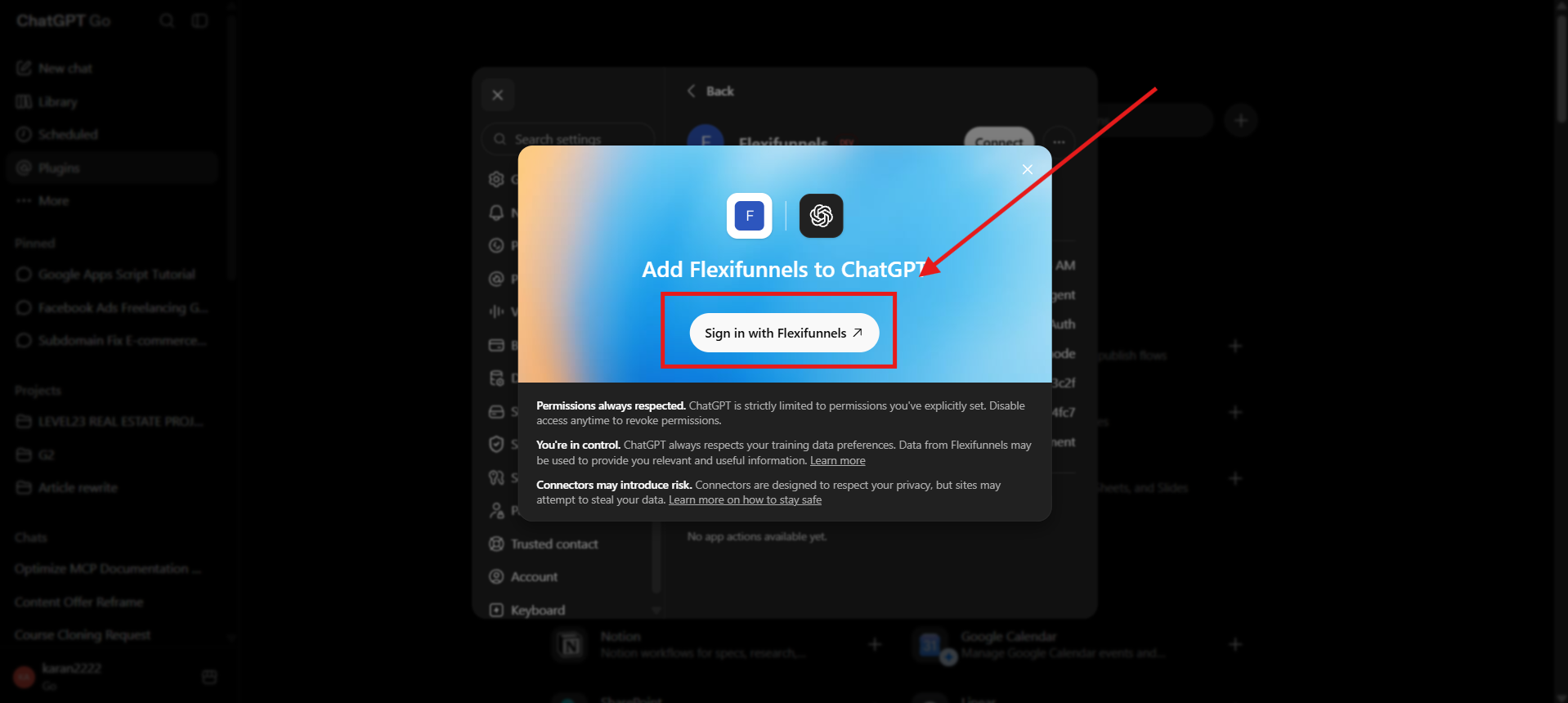
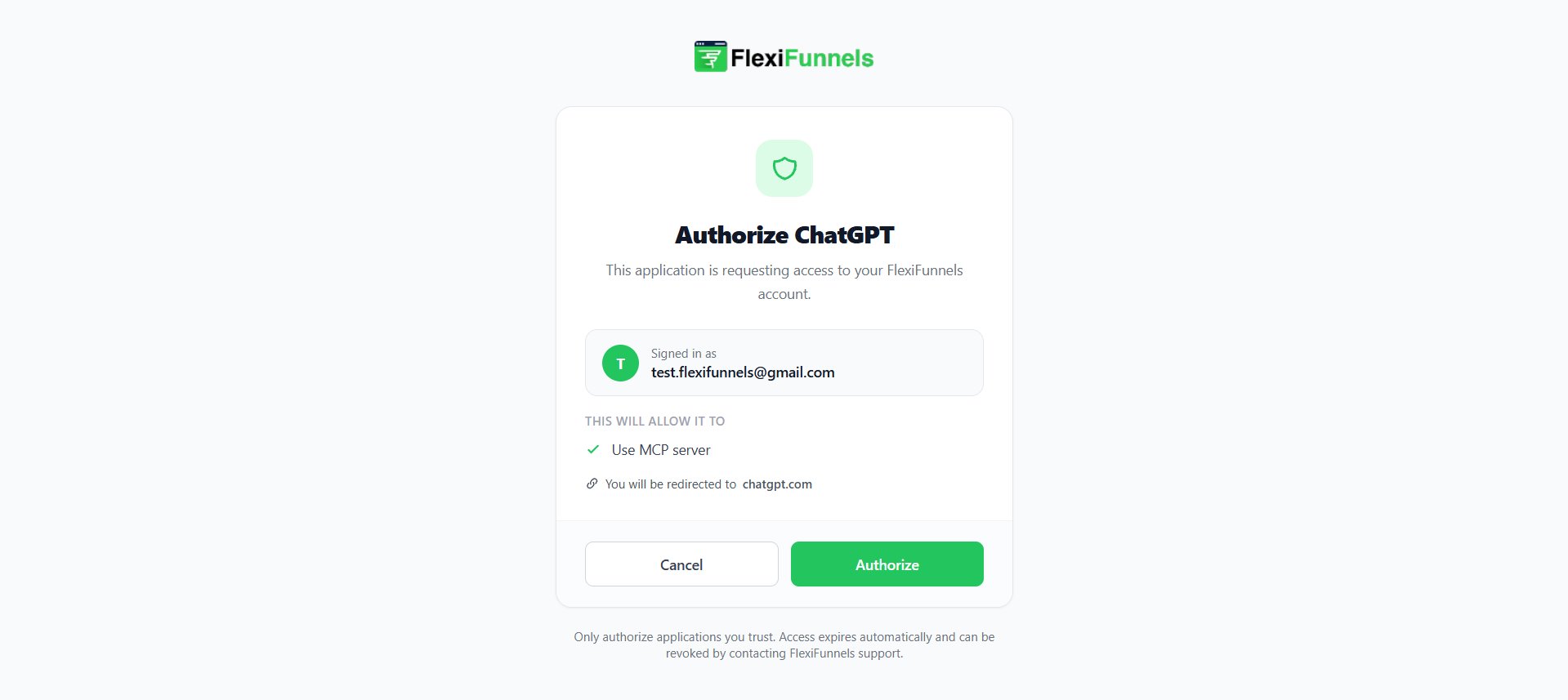
Step 3: Sign In and Authorize
- Click Sign in with FlexiFunnels Agent.
- This redirects you to FlexiFunnels to log in (if not already) and authorize the connection.
Step 4: Refresh the Connector (First Time Only)
- The very first time you connect, ChatGPT may show "No app access available yet" even though the connection succeeded.
- Click the refresh button once to load the available tools.
Be Careful: This refresh step is mandatory the first time only. If your tools don't appear right after connecting, try refreshing before assuming something went wrong.
Step 5: Start Using FlexiFunnels Tools in ChatGPT
- Start a new chat in ChatGPT.
- Ask ChatGPT to perform a FlexiFunnels task in plain language.
Example Prompt: "Get all my products from FlexiFunnels."
Ready-to-Use Prompts
"Get all my products from FlexiFunnels."
"Create a sales page and checkout page for my new course."
"Show me the tools available for FlexiFunnels."
Tips for Better Results
- Ask for one task at a time. Bundling several distinct actions into a single request (for example, creating multiple products for different pricing tiers in one message) can fail or produce incomplete results.
- If tools don't show up immediately after connecting, refresh once before trying again.
- Start a new chat for unrelated tasks to keep things organized.
Common Issues / Troubleshooting
"No App Access Available Yet" After Connecting: This is expected the first time. Click the refresh button to load the tools.
Can't Find the Add Connector Option: Confirm Developer Mode is turned on in your ChatGPT settings — custom connectors are hidden until this is enabled.
Want to Start the Connection Over: Delete the existing connector completely first, then add it again from scratch.
Creating Multiple Similar Items at Once Fails: This is a known limitation with AI assistants handling several distinct actions in one request. Ask for one item at a time instead.
Limitations / Important Notes
- Whether ChatGPT's free plan supports custom connectors is not yet confirmed — this will be updated once verified with OpenAI's plan requirements.
- AI assistants can occasionally misunderstand a request or make a mistake. Review proposed actions, especially ones that change live data.
- Requests involving multiple similar actions at once (e.g. creating several products in a single message) are not currently reliable — this is being worked on by the FlexiFunnels team.
Curious what else Flexi Genie and AI assistants can do inside FlexiFunnels? See the full Possibilities with Flexi Genie & AI Assistance reference document.
Was this article helpful?
That’s Great!
Thank you for your feedback
Sorry! We couldn't be helpful
Thank you for your feedback
Feedback sent
We appreciate your effort and will try to fix the article