How to create products, set up pricing, connect payment gateways, and manage your product catalog using Claude or ChatGPT, once connected via MCP.
Overview
A product in FlexiFunnels is what you actually sell — a course, a digital download, a coaching offer, or a membership. Once Claude or ChatGPT is connected to your FlexiFunnels account via MCP, you can create products, set pricing, connect payment gateways, and check performance — all from your chat.
This article covers:
- Creating a new product
- Setting the currency for a product or account
- Connecting a payment gateway to a product
- Connecting pages to a product (sales, checkout, thank-you)
- Viewing your product list and individual product details
- Checking a product's sales statistics
- Cloning an existing product
- Creating a subscription (recurring) product
Before You Begin
- Make sure FlexiFunnels is connected to Claude (as a Connector) or ChatGPT (as a Plugin). See Connecting Claude to FlexiFunnels via MCP or Connecting ChatGPT to FlexiFunnels via MCP if you haven't done this yet.
- Have your payment gateway already connected to your FlexiFunnels account before asking to attach it to a product.
- Decide whether the product is a one-time purchase or a recurring subscription before setting up pricing.
Step-by-Step: Common Product Tasks
Step 1: Create a New Product
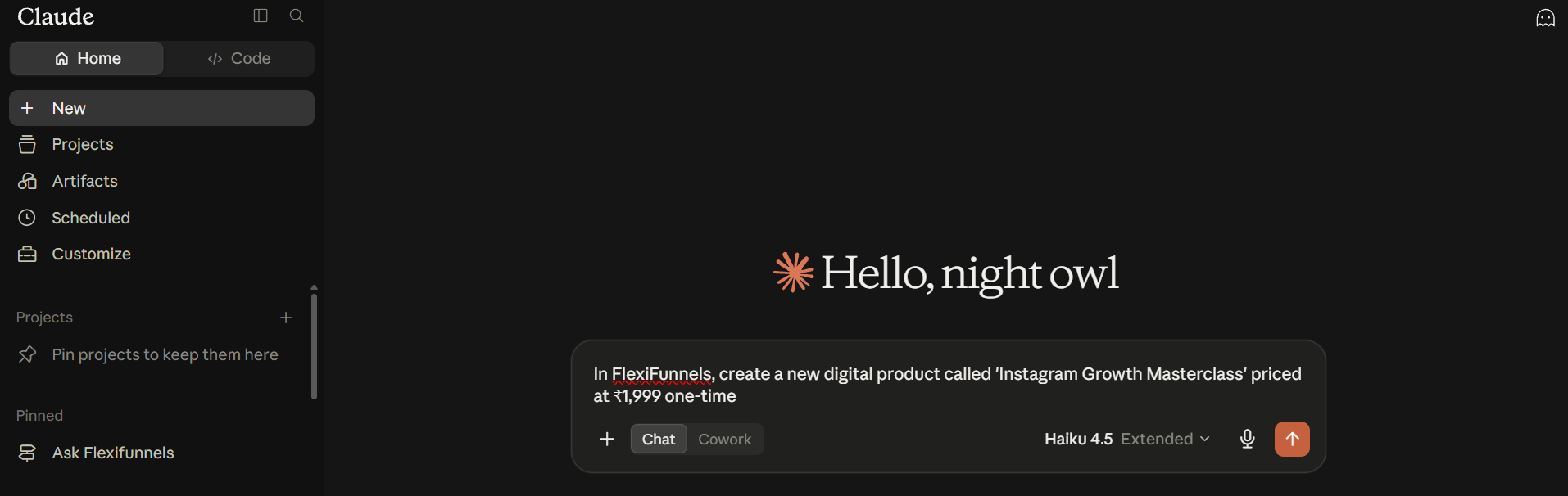
- In a Claude or ChatGPT chat, describe the product you want, its price, and whether it's one-time or recurring.
Example Prompt: "In FlexiFunnels, create a new digital product called 'Instagram Growth Masterclass' priced at ₹1,999 one-time."
Step 2: Set the Currency
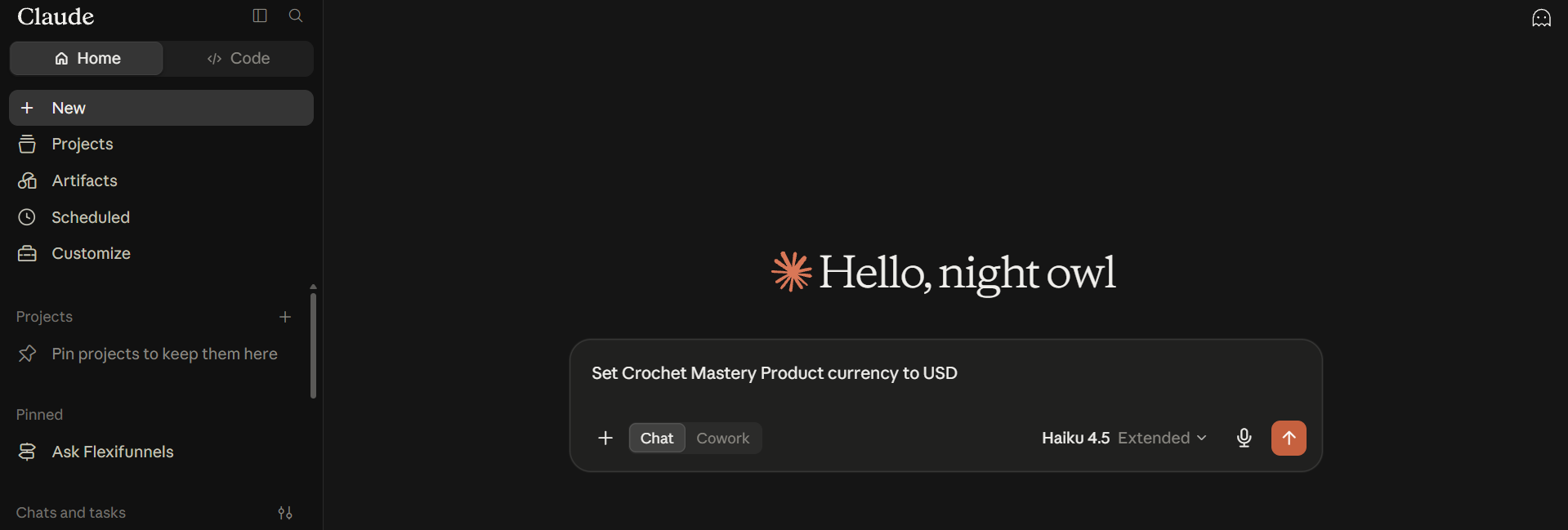
- Set the currency at the account/regional level, or specify it while creating a product.
Example Prompt: "Set Crochet Mastery Product currency to USD."
Step 3: Connect a Payment Gateway to the Product
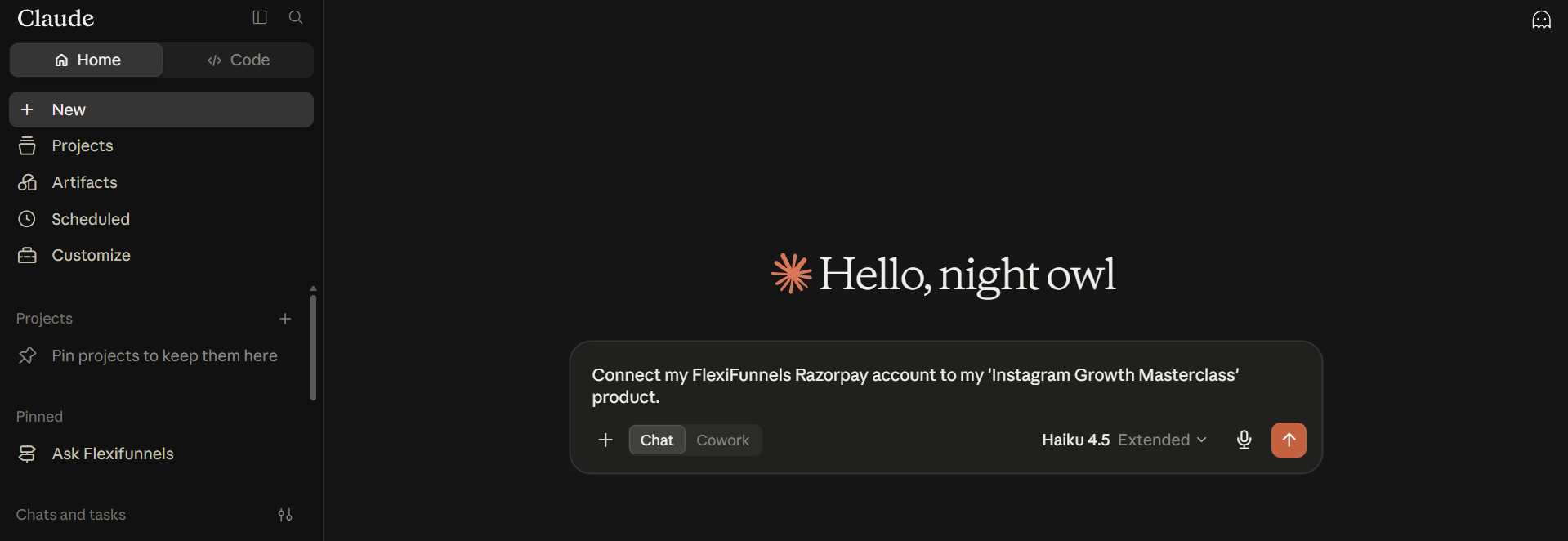
- Make sure the payment gateway is already added to your FlexiFunnels account, then ask for it to be attached to a specific product.
Example Prompt: "Connect my FlexiFunnels Razorpay account to my 'Instagram Growth Masterclass' product."
Be Careful: If no payment gateway is connected to a product, customers won't be able to complete a purchase. Always confirm this step is done before publishing.
Step 4: Connect Pages to the Product
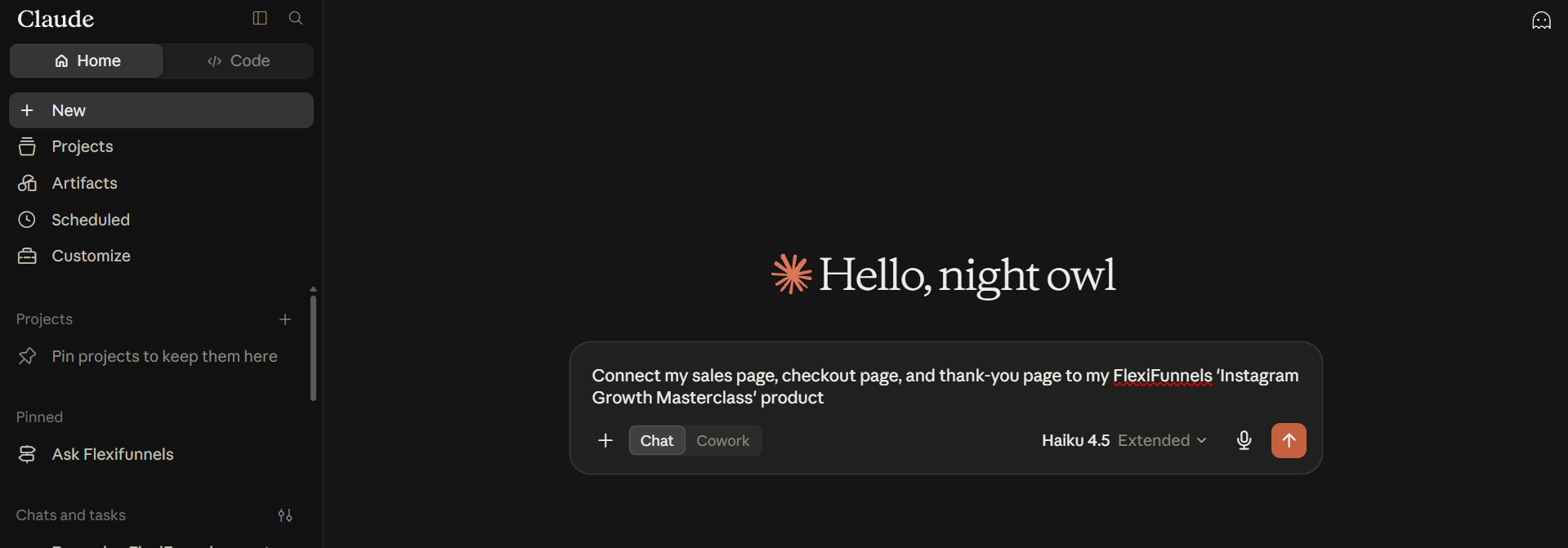
- Wire your sales page, checkout page, and thank-you page to your product.
Example Prompt: "Connect my sales page, checkout page, and thank-you page to my FlexiFunnels 'Instagram Growth Masterclass' product."
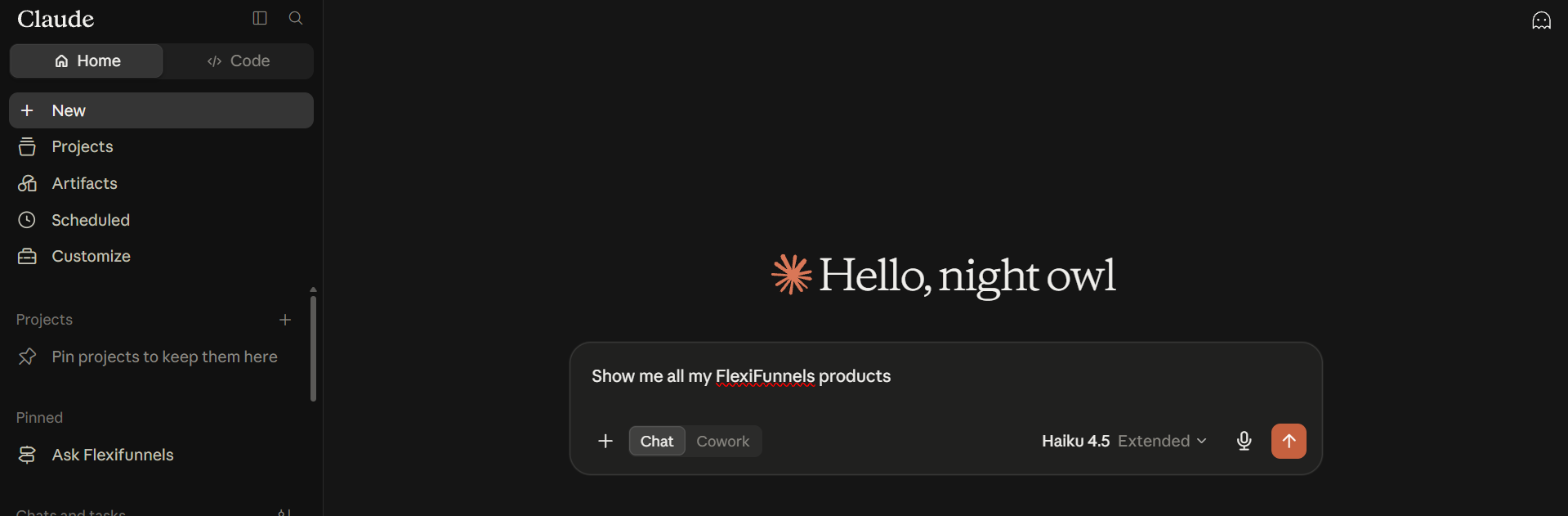
Step 5: View Your Product List or a Specific Product
- Ask for a full list of your products, or ask about one specific product by name.
Example Prompt: "Show me all my FlexiFunnels products."
Step 6: Check a Product's Sales Statistics
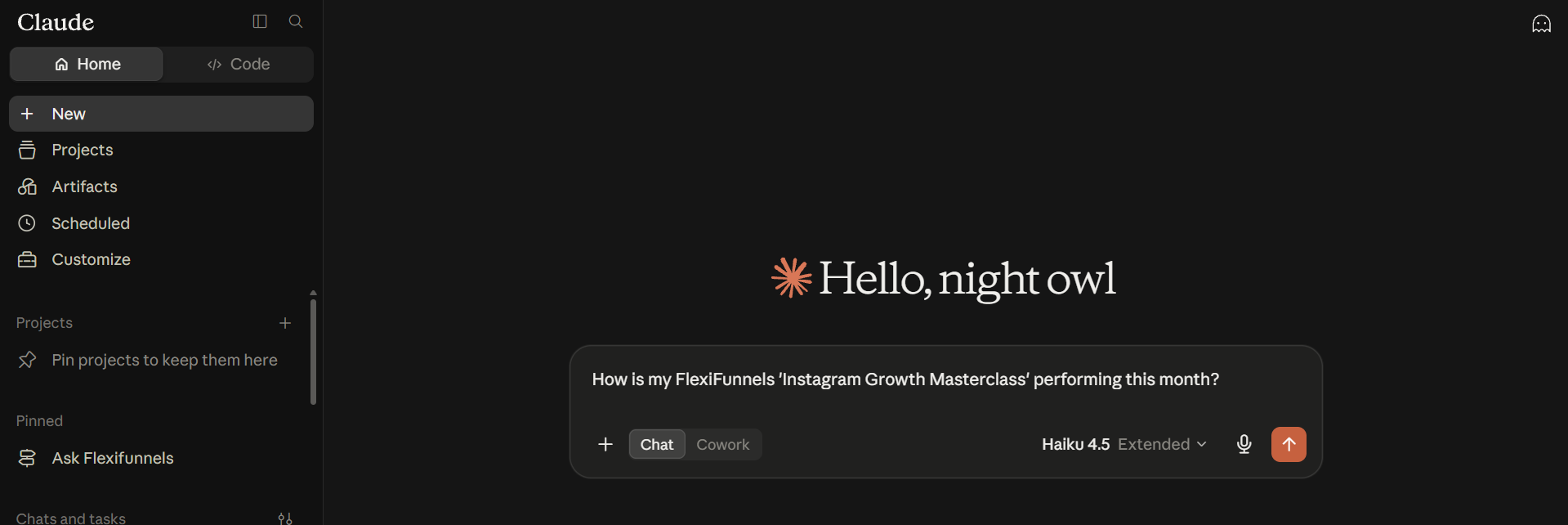
- Ask for performance numbers on a specific product — sales, revenue, and related stats.
Example Prompt: "How is my FlexiFunnels 'Instagram Growth Masterclass' performing this month?"
Step 7: Clone an Existing Product
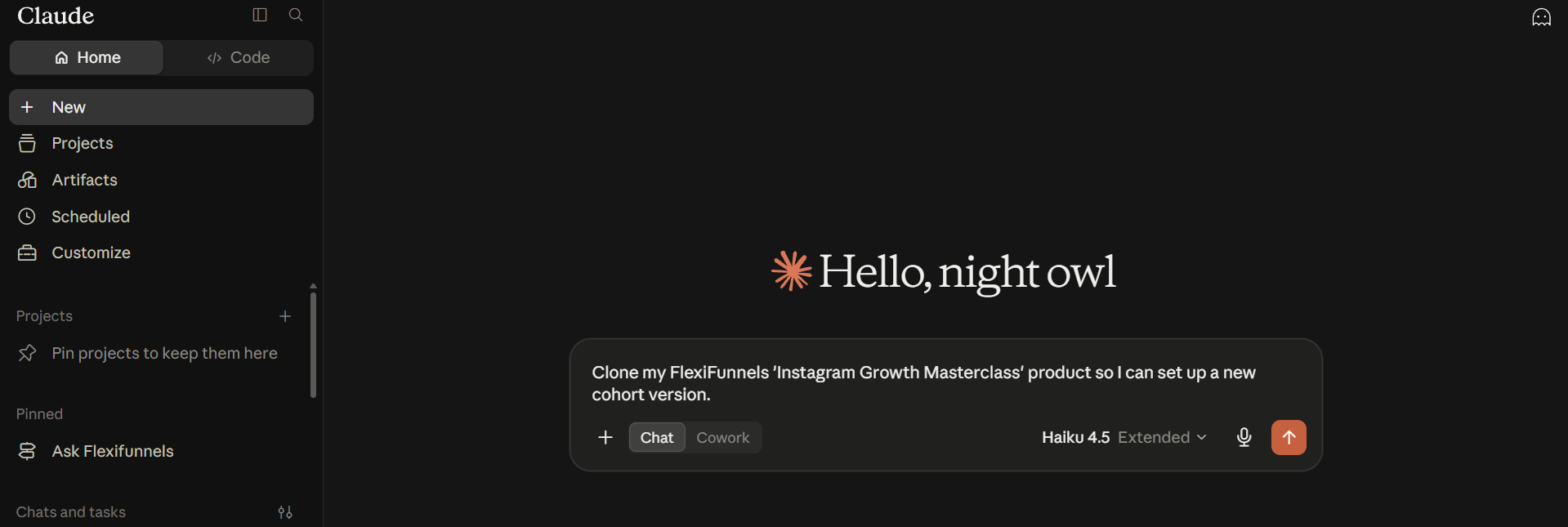
- Instead of creating a similar product from scratch, ask for an existing one to be duplicated.
Example Prompt: "Clone my FlexiFunnels 'Instagram Growth Masterclass' product so I can set up a new cohort version."
Step 8: Create a Subscription Product
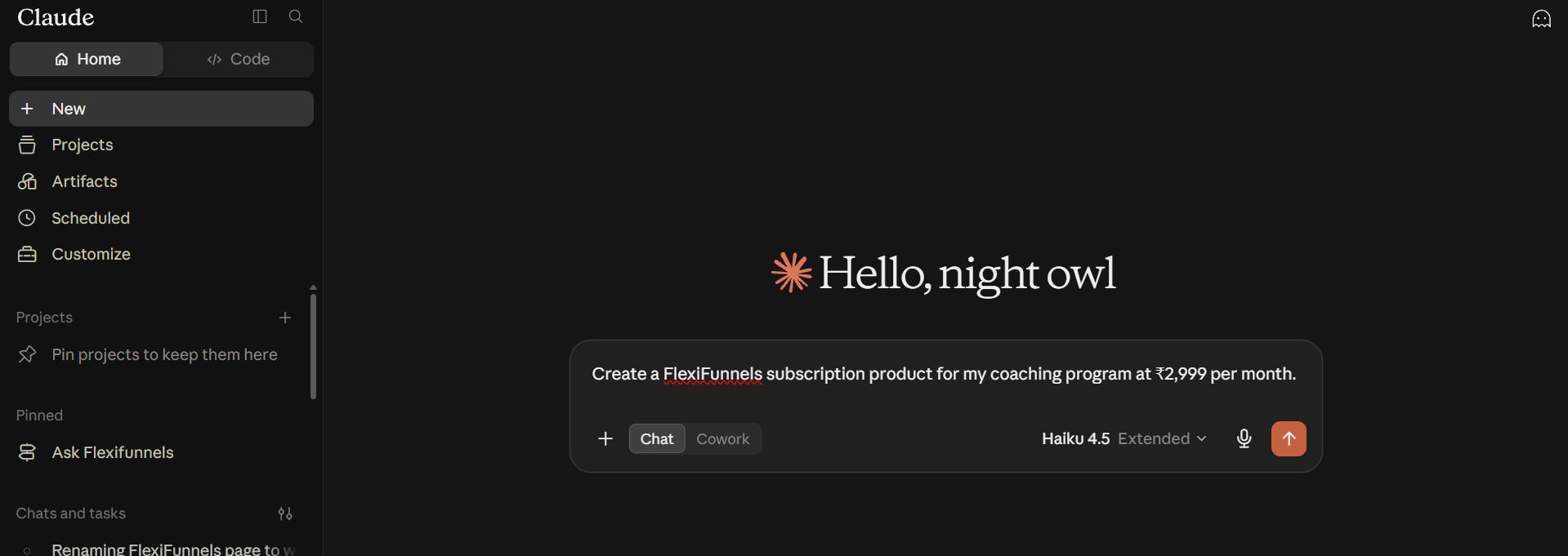
- If you're selling a recurring offer, ask for it to be set up as a subscription product with your desired billing frequency.
Example Prompt: "Create a FlexiFunnels subscription product for my coaching program at ₹2,999 per month."
Behind the Scenes — MCP Tools Involved
| Task | Related MCP Tool(s) |
|---|---|
| Create a new product | create_product |
| Set currency | update_account_regional, get_account_regional |
| Connect payment gateway to product | set_product_payment_integration |
| Connect pages to product | set_product_pages |
| List of products | get_products |
| Get a particular product | get_product |
| Product sales statistics | get_product_statistics |
| Clone a product | clone_product |
| Create a subscription product | set_product_subscription_pricing |
Good to Know: These are the same MCP tools used by Flexi Genie — Claude and ChatGPT simply give you a different chat interface to access them from.
Ready-to-Use Prompts
"In FlexiFunnels, create a new product called 'Email Marketing Mastery' priced at ₹2,499 one-time."
"Attach my FlexiFunnels Stripe integration to my 'Email Marketing Mastery' product."
"Show me the sales stats for my FlexiFunnels 'Email Marketing Mastery' product this month."
"Set up a ₹999/month FlexiFunnels subscription product for my mentorship program."
Tips for Better Results
- Mention "FlexiFunnels" explicitly if you have other connectors/plugins active in the same chat.
- Always specify whether pricing is one-time or recurring — this changes how the product is set up.
- Ask for one product-setup step at a time (create, then price, then connect gateway) rather than bundling everything into a single complex request, especially when setting up multiple products in one go.
Common Issues / Troubleshooting
Customers Can't Complete Checkout: Confirm a payment gateway is connected to the product and that the checkout page is correctly linked to it.
Creating Several Products in One Request Fails or Is Incomplete: This is a known limitation. Ask for one product to be created at a time instead of several in a single message.
Limitations / Important Notes
- A product must have a connected payment gateway and connected pages before it can accept live payments.
- Requests to create multiple distinct products in a single message can be unreliable — break these into separate requests.
Curious what else Flexi Genie and AI assistants can do inside FlexiFunnels? See the full Possibilities with Flexi Genie & AI Assistance reference document.
Was this article helpful?
That’s Great!
Thank you for your feedback
Sorry! We couldn't be helpful
Thank you for your feedback
Feedback sent
We appreciate your effort and will try to fix the article