Connect Claude or ChatGPT to FlexiMembership. Then make a community that comes with a course. People who buy the course get into the community.
The course is like a classroom ?. The community is the school yard next to it.
| Type | What it is |
|---|---|
| Course-linked (this article) | A community that comes with a course. Buyers of the course get in. |
| Standalone | A community on its own. See Article 2. |
How the link worksThe link goes through the course’s product, not the course itself. A course-linked community has no price, product or support link of its own.
Before You Start
- Connect FlexiMembership to Claude (a Connector) or ChatGPT (a Plugin). Make sure it is authorized.
- Have a course that already has a product. Create one first in Article 1.
- Pick a community name (3–150 characters) and a short description (3–1,000 characters).
- Choose public or private.
- Start each request with “In FlexiMembership”.
Quick Video:
Steps
1Check your course and its product
- Ask for your courses.
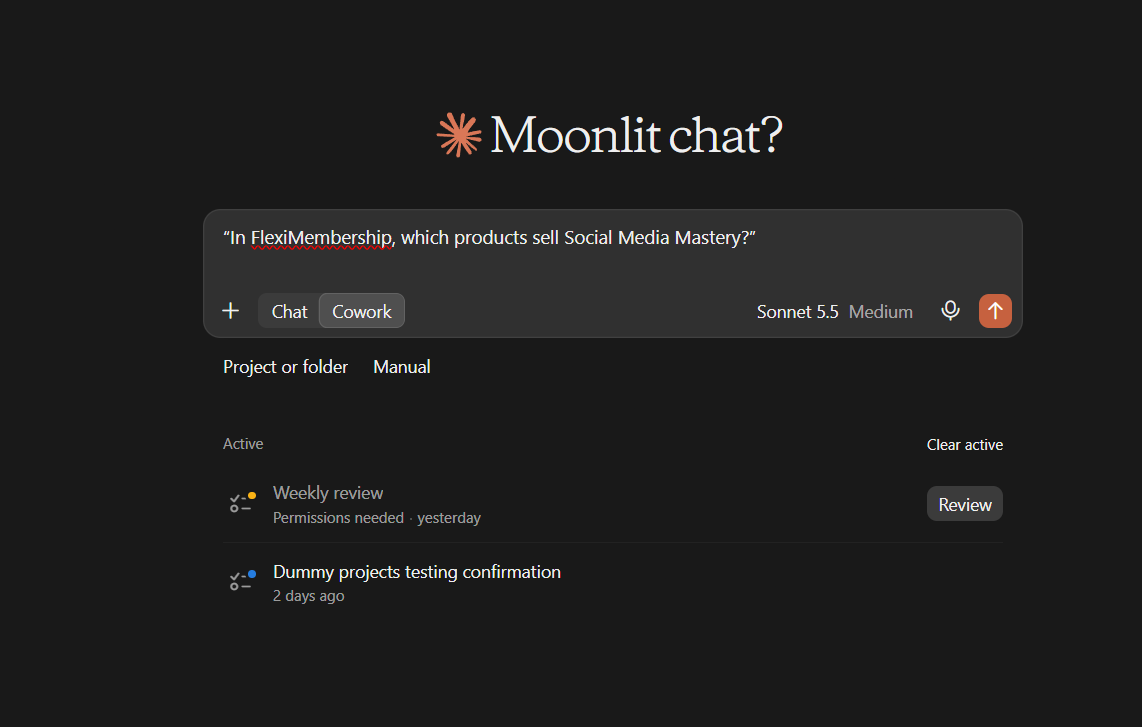
- Ask which products sell the course. This shows the product the community will use.
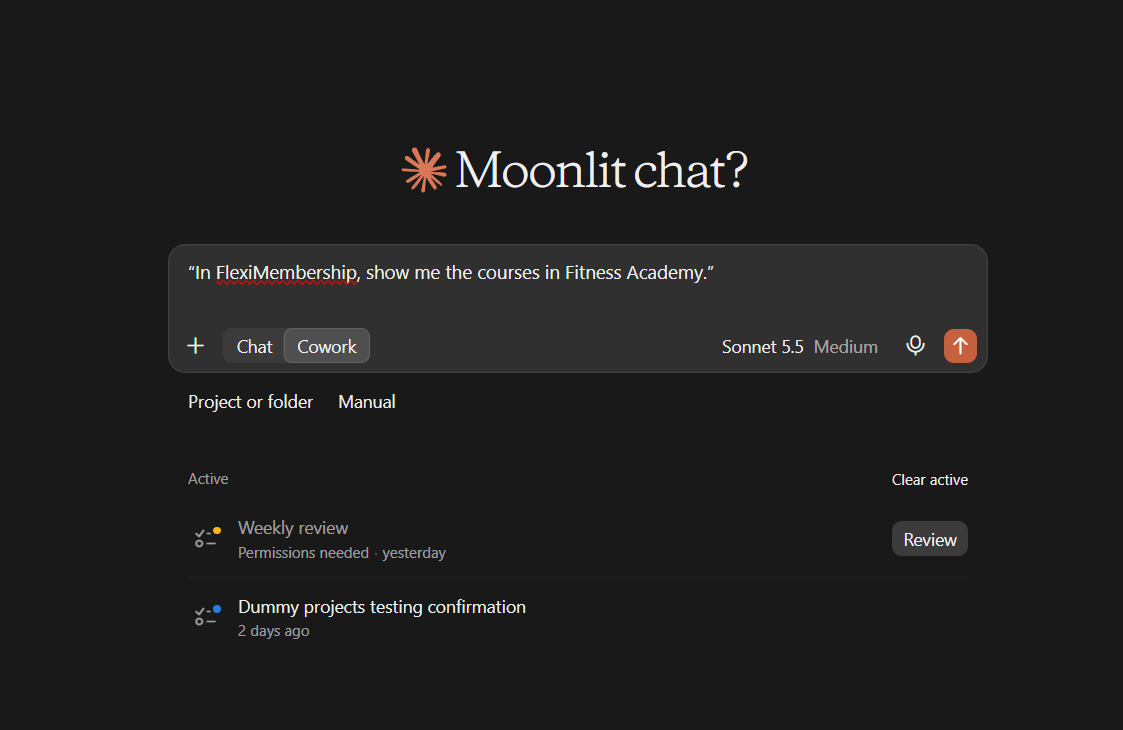
Example prompt“In FlexiMembership, show me the courses in Fitness Academy.”
Example prompt“In FlexiMembership, which products sell Social Media Mastery?”
2See the course products you can link
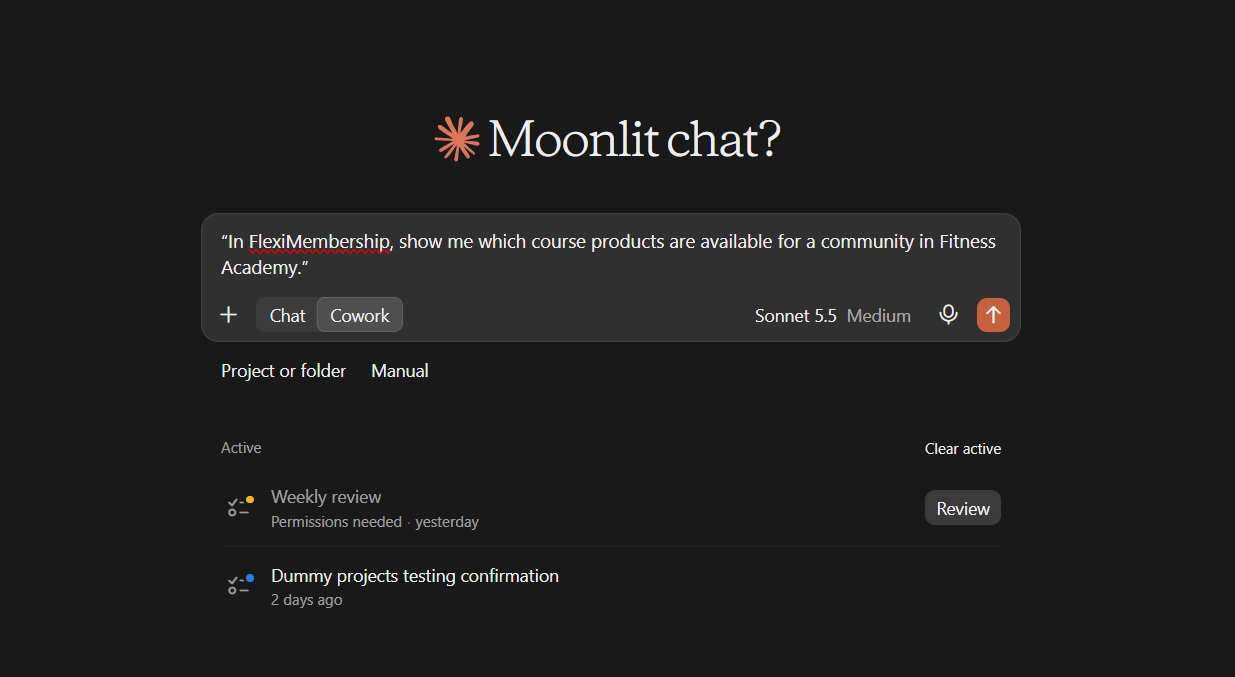
- Ask for the community options. This only reads. Nothing changes.
- The AI lists the course products you can link.
- A course product that is already linked to another community cannot be used again.
Example prompt“In FlexiMembership, show me which course products are available for a community in Fitness Academy.”
3Create the course-linked community
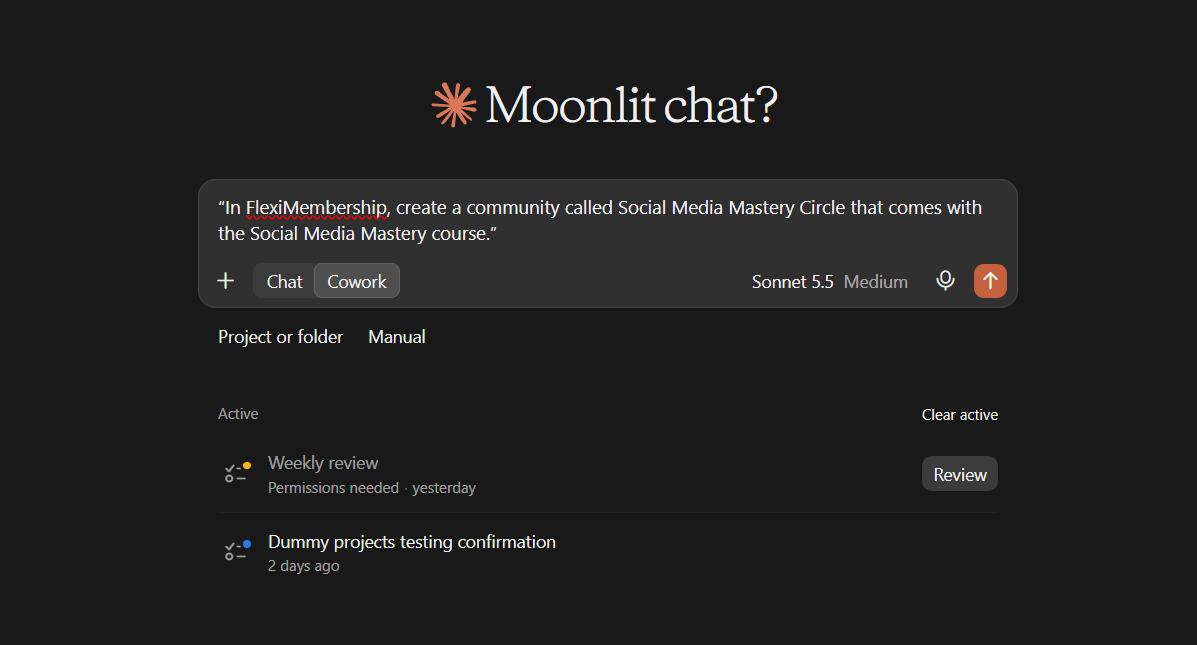
- Ask for a community that comes with your course. Name the course.
- The AI asks for the type, name and description.
- Read the preview. Confirm it.
Example prompt“In FlexiMembership, create a community called Social Media Mastery Circle that comes with the Social Media Mastery course.”
Be careful: who gets inPeople who bought the course before, and people who buy it later, get into this community. Check the course name in the preview before you confirm.
You will see: A new community. The preview names the course it comes with.
4Or link a community you already have
- Name the community and the course.
- Only buyers of that course get in. Nobody else does.
- Read the preview. Confirm it.
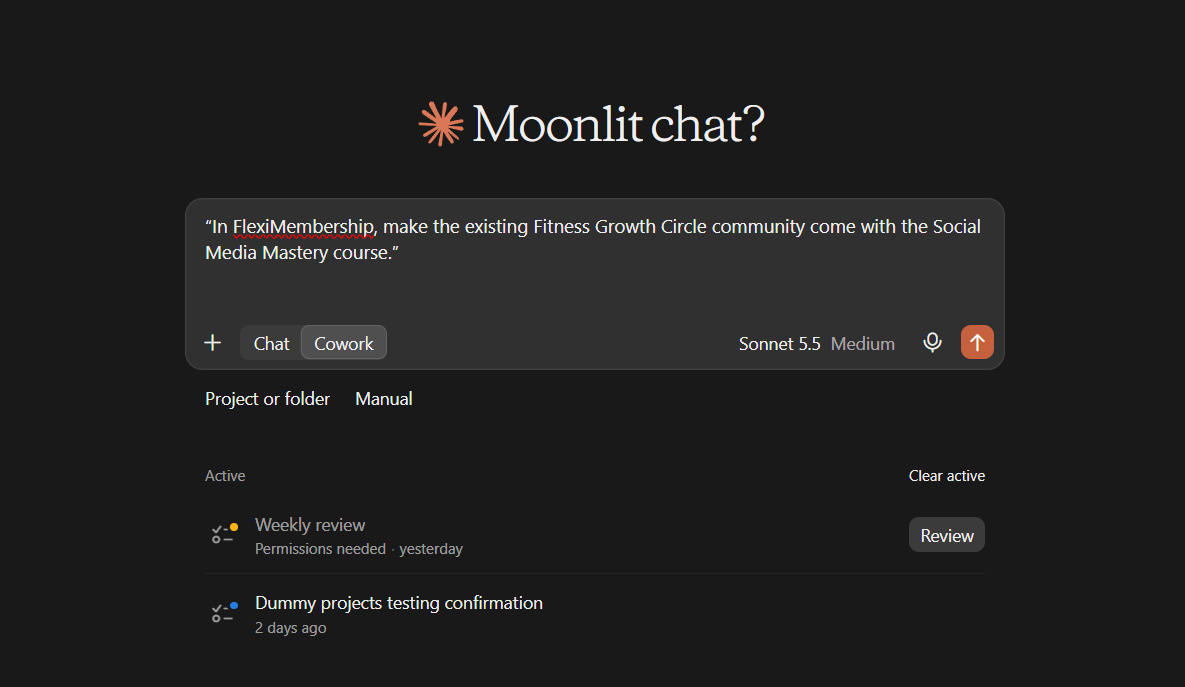
Example prompt“In FlexiMembership, make the existing Fitness Growth Circle community come with the Social Media Mastery course.”
Be careful: price removedThis removes the community’s own price or level. The AI should ask you first. Read the preview before you confirm.
5Set up the rest of the community
- Settings, Terms, Rules, categories and emails work the same way as in Article 2.
- A course-linked community has no product of its own.
- Page publishing works only for a community that has its own product.
6Let people in
- Buyers of the course get in on their own.
- To give someone the course product by hand, ask the AI to grant it.
- The person gets an email about the new access.
- An invoice email is sent too, unless you say no.
- Someone removed from that community, or waiting to join, becomes active.
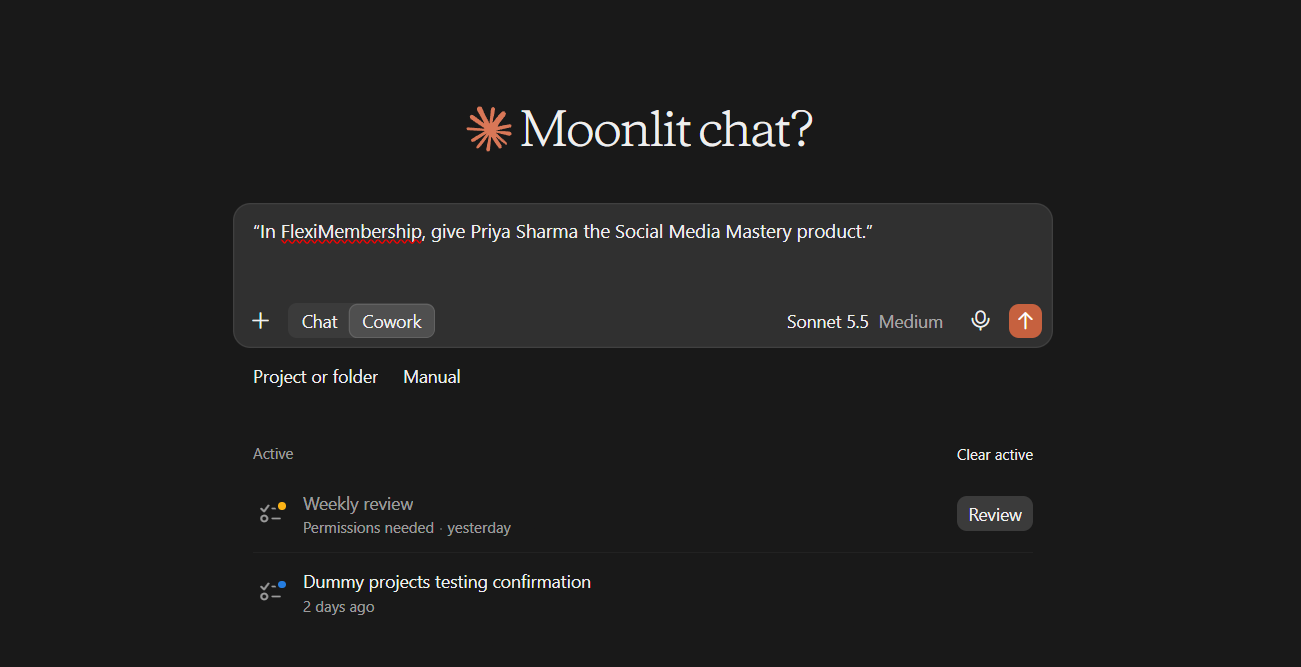
Example prompt“In FlexiMembership, give Priya Sharma the Social Media Mastery product.”
Be careful: accessGranting access sends email. It only adds access. Check the member and the product in the preview.
- You can add someone to the community only.
- This does not give them the course. It sends no email.
7Check the result
- Ask for the community details. You see the products that sell it.
- Ask who is in the community.
- Ask for members who have the course.
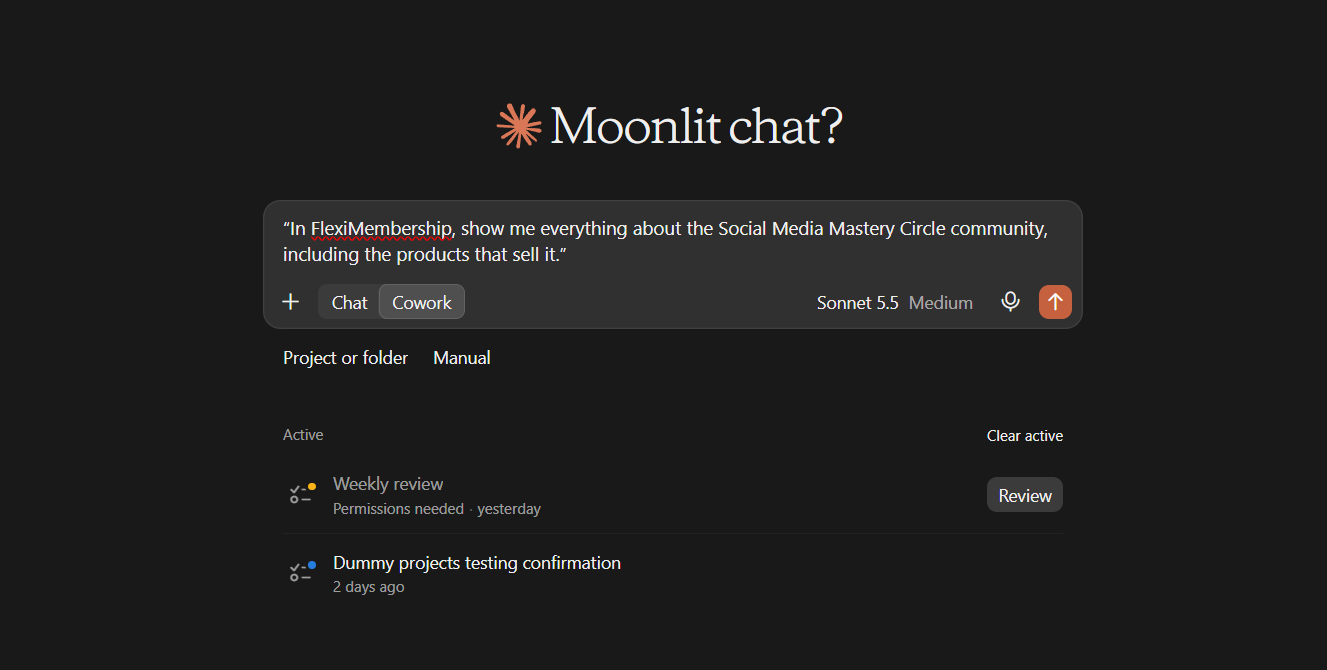
Example prompt“In FlexiMembership, show me everything about the Social Media Mastery Circle community, including the products that sell it.”
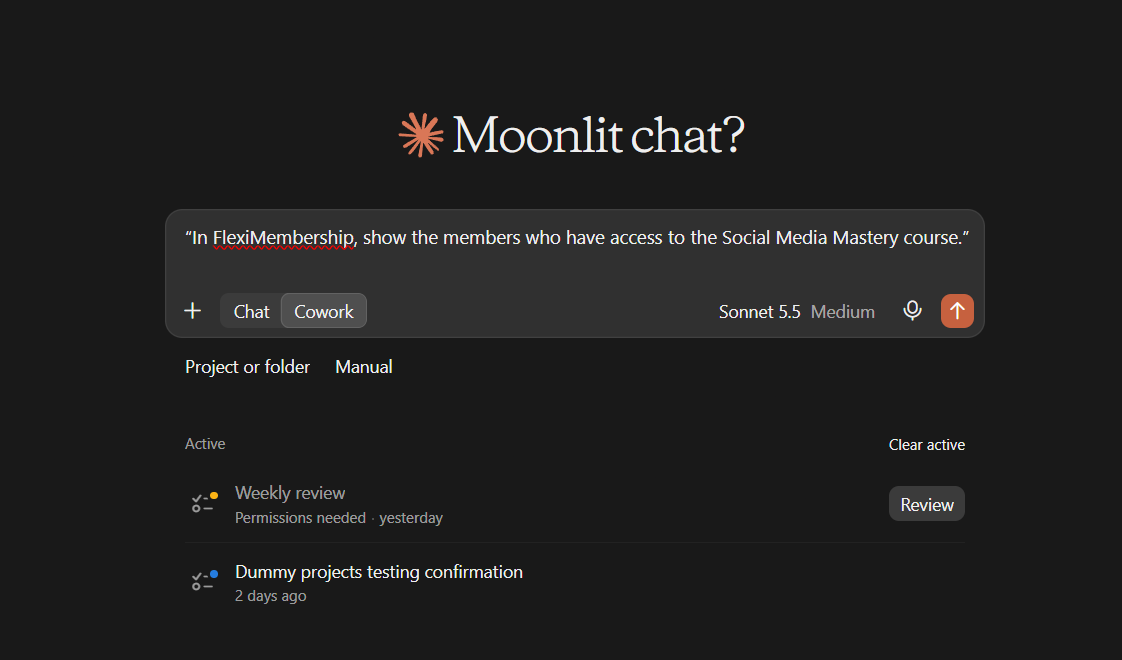
Example prompt“In FlexiMembership, show the members who have access to the Social Media Mastery course.”
Behind the Scenes: MCP Tools Involved
| Task | Related MCP tool(s) |
|---|---|
| See your courses | list_courses |
| See which products sell a course | get_course_offer_preference |
| See how a course is sold: product, pages, bundles | get_course_sales_pages |
| See the course products you can link | get_group_setup_options |
| Create a course-linked community | create_group |
| Link an existing community to a course | update_group |
| View a community and its products | get_group |
| See what a product’s buyers receive | list_bundles |
| Find members, or members with a course | list_members |
| View one member’s access and communities | get_member |
| Give a member a course product | grant_member_access |
| Add members to the community only | add_group_members |
| List the community’s members | list_group_members |
| Create the course first | create_course |
Ready-to-Use Prompts
- “In FlexiMembership, show me the courses in Fitness Academy.”
- “In FlexiMembership, create a community called Social Media Mastery Circle that comes with the Social Media Mastery course.”
- “In FlexiMembership, make the existing Fitness Growth Circle community come with the Social Media Mastery course.”
- “In FlexiMembership, show me everything about the Social Media Mastery Circle community.”
- “In FlexiMembership, show the members who have the Social Media Mastery course.”
Tips for Better Results
- Name the project, the course and the community.
- Say “comes with the course”. The AI knows to link the course product.
- Link on creation when you can. It is simpler than editing later.
- Read the preview. Look for the course name.
- Check the member list after you link.
- Set up the community details after, with Article 2.
Quick Fixes
| Problem | Fix |
|---|---|
| No course product is listed. | The course needs a product first. See Article 1 and Article 5. |
| The product cannot be used. | It is already linked to another community. Pick another course product. |
| A buyer cannot see the community. | Ask for the member’s access and communities. Check the community is switched on. See Article 2. |
| My community lost its price. | Linking removes a community’s own price or level. Read the preview next time. |
| The AI does not use FlexiMembership. | Check the connector or plugin is connected and authorized. Add “In FlexiMembership” to your prompt. |
Limitations
- The link uses a course product. No tool links by course name alone.
- A course-linked community has no price, product or support link of its own.
- One course product links to one community.
- No way to remove or change the link is described.
- What happens if a buyer’s course access ends is not described.
- Removing a person from a community is done in the dashboard.
- No undo is described. Read each preview before you confirm.
Was this article helpful?
That’s Great!
Thank you for your feedback
Sorry! We couldn't be helpful
Thank you for your feedback
Feedback sent
We appreciate your effort and will try to fix the article