Connect Claude or ChatGPT to FlexiMembership. Then build a membership project and a course by chatting in plain language.
A project is like a school building ?. A course is one class inside it.
| Level | What it is | Made with |
|---|---|---|
| Membership project | The membership site that holds your courses, members and communities | create_project |
| Course | One course inside the project | create_course |
| Module | A chapter inside a course | build_course_outline or add_module |
| Lesson | One lesson inside a module | build_course_outline or add_lesson |
Two things to knowCreating a project does not create a course. A new course cannot be bought until its sales and checkout pages are published.
Check this quick video:
Before You Start
- Connect FlexiMembership to Claude (a Connector) or ChatGPT (a Plugin). Make sure it is authorized.
- Pick the project to use, or choose a name for a new one.
- Prepare the course name (3–40 characters) and a support email or help link.
- For a paid course, also prepare the currency, the price and the payment gateway.
- Sketch your modules and lessons. Decide if lessons are text or video.
- Start each request with “In FlexiMembership”. This helps when other connectors are on.
Steps
1Find or create your project
- Ask the AI to list your projects. With one project, it uses that one.
- To make a new one, describe it. The AI checks your projects first.
- Read the preview. Confirm it. Creating can take up to a minute.
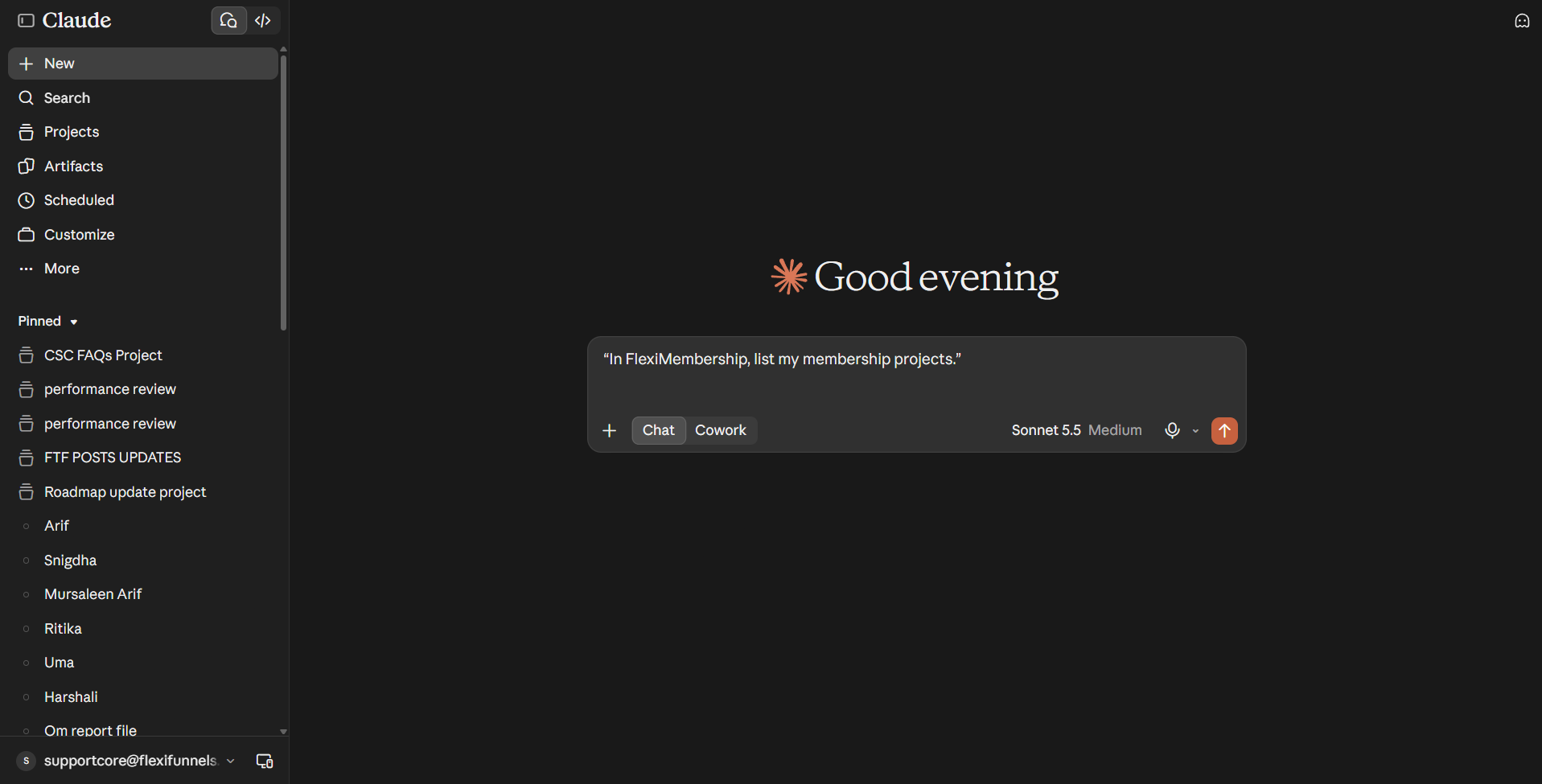
Example prompt“In FlexiMembership, list my membership projects.”
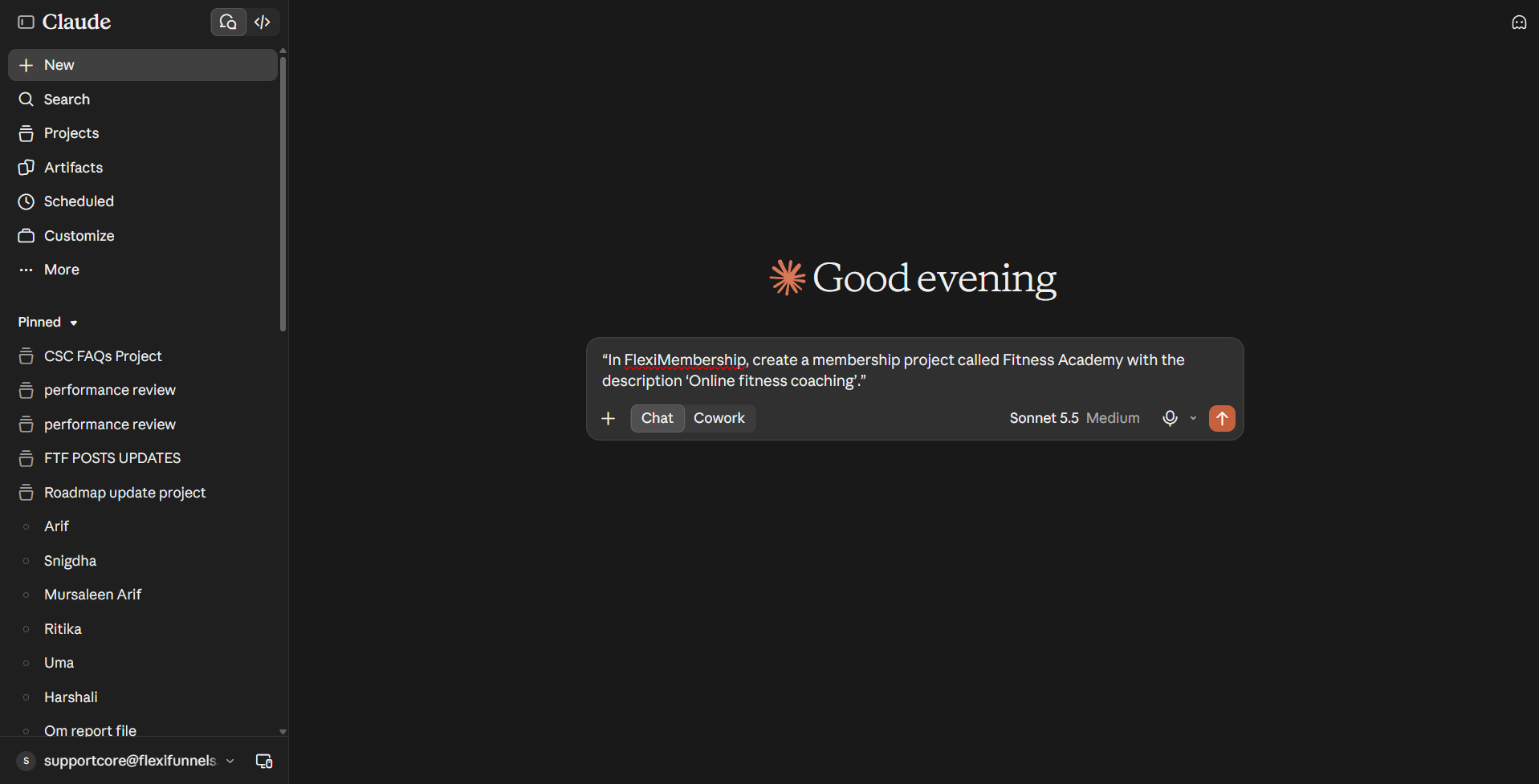
Example prompt“In FlexiMembership, create a membership project called Fitness Academy with the description ‘Online fitness coaching’.”
- A project name keeps only letters, numbers and spaces (2–50 characters).
2See what your account offers
- Ask for the course setup options. This only reads. Nothing changes.
- The AI lists your payment gateways, currencies, reusable products and bundles, and levels.
- It also says if your plan allows another course.
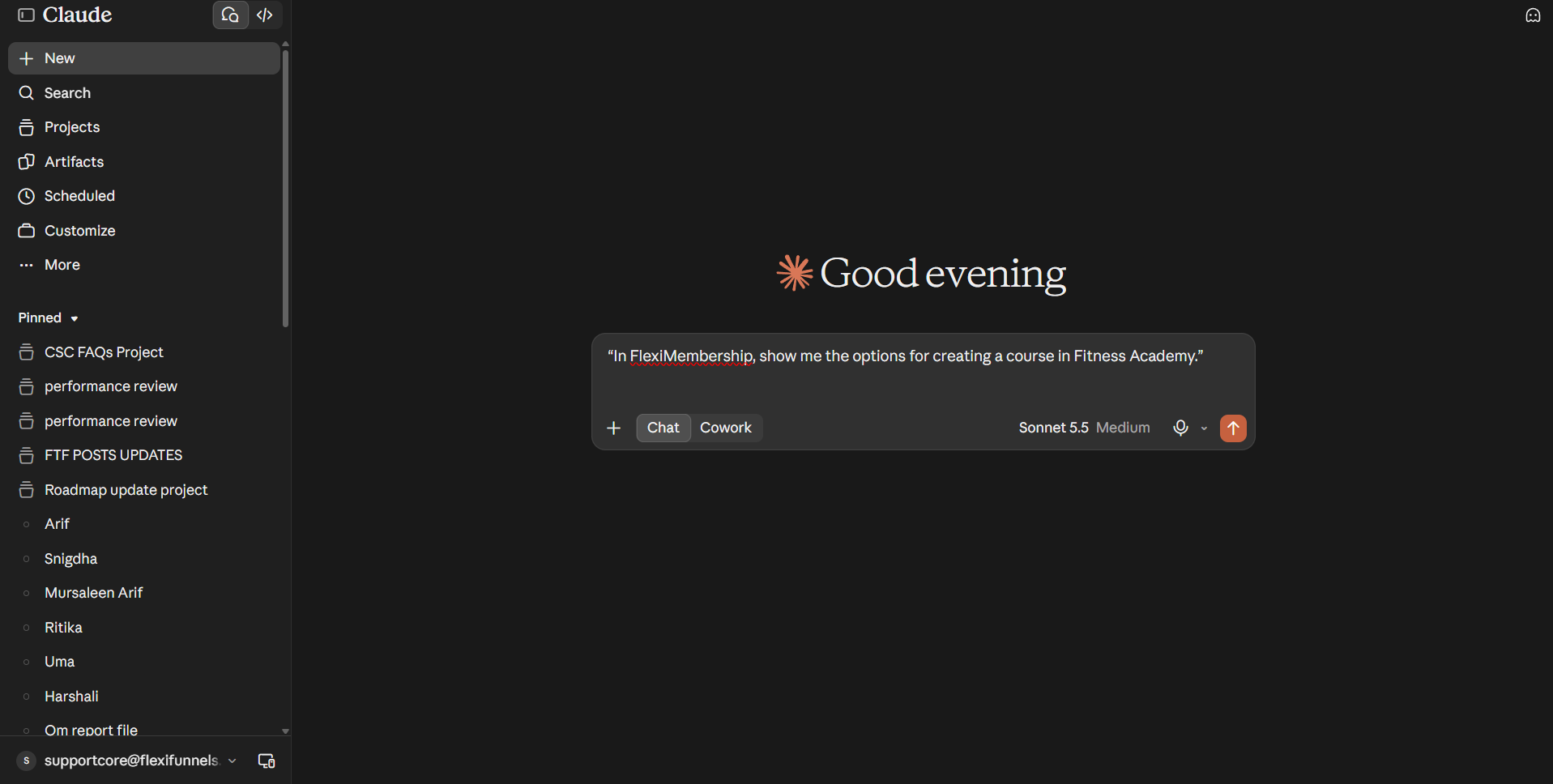
Example prompt“In FlexiMembership, show me the options for creating a course in Fitness Academy.”
3Create the course
- Describe the course: name, access type and support contact.
- Read the preview. Confirm it.
- The course builds in the background. It takes about a minute.
- Ask the AI if the course is ready.
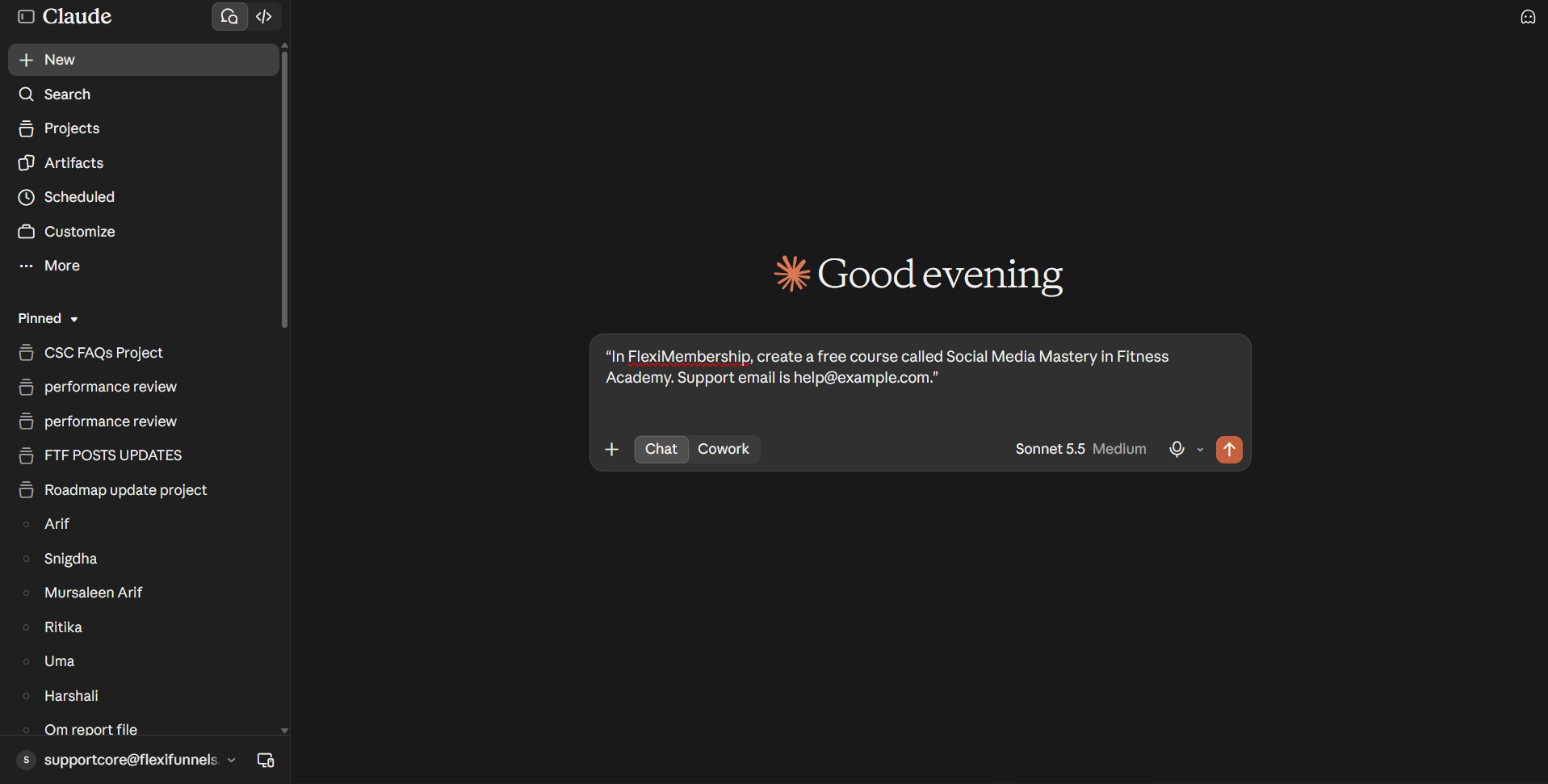
Example prompt“In FlexiMembership, create a free course called Social Media Mastery in Fitness Academy. Support email is help@example.com.”
Example prompt“In FlexiMembership, create a paid course called Advanced Automation in Fitness Academy for 49 USD one-time, using my connected payment gateway. Support email is help@example.com. (Illustrative price.)”
Example prompt“In FlexiMembership, is the Social Media Mastery course ready yet?”
| Access type | What you need |
|---|---|
| Free | A support email or link. Or reuse an existing free product. |
| Paid | A support email or link, a currency, a price and a gateway. Or reuse an existing product. One-time, subscription and pay-your-own-price work. |
| Level | A level that already exists. See Article 11. |
Be careful: pricingA paid course creates a product with a price and a gateway. Check the currency, amount and billing type in the preview.
Be careful: one try onlyDo not ask for the same course twice while it builds. Courses cannot be deleted through the AI. Check the name first.
You will see: The AI says the course is ready.
4Add modules and lessons
Option A: build the whole outline at once
- The AI asks if lessons are text, video or mixed.
- You can add up to 20 modules in one request.
- Each module takes 1–50 lessons. A module name is 2–40 characters.
Example prompt“In FlexiMembership, add five modules to Social Media Mastery with text lessons, saved as drafts: Getting Started, Content Planning, Posting Routines, Analytics, Next Steps.”
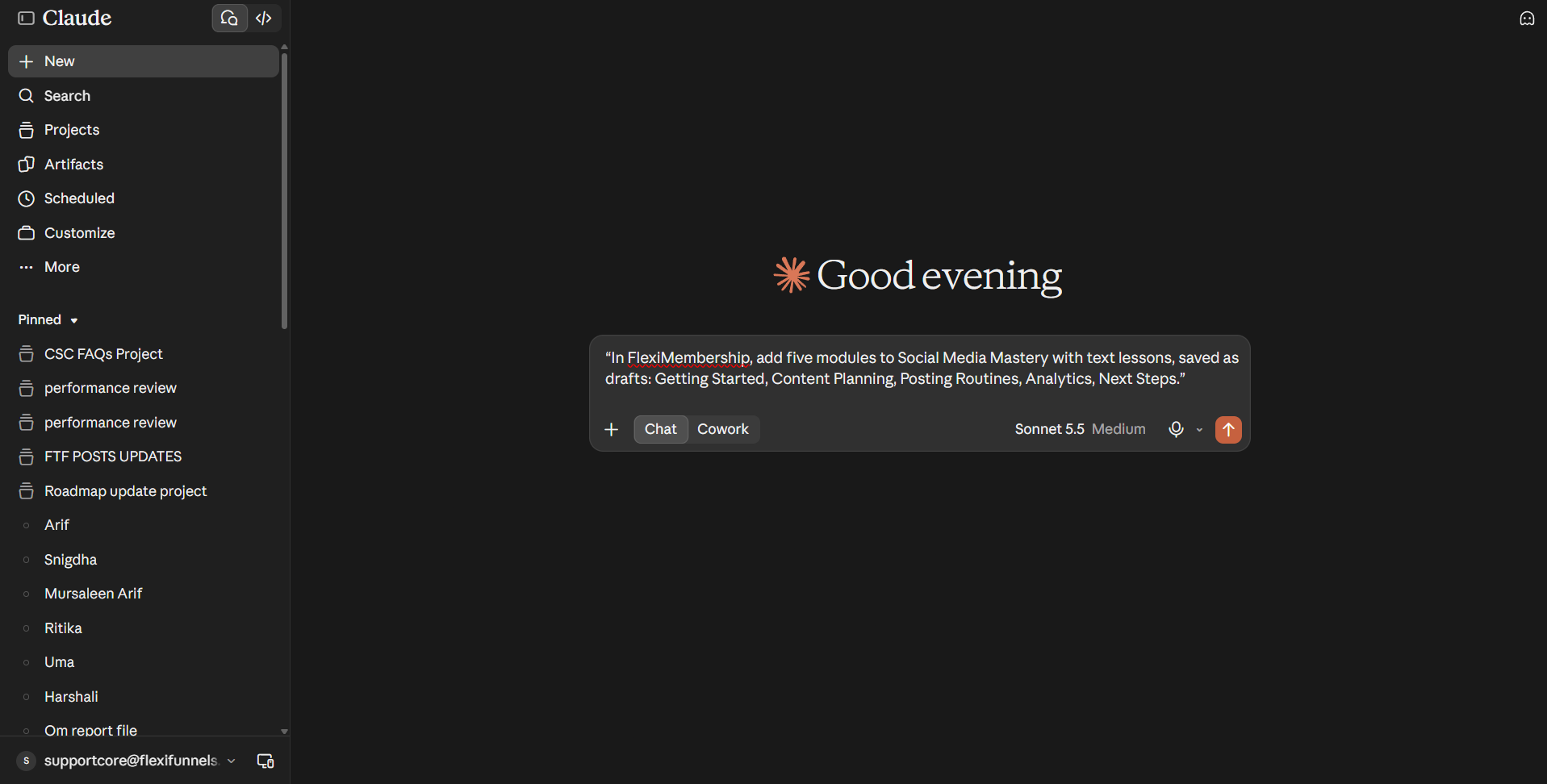
Be careful: publishingThis tool publishes lessons by default. In the same confirmation it also prepares and publishes the course’s sales and checkout pages. It writes AI copy only where a page has none. Ask for drafts if you want hidden lessons. No way to skip the page step is described. Read the preview first.
Option B: add one at a time
- A new module goes at the end. It starts with one lesson called “Your Lesson Title”.
- A lesson added this way is a draft.
- Adding the same name twice returns the one that exists.
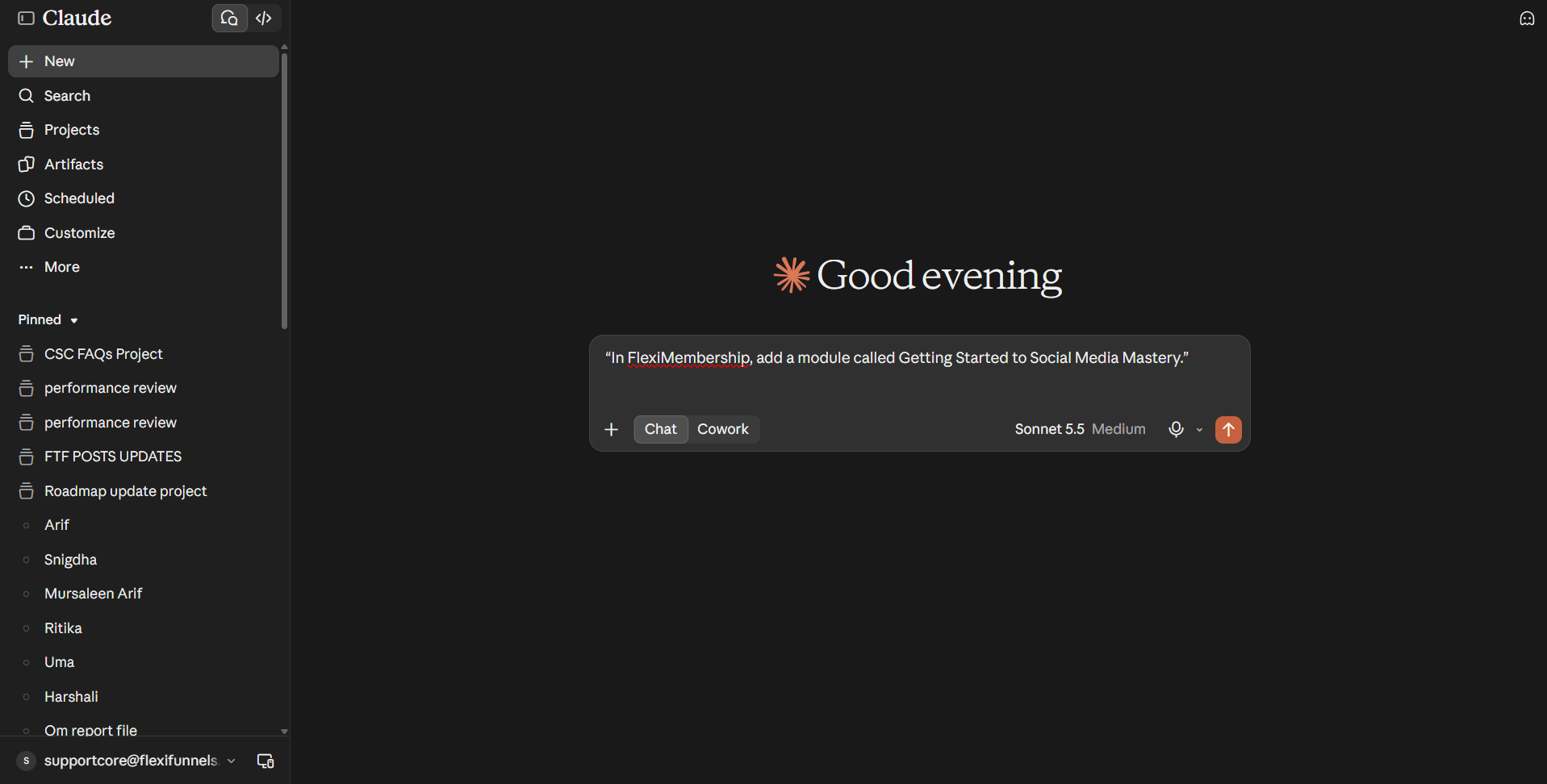
Example prompt“In FlexiMembership, add a module called Getting Started to Social Media Mastery.”
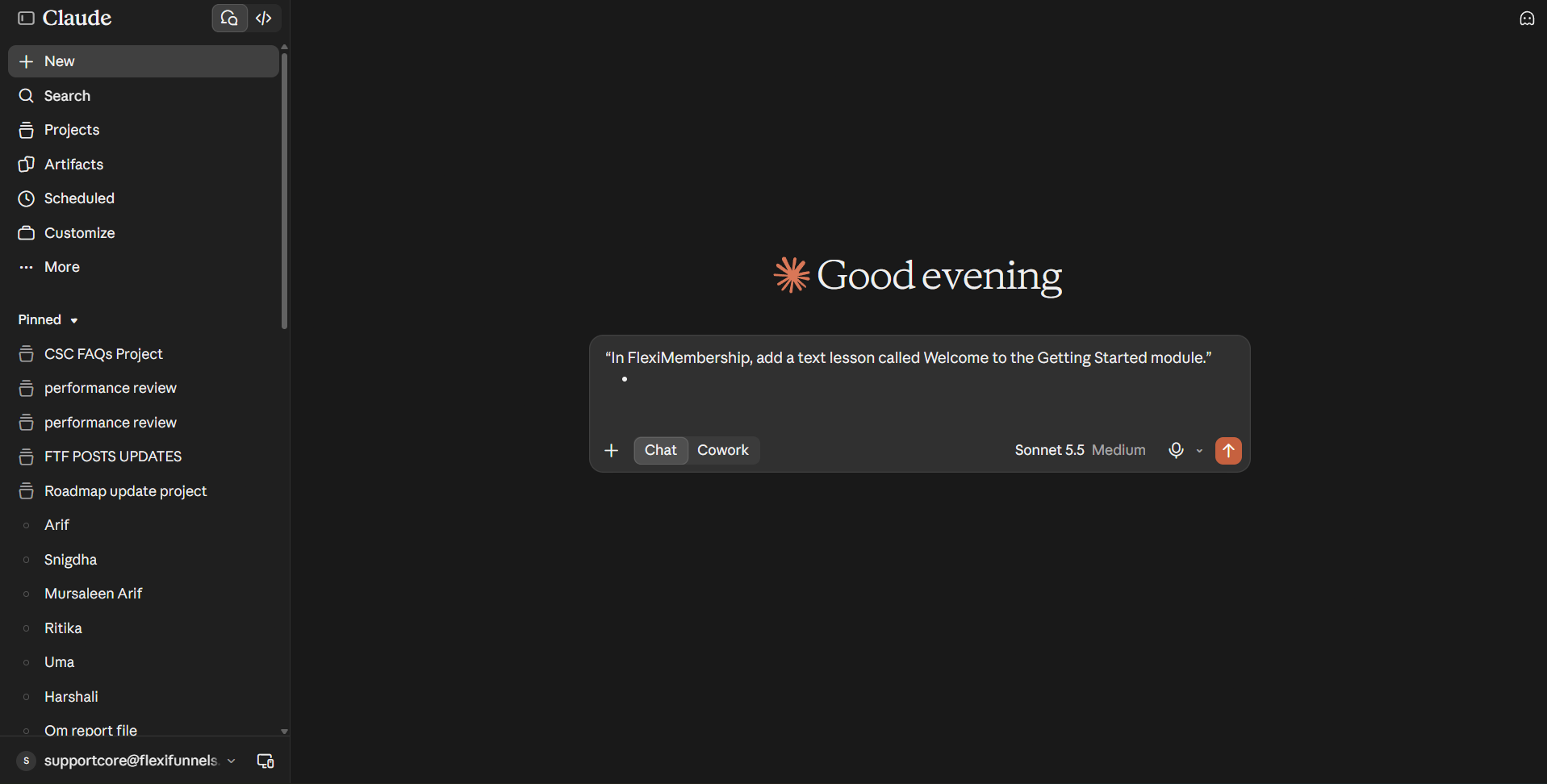
Example prompt“In FlexiMembership, add a text lesson called Welcome to the Getting Started module.”
- Modules and lessons cannot be deleted through the AI.
5Check what you built
- Ask for the modules and lessons of your course.
- You see each one in order, and if it is published.
- To read one lesson, ask for it by name.
Example prompt“In FlexiMembership, show me the modules and lessons in Social Media Mastery.”
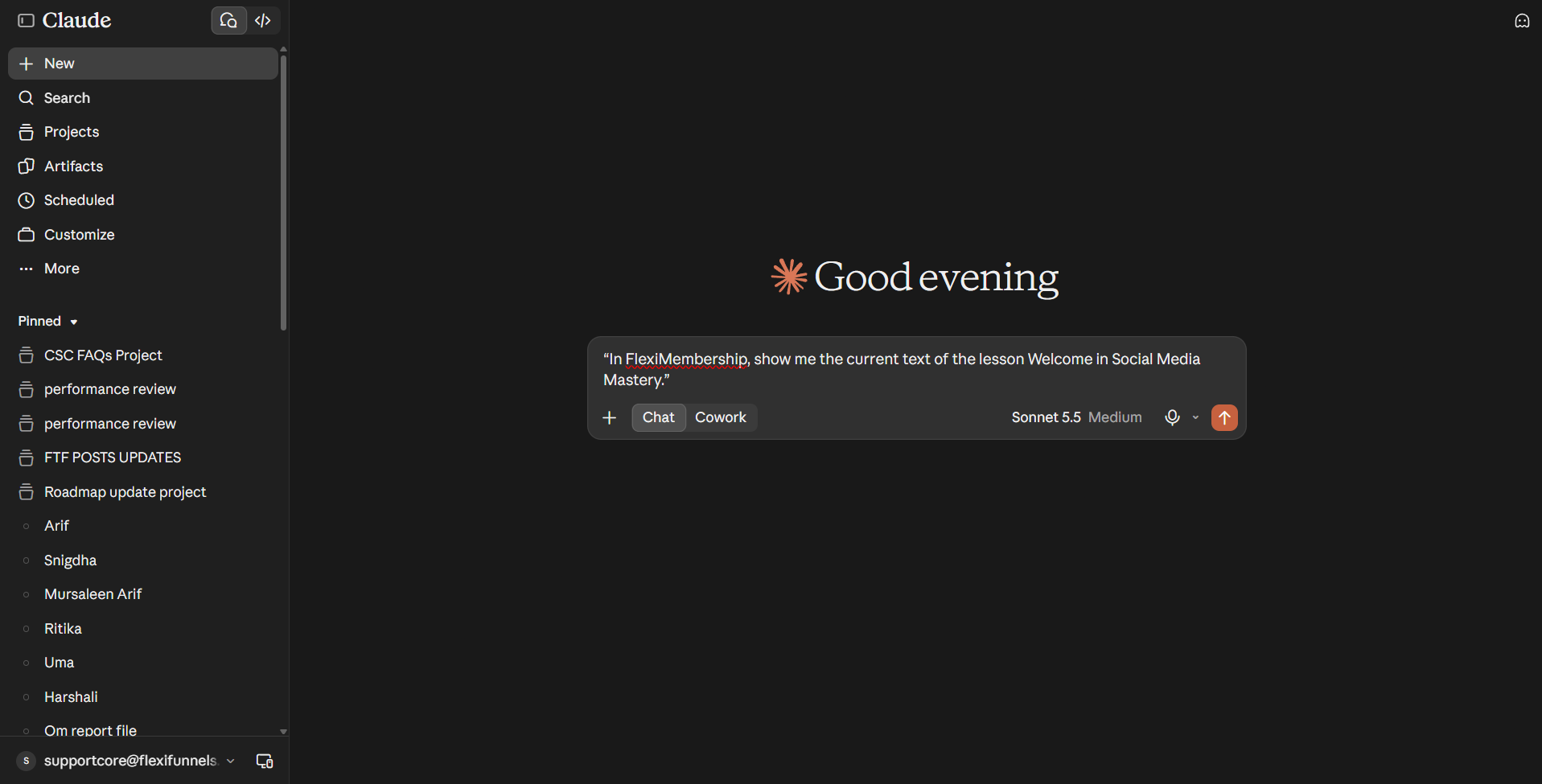
Example prompt“In FlexiMembership, show me the current text of the lesson Welcome in Social Media Mastery.”
6Edit and reorder
| You want to… | Example prompt |
|---|---|
| Replace a lesson’s text | “In FlexiMembership, replace the text of the lesson Welcome with this: [paste text].” |
| Rename a lesson | “In FlexiMembership, rename the lesson Welcome to Welcome and Overview.” |
| Move a module | “In FlexiMembership, move the module Analytics above Posting Routines in Social Media Mastery.” |
| Reorder courses | “In FlexiMembership, put Social Media Mastery first in my course order.” |
| Change a course blurb | “In FlexiMembership, change the short description of Social Media Mastery.” |
| Make an AI cover | “In FlexiMembership, generate a new AI cover for Social Media Mastery.” |
Be careful: editsA text edit replaces the whole lesson text. The AI reads the old text first. Renames show to members who already have access.
Be careful: AI coverAn AI cover costs 1 AI credit. It replaces the cover. It works only on accounts with AI course tools.
- A course edit cannot change the price, product or access type. Use the FlexiMembership dashboard for those.
7Publish a lesson
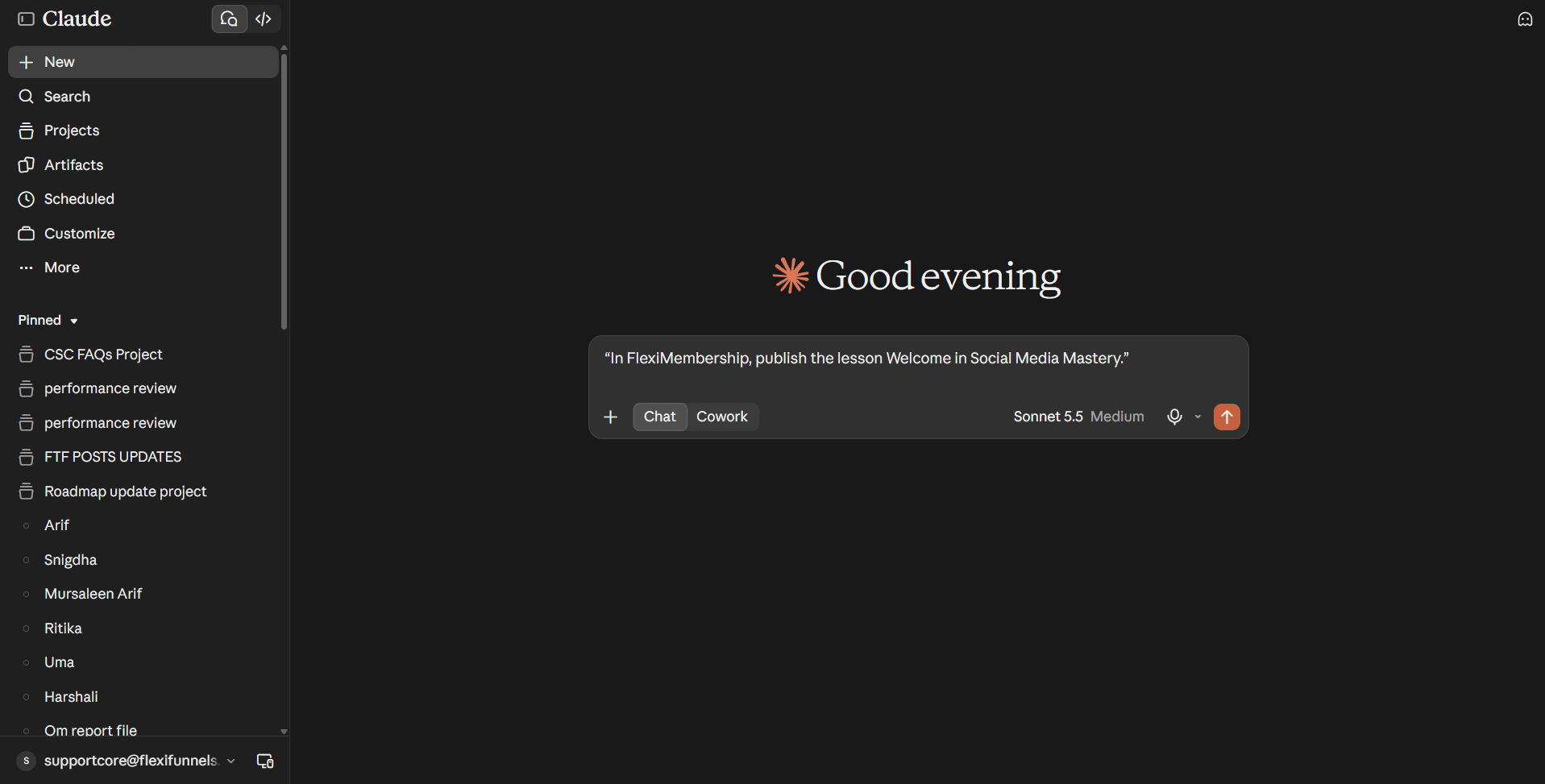
- Ask the AI to publish the lesson. Read the preview. Confirm it.
- Members who have the course see it on their next page load.
Example prompt“In FlexiMembership, publish the lesson Welcome in Social Media Mastery.”
Be careful: unpublishingUnpublishing hides a lesson from everyone, even members who are part-way through.
8Check status and progress
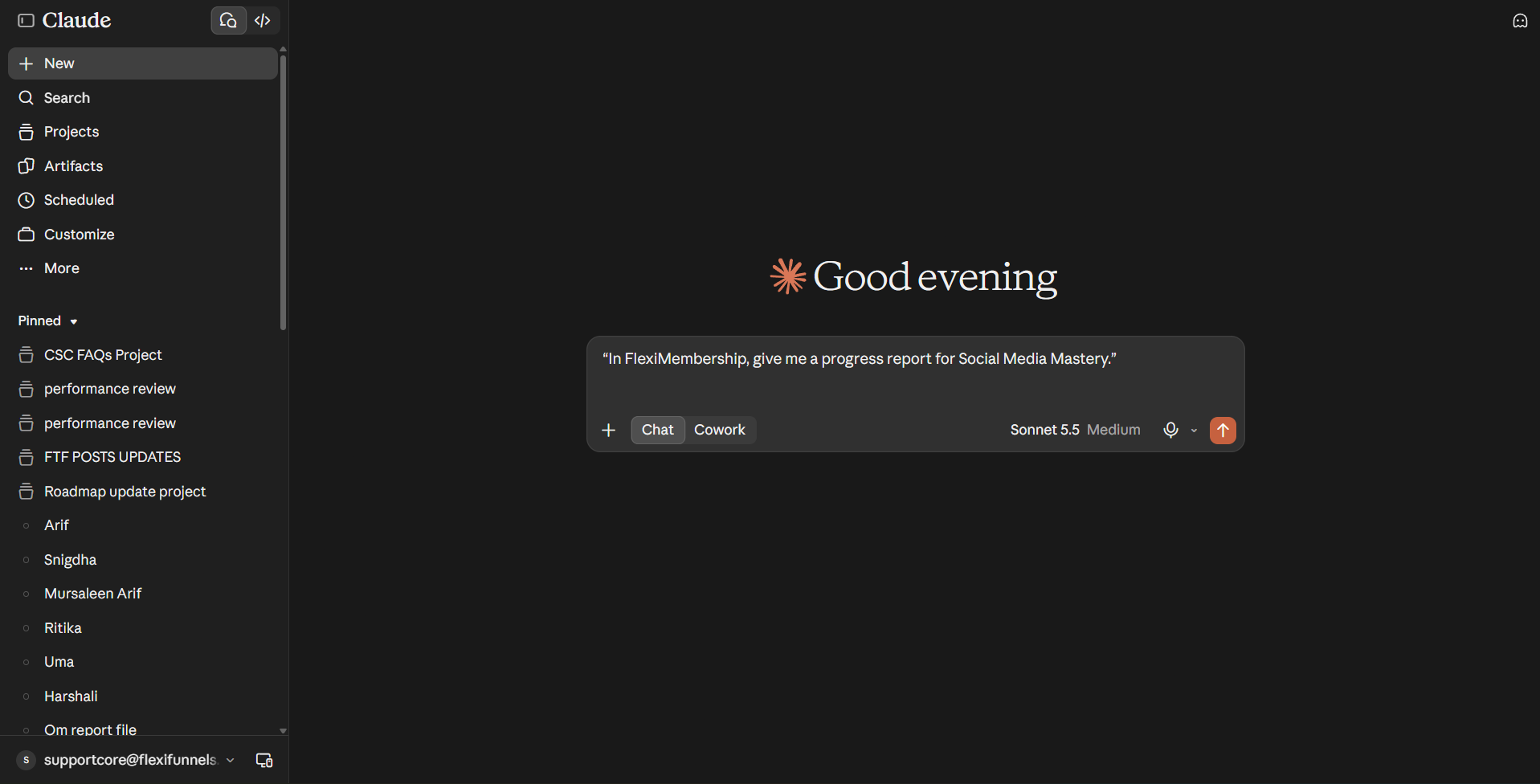
- Ask for a progress report of the course.
- It shows how many can open, start and finish it.
- It also shows the lessons where most members stop.
- Team members need the reports permission.
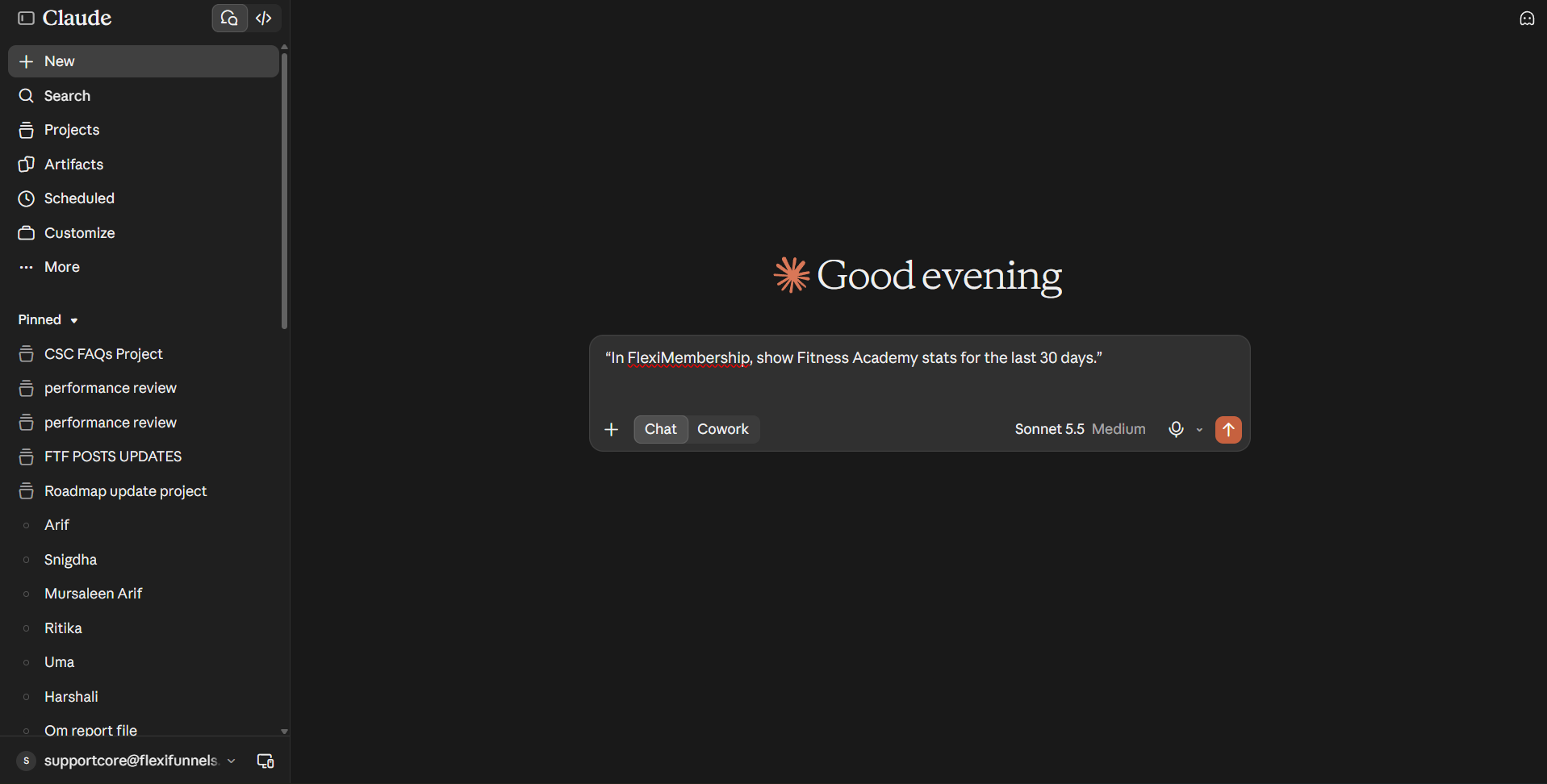
- Project stats count members and completions. They do not include revenue.
Example prompt“In FlexiMembership, give me a progress report for Social Media Mastery.”
Example prompt“In FlexiMembership, show Fitness Academy stats for the last 30 days.”
What comes nextAdd videos and downloads in Article 8. Set prices, bundles and access in Article 5. Edit and publish your selling pages in Article 7.
Behind the Scenes: MCP Tools Involved
| Task | Related MCP tool(s) |
|---|---|
| List your projects | get_projects |
| Create a project | create_project |
| Rename a project or change its description | update_project |
| Archive or restore a project | set_project_active |
| View the member-area address and settings | get_membership_settings |
| View membership stats | get_membership_stats |
| List your courses | list_courses |
| See course setup options | get_course_setup_options |
| Create a course | create_course |
| Check if a new course is ready | get_course_status |
| Edit a course | update_course |
| Reorder courses | reorder_courses |
| Generate a course cover | generate_course_cover |
| View course progress | get_course_progress_report |
| See modules and lessons | list_course_modules |
| Build a full outline | build_course_outline |
| Add or rename a module | add_module |
| Add a lesson | add_lesson |
| Edit a lesson | update_lesson |
| Read a lesson’s text | get_lesson_description |
| Publish or unpublish a lesson | set_lesson_published |
| Reorder modules and lessons | reorder_course_content |
Ready-to-Use Prompts
- “In FlexiMembership, create a membership project called Fitness Academy.”
- “In FlexiMembership, create a free course called Social Media Mastery in Fitness Academy. Support email is help@example.com.”
- “In FlexiMembership, add five modules to Social Media Mastery with text lessons, saved as drafts: Getting Started, Content Planning, Posting Routines, Analytics, Next Steps.”
- “In FlexiMembership, show me the modules and lessons in Social Media Mastery.”
- “In FlexiMembership, publish the lesson Welcome in Social Media Mastery.”
- “In FlexiMembership, give me a progress report for Social Media Mastery.”
Tips for Better Results
- Name the project and the course in every request.
- Answer the AI’s questions. A request that cannot work is refused before you confirm.
- Create the course first. Then build the outline in one request.
- Ask for drafts when you are not ready to show lessons.
- Read every preview. An outline can publish pages.
- Ask for one kind of change at a time.
- After a change, ask the AI to show the result.
Quick Fixes
| Problem | Fix |
|---|---|
| The AI cannot find my project. | Only active projects are listed. Restore an archived project first. Give its exact name. |
| The course is not ready. | It builds for about a minute. Ask for the status again. Do not create it twice. |
| Members cannot buy the course. | Sales and checkout pages start as drafts. Publish them. See Article 7. |
| Members cannot see a lesson. | Lessons added one at a time are drafts. Ask to publish the lesson. |
| A rename was refused. | A rename needs the current name. Ask the AI to read it again, then retry. |
| The AI does not use FlexiMembership. | Check the connector or plugin is connected and authorized. Add “In FlexiMembership” to your prompt. |
Limitations
- Creating a project does not create a course.
- Courses, modules and lessons cannot be deleted through the AI.
- One outline request holds up to 20 modules, with 1–50 lessons each.
- A course edit does not change price, product or access type.
- Archived projects cannot be used until restored.
- Project stats do not include revenue.
- No undo is described. Read each preview before you confirm.
Was this article helpful?
That’s Great!
Thank you for your feedback
Sorry! We couldn't be helpful
Thank you for your feedback
Feedback sent
We appreciate your effort and will try to fix the article