Connect Claude or ChatGPT to FlexiMembership. Then create and set up a community by chatting in plain language.
A community is like a clubhouse ?. Members meet, post and chat inside it.
| Type | What it is |
|---|---|
| Standalone (this article) | A community on its own. It is not tied to a course. |
| Course-linked | A community that comes with a course. See Article 3. |
Two things to knowA new community starts active and empty. Nobody is notified. A free or paid community also gets a product with its own sales and checkout pages. Those pages may still need publishing.
Quick Video:
Before You Start
- Connect FlexiMembership to Claude (a Connector) or ChatGPT (a Plugin). Make sure it is authorized.
- Pick the project the community will live in.
- Prepare a name (3–150 characters) and a short description (3–1,000 characters).
- Choose public or private.
- Choose the price type: free, paid or level. Prices are in Article 4.
- Prepare a support email or help link. Free and paid communities need one.
- Start each request with “In FlexiMembership”.
Steps
1See your creation options
- Ask for the community options. This only reads. Nothing changes.
- The AI lists the choices in the order it will ask them.
- It shows your payment gateways, currencies, levels and instructors.
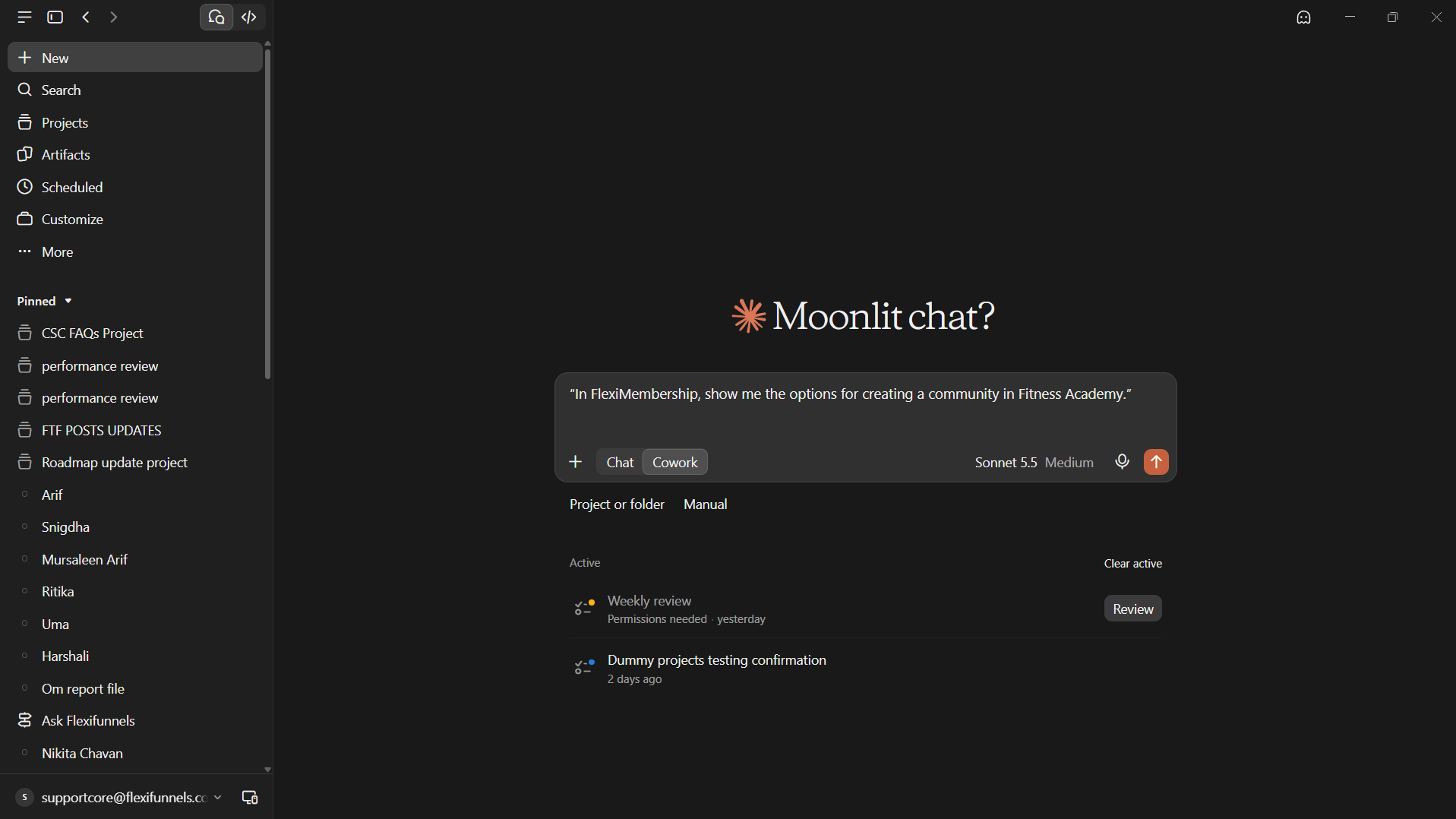
Example prompt“In FlexiMembership, show me the options for creating a community in Fitness Academy.”
2Create the community
- Describe the community. Answer the AI’s questions.
- Read the preview. Confirm it.
- Ask the AI to show the new community.
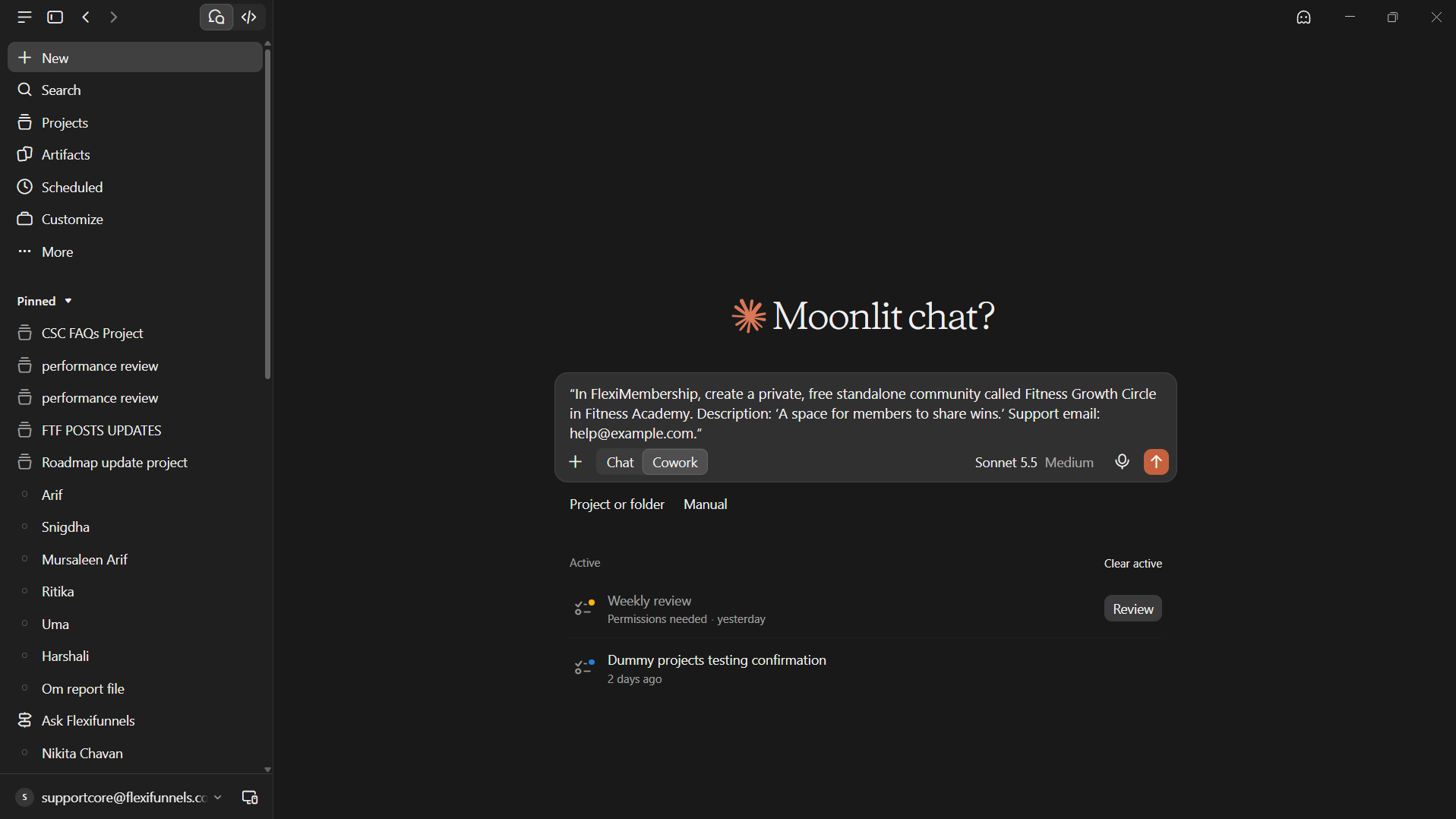
Example prompt“In FlexiMembership, create a private, free standalone community called Fitness Growth Circle in Fitness Academy. Description: ‘A space for members to share wins.’ Support email: help@example.com.”
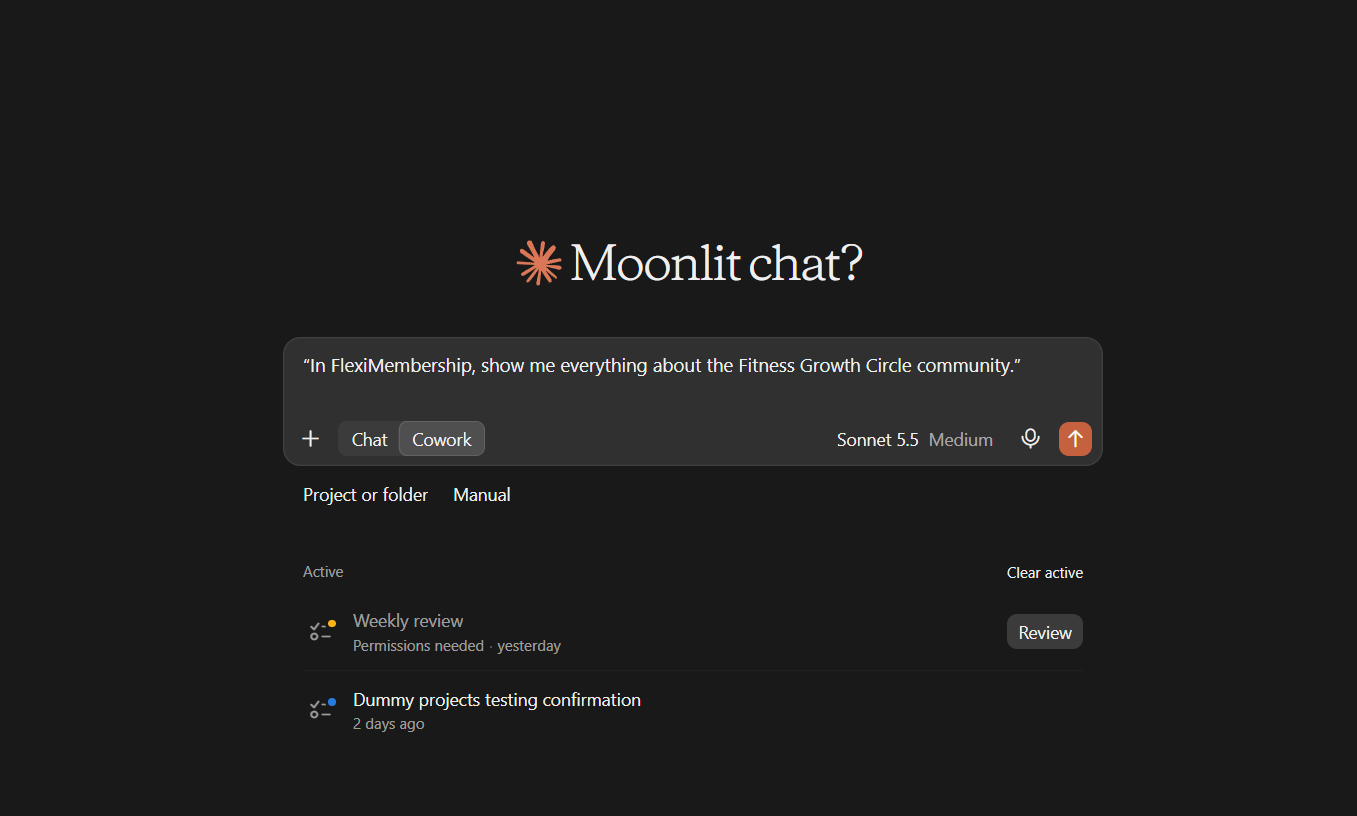
Example prompt“In FlexiMembership, show me everything about the Fitness Growth Circle community.”
| Choice | Options |
|---|---|
| Type | public: anyone in the membership can find it. private: only invited or approved members. |
| Price type | free, paid or level (members get in at a level you pick). |
| Who can join | Any member, or only members who buy or are granted it. Paid defaults to the second. |
| Extras | A banner image and instructors. Both are optional. |
You will see: The community is active, with no members and no posts.
3Change details and settings
- Ask to rename it, or change its description, type, banner or instructors.
- Ask to change its rules of play, like approvals and post types.
- Read each preview. Confirm it.
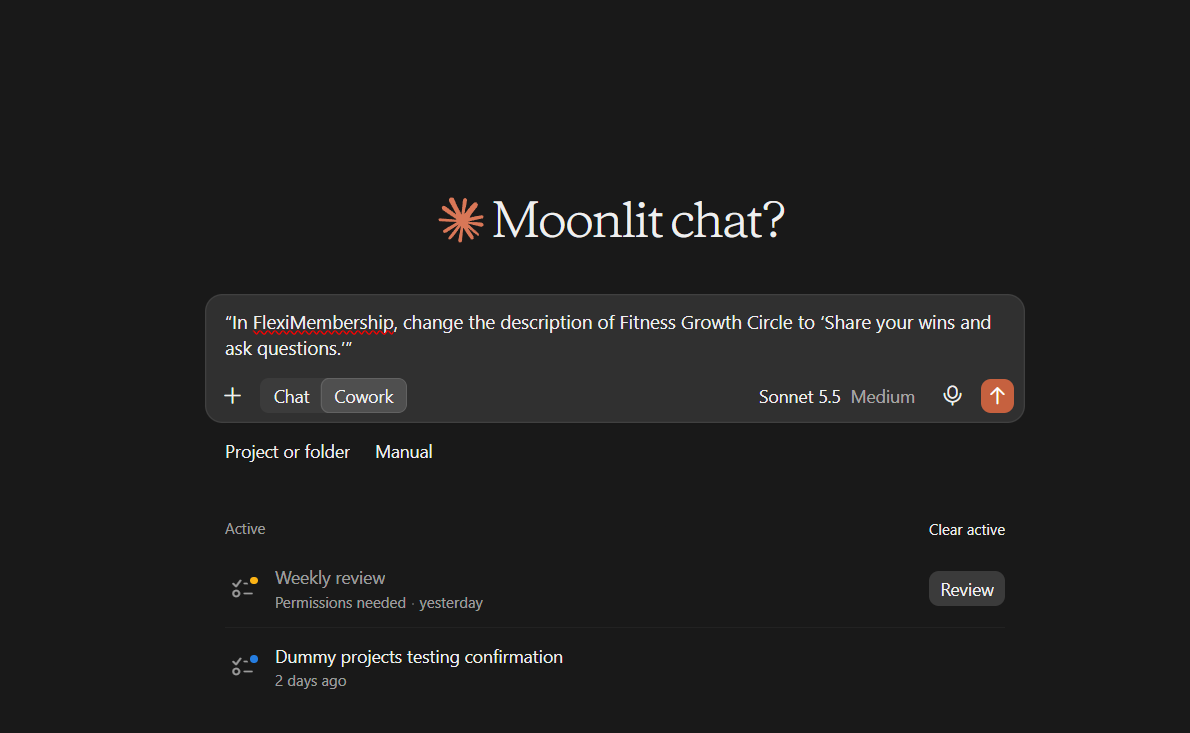
Example prompt“In FlexiMembership, change the description of Fitness Growth Circle to ‘Share your wins and ask questions.’”
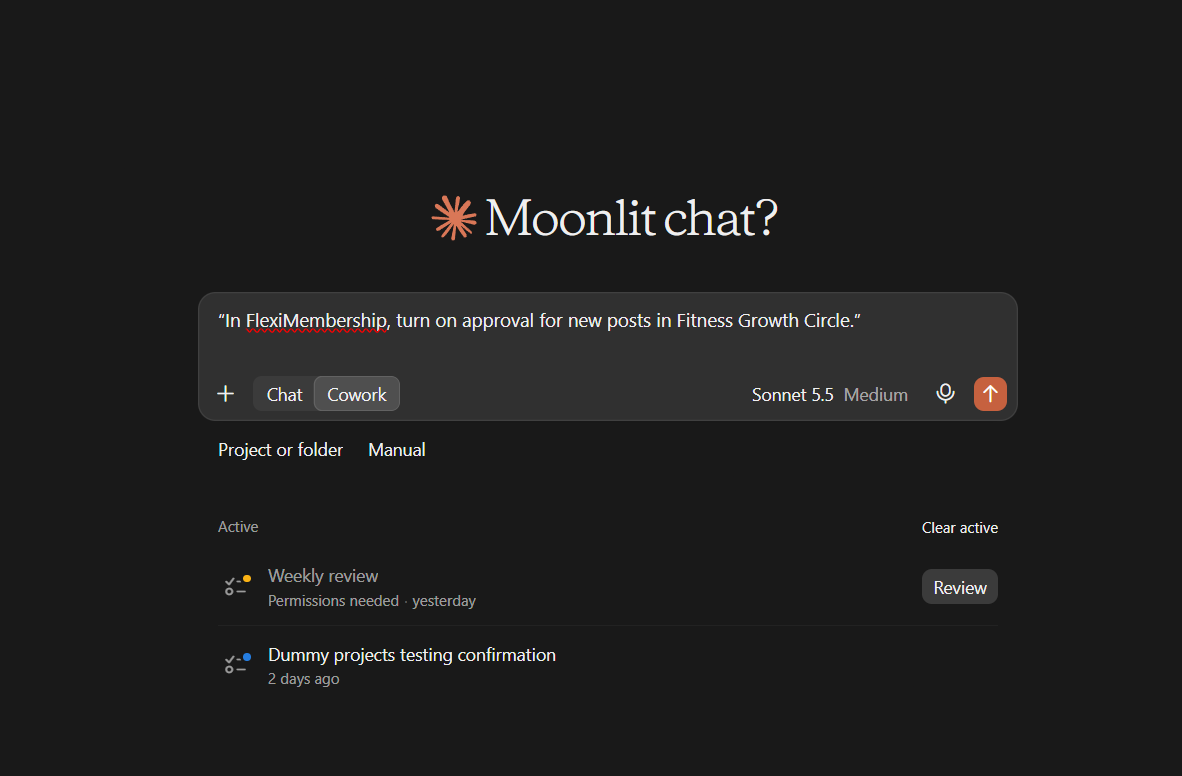
Example prompt“In FlexiMembership, turn on approval for new posts in Fitness Growth Circle.”
| Setting | What it does |
|---|---|
| Approve new members | Join requests wait for you |
| Approve posts | Member posts wait for you |
| Post types | Allow photo, audio, video or poll posts |
| Member limit | Caps sign-ups from the landing page |
| Tagging | How many members one post may @tag (0–50) |
| Scheduled posting | Turn it on and choose who posts |
Be careful: productSaving a community that has no product yet also creates a free product for it. This happens even if nothing else changes.
4Add Terms, Rules and categories
- Ask to turn Terms or Rules on or off. Give the text.
- The new text replaces the old text.
- Ask for categories. A category groups posts.
- An admins-only category lets only admins and instructors post in it.
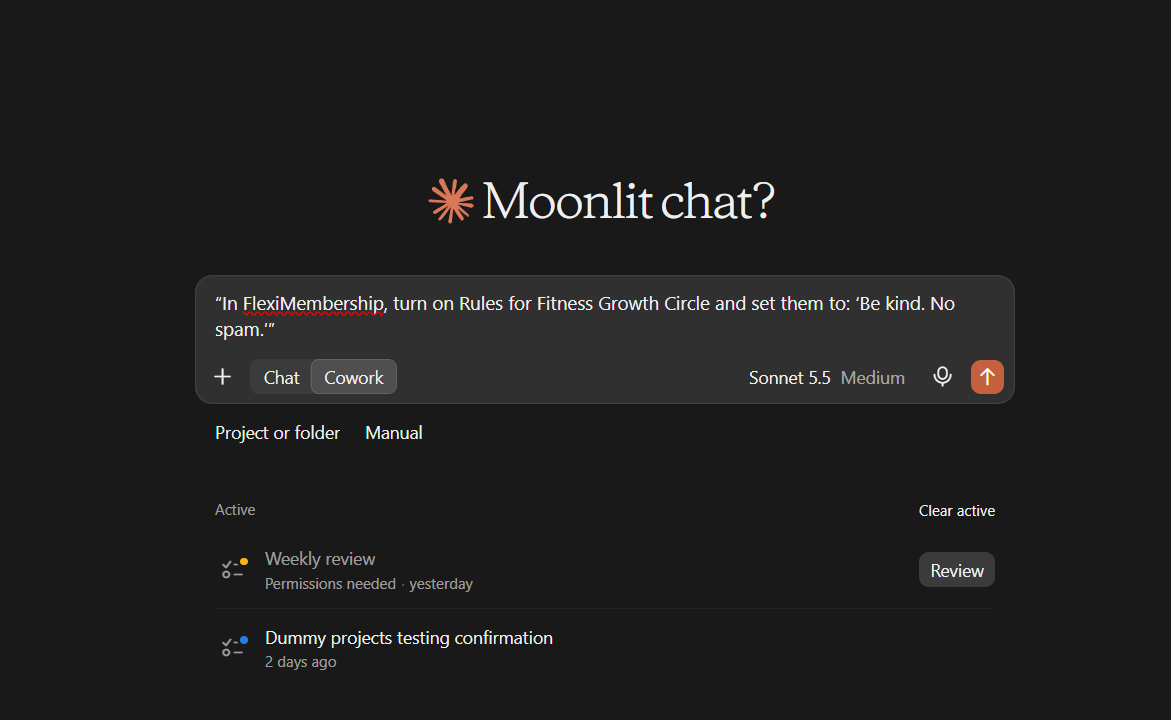
Example prompt“In FlexiMembership, turn on Rules for Fitness Growth Circle and set them to: ‘Be kind. No spam.’”
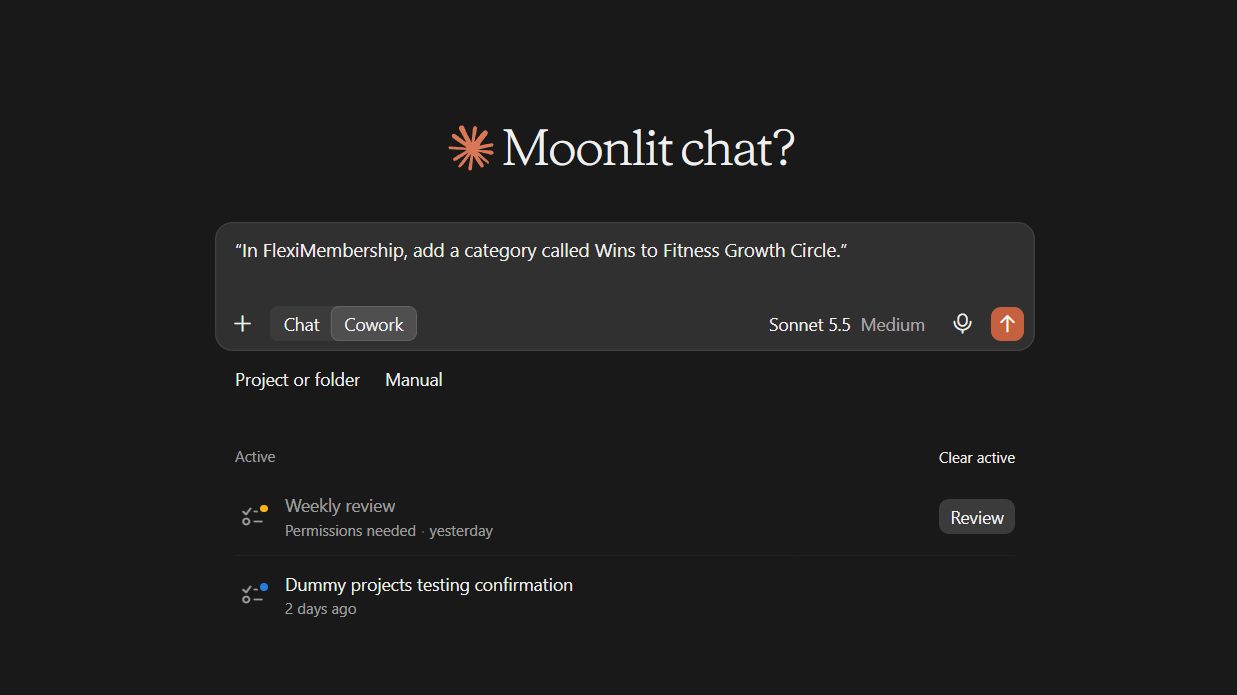
Example prompt“In FlexiMembership, add a category called Wins to Fitness Growth Circle.”
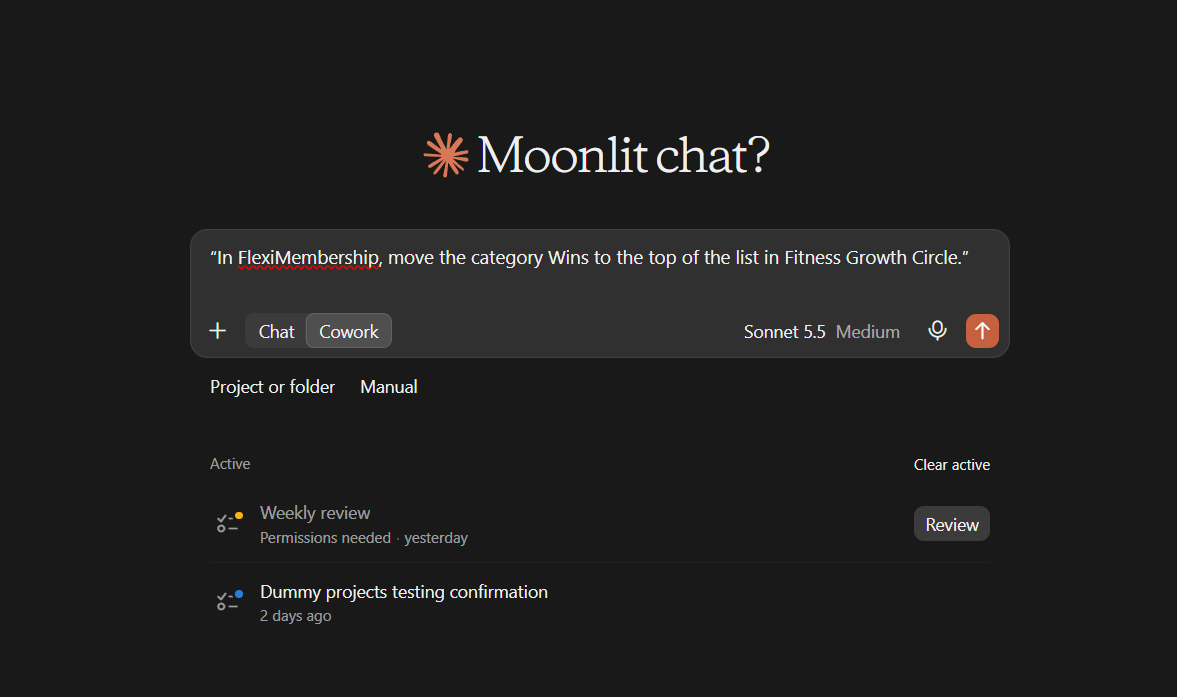
Example prompt“In FlexiMembership, move the category Wins to the top of the list in Fitness Growth Circle.”
- Nobody is notified of these changes.
- You can rename a category, change its emoji, or hide it. Hiding keeps its posts.
5Edit the landing page
- Ask to see the landing page first. It is the page that sells or introduces the community.
- Then ask for a change to one part.
- The page uses one of designs 1–12.
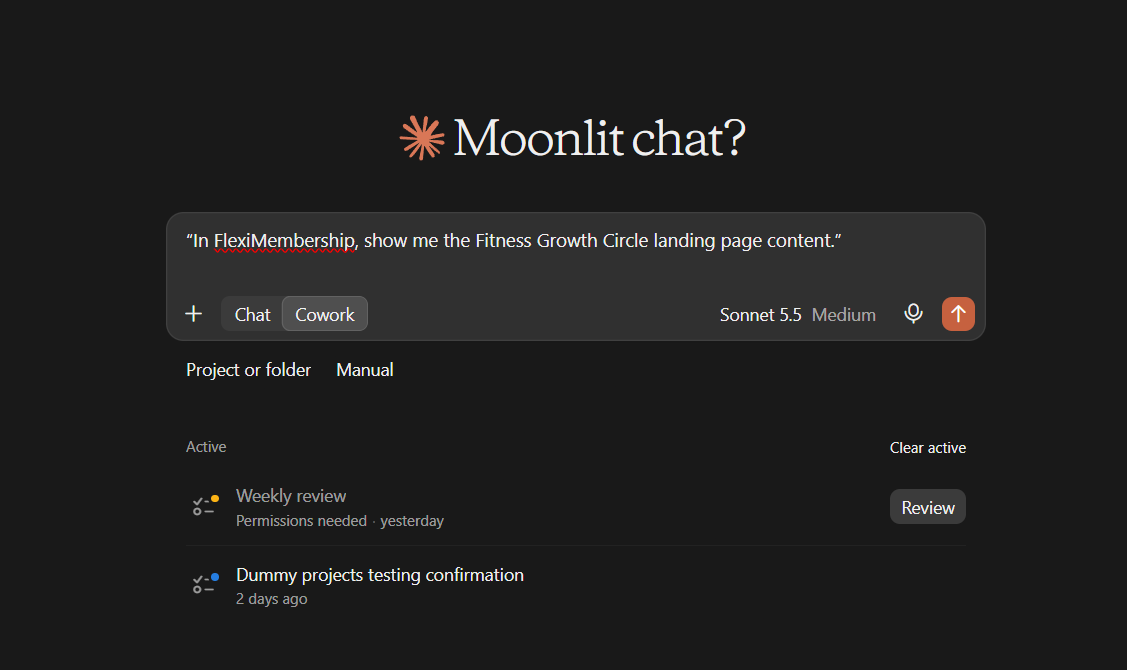
Example prompt“In FlexiMembership, show me the Fitness Growth Circle landing page content.”
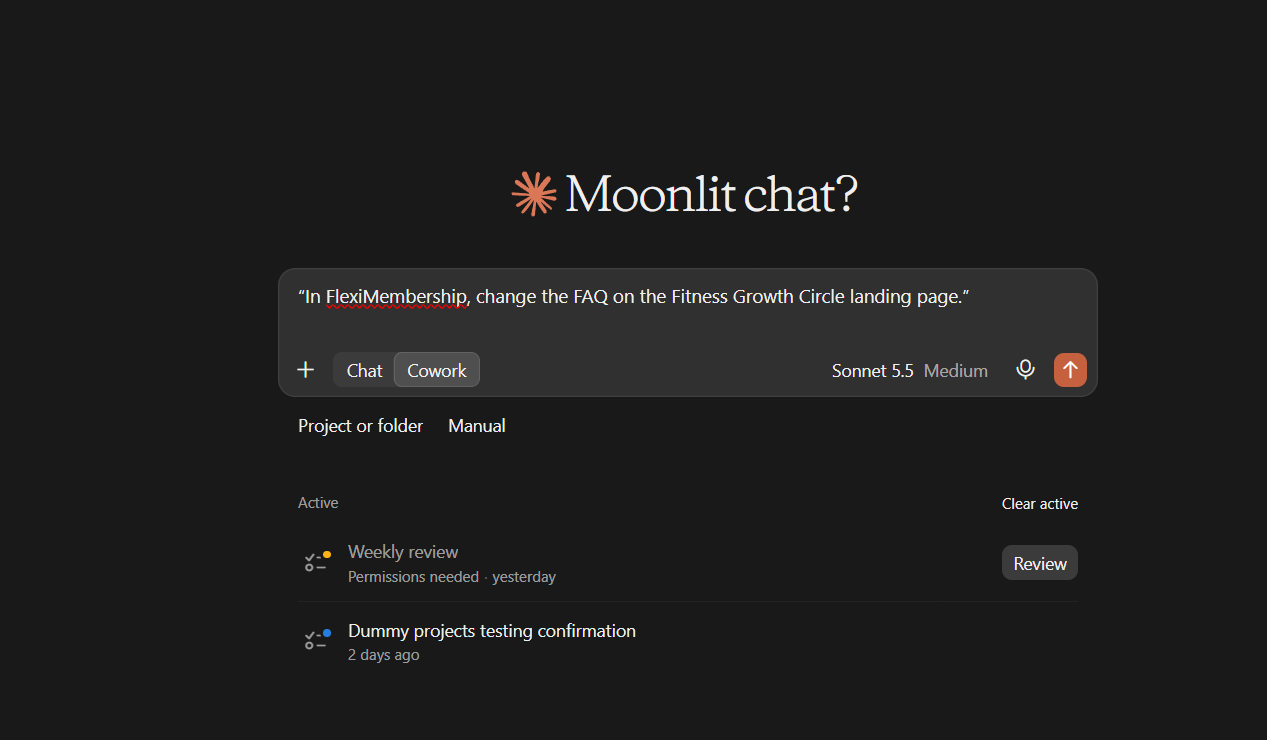
Example prompt“In FlexiMembership, change the FAQ on the Fitness Growth Circle landing page.”
Be careful: renamingThe headline and sub-headline are the community name and description. Changing them renames the community. If the page is live, it updates at once.
6Set notification emails
- Ask which emails the community sends.
- Switch each email on or off.
- The list: welcome, new post, admin post, comments, replies, mentions and likes.
- Also event reminders and the weekly digest.
- You can set the sender name, sender email and language.
- Changing these sends nothing. The email wording is edited in the dashboard.
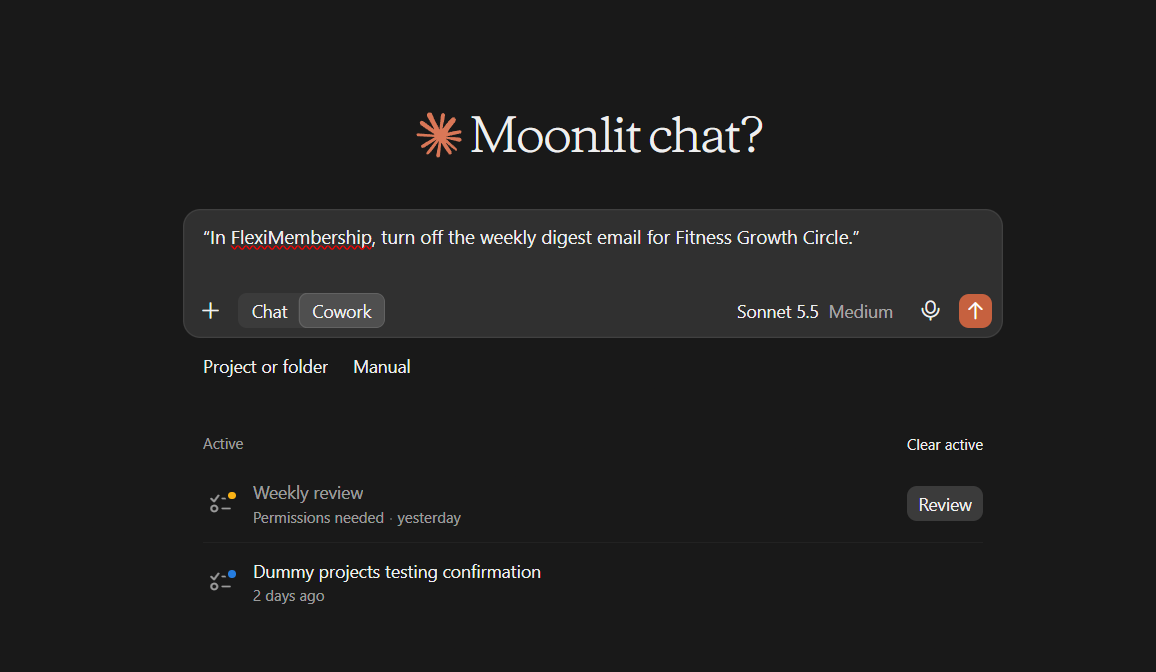
Example prompt“In FlexiMembership, turn off the weekly digest email for Fitness Growth Circle.”
7Add members and set roles
- Ask the AI to add people who are already members of your project.
- Add up to 100 at a time.
- They join as ordinary members and are active at once.
- No email is sent to them.
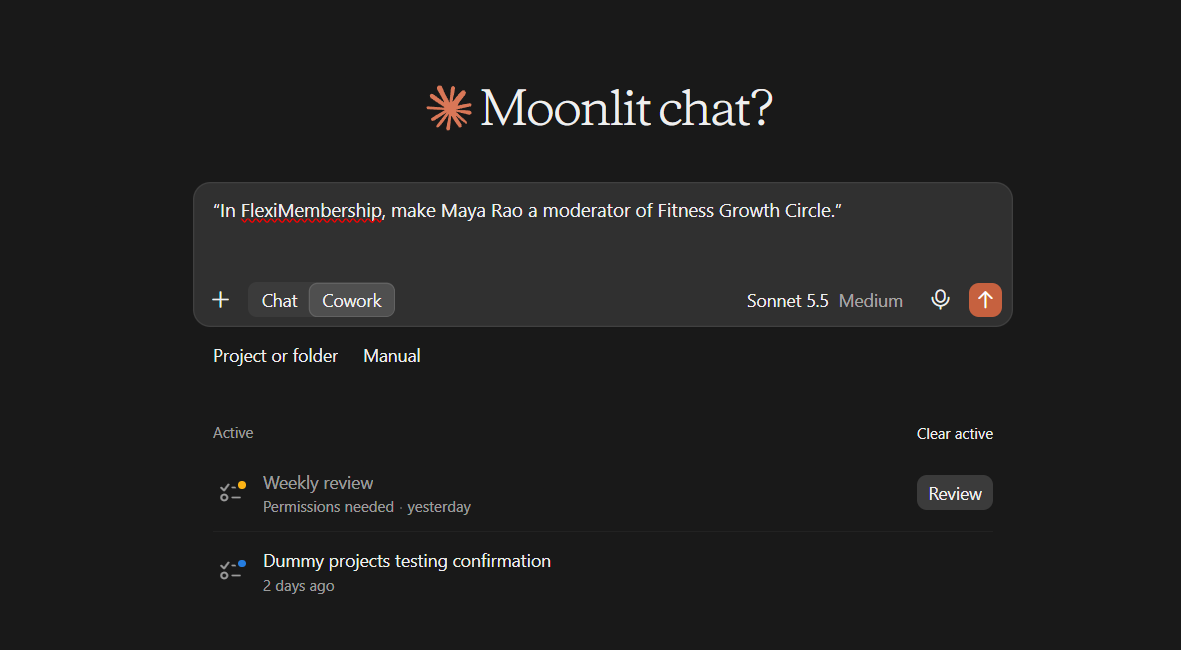
- Roles are member, admin or moderator. Nobody is notified of a role change.
- To approve a join request, set the person to active. They get an in-app notice, not an email.
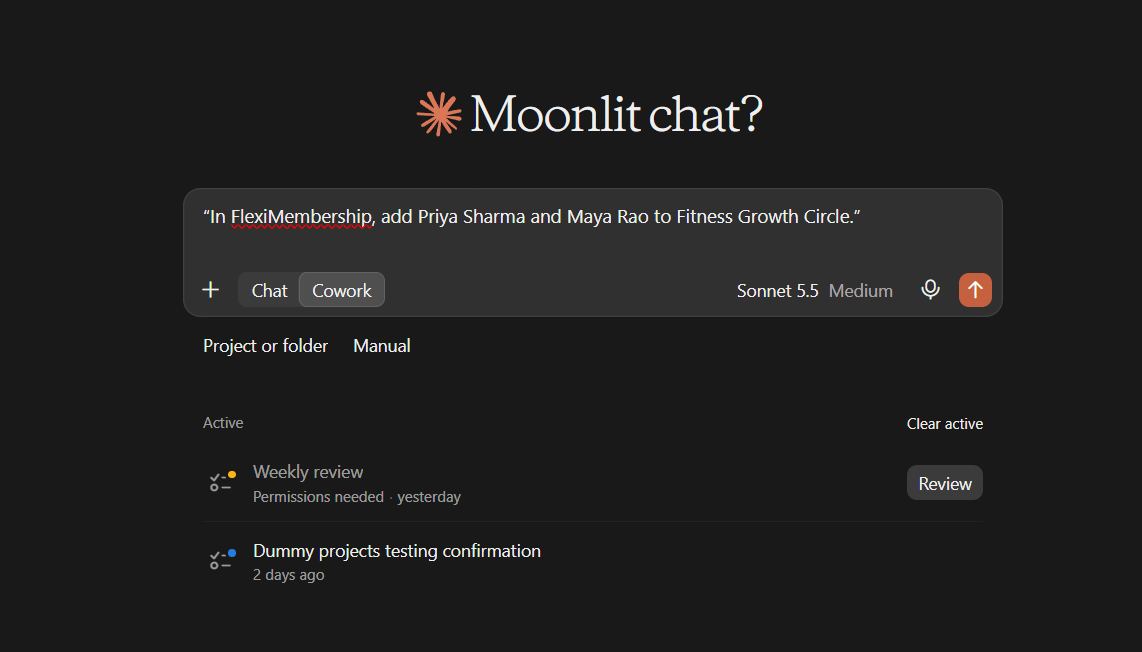
Example prompt“In FlexiMembership, add Priya Sharma and Maya Rao to Fitness Growth Circle.”
Example prompt“In FlexiMembership, make Maya Rao a moderator of Fitness Growth Circle.”
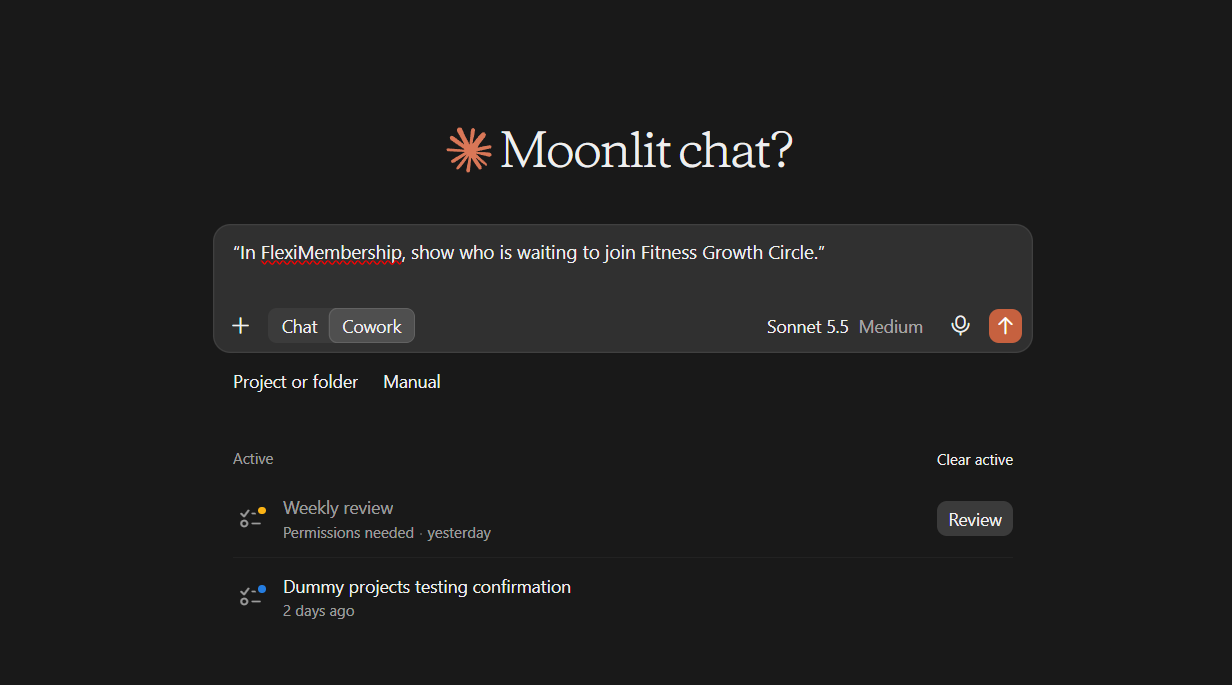
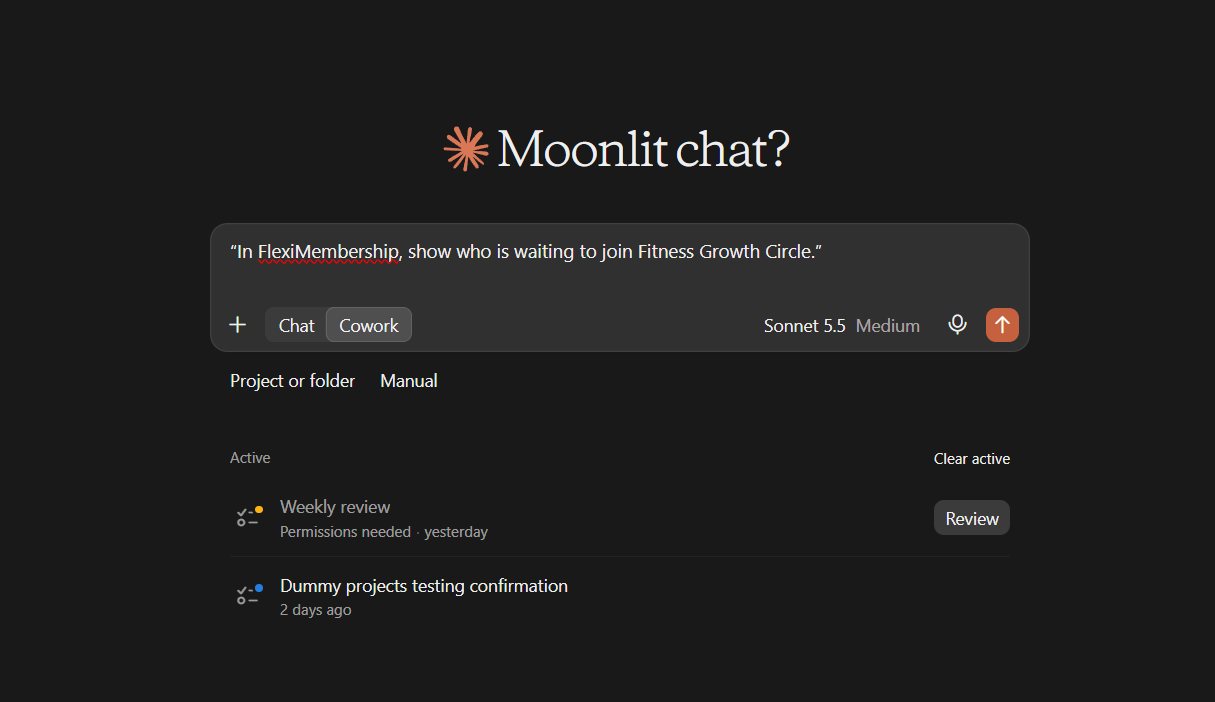
Example prompt“In FlexiMembership, show who is waiting to join Fitness Growth Circle.”
Be careful: membersCheck the names before you confirm. Removing someone from a community is done in the FlexiMembership dashboard.
8Publish, switch on or off, and check
- If a sales or checkout page is not live, ask the AI to publish them.
- This works only for a community that has its product.
- To hide the community, switch it off.
- Members, posts and settings stay. Switch it on to bring it back.
- Ask for the community details to check the result.
Example prompt“In FlexiMembership, publish the sales and checkout pages for Fitness Growth Circle.”
Example prompt“In FlexiMembership, switch off the Fitness Growth Circle community.”
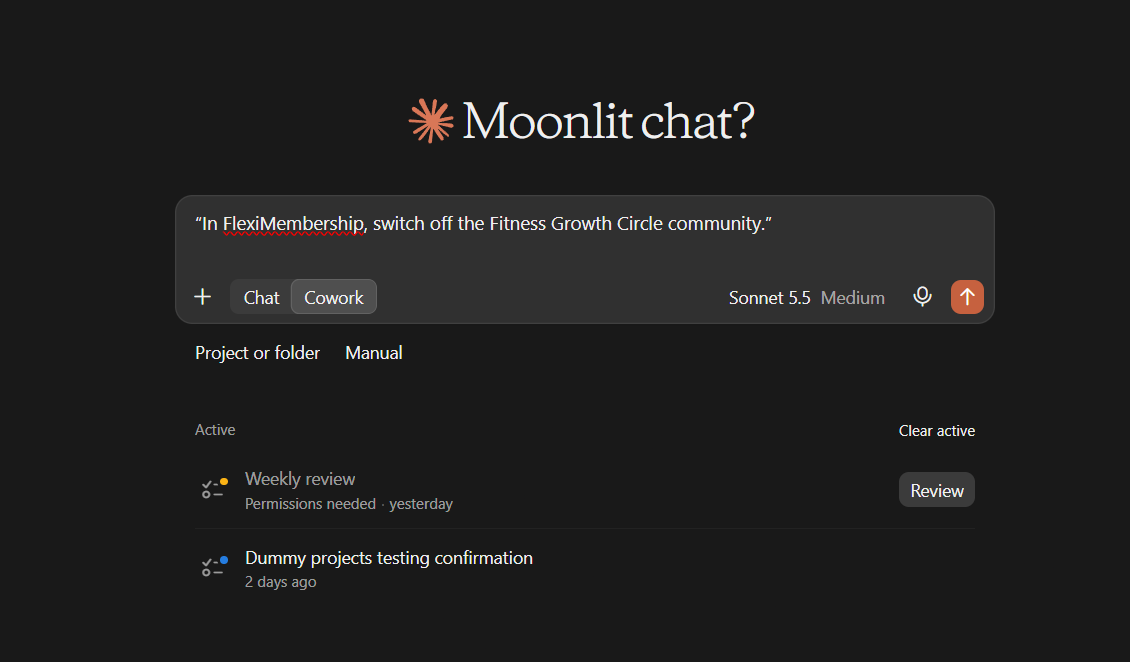
Be careful: visibilityPublishing makes the pages visible to buyers. Switching off hides the whole community from members.
Behind the Scenes: MCP Tools Involved
| Task | Related MCP tool(s) |
|---|---|
| See community creation options | get_group_setup_options |
| List your communities | list_groups |
| View one community in full | get_group |
| Create a community | create_group |
| Edit name, description, type, banner or instructors | update_group |
| Change approvals, post types and other settings | update_group_settings |
| Switch a community on or off | set_group_active |
| Read the landing page | get_group_landing |
| Edit the landing page | update_group_landing |
| Read Terms and Rules | get_group_policy |
| Edit Terms and Rules | update_group_policy |
| Read email settings | get_group_email_settings |
| Change email settings | update_group_email_settings |
| Add a category | add_group_category |
| Edit or hide a category | update_group_category |
| Reorder categories | reorder_group_categories |
| List community members | list_group_members |
| Add members to the community | add_group_members |
| Set a member’s role | set_group_member_role |
| Approve or switch off a member | set_group_member_status |
| Publish sales and checkout pages | publish_group_pages |
Ready-to-Use Prompts
- “In FlexiMembership, show me the options for creating a community in Fitness Academy.”
- “In FlexiMembership, create a private, free standalone community called Fitness Growth Circle in Fitness Academy. Support email: help@example.com.”
- “In FlexiMembership, add a category called Wins to Fitness Growth Circle.”
- “In FlexiMembership, turn on Rules for Fitness Growth Circle.”
- “In FlexiMembership, make Maya Rao a moderator of Fitness Growth Circle.”
- “In FlexiMembership, publish the sales and checkout pages for Fitness Growth Circle.”
Tips for Better Results
- Name the project and the community in every request.
- Answer the AI’s questions before you confirm.
- Create the community first. Then set it up one part at a time.
- Read every preview. Some changes go live at once.
- Ask for the landing page before you edit it.
- Check member names before you add them or change roles.
- After a change, ask the AI to show the community again.
Quick Fixes
| Problem | Fix |
|---|---|
| The AI cannot find my community. | Ask for the list of communities in the project. Use the exact name. |
| A page is not live. | Ask to publish the community pages. It needs a community that has its product. |
| I renamed my community by accident. | A landing headline edit renames it. Ask to change the name back. |
| Members did not get an email. | Adding members, roles and approvals send no email. Tell members yourself. |
| Someone cannot join. | Check approvals, the “granted only” setting and any authorized-emails limit. |
| The AI does not use FlexiMembership. | Check the connector or plugin is connected and authorized. Add “In FlexiMembership” to your prompt. |
Limitations
- Removing a member from a community is done in the dashboard.
- Deleting a category is done in the dashboard. You can hide it here.
- Changing a subscription community’s price is done in the dashboard. See Article 4.
- The list of authorized emails is uploaded in the dashboard.
- Automatic AI replies are “coming soon” on most accounts. They use AI credits.
- Custom scripts are not shown or changed here.
- No undo is described. Read each preview before you confirm.
Was this article helpful?
That’s Great!
Thank you for your feedback
Sorry! We couldn't be helpful
Thank you for your feedback
Feedback sent
We appreciate your effort and will try to fix the article