A quick walkthrough of where to find Flexi Genie, what its chat screen looks like, and where its settings live.
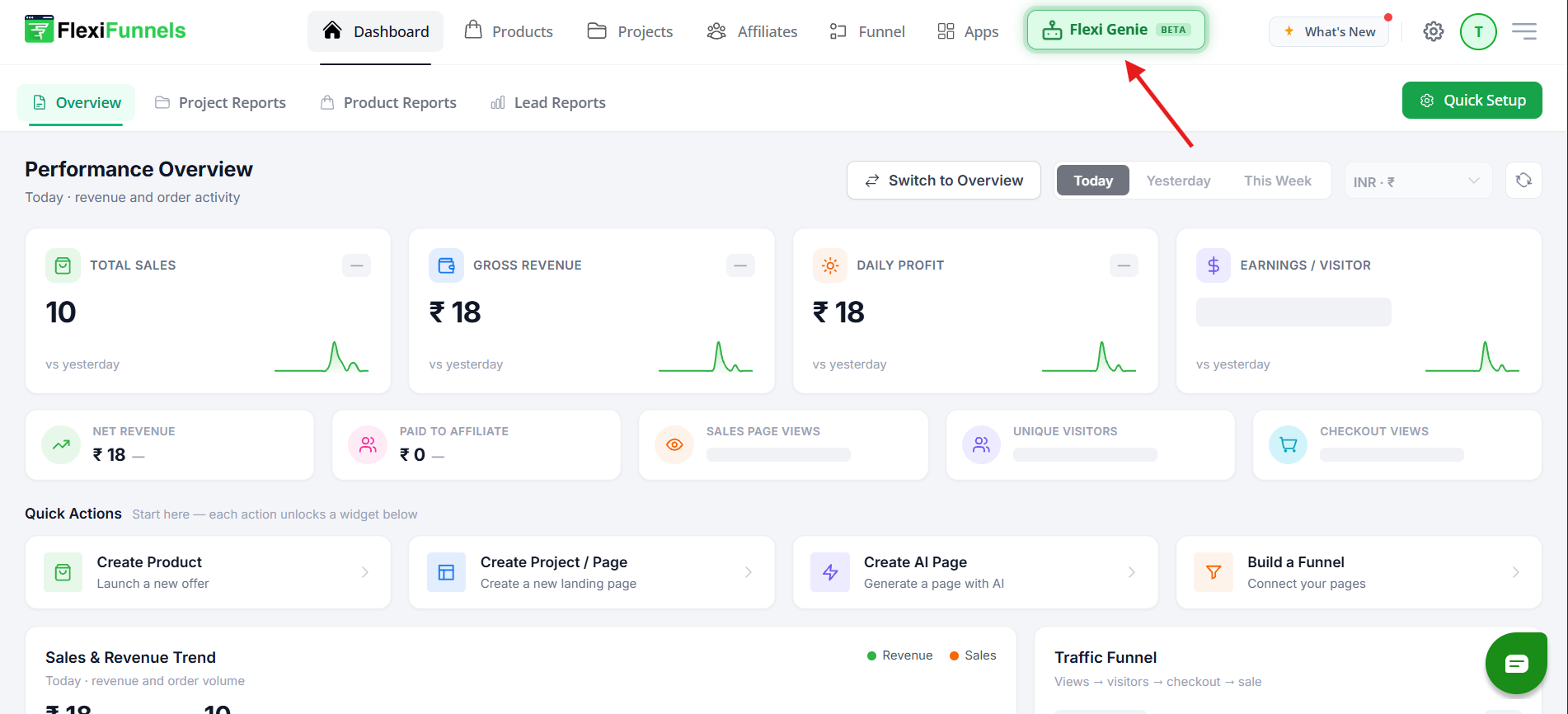
Flexi Genie Inside FlexiFunnels Dashboard overview:
Flexi Genie All Actions List Walkthough
Overview
Flexi Genie is FlexiFunnels' built-in AI assistant. It lives right inside your FlexiFunnels account, so you can ask it to make changes, build pages, or check on your business — all through a simple chat, without leaving the platform.
This article covers:
- Where to find and open Flexi Genie
- What you'll see on the chat screen
- How to get to Flexi Genie's settings
It's the starting point before you try any specific task with Flexi Genie.
What You Can Do
- Open Flexi Genie from anywhere in your FlexiFunnels dashboard
- See your recent and past conversations with Flexi Genie
- Start a new chat and ask for changes in plain English
- Access Flexi Genie's settings — including brand memory, appearance, and connected tools
Why This Is Useful
Instead of clicking through multiple menus to build a page, set up a product, or check a report, you can simply describe what you want in a chat box. Flexi Genie shows you what it's about to change before anything goes live, so you stay in control the whole time.
Before You Begin
- You need an active FlexiFunnels account and be logged in to your dashboard.
- Flexi Genie is currently in Beta, so you may notice it evolving with new features over time.
Step-by-Step Instructions
Step 1: Open Flexi Genie from Your Dashboard
- Log in to your FlexiFunnels account.
- On the main Dashboard, look at the top navigation bar.
- You'll see a Flexi Genie button (marked with a "BETA" tag) next to the main menu items like Products, Projects, Affiliates, and Funnel.
- Click on it to open Flexi Genie.
Step 2: See the Flexi Genie Chat Screen
- Once opened, Flexi Genie displays a chat-style interface.
- On the left: a list of your past conversations, organized by date (Today, Yesterday, Previous 7 Days).
- A + New chat button at the top lets you start a fresh conversation.
- On the right: a welcome screen titled "What should I build?" with a few suggested prompts to get you started.
- At the bottom is the message box where you type your own requests.
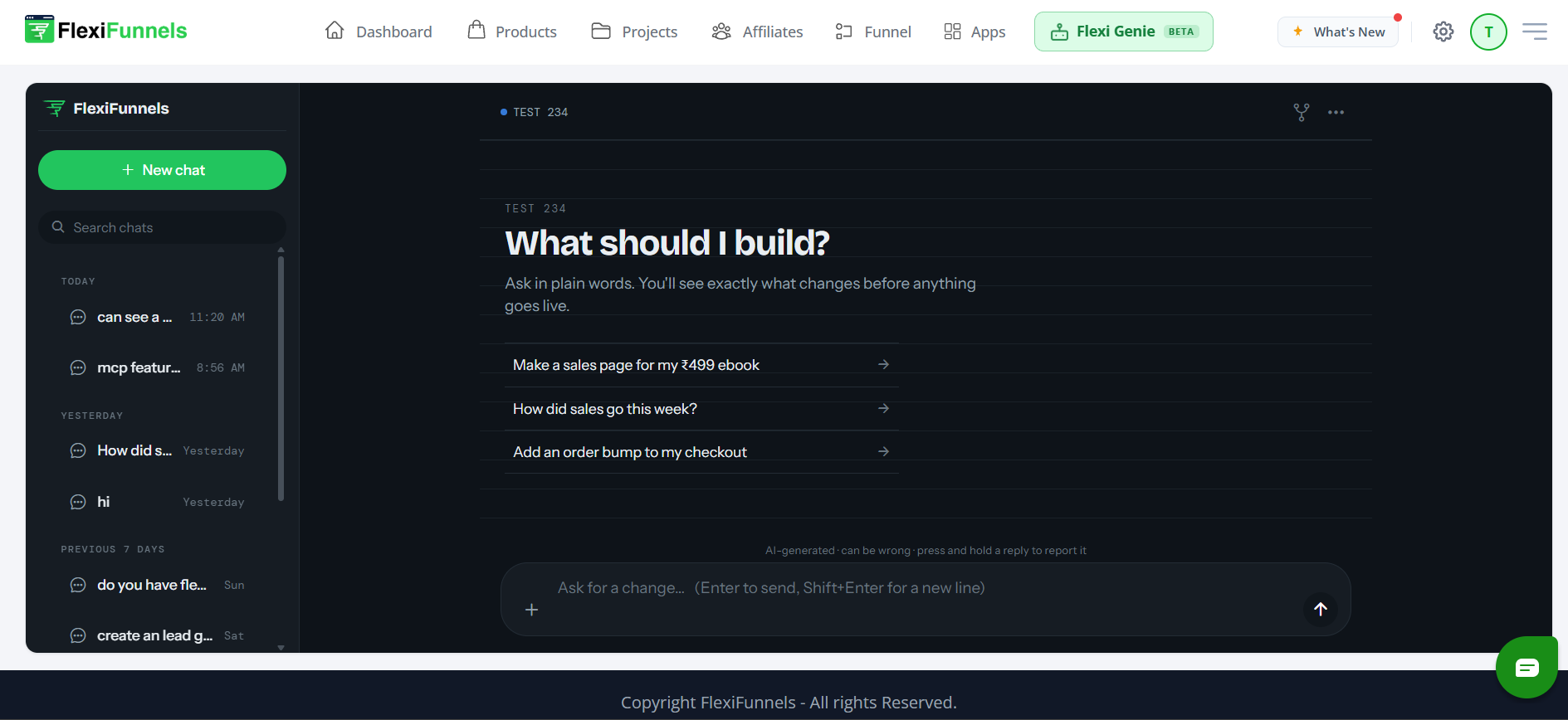
Tip: You don't have to use the suggested prompts — they're just examples. You can type any request in your own words.
Step 3: Open Flexi Genie Settings
- Click the three-dot menu (···) in the top-right corner of the Flexi Genie chat window.
- A Settings tooltip will appear.
- Click it to open the settings panel.
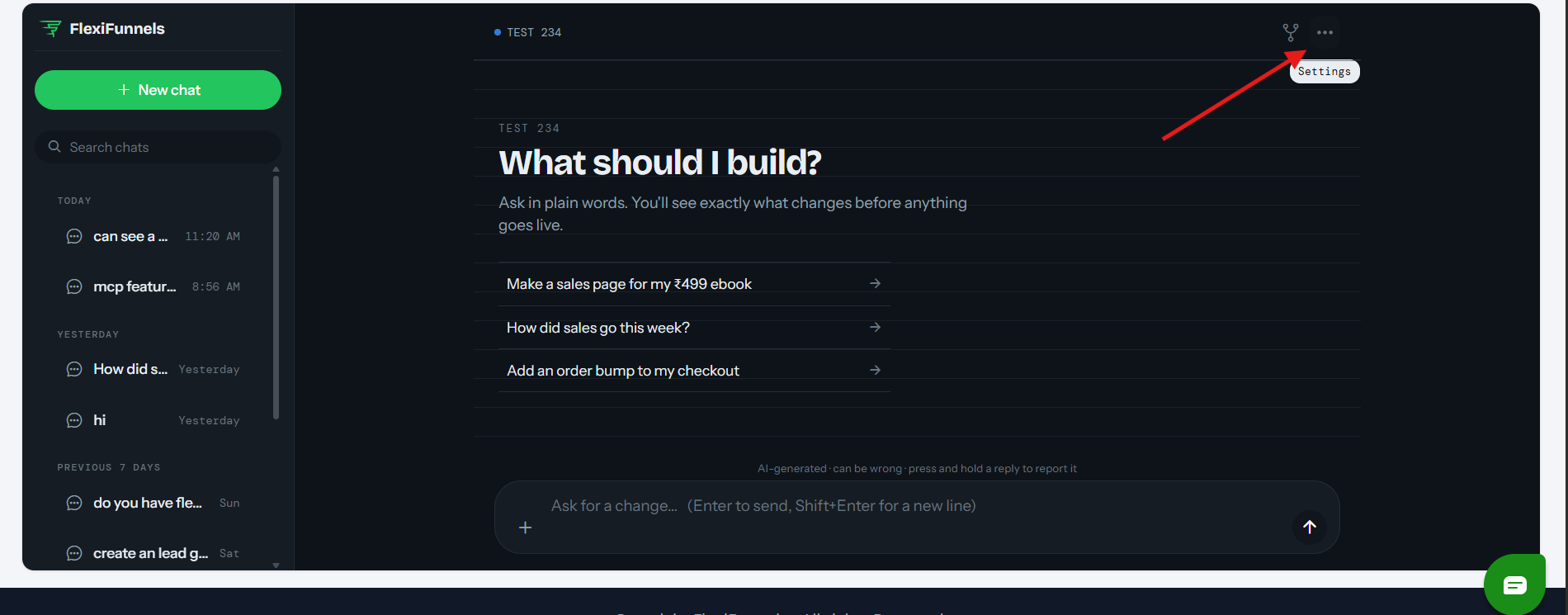
Click the three-dot menu in the top-right corner of the chat window to reveal the Settings option.
Step 4: Explore the Settings Panel
The Settings panel is organized into a few clear sections:
- Account — shows your connected FlexiFunnels account and current session
- Agent — Brand memory, where Flexi Genie stores your voice, pricing, and guardrails
- Preferences — Appearance (System/Light/Dark) and Notifications
- Tools — connected accounts (e.g. HeyGen video)
- AI & Data — what's shared with the AI and your consent, plus privacy policy and account deletion
- About — Help & docs
The Flexi Genie Settings panel, showing account details, brand memory, appearance, connected tools, and privacy options.
Good to Know: "Brand memory" is where Flexi Genie remembers details specific to your business — like your brand voice or pricing rules — so its suggestions stay consistent with how you run things.
Example
Once you're inside a Flexi Genie chat, you can simply type something like:
"Make a sales page for my ₹499 ebook."
Flexi Genie will show you what it's about to build before anything goes live on your account.
Ready-to-Use Prompts
"Make a sales page for my ₹499 ebook."
"How did sales go this week?"
"Add an order bump to my checkout."
Tips for Better Results
- Start a New chat for unrelated tasks — it keeps conversations easier to search later.
- Use the search bar above your chat list to quickly find a past conversation.
- Check your Brand memory settings early on, so Flexi Genie's suggestions match your pricing and tone from the start.
Common Issues / Troubleshooting
Don't See the Flexi Genie Button? Make sure you're logged in and viewing the main Dashboard. If it's still not visible, it may not yet be enabled on your account — check with FlexiFunnels support.
Limitations / Important Notes
- Flexi Genie is currently in Beta — the interface and features may change as it's updated.
- As noted on the chat screen itself: responses are AI-generated and can be wrong. You'll be shown proposed changes before anything goes live.
Curious what else Flexi Genie and AI assistants can do inside FlexiFunnels? See the full Possibilities with Flexi Genie & AI Assistance reference document.
Was this article helpful?
That’s Great!
Thank you for your feedback
Sorry! We couldn't be helpful
Thank you for your feedback
Feedback sent
We appreciate your effort and will try to fix the article