Overview
You can connect your Cloudflare domain to FlexiFunnels by adding the required DNS records in your Cloudflare DNS settings and then verifying the domain inside FlexiFunnels.
Once your domain is successfully connected, you can use it for your funnels, websites, landing pages, checkout pages, and other FlexiFunnels projects.
Important: If you're following an older video or screenshot, you may notice a different IP address. Always use the latest FlexiFunnels server IP:
137.66.21.168
Before You Begin
Before starting the integration, ensure that:
- You have an active domain connected to Cloudflare.
- Your domain has not expired.
- Your domain is using Cloudflare's nameservers.
- You have access to your Cloudflare DNS settings.
- You have access to the Domains section inside FlexiFunnels.
Note: DNS changes may take anywhere from a few minutes up to 24–48 hours to propagate globally.
Follow these step-by-step instructions to connect your Cloudflare domain to FlexiFunnels successfully:
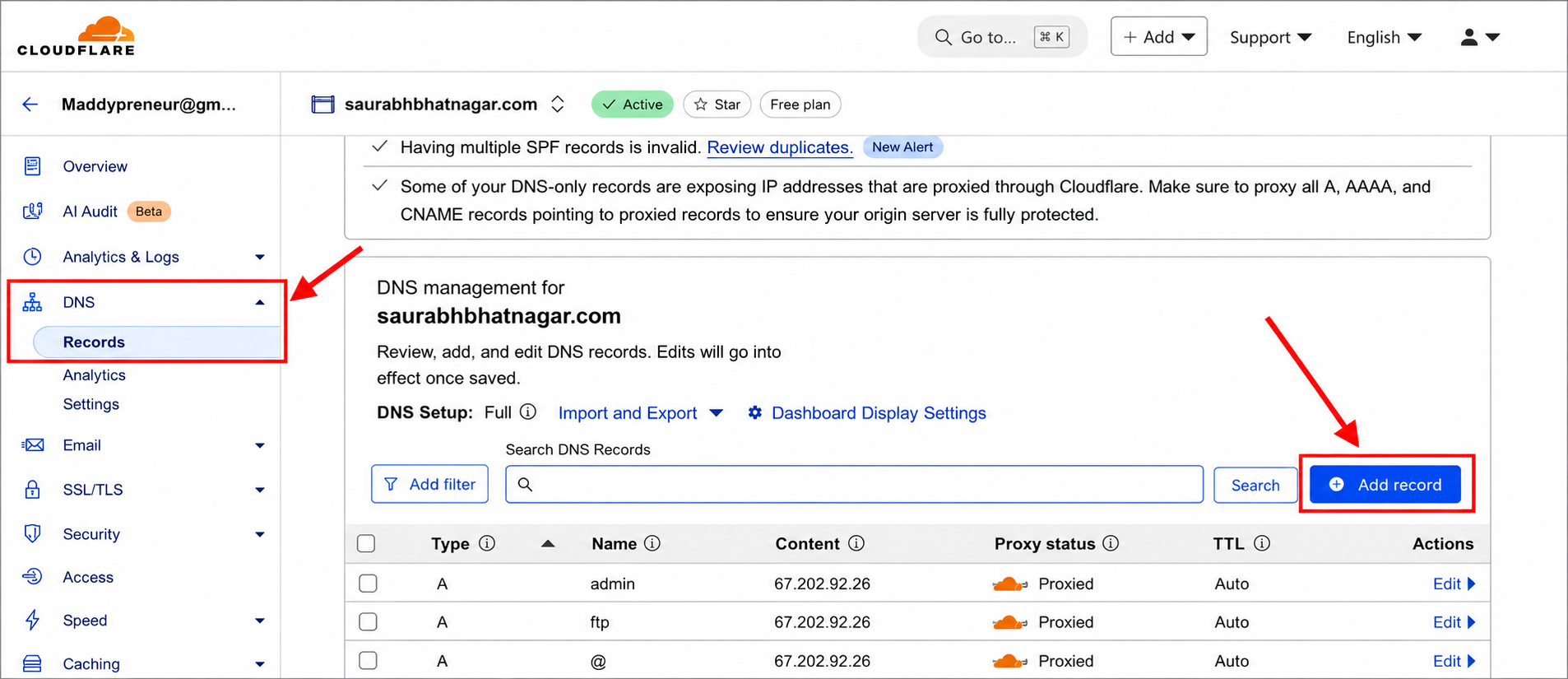
Step 1: Access Your Cloudflare Account
Log in to your Cloudflare account.
Navigate to the DNS section from the left-side menu.
In the DNS settings, locate the Records section.
Click on the dropdown to Add New Record.
Step 2: Add DNS Records
Depending on whether you are integrating a primary domain or a subdomain, you need to add specific DNS records.
For Primary Domain Integration
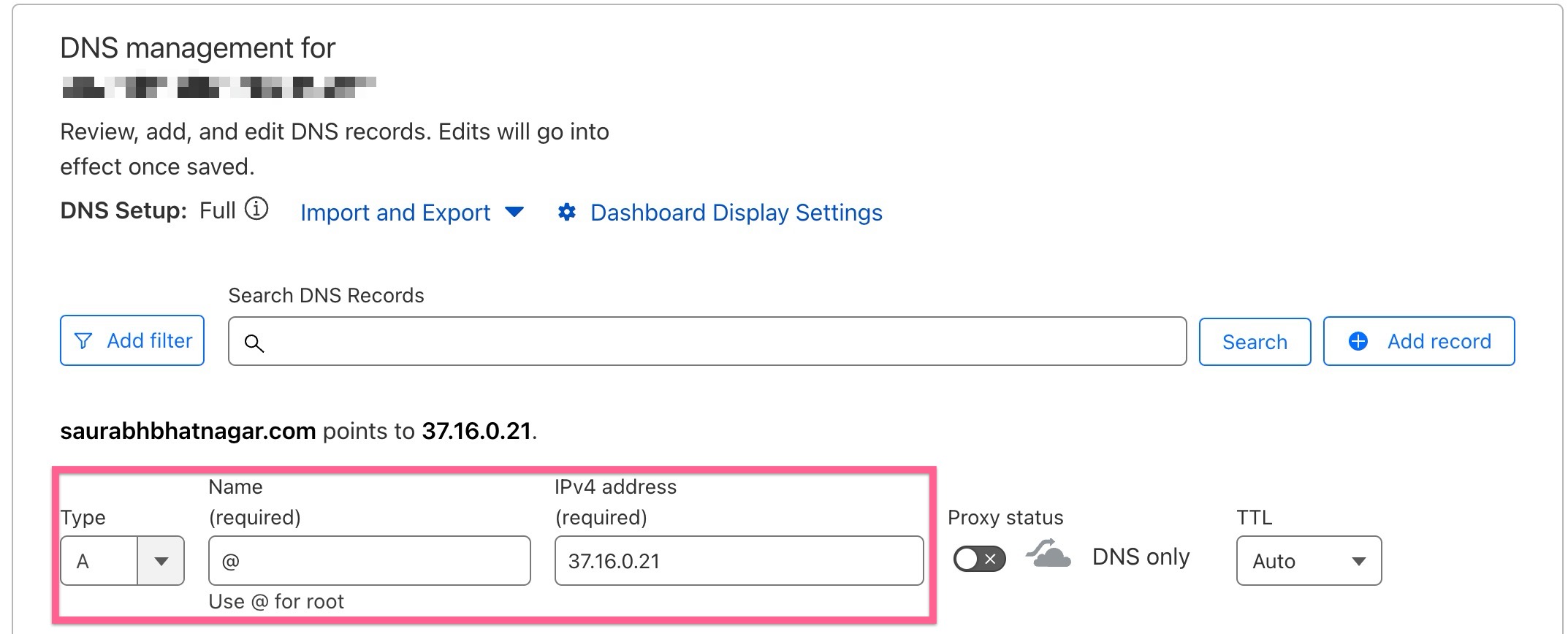
In the DNS settings, click on Add New Record.
Select A Record.
Enter the following details:
Host:
@Points to:
137.66.21.168TTL: Leave it as default.
Important: Turn off the proxy by clicking the orange cloud icon to switch it to DNS only.
Save the record.
For Subdomain Integration
In the DNS settings, click on Add New Record.
Select CNAME Record.
Enter the following details:
Host: Your subdomain name (e.g.,
subdomain)Points to:
target.flexissl.netTTL: Leave it as default.
Important: Turn off the proxy by clicking the orange cloud icon to switch it to DNS only.
Save the record.
Step 3: Add Domain in FlexiFunnels
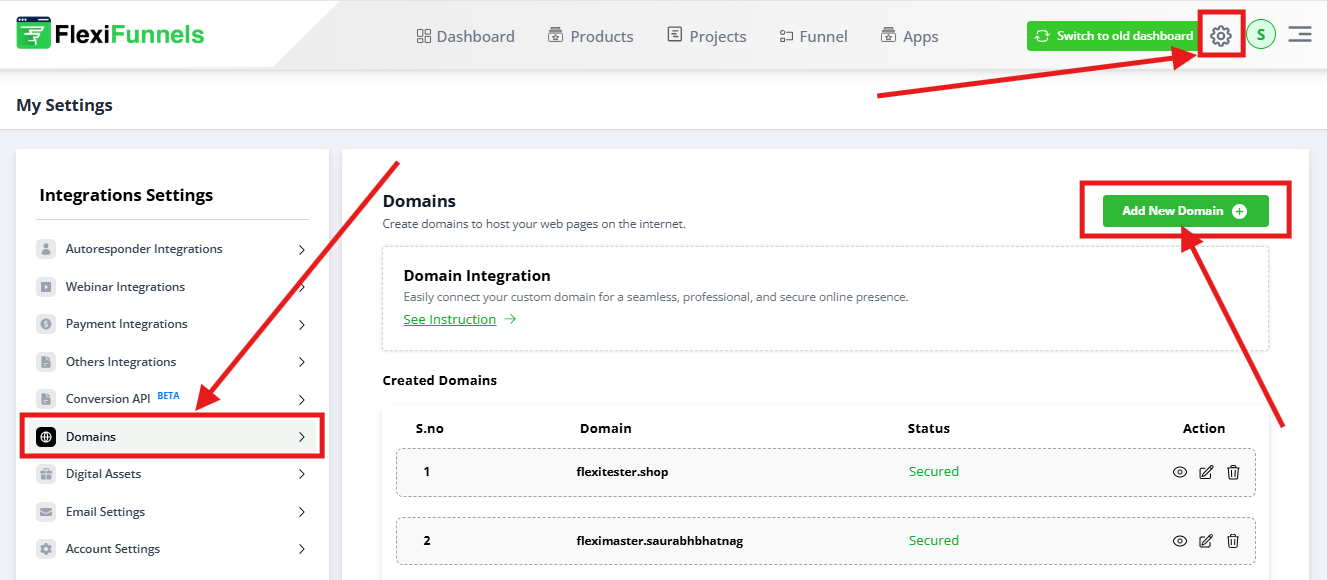
Log in to your FlexiFunnels account.
Navigate to the Domains section.
Click on Add Domain.
Enter your Primary Domain and Subdomain.
FlexiFunnels will provide the required CNAME and A Name values.
If not provided, use the values mentioned above.
Step 4: Verify Domain Integration
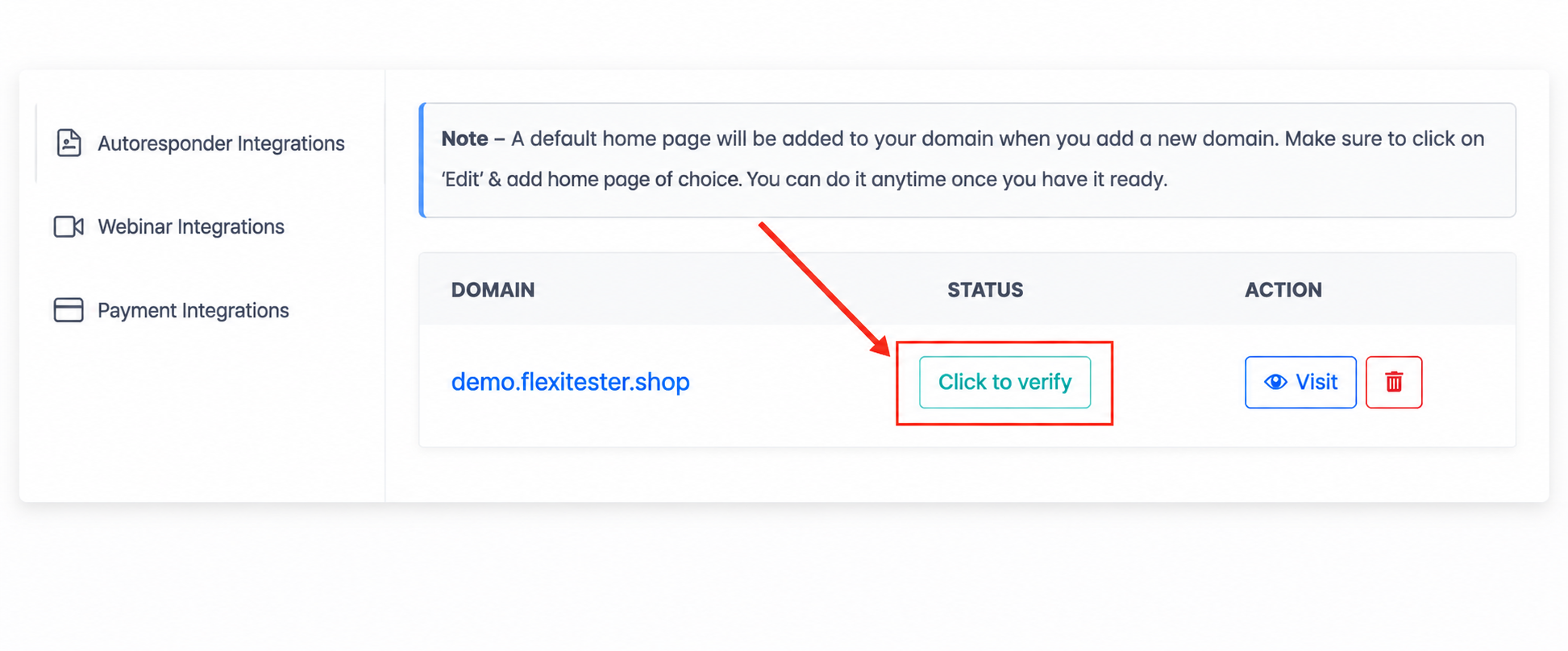
After adding the DNS records in Cloudflare and linking your domain in FlexiFunnels, return to FlexiFunnels.
Click on Verify Domain.
If configured correctly, your domain will be successfully secured and integrated.
Common Scenarios
My domain verification is failing.
Verify the following:
- The correct DNS record type has been added.
- The A Record points to 137.66.21.168.
- The CNAME points to target.flexissl.net.
- The Host value is correct (
@for the primary domain or your subdomain name for subdomains). - There are no typing errors in the DNS records.
My SSL certificate is stuck or pending.
The most common reasons are:
- Cloudflare Proxy is still enabled (Orange Cloud).
- DNS propagation is still in progress.
Make sure the DNS record is set to DNS Only (Gray Cloud) and allow up to 24–48 hours for propagation.
My Proxy Status is enabled (Orange Cloud).
Cloudflare's proxy can prevent FlexiFunnels from verifying your domain and issuing an SSL certificate.
Before clicking Verify Domain, ensure every DNS record used for FlexiFunnels is set to:
DNS Only (Gray Cloud)
You can enable the proxy again later if your setup supports it and after confirming everything works correctly.
My domain still opens another website.
This usually indicates that:
- Old DNS records are still pointing to another hosting provider.
- Conflicting A Records or CNAME Records exist.
Review your DNS records and remove any outdated or conflicting entries.
Should I use an A Record or a CNAME Record?
Use:
- A Record for your primary/root domain (
yourdomain.com) - CNAME Record for subdomains (
courses.yourdomain.com)
Using the wrong record type may prevent successful verification.
Best Practices
- Always use the latest DNS values provided by FlexiFunnels.
- Set Cloudflare's Proxy Status to DNS Only while verifying your domain.
- Remove conflicting DNS records before verifying.
- Allow DNS propagation to complete before attempting multiple verifications.
- Test your domain in an Incognito/Private browser window after successful verification.
Before Contacting Support
Before reaching out to our support team, please verify the following:
- ✅ The correct DNS record type has been added.
- ✅ The A Record points to 137.66.21.168.
- ✅ The CNAME points to target.flexissl.net.
- ✅ The Proxy Status is set to DNS Only (Gray Cloud).
- ✅ DNS changes have been saved in Cloudflare.
- ✅ You've allowed up to 24–48 hours for DNS propagation.
- ✅ There are no conflicting DNS records.
- ✅ You've clicked Verify Domain inside FlexiFunnels.
If the issue still persists, please provide:
- A screenshot of your Cloudflare DNS Records page.
- A screenshot of the Domains section inside FlexiFunnels.
- The domain name you're trying to connect.
- Any verification or SSL error messages.
- A brief description of the issue and the troubleshooting steps you've already completed.
Was this article helpful?
That’s Great!
Thank you for your feedback
Sorry! We couldn't be helpful
Thank you for your feedback
Feedback sent
We appreciate your effort and will try to fix the article