Quick Decision: Which Method Should You Use?
Before we start, you need to pick one of two approaches. Don't worry—most people should use
Method 1.
| Method | Best For | Difficulty | When to Use |
|---|---|---|---|
| Method 1: Standard Integration | Most users | Easy | ✓ Use this first. You have Mailchimp, Klaviyo, HubSpot, Zapier, or another common email tool. FlexiFunnels connects directly. |
| Method 2: Custom Form Code | Advanced users | Difficult | Only if your email service isn't supported by Method 1, OR you need custom code control. |
If unsure, use Method 1. It's faster, simpler, and works with 95% of email tools.
What's an Autoresponder?
An autoresponder is an email service that automatically sends emails to people who sign up.
Example: Someone fills out your form → email gets added to Mailchimp → Mailchimp automatically sends them a welcome email.
Common autoresponders: Mailchimp, Klaviyo, ConvertKit, GetResponse, ActiveCampaign, HubSpot, etc.
FlexiFunnels integrates with these tools so form submissions go directly to your email list.
Before You Start: What You Need
Before proceeding, have these ready:
- ✓ A FlexiFunnels account (already created)
- ✓ An email service account (Mailchimp, Klaviyo, etc.)
- ✓ Access to both accounts
- ✓ 15 minutes of quiet time to follow along
Don't have an email service yet? Sign up for a free account (Mailchimp, Klaviyo, and others offer free tiers), then come back.
The Big Picture: How It All Connects
Here's how lead collection works in 3 steps:
- Connect your email service to FlexiFunnels (account-level setup)
- Create a landing page with a form (page-level setup)
- Link the form to your email list (form-level setup)
After this, anyone who submits the form automatically gets added to your email list. Easy.
METHOD 1: Standard Integration (Recommended)
This is the easiest method. Your email service (Mailchimp, Klaviyo, etc.) is directly supported by FlexiFunnels.
Step 1: Connect Your Email Service Account to FlexiFunnels
First, you need to link your email service account to your FlexiFunnels account. This is a one-time setup.
Step 1A: Go to FlexiFunnels Settings
- Log in to app.flexifunnels.com
- Click on your account icon (top-right corner)
- Select "Settings"
Step 1B: Find Autoresponder Integrations
- In the Settings sidebar, look for "Autoresponder Integrations" or "Email Services"
- Click it
You'll see a list of supported email services (Mailchimp, Klaviyo, ActiveCampaign, etc.).
Step 1C: Connect Your Email Service
- Find your email service in the list (e.g., "Mailchimp")
- Click "Connect" next to it
- You'll be taken to your email service's login page
- Sign in with your email service account
- Grant permission when asked ("Allow FlexiFunnels to access my account?")
- You'll be redirected back to FlexiFunnels with a confirmation message
Success! Your email service is now connected to FlexiFunnels at the account level.
Note: This is a one-time setup. Next time you use FlexiFunnels, this connection will still be there.
For detailed help: Autoresponder Integration Setup Guide
Step 2: Create a Landing Page (Where Your Form Will Live)
Now you need a landing page with a form. This is where visitors will sign up.
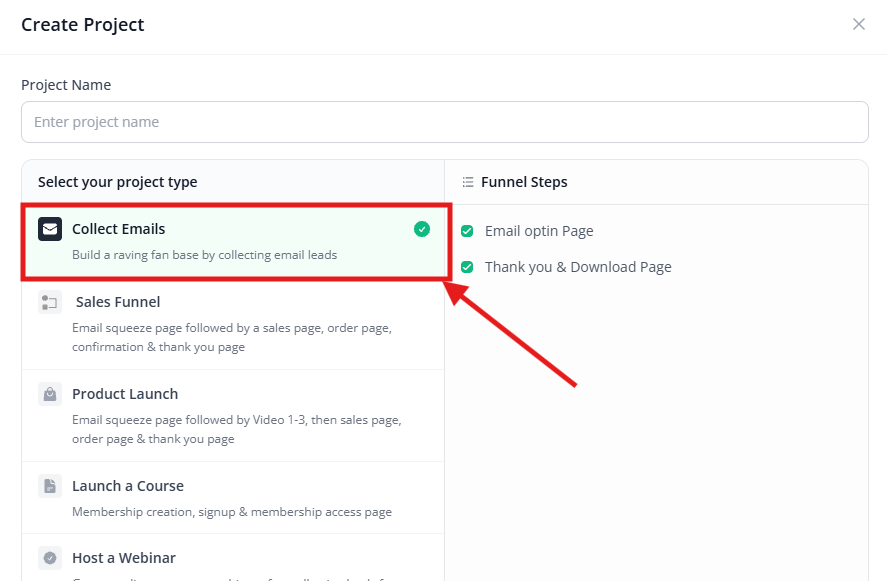
Step 2A: Create a New Project
- Log in to FlexiFunnels
- Click "Projects" in the dashboard
- Click "+ Create New" button
- Type a project name (e.g., "Lead Magnet Campaign" or "Webinar Signup")
- Click "+ Add Project"
✓ Your project is created


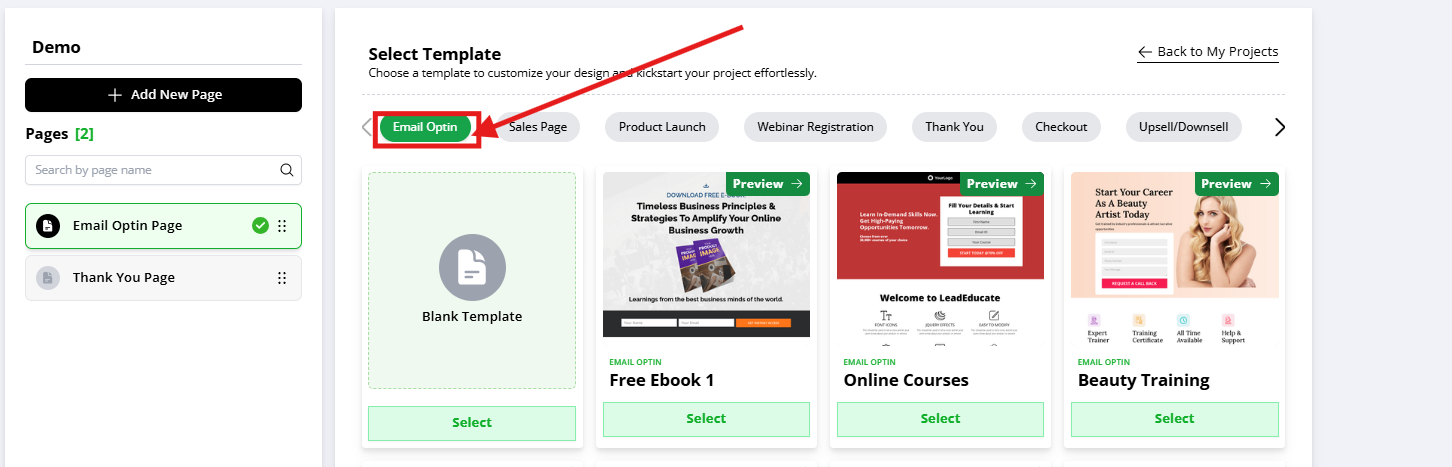
Step 2B: Choose a Landing Page Template
- Select the "Landing Page" category (you might see other options like "Sales Page," but choose "Landing Page")
- Browse the available templates
- Click on one you like (they're all customizable, so don't overthink this)
✓ FlexiFunnels creates a landing page in your project with the template you selected.
Step 2C: Enter the Page Editor
- You'll see a button labeled "Edit Page" or "Go to Editor"
- Click it
- You're now in the page editor where you can add your form
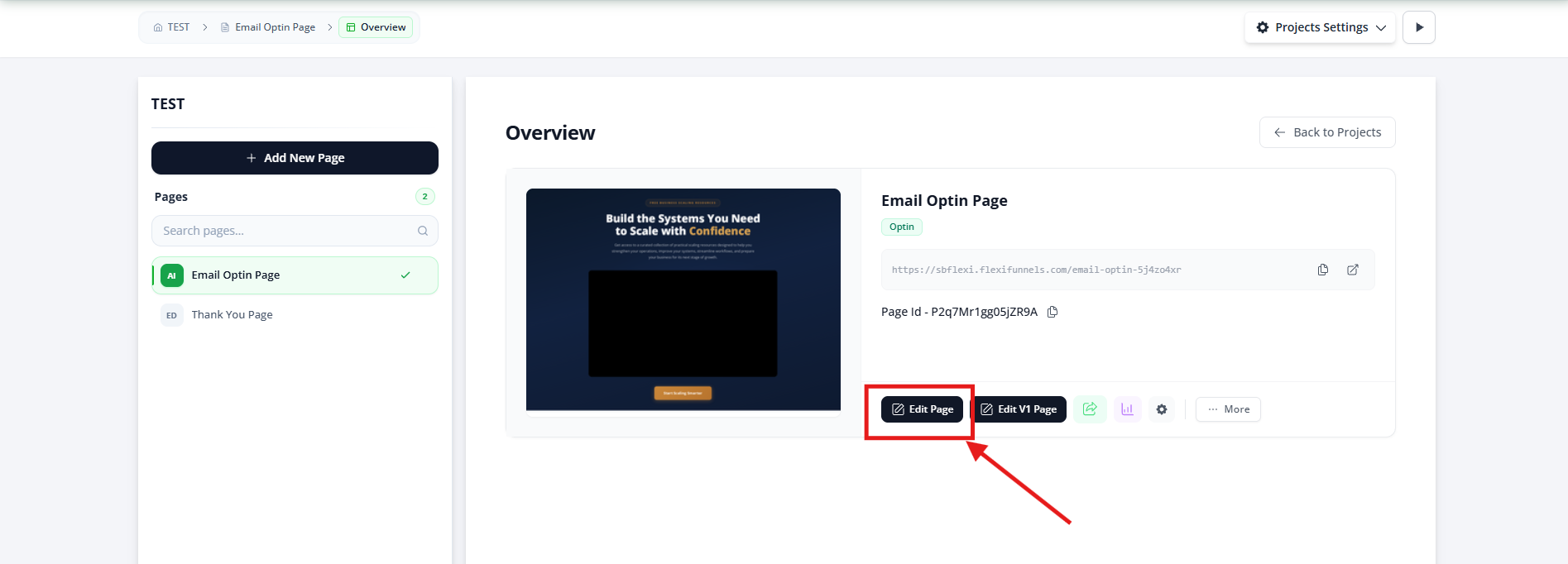
You have successfully created a Project in Flexifunnels With a Landing Page.
Step 3: Add a Form to Your Landing Page
Now you'll add a form element to your page.
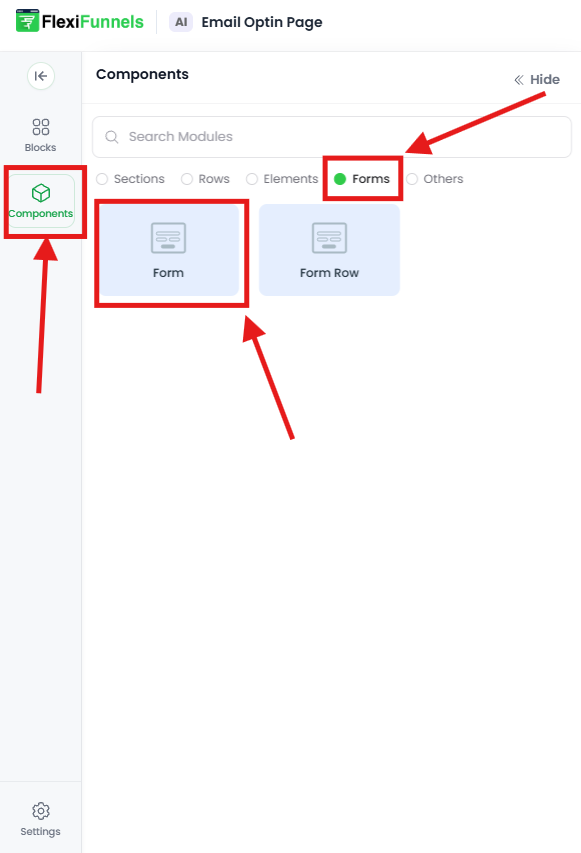
Step 3A: Add the Form Component
- In the editor, look at the left sidebar
- Click the "+" button at the top
- Select "Forms" from the component menu
- You'll see form options—click on "Form Element"
- Drag the form to your page where you want it
- Release it—the form is now on your page
✓ You have a basic form with placeholder fields.
Step 4: Connect the Form to Your Email Service
Now link this form to your email service so submissions go directly to your list.
Step 4A: Open Form Settings
- Click on the form you just added
- Look for the gear icon ⚙️ (top-right of the form)
- Click it—the settings panel opens on the right
Step 4B: Go to Advanced Settings
- Look for a tab or section labeled "Advanced Settings" or "Form Settings"
- Click it
Step 4C: Choose Standard Integration
- Look for a dropdown that says "Autoresponder" or "Form Connection Type"
- Select "Standard Integration" (not "Custom Code" or "Parse Code")
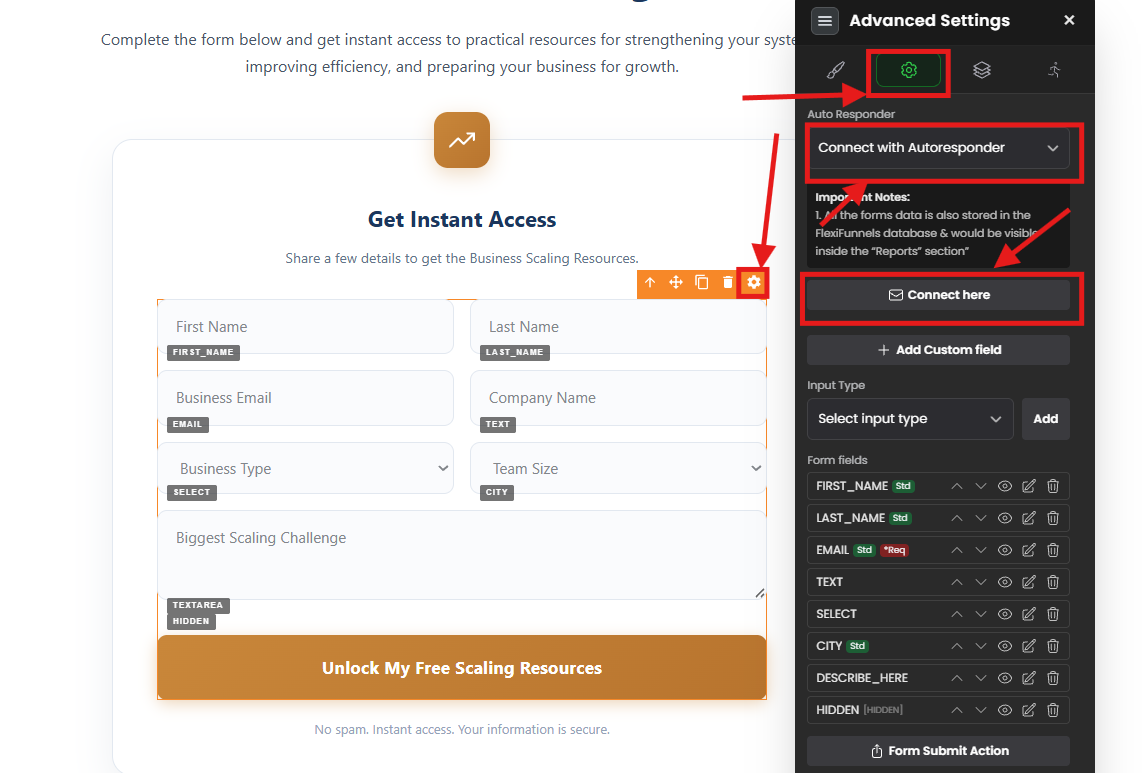
Step 4D: Select Your Email Service
- A new section appears: "Connect Here"
- Click the "Connect Here" button or dropdown
- You'll see your connected email service (from Step 1) listed
- Click on it to select it
Step 4E: Choose Your Email List
- After selecting your email service, a "List" dropdown appears
- Click it and select the email list where you want form submissions to go
- Example: "New Leads," "Webinar Signups," "Main List," etc.
- If you only have one list, it might auto-select
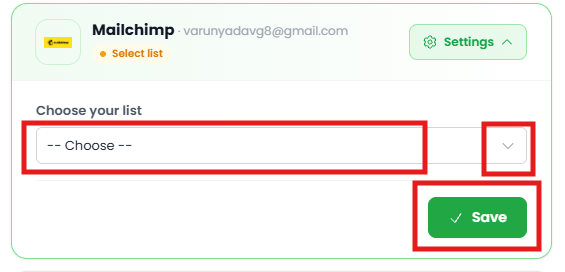
Step 4F: (Optional) Add Tags
- Some email services support "tags" (labels you can assign to contacts)
- If you want to tag these form submissions (e.g., "webinar-2024"), type it in the "Tags" field
- You can add multiple tags separated by commas
Step 4G: Save
- Click "Save" button
- You should see a confirmation message like "Active" or "Successfully Connected"
✓ Your form is now connected! Form submissions will automatically go to your email list.

Here your autoresponder is connected with the flexifunnels “form” element.
No one can publish the landing page, using the “publish” button at the top, and start collecting leads.
The leads submitted on the published page will be directly reflected in your email autoresponder software connected with the “form” element.
Step 5: Publish Your Landing Page
Now make your page live so people can submit the form.
Step 5A: Publish
- Look for a "Publish" button (usually at the top of the editor)
- Click it
- FlexiFunnels might ask for confirmation—click "Publish" again
Step 5B: Get Your Live Link
- After publishing, you'll see a live URL (something like
https://yourname.flexifunnels.com/landing-page-name) - Copy this link
- This is the page visitors will go to sign up
✓ You're done! Your form is live and collecting leads.
METHOD 2: Custom Form Code (Advanced)
Only use this if:
- Your email service ISN'T supported by Method 1, OR
- You need advanced customization that FlexiFunnels doesn't support
This method uses HTML form code directly from your email service.
Step 1: Generate HTML Form Code from Your Email Service
Every email service has a way to export form code. Here's the general process:
Step 1A: Log In to Your Email Service
- Sign in to your email account (example: Aweber, MailerLite, etc.)

Step 1B: Find the Form/Signup Form Option
- Look for a menu item like "Forms," "Signup Forms," or "Embedded Forms"
- Click it

Step 1C: Create a New Form
- Click "Create a New Form" or "+ New Form"
- Select "For my website" (not "popup" or "landing page")

Step 1D: Get the HTML Code
- Complete the form setup in your email service
- At the end, look for options like:
- "Get Code" or "Copy Code"
- "Raw HTML Version" or "HTML Code"
- "Embed Code"
- Click whichever option shows the HTML
- Copy all the code (Ctrl+C or Cmd+C)
- This is your form's HTML code
Example of what HTML code looks like:
<form method="post" action="https://youremailer.com/submit" ...>
  <input type="email" name="email" ...>
  ...
</form>

Step 2: Create a Landing Page in FlexiFunnels
Follow the same steps as Method 1, Steps 2A-2C:
- Create a project (name it something like "Custom Form")


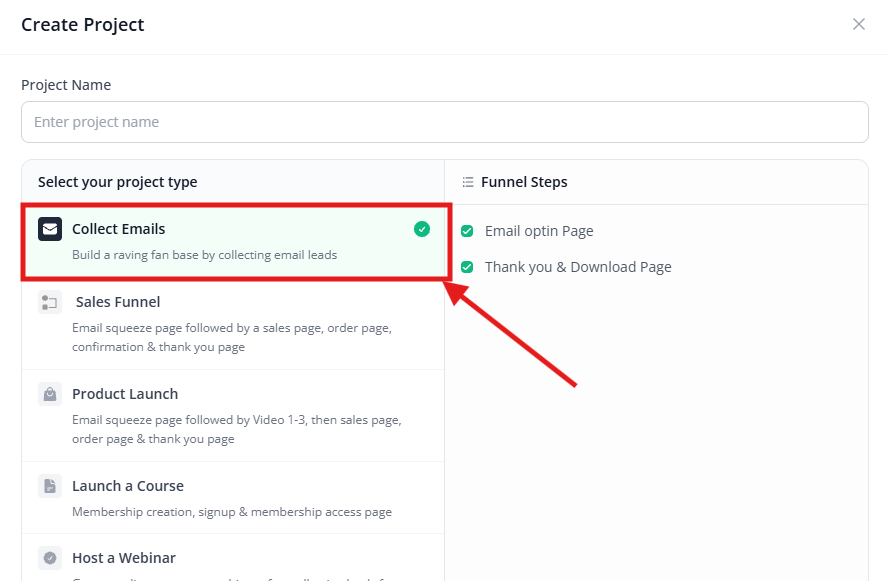
Choose a landing page template
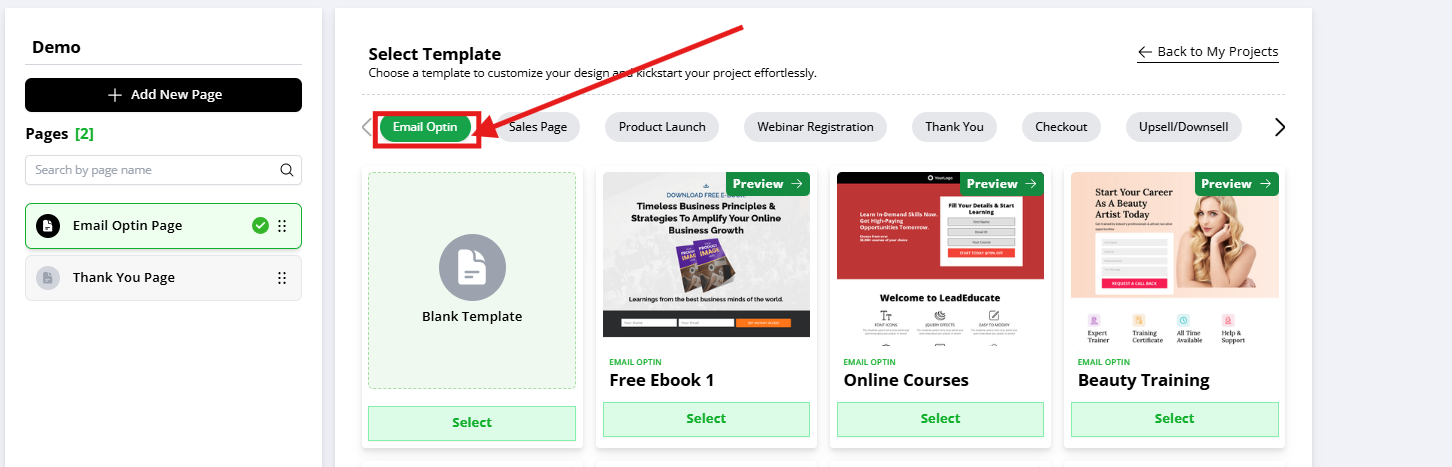
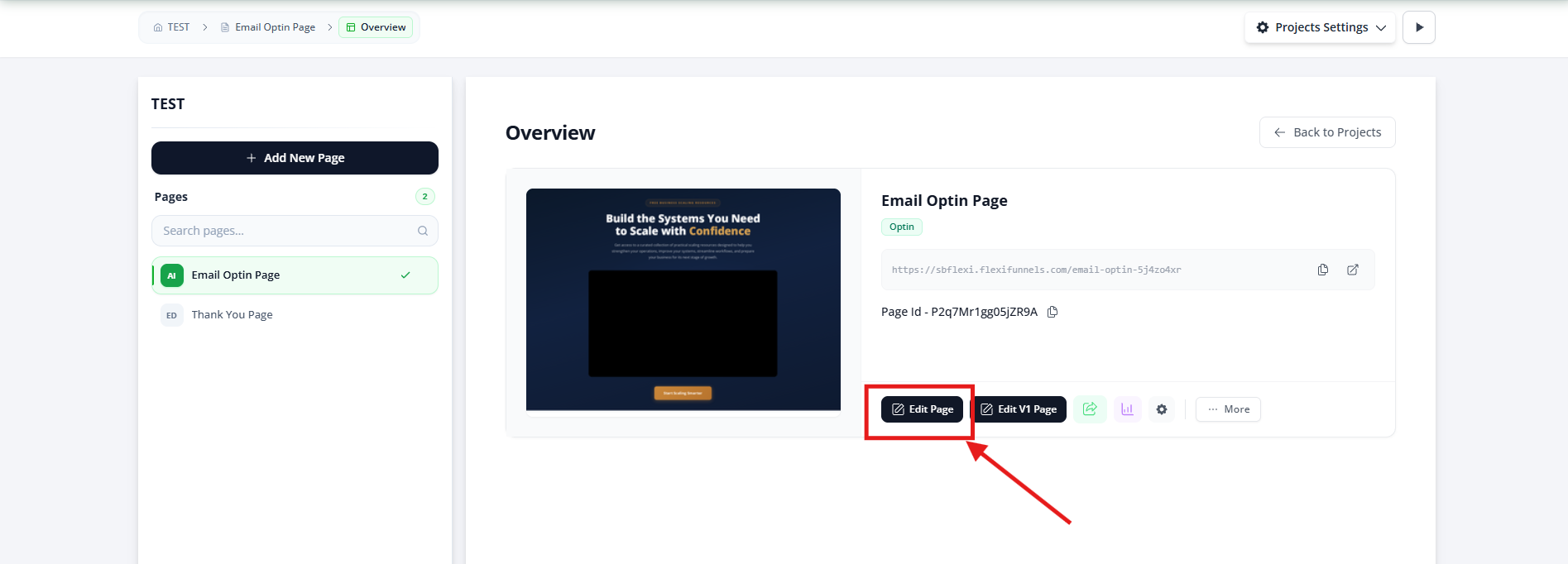
Click "Edit Page" to enter the editor
Step 3: Add a Form Element
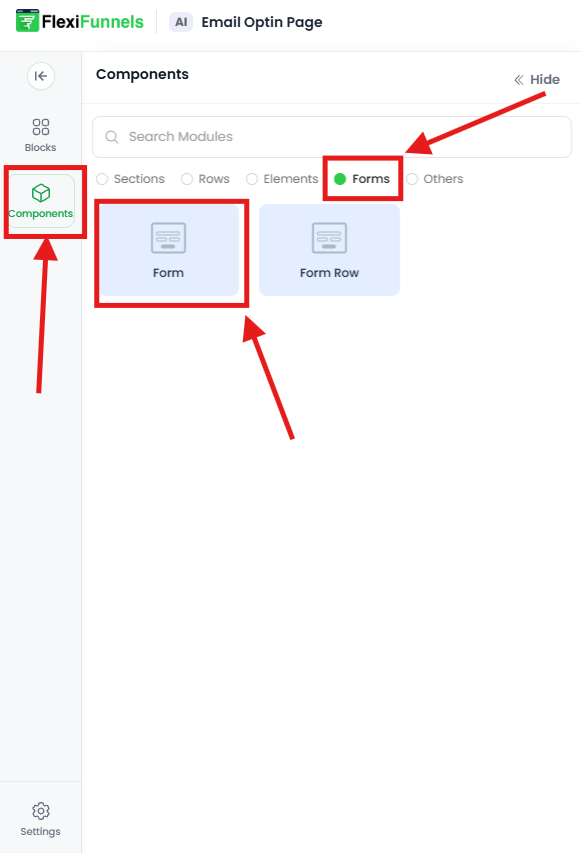
Follow the same steps as Method 1, Step 3A:
- Click "+" button in the left sidebar
- Select "Forms"
- Drag "Form Element" to your page
Step 4: Paste Your HTML Form Code
Now you'll paste the HTML code you copied from your email service.
Step 4A: Open Form Settings
- Click on the form
- Click the gear icon ⚙️
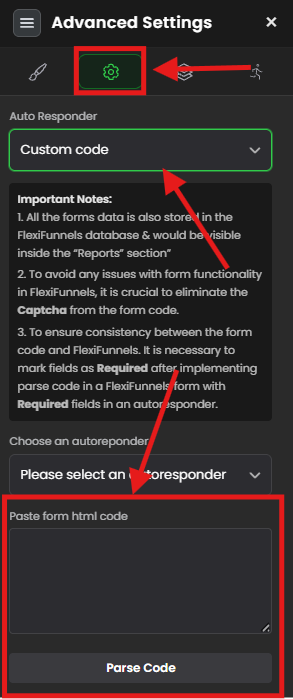
- Go to Advanced Settings
Step 4B: Select Custom Code Option
- Find the dropdown for "Autoresponder" or "Form Type"
- Select "Custom Code" or "Parse Code" (not "Standard Integration")
Step 4C: Paste Your HTML Code
- A large text field appears labeled "Paste HTML Form Code" or similar
- Paste your HTML code here (Ctrl+V or Cmd+V)
Step 4D: Parse the Code
- Click the "Parse Code" or "Validate Code" button
- FlexiFunnels analyzes the code
- If it's valid, you'll see a confirmation message
- If there's an error, double-check the code—make sure you copied all of it
Step 4E: Save
- Click "Save"
- Your form is now using the custom HTML code
Step 5: Publish and Test
Follow the same steps as Method 1, Steps 5 and "Verify It's Working":
- Publish your page
- Get the live URL
- Test the form by submitting test data
- Check your email service to confirm the submission appeared
Common Situations & Quick Fixes
Situation 1: "I Connected My Email Service, But the Form Won't Save"
What's happening: You're trying to connect the form to your email service, but it keeps showing an error or won't save.
Diagnostic steps:
- Verify the connection is active
- Go to FlexiFunnels Settings → Autoresponder Integrations
- Does your email service show as "Connected"?
- If not, reconnect it (click "Connect" again)
- Check you selected the right service
- In form settings, did you click the "Connect Here" button?
- Does a dropdown show your email service?
- If not, your service might not be connected at the account level
- Verify you have permission
- When you connected your email service, did you grant FlexiFunnels permission?
- If you denied it, reconnect and click "Allow" when asked
- Check your email service status
- Log in to your email service directly
- Is your account in good standing? (Not suspended, not expired)
- Some free accounts have limitations—check if you've hit a limit
- Try a different browser
- Clear your browser cache (Ctrl+Shift+Delete or Cmd+Shift+Delete)
- Try a different browser (Chrome, Firefox, Safari)
- Sometimes browser issues cause form saving problems
Common root cause: Email service connection isn't active, or browser cache is interfering.
Situation 2: "Form Submissions Aren't Appearing in My Email List"
What's happening: The form submits successfully, but no new contacts appear in your email service.
Diagnostic steps (Method 1):
- Confirm the connection is "Active"
- Open form settings
- Does it say "Active" or "Connected" next to your email service?
- If it says "Disconnected," click "Connect Here" again
- Verify the correct list is selected
- In form settings, which email list is selected?
- You might have multiple lists (e.g., "Main List," "New Leads," "VIP")
- Check your email service—is the contact supposed to go there?
- If wrong list, change it and save again
- Test with a unique email
- Submit the form using an email you've never used before
- Example:
test12345@yourdomainname.com - Wait 5 minutes (some services have a delay)
- Check your email service for that contact
- Check for duplicate prevention
- If the email already exists in your list, the email service might skip it
- Your email service settings might be set to "don't add duplicates"
- Test with a brand-new email address
- Verify the page is published
- Even if the form shows in the editor, test submissions from the published page only
- Go to your live URL (the one you shared with people)
- Submit from there
- If it works on the published page but not in editor preview, that's normal
- Check your email service's spam/quarantine folder
- Some services put auto-submitted forms in a quarantine folder
- Log in to your email service and check "Spam," "Unconfirmed," or "Quarantine"
- This is a setting in your email service, not FlexiFunnels
Common root cause: Wrong list selected, or form being tested on editor preview instead of published page.
Situation 3: "Custom Code Form Isn't Submitting"
What's happening: You pasted HTML code from your email service, but the form doesn't submit or shows an error.
Diagnostic steps (Method 2):
- Verify you copied the complete code
- Did you copy ALL the HTML code? (entire
<form>...</form>block) - Some code is very long—make sure nothing got cut off
- Copy it again from your email service to be sure
- Did you copy ALL the HTML code? (entire
- Check for special characters
- Make sure the code didn't get corrupted during copying
- Paste it into a text editor first to verify it looks correct
- Then copy from the text editor and paste into FlexiFunnels
- Verify the form is for websites
- When you generated the code, did you select "For my website"?
- Some email services have different code for pop-ups, landing pages, etc.
- Make sure it's website form code, not popup code
- Test on the published page only
- Custom code forms might not work in the editor preview
- Publish the page and test on the live URL
- Then check your email service for the submission
- Contact your email service support
- If the form code has an issue, it might be specific to your email service
- The error message from FlexiFunnels might reference the issue
- Your email service's support team can help verify the code is correct
Common root cause: Incomplete HTML code, or testing on editor preview instead of published page.
Situation 4: "I'm Not Sure If Method 1 or Method 2 Is Right for Me"
Use Method 1 if:
- Your email service is one of the common ones (Mailchimp, Klaviyo, ConvertKit, HubSpot, GetResponse, ActiveCampaign, etc.)
- You don't need custom code
- You want the easiest setup
Use Method 2 if:
- Your email service isn't listed in FlexiFunnels integrations
- You need custom form logic or fields
- Your email service provides HTML form code
Unsure? Start with Method 1. If your email service isn't listed when you try to connect, then use Method 2.
Was this article helpful?
That’s Great!
Thank you for your feedback
Sorry! We couldn't be helpful
Thank you for your feedback
Feedback sent
We appreciate your effort and will try to fix the article