Lazy loading is a speed trick for pages with lots of pictures and videos. Normally, when someone opens your page, the browser tries to download every image and video right away — even the ones way down at the bottom that the visitor hasn't scrolled to yet. On a long page, that makes the first load slow.
With lazy loading turned on, the page only loads each image or video right as the visitor scrolls down to it. Think of a buffet that cooks each dish only when someone walks up to it, instead of cooking everything at once before the doors open. The result: your page appears much faster, and visitors are less likely to leave while waiting.
? Best for: long, media-heavy landing pages (lots of images and videos). On a short page with one or two images, you won't notice much difference.
Why it helps
- Faster first load — visitors see your page sooner instead of staring at a loading screen.
- Better experience — less waiting means fewer people give up and leave (lower bounce rate).
- Lighter on data — media that's never scrolled to never downloads, saving your visitors' bandwidth.
How to turn on Lazy Loading
Step 1 — Add all your images and videos first
Finish building the page and upload all the images and videos you want on it before turning the feature on. Get your media in place first, then flip the switch.
Step 2 — Turn the Lazy Loading toggle ON
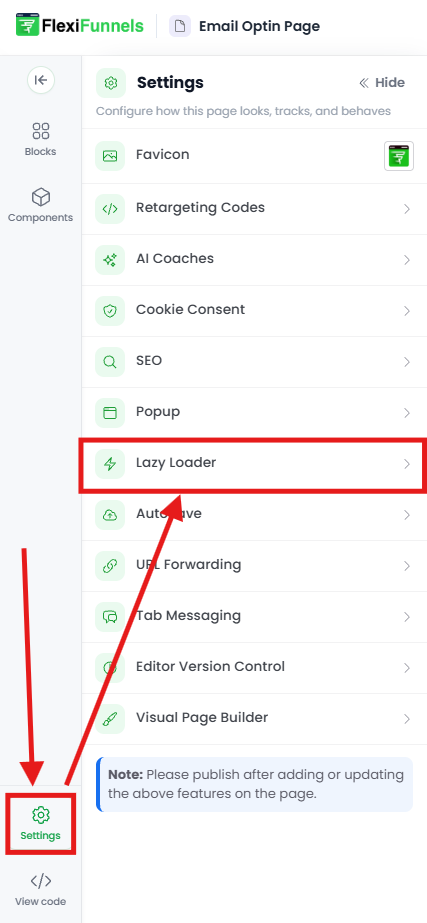
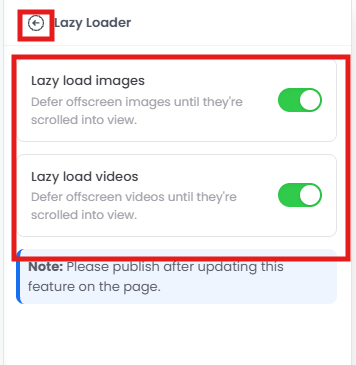
Open the page editor settings and switch the Lazy Loading toggle ON. The screenshots below show the toggle and where to find it.
Step 3 — Publish the page
Click “Publish.”
⚠️ You only see the speed benefit on the live, published page. Lazy loading doesn't change anything inside the editor or the editor preview — there's nothing to "watch" there. Always test the effect on the real page URL.
A few things to know about how it behaves
- Media "pops in" as you scroll. That's lazy loading working, not a bug — images and videos appear the moment you reach them.
- Top-of-page images load first. Anything visible the instant the page opens (your hero image at the very top) still loads right away, since the visitor is already "there."
- Lazy loading doesn't shrink your files — it just delays them. For the fastest possible page, also use reasonably sized, compressed images. A 5 MB photo is still a 5 MB photo when it finally loads. Pair lazy loading with good image sizing for the best result (see Image Element Settings).
Common Situations & Quick Fixes
Try these first.
“I turned it on but my page doesn't load any faster.”
- Are you testing the live published page, not the editor preview? The effect only shows on the live page.
- Did you re-publish after turning the toggle on?
- Is the page actually media-heavy and long? On short pages the difference is small.
- Hard-refresh the live page (Ctrl + F5 / Cmd + Shift + R) so you're not seeing a cached version.
“Images flicker, appear blank for a second, or load late as I scroll.”
That's lazy loading doing its job — loading each image as you reach it. If the delay is too noticeable, the usual cause is large, uncompressed images that take a moment to download. Compress and resize them so they load instantly when their turn comes. See Image Element Settings.
“My top hero image takes a moment to appear on a very heavy page.”
Keep the first-screen images small and optimized. The top of the page is what visitors judge first, so make sure those specific images are lightweight.
“I added more images after turning the toggle on — are they covered?”
Confirm the toggle is still ON, then re-publish. New media is covered once you publish again.
“I can't find the Lazy Loading toggle.”
Make sure you're inside the page editor (not the dashboard) and open the editor settings. The toggle location is shown in the screenshots above.
“My Google PageSpeed score didn't improve as much as I hoped.”
Lazy loading is one piece of speed optimization. Also compress your images, use correct dimensions, and avoid oversized videos. Together these move the score more than lazy loading alone.
Quick Recap
- Add all images and videos to the page first.
- Open the editor settings and turn the Lazy Loading toggle ON.
- Publish.
- Test on the live page (hard-refresh to bypass cache).
- For best speed, also compress and right-size your images.
Related articles
Still need help?
If you've published, tested the live URL, and compressed your media and the page is still slow, we're glad to help. Please submit a ticket and include:
- The live page URL
- Roughly how many images/videos are on the page
- What you're seeing (slow load, flickering, blank images) and on which device/connection
- A screen recording of the page loading on the live URL, if possible
That detail lets us tell whether it's a lazy-loading, image-size, or caching issue and solve it on the first reply.
Was this article helpful?
That’s Great!
Thank you for your feedback
Sorry! We couldn't be helpful
Thank you for your feedback
Feedback sent
We appreciate your effort and will try to fix the article