A pop-up is a small window that appears on top of your page while someone is browsing — like a little note that slides in front of what they're reading. You've seen them everywhere: "Get 10% off," "Join our newsletter," "Wait, don't go!"
Used well, pop-ups are one of the best ways to collect leads, show an offer, or stop someone from leaving. This guide shows you how to add one, set when it appears, and — just as important — make sure it actually shows up for your real visitors.
? Prefer to watch? There's a walkthrough video at the top of the live article. The written steps below cover everything in it, plus the parts it skips.
Step-by-Step Guide
Step 1 — Open Your Editor Space
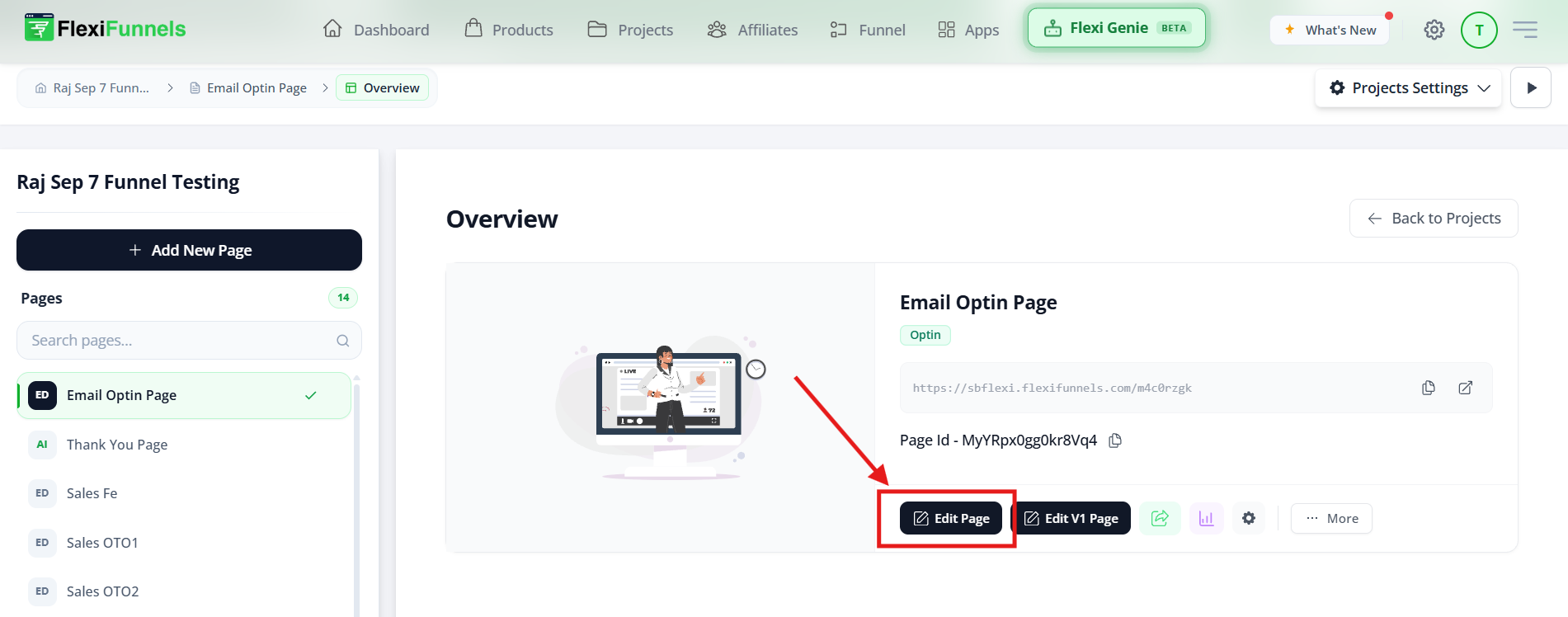
Open the landing page you want the pop-up on, and click into the page editor (the drag-and-drop building screen).
? New to the editor? Start with the Landing Page Editor Overview
Step 2 — Open the Gear Settings and Add the Pop-Up
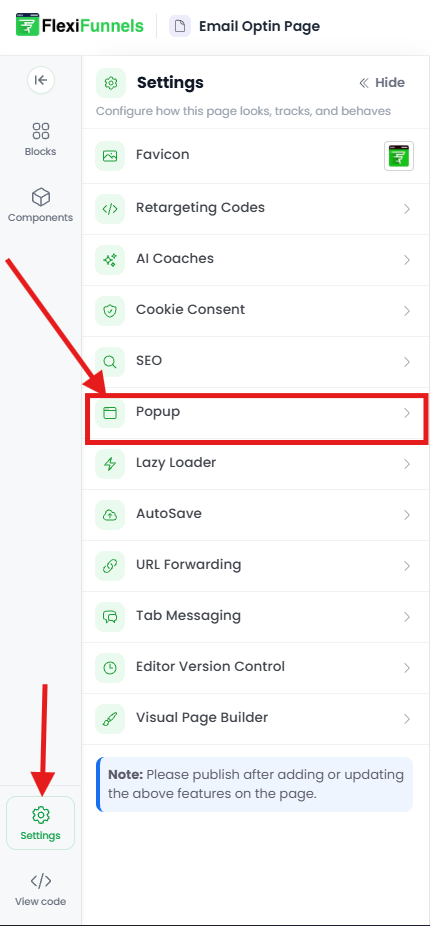
- Find the gear ⚙️ icon on the lower-left side of your editor space and click it to open the settings menu.
- In that menu, find and select “Popup.” This adds a new pop-up to your page.
? Heads up — there are two kinds of gear icons. The gear on the lower-left opens whole-page settings (where the Popup option lives). The gear that appears on an element only changes that element. For pop-ups, use the lower-left one.
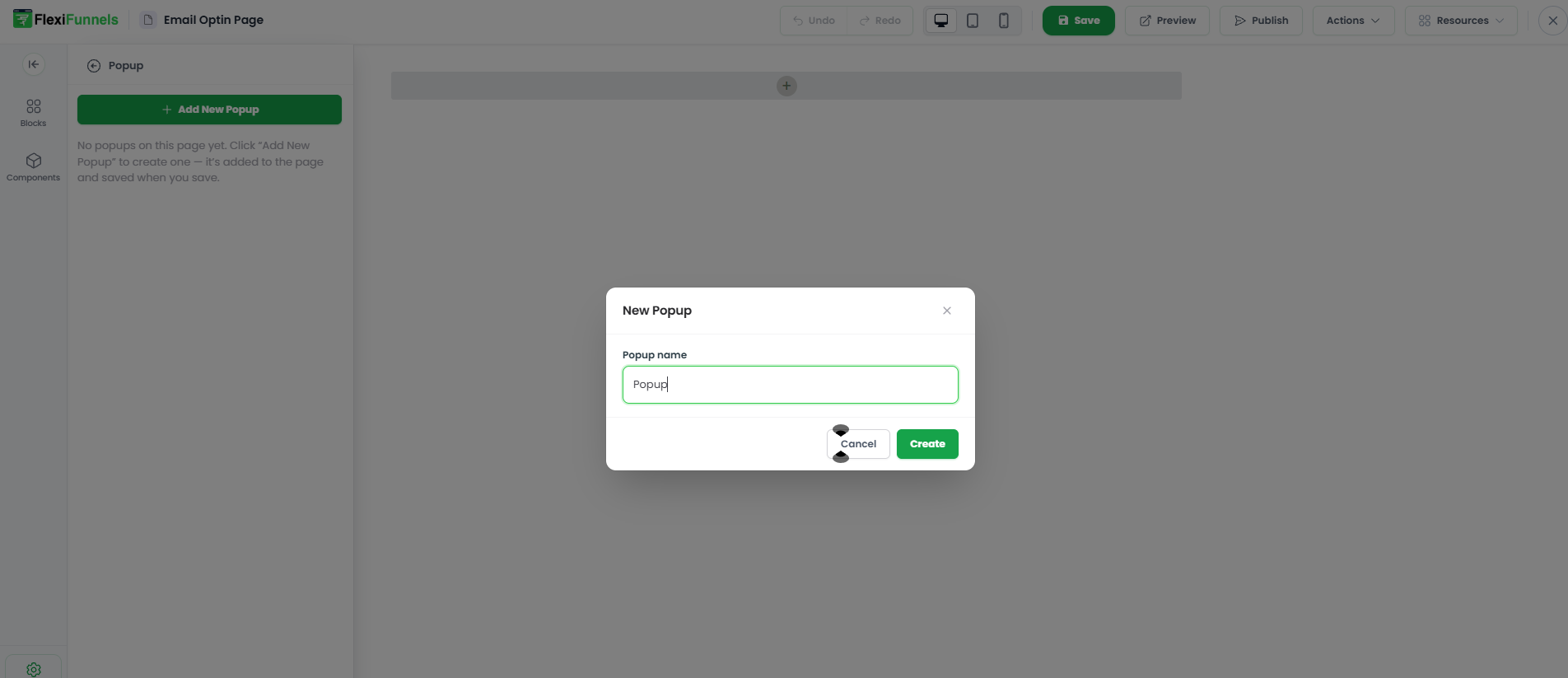
Step 3 — Customize Your Pop-Up
Now build what's inside the pop-up. You can add the same things you'd add anywhere on your page — text, images, call-to-action buttons, forms — to match your goal.
When your design looks right, click SAVE to keep your changes.
⚠️ SAVE is not the same as PUBLISH. SAVE keeps your work inside the editor. But your pop-up won't appear for real visitors until you PUBLISH the page. After publishing, always test on the live page URL — not the editor preview. (Triggers like scroll, timer, and leave-intent only behave correctly on the live page.)
? Collecting leads in your pop-up? If you put a form inside the pop-up, that form still needs to be connected to a lead destination, or the emails go nowhere. Open the form's own gear ⚙️ and connect an autoresponder — see Form Element Settings.
Pop-Up Settings and Options
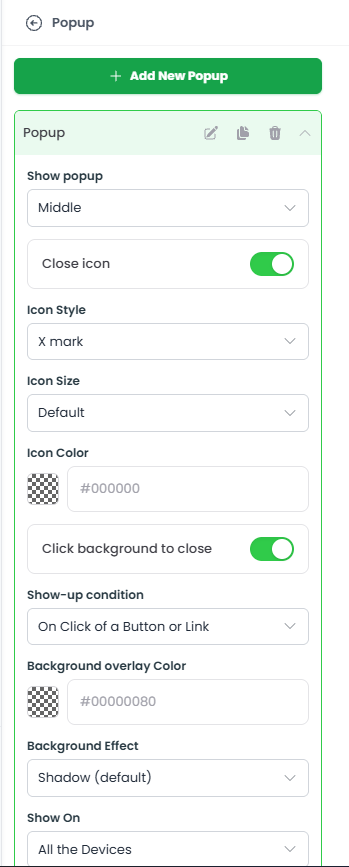
Basic Settings — how it looks and behaves
- Show Pop-Up: where the pop-up sits on screen (e.g., center, top).
- Close Icon: turn the “X” close button on or off.
- Click Background to Close: let visitors close it by clicking the dark area outside it.
- Background Overlay Color: the shaded color shown behind the pop-up to dim the page.
- Width in Pixels: how wide the pop-up is.
- Delete: remove the pop-up entirely.
? Don't trap your visitors. Turn on at least one way to close the pop-up — either the Close Icon or Click Background to Close (ideally both). A pop-up with no exit frustrates people and can hurt conversions.
Show-Up Conditions — when the pop-up appears
This is the most important setting. It decides the moment your pop-up shows. FlexiFunnels gives you five triggers:
- On Leave Intent — appears when a visitor looks like they're about to leave (e.g., moving the mouse to close the tab). Great for last-chance offers.
- After X Seconds — appears after a set number of seconds on the page.
- After X% Scroll — appears once the visitor scrolls a certain percentage down the page.
- On Page Load — appears immediately when the page opens.
- On Click — appears when a visitor clicks a specific button or image.
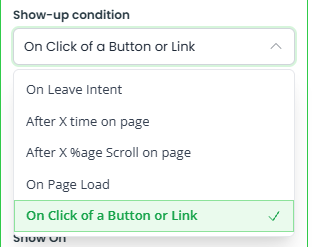
⚠️ Using "On Click"? You have one more step. The pop-up won't open on its own — you must wire a button or image to it. Click that button/image, open its action settings, set the action to Open Popup, and choose this pop-up. See Button Action Settings.
? Pick a trigger that matches your goal:
- Catching leavers → Leave Intent (desktop) or a timed/scroll trigger (better for mobile).
- Rewarding engaged readers → After X% Scroll or After X Seconds.
- A specific offer button → On Click. Avoid On Page Load for heavy offers — popping up before someone has read anything often gets dismissed instantly.
What pop-ups are great for (use cases)
- Increase lead generation: capture emails or phone numbers for newsletters or offers.
- Promote special offers: highlight discounts, flash sales, or exclusive deals.
- Boost conversions: use targeted messaging to turn visitors into customers.
- Retain visitors: stop people from leaving with an exit-intent pop-up.
Common Situations & Quick Fixes
Try these first — most pop-up problems are setup or timing, and you can fix them yourself in a minute.
“My pop-up isn't showing on the live page at all.”
Walk through this checklist:
- Did you PUBLISH the page after saving? (SAVE alone isn't enough.)
- Are you testing the live URL, not the editor preview?
- Has the trigger condition actually been met? If it's set to "After 20 seconds" or "After 50% scroll," you have to wait or scroll. Temporarily set it to On Page Load to confirm the pop-up works, then switch back.
“It shows in the editor but not on the live site.”
You almost certainly need to PUBLISH. The editor shows your draft; visitors see the published version.
“My ‘On Click’ pop-up doesn't open when I click the button.”
The button isn't wired to the pop-up. Open the button/image action settings, set the action to Open Popup, and select this pop-up. See Button Action Settings.
“My leave-intent pop-up never fires on mobile.”
Leave-intent (exit-intent) is mainly a desktop behavior — it detects the mouse heading for the close button, and phones don't have a mouse. For mobile, use After X Seconds or After X% Scroll instead. For the full setup, see How to add the leave intent/Exit intent condition for Popup.
“People submit the form in my pop-up, but no leads show up.”
A form inside a pop-up still needs to be connected to an autoresponder — just like any other form. Open the form's gear ⚙️ and connect it. See Form Element Settings.
“Visitors can't close the pop-up.”
Turn on the Close Icon and/or Click Background to Close in Basic Settings.
“The pop-up is too wide or gets cut off on mobile.”
Lower the Width in Pixels, then switch to Mobile View in the editor and confirm it fits the screen.
Quick Recap
- Open the editor.
- Lower-left gear ⚙️ → Popup.
- Customize the contents, then SAVE.
- Set Basic Settings (position, close options, width) and a Show-Up Condition (when it appears).
- If using On Click, wire a button to Open Popup.
- If it has a form, connect the autoresponder.
- PUBLISH, then test on the live page.
Still need help?
If you've published, tested on the live URL, and confirmed the trigger and your pop-up still isn't behaving, we're glad to help. Please submit a ticket and include:
- The live page URL with the pop-up
- The trigger you've set (e.g., "After 10 seconds," "On Click")
- What you expected vs. what happened
- A screenshot or screen recording of the issue
That detail lets us solve it on the first reply instead of going back and forth.
Was this article helpful?
That’s Great!
Thank you for your feedback
Sorry! We couldn't be helpful
Thank you for your feedback
Feedback sent
We appreciate your effort and will try to fix the article