How to Login into FlexiAgent (For FlexiFunnels Users)

Modified on Wed, 15 Jul at 3:10 PM

If you're a FlexiFunnels user, there's great news: you don't need to create a separate account or remember a new password to use FlexiAgent. Your existing FlexiFunnels login is all you need.


Think of FlexiAgent as a new room inside a building you already own. You don't need a second key or a separate entrance — you walk in through your regular FlexiFunnels front door, open the menu, and step right into FlexiAgent. This guide shows you exactly where that door is.

✅ Why this mattersBecause FlexiAgent access is built into your FlexiFunnels account, there is no separate FlexiAgent password to manage. If you ever change your FlexiFunnels password, your FlexiAgent access updates automatically — one account, one login.

Follow These Steps

Step 1: Log in to Your FlexiFunnels Account

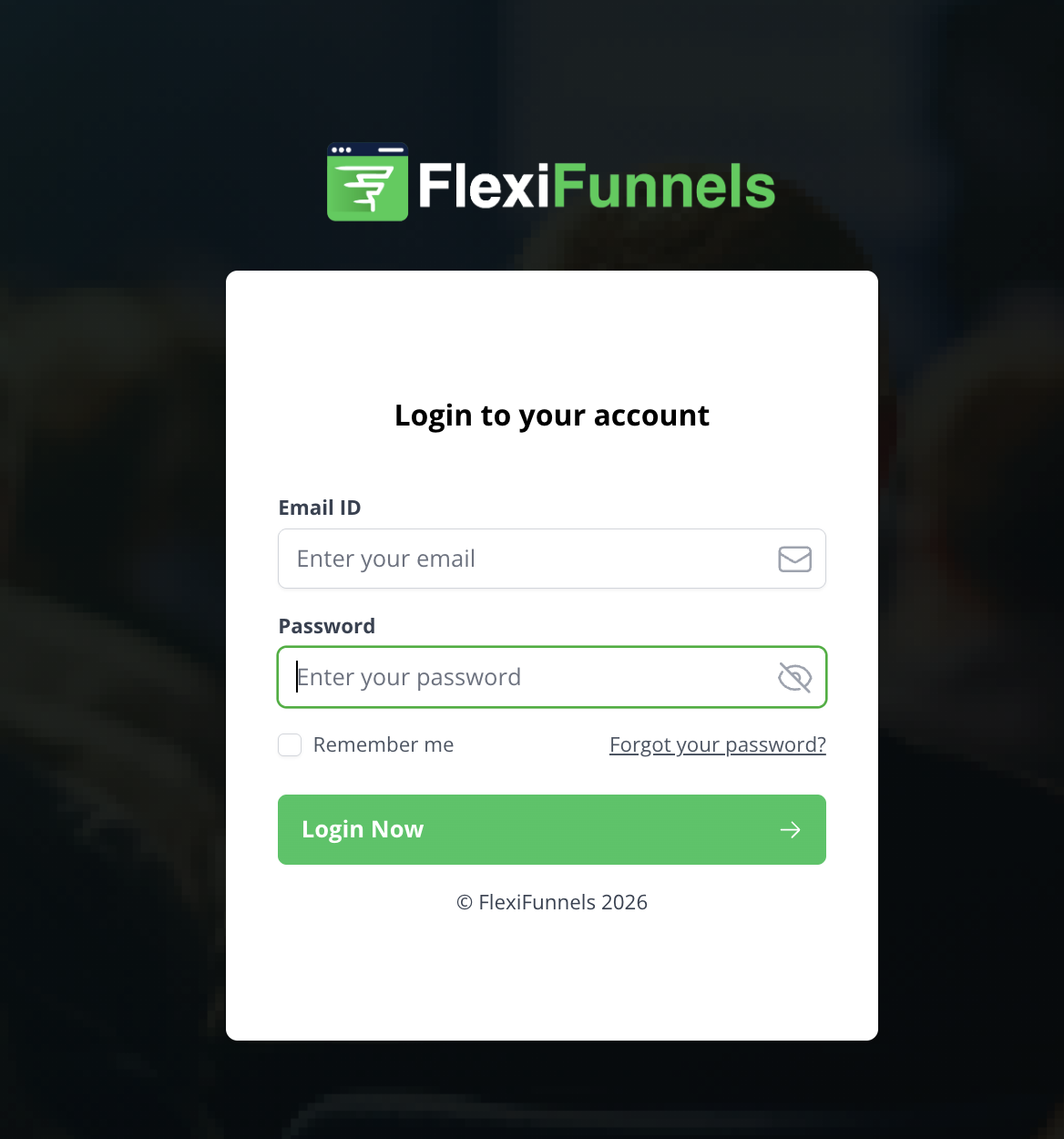
Visit the FlexiFunnels login page and sign in with your registered email address and password — the same credentials you always use for FlexiFunnels.
Step 2: Open the Menu

After logging in, look at the top-right corner of your FlexiFunnels dashboard and click the three-line (hamburger) menu icon — it sits to the right of your profile circle.

The FlexiFunnels top navigation bar with the three-line hamburger menu icon in the top-right corner

Step 3: Click on Manage Workspaces

A menu panel will slide open. Under the Account section, click Manage Workspaces.
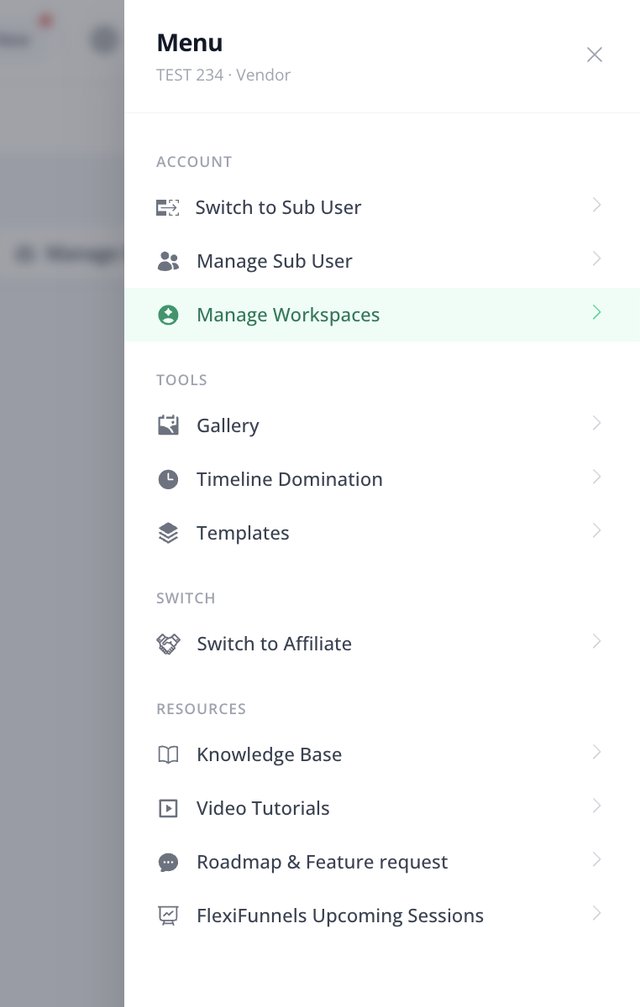
The FlexiFunnels menu panel with Manage Workspaces highlighted under the Account section

This takes you to the Manage Workspaces page, which lists all the workspaces associated with your account under My FlexiAgent Workspace.
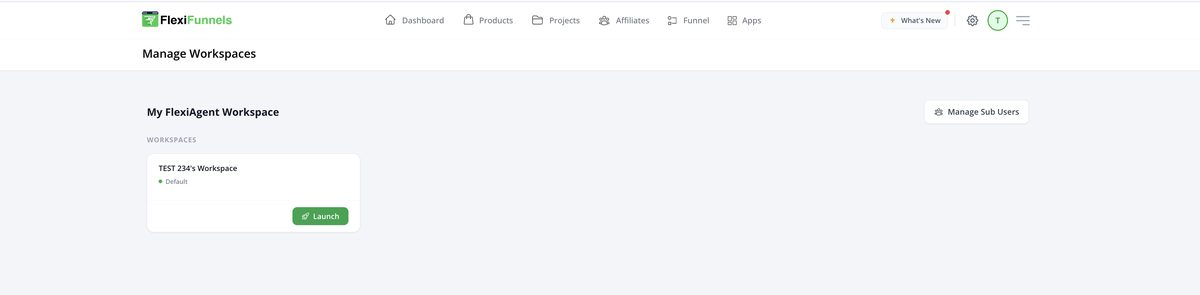
The Manage Workspaces page showing My FlexiAgent Workspace with the default workspace listed

✅ Why this mattersA workspace is like a separate office room where all your AI agents, settings, and data live together. Everything you build in FlexiAgent happens inside a workspace — so you always launch a workspace first, then work within it.
? NoteNew accounts have one default workspace (marked with a green Default label). Support for creating multiple workspaces will be available in future updates.

Step 4: Launch Your Workspace

Locate the workspace you want to access and click the green Launch button on its card.
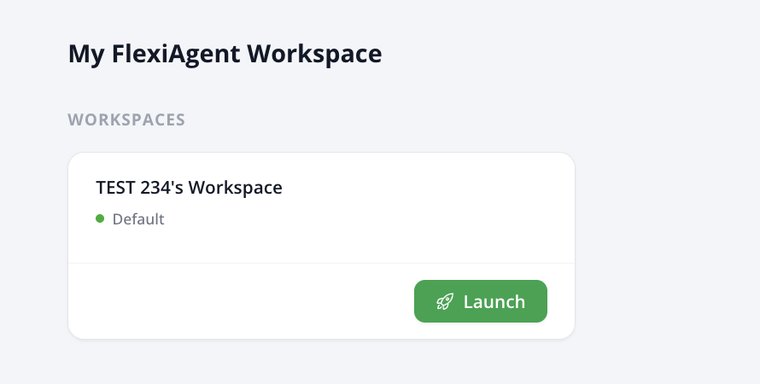
Close-up of the workspace card with the green Launch button

⚠️ Heads up: A new tab will openClicking Launch opens your FlexiAgent Dashboard in a new browser tab. If nothing seems to happen when you click, your browser's popup blocker may be stopping the new tab — look for a blocked-popup icon in your address bar and choose "Always allow" for this site.

Step 5: Access the FlexiAgent Dashboard

The new tab takes you directly to your FlexiAgent Dashboard, showing your gateway overview and quota usage. That's it — you're now successfully logged in and can start using FlexiAgent! ?
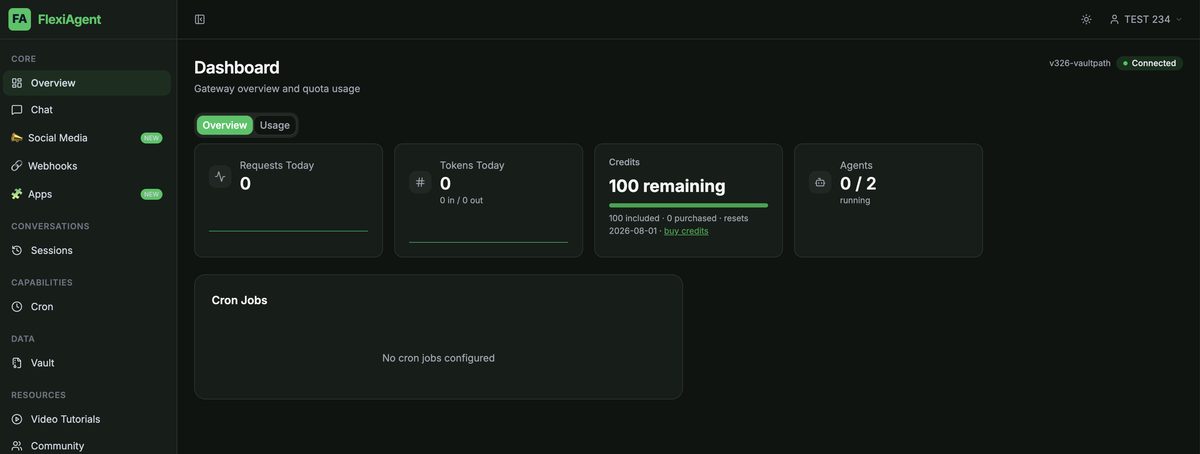
The FlexiAgent Dashboard showing Requests Today, Tokens Today, Credits remaining, and Agents running

What You'll See After Login

Once you're inside your workspace, you'll have access to:

  • FlexiAgent Dashboard — your home base showing requests, tokens, credits, and running agents
  • Your Workspace — where all your agents and data live (shown in the bottom-left corner)
  • AI Agent management — chat with your agents, review sessions, and manage everything from the left sidebar
  • All available FlexiAgent features and settings — Chat, Social Media, Webhooks, Apps, Sessions, Cron, Vault, and more
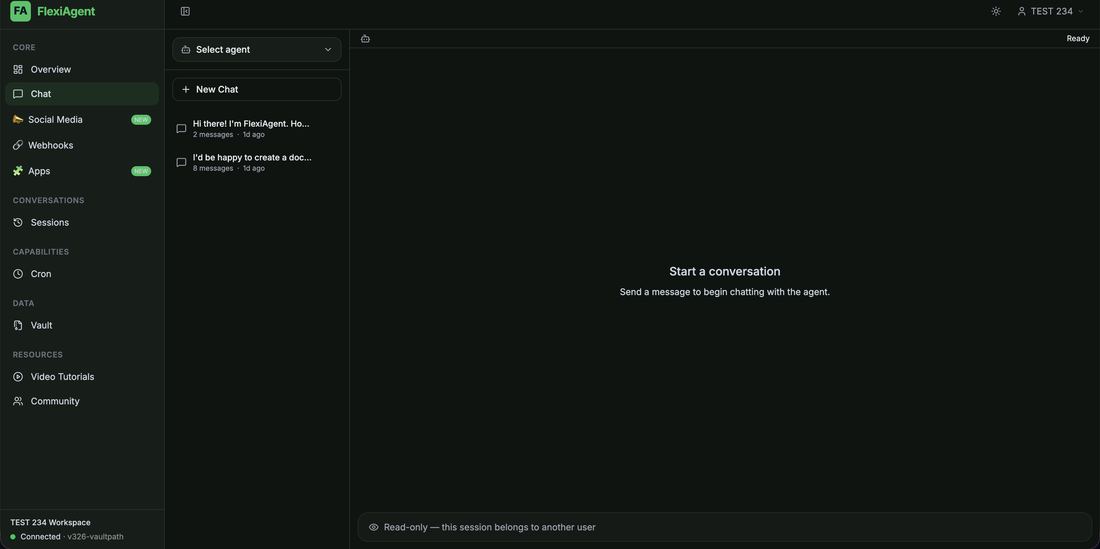
The FlexiAgent Chat area with the agent selector and the left sidebar showing all available features

Common Situations & Quick Fixes

❓ "I can't find the three-line menu icon."It's in the very top-right corner of the FlexiFunnels dashboard — to the right of the gear (settings) icon and your round profile initial. If your browser window is very narrow, maximize it so the full top bar is visible.
❓ "I don't see Manage Workspaces in my menu."Make sure you're logged in to your main FlexiFunnels account (the menu shows your name with "Vendor" under it). If the option still doesn't appear, your account may not include FlexiAgent access yet — submit a support ticket and the team will check it for you.
❓ "I clicked Launch but nothing happened."Your browser's popup blocker is probably blocking the new tab. Look for a blocked-popup icon near the address bar, allow popups for this site, and click Launch again.

Was this article helpful?

That’s Great!

Thank you for your feedback

Sorry! We couldn't be helpful

Thank you for your feedback

Let us know how can we improve this article!

Select at least one of the reasons
CAPTCHA verification is required.

Feedback sent

We appreciate your effort and will try to fix the article