The FlexiAgent Dashboard is your central workspace for managing AI agents, monitoring usage, scheduling recurring tasks, and maintaining your business knowledge. This guide walks you through each section of the dashboard and explains what it's for.
Think of the dashboard as the office building where your AI team works. The Overview is the reception board showing today's activity at a glance. Chat is the meeting room where you talk to your agents. Sessions is the filing cabinet holding records of every past meeting. Cron is the office calendar with recurring reminders your agents follow automatically. And the Vault is the company library every agent can read from. Once you know which room is which, everything in FlexiAgent feels simple.
Dashboard Sections
1. Overview
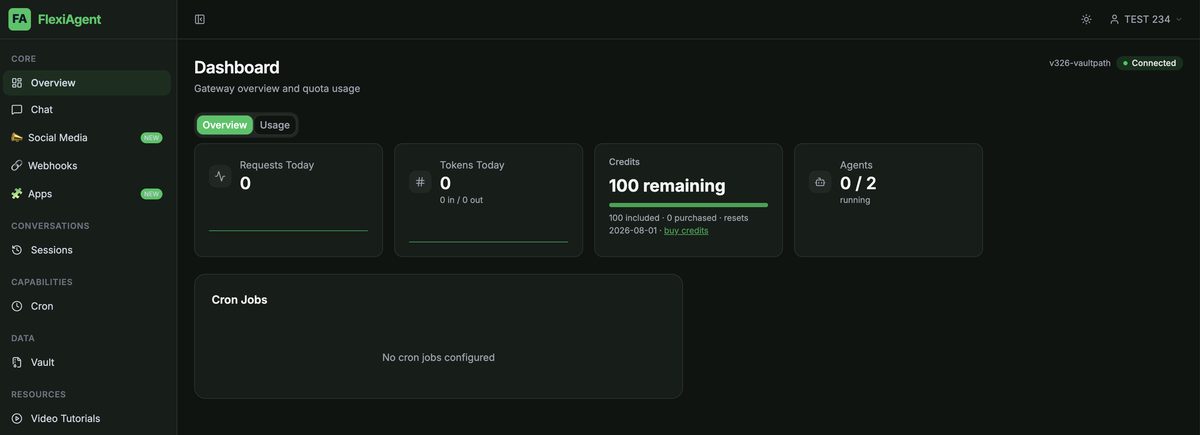
The Overview tab provides a quick summary of your FlexiAgent account activity. Here you can view:
- Requests Today — total requests processed
- Tokens Today — total tokens consumed (in and out)
- Credits — how many credits remain, when they reset, and a link to buy more
- Agents — how many of your agents are currently running
This section helps you monitor your AI usage at a glance.
2. Usage
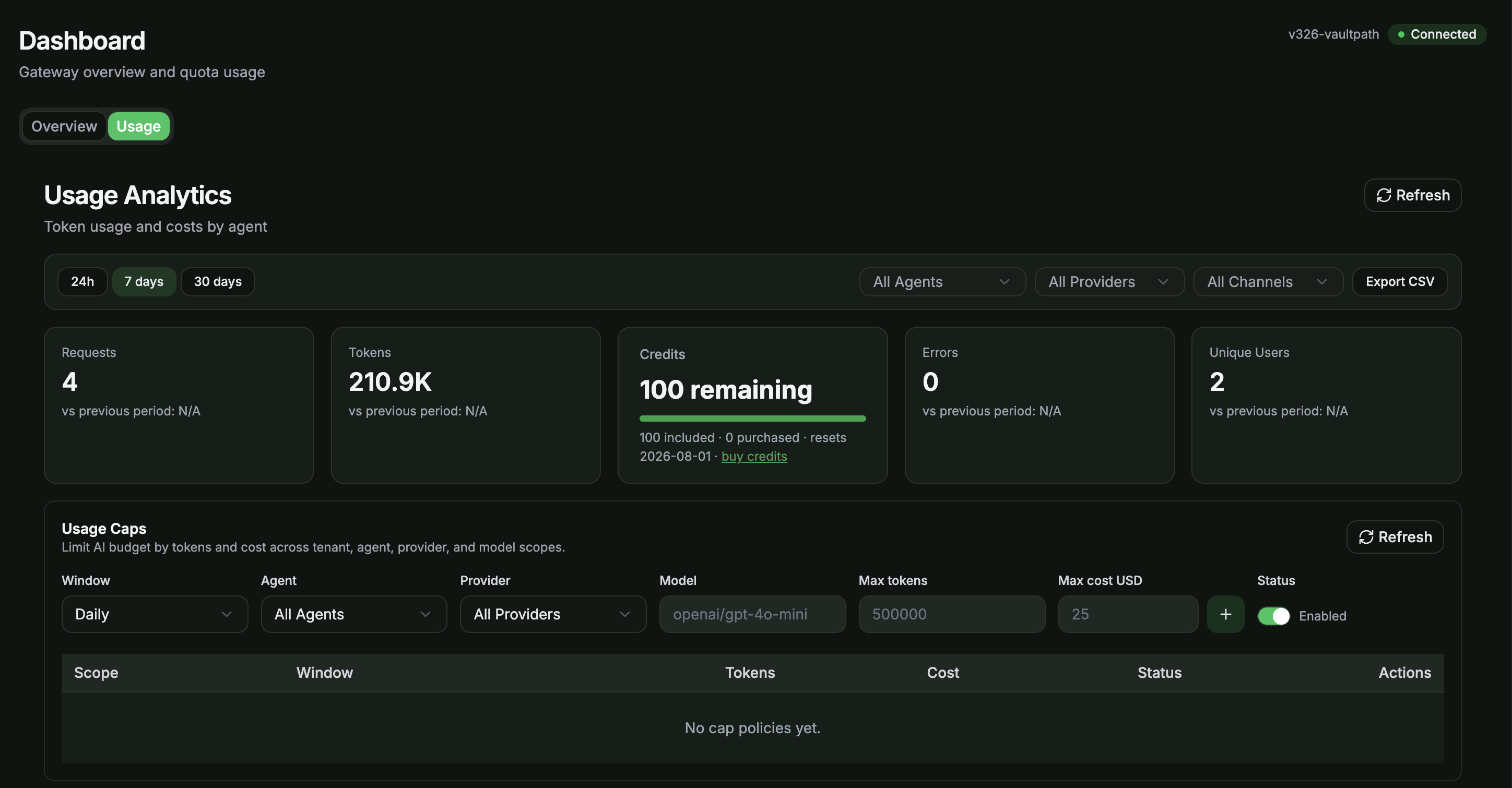
Right next to Overview, the Usage tab provides detailed analytics about your AI consumption. You can:
- View token usage over different time periods
- Filter usage by a specific date range
- Select an individual AI agent to review its activity
- Monitor token consumption and associated costs
This information helps you understand exactly how each agent is being utilized — for example, whether your Sales agent or your Support agent is consuming more tokens this month.
3. Chat
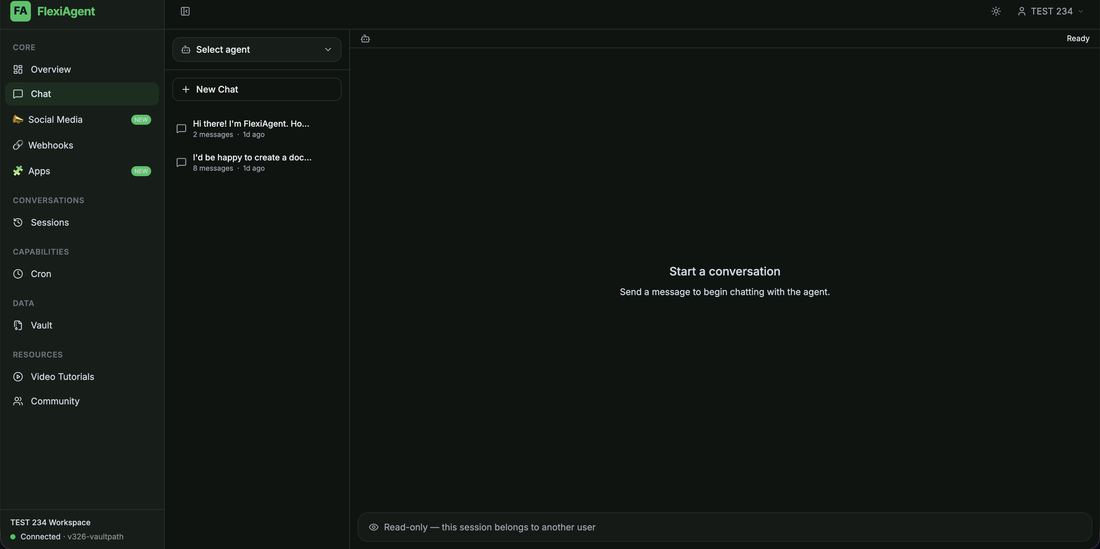
The Chat section is where you'll spend most of your time interacting with your AI agents. From here, you can:
- Select any available AI agent
- Start a New Chat
- Continue previous conversations
- Communicate naturally — just as you would with AI assistants like ChatGPT or Claude
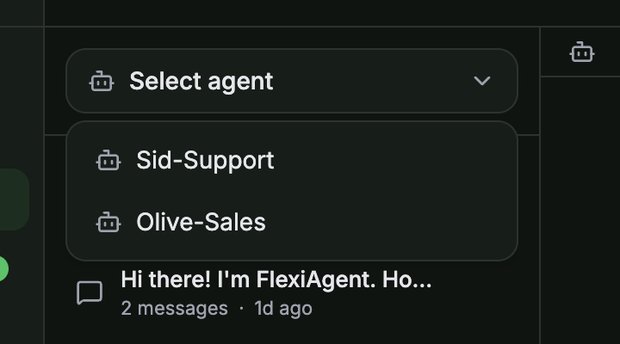
If your account contains multiple agents, use the Select agent dropdown at the top to switch between them and keep separate conversations with each one:
4. Sessions
The Sessions tab stores the complete history of conversations initiated by all your AI agents. Here you can review:
- Previous chat sessions
- Complete conversation history and messages exchanged
- Agent responses
- Agent reasoning and execution history
- Which agent handled each session, plus context and message counts
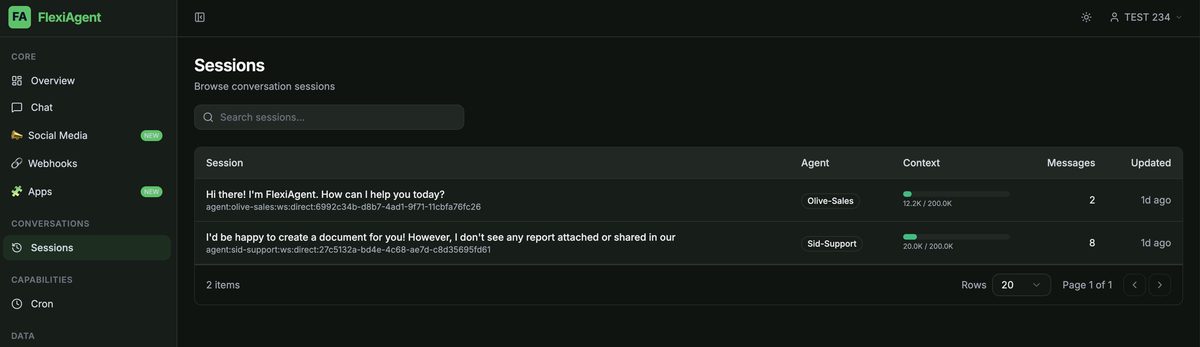
5. Cron
The Cron section allows you to automate recurring tasks. Examples include:
- Sending an email every day at 9:00 AM
- Publishing a post every morning
- Running scheduled workflows
- Executing repetitive business processes automatically
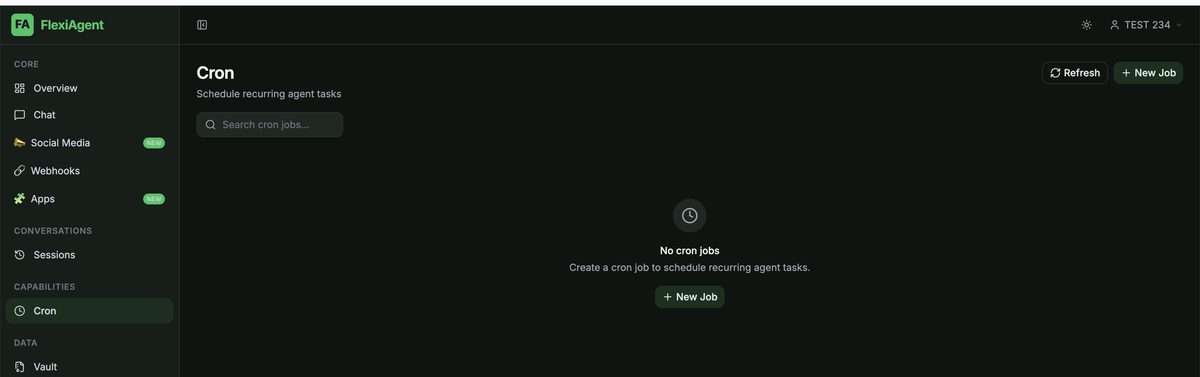
There are two ways to create recurring tasks:
Method 1: Using the Cron tab. Click + New Job and configure:
- Name — a label for your job
- Agent — which AI agent performs the task
- Schedule Type — Every (repeat at an interval), Cron (advanced custom schedule), or Once (run a single time)
- Interval / timing — how often or when it runs
- Message — the instruction telling the agent what to do
Click Create to save the cron job and automate the task.
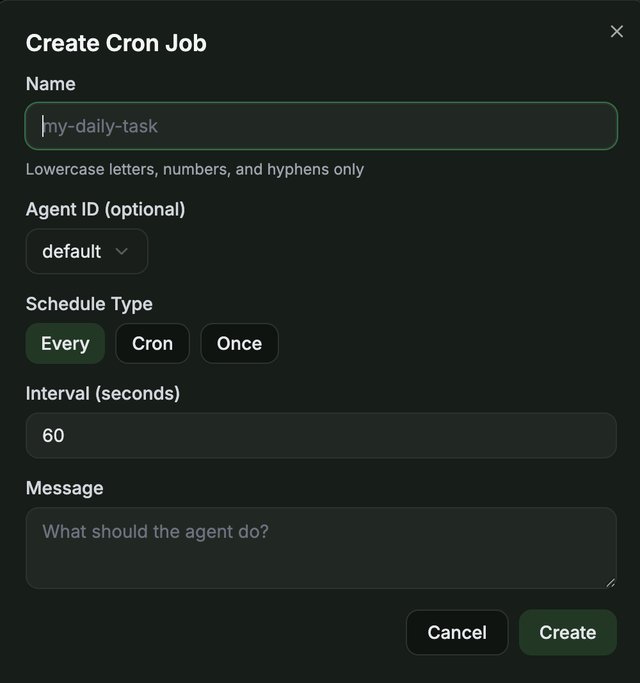
2) The "Every" interval is in seconds, not minutes or hours. So "every hour" = 3600, and "every day" = 86400. Typing 60 means every 60 seconds — your agent would run the task once a minute!
Recommended- Method 2: Using Chat. You can also create scheduled tasks directly from a conversation with an AI agent. For example, simply type:
"Send an email to my mailing list every day at 9:00 AM."
The agent can create the recurring task for you without leaving the chat interface.
6. Vault
The Vault is FlexiAgent's centralized knowledge base. It stores all the documents and files that your AI agents use while answering customer queries.
Instead of storing business information inside the agents themselves, you upload knowledge files to the Vault and connect each one to the right agent — keeping your business information organized in one place.
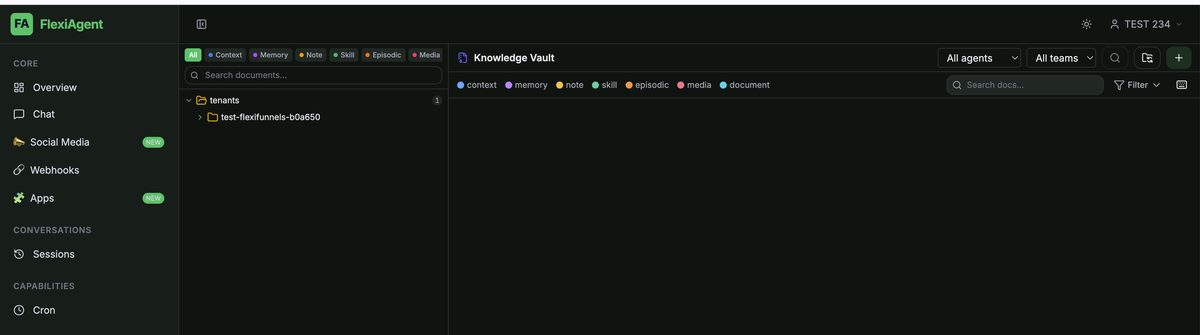
When uploading, you choose the destination. The recommended practice is selecting a specific Agent and giving each agent its own dedicated knowledge base file, written for that agent's role. (A Shared option also exists for making a file available across agents.)
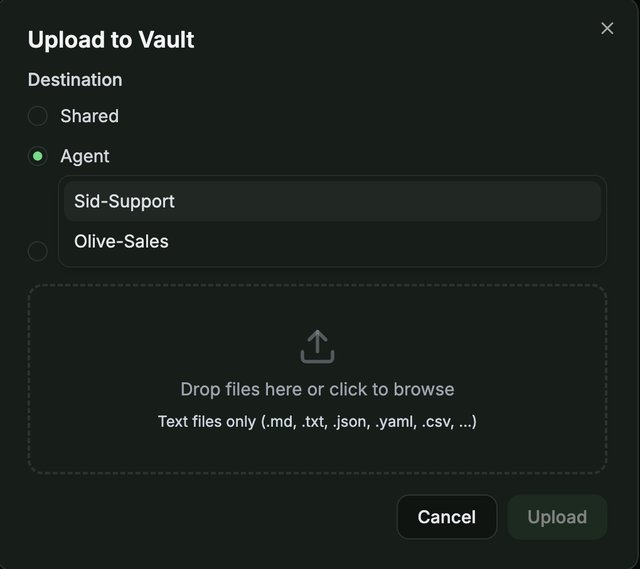
.md extension first, then upload it.Benefits of using the Vault:
- Centralized knowledge management
- Shared information across multiple AI agents
- Consistent and accurate responses
- Easy document updates without modifying individual agents
7. Appearance Mode
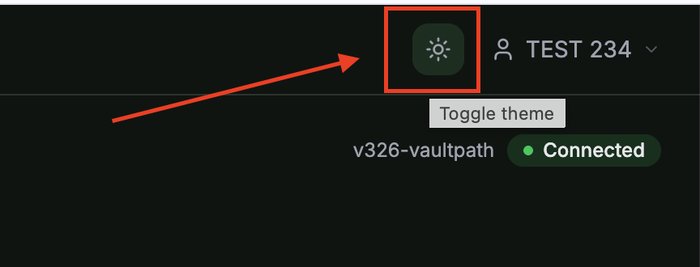
FlexiAgent lets you switch between Light Mode and Dark Mode based on your preference. Click the sun/moon toggle in the top-right corner of the dashboard (next to your account name) to change the interface theme instantly.
8. Social Media (Coming Soon)
The Social Media section is currently under development. Once released, it will provide tools for managing and automating social media activities directly within FlexiAgent. A dedicated guide will be available when this feature launches.
Quick Answers
.md extension, and upload that instead.Was this article helpful?
That’s Great!
Thank you for your feedback
Sorry! We couldn't be helpful
Thank you for your feedback
Feedback sent
We appreciate your effort and will try to fix the article