The Vault is FlexiAgent's centralized knowledge base — the place where you store the business documents your AI agents use to answer customer queries. Instead of adding business information directly to each agent, you upload your knowledge files to the Vault and connect them to the appropriate agent.
Think of the Vault as your Google Drive or your computer's file storage. Just like you keep all your important documents organized in folders on Drive — and share the right folder with the right person — the Vault organizes and manages all the files your AI agents need to do their jobs.
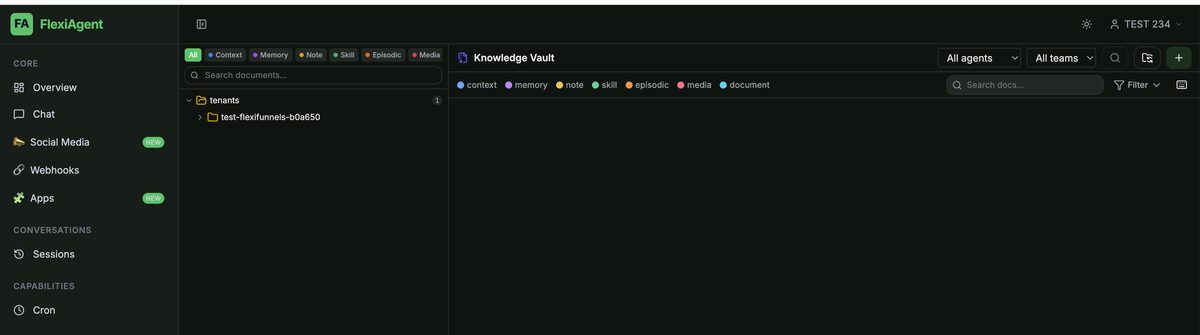
How the Vault is Organized
The Vault follows a simple folder-based structure.
At the top level is your Tenant folder, which represents your FlexiAgent account. Inside the Tenant folder, you can store multiple knowledge files that are associated with different AI agents. For example:
Tenant
│
├── Olive Sales
│     └── Discount Plumbing.md
│
├── Support Agent
│     └── FAQ.md
│
├── Marketing Agent
│     └── Campaign Details.md
│
└── HR Agent
      └── Company Policies.md
In the Vault, this structure appears in the left panel — starting with the tenants folder, with your account's folder inside it:
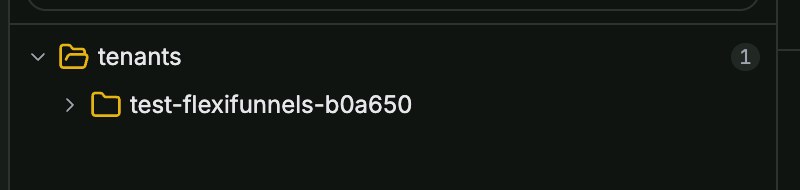
Each agent can have one or multiple knowledge files connected to it.
Why Does an AI Agent Need the Vault?
Your AI agents are already configured with their behavior and responsibilities. For example, a Sales Agent already knows:
- How to communicate with customers
- How to ask qualifying questions
- How to guide a sales conversation
- How to respond professionally
However, the agent does not automatically know information about your business.
When a customer asks a question, the AI agent retrieves the relevant information from the connected knowledge files and uses it to generate an accurate response.
Uploading Knowledge Files
To add business information to an agent:
- Open the Vault from the left sidebar (under Data).
- Click the + (Add) button in the top-right corner.
- Upload your knowledge file.
- Associate the file with the appropriate AI agent.

In the upload window, choose the destination: select a specific Agent to connect the file to that agent — the recommended practice, so each agent has its own dedicated knowledge base. (A Shared option also exists for files meant to be available across agents.) Then drop your file in (or click to browse) and click Upload.
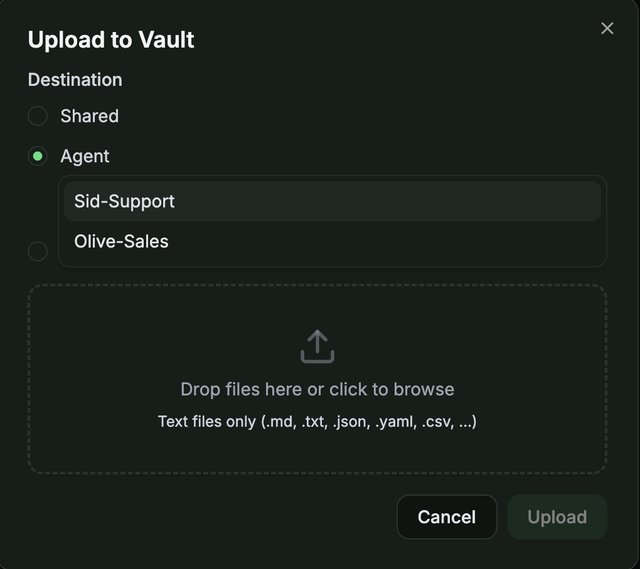
You can upload:
- A single knowledge file, or
- Multiple knowledge files for the same agent
Each uploaded file becomes part of the agent's knowledge base.
Supported File Format
Currently, the Vault supports only one file format:
- Markdown (
.md)
Before uploading a document, ensure that it is saved with the .md extension.
.md) file first, then upload it to the Vault.Best Practices
To improve your AI agent's response quality:
- Keep each knowledge file focused on a single topic. One file about pricing, another about refund policies — not everything in one giant file.
- Organize information with clear headings and sections. Well-structured files help the agent find the right answer faster.
- Keep your documents up to date. If your prices change, update the file — your agents will immediately start using the new information.
- Use descriptive filenames like gym-membership-pricing.md instead of doc1.md for easier management.
- Separate different business topics into individual Markdown files whenever possible.
Quick Answers
.md extension before uploading..md file, and (2) it's connected to the correct agent (or set to Shared). An agent can only answer from files it's actually connected to.Was this article helpful?
That’s Great!
Thank you for your feedback
Sorry! We couldn't be helpful
Thank you for your feedback
Feedback sent
We appreciate your effort and will try to fix the article