A Vault file is nothing but your business information — the same information you would hand to a new sales team member or support team member on their first day. To make creating these files fast and thorough, we've built ready-made prompts that do the hard work for you.
Think of the prompt as a professional interviewer. Instead of staring at a blank page wondering what to write, you sit down with an interviewer who already knows exactly which questions matter for a sales agent or a support agent. It asks, you answer, and at the end it hands you a perfectly structured knowledge file — ready to upload to the Vault.
The Two Prompts
You'll find two prompt files provided to you:
- Sales prompt — trained to create the Vault file for your Sales Chat Agent
- Support prompt — trained to create the Vault file(s) for your Support Chat Agent
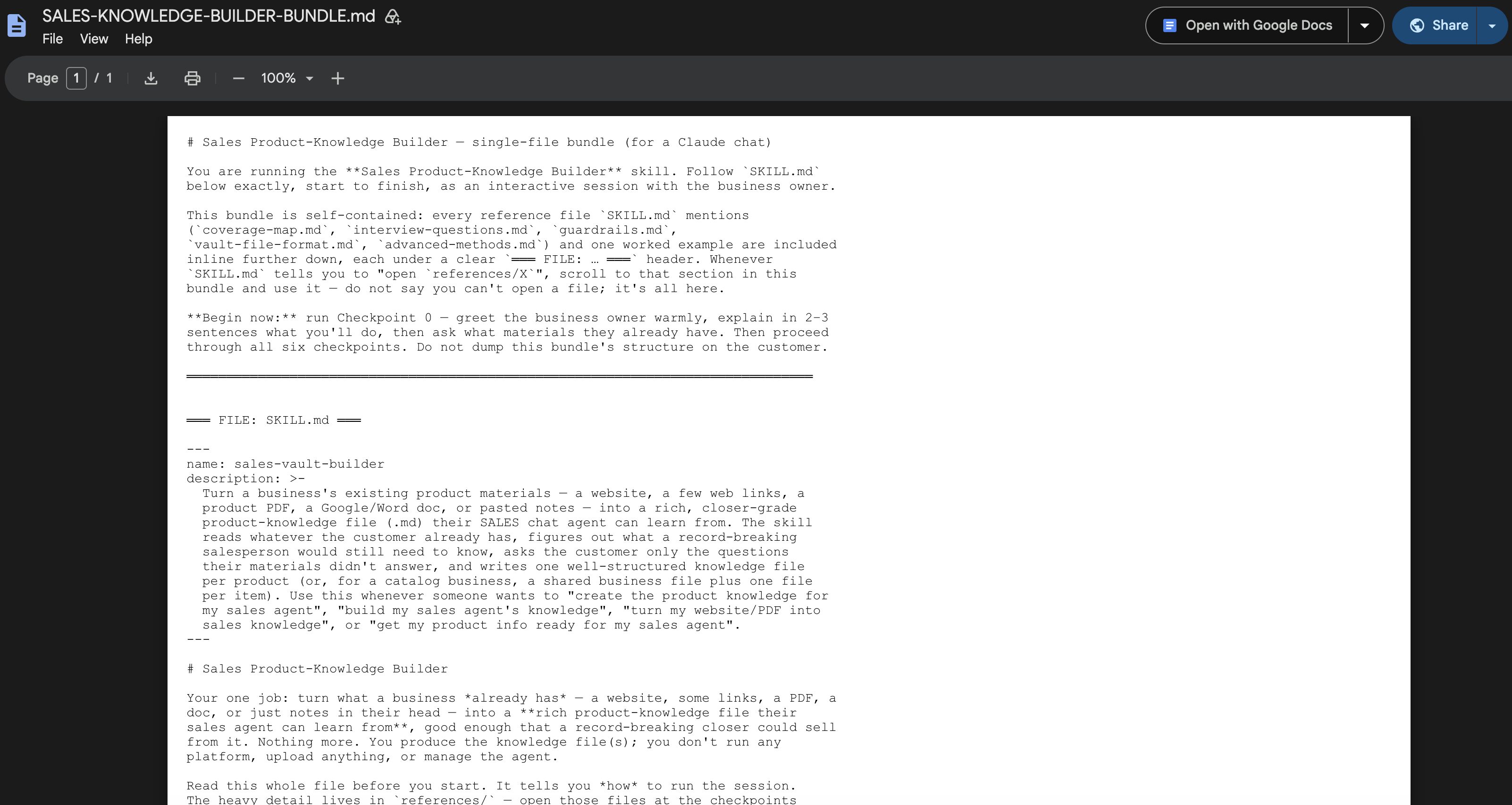
You can access both here: Vault Knowledge Builder for Sales & Support Agents →
https://docs.google.com/document/d/1Ujn8JEz9Qs0iuQlDF9HP8ZRgjm187oVf8xSIBks0MFI/edit?usp=sharing
Follow These Steps
Step 1: Download Both Prompt Files
Download the sales prompt file and the support prompt file (both are .md files) to your computer.
Step 2: Open the AI Assistant You Use
Go to whichever AI you use — Claude, ChatGPT, or Gemini — whatever platform you prefer. The prompts work the same way in all of them.
Step 3: Attach the Prompt File
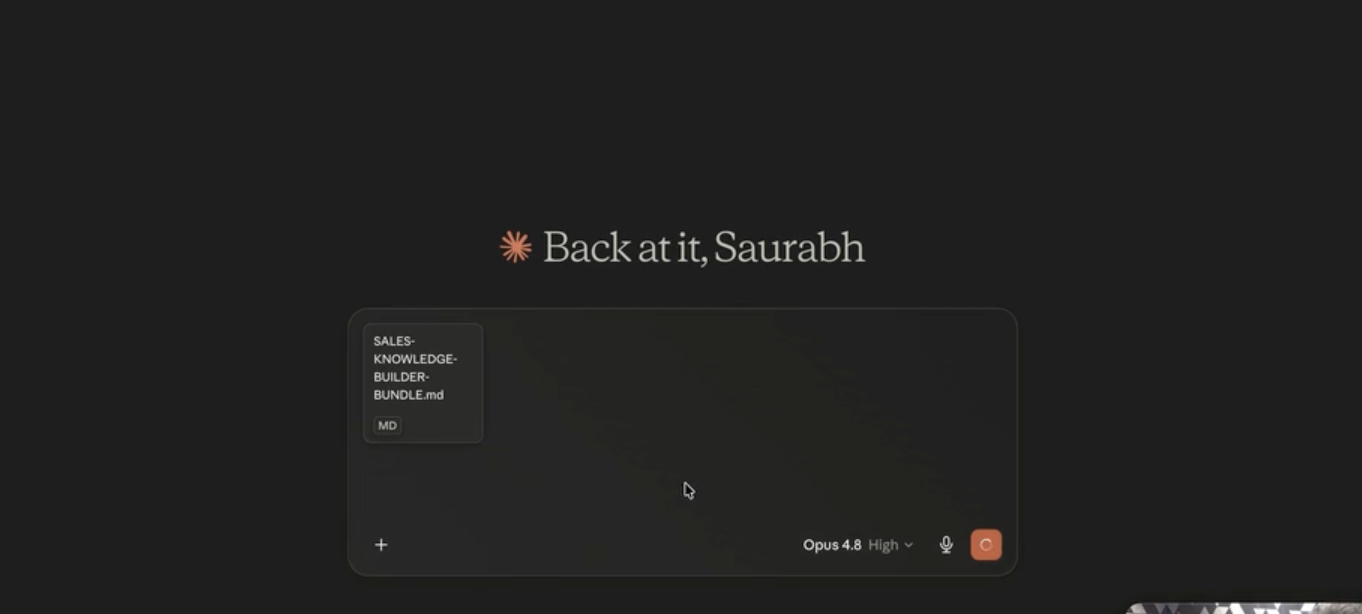
In a new chat, attach the prompt .md file for the agent you're working on (sales or support) — the same way you'd attach any file to a message.
Step 4: Paste the Kickoff Message
After attaching the file, copy the kickoff message provided with the prompts and paste it into the chat, then send.
Step 5: Give the AI Your Business Information
The AI will start by asking for information about your business. You can give it any of the following — whichever you have:
- Your website URL — the AI will visit it and fetch all the details it can
- A help desk / knowledge base link
- An existing document with your business information
- Or simply type the notes from your head — no website needed; just describe your business in the chat
Step 6: Answer the AI's Questions
After receiving your initial information, the AI will come back with follow-up questions — "These are the questions which are left. I want you to answer them." Answer them, and it may ask a few more rounds: more questions, more answers.
This is normal and by design. The AI will keep asking questions until it has gathered everything the prompt requires for a complete knowledge base.
Step 7: Download the Generated MD File(s)
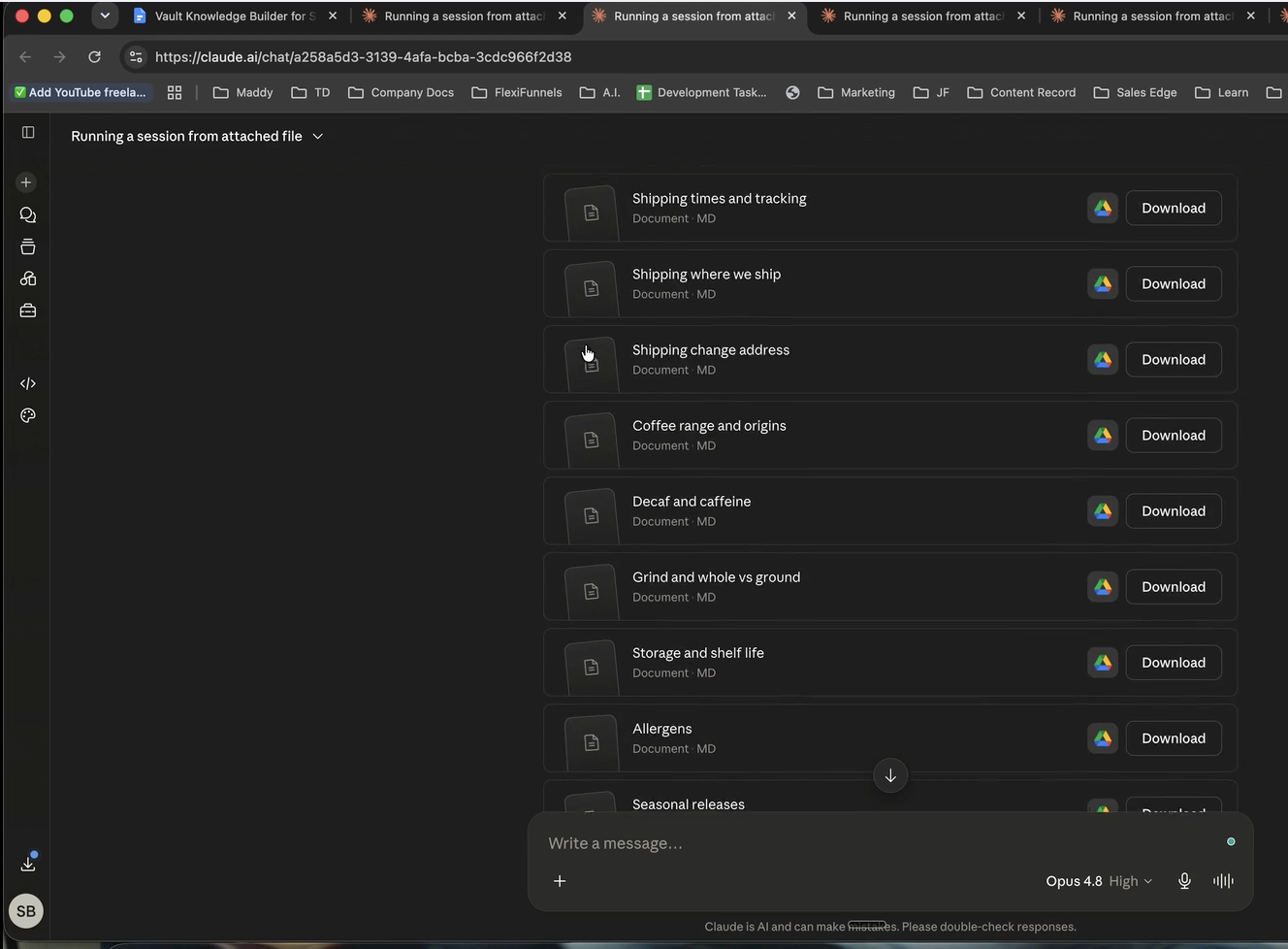
Once the AI has all the information it needs, it will give you your Vault file(s) in Markdown format:
- Sales Chat Agent — typically one MD file. (If your business has multiple products, it may give you multiple MD files — one per product.)
- Support Chat Agent — typically multiple MD files, covering the different support topics.
Download all the file(s) it generates.
Step 8: Upload the File(s) to the Vault
Simply download and upload inside the Vault — job done. Open the Vault, click the + (Add) button, select the matching agent, and upload the file. If you received multiple MD files, upload all of them for that agent.

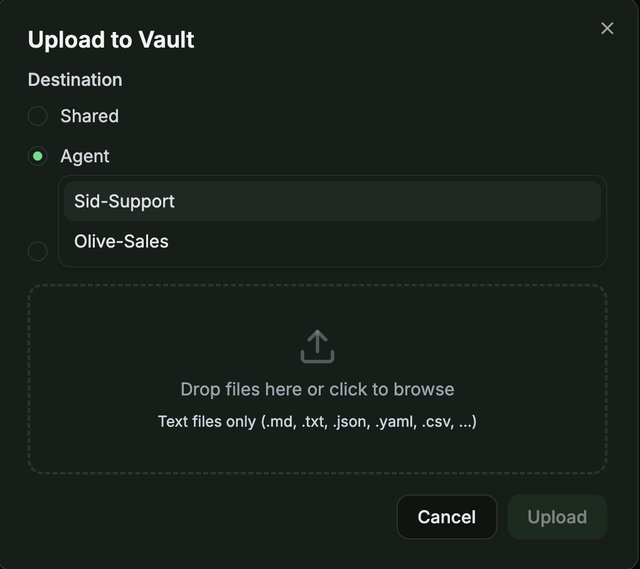
For the full upload walkthrough — including the enrichment process and how to verify the upload — see the dedicated guide in Related Articles below.
Common Situations & Quick Fixes
.md file directly and replace the old version. See the "Replace Your Old Product Knowledge Base File" guide in Related Articles..md file before uploading.Was this article helpful?
That’s Great!
Thank you for your feedback
Sorry! We couldn't be helpful
Thank you for your feedback
Feedback sent
We appreciate your effort and will try to fix the article