How to Login to FlexiAgent (For Non-FlexiFunnels Users)
Follow These Steps
Step 1: Open the Login Page
Step 2: Sign In to Your Account
Enter your registered email address and password, then click the Login button.
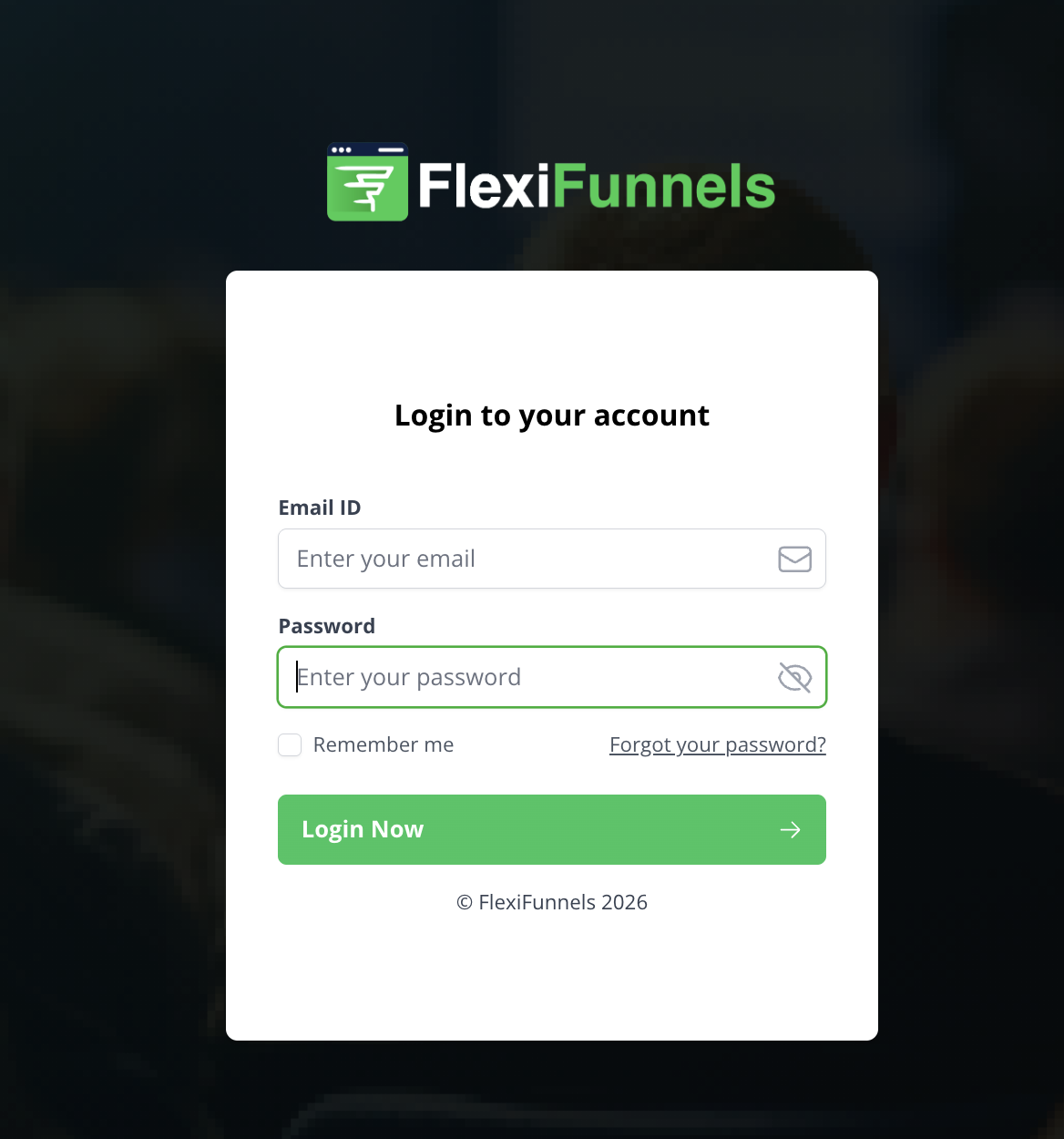
✅ Why this mattersYou must use the same email address and password that were used when your FlexiAgent account was created. For example, if your account was set up with john.work@gmail.com, logging in with your other email john.personal@gmail.com will fail — the system sees that as a completely different (non-existent) account. If you're unsure which email was used, search your inbox for your FlexiAgent welcome email.
Step 3: Access Your Workspaces
After logging in, you'll land on the Workspaces page. This page lists all the workspaces associated with your account under My FlexiAgent Workspace.
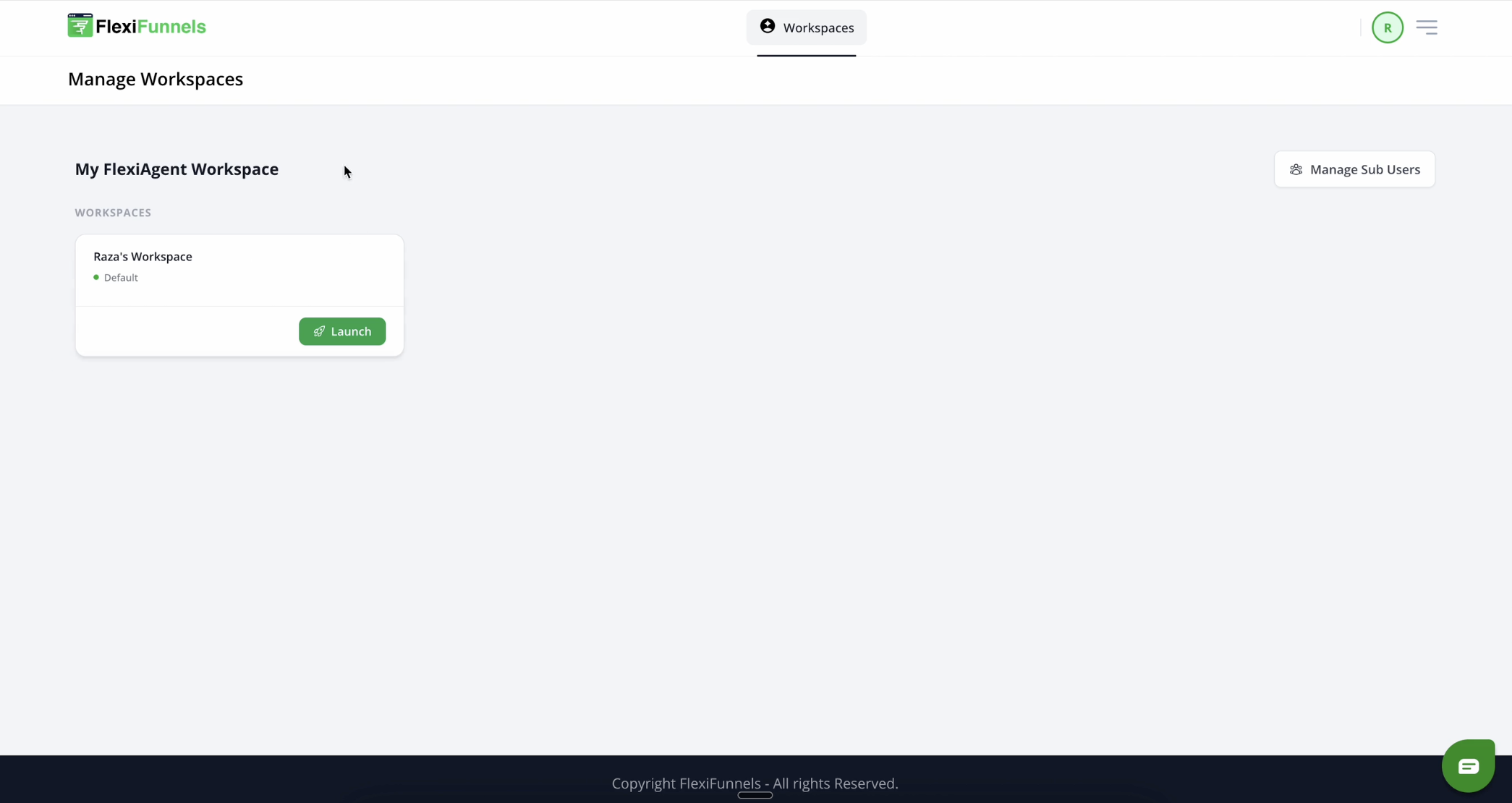
✅ Why this mattersA workspace is like a separate office room where all your AI agents, settings, and data live together. Everything you build in FlexiAgent happens inside a workspace — so you always launch a workspace first, then work within it.
? NoteNew accounts start with one default workspace (you'll see it marked with a green Default label). Support for multiple workspaces will be available in future updates. If your account already includes multiple workspaces, all of them will be listed on this page, and you can launch any of them with a single click.
Step 4: Launch Your Workspace
Find the workspace you want to open and click the green Launch button on its card.
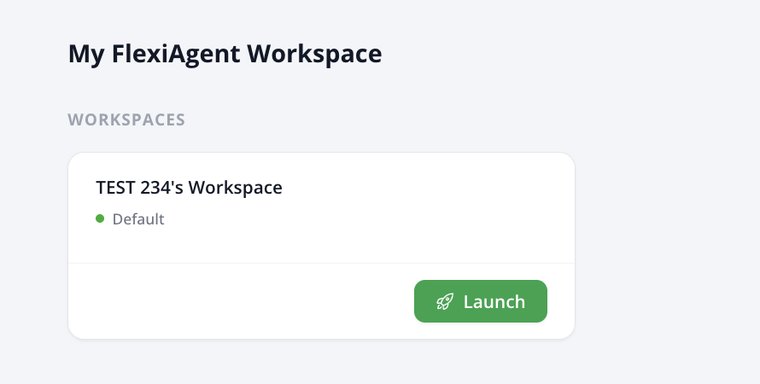
⚠️ Heads up: A new tab will openClicking Launch opens your FlexiAgent Dashboard in a new browser tab. If nothing seems to happen when you click, your browser's popup blocker may be stopping the new tab — look for a blocked-popup icon in your address bar and choose "Always allow" for this site.
Step 5: Access the FlexiAgent Dashboard
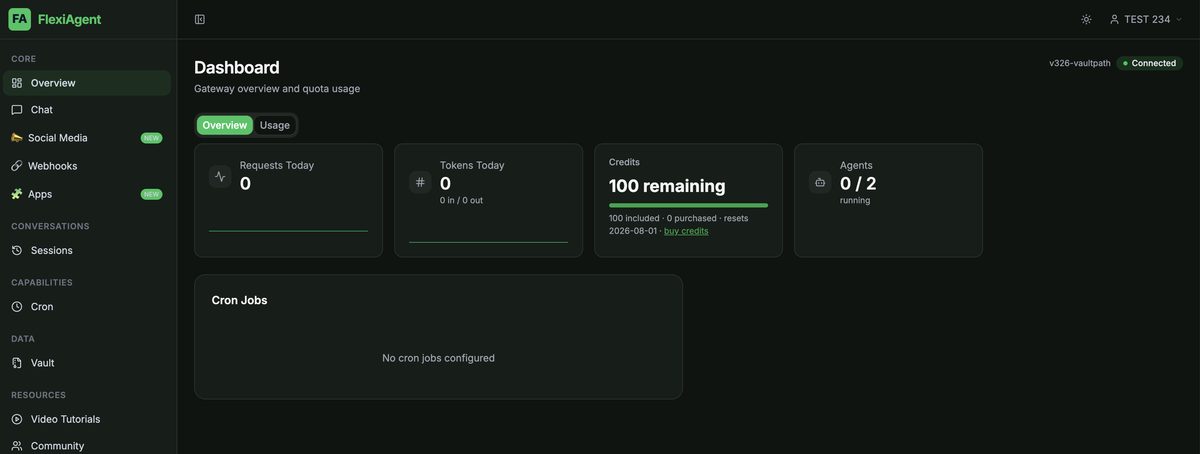
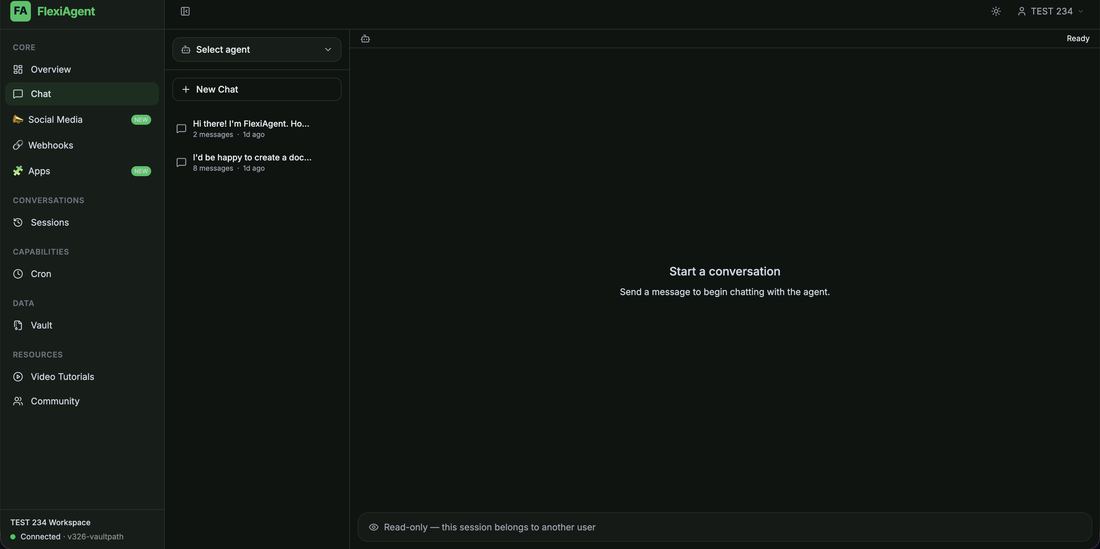
The new tab takes you directly to your FlexiAgent Dashboard, showing your gateway overview and quota usage. That's it — you're now successfully logged in and ready to start using FlexiAgent! ?
What You'll See After Login
Once you're inside your workspace, you'll have access to:
- FlexiAgent Dashboard — your home base showing requests, tokens, credits, and running agents
- Your Workspace — where all your agents and data live (shown in the bottom-left corner)
- AI Agent management — chat with your agents, review sessions, and manage everything from the left sidebar
- All available FlexiAgent features and settings — Chat, Social Media, Webhooks, Apps, Sessions, Cron, Vault, and more
Common Situations & Quick Fixes
❓ "I lost my FlexiAgent login URL."Search your email inbox (including Spam/Promotions) for your FlexiAgent welcome or account-creation email — the login URL is included there. Still can't find it? Submit a support ticket on help@flexifunnels.com
❓ "I forgot my password."On the FlexiAgent login page, use the Forgot Password option to receive a reset link on your registered email. Make sure you check the inbox of the same email address your account was created with.
❓ "I clicked Launch but nothing happened."Your browser's popup blocker is probably blocking the new tab. Look for a blocked-popup icon near the address bar, allow popups for this site, and click Launch again
Was this article helpful?
That’s Great!
Thank you for your feedback
Sorry! We couldn't be helpful
Thank you for your feedback
Feedback sent
We appreciate your effort and will try to fix the article