The Sales Agent is a pre-built AI agent designed to engage with your leads, answer product-related questions, and help convert conversations into sales. Once configured with your business information, it can respond to customer queries 24/7 — automating your sales process and improving lead conversions.
Think of the Sales Agent as a trained salesperson you've just hired. They already know how to sell — how to greet customers, ask the right questions, and guide a conversation toward a purchase. The only thing they're missing on day one is your product catalog. Setting up the Sales Agent is simply handing them that catalog: once they have it, they can start selling for you around the clock.
Why Use the Sales Agent?
The Sales Agent can help your business by:
- Answering customer questions instantly
- Providing product and pricing information
- Engaging leads around the clock
- Reducing manual sales conversations
- Supporting your sales team with automated responses
Once connected to your business knowledge, the Sales Agent can become a valuable part of your sales workflow.
Part 1: Before You Start — Give the Agent Your Business Knowledge
Step 1: Create a Product Knowledge Base File
Prepare a knowledge base file containing information about your business, such as:
- Products or services
- Pricing
- Features
- FAQs
- Business policies
- Contact information
This file will serve as the single source of information for your Sales Agent. Save it as a Markdown (.md) file — the only format the Vault currently supports. Here's a simple example of what it can look like:
# Power House Gym — Business Information

## Pricing Plans
- Basic: $29/month (gym access, 6 AM - 10 PM)
- Premium: $49/month (24/7 access + group classes)
- Elite: $79/month (Premium + 2 personal training sessions/month)

## FAQs
Q: Do you offer a free trial?
A: Yes, we offer a 7-day free trial for all new members.

Q: Can I cancel anytime?
A: Yes, memberships can be cancelled with 30 days notice.

## Contact
Phone: (555) 123-4567 | Email: info@powerhousegym.com
? Shortcut: Let AI build your knowledge base with our ready-made prompts
You don't have to write your knowledge base file yourself. We've created Vault Knowledge Builder prompts — one for the Sales Agent and one for the Support Agent — that turn your AI assistant into an interviewer that writes the file for you:
Open the Vault Knowledge Builder for Sales & Support Agents
How to use it:
- Open the document above — it contains both prompts (Sales Agent and Support Agent).
- Copy the full prompt for the agent you're setting up. Copy everything — don't skip any part of it.
- Open Claude, ChatGPT, or Gemini — whichever AI you use — paste the prompt into a new chat and send it.
- Answer the AI's questions — share your website URL, a help desk link, or simply type your business details. It will keep asking until it has everything it needs.
- The AI generates your knowledge base file(s) in Markdown. The Sales prompt typically creates one
.mdfile (or one per product if you sell multiple products). Download them all and upload to the Vault (Step 2 below).
Tip: The more detailed your answers — real prices, real FAQs, real policies — the better your agent's responses will be. Always review the generated file(s) before uploading. For the full walkthrough, see "Create Vault Files Using Our Given Prompts" in Related Articles.
Step 2: Upload the Knowledge Base to the Vault
After creating your knowledge base file:
- Open the Vault from the left sidebar (under Data).
- Click the + (Add) button in the top-right corner and upload your knowledge base file.
- Associate it with your Sales Agent — in the upload window, choose Agent as the destination and select your Sales Agent (for example, Olive-Sales).

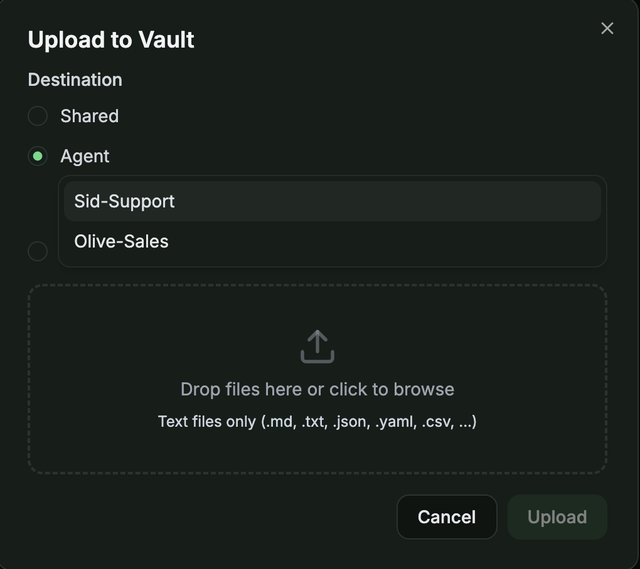
Once uploaded, the Sales Agent will use this information to answer customer questions accurately.
Part 2: Start Chatting with the Sales Agent
After completing the setup, you're ready to use the Sales Agent.
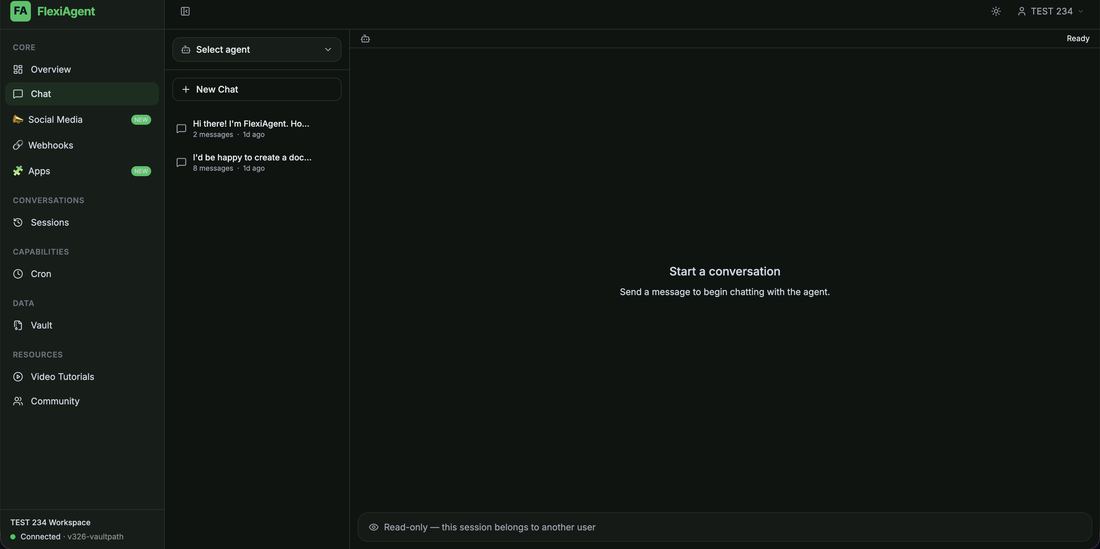
Step 1: Open the Chat Section
Navigate to the Chat section from the left sidebar of the FlexiAgent dashboard.
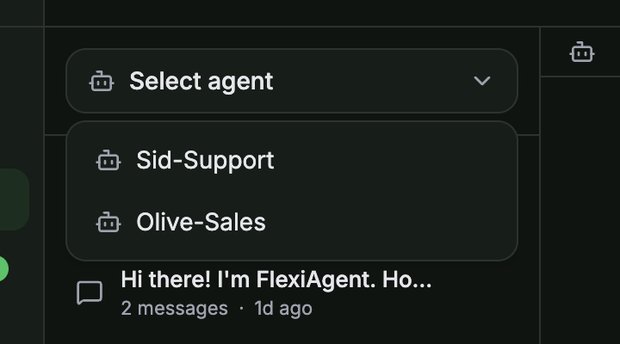
Step 2: Select the Sales Agent
Click Select agent at the top and choose your Sales Agent from the list of available AI agents.
Step 3: Start a New Conversation
Click + New Chat to begin interacting with the Sales Agent.
Step 4: Test the Agent
Ask questions just as a customer would. For example:
- What are your pricing plans?
- What services do you offer?
- Do you provide support after purchase?
- What are the features of your product?
- How can I get started?
The Sales Agent will respond using the information stored in your connected knowledge base.
Example Use Case
A visitor lands on your website and asks:
"What are your pricing plans?"
Instead of waiting for a sales representative, the Sales Agent instantly retrieves the pricing details from your uploaded knowledge base and provides an accurate response. This allows your business to engage leads even when your team is unavailable — at midnight, on weekends, or during your busiest hours.
Best Practices
For the best performance:
- Keep your product knowledge base updated. Prices changed? Update the file — the agent starts using the new details immediately.
- Include detailed product information and FAQs. The questions your team answers most often by email are exactly what belongs in the file.
- Add pricing, features, and common customer questions.
- Test the Sales Agent after every major update to your knowledge base — ask it a few real customer questions and check the answers.
- Regularly review responses (the Sessions tab stores every conversation) to ensure they remain accurate and relevant.
Common Situations & Quick Fixes
.md extension first.Was this article helpful?
That’s Great!
Thank you for your feedback
Sorry! We couldn't be helpful
Thank you for your feedback
Feedback sent
We appreciate your effort and will try to fix the article