Overview
Before you can accept live payments through Razorpay, you must add and verify your business website or application in your Razorpay account. Until this review is completed, Live API Keys cannot be used to collect payments.
Before You Begin
- Active Razorpay account.
- Your website or funnel URL ready.
- Access to your Razorpay Dashboard.
Step-by-Step Instructions
NOTE - Without doing these necessary settings in razorpay dashboard one will be not able to collect payments
Follow these steps:
a. Log in to the Razorpay Dashboard.
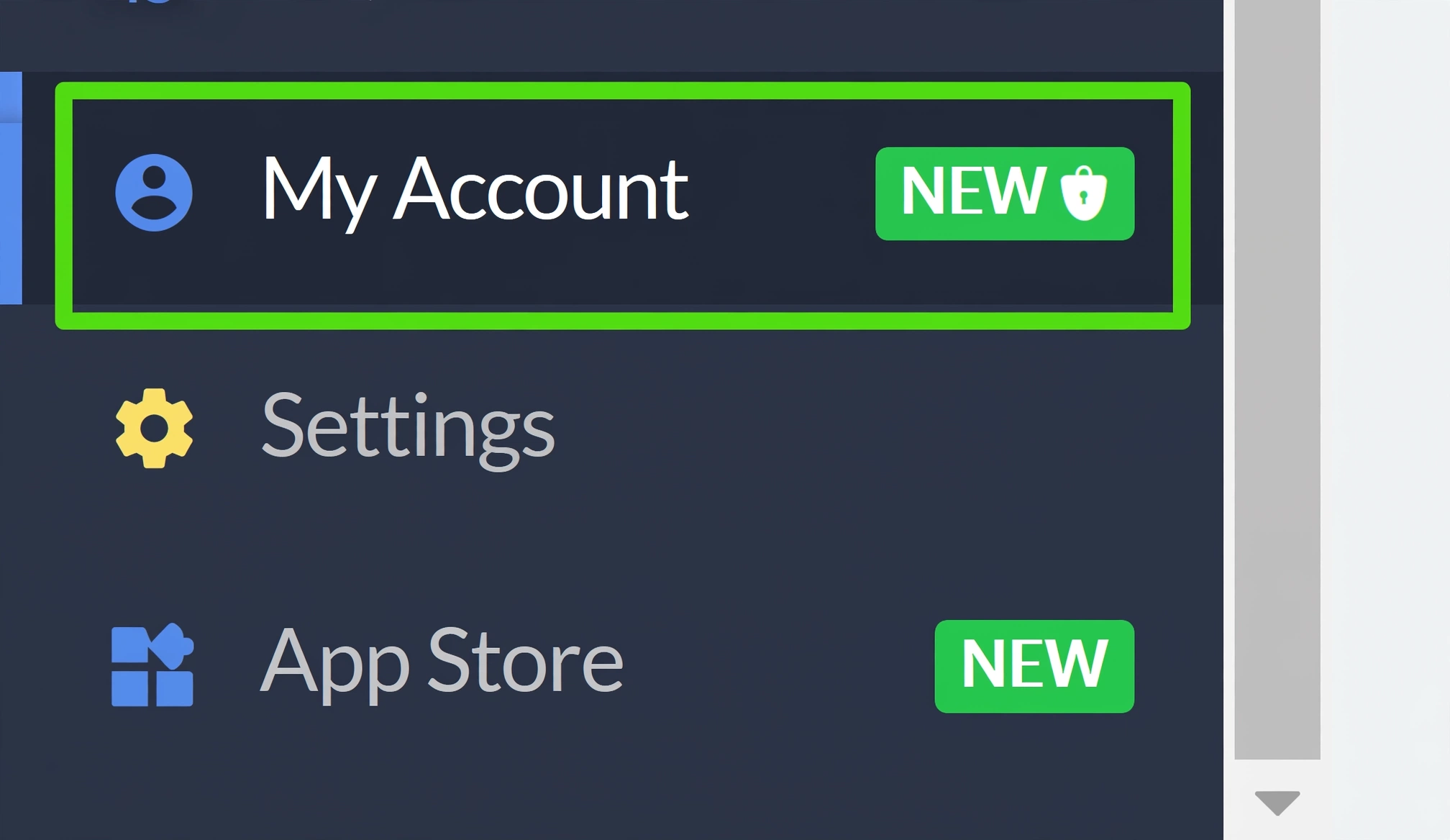
b. Navigate to My Account → Profile.

c. In the Business Website/App details field, click Add Website/App URL for Full Access.

d. Enter your website URL and click "Add Details"

e. Our team (Razorpay) will review your website/app URL details. You can check the status here:

f. After our team's (Razorpay) review, your website details are updated, and you should be able to generate API keys in the live mode and collect payments on the added domains.

In order to add more domains, Goto > Additional Business Website/App and click on the "+" sign.

Verify the Configuration
- Ensure your website status is Approved.
- Generate Live API Keys successfully.
- Connect the Live Keys inside FlexiFunnels.
- Run a small live transaction to confirm payments.
Common Scenarios
- Website Pending Review: Wait until Razorpay approves your submission.
- Live API Keys unavailable: Verify your website has been approved.
- Multiple domains: Add each additional domain from Additional Business Website/App.
Best Practices
- Use your production domain when requesting approval.
- Keep all payment pages publicly accessible during review.
- Test with Test Mode before switching to Live.
Before Contacting Support
- Share your Razorpay account email.
- Confirm your website approval status.
- Provide screenshots of any error messages.
Expected Outcome
After Razorpay approves your website, you can generate Live API Keys and successfully collect payments on your approved domains.
Was this article helpful?
That’s Great!
Thank you for your feedback
Sorry! We couldn't be helpful
Thank you for your feedback
Feedback sent
We appreciate your effort and will try to fix the article