What This Feature Does
Controls when a course becomes available and how long access lasts. Two independent options, usable separately or together:
- Start date restriction — course isn't accessible until a specific calendar date
- Expiry restriction — access expires a set number of days after purchase
Before You Start
- Decide whether you need a launch date, an access expiry, both, or neither
- If combining both: understand that the expiry countdown starts from purchase date, not from when the course actually unlocks — this has a real consequence covered in the scenario below
Step 1: Navigate to Course Settings
- Create a new project (choose "Launch a Course") or open an existing project
- Inside the project, select your course
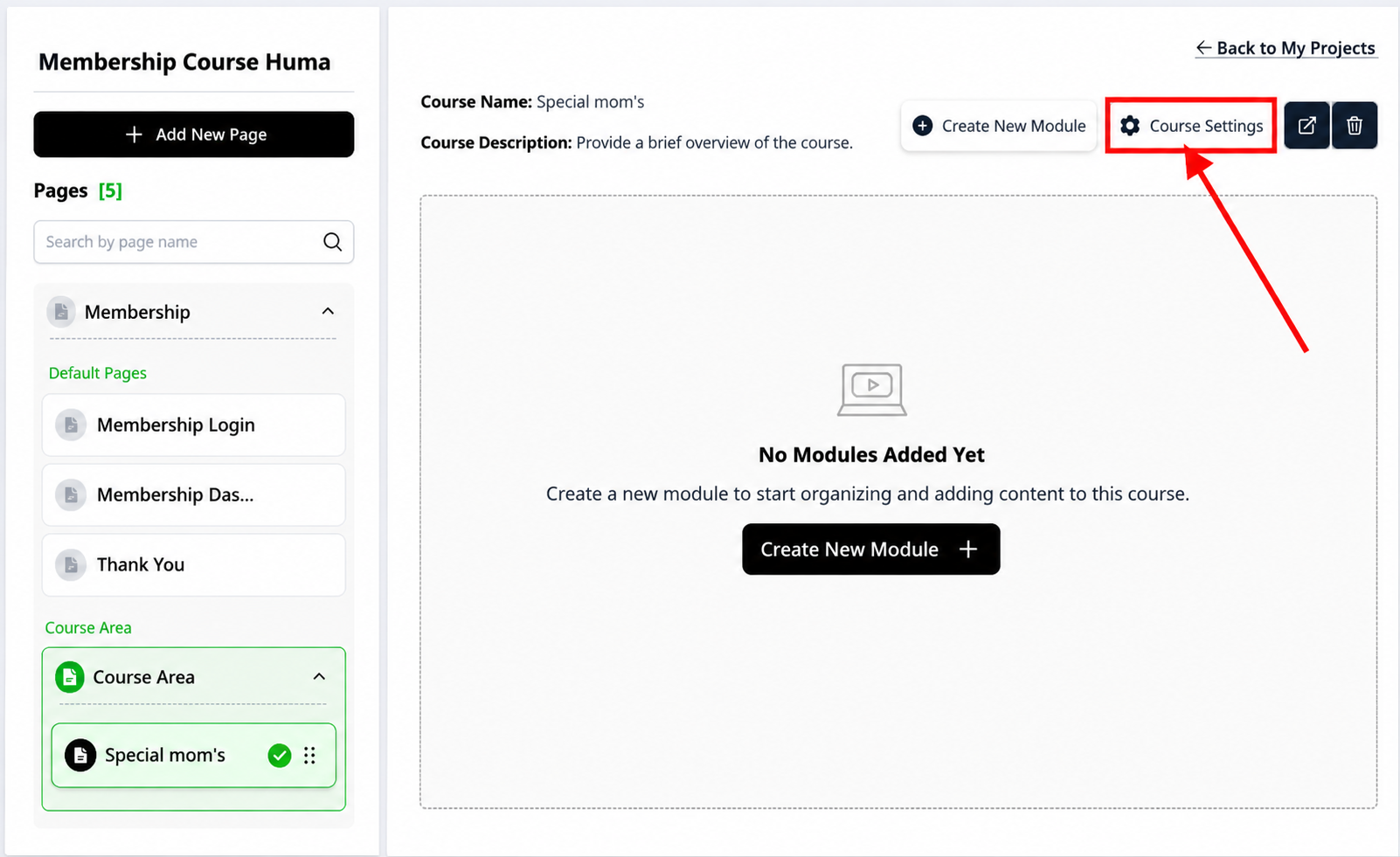
- Go to the Settings dropdown → Course Settings
- Find the Course Access section — two checkboxes will appear
Step 2: Option 1 — Begin Access at a Specific Date
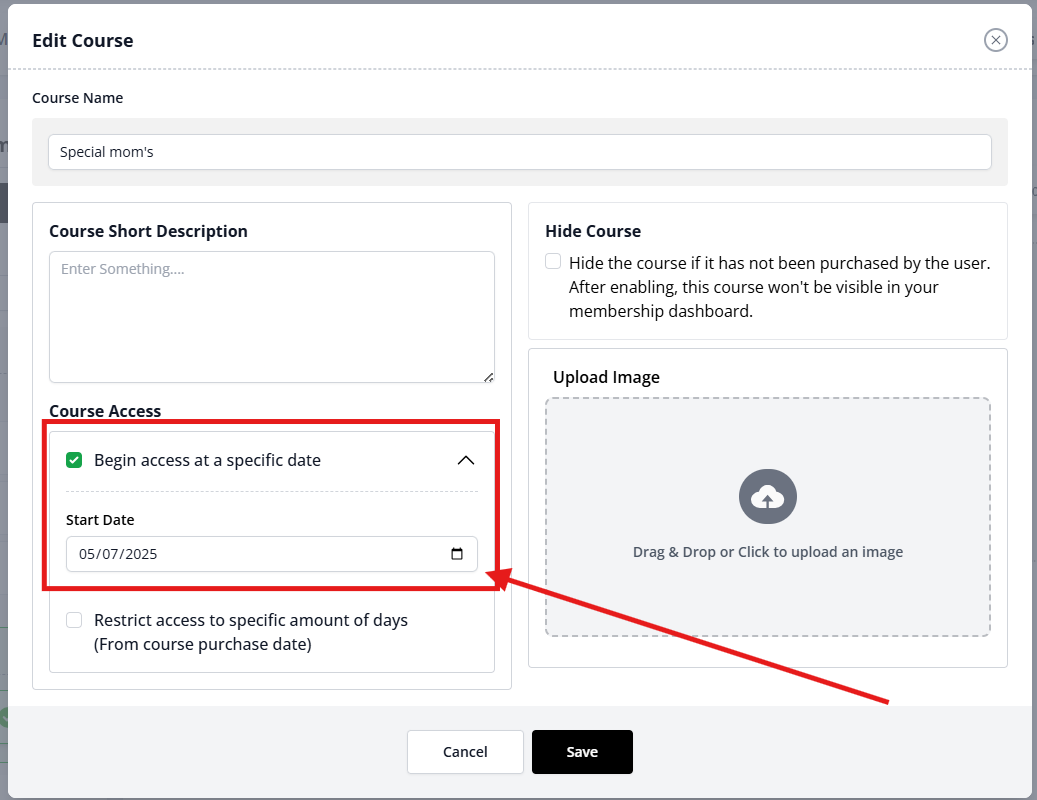
- Check the box for "Begin access at a specific date"
- A date field appears — click it to open the date picker
- Select the date the course should become available
What happens:
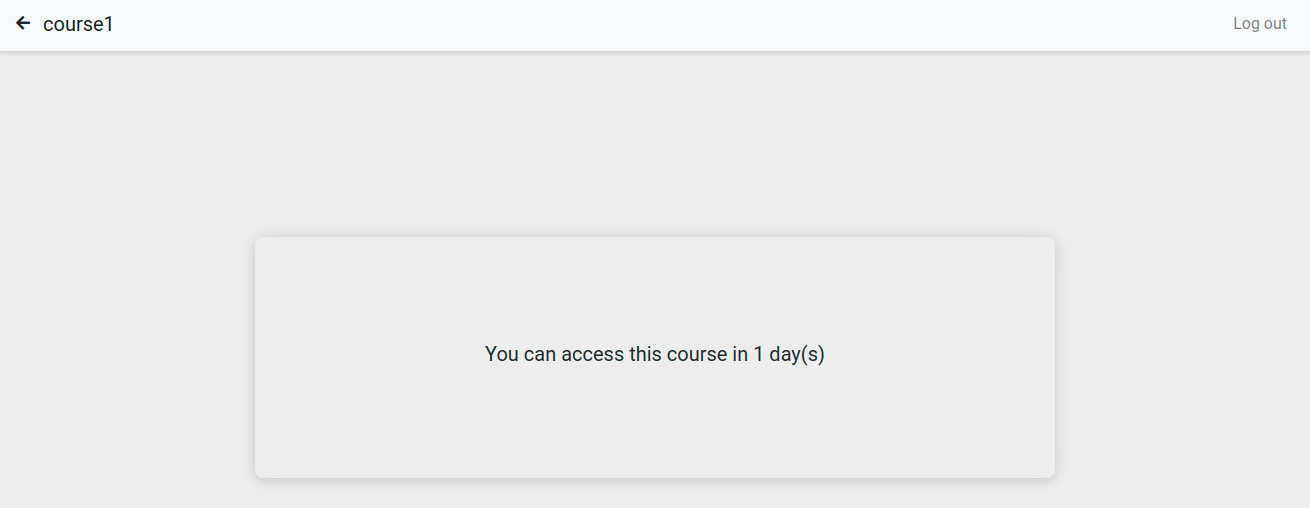
- Before this date: students see a message showing how many days remain until access begins
- On this date: all members (regardless of when they purchased) get access simultaneously
Use case: Course launches, cohort-based programs, or coordinating a start date across all buyers regardless of purchase timing.
Step 3: Option 2 — Restrict Access to a Number of Days
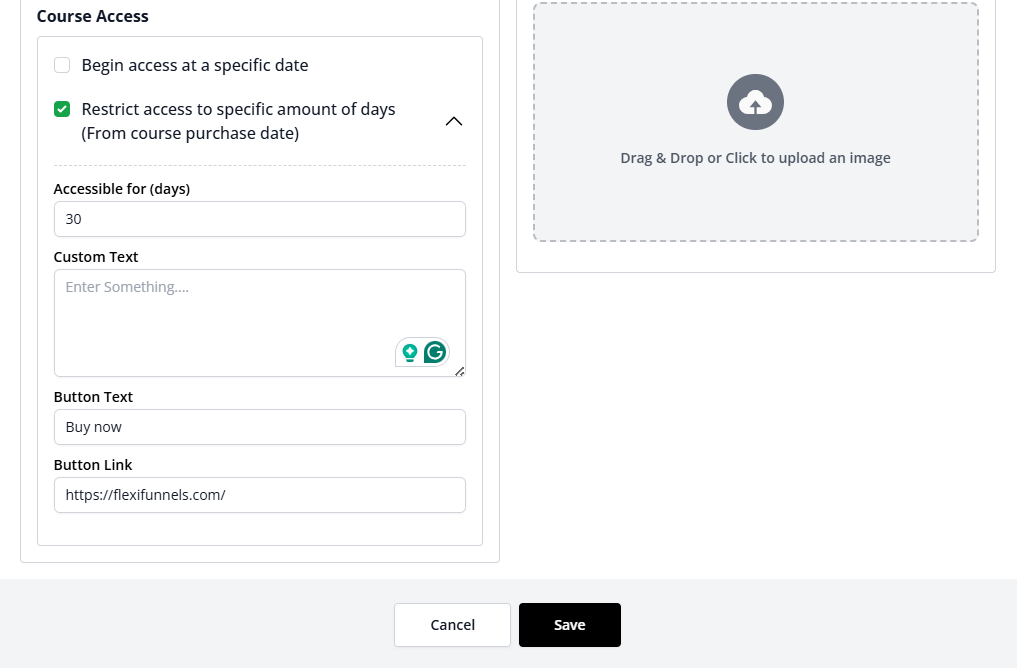
- Check the box for "Restrict access to specific amount of days"
- Enter the number of days access should last, counted from the purchase date
- After this many days, the course becomes inaccessible — this is an expiry, not a delay
What happens:
- Student purchases → immediately (or once unlocked) starts their access countdown
- Once the day limit is reached, they can no longer view course content
Use case: Limited-time access models, urgency-based offers, or courses tied to a cohort period.

Step 4: Using Both Options Together
If both are checked, the course has a fixed start date AND a days-based expiry measured from purchase.
⚠️ Critical scenario:
- Start date = March 1
- Expiry = 30 days from purchase
- A student purchases on February 1 (before the course even starts)
Does their 30-day countdown start February 1 (purchase) or March 1 (actual access)?
If it's calculated from purchase date literally, this student could lose up to a month of their paid access before the course even unlocks — they'd get roughly 0 usable days, or a severely shortened window, without realizing it until they try to log in.
This is the single most important thing to verify before this feature goes live for any course combining both options. If early buyers are silently losing access days, that's a legitimate refund/complaint driver, not a hypothetical edge case — it's the natural collision point between these two settings, and the original article documents them like they're unrelated when combining them clearly isn't.
Real-World Scenario
Setup: A 60-day challenge course launching March 1, with 45 days of access per student.
- Start date: March 1
- Expiry: 45 days from purchase
Student A buys on March 1 (launch day): gets full 45 days from March 1 → access until April 15. Fine.
Student B buys on February 10 (pre-launch): if expiry counts from purchase, their 45 days may already be burning down before March 1 even arrives — they could have as few as 30 usable days left by the time the course unlocks.
Fix, if this is confirmed to be the actual behavior: Either don't sell the course before the start date, or clearly warn early buyers that their access window is fixed from purchase regardless of the launch date.
Common Issues & Fixes
| Problem | Likely Cause | Fix |
|---|---|---|
| Student says course isn't available yet | Start date restriction is active and the date hasn't arrived | Confirm the "days remaining" message is showing correctly; this is expected behavior |
| Student's access disappeared unexpectedly | Days-based expiry reached | Check their purchase date + configured day limit against today's date |
| Early buyer has drastically less access time than expected | Expiry counted from purchase, not from course start date (see scenario above) | Escalate — this needs a policy decision, not just a settings fix |
| Access doesn't start on the exact date set | Timezone mismatch between admin settings and server | Confirm which timezone the date picker uses vs. your own |
Pre-Support Checklist
- ✓ Which option(s) are enabled — start date, expiry, or both?
- ✓ What is the student's actual purchase date vs. today's date?
- ✓ If both options are active, was the student's purchase made before the start date?
Was this article helpful?
That’s Great!
Thank you for your feedback
Sorry! We couldn't be helpful
Thank you for your feedback
Feedback sent
We appreciate your effort and will try to fix the article