What This Feature Does
Lets you add multiple members to a membership course at once using a CSV file, instead of creating them one-by-one.
Before You Start
- Prepare a CSV file with exactly two columns, in this exact order:
name,email - The first row must be the header row with those exact column names — not "Name," "full_name," or any variation
- Maximum 100 rows per import — the article's original wording ("don't import more than that, it might be causing issues") is vague; treat this as a hard limit, not a soft suggestion, until confirmed otherwise
- Double-check emails in your CSV for typos before importing — fixing 100 wrong emails after the fact is far more painful than checking them first
Step 1: Prepare Your CSV File
Format exactly like this:
name,email
John Smith,john@example.com
Jane Doe,jane@example.com- Column headers must be lowercase:
name,email - No extra columns, no extra header text
- Save as
.csv(not.xlsxor.numbers)
Step 2: Open Import Members
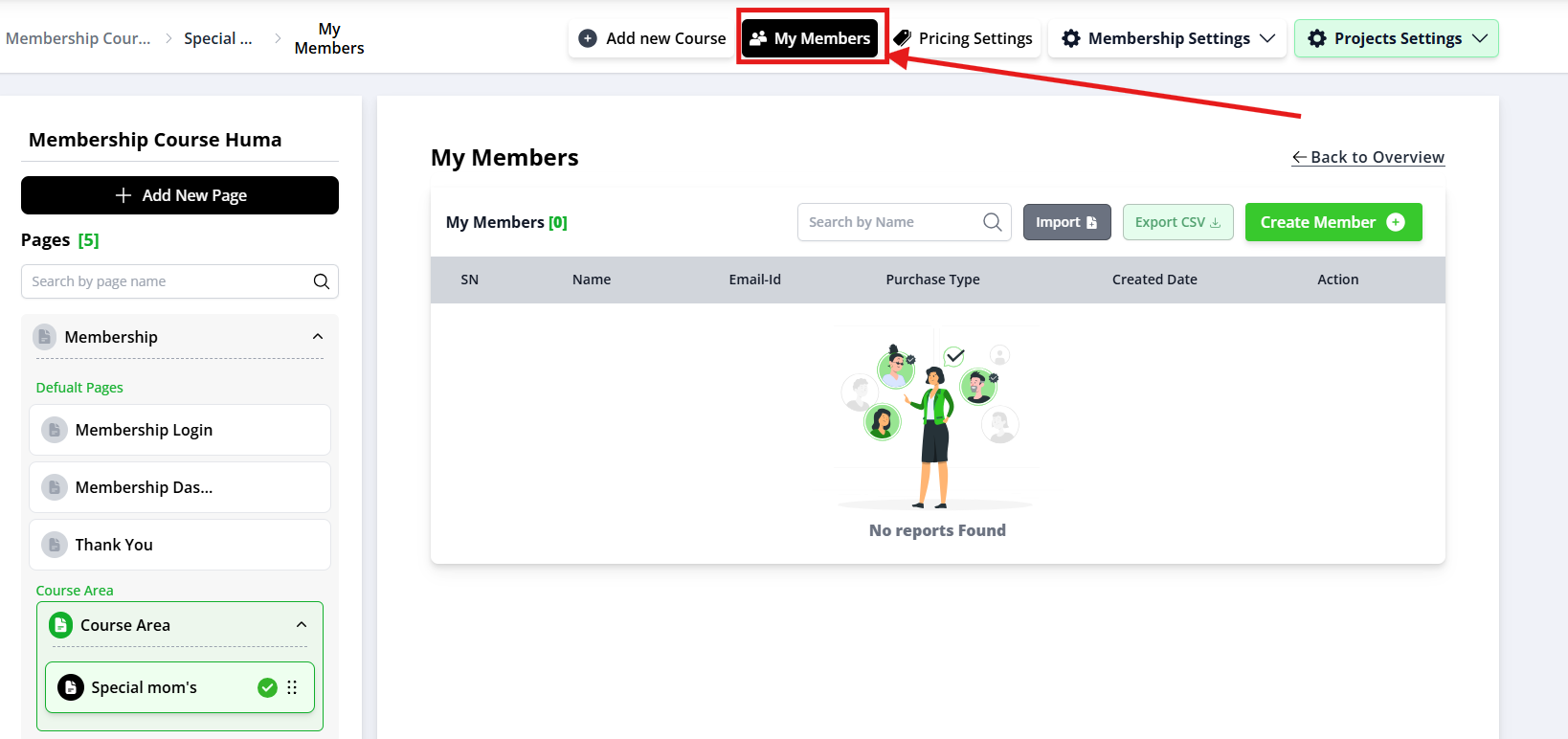
- Go to "My Members"
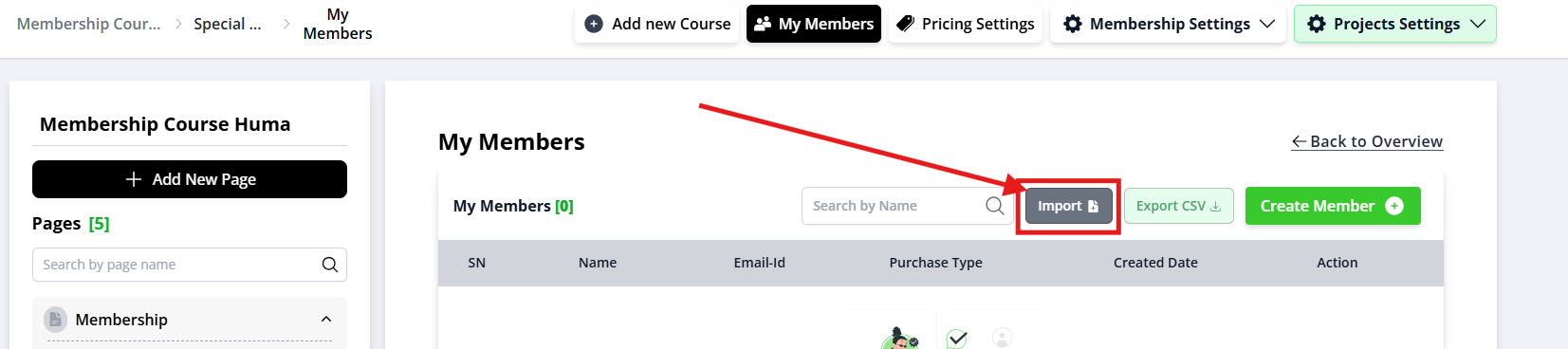
2. Click "Import Members"
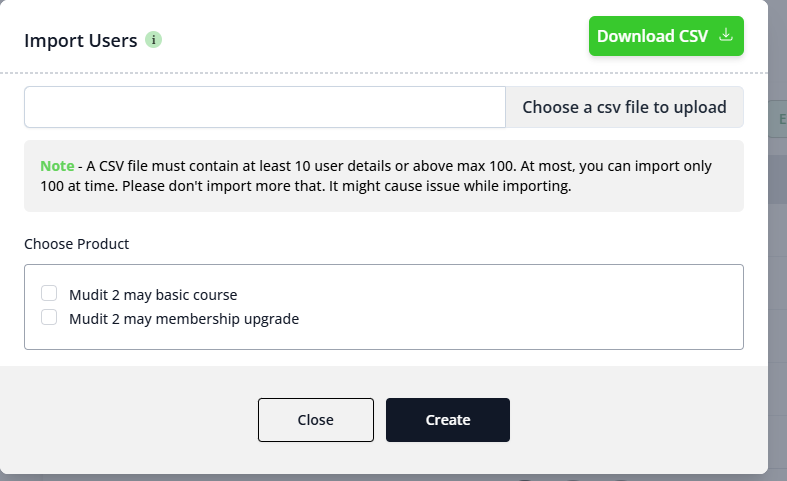
Step 3: Upload Your CSV
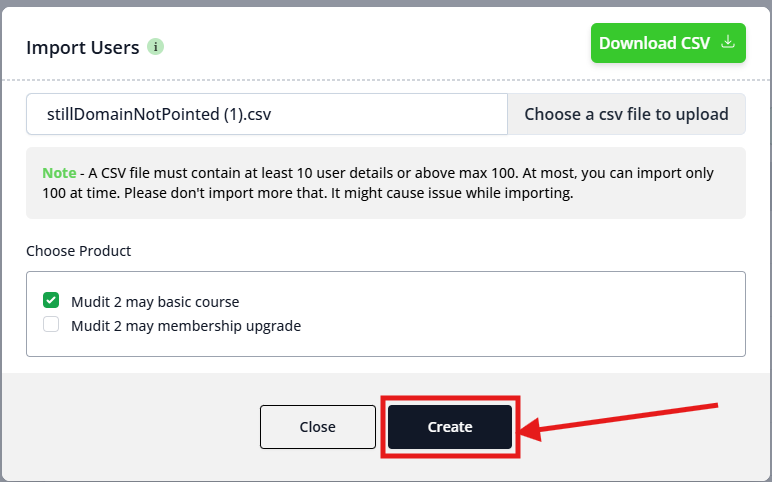
- Click to upload your prepared CSV file
- Confirm it uploads without an error
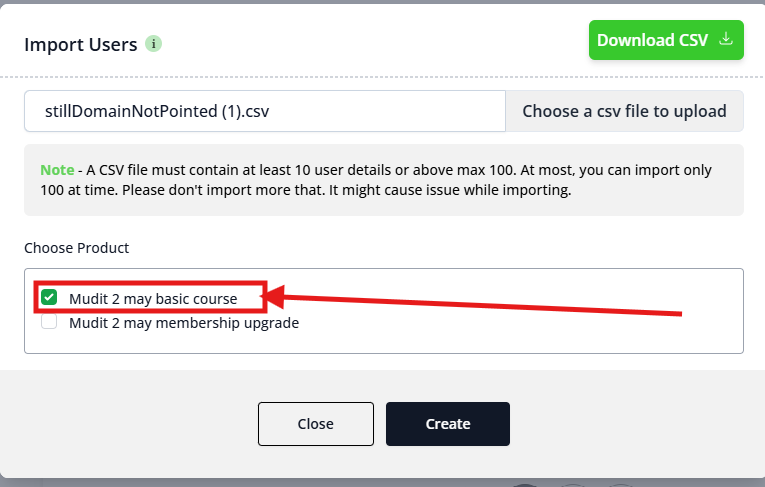
Step 4: Assign Product Access
- Select which product/bundle these imported members should have access to
- This applies the same access level to every member in the file — you cannot assign different products to different rows in a single import
Step 5: Create Access
- Click "Create Access"
- Wait for the confirmation that the import completed
Step 6: Verify the Import
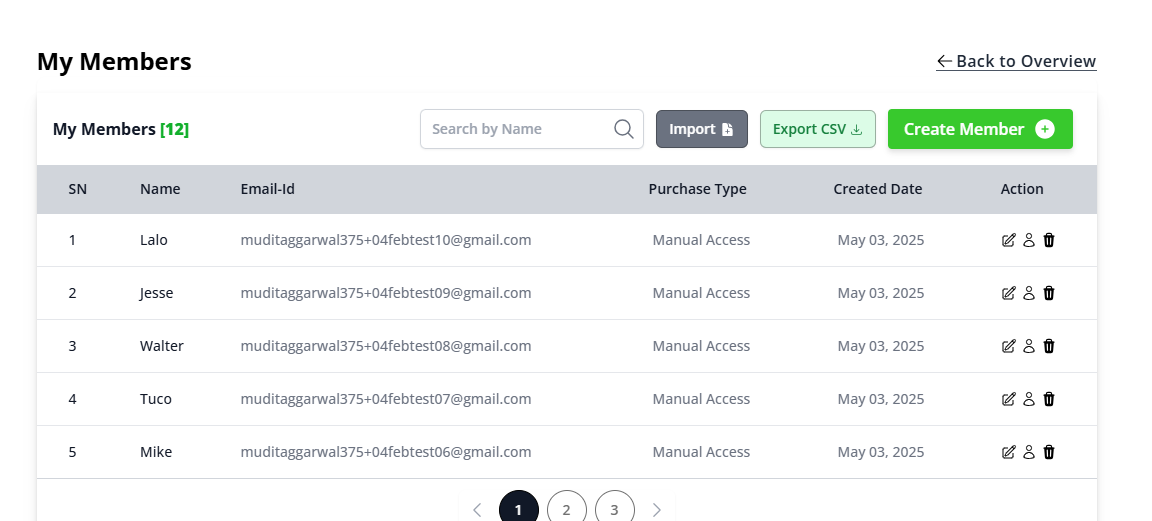
- Go back to My Members
- Spot-check a few of the newly imported names/emails to confirm they appear correctly
- If possible, verify with at least one imported member that they received login access
Common Issues & Fixes
| Problem | Likely Cause | Fix |
|---|---|---|
| Import fails immediately | Column headers aren't exactly name and email, or wrong file format | Re-check headers are lowercase and exact; confirm file is saved as .csv |
| Only some members imported | File exceeded 100 rows, or specific rows had malformed data (missing email, invalid format) | Split into batches of 100 or fewer; check each row for typos or missing values |
| Members imported but can't access content | Wrong product selected during "Give access" step | Re-check the product assignment applied to the batch |
| Duplicate/existing emails cause errors | Some emails in the CSV already exist as members | Remove existing members from the CSV before re-importing, or check individually via My Members |
| No password set for imported members | CSV only supports name/email — no password field | Confirm how imported members receive login credentials (see flagged question below) |
Was this article helpful?
That’s Great!
Thank you for your feedback
Sorry! We couldn't be helpful
Thank you for your feedback
Feedback sent
We appreciate your effort and will try to fix the article