What Is Project Sharing?
Project Sharing lets you share your funnels/projects with other people so they can view, import, or collaborate on them.
Think of it like sharing a document link—instead of emailing files, you share a link that gives access to your project.
Sharing means:
- Other people can view your funnel
- They can import it into their account
- They can use it as a template
- You maintain the original (they get a copy)
Why Share Projects?
Team Collaboration:
✓ Work with team members
✓ Get feedback on designs
✓ Delegate page creation
✓ Share proven funnels
Client Work:
✓ Show clients the funnel
✓ Get client feedback/approval
✓ Let clients import into their account
✓ Deliver final funnels
Training/Education:
✓ Share example funnels
✓ Help others learn
✓ Distribute templates
✓ Showcase best practices
Team Standardization:
✓ Create team templates
✓ Ensure consistent branding
✓ Reuse proven funnels
✓ Scale efficient processes
Two Ways to Share
METHOD 1: PUBLIC PROJECT LINK
What it is: Shareable link anyone can access (if they have link)
Who can access: Anyone with the link + FlexiFunnels account
Use for: General sharing, templates, public examples
Security: Link-based (anyone with link can access)
METHOD 2: EMAIL SHARING
What it is: Send link via email to specific person
Who can access: Only the person with email address
Use for: Client delivery, private sharing, team members
Security: More secure (only specific email)
Types of Access/Permissions
When sharing, consider what access to give:
- View Only — Can see funnel, can't edit
- View & Import — Can view and import into their account
- Full Access — Can edit, modify, collaborate (team)
Step-by-Step: Share via Public Link
Step 1: Log In
- Log into FlexiFunnels
- Go to your dashboard/projects
Step 2: Find Your Project
- Locate the project you want to share
- Look at the project row in the list
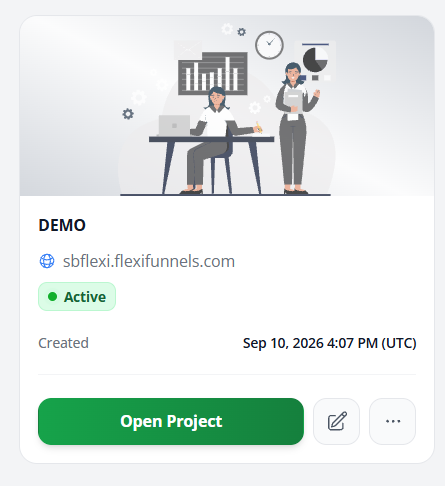
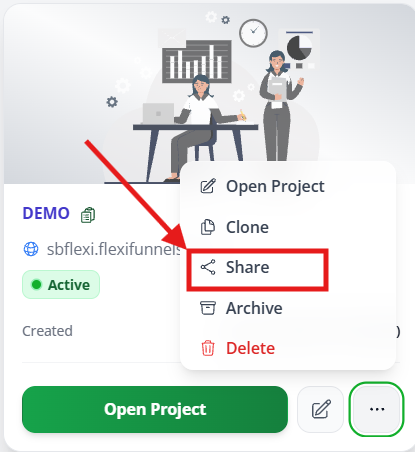
Step 3: Open Project Menu
- Find the action button (three dots, menu icon, or settings)
- Click it to reveal options
Step 4: Select "Share Project"
- From menu, click "Share Project" or "Share"
- Share dialog or window opens
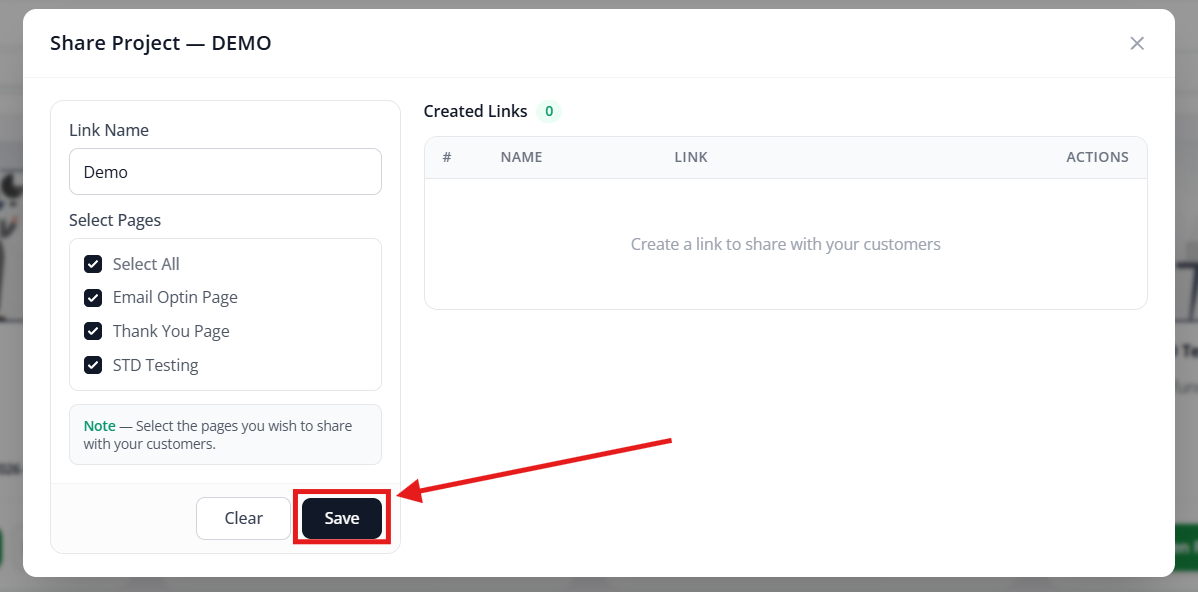
 Step 5: Choose Pages to Share
- Select which pages to include in share
- Options:
- All pages — Share entire project
- Specific pages — Choose individual pages
- Selected pages — Only pages you mark
Step 6: Create Share Link
- Click "Create Share Link" or "Generate Link"
- System generates public shareable link
- You'll see the link displayed
Step 7: Copy & Share Link
- Find the generated link
- Click "Copy Link"
- Share link with whoever you want:
- Paste in email
- Message in Slack
- Text message
- Social media
- etc.
Link format: flexifunnels.com/share/[unique-code]
Step 8: Recipient Views Project
What recipient does:
- Click the link you shared
- See preview of project
- Can view all included pages
- See page previews/thumbnails
- No login required to view preview
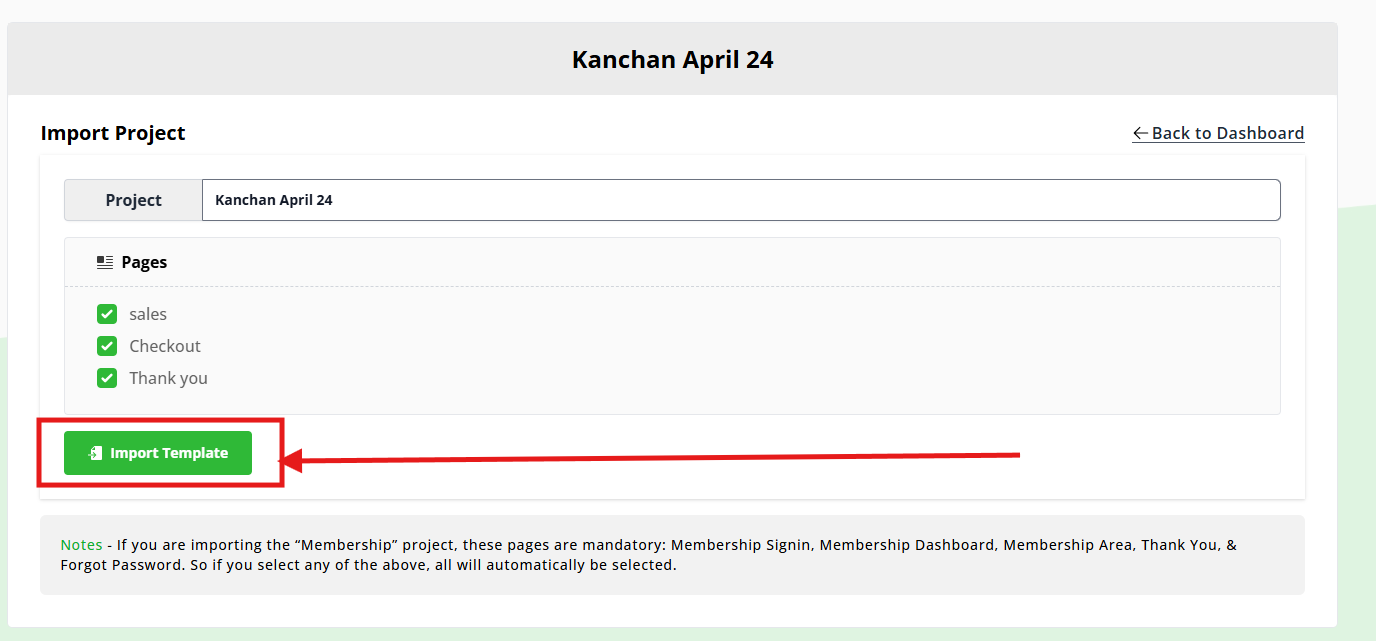
Step 9: Recipient Imports Project
If recipient wants their own copy:
- On shared project page, click "Import Project"
- Sign into their FlexiFunnels account
- Choose what to import:
- All pages
- Selected pages
- Click "Import"
- Project appears in their account
- They now have editable copy
Step-by-Step: Share via Email
Step 1-5: Same as Above
Follow Steps 1-5 from "Share via Public Link" above
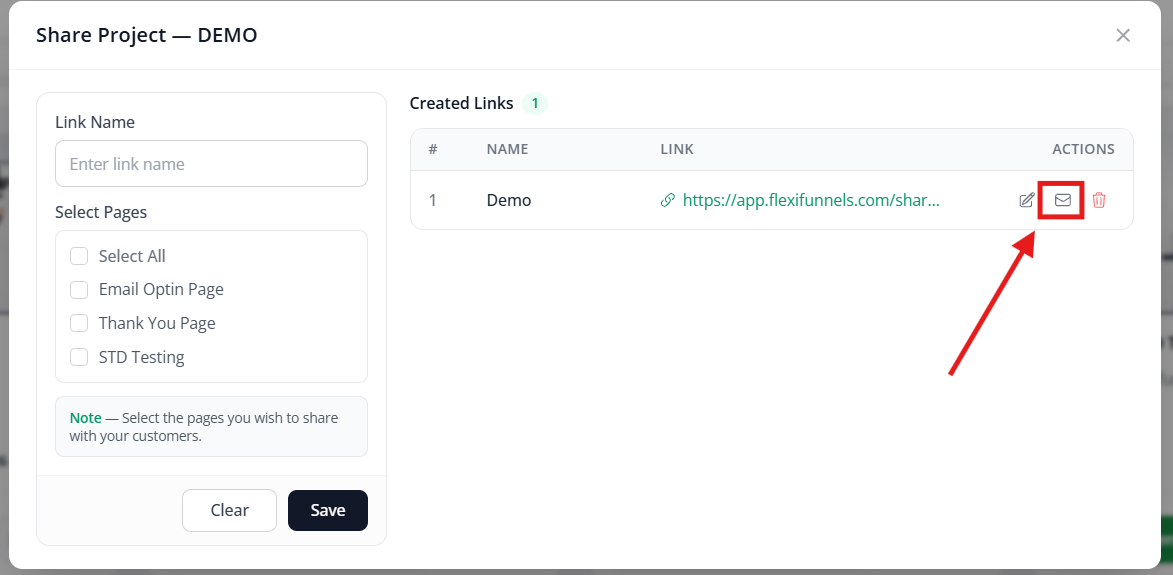
Step 6: Choose Email Sharing
- In share dialog, look for "Email" option
- Or select "Share via Email"
- Different interface appears

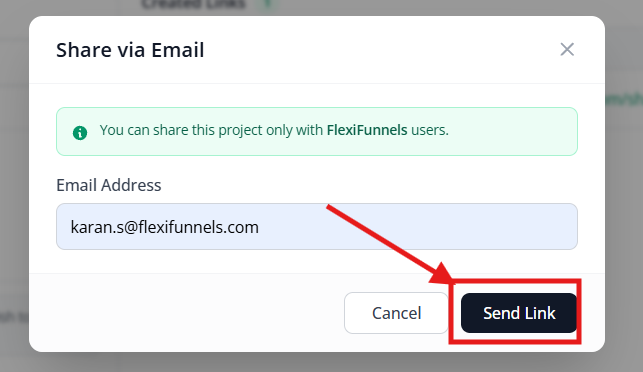
Step 7: Enter Email Address
- Find "Email Address" field
- Enter email of person to share with
- Example:
client@example.com
Step 8: (Optional) Add Message
- Some versions allow custom message
- Add context or instructions
- Example: "Please review and provide feedback"
Step 9: Send Share Link
- Click "Send" or "Share Link"
- Email is sent to that person
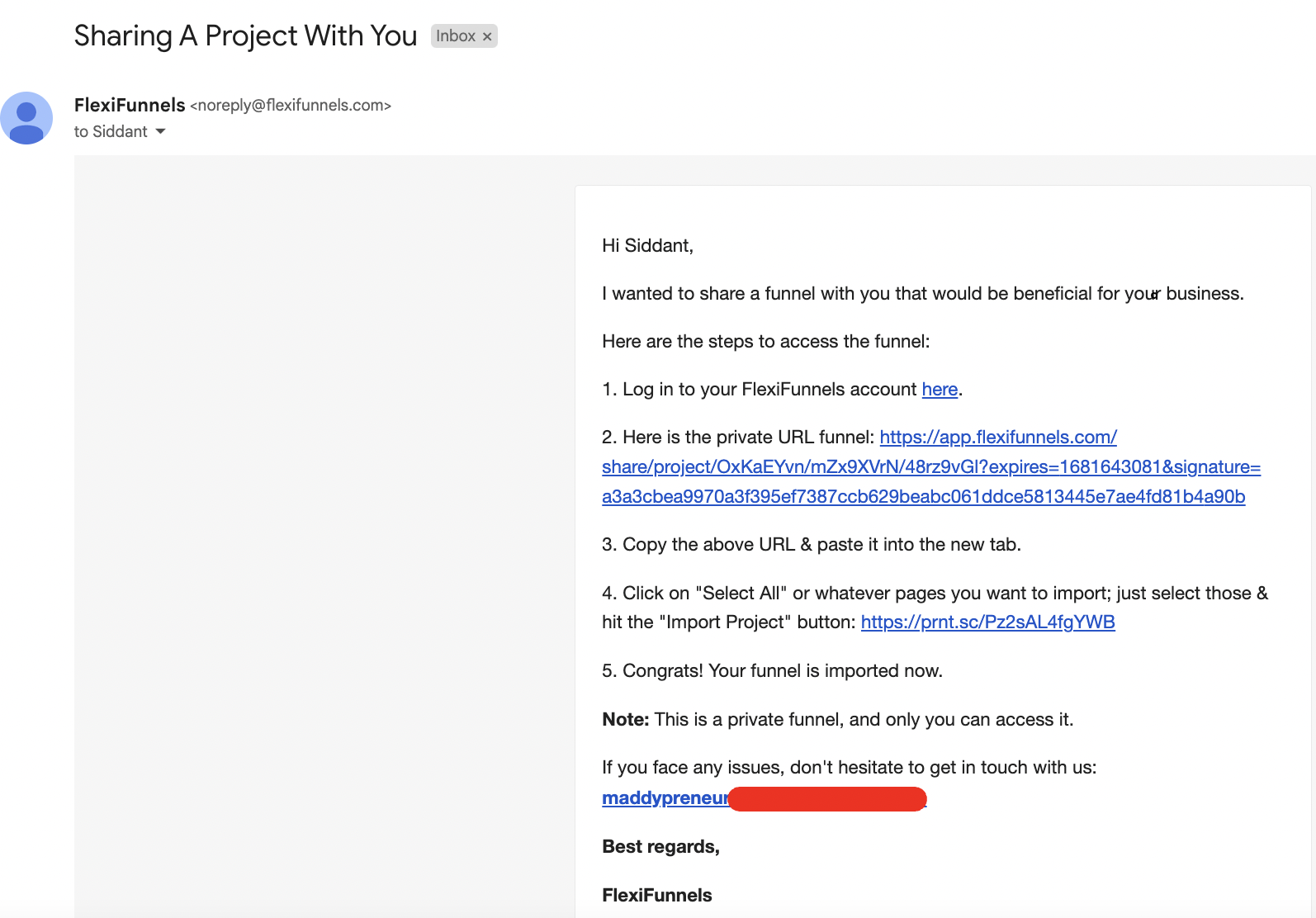
Step 10: Recipient Receives Email
Email includes:
- Subject line (from FlexiFunnels)
- Message about shared project
- Clickable link to project
- Instructions to import

Step 11: Recipient Clicks Email Link
- Recipient clicks link in email
- Taken to project preview page
- Sees all included pages
- Can click "Import Project"
Step 12: Recipient Imports
- Recipient signs into their account
- Selects pages to import
- Clicks "Import"
- Pages appear in their account
Common Situations & Quick Fixes
Situation 1: "I Shared the Link, But Person Can't Access It"
What's happening: Recipient can't view shared project.
Diagnostic steps:
- Verify link is correct
- Did you copy entire link?
- No missing characters?
- Share link works for you?
- Check recipient account
- Does recipient have FlexiFunnels account?
- If not, they need one to import
- Can view preview without account
- Verify pages were selected
- Did you select pages to share?
- If no pages selected, nothing shares
- Go back and select specific pages
- Check share permissions
- Is sharing enabled?
- Some projects might have restrictions
- Verify in project settings
Situation 2: "Person Got Email But Link Doesn't Work"
What's happening: Email link is broken or expired.
Diagnostic steps:
- Check email was sent
- Did person actually receive email?
- Check spam folder
- Verify email address was correct
- Resend link
- Go back to share settings
- Resend via email option
- Generate new link if needed
- Use public link instead
- Create public share link
- Send via email manually
- Recipient can click that link
- Check project still exists
- Did you delete the project?
- Link only works if project exists
- Verify project is still in your account
Situation 3: "Person Imported Project, But Pages Are Broken"
What's happening: Import worked, but pages look wrong.
Diagnostic steps:
- Check integrations
- External integrations (Zapier, email) might not carry over
- Person needs to reconnect integrations
- Not your issue (system works as intended)
- Check custom code
- Custom CSS/JavaScript might need updating
- Pixel codes might be different account
- Person needs to update these
- Test original in your account
- Does project work correctly in your account?
- If yes, import should work for them too
- If no, fix original first
- Verify all pages imported
- Did all pages import?
- Or only selected ones?
- If missing pages, share again with all selected
Situation 4: "Should I Share via Link or Email?"
What's happening: Unsure which sharing method to use.
Decision tree:Sharing with specific person?
→ YES: Use email (more secure)
Sharing with team/multiple people?
→ YES: Use public link (easier to share widely)
Want to track who accesses?
→ Use email (know who imported)
Want quick/casual sharing?
→ Use public link (copy/paste anywhere)
Sharing with client?
→ Use email (professional, documented)
Sharing internal template?
→ Use public link (team can self-serve)
Privacy sensitive project?
→ Use email (only specific people)
General sharing/example?
→ Use public link (anyone with link)
Situation 5: "Can Multiple People Import Same Project?"
Answer: Yes, absolutely!
How it works:You share project via link
Person A imports it → Gets their own copy
Person B imports same project → Gets their own copy
Person C imports same project → Gets their own copy
Each person has separate copy
Changes one person makes don't affect others
Original stays in your account
Was this article helpful?
That’s Great!
Thank you for your feedback
Sorry! We couldn't be helpful
Thank you for your feedback
Feedback sent
We appreciate your effort and will try to fix the article