What Are Landing Page Reports?
Landing Page Reports show detailed performance data for your pages—how many visitors came, how many converted, and more.
Think of it like a dashboard showing your business performance—visitors in, conversions out, metrics in between.
Reports tell you:
- Who visited (traffic source, location, device)
- How many visited (page views, unique visitors)
- What they did (form submissions, clicks)
- How well it performed (conversion rates)
Why Track Landing Page Reports?
Data-Driven Decisions:
✓ Know what's working (which pages convert best)
✓ Know what's not (which pages need improvement)
✓ Make improvements based on data (not guesses)
Optimization:
✓ Identify underperforming pages
✓ Test changes and measure results
✓ Scale what works
ROI Tracking:
✓ See which pages generate leads/sales
✓ Calculate cost per lead/sale
✓ Justify marketing spend
Growth:
✓ Find conversion bottlenecks
✓ Improve conversion rates
✓ Increase revenue
Step-by-Step: View Landing Page Reports
Step 1: Log In to FlexiFunnels
- Go to FlexiFunnels dashboard
- Log into your account
- You're in the main dashboard
Step 2: Go to Projects/Websites Section
- From main menu, find "Projects" or "Websites"
- Click to view your projects
- You see list of your projects/pages
Step 3: Find Your Landing Page
- Look through your projects
- Find the page you want to analyze
- Locate it in the list
Step 4: Hover Over Page
- Move your cursor over the page name or row
- Hover without clicking
- Options/icons appear on the row
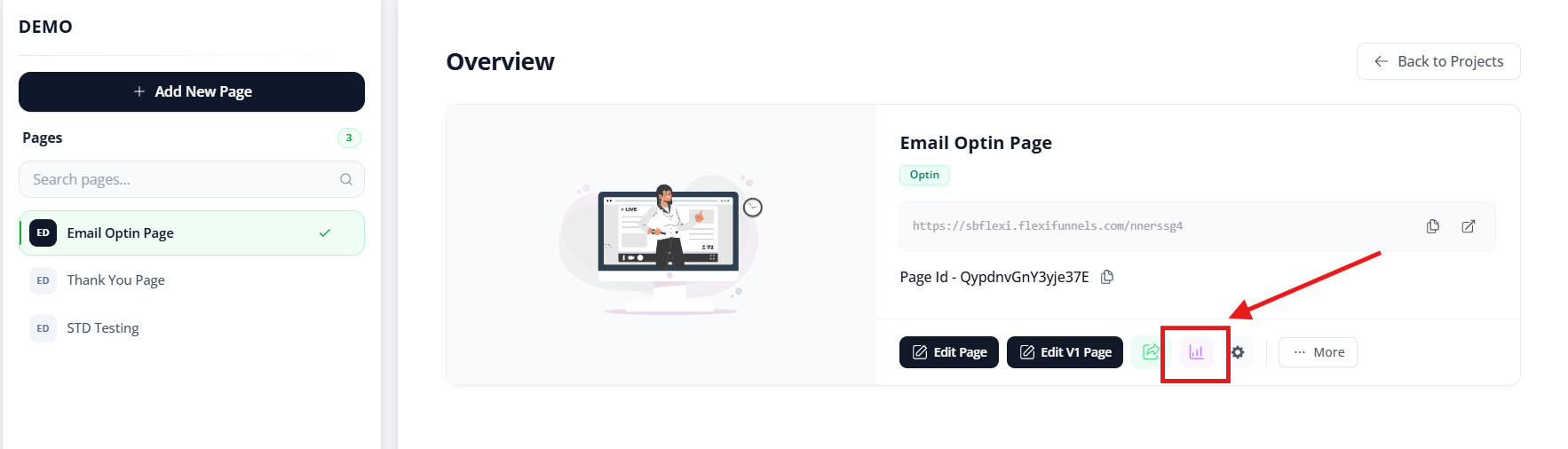
Step 5: Click Report Icon
- When hovering, you see several icons/buttons
- Look for "Report" icon or "Analytics"
- Could also say "View Report" or "Statistics"
- Click on it
Common icon locations:
- Right side of page row
- Near action buttons
- Might look like:
- Chart/graph icon
- Stats icon
- "Report" text link
Step 6: View Report Dashboard
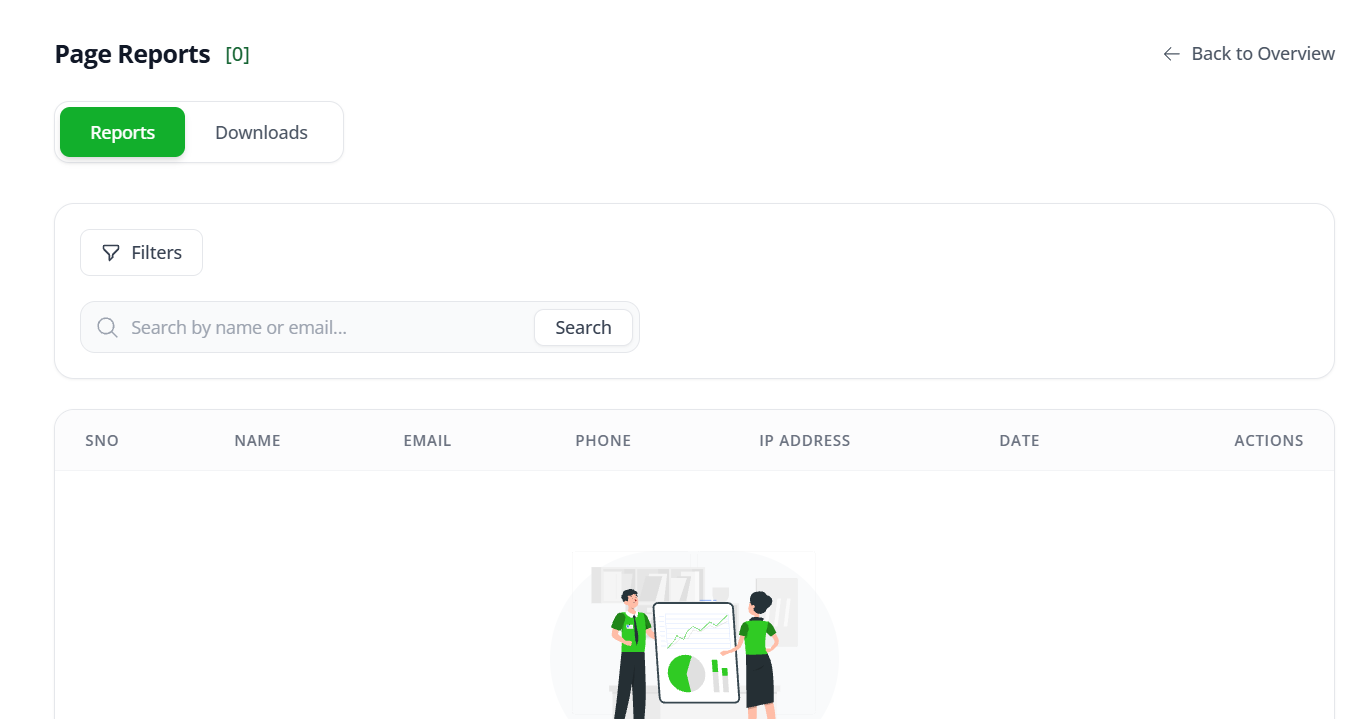
The report dashboard opens showing:
Overview Section:
- Page Views
- Unique Visitors
- Conversion Rate (%)
- Form Submissions
Graph/Chart:
- Visual timeline of traffic
- Shows trends over time
- Can see peaks and valleys
Detailed Table:
- Break-down by metric
- Details for specific time periods
- More granular data
Common Situations & Quick Fixes
Situation 1: "Report Not Loading"
What's happening: Report page won't load or shows error.
Diagnostic steps:
- Refresh page — Sometimes just needs reload
- Check if page exists — Was page recently deleted?
- Wait a moment — Reports might take time to process
- Try different browser — Rendering issue?
- Check internet connection — Clear connection needed
Situation 2: "Data Seems Wrong (Too High/Low)"
What's happening: Numbers don't match expectations.
Diagnostic steps:
- Check date range — Are you looking at right time period?
- Verify filter — Are filters applied (device, source)?
- Check for bot traffic — Some analytics include bots
- Cross-reference — Compare with other tools (Google Analytics)
- Wait for data — Sometimes reports take hours to update
Situation 3: "How Do I Export/Download Report?"
What's happening: Want to save or share report data.
Options:
- Look for "Download" or "Export" button in report
- Might be PDF, CSV, or Excel format
- Right-click and "Save As" might work
- Screenshot report if export not available
Was this article helpful?
That’s Great!
Thank you for your feedback
Sorry! We couldn't be helpful
Thank you for your feedback
Feedback sent
We appreciate your effort and will try to fix the article