Overview
A Membership Product allows you to sell online courses, digital content, or membership access through FlexiFunnels. Before creating a Membership Product, you'll need to create a Membership Project and add at least one bundle, as the product grants access to a bundle after a successful purchase.
Follow the steps below to create and configure your Membership Product.
Before You Begin
Ensure you have completed the following:
- A Membership Project has been created.
- At least one bundle has been added to the Membership Project.
- Your Sales Page and Checkout Page are ready (optional, but recommended).
- Your payment gateway (such as Razorpay or Stripe) is connected.
Step 1: Create the Membership Project
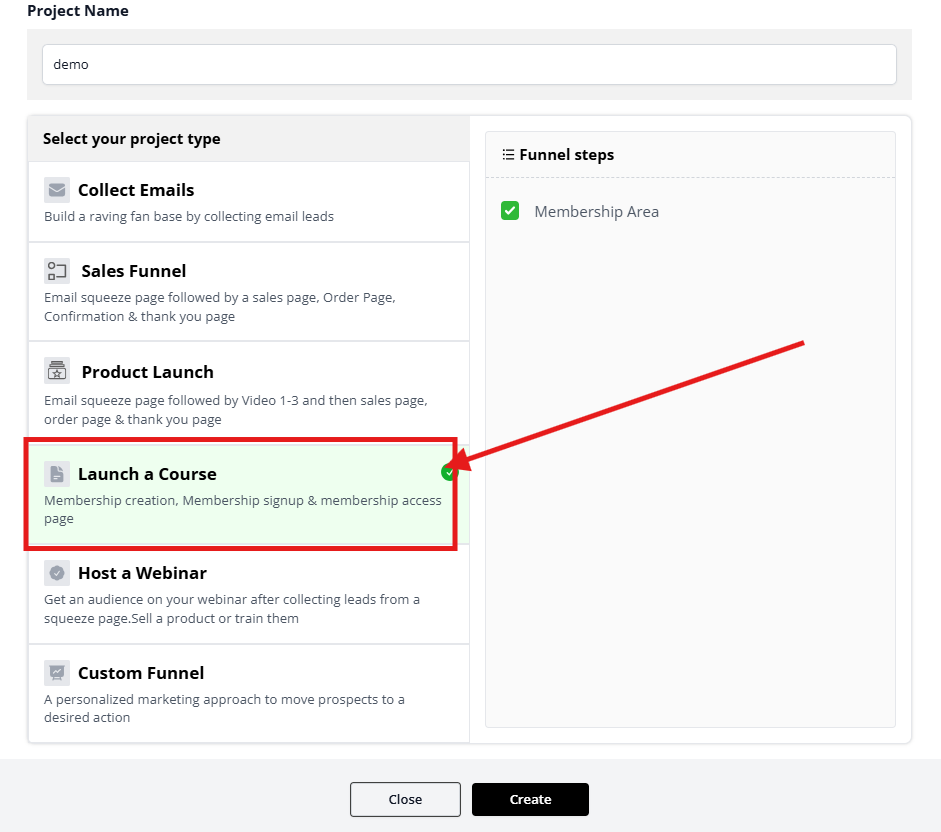
Go to your dashboard and create a new Membership Project.
Fill in all the required details and complete the setup of the membership project.
Step 2: Add Bundle to the Membership Project (Important Step)
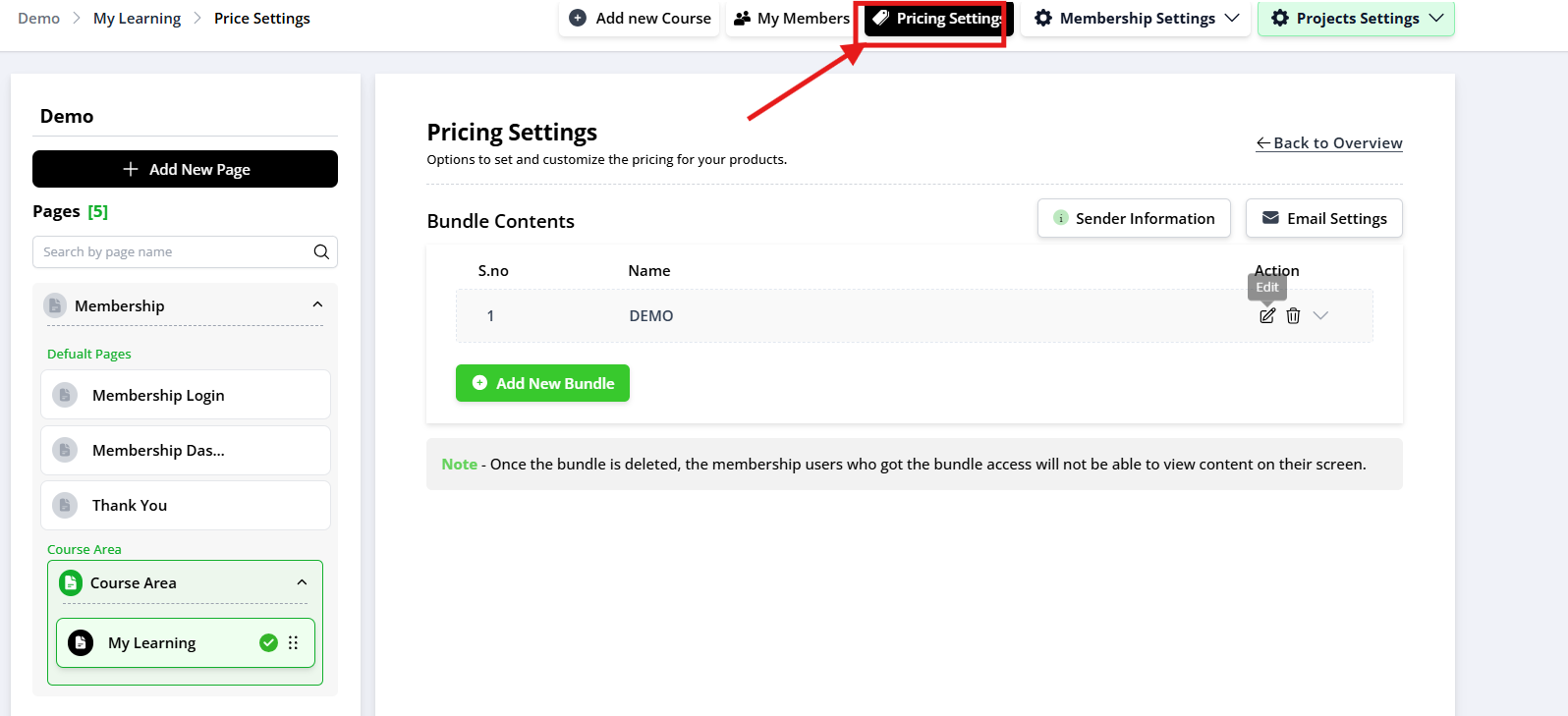
After creating the Membership Project, go to the same project.
Navigate to Pricing Settings.
There, you will find the “Add Bundle” option — add a bundle inside the Membership Project.
⚠️ This step is mandatory before creating the product. Without this, you won’t be able to link the bundle during product setup.
 Step 3: Create a New Product
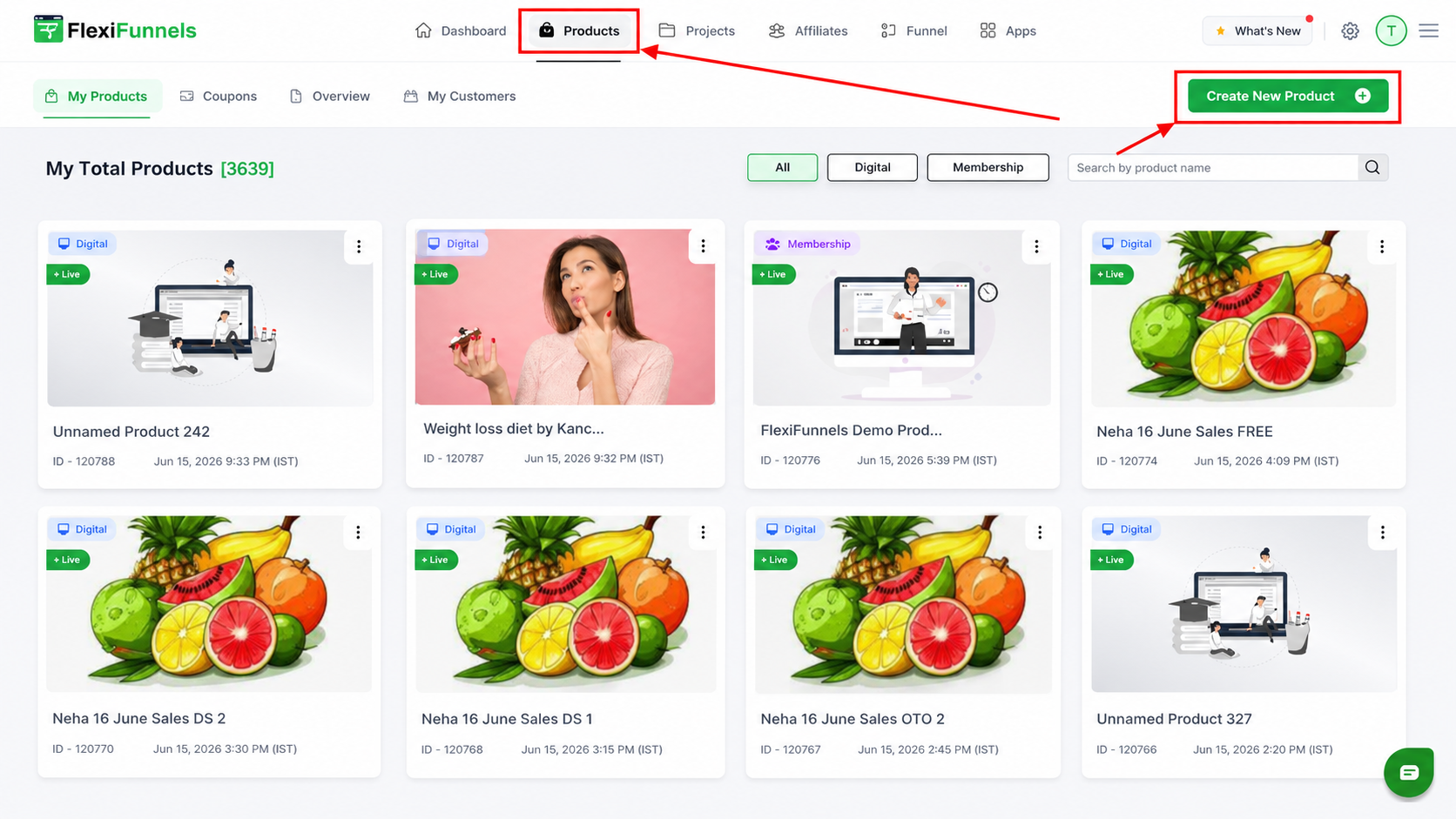
Go to the Product tab in your dashboard.
Click on “Create New Product”.
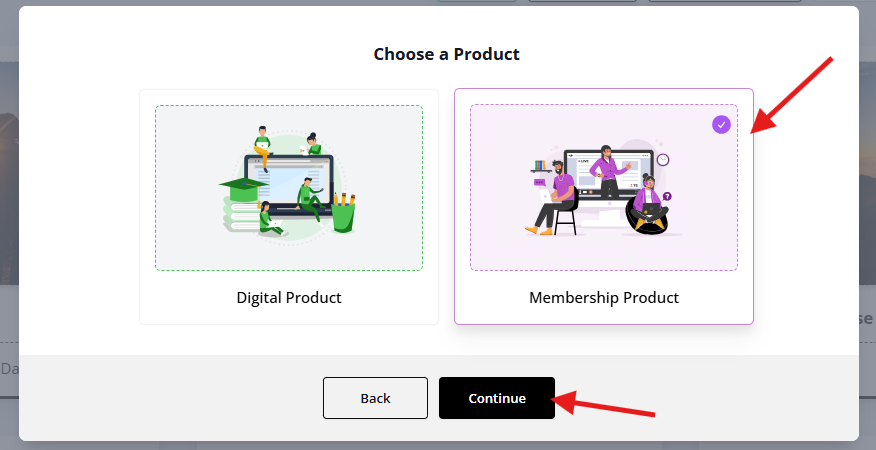
Choose the “Membership Product” option.
Step 4: Configure Membership Product Settings
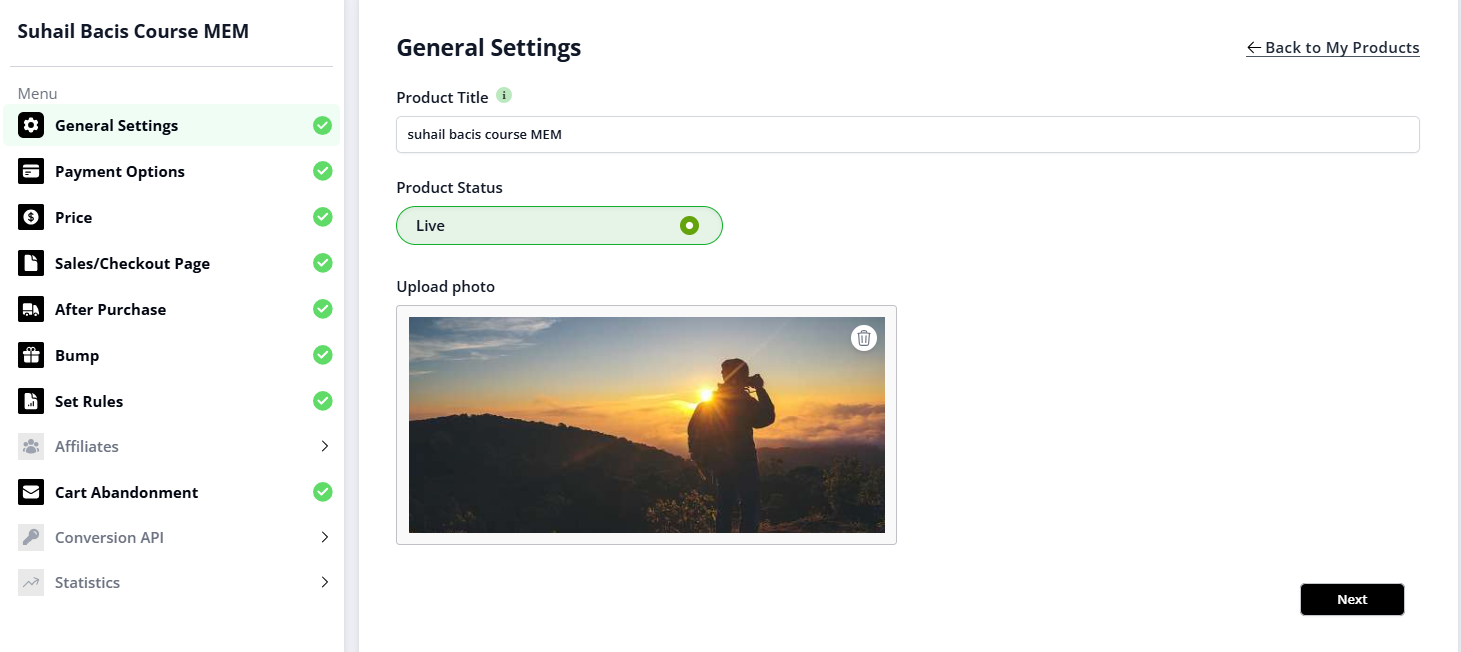
General Settings
Enter the Product Name.
Payment Option
Connect your Payment Gateway here (Razorpay, Stripe, etc.).
Pricing Option
Set the Product Price.
Sales & Checkout Page
Connect your Sales Page and Checkout Page here.
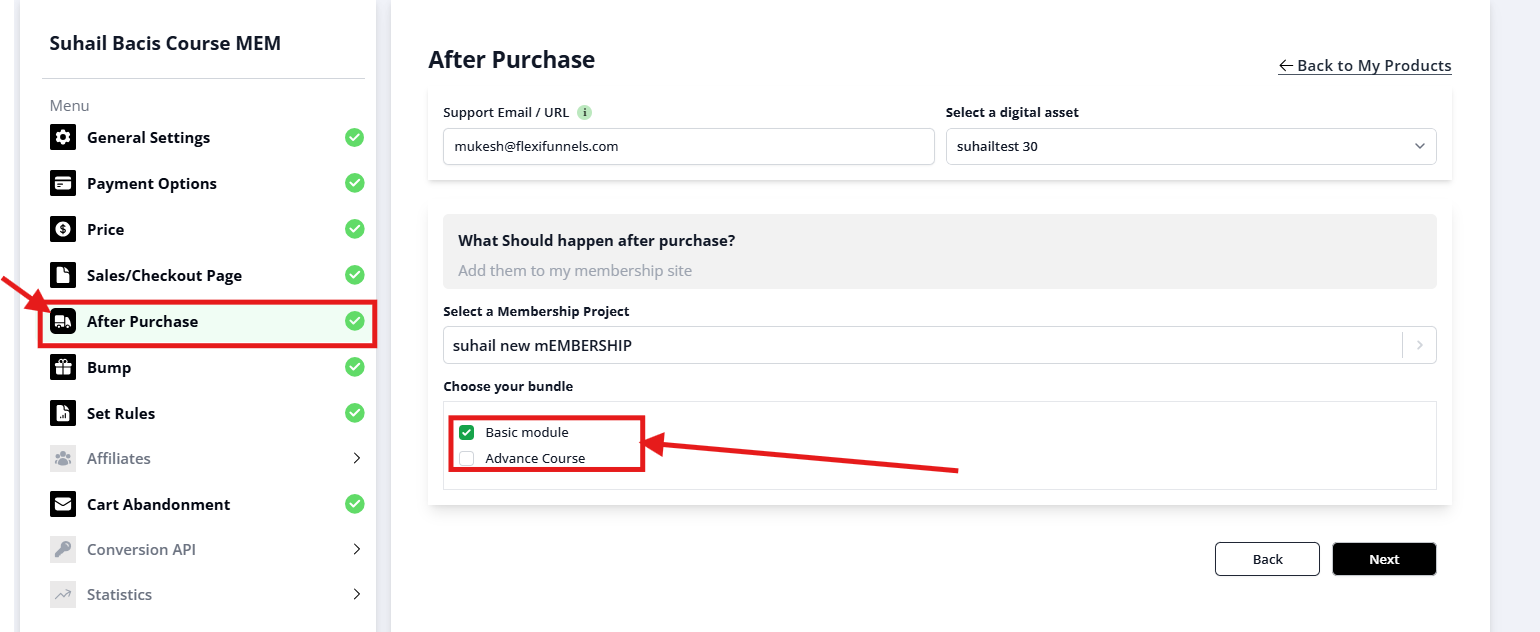
After Purchase Settings
Add a Support Email for customer queries.
Under “What should happen after purchase?”, select “Select a Membership Project”.
Choose your Membership Project.
Then, click on “Choose Your Bundle” from the dropdown.
Save the Product
Once all the details are filled, save the product.
Step 5: Connect the Product with the Sales Page
Go back to your Sales Page settings.
Link the newly created Membership Product to the page.
Test the flow to ensure the purchase redirects correctly to the bundle access.
Common Scenarios
I cannot select a bundle while creating the Membership Product.
This usually happens because no bundle has been created inside the Membership Project.
Solution:
- Open your Membership Project.
- Go to Pricing Settings.
- Create a bundle.
- Return to the Membership Product and select the bundle.
My customers completed the payment but cannot access the course.
Check the following:
- Is the correct Membership Project selected?
- Is the correct bundle assigned?
- Was the product linked to the Sales Page?
- Did the payment complete successfully?
- Is the customer using the same email address that was used during checkout?
My Membership Project is not visible in the product settings.
Verify that:
- The Membership Project has been created successfully.
- You are working in the correct workspace.
- The project hasn't been deleted or archived.
The payment gateway is not showing.
Check that:
- Your payment gateway is connected.
- The integration is active.
- All required credentials have been configured correctly.
Before Contacting Support
Before reaching out to our support team, please verify the following:
- ✅ Your Membership Project has been created.
- ✅ A bundle has been added to the Membership Project.
- ✅ The Membership Product is linked to the correct bundle.
- ✅ Your payment gateway is connected and active.
- ✅ Your Sales Page is linked to the Membership Product.
- ✅ The product has been saved successfully.
- ✅ You have completed a test purchase.
- ✅ The customer is logging in with the same email address used during purchase.
If the issue still persists after completing the above checks, please contact our support team with:
- Screenshots of your Membership Product settings.
- Membership Project and Bundle settings.
- Sales Page settings.
- The order details (if applicable).
- A brief description of the issue and the steps you have already tried.
Was this article helpful?
That’s Great!
Thank you for your feedback
Sorry! We couldn't be helpful
Thank you for your feedback
Feedback sent
We appreciate your effort and will try to fix the article