What is the Inline Editor, and why use it?
The Inline Editor is the little toolbar that pops up right where you're typing whenever you edit text on your page. Instead of digging through separate settings panels, you select your words and a row of formatting buttons appears floating above them — bold, italic, color, links, and more.
Why does it matter? It's the fastest way to style text. Want one word bold and red? Highlight it, tap two buttons, done. It works just like the toolbar in a word processor (Microsoft Word, Google Docs), so it'll feel familiar.
What does "inline" mean? It means "right in place." The toolbar appears in line with your text, exactly where you're working — not in a side panel you have to hunt for.
Quick reminder on where elements live: Every FlexiFunnels page follows the Section → Row → Element structure. The Inline Editor appears whenever you edit a text-based element (like a Text, Headline, or Button element) inside a Row.
Steps to Use the Inline Editor:
Step 1: Open your editor
Open your Landing Page Editor and go to the page or section with the text you want to format.
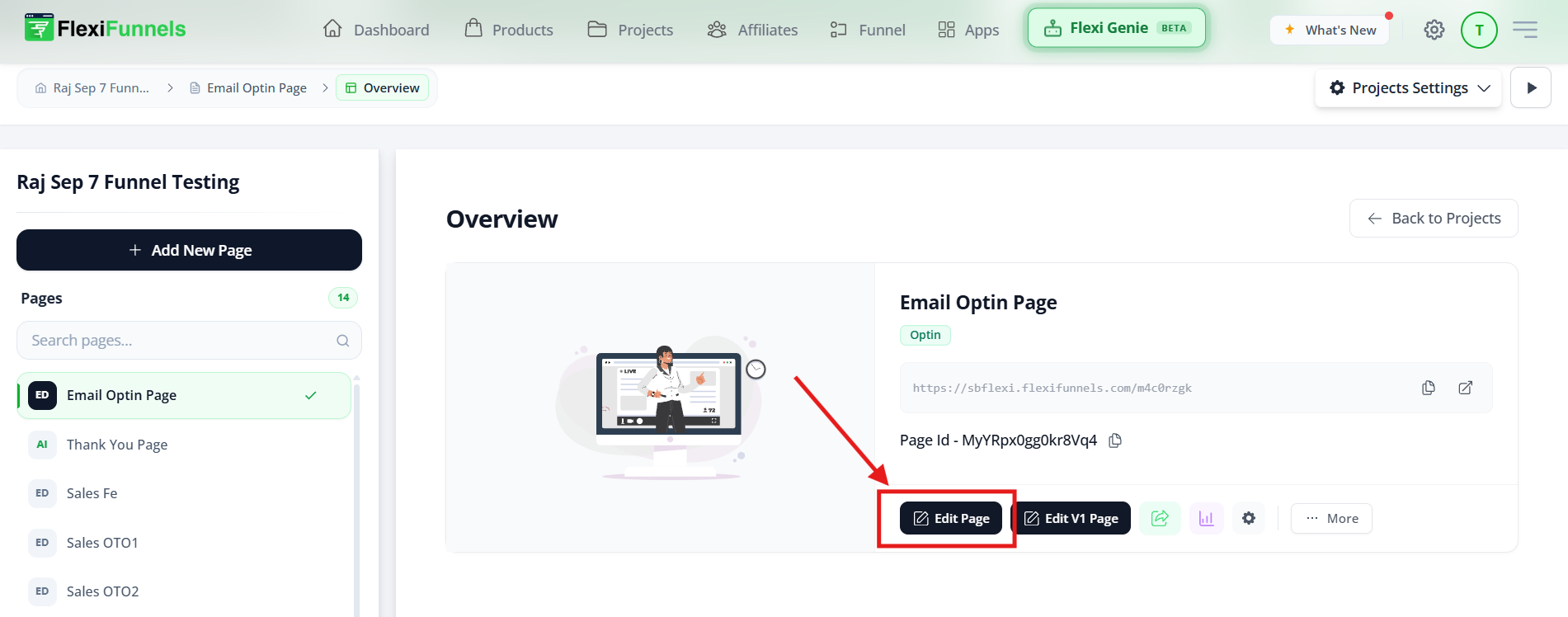
Step 2: Add or select your text
Either type new content, or click on existing text you want to change.

Step 3: Bring up the toolbar
Double-click the text, or highlight (drag-select) the exact words you want to format. The inline toolbar appears immediately above your selection.
? Key idea: Formatting applies only to what you've selected. To bold a single word, select just that word. To color a whole sentence, highlight the whole sentence first.
| Button | What it does |
|---|---|
| B | Bold — makes text thick and heavy for emphasis. |
| I | Italic — slants text, often for titles or subtle emphasis. |
| U | <u>Underline</u> — draws a line under text. |
| S | |
| X² | Superscript — small raised text (like the "2" in cm² or a footnote mark). |
| X₂ | Subscript — small lowered text (like the "2" in H₂O). |
| Link icon | Turns selected text into a clickable hyperlink to any page. |
| Font Size dropdown | Makes text bigger or smaller. |
| Font Family dropdown | Changes the typeface (style of lettering). |
| A▼ | Changes the text color. |
| Eye icon | Hides or reveals the content. |
| Undo icon | Reverses your last action. |
| Cloud icon | Saves your changes. |
What's a "hyperlink"? It's clickable text that sends visitors somewhere when tapped — another page, a website, or a section of your own page. The blue underlined words you click on the web are hyperlinks.

Step 5: Apply and save
Once your text looks right, click anywhere outside the toolbar to apply. If your changes don't auto-save, use the Cloud icon (save), then publish when you're ready for visitors to see them.
Common situations & quick fixes
Check these before contacting support.
"The toolbar won't appear." → Make sure you've double-clicked or highlighted actual text inside a text element. The inline toolbar only shows when text is selected — clicking empty space or a non-text element won't trigger it.
"My formatting applied to the wrong words / too much text." → Formatting follows your selection. Undo (the undo icon), then carefully highlight only the words you want before tapping a button.
"I added a link but it doesn't work / goes to the wrong place." → Re-select the linked text, open the Link icon, and check the URL. It should be the complete address starting with https://. Test it on the published page — links sometimes don't fire inside the editor.
"My font/color change isn't showing on the live page." → Save (the Cloud icon) and then publish. Reload the live page and clear your browser cache if you still see the old version.
"I made a mistake — how do I go back?" → Use the Undo icon to reverse your last action. Tap it repeatedly to step back through several changes.
"My text disappeared after I clicked something." → You may have hit the Eye icon, which hides content. Click it again to reveal the text. If that's not it, use Undo.
"The font size looks fine on desktop but huge/tiny on mobile." → Switch to mobile view in the editor. Text sizes can be adjusted separately per device, so set a comfortable size for the mobile screen too.
"My changes vanished when I left the page." → They likely weren't saved. Always click the Cloud icon (or confirm auto-save) before navigating away, then publish.
Need more help?
If the inline editor still isn't working after the steps above, submit a ticket and include:
- The page URL where you're editing
- Which button or formatting isn't working
- What you expected vs. what's actually happening
- A screenshot of the text and toolbar
Common situations & quick fixes
Check these before contacting support.
"The toolbar won't appear." → Make sure you've double-clicked or highlighted actual text inside a text element. The inline toolbar only shows when text is selected — clicking empty space or a non-text element won't trigger it.
"My formatting applied to the wrong words / too much text." → Formatting follows your selection. Undo (the undo icon), then carefully highlight only the words you want before tapping a button.
"I added a link but it doesn't work / goes to the wrong place." → Re-select the linked text, open the Link icon, and check the URL. It should be the complete address starting with https://. Test it on the published page — links sometimes don't fire inside the editor.
"My font/color change isn't showing on the live page." → Save (the Cloud icon) and then publish. Reload the live page and clear your browser cache if you still see the old version.
"I made a mistake — how do I go back?" → Use the Undo icon to reverse your last action. Tap it repeatedly to step back through several changes.
"My text disappeared after I clicked something." → You may have hit the Eye icon, which hides content. Click it again to reveal the text. If that's not it, use Undo.
"The font size looks fine on desktop but huge/tiny on mobile." → Switch to mobile view in the editor. Text sizes can be adjusted separately per device, so set a comfortable size for the mobile screen too.
"My changes vanished when I left the page." → They likely weren't saved. Always click the Cloud icon (or confirm auto-save) before navigating away, then publish.
Need more help?
If the inline editor still isn't working after the steps above, submit a ticket and include:
- The page URL where you're editing
- Which button or formatting isn't working
- What you expected vs. what's actually happening
- A screenshot of the text and toolbar
Was this article helpful?
That’s Great!
Thank you for your feedback
Sorry! We couldn't be helpful
Thank you for your feedback
Feedback sent
We appreciate your effort and will try to fix the article