What Does Saving Sections/Rows Mean?
Saving means creating a reusable copy of your section or row that you can use on other pages.
Think of it like saving a recipe—instead of rebuilding the same dish every time, you save it so you can make it again instantly.
When you save:
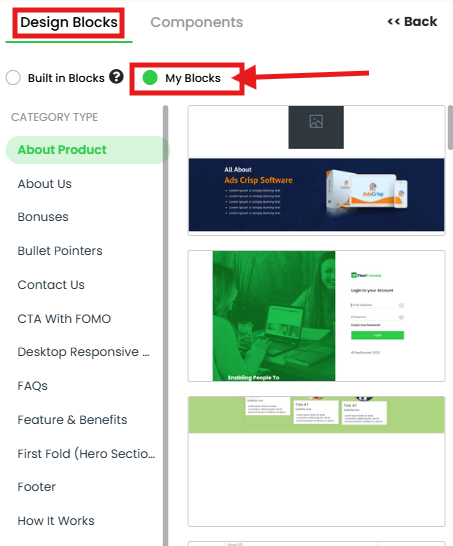
- Section or row is stored in "My Blocks" library
- You can add it to any other page
- No rebuilding needed (save hours of work)
- Maintains original design (stays consistent)
Why Save Sections & Rows?
Speed:
✓ Build once, use many times
✓ Skip rebuilding on new pages
✓ Hours of time savings
Consistency:
✓ Same design across pages
✓ Brand consistency
✓ Professional appearance
Efficiency:
✓ Reuse proven designs
✓ Scale what works
✓ Work faster
Quality:
✓ Use optimized designs
✓ Maintain standards
✓ Avoid mistakes
Step-by-Step: Save a Section
Step 1: Open Your Page Editor
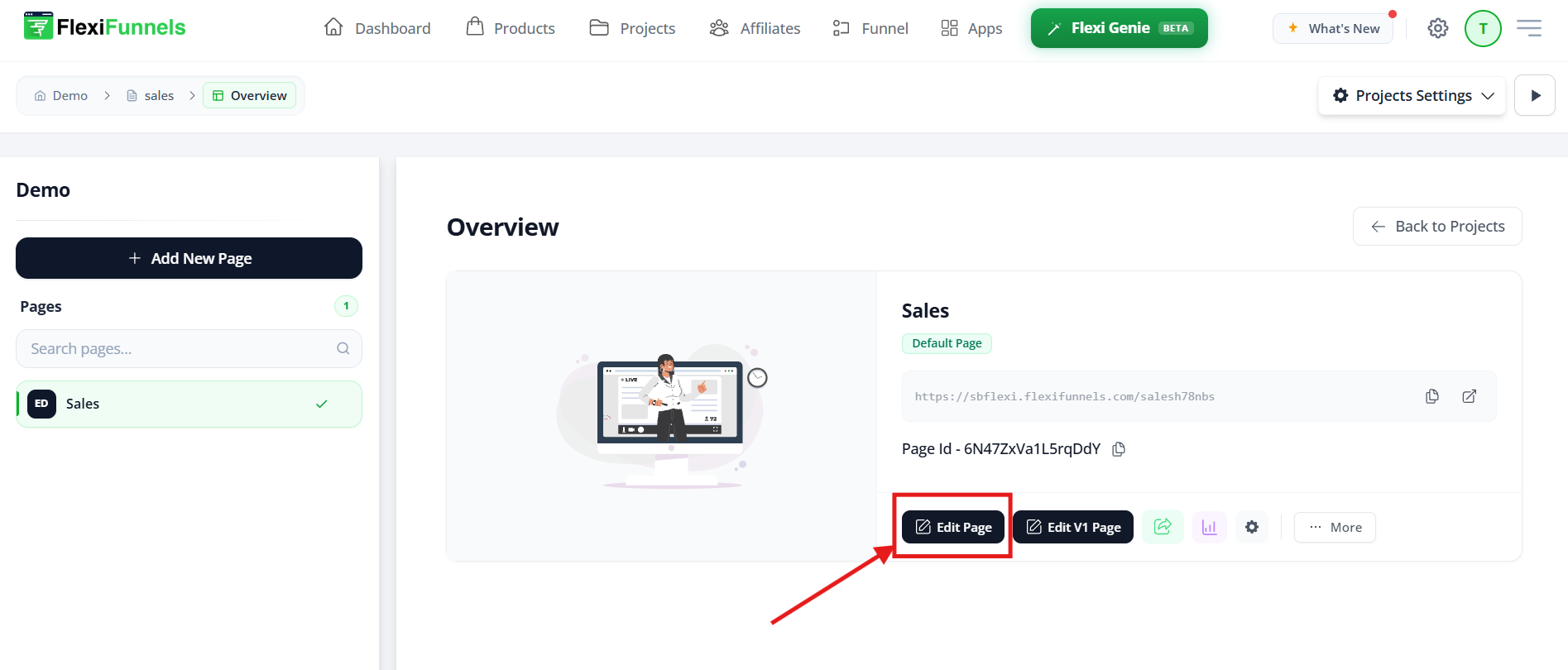
- Log into FlexiFunnels
- Open a project
- Click "Edit Page"
- You're in the page editor
Step 2: Create Your Section
- Add a section to your page
- Design it completely:
- Add rows
- Add elements (text, images, buttons)
- Add colors, effects, styling
- Make it look exactly how you want
Step 3: Test Your Section
- Make sure everything works
- Check on desktop and mobile
- Verify all links function
- Ensure design looks professional
Don't save until happy with it!
Step 4: Select the Section
- Click on the section itself
- Not on elements inside (the section container)
- Entire section highlights
- You should see section settings available
Step 5: Open Section Settings
- Look for gear icon ⚙️ or "Settings" button
- Click it
- Settings panel opens on right
Step 6: Find "Save" Option
- In settings panel, look for "Save" button
- Or "Save as Block" option
- Or "Add to My Blocks"
- Exact wording varies by version

Step 7: Name Your Saved Section
- Click "Save"
- Dialog appears asking for name
- Enter descriptive name
- Examples:
- "Hero - Sales Page"
- "Features - 3 Column"
- "Testimonials"
- "CTA - Free Download"
Naming tips:
✓ Be specific (clear what it is)
✓ Include layout (2-column, 3-column)
✓ Include purpose (sales, lead gen, etc.)
Step 8: Confirm Save
- Click "Save" or "Add to My Blocks"
- Confirmation message appears
- Section is now saved!
✓ Section saved to My Blocks!
Step-by-Step: Save a Row
Process is almost identical to saving sections:
Step 1-3: Same as Section
Follow Steps 1-3 above (create and test row)
Step 4: Select the Row
- Click on the row itself
- Not on columns or elements inside
- Entire row highlights
Step 5-8: Same as Section
Follow Steps 5-8 above (settings, name, save)
Result: Row is saved to My Blocks!
Common Situations & Quick Fixes
Situation 1: "I Can't Find the Save Option"
What's happening: Save button isn't visible in settings.
Diagnostic steps:
- Verify section is selected
- Click directly on section container
- Not on elements inside
- Section border should show
- Check settings panel
- Is it open?
- Are you in right tab?
- Might be under different tab name
- Look for alternative button
- "Add to My Blocks"
- "Save Block"
- "Save as Block"
- Wording varies by version
- Check if already saved
- Is this section already in My Blocks?
- Can't save same block twice
- Delete old version first if needed
Situation 2: "Saved Block, But Can't Find It in My Blocks"
What's happening: Block was saved but isn't showing.
Diagnostic steps:
- Refresh editor
- Close editor and reopen
- Blocks appear after refresh
- Check My Blocks tab
- Is My Blocks tab open?
- Click it to expand
- Search for block
- If My Blocks is long list
- Search by name
- Or scroll to find
- Check name
- What did you name it?
- Look for that name
- Might be further down list
Situation 3: "Should I Save Section or Row?"
What's happening: Unsure what to save.
Decision tree:
Are you saving entire self-contained section?
→ YES: Save as Section
Are you saving just layout/structure?
→ YES: Save as Row
Do you want to reuse with different content?
→ YES: Save as Row (more flexible)
Do you want to reuse entire section as-is?
→ YES: Save as Section (faster, complete)
In doubt?
→ Save as Row (more versatile, can use in different sections)
Situation 4: "I Changed Saved Block, Did It Update All Uses?"
What's happening: You edited a saved block, wondering if other pages updated.
Answer: No, edits don't propagate.
How it works:
When you save a section:
→ Creates a template copy
When you add from My Blocks:
→ Adds a copy to that page
Edit that copy:
→ Only affects that page
→ Original in My Blocks stays the same
→ Other pages aren't affected
Each use is independent!
Situation 5: "My Blocks is Getting Cluttered"
What's happening: Too many saved blocks, hard to find ones you want.
Solutions:
- Delete unused blocks
- Right-click saved block
- Click "Delete" or "Remove"
- Cleans up library
- Rename for clarity
- Right-click block
- Click "Rename"
- Use clear naming convention
- Organize by folder/category
- If available, create categories
- Group similar blocks
- Easier to find
- Keep only best blocks
- Delete old/outdated designs
- Keep only blocks you actually use
- Maintain clean library
Was this article helpful?
That’s Great!
Thank you for your feedback
Sorry! We couldn't be helpful
Thank you for your feedback
Feedback sent
We appreciate your effort and will try to fix the article