What is the Quote element, and why use it?
The Quote element displays a short piece of text as a highlighted, stand-out quotation — set apart from the rest of your page with special styling so it grabs attention.
Why use it? Because some words deserve the spotlight. A Quote element is perfect for:
- Customer testimonials — "This product changed my business!" pulled out so visitors actually notice it.
- Famous or inspiring quotes — to set a tone or reinforce your message.
- Key takeaways — pulling one powerful line out of a paragraph so it sticks.
It's the difference between a sentence buried in text and a sentence that stops people mid-scroll.
Quick reminder on where elements live: Every FlexiFunnels page follows the Section → Row → Element structure. A Section is a horizontal band of the page, a Row sits inside it, and an Element (like this Quote) sits inside a Row. So have a Row ready before adding the quote.
Quick Video:
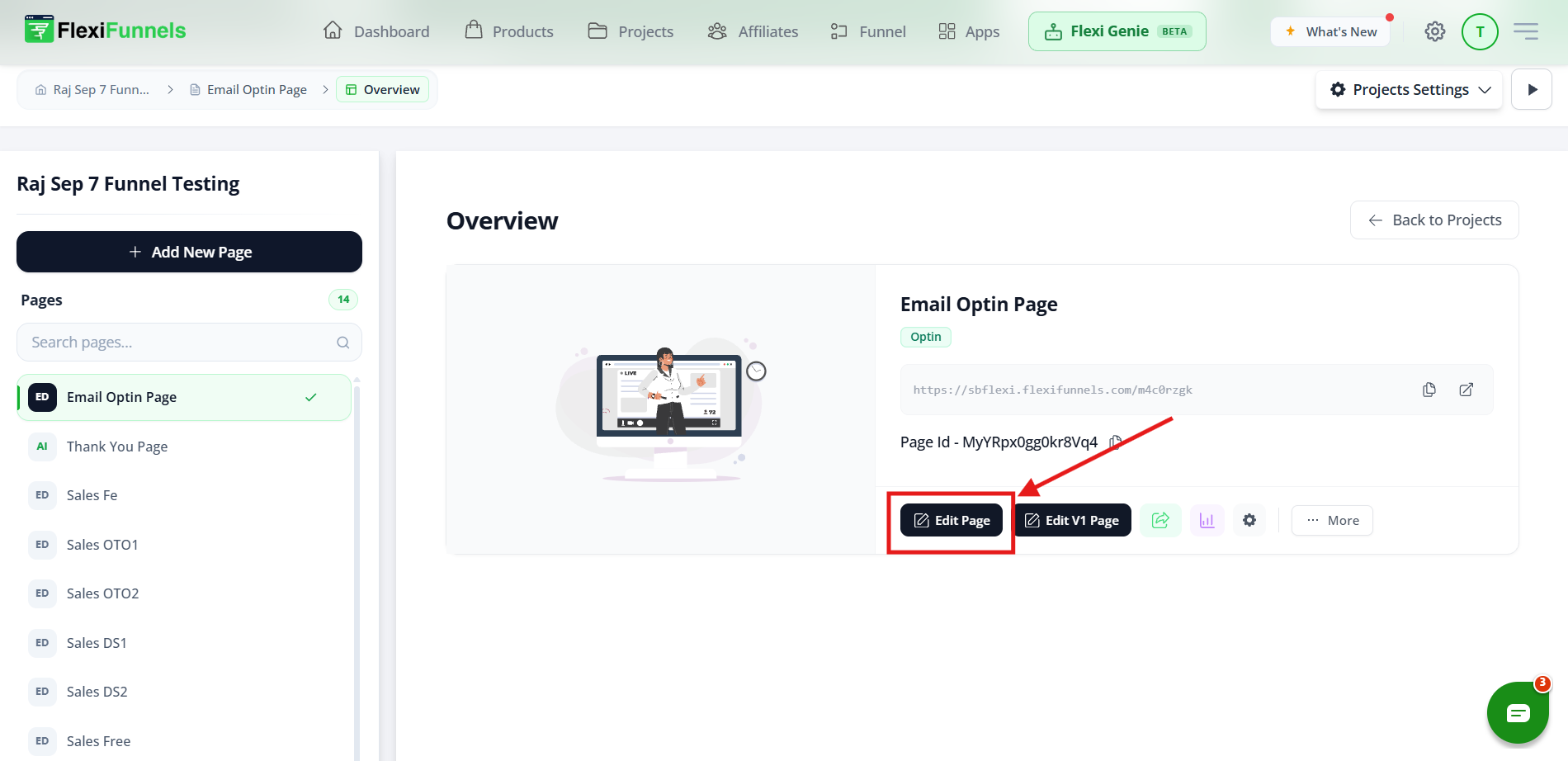
Step 1: Open your editor
Open the landing page editor for the page where you want the quote to appear.
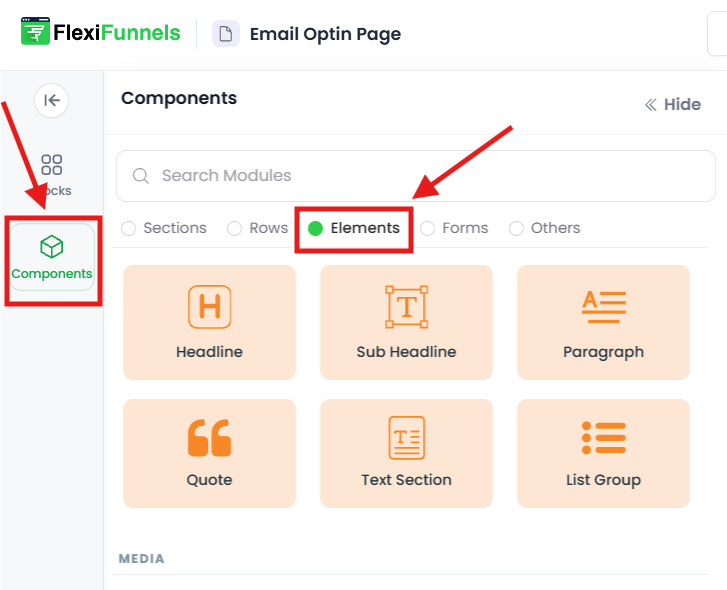
Step 2: Go to Components → Elements
- In the menu that appears, select the Components tab.
- Then open the Elements category under Components.
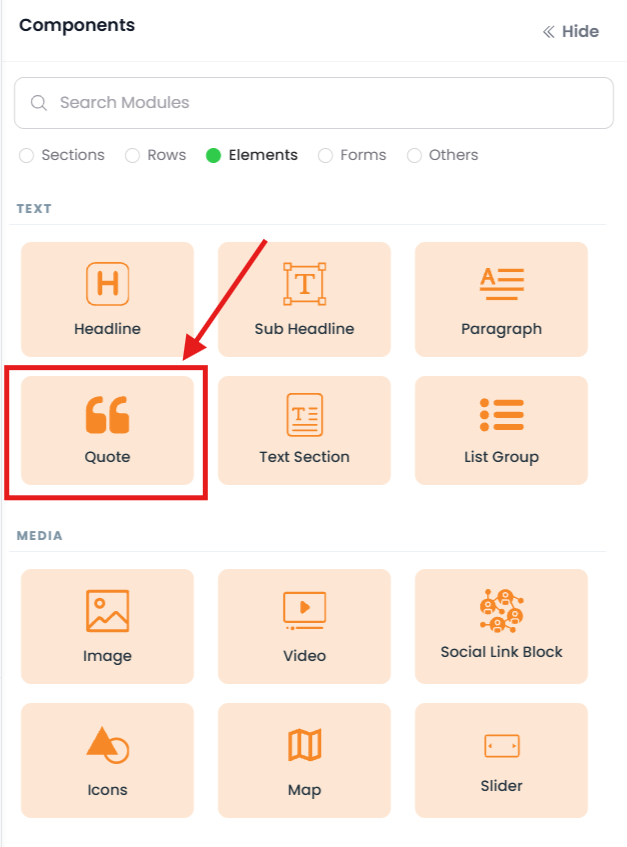
Step 4: Add the Quote element
- Inside the Elements section, find the Quote option.
- Drag and drop it onto your page wherever you want it to appear.
Once it's on the page, click it to edit the text and styling, then save.
Common situations & quick fixes
Check these before contacting support.
"I can't find the Quote element in the list." → Make sure you're under Components → Elements (not Sections or Rows). The elements list can be long — scroll through it, or use the search box at the top of the panel if one is available.
"I dragged the Quote element but it didn't land where I wanted." → Elements snap into a Row. Drag it again and release it inside the specific Row where you want it. If there's no Row in that spot yet, add one first, then drop the quote in.
"How do I change the quote text?" → Click directly on the element on the page to select it, then edit the text. Its style options (font, color, size) appear in the element's settings panel.
"My quote looks plain — how do I make it stand out more?" → Open the element's Style Settings to adjust font size, color, and styling so the quote contrasts with the surrounding text. Larger, italic, or colored text helps it pop.
"My changes show in the editor but not on the live page." → Save and publish, then check the live URL. If you still see the old version, clear your browser cache and reload.
"It looks fine on desktop but awkward on mobile." → Switch to mobile view in the editor. Very long quotes can wrap awkwardly on narrow screens — shorter, punchier quotes usually read best.
Need more help?
If you're still stuck after the steps above, submit a ticket and include:
- The page URL where you're adding the quote
- What's happening vs. what you expected
- A screenshot of the editor showing the issue
Was this article helpful?
That’s Great!
Thank you for your feedback
Sorry! We couldn't be helpful
Thank you for your feedback
Feedback sent
We appreciate your effort and will try to fix the article