What Is a Template?
A template is a pre-designed page that you can reuse over and over without rebuilding it.
Think of it this way: Instead of designing a new landing page from scratch every time, you save one design and use it as a starting point for future campaigns.
Example:
- You design a beautiful "Free Webinar Signup" page
- You save it as a template
- Next month, you want to promote a different webinar
- Instead of redesigning, you load the template and just change the text and images
- Done in 5 minutes instead of an hour
Why Save Pages as Templates?
You should save a page as a template if you plan to use a similar design multiple times.
Real-world scenarios:
- Running multiple webinar campaigns — Same layout, different dates/topics
- Selling different products — Same sales page design, different product names
- A/B testing — Save a winner so you can reuse it for future tests
- Seasonal campaigns — Save a "Black Friday" design to use every year
- Team consistency — All your campaigns use the same professional design
Don't save as template if:
- It's a one-time, unique page you'll never use again
- You only need one or two pages total
Step-by-Step: Save a Landing Page as a Template
Step 1: Open Your Landing Page in the Editor
- Log in to FlexiFunnels
- Go to Projects and find the project containing the page you want to save
- Click on the page name to open it
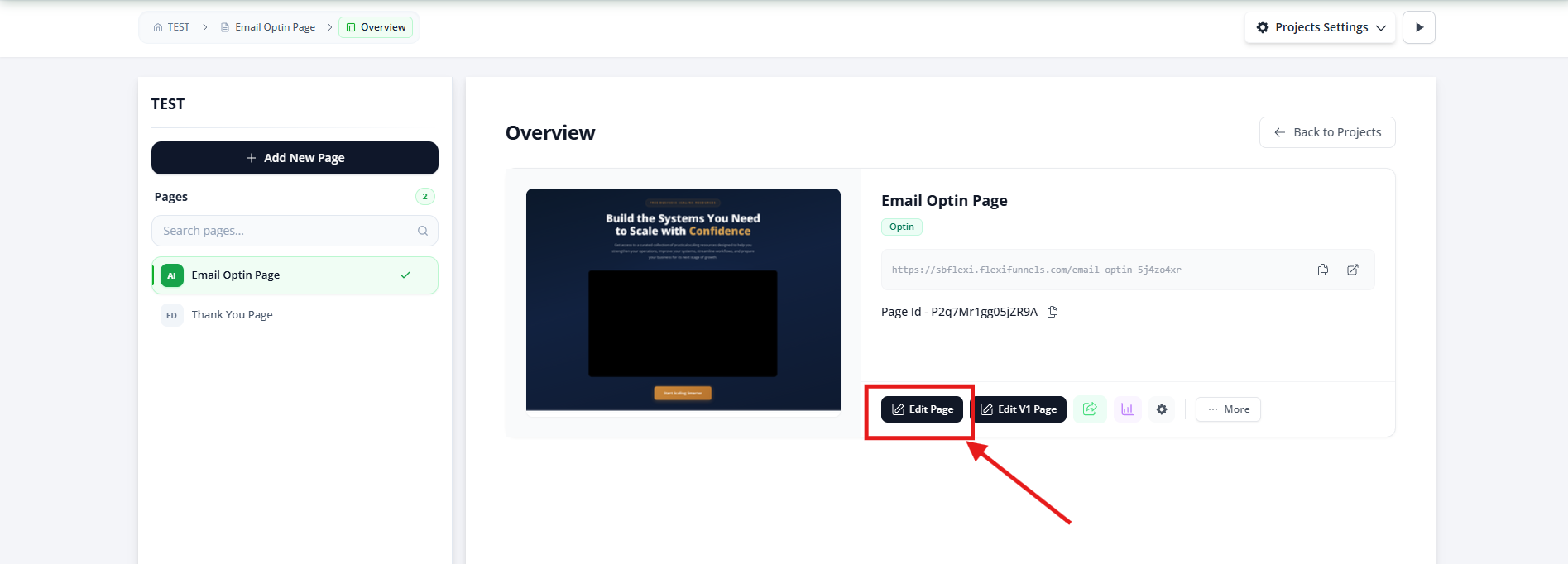
- Click "Edit Page" or the editor icon
- The page editor opens
✓ You're now in the editor with your page visible.
Step 2: Open the Actions Menu
- Look at the top of the editor (usually top-right corner)
- You should see a menu button labeled "Actions," "Page Actions," or "⋯" (three dots)
- Click it
A dropdown menu appears with various options.
Step 3: Find and Click "Save as Template"
- Look through the dropdown menu for an option labeled "Save as Template"
- Click it
A popup or dialog box appears asking you to name and categorize your template.

Step 4: Name Your Template
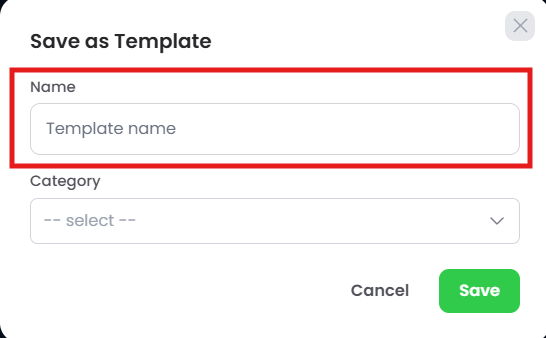
- In the "Template Name" field, enter a clear, descriptive name
- This is how you'll find this template later, so make it meaningful
Good template names:
- "Webinar Signup - Blue Theme"
- "Product Sales Page - Video Background"
- "Lead Magnet - Free Guide"
- "Event Registration - 2-Step"
Poor template names:
- "Page 1" (too vague)
- "Template" (not descriptive)
- "Untitled" (you won't remember what it is)
Step 5: Choose a Category
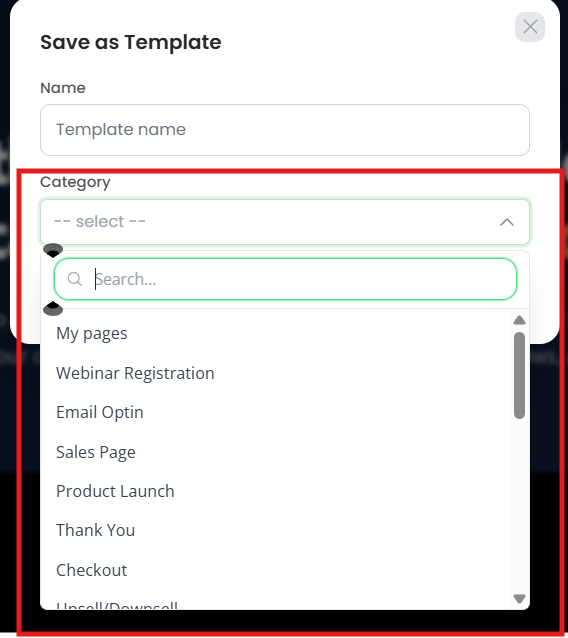
- In the "Category" dropdown, choose an existing category OR create a new one
- Categories help organize your templates so you can find them later
Example categories:
- "Webinars"
- "Product Sales"
- "Lead Magnets"
- "Events"
- "Seasonal Campaigns"
Step 6: Click "Save" or "Create Template"
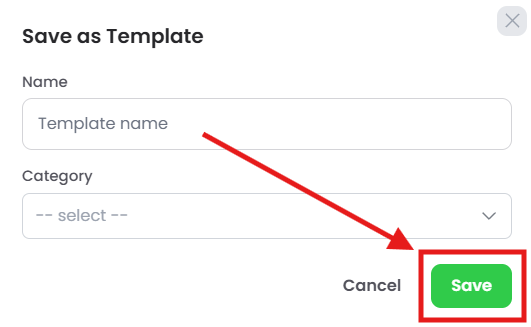
- Click the "Save" or "Create Template" button
- You should see a confirmation message like "Template saved successfully"
✓ Your template is now saved!
Access and Use Your Saved Template
Now that you've saved a template, here's how to use it:
Method A: When Creating a New Page
- Go to Projects
- Click "+ Create New" to start a new project
- Select "Landing Page" category
- Instead of choosing a pre-made template, look for a "My Templates" or "Saved Templates" section
- Click your saved template
- FlexiFunnels creates a new page using your template design
- Customize it for your new campaign
Method B: From the Templates Library
- In the main FlexiFunnels dashboard, look for a "Templates" section
- Find the category you created (e.g., "Webinars")
- Find your template name
- Click "Use Template" or "Create Page from Template"
- A new page is created in a project using this template

Common Situations & Quick Fixes
Situation 1: "I Can't Find the Actions Menu"
What's happening: You can't locate the "Actions" menu in the editor.
Diagnostic steps:
- Look at the very top of the editor
- The Actions menu is usually in the top-right corner or top menu bar
- Look for buttons or icons next to the Save, Publish buttons
- Look for a three-dot menu icon (⋯)
- Some versions show a three-dot menu instead of "Actions"
- Click the three dots to reveal a dropdown
- Check inside Page Settings
- Click on "Page Settings" (if visible at the top)
- "Save as Template" might be nested here instead
- Scroll the top menu bar
- If there's a horizontal menu at the top, scroll left or right
- The option might be off-screen
- Check your user role
- Do you have "Save as Template" permission?
- Some user roles can't save templates
- Contact your account admin if you don't have permission
Common root cause: Actions menu is in a different location than expected, or it's hidden in a three-dot menu.
Situation 2: "I Saved the Template, But I Can't Find It Later"
What's happening: You saved a template but can't locate it when you want to use it.
Diagnostic steps:
- Verify it was saved
- Did you see a "Template saved successfully" message?
- If not, it might not have saved
- Go back to the page and try again
- Check the correct category
- Go to Templates section
- Did you look in the correct category?
- You might have saved it in a category you forgot
- Check all categories if unsure
- Search for the template
- Look for a search bar in the Templates section
- Type your template name to search
- This is faster than browsing categories
- Check if it's hidden
- Some templates might be marked as "Draft" or "Hidden"
- Look for visibility or status options
- Make sure it's set to visible
- Verify from the account level
- Templates are saved at the account level, not per-project
- You should see your template across all your projects
- If you only see it in one project, it might be a page copy, not a template
Common root cause: Template was saved in a different category, or wasn't actually saved (missing success message).
Situation 3: "I Want to Modify or Delete a Saved Template"
What's happening: You saved a template but now want to change it or remove it.
Diagnostic steps:
- To edit a template:
- Find the template in your Templates library
- Look for an "Edit" button or icon next to it
- Click it to open the template for editing
- Make your changes and save
- Important: Changes to the template affect future pages created from it, NOT pages already created
- To delete a template:
- Find the template in your Templates library
- Look for a "Delete" button or trash icon
- Click it and confirm deletion
- Important: Deleting a template doesn't affect pages already created from it
- To rename a template:
- Find the template
- Look for an "Edit," "Rename," or "Settings" option
- Click it and change the name
- Save
Common root cause: Confusion between editing a template and editing a page created from a template. Editing the template doesn't change existing pages.
Situation 4: "I Created a Page from a Template, But Now I Want Different Content"
What's happening: You used a template to create a page, and now you're worried that changing it will affect the original template.
Good news: It won't!
How it works:
- When you create a page from a template, you get a copy of the design
- The original template is unchanged
- You can edit the page freely without affecting the template
- You can even delete the page—the template is still there
Scenario:
- You save "Webinar Signup" page as a template
- You create a new page from that template for "Webinar #1"
- You customize the text, images, and colors for Webinar #1
- Later, you create another page from the same template for "Webinar #2"
- Both pages exist independently—changes to one don't affect the other
- The original template is still there, untouched
Situation 5: "Should I Save Everything as a Template?"
What's happening: You're wondering if you should save all your pages as templates for future use.
Short answer: No. Only save pages you'll actually reuse.
Why:
- Templates clutter your Templates library if you save everything
- Managing too many templates makes it hard to find the one you need
- A one-time page doesn't need to be saved as a template
Save as template if:
- ✓ You'll use this design for multiple campaigns
- ✓ You use it across different projects
- ✓ It's a proven winner you want to replicate
- ✓ It's a standard design your team uses repeatedly
Don't save as template if:
- ✗ It's a one-time page
- ✗ It's highly specific to one campaign
- ✗ You'll never use it again
Was this article helpful?
That’s Great!
Thank you for your feedback
Sorry! We couldn't be helpful
Thank you for your feedback
Feedback sent
We appreciate your effort and will try to fix the article