What is the Countdown Timer, and why use it?
A countdown timer is a clock that counts down to zero. You set how much time is on the clock, and your visitors watch it tick away — days, hours, minutes, and seconds.
Why does this matter? Because a ticking clock creates urgency. When people see that an offer ends soon, they're far more likely to act now instead of "later" (which often means never). You'll see countdown timers on sales pages, webinar registration pages, product launches, and limited-time discount offers.
Quick reminder on where elements live: Everything you build on a FlexiFunnels page follows the same hierarchy — Section → Row → Element. A Section is a horizontal band of your page, a Row sits inside a Section, and an Element (like this Countdown Timer) sits inside a Row. So before you can add a timer, you need a Section with a Row in it to drop the timer into.
Quick Video:
The three types of timers (pick the right one first)
Before touching any settings, decide which kind of countdown you need. This is the single most important choice, because each type behaves differently. Choosing the wrong one is the #1 reason timers "don't work right."
| Timer type | What it does | Best for |
|---|---|---|
| Countdown Timer (fixed deadline) | Counts down to one specific date and time for everyone. When that moment arrives, it hits zero for all visitors at once. | A real, shared deadline — "Sale ends June 30 at midnight," a live event, a product launch. |
| Evergreen Timer | Gives each new visitor their own personal clock. The first time someone lands on your page, their timer starts (say, at 30 minutes). It uses a small file called a cookie to remember them. | Making an offer feel scarce and exclusive to every individual, even though it's always running. |
| Daily Countdown | Counts down to the same time every single day, then resets and starts over the next day. | A recurring daily offer — "Today's deal ends at 5 PM," repeated day after day. |
What's a "cookie"? A cookie is a tiny note your browser saves so a website can remember you on your next visit. The Evergreen Timer uses one so it knows how much time your personal clock has left.
Part 1: Style Settings — making the timer look right
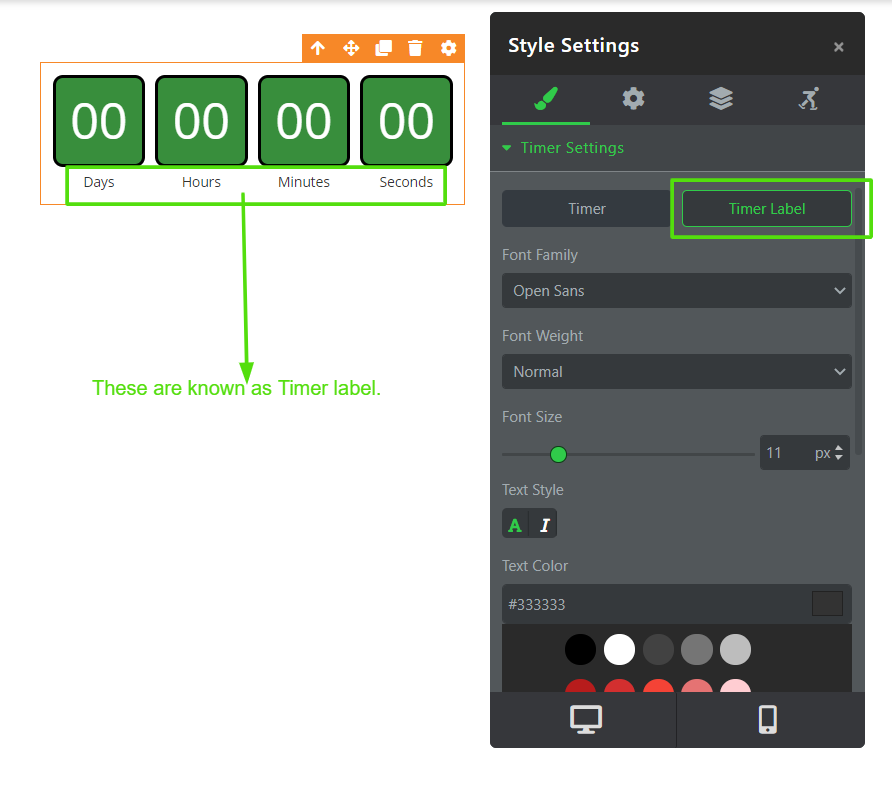
Style settings control appearance only (fonts, colors, spacing). They're split into two groups: Timer (the big numbers) and Timer Label (the small words underneath, like "Days" or "Hours").
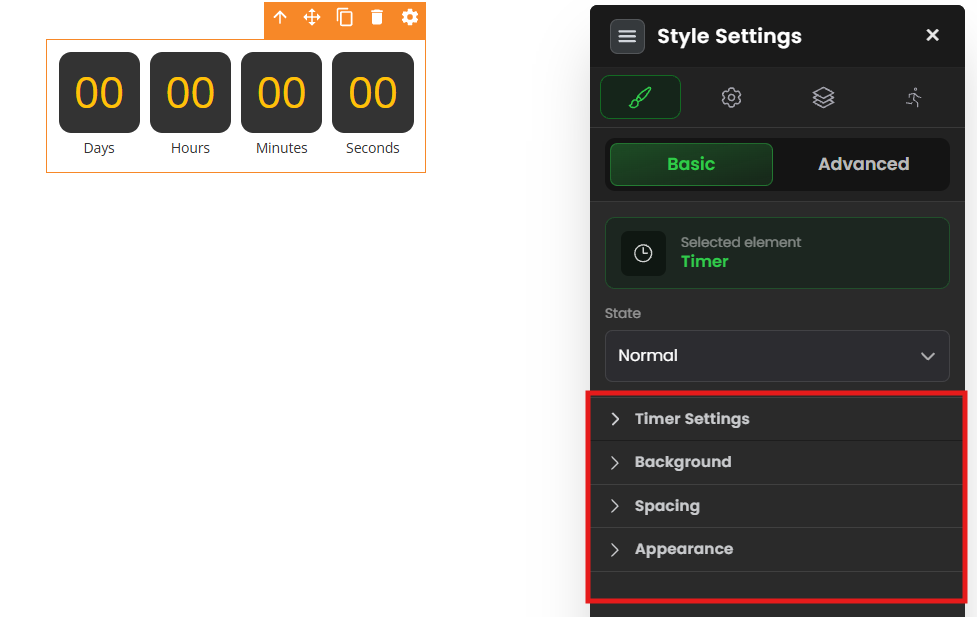
A. Timer (the numbers)
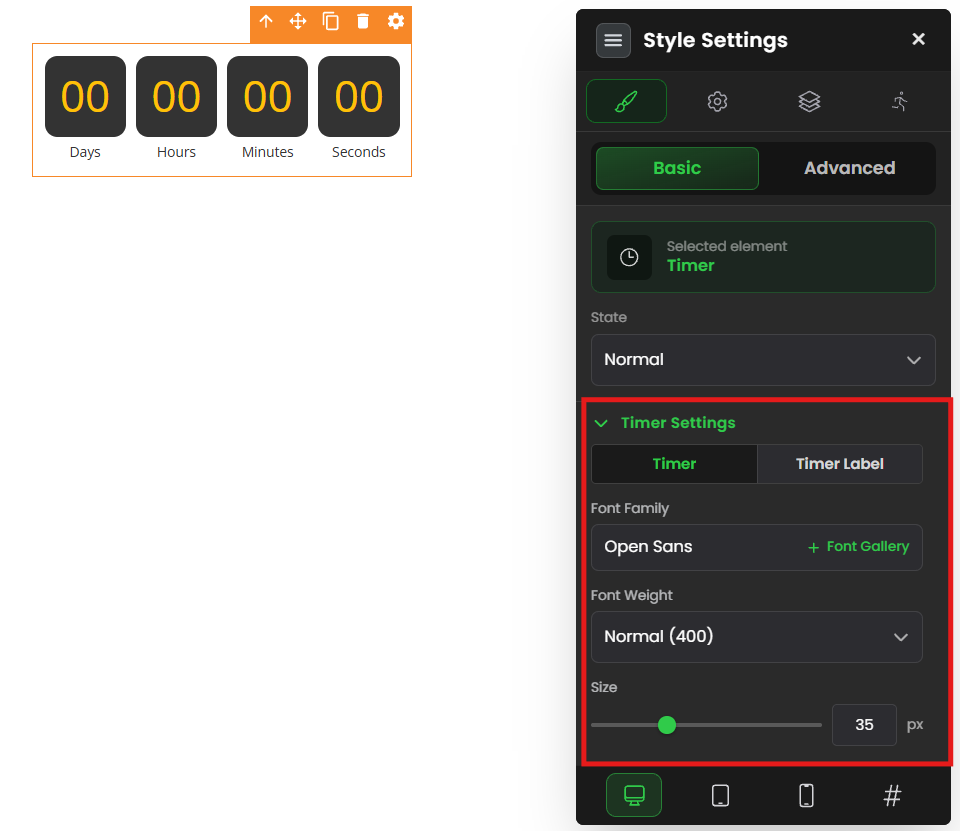
These settings style the actual countdown digits.
- Font Family — Choose the typeface (style of lettering) for the numbers.
- Font Weight — How thick the numbers look: Bold, Normal, or Light.
- Size — Drag the slider to make the numbers bigger or smaller.
- Text Color — The color of the numbers themselves.
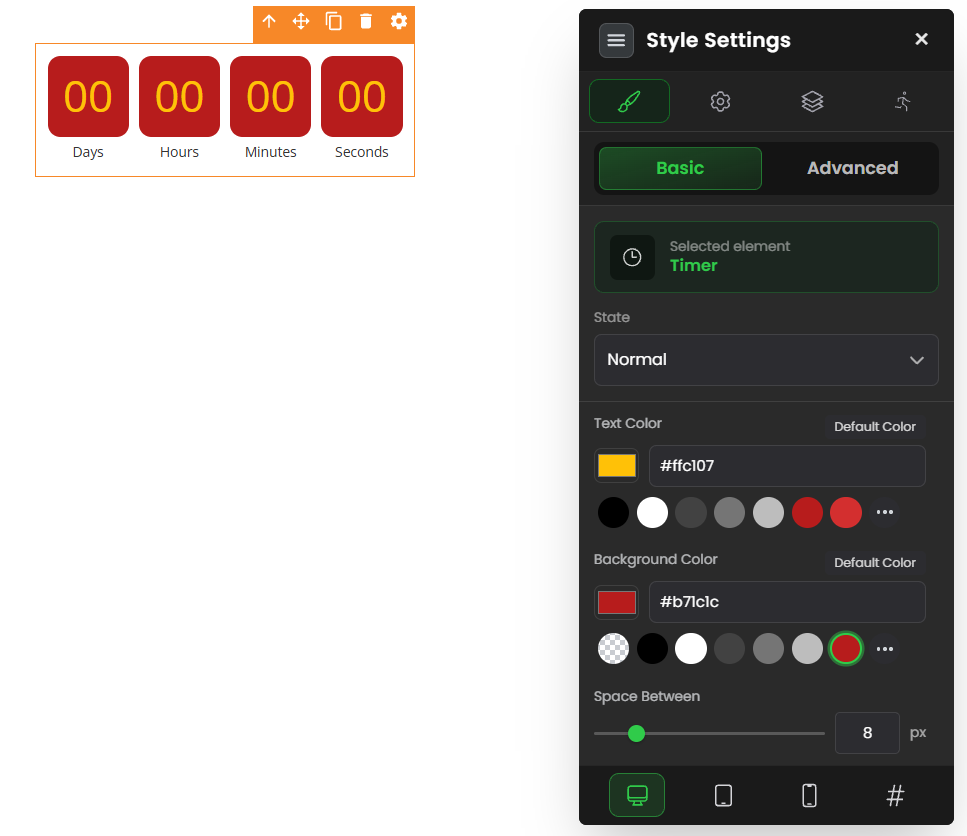
- Background Color — The color of the box behind each number block. Pick from the color palette.
- Space Between — How much gap sits between each block (Days, Hours, Minutes, Seconds). More space = more breathing room.
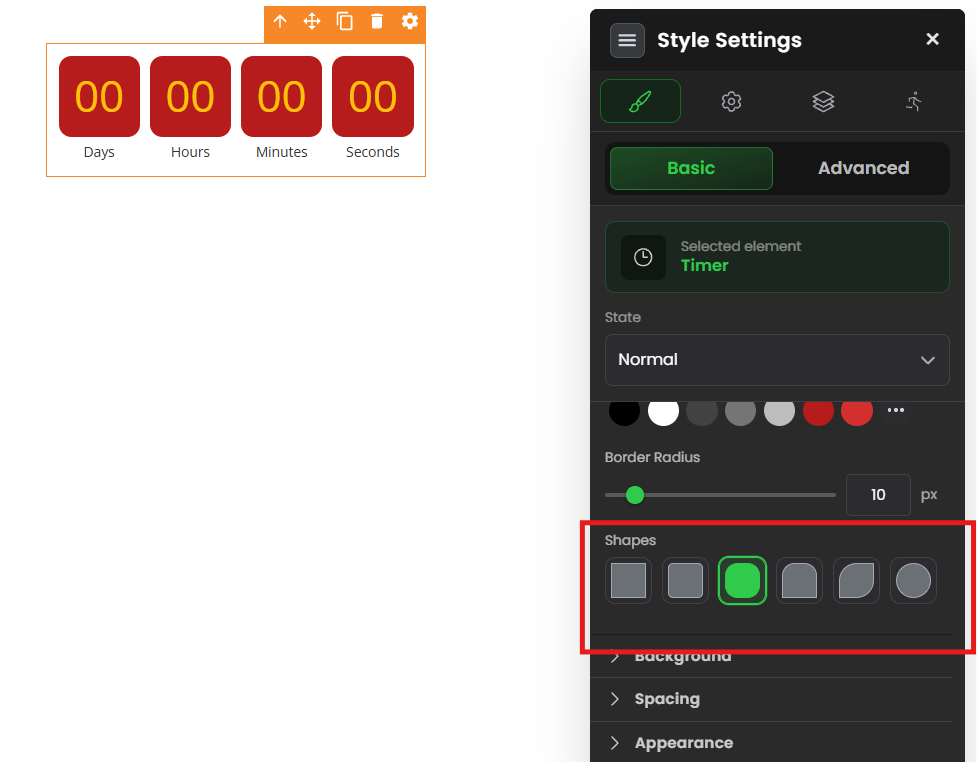
- Border Width — How thick the outline around each block is. (A border is just a line drawn around the edge.)
- Border Color — The color of that outline. Use the palette or type a Hex code (a 6-character color code like
#FF0000for red). - Border Radius — How rounded the corners are. A low number = sharp corners; a high number = soft, rounded corners.
- Shapes — Quick presets to change the overall shape of the timer blocks.
B. Timer Label (the small words)
- Font Family — Typeface for the label words.
- Font Weight — Thickness: Bold, Normal, or Light.
- Font Size — Drag the slider to size the label words.
- Text Color — The color of the label words.
- Capitalization — How the letters appear: UPPERCASE, lowercase, or Capitalize (First Letter Of Each Word).
Part 2: Advanced Settings — making the timer work right
This is where you set when the timer ends and what happens when it does. The exact options depend on which timer type you picked.
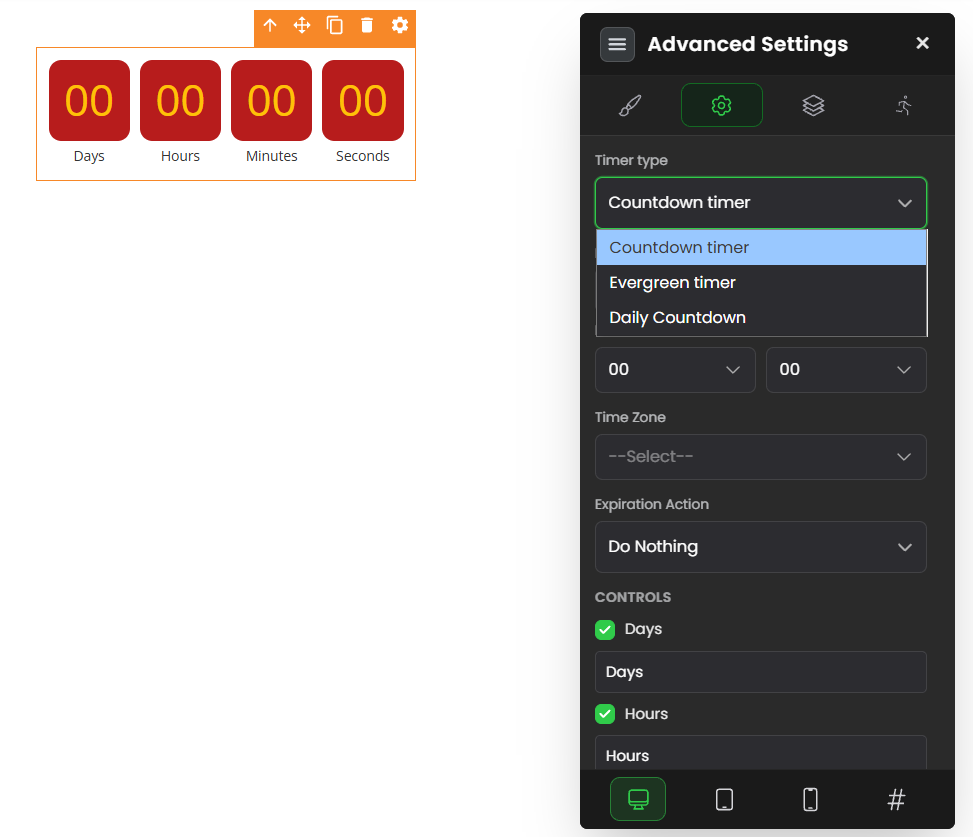
Option 1 — Countdown Timer (fixed deadline)
The countdown timer is used to display the amount of time, with respect to days, hours, minutes, seconds.
Use this countdown to announce offers or an event on a specific day and display the time left for it to begin.
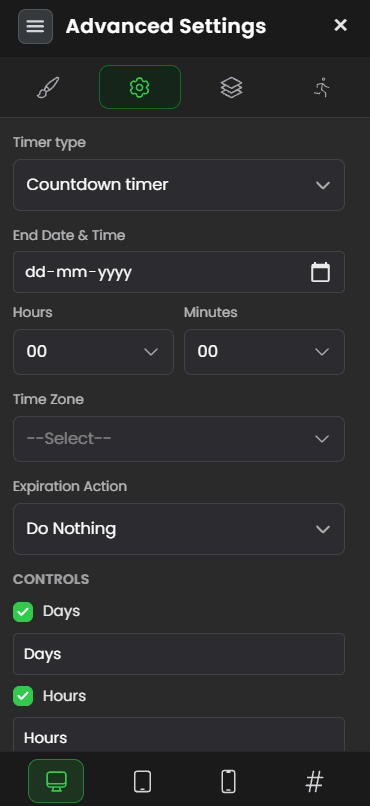
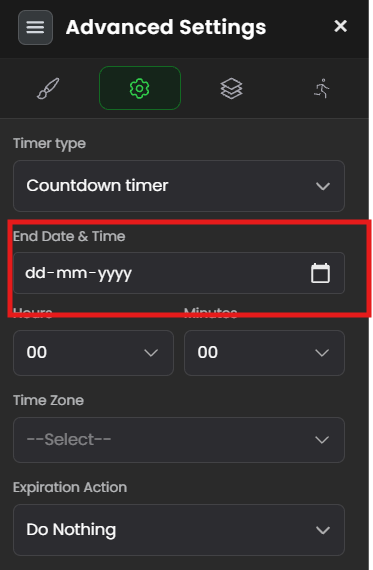
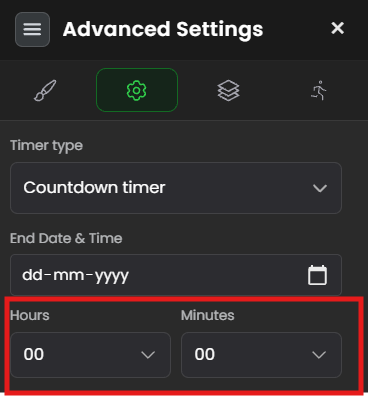
End Date & Time — Pick the calendar date when the timer should hit zero.
Time — Pick the exact time of day it expires (e.g., 11:59 PM).
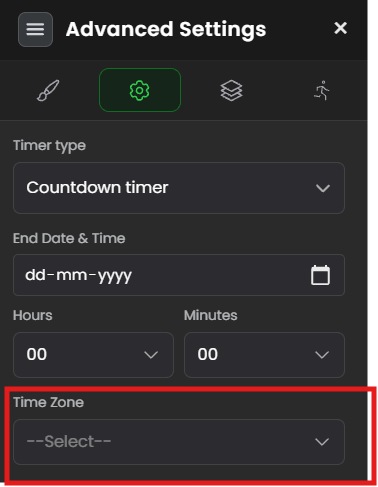
Time Zone — Choose which time zone the deadline follows. This is critical — if you pick the wrong zone, your timer will end hours early or late for your audience.
 Expiration Action— Choose what happens the moment the clock hits zero: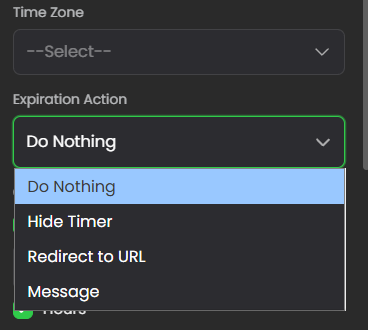
- Do Nothing — The page stays exactly as it is.
- Hide Countdown Timer — The timer disappears.
- Redirect to URL — The visitor is automatically sent to a different page (e.g., an "offer expired" page).
- Message — A message you write appears in place of the timer.
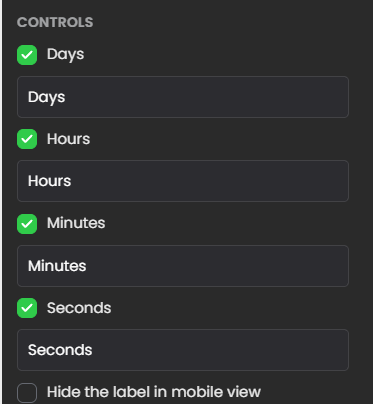
Controls — Choose which blocks to show: Years, Months, Weeks, Days, Hours, Minutes, Seconds. Hide the ones you don't need (most short offers only need Hours, Minutes, Seconds).
Option 2 — Evergreen Timer (personal clock per visitor)
An evergreen countdown timer is used to display a particular amount of time, every time a new user visits your FlexiFunnels™ Landing Page. This countdown timer sets cookies, making sure that the offer looks exclusive and scarce every time.
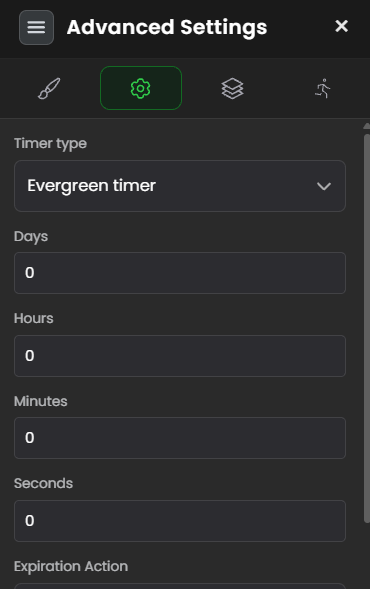
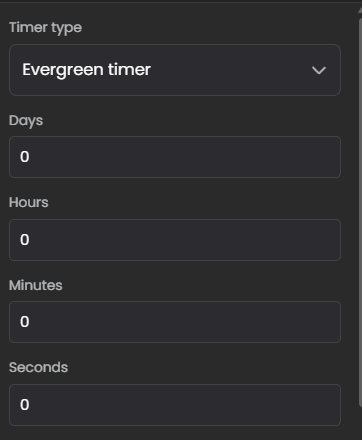
Days / Hours / Minutes / Seconds — Set the length of the countdown each new visitor gets (e.g., 0 days, 0 hours, 30 minutes, 0 seconds). This is a duration, not a date — it's "how much time," not "until when."
Expiration Action — Same four choices as above: Do Nothing, Hide Countdown Timer, Redirect to URL, or Message.
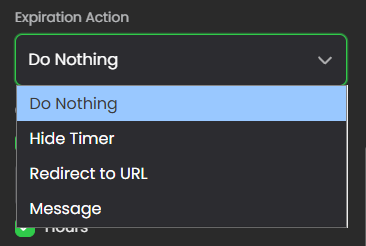
We have given options once the timer hits zero and gets expired.
Do Nothing - Nothing on the landing page will change, it will remain as it is.
Hide Countdown Timer - Hide the countdown timer, Once it expires.
Redirect to URL - Redirect to a new URL once the timer is expired.
Message - Show a message on expiry.
Controls -
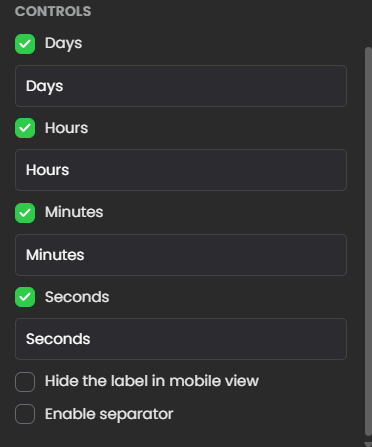
Controls — Choose which blocks to display.
⚠️ Important about Evergreen timers: Because it uses a cookie, each visitor's clock is tied to their browser. If they return on a different device, in a private/incognito window, or after clearing cookies, they get a fresh timer. This is normal behavior, not a bug.
Option 3 — Daily Countdown (resets every day)
The Daily countdown is a type of countdown clock that will count down to a specific time each day.
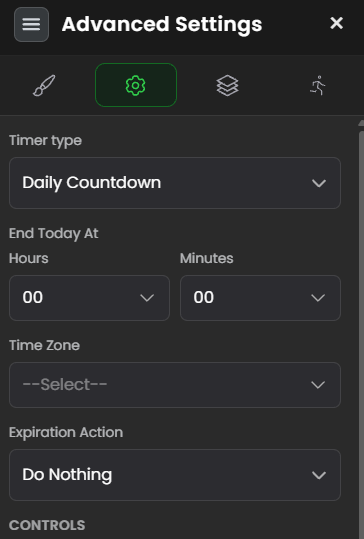
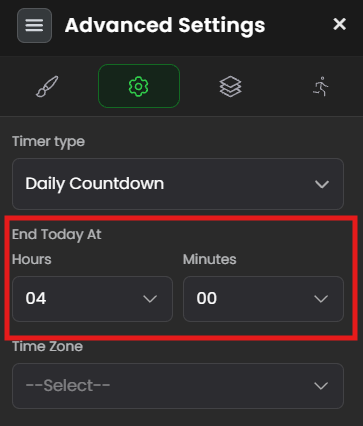
End Today At — Set the time of day the timer ends (e.g., 5:00 PM). It will count down to this time, then restart for the next day.
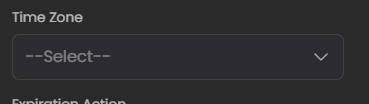
Time Zone — Choose the time zone the daily deadline follows.
Expiration Action — Same four choices: Do Nothing, Hide Countdown Timer, Redirect to URL, or Message.
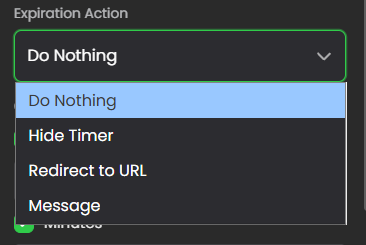
We have given options once the timer hits zero and gets expired.
Do Nothing - Nothing on the landing page will change, it will remain as it is.
Hide Countdown Timer - Hide the countdown timer, Once it expires.
Redirect to URL - Redirect to a new URL once the timer is expired.
Message - Show a message on expiry.
Controls -
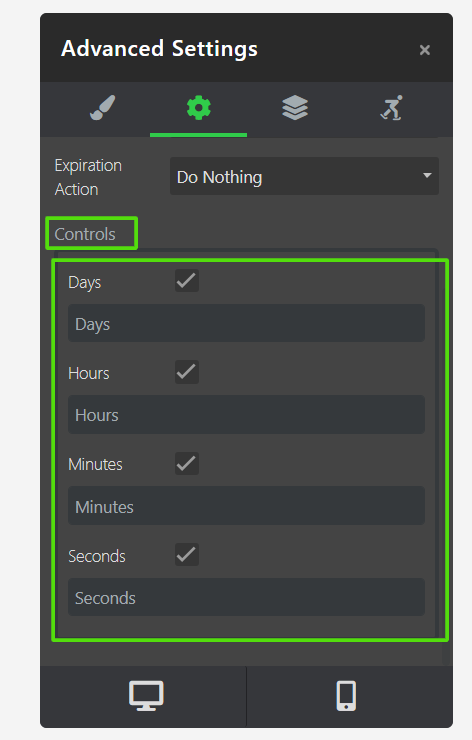
Controls — Choose which blocks to display.
Common situations & quick fixes
Before contacting support, check these first — they solve the vast majority of timer issues.
"My timer shows the wrong time / ends too early or too late." → Check the Time Zone setting. This is the most common cause. The timer follows the zone you selected, not the visitor's local zone. If your audience is in India, set it to IST; if global, decide which zone your deadline is based on and communicate that clearly.
"My timer keeps resetting and won't stay expired." → You're likely using an Evergreen Timer, which is designed to reset per visitor. If you want a shared, permanent deadline that ends for everyone at once, switch to a Countdown Timer (fixed date) instead.
"The timer restarts every time I refresh the page (while testing)." → For an Evergreen Timer, this happens if you're testing in incognito mode, clearing cookies, or switching devices. To test it like a real visitor, use a normal browser window and don't clear your cookies between visits.
"Nothing happens when the timer hits zero." → Check the Expiration Action. If it's set to Do Nothing, that's the expected result. Switch it to Hide Countdown Timer, Redirect to URL, or Message to make something happen.
"My 'Redirect to URL' isn't working." → Confirm the URL is complete and correct (it should start with https://). Save the page, then publish or preview the live page — redirects often don't fire inside the editor, only on the published page.
"The timer looks fine in the editor but broken on my live page." → Always test on the published/preview version, not just the editor canvas. Clear your browser cache and reload if you've made recent edits.
"I see blocks I don't want (like Years or Weeks)." → Open Controls and turn off the blocks you don't need. Keep only the units relevant to your offer.
"My timer isn't visible on mobile." → Reduce the Size and Space Between values so all blocks fit a narrow screen, and check the element's mobile visibility settings in the editor.
Need more help?
If you've worked through the steps above and your timer still isn't behaving as expected, we're here to help. Submit a ticket with these details so we can resolve it faster:
- Which timer type you're using (Countdown / Evergreen / Daily)
- The page URL where the timer appears
- A screenshot of your timer's Advanced Settings
- What you expected to happen vs. what actually happened
Was this article helpful?
That’s Great!
Thank you for your feedback
Sorry! We couldn't be helpful
Thank you for your feedback
Feedback sent
We appreciate your effort and will try to fix the article