Overview
A Checkout Form is the form customers use to select a product, enter their details, and complete a payment. It combines the functions of an online shopping cart and payment page in one place.
A checkout form can include:
- Product selection.
- Customer information, such as name and email address.
- Payment information.
- Order summary.
- Payment button.
Why Add a Checkout Form?
- Convert visitors to customers: Capture payment information, complete transactions, and accept online payments.
- Collect customer information: Capture names, email addresses, shipping addresses, phone numbers, and custom-field data.
- Support professional transactions: Provide secure payment processing, a professional checkout experience, and customer confidence.
- Grow your business: Sell digital products, physical products, and subscriptions while generating revenue.
Before You Begin
- Sign in to your FlexiFunnels account.
- Create or confirm the product you want to sell.
- Connect and configure a supported payment gateway.
- Decide where customers should be redirected after a successful payment.
- Prepare your order-confirmation email settings.
Step 1: Open the Page Editor
- Sign in to FlexiFunnels.
- Open the project that contains the page where you want to add checkout.
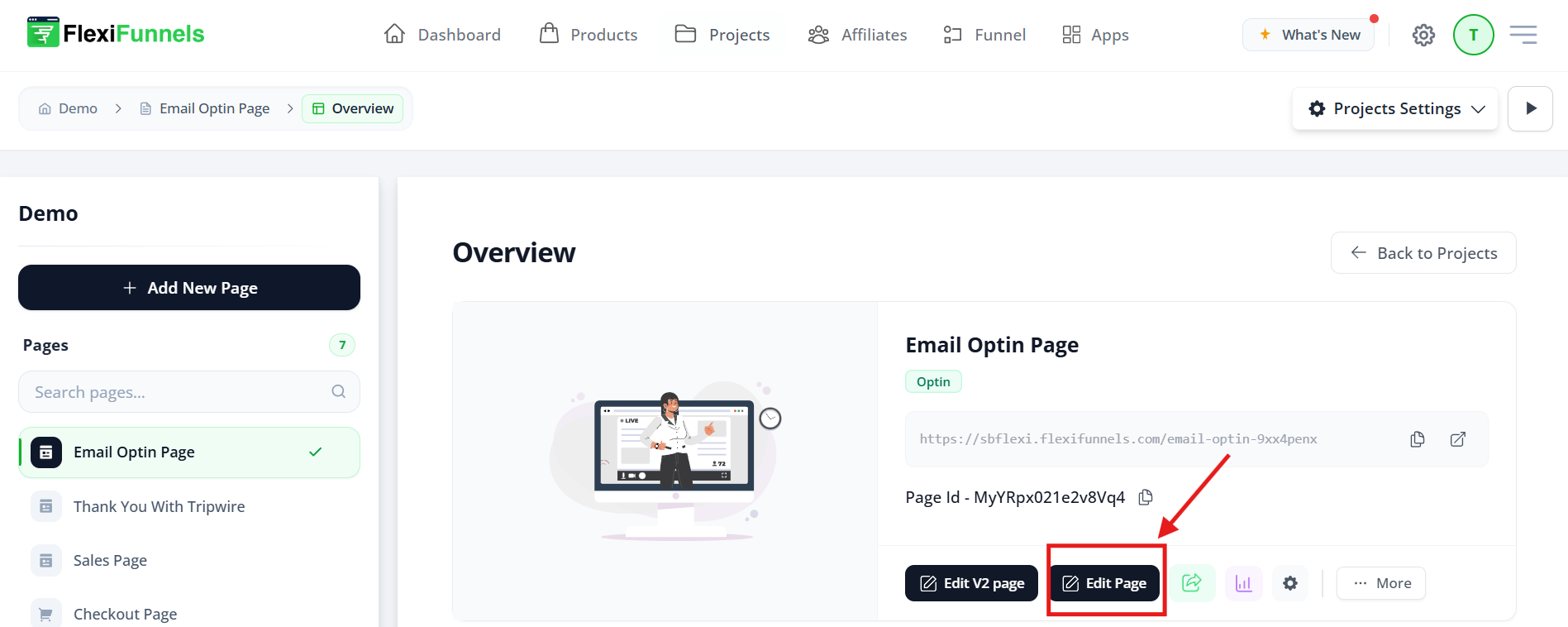
- Locate the relevant page and click Edit.
- Wait for the page editor to open.

Step 2: Open Components
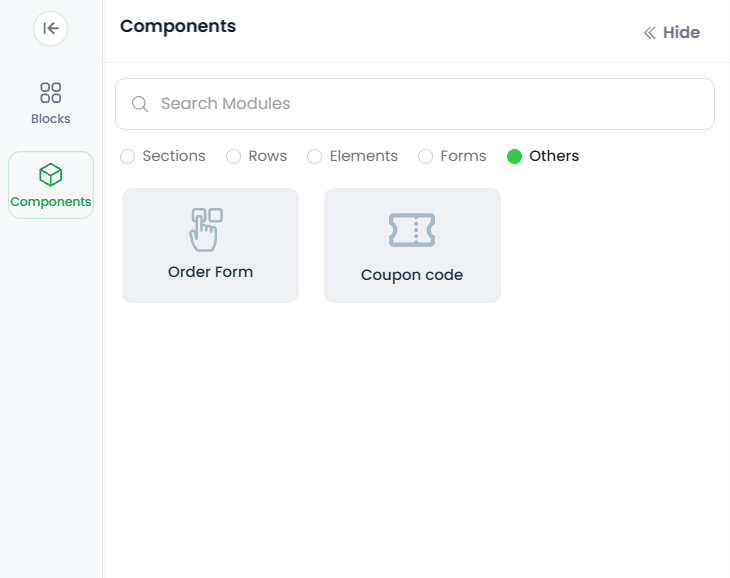
In the editor's left sidebar, locate and select Components. This displays the components you can add to the page.
Step 3: Find the Order Forms Component
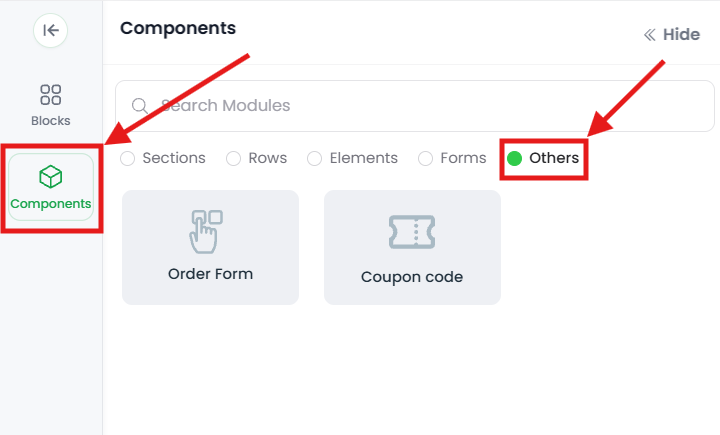
In the Components panel, locate the checkout component. You can find it in the Others category, search for Order Form, or search for Checkout.
Select Order Forms or Checkout Form.
Step 4: Add the Checkout Form to the Page
Drag the Order Forms component onto the required area of the page. You can also click the component when the editor supports automatic placement. The checkout form appears on the page and is ready for configuration.
Step 5: Select Products
- Click the checkout form on the page.
- Open the Products or Items section in the component settings.
- Click Add Product or Select Product.
- Select the product to sell, such as a digital product or service, or create a new product if required.
Step 6: Set Up a Payment Gateway
A payment gateway must be connected before the checkout form can process payments. Configure the gateway in FlexiFunnels and ensure it is active.
- Connect a supported gateway, such as Razorpay, Cashfree, or Instamojo.
- Configure the gateway settings in FlexiFunnels.
- Select the appropriate gateway in the checkout form settings.
Step 7: Configure the Redirect or Success Page
Choose where customers should be sent after completing payment. In most cases, use a thank-you page. For digital products, you can send customers to a download page.
Step 8: Set Up Email Notifications
Enable order notifications to confirm successful purchases and keep your team informed.
- Open Email Settings.
- Enable the order-confirmation email for customers.
- Customize the confirmation email content if required.
- Configure an admin-notification email.
When configured correctly, customers receive an order receipt automatically after a successful purchase.
Step 9: Test the Checkout Form
Before publishing, click Preview and test the checkout experience.
- Confirm that the checkout form is visible.
- Enter test customer information.
- Verify that all required fields appear.
- Confirm that the payment button works.
- Use test mode and test payment details. Do not complete a live payment during testing.
Step 10: Publish the Page
Click Publish after completing the configuration and test. The checkout form is then live and customers can make purchases.
Verify the Configuration
Open the published page in a new browser window and complete a test checkout in test mode. Confirm that the product, price, customer fields, payment gateway, success-page redirect, and confirmation email work as expected.
Common Scenarios
- Digital product delivery: Redirect customers to a download page after a successful payment.
- Service sales: Collect customer contact information and payment in a single transaction.
- Subscription payments: Use a checkout form for recurring payment products.
- Physical-product orders: Collect shipping and contact details as part of checkout.
Troubleshooting
Product Cannot Be Added to Checkout
- Confirm that the product has been created in Settings → Products.
- Verify that the product is active or published. Inactive products do not appear in the checkout selection.
- Confirm that the component is an Order Form, not a regular form.
- Close and reopen the editor, then try adding the product again.
Payment Is Not Processing
- Confirm that the payment gateway is connected and active in Settings → Payment Gateways.
- Verify that the gateway API credentials are correct, valid, and active.
- Confirm that a payment gateway is selected in the form and that the selected product has a price.
- Verify that all required checkout fields are configured.
- Test with gateway test-mode payment details before switching to live mode.
- If the issue continues, contact the payment gateway support team with the relevant transaction details.
Customer Does Not Receive a Confirmation Email
- Confirm that Send confirmation email is enabled in the checkout form settings.
- Verify that the customer's email address is valid and correctly entered.
- Ask the customer to check their spam or junk folder and add the sender to safe senders.
- Review the account email settings and confirm that the sender email is configured correctly.
- Run a test purchase using your own email address.
Checkout Form Does Not Display Correctly on Mobile
- Test the published page on a real mobile device, not only in browser preview.
- Reduce the form width so it fits smaller screens.
- Use a single-column layout so fields stack vertically.
- Display only required fields and hide unnecessary optional fields.
- Scroll through the complete form and confirm that every field is visible and easy to complete.
Best Practices
- Use a clear product name, price, and order summary.
- Keep required checkout fields to a minimum.
- Test the full payment flow before publishing.
- Use a thank-you or delivery page that matches the purchased product.
- Enable confirmation emails for every checkout form.
- Review the mobile checkout experience on an actual device.
- Monitor payment gateway status and API credentials regularly.
Before Contacting Support
- Confirm that the correct product is active and selected in the checkout form.
- Verify the payment gateway connection and API credentials.
- Confirm that the product has a valid price.
- Test the checkout form in test mode.
- Verify confirmation-email and sender-email settings.
- Test the published page on desktop and mobile.
Expected Outcome
The published page contains a functional checkout form that displays the selected product, collects the required customer details, processes payments through the configured gateway, redirects customers after successful payment, and sends order confirmation emails.
Related Articles
- Creating Products in FlexiFunnels
- Connecting Payment Gateways in FlexiFunnels
- Setting Up Order Confirmation Emails
Was this article helpful?
That’s Great!
Thank you for your feedback
Sorry! We couldn't be helpful
Thank you for your feedback
Feedback sent
We appreciate your effort and will try to fix the article