Overview
Paddle integration allows you to securely accept online payments through your FlexiFunnels checkout pages. This guide explains how to generate your Paddle API credentials, connect Paddle with FlexiFunnels, configure webhooks, complete the required Paddle account settings, and prepare your account for One-Click Upsells (OCU). :contentReference[oaicite:0]{index=0}
Before You Begin
- An active FlexiFunnels account.
- An active and verified Paddle merchant account.
- Administrator access to your Paddle Dashboard.
- Your Paddle API Key and Client-Side Token.
Step 1: Generate Your Paddle API Credentials
Before connecting Paddle with FlexiFunnels, you'll need to retrieve your API credentials from the Paddle Dashboard.
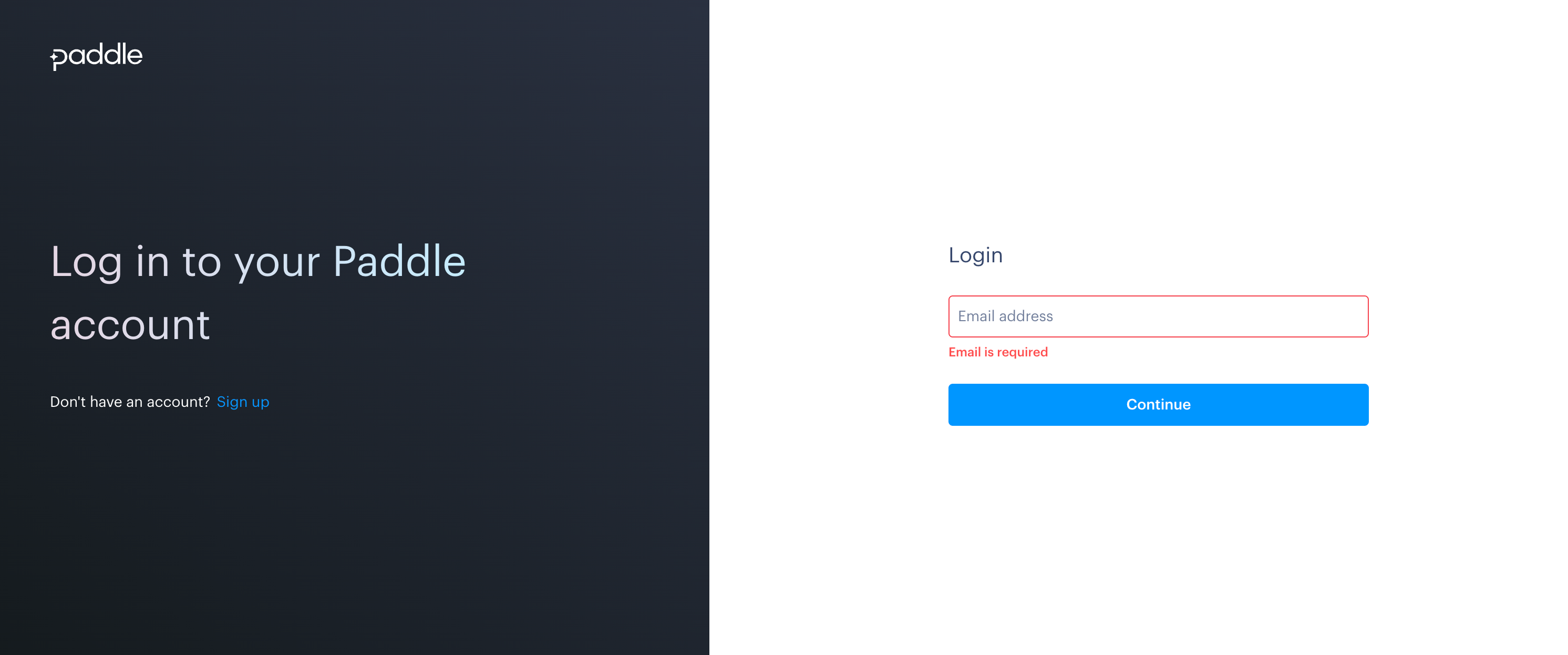
- Log in to your Paddle account.
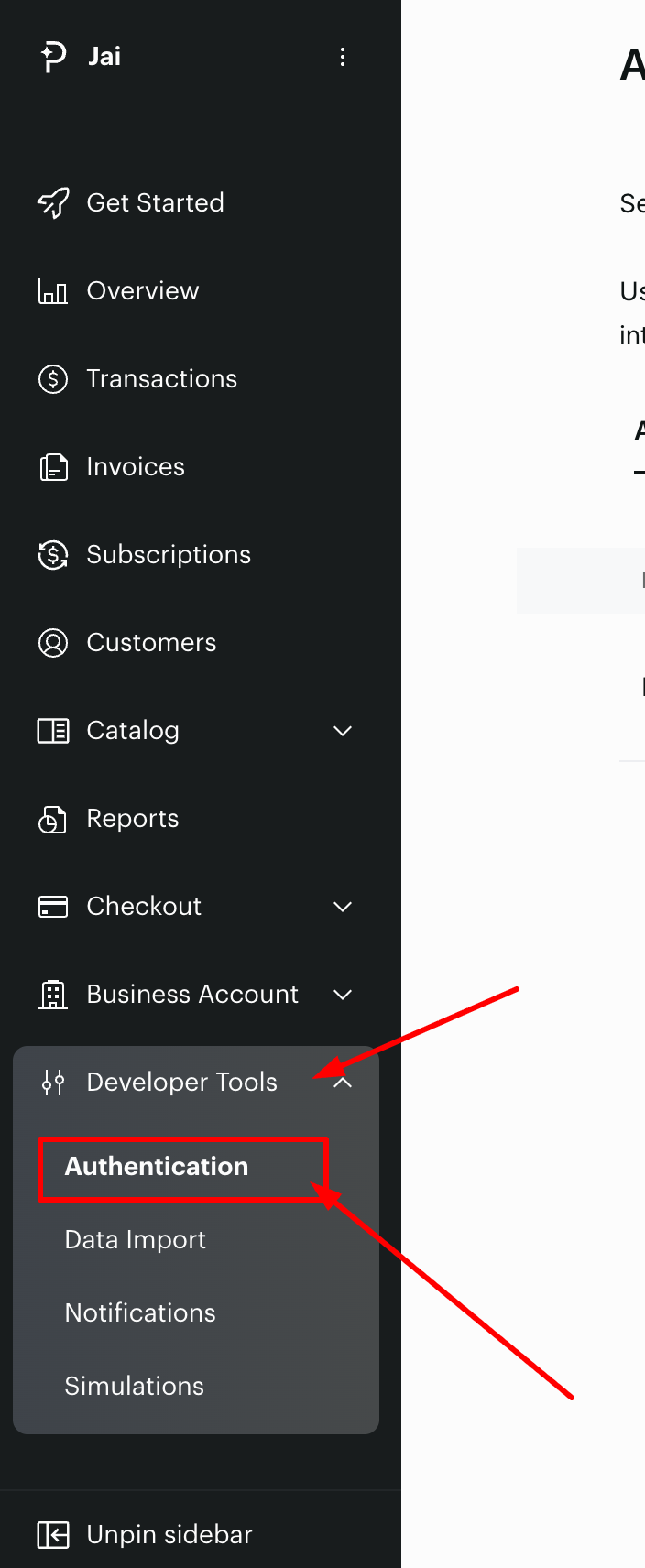
- Navigate to Developer Tools.
- Open the Authentication section.
- Generate or locate the following credentials:
- API Key
- Client-Side Token
- Copy both credentials for use during the FlexiFunnels integration.
Step 2: Connect Paddle with FlexiFunnels
- Log in to your FlexiFunnels account.
- Click your profile icon and open General Settings.

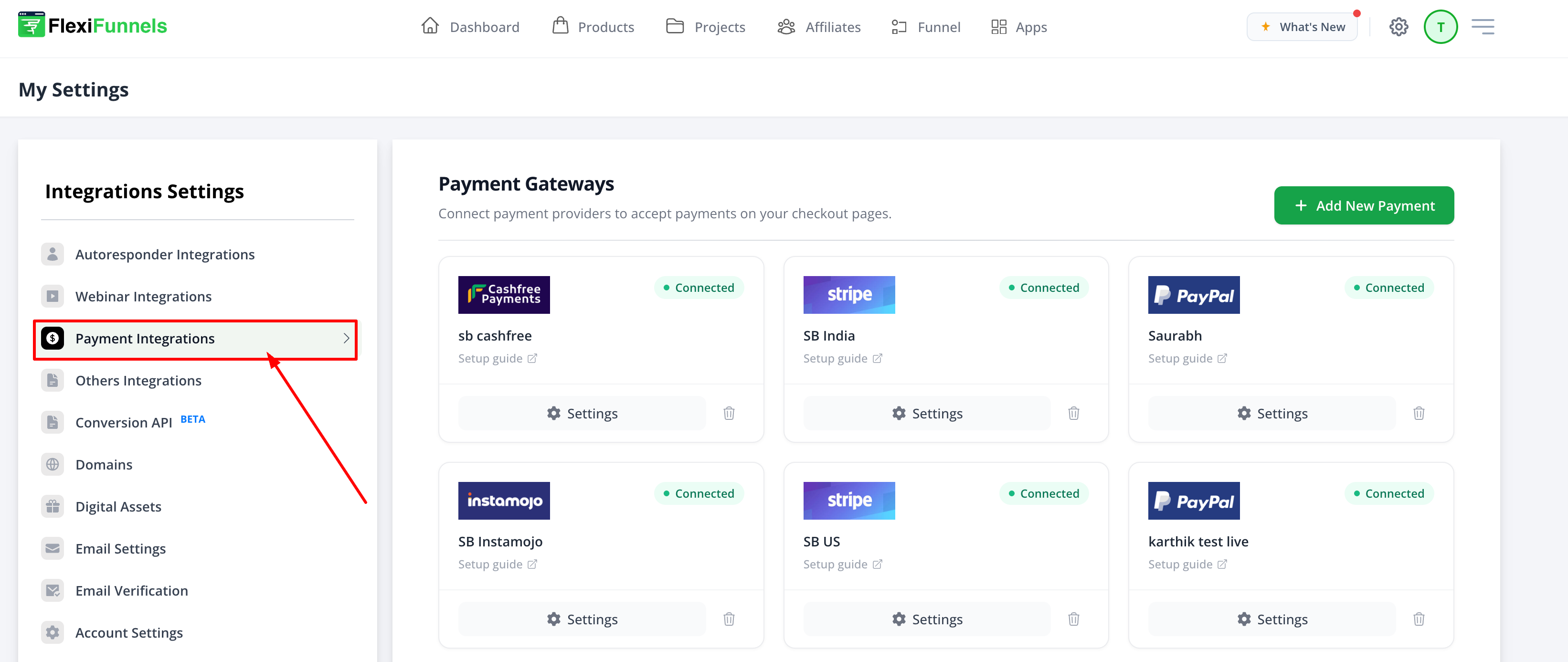
- Navigate to Payment Integrations.
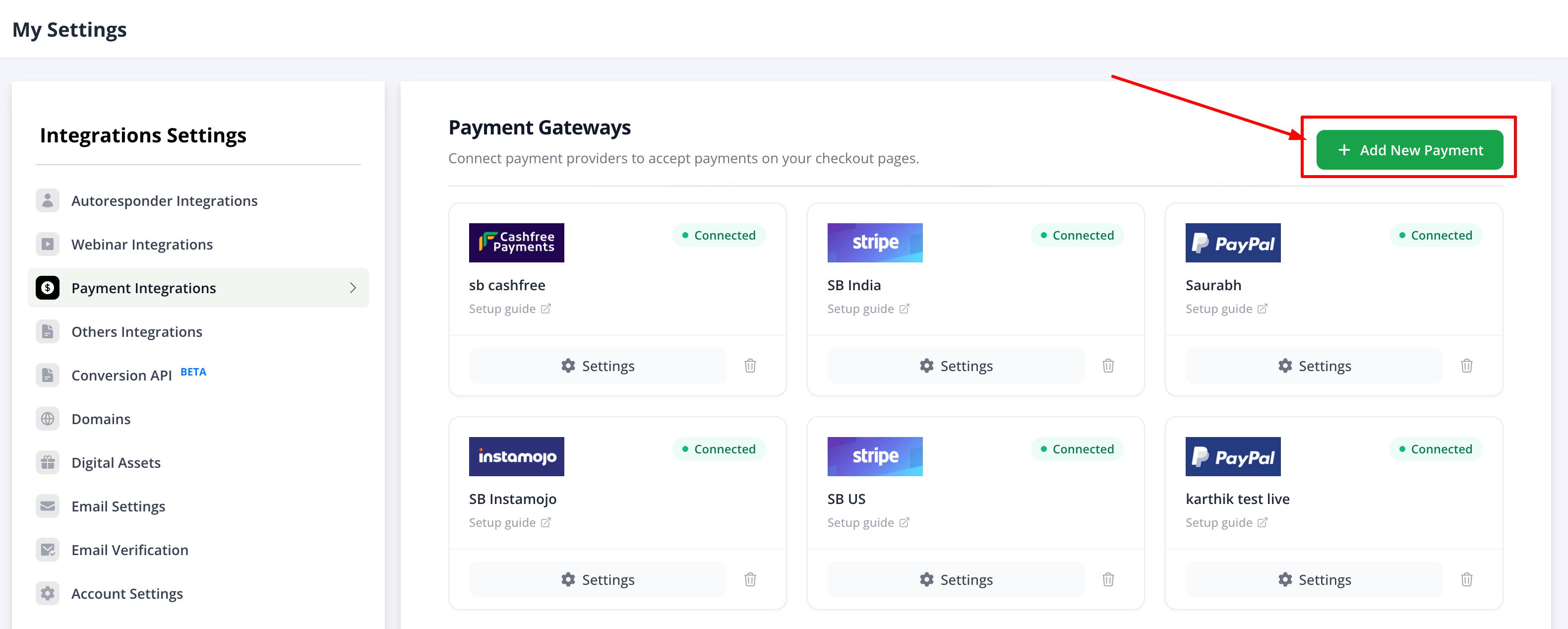
- Click Add New Payment Gateway.
- Search for Paddle and click Connect.
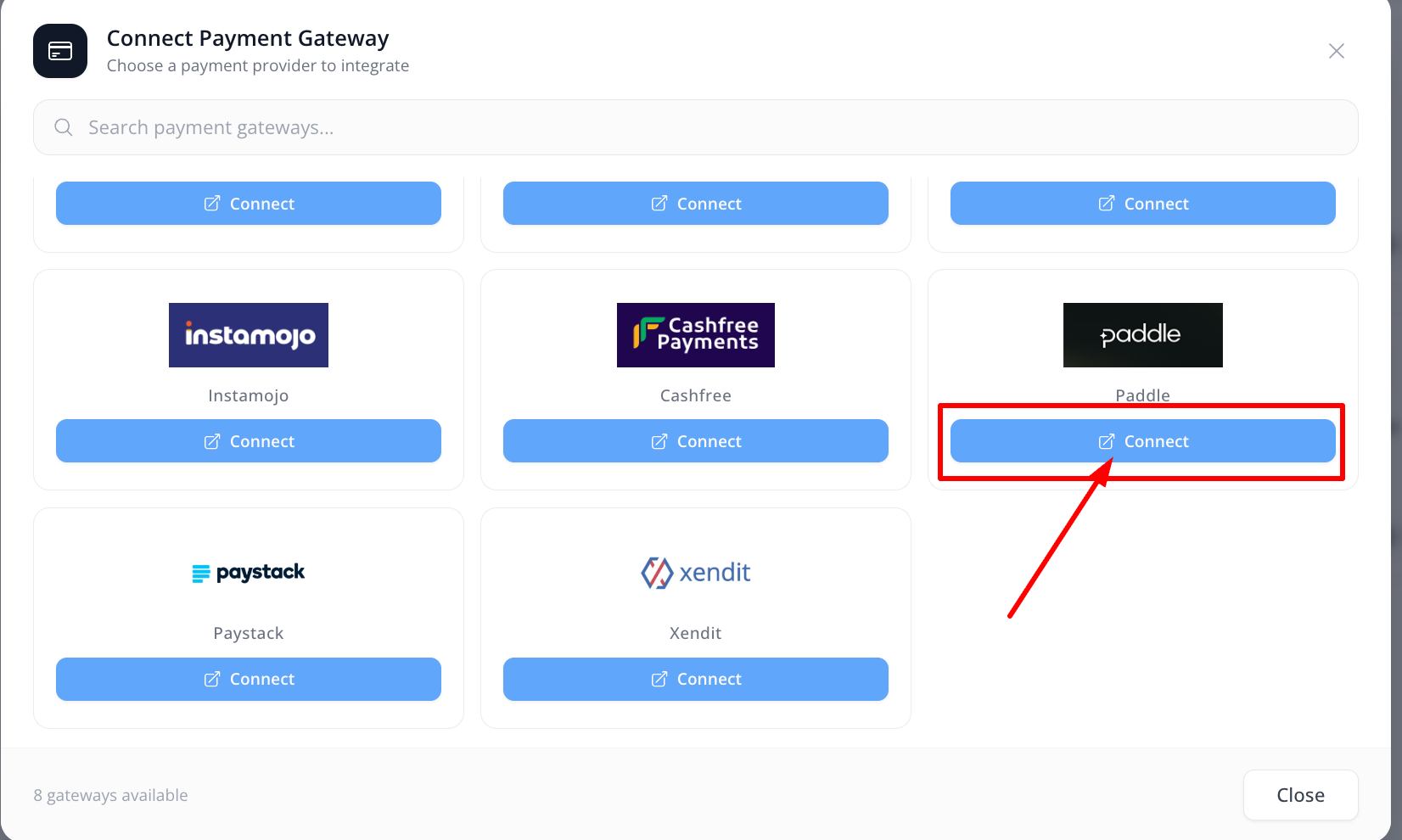
Step 3: Configure Paddle Credentials
Complete the Paddle integration by entering your API credentials.
- Account Name – Any name for internal identification.
- Client-Side Token
- API Key
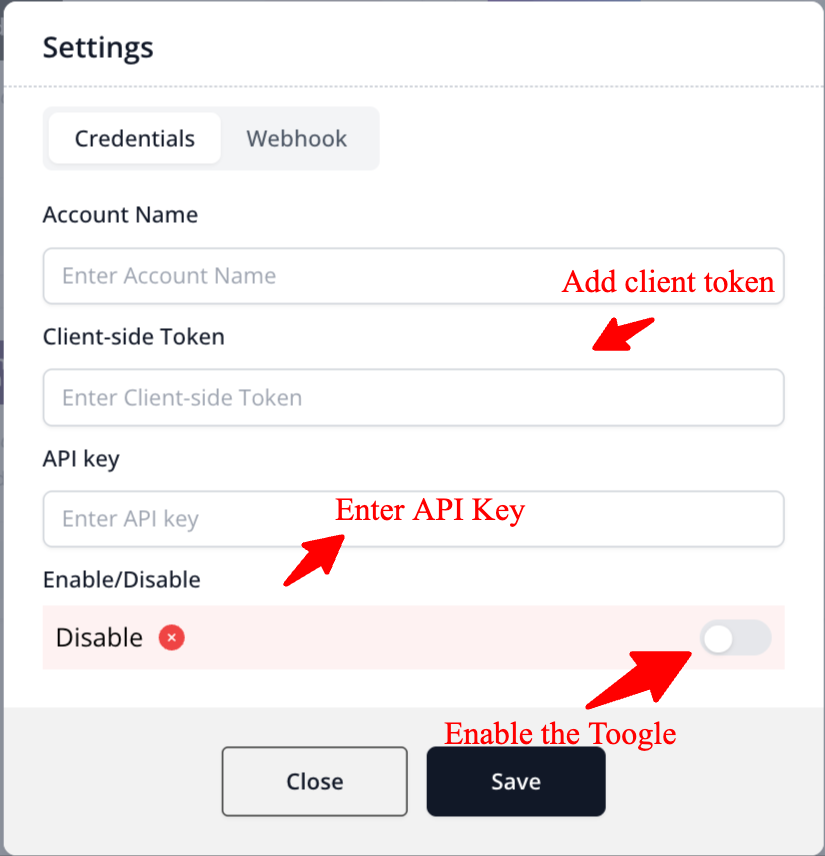
You'll also see a Webhook section.
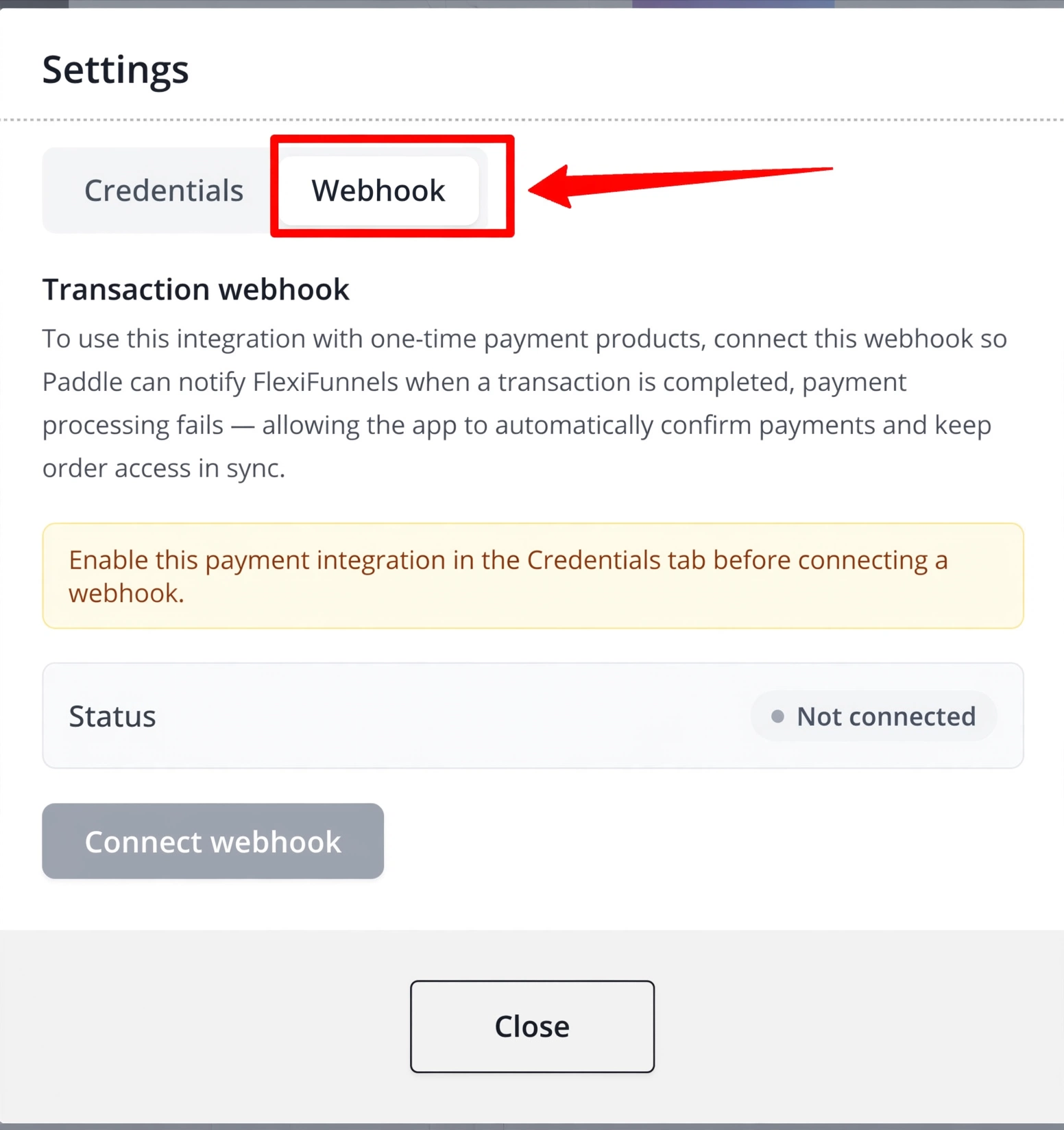
Click Connect Webhook.
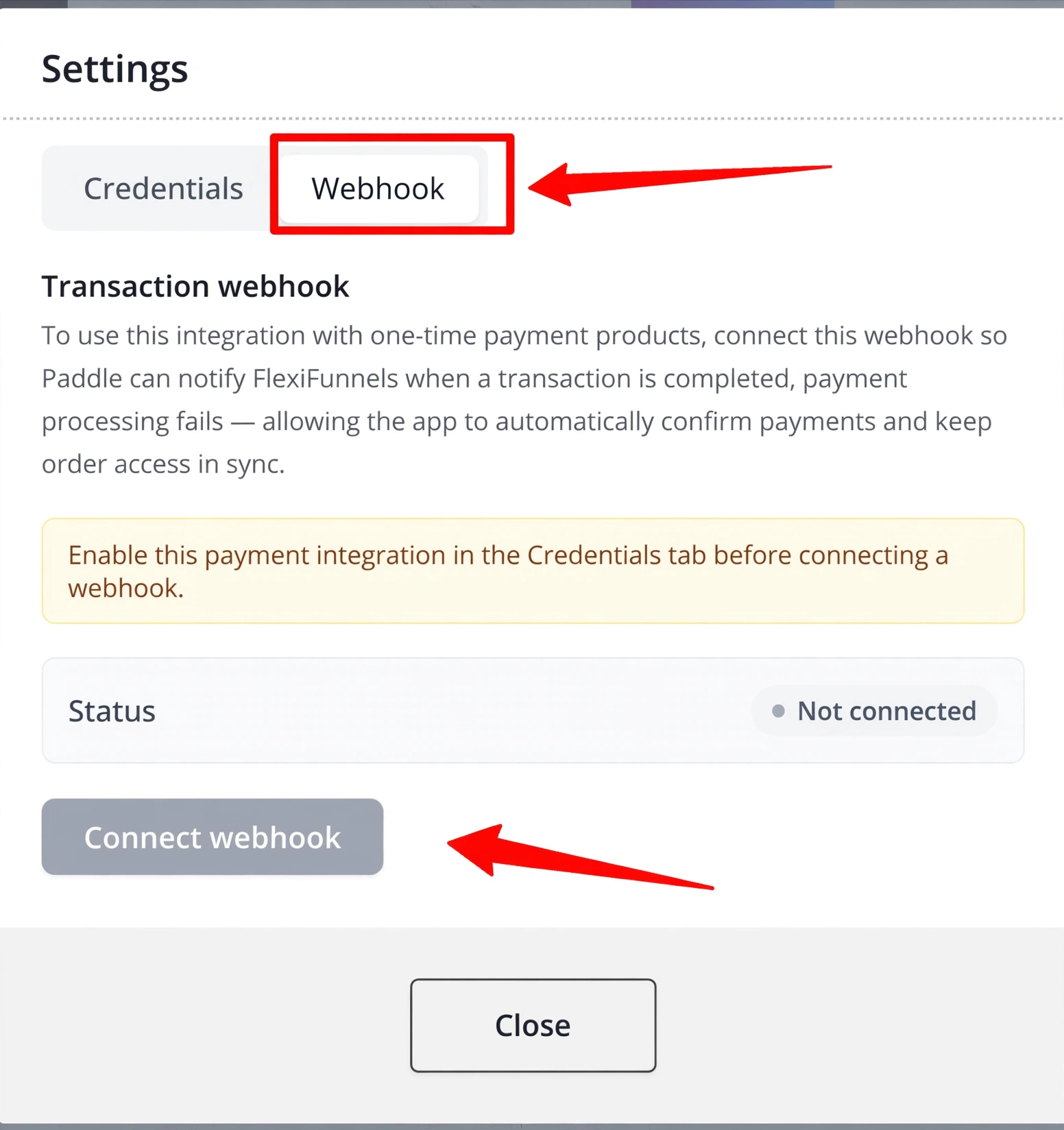
The webhook will be configured automatically inside your Paddle account. Save the integration to complete the connection.
Step 4: Configure Paddle for One-Time Payments
Enable Saved Payment Methods
To provide a smoother checkout experience and support advanced payment flows, enable Saved Payment Methods.
- Log in to your Paddle Dashboard.
- Navigate to Checkout Settings.
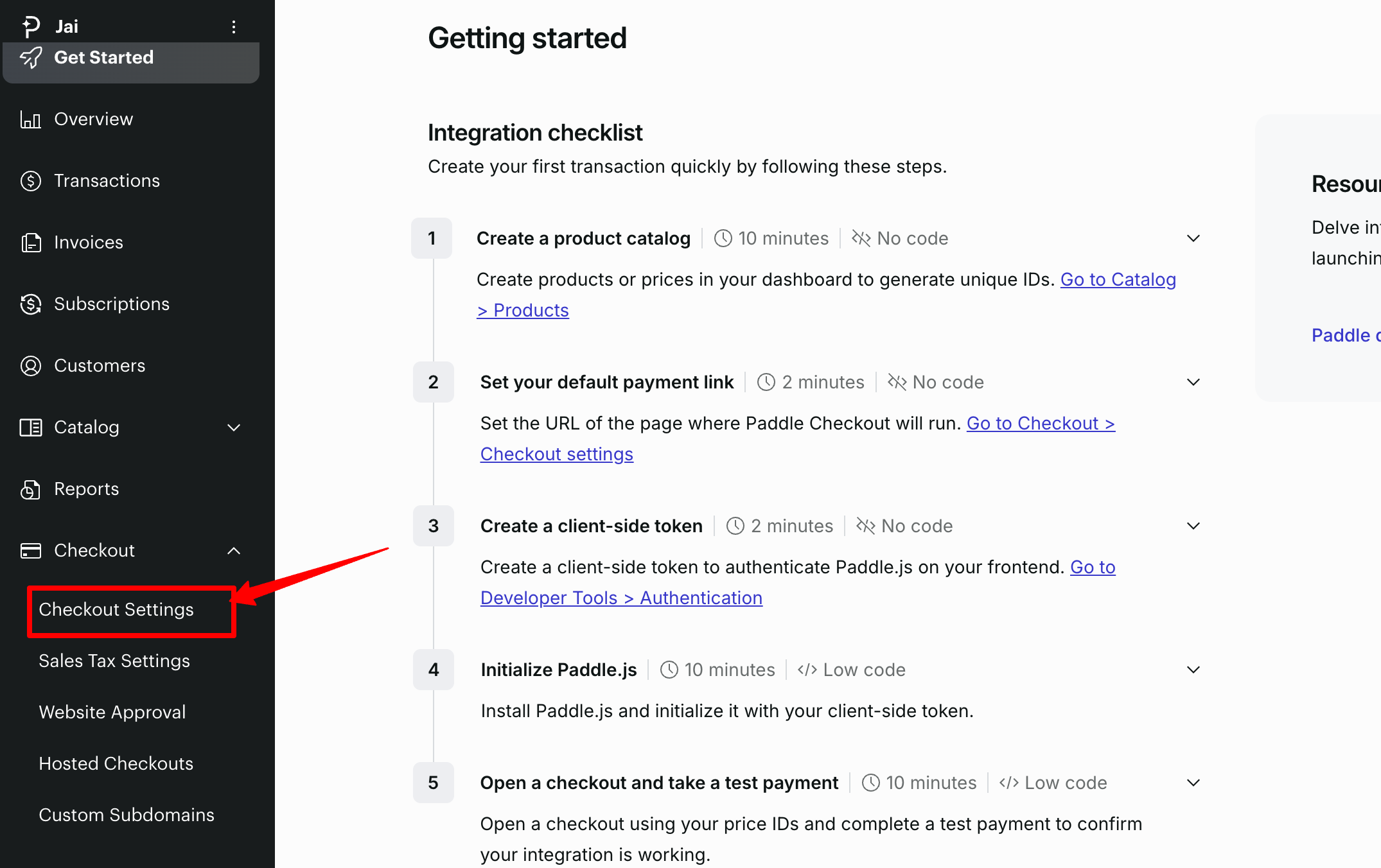
- Scroll to General Settings.

- Locate Save Payment Methods.

- Enable the setting.
- Set your preferred payment method as the default where applicable.
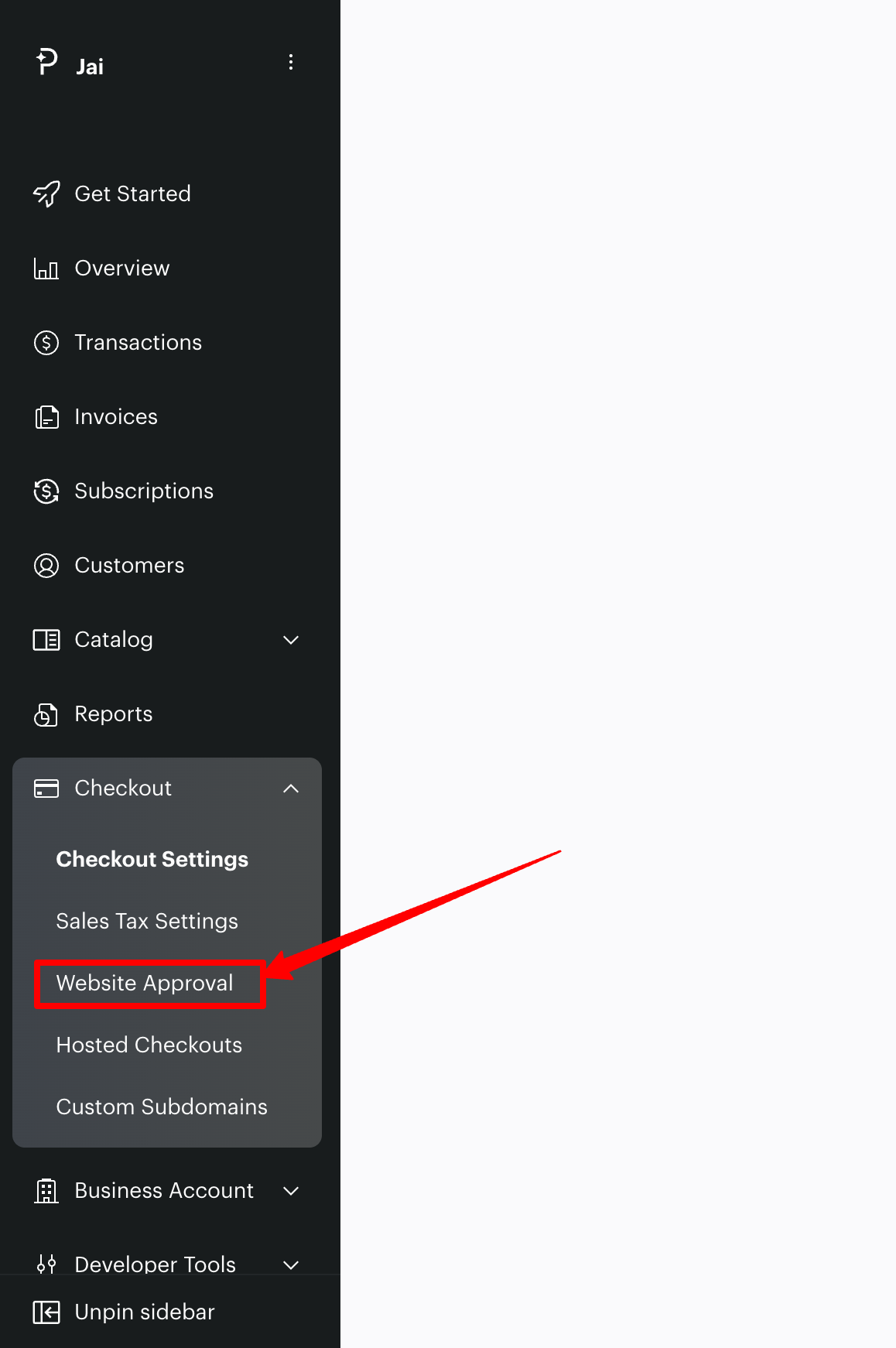
Step 5: Complete Website Approval
Your website must be approved by Paddle before live payments can be processed.
- Add your FlexiFunnels website or custom domain.
- Complete Paddle's verification process.
- Save the configuration.
Step 6: Configure One-Click Upsells (OCU)
If you plan to use One-Click Upsells, complete the following additional requirements:
- Enable Saved Payment Methods.
- Ensure your website has been approved.
- Verify the Paddle webhook is connected successfully.
- Allow customer payment authorization to remain active throughout the funnel.
These settings allow customers to purchase upsells without re-entering their payment information, resulting in a faster checkout experience and improved conversion rates.
Verify the Integration
- Confirm Paddle displays as Connected inside FlexiFunnels.
- Verify the webhook status is connected.
- Complete a test transaction.
- Confirm the payment appears inside Paddle.
- Verify the order is created successfully in FlexiFunnels.
Common Scenarios
Unable to Connect Paddle
- Verify your API Key and Client-Side Token.
- Reconnect the webhook if necessary.
- Save the integration again.
Live Payments are Failing
- Ensure your website has been approved by Paddle.
- Verify the webhook is connected.
- Confirm your payment gateway is enabled.
One-Click Upsells are Not Working
- Enable Saved Payment Methods.
- Verify the webhook connection.
- Ensure payment authorization remains active.
Best Practices
- Test every payment gateway before launching.
- Keep API credentials secure.
- Enable Saved Payment Methods if using One-Click Upsells.
- Verify your website approval before switching to live payments.
- Run a complete purchase test after making configuration changes.
Before Contacting Support
- Verify your API Key and Client-Side Token.
- Confirm your webhook is connected.
- Verify website approval status.
- Capture screenshots of any error messages.
- Share your checkout page URL.
Expected Outcome
Once the setup is complete, Paddle will be successfully connected with FlexiFunnels. Customers will be able to complete secure one-time payments, and if One-Click Upsells are configured correctly, they can accept upsell offers without re-entering their payment details.
Related Articles
- Configure Payment Gateways in FlexiFunnels
- Stripe Integration
- PayPal Integration
- Razorpay Integration
- Configure Payment Gateway Webhooks
Was this article helpful?
That’s Great!
Thank you for your feedback
Sorry! We couldn't be helpful
Thank you for your feedback
Feedback sent
We appreciate your effort and will try to fix the article