How to set up and manage Conversion API pixels for accurate ad tracking — all through chat.
Overview
A Conversion API (CAPI) pixel sends purchase and event data directly from FlexiFunnels to ad platforms like Facebook, helping your ad tracking stay accurate even when browser-based tracking is blocked or limited. This article covers adding a CAPI pixel, enabling or disabling it, and linking it to specific products or projects.
This article covers:
- Adding a new CAPI pixel
- Enabling or disabling a CAPI pixel
- Linking a CAPI pixel to a specific product
- Linking a CAPI pixel to an entire project
What You Can Do
- Register a new Facebook pixel (e.g. Facebook CAPI) in your account
- Turn a pixel on or off without deleting it
- Set which pixels are active on a specific product
- Set which pixels are active across an entire project
- Review which pixels are currently linked to a product or project
Why This Is Useful
Accurate conversion tracking helps your ad campaigns perform better, since ad platforms can only optimize based on the data they receive. Setting up CAPI tracking directly through Flexi Genie means you don't need to manually configure tracking pixels through multiple settings screens for every product or project.
Before You Begin
- You need an active FlexiFunnels account, logged in.
- Have your Conversion API access token/credentials ready from the ad platform (e.g. Facebook Events Manager) before adding a pixel.
- Know which products or projects should be tracked with this pixel.
Step-by-Step: Common CAPI Tasks
Step 1: Add a New CAPI Pixel
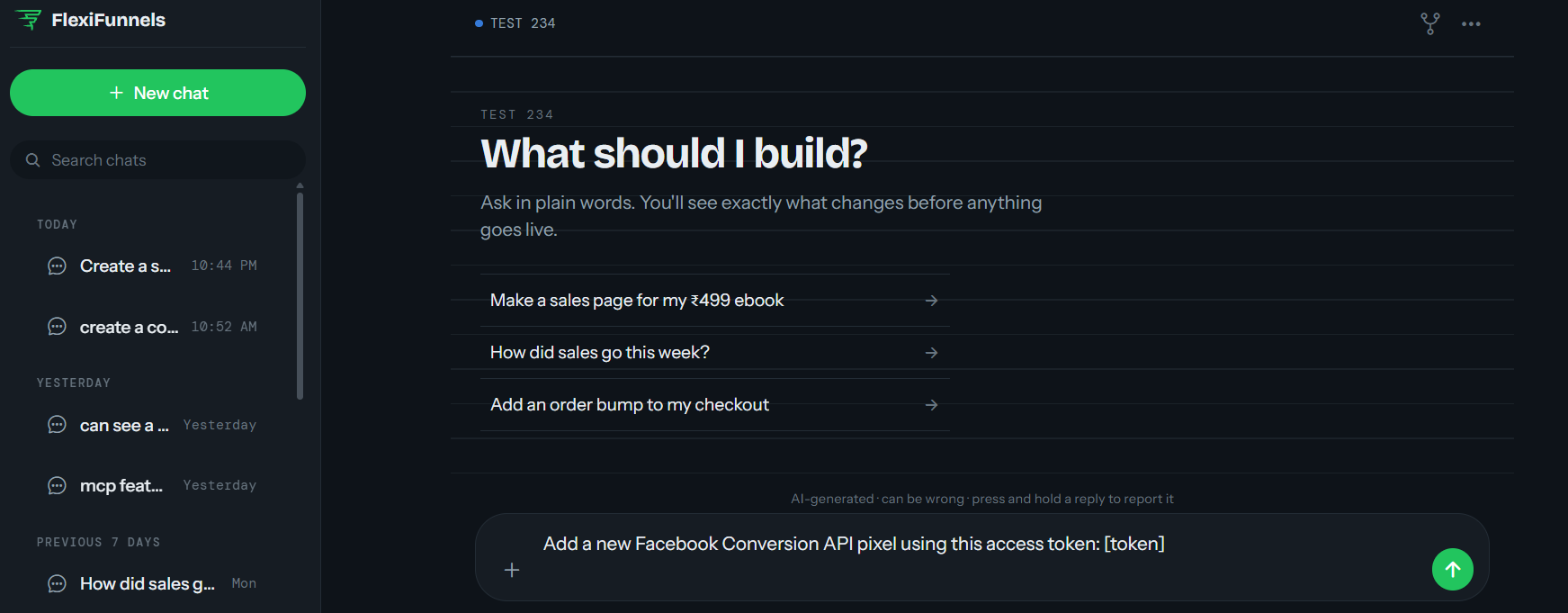
- Tell Flexi Genie which platform's pixel you want to add (e.g. Facebook) and provide the required access token.
Example Prompt: "Add a new Facebook Conversion API pixel using this access token: [token]."
Be Careful: Treat your CAPI access token like a password — only share it in a secure context, and regenerate it from the ad platform if you suspect it's been exposed.
Step 2: Enable or Disable a Pixel
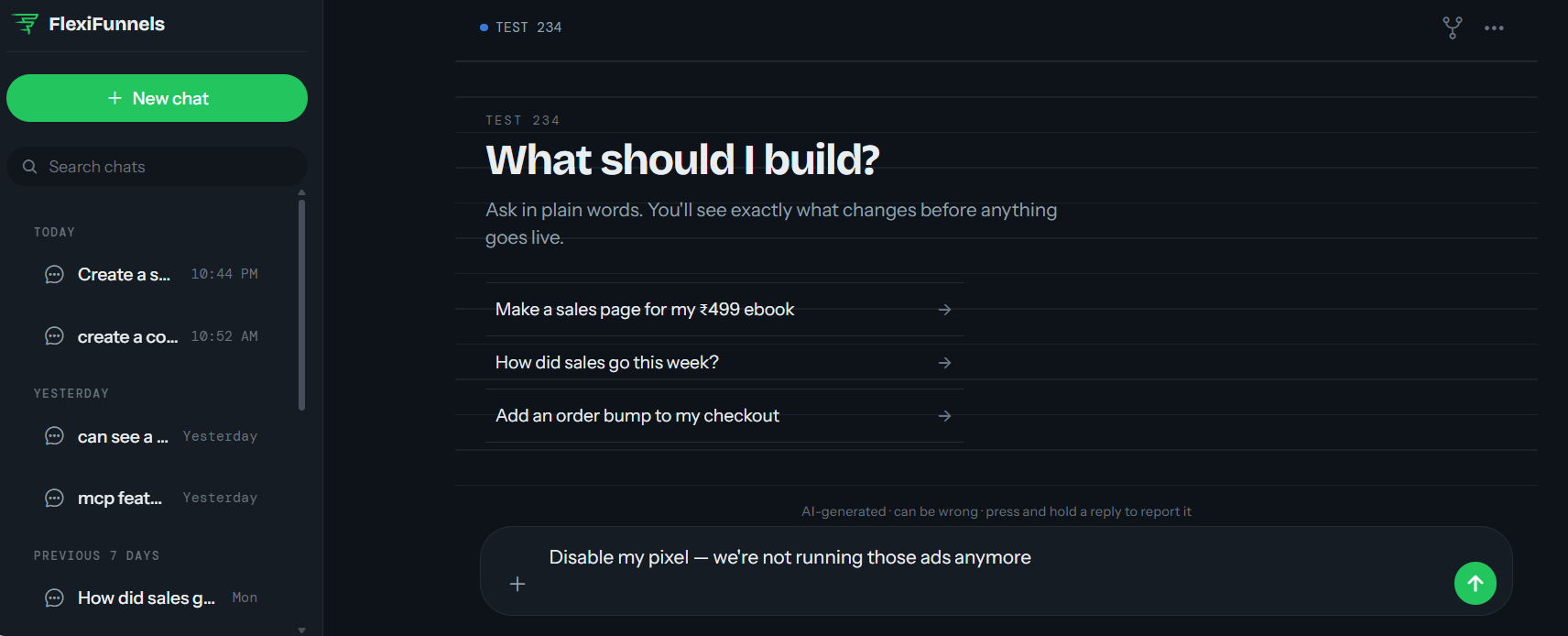
- Pause tracking from a specific pixel without removing its setup entirely.
Example Prompt: "Disable my pixel — we're not running those ads anymore."
Step 3: Link a Pixel to a Product
- Tell Flexi Genie which pixel(s) should track conversions for a specific product.
Example Prompt: "Link my Facebook CAPI pixel to my 'Instagram Growth Masterclass' product."
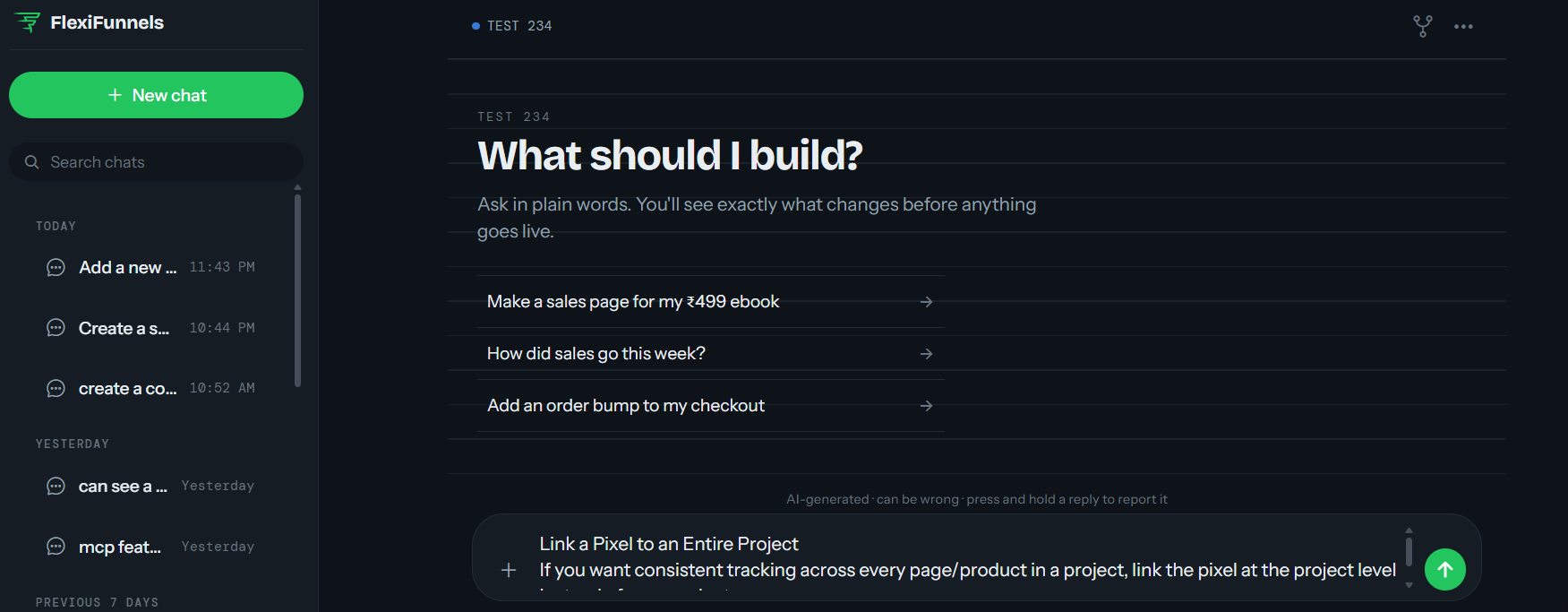
Step 4: Link a Pixel to an Entire Project
- If you want consistent tracking across every page/product in a project, link the pixel at the project level instead of per-product.
Example Prompt: "Link my Facebook CAPI pixel to my entire 'Summer Course Launch' project."
Tip: Review which pixels are linked where periodically, especially after cloning a product or project, to make sure tracking carries over correctly.
Behind the Scenes — MCP Tools Involved
| Task | Related MCP Tool(s) |
|---|---|
| Add a new CAPI pixel | add_capi_pixel |
| Update a CAPI pixel's details | update_capi_pixel |
| Enable a CAPI pixel | enable_capi_pixel |
| Disable a CAPI pixel | disable_capi_pixel |
| View all CAPI pixels | get_capi_pixels |
| Link a pixel to a product | link_capi_to_product |
| Link a pixel to a project | link_capi_to_project |
| View pixels linked to a product | get_product_capi_links |
| View pixels linked to a project | get_project_capi_links |
Good to Know: You never need to know these tool names to use Flexi Genie — this table is just for anyone curious about what's happening behind the scenes.
Ready-to-Use Prompts
"Add a new TikTok CAPI pixel using this access token: [token]."
"Link my Facebook CAPI pixel to my 'Email Marketing Mastery' product."
"Disable my old Facebook pixel — we're using a new ad account now."
"Show me which pixels are currently linked to my 'Summer Course Launch' project."
Tips for Better Results
- Name your pixels clearly (e.g. by ad account or campaign) if you're running tracking across multiple ad accounts.
- Confirm tracking is working correctly using your ad platform's test event tool after setup.
- Review pixel links after cloning a product or project, since tracking connections may need to be re-confirmed.
Common Issues / Troubleshooting
Conversions Not Showing Up in Ad Platform: Confirm the pixel is enabled, correctly linked to the relevant product or project, and that the access token used hasn't expired or been revoked.
Duplicate or Inflated Conversion Numbers: Check whether the same pixel is linked both at the project level and the individual product level in a way that could cause double-counting; verify with your ad platform's reporting tools.
Limitations / Important Notes
- A CAPI pixel must be both added and enabled to send data — adding it alone does not activate tracking.
- Access tokens for CAPI pixels are issued by the ad platform and should be refreshed there if tracking stops working unexpectedly.
Curious what else Flexi Genie and AI assistants can do inside FlexiFunnels? See the full Possibilities with Flexi Genie & AI Assistance reference document.
Was this article helpful?
That’s Great!
Thank you for your feedback
Sorry! We couldn't be helpful
Thank you for your feedback
Feedback sent
We appreciate your effort and will try to fix the article