How to manage your account-level settings, invite team members, and review connected integrations — all through chat.
Overview
Beyond individual products and pages, FlexiFunnels has account-wide settings that affect your whole business — regional settings like currency and timezone, team member access, and a view of all your connected integrations. This article covers reviewing and updating these settings through Flexi Genie.
This article covers:
- Reviewing and updating account settings
- Updating regional settings (currency, timezone)
- Inviting a sub-user (team member) and setting their access
- Reviewing your current team members
- Reviewing all connected integrations in your account
What You Can Do
- Review your account-level settings
- Update your account's regional currency and timezone
- Invite a new sub-user (team member) to your account
- Set or change a sub-user's access permissions
- View a list of everyone with access to your account
- View a list of all non-payment, non-autoresponder integrations connected to your account
Why This Is Useful
As your business grows, you'll likely bring on team members or virtual assistants, and may need to adjust settings like currency if you expand into new markets. Flexi Genie lets you handle this account-level administration conversationally, without digging through settings menus.
Before You Begin
- You need an active FlexiFunnels account, logged in, with permission to manage account settings.
- Have the email address of anyone you want to invite as a sub-user.
- Decide on the appropriate access level for each team member before inviting them.
Step-by-Step: Common Account & Team Tasks
Step 1: Review Account Settings
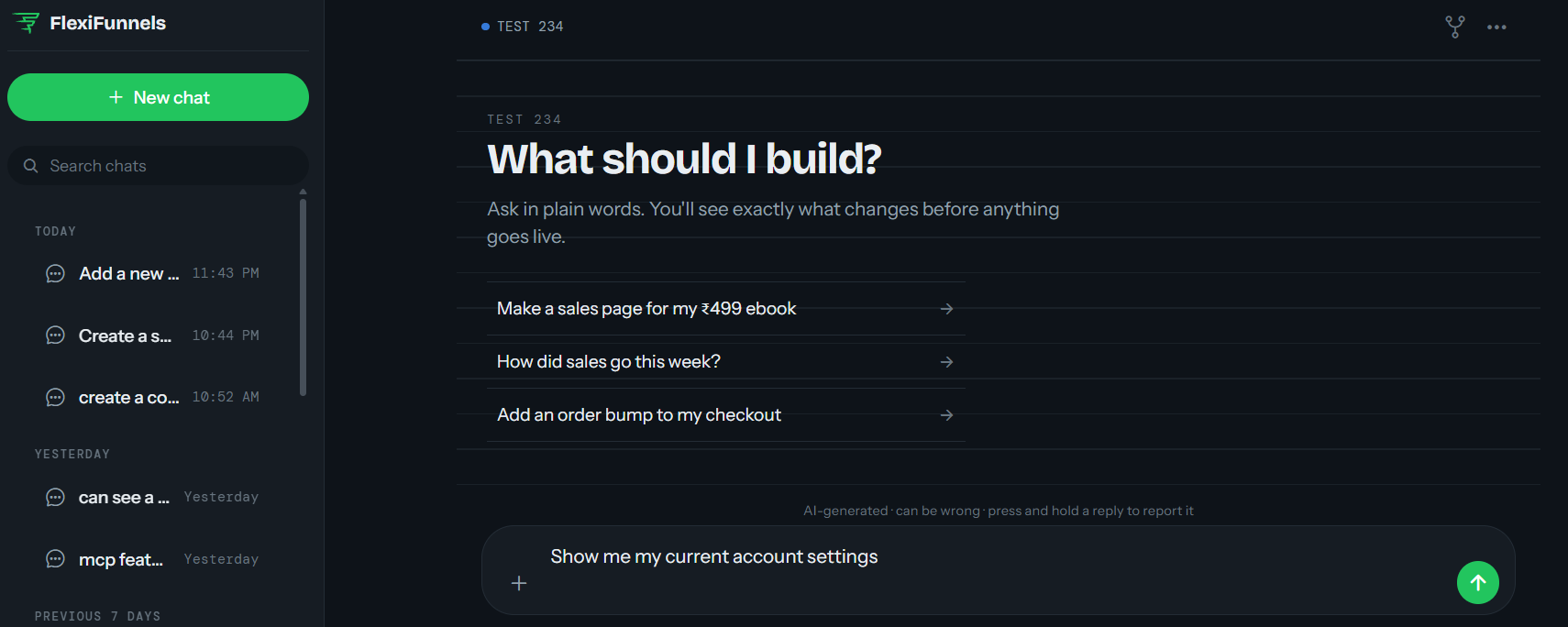
- Ask Flexi Genie to show your current account-level settings, including plan details and configuration.
Example Prompt: "Show me my current account settings."
Step 2: Update Regional Settings
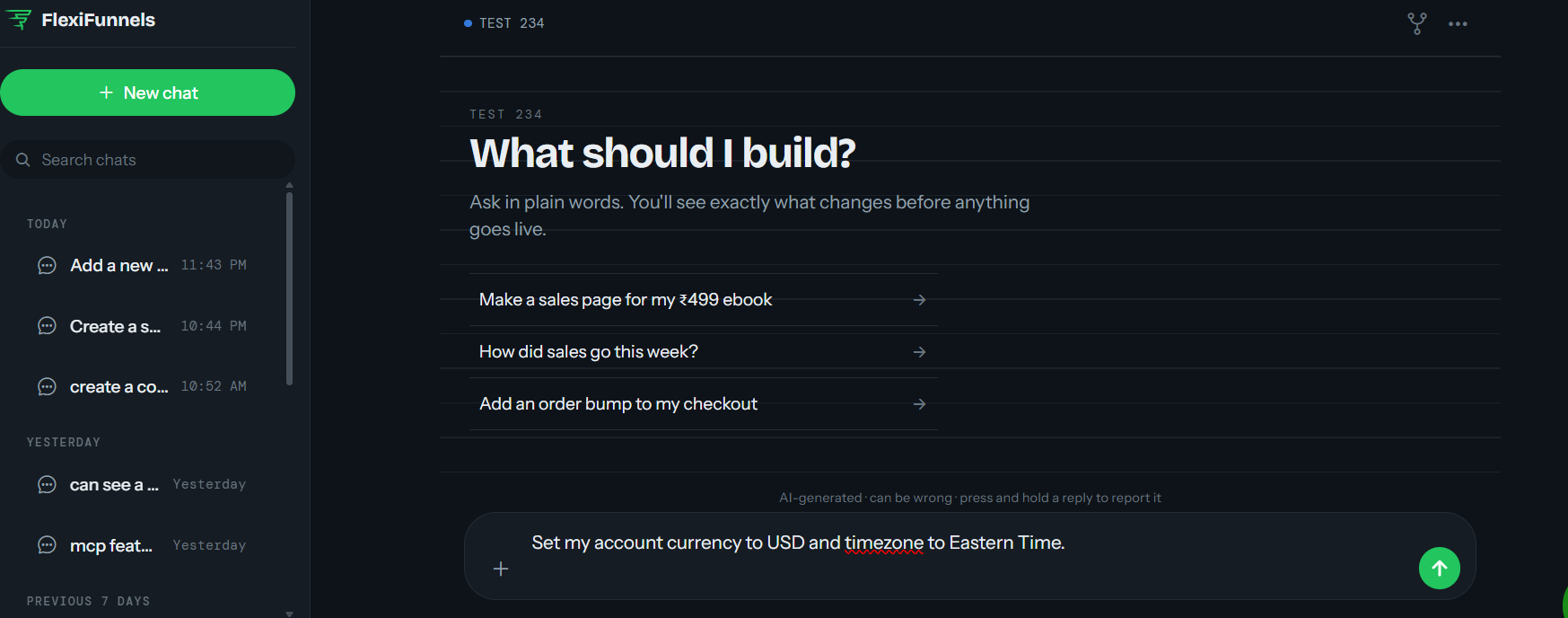
- Change your account's currency or timezone as needed.
Example Prompt: "Set my account currency to USD and timezone to Eastern Time."
Be Careful: Changing your account currency can affect how prices are displayed across your products. Review your product pricing after making this change.
Step 3: Invite a Sub-User (Team Member)
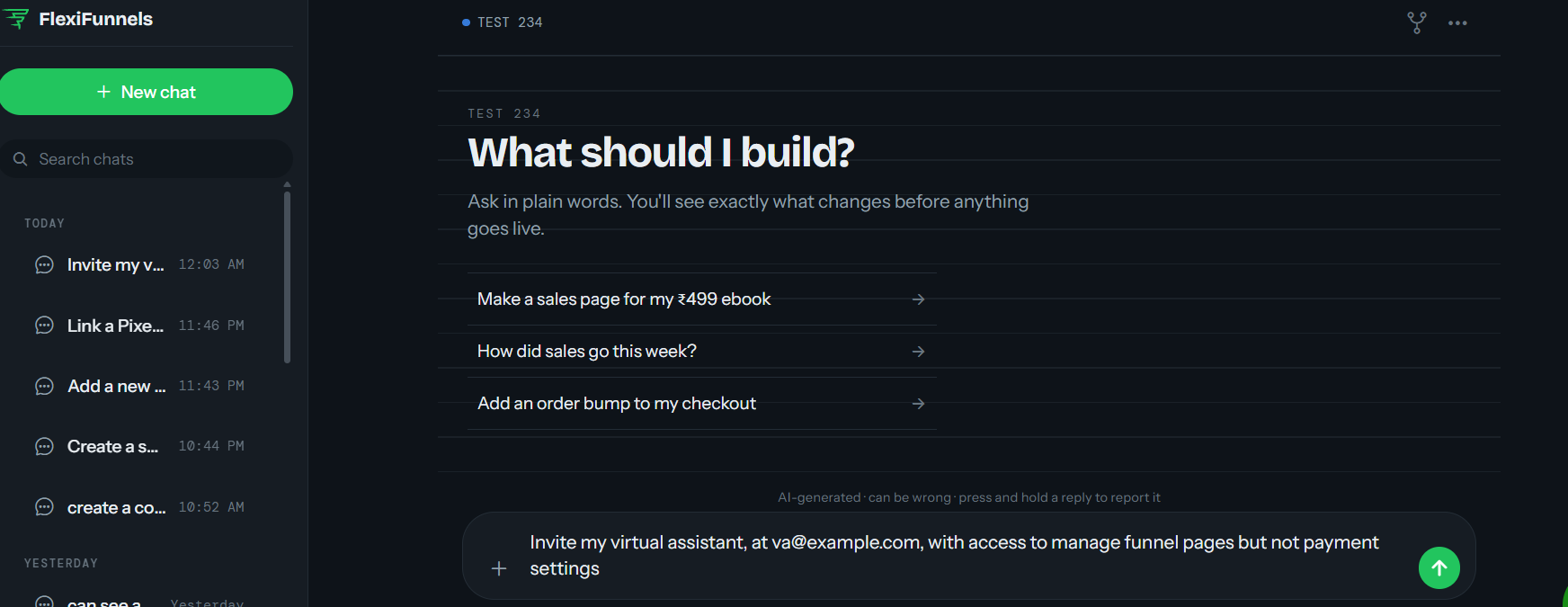
- Provide the team member's email address and describe what access they should have.
Example Prompt: "Invite my virtual assistant, at va@example.com, with access to manage funnel pages but not payment settings."
Step 4: Update a Sub-User's Access
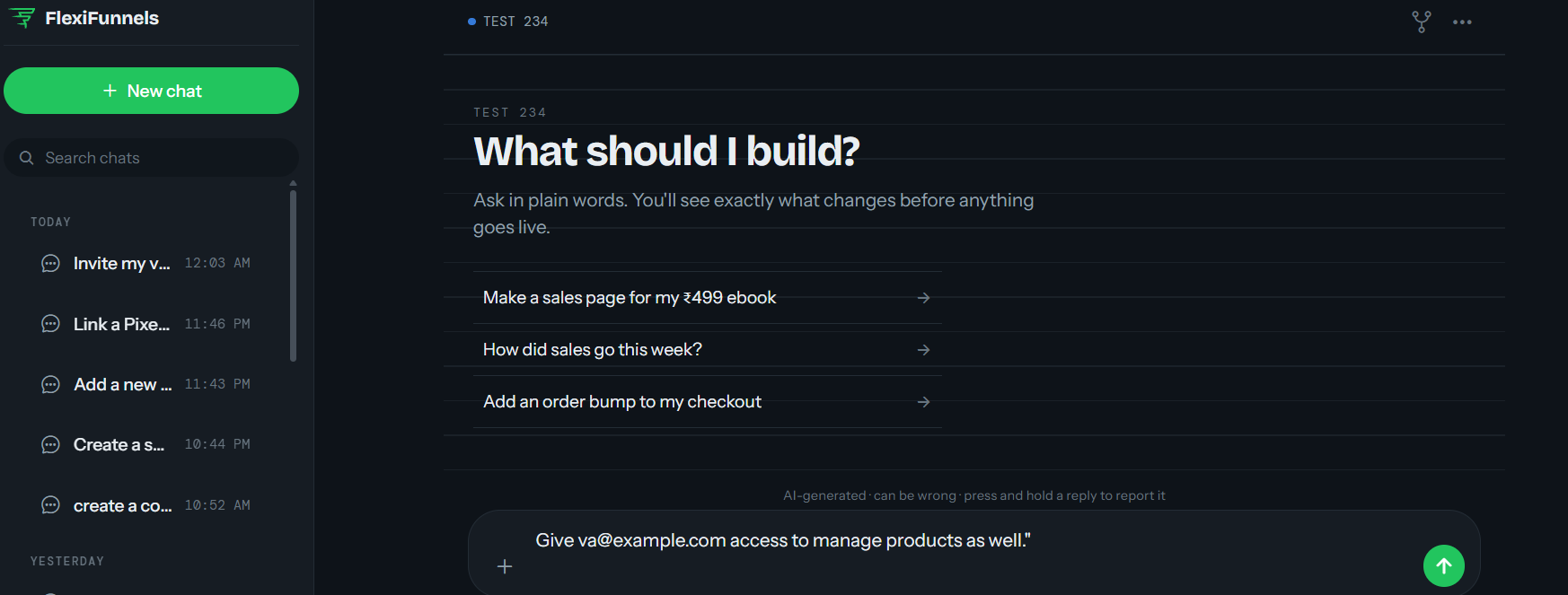
- Change what an existing team member can or can't do in your account.
Example Prompt: "Give va@example.com access to manage products as well."
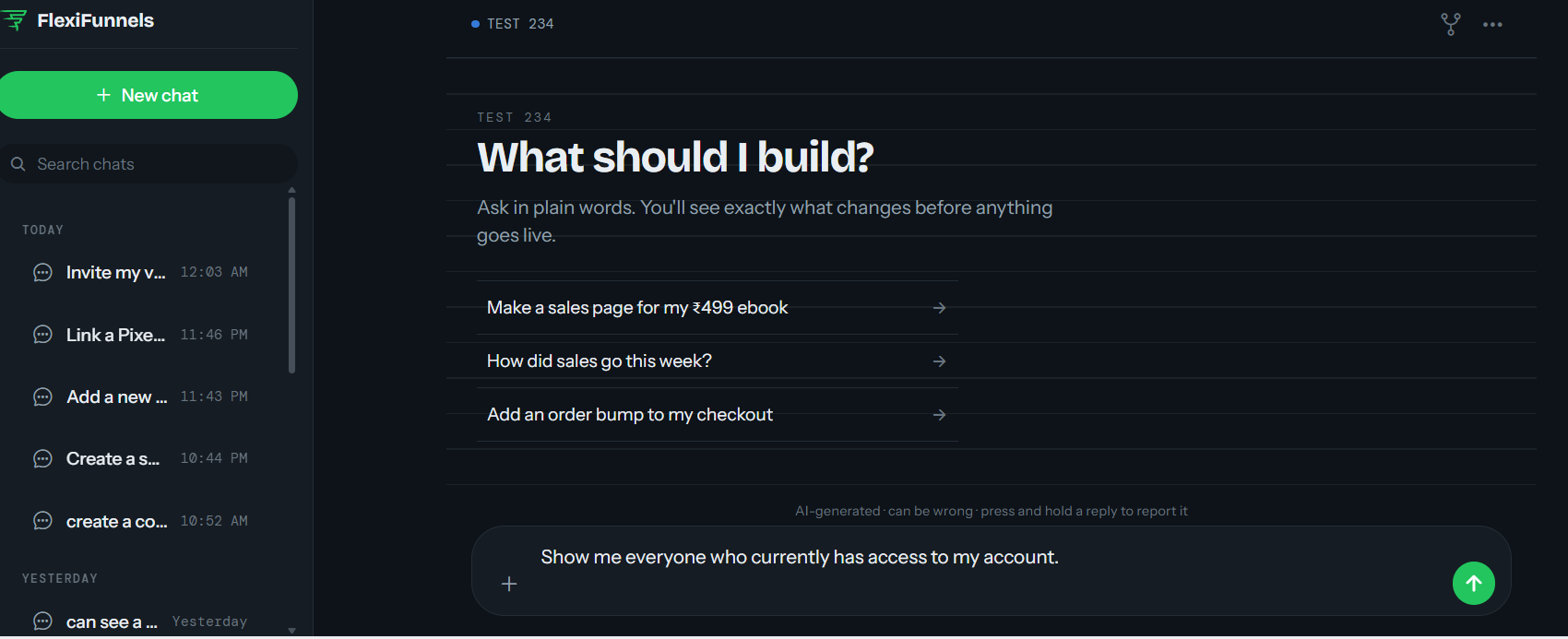
Step 5: Review Your Team
- Ask for a list of everyone currently with access to your account, along with their permission levels.
Example Prompt: "Show me everyone who currently has access to my account."
Step 6: Review Connected Integrations
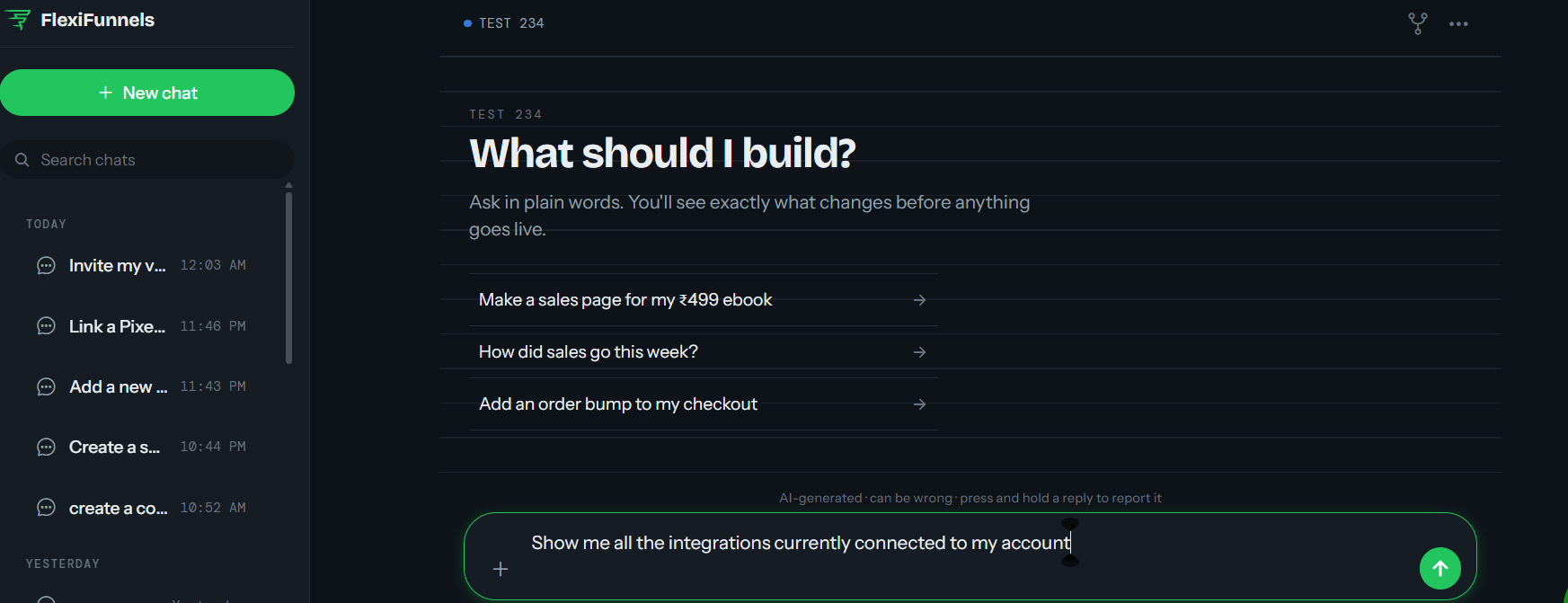
- Get a full picture of what tools are connected to your account, beyond just payment gateways and autoresponders.
Example Prompt: "Show me all the integrations currently connected to my account."
Behind the Scenes — MCP Tools Involved
| Task | Related MCP Tool(s) |
|---|---|
| View account settings | get_account_settings |
| View regional settings | get_account_regional |
| Update regional settings (currency/timezone) | update_account_regional |
| Invite a sub-user | invite_subuser |
| Update a sub-user's access | set_subuser_access |
| List all sub-users (team members) | list_subusers |
| View all connected integrations | get_other_integrations |
Good to Know: You never need to know these tool names to use Flexi Genie — this table is just for anyone curious about what's happening behind the scenes.
Ready-to-Use Prompts
"Show me my current account and regional settings."
"Change my account currency to GBP."
"Invite my new team member at teammate@example.com with access to manage pages only."
"Show me everyone with access to my FlexiFunnels account right now."
"List all the integrations currently connected to my account."
Tips for Better Results
- Grant team members the minimum access they actually need for their role — you can always expand it later.
- Review your regional settings early, especially before launching products in a new market.
- Periodically review your team list and integrations to make sure access reflects who's actually still working with you.
Common Issues / Troubleshooting
Team Member Can't Access Something They Need: Review their current access level and update it as needed.
Prices Displaying in the Wrong Currency: Check both your account-level regional currency and the currency set on individual products.
Limitations / Important Notes
- Sub-user access levels determine what a team member can see and do — review these carefully, especially for anyone with access to payments or customer data.
- Changing account-level regional settings can have knock-on effects on pricing display; review your products after making a change.
Curious what else Flexi Genie and AI assistants can do inside FlexiFunnels? See the full Possibilities with Flexi Genie & AI Assistance reference document.
Was this article helpful?
That’s Great!
Thank you for your feedback
Sorry! We couldn't be helpful
Thank you for your feedback
Feedback sent
We appreciate your effort and will try to fix the article