Connect Claude or ChatGPT to FlexiMembership. Use it to fix a typo on a community’s sign-up list.
Before You Start
- Connect FlexiMembership to Claude (a Connector) or ChatGPT (a Plugin). Make sure it is authorized.
- Know the project to work in.
- Start each request with “In FlexiMembership”.
Steps
1Fix a sign-up email on a community
- A community can limit sign-ups to an authorized email list.
- Ask to see the list. It shows 20 at a time.
- You can correct one address, such as a typo.
- Adding or removing addresses is done in the dashboard.
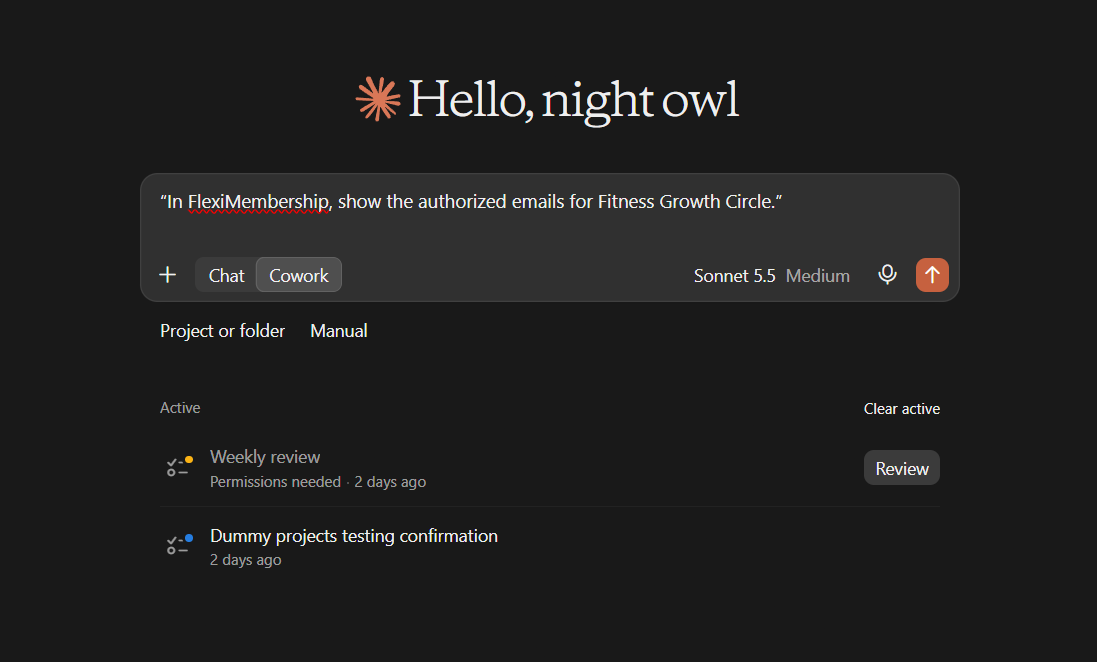
Example prompt“In FlexiMembership, show the authorized emails for Fitness Growth Circle.”
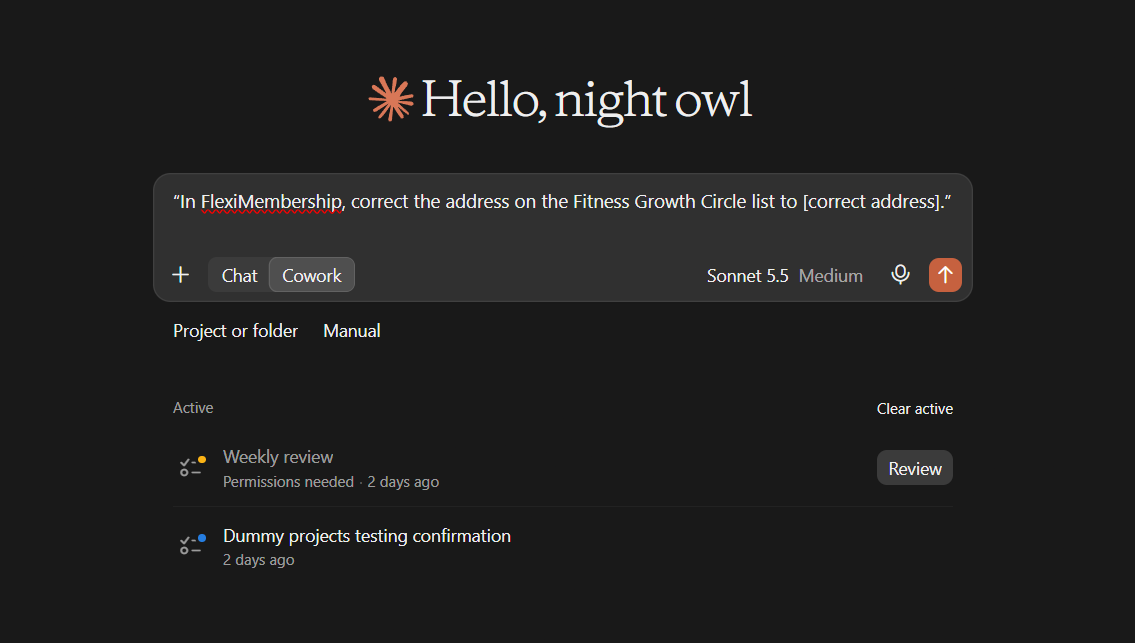
Example prompt“In FlexiMembership, correct the address on the Fitness Growth Circle list to [correct address].”
Behind the Scenes: MCP Tools Involved
| Task | Related MCP tool(s) |
|---|---|
| See a community’s authorized emails | list_authorized_emails |
| Correct one authorized email | update_authorized_email |
Tips for Better Results
- Ask to see the current settings before you change them.
- Change one thing at a time.
- Name the project, and the product or course when it matters.
- Read every preview. Some changes are live at once.
- After a change, ask the AI to show the setting again.
Quick Fixes
| Problem | Fix |
|---|---|
| The AI does not use FlexiMembership. | Check the connector or plugin is connected and authorized. Add “In FlexiMembership” to your prompt. |
Limitations
- Authorized email lists are uploaded in the dashboard. You can only fix one address here.
- No undo is described. Read each preview before you confirm.
Explore the complete FlexiMembership MCP Tools Reference: View the documentation for a detailed explanation of available MCP tools, their functionality, and how to use them.
Was this article helpful?
That’s Great!
Thank you for your feedback
Sorry! We couldn't be helpful
Thank you for your feedback
Feedback sent
We appreciate your effort and will try to fix the article