A rule is an automated action that happens after someone purchases your product. Think of it like a domino — customer buys → rule triggers → something automatic happens.
The most common rule: "When someone buys this product, add them to my email list called 'Course Buyers' and tag them with 'Paid Customer.'" That way, your email autoresponder instantly knows this person is a customer (not just a lead), and you can send them different emails.
This guide shows you how to set up rules so your buyer data automatically flows to your email platform, CRM, or other tools — with no manual work.
Check this quick video to create a Product using MCP/Flexi Genie:
What Rules Actually Do
Without rules: Customer buys → they're in FlexiFunnels → you have to manually add them to your email list → takes time, mistakes happen.
With rules: Customer buys → automatically added to your email list in Mailchimp / ActiveCampaign / GetResponse / etc. → tagged as "Paid Customer" → your automations kick in.
Rules are the connection between your sales funnel (FlexiFunnels) and your marketing/email platform. They move data automatically.
Prerequisites: Do You Have an Autoresponder Connected?
Rules send buyer data to an autoresponder (email platform). Before setting up a rule, you need:
- An autoresponder account (Mailchimp, ActiveCampaign, GetResponse, Klaviyo, etc.)
- That autoresponder connected to FlexiFunnels via Integration Settings
? Don't have it connected yet? Go to Settings → Integrations and connect your email platform first. See GetResponse Autoresponder Integration or Constant Contact Autoresponder Integration (link to whichever you use).
Once connected, the autoresponder will appear in the rules form below.
Step-by-Step: Create a Product Rule
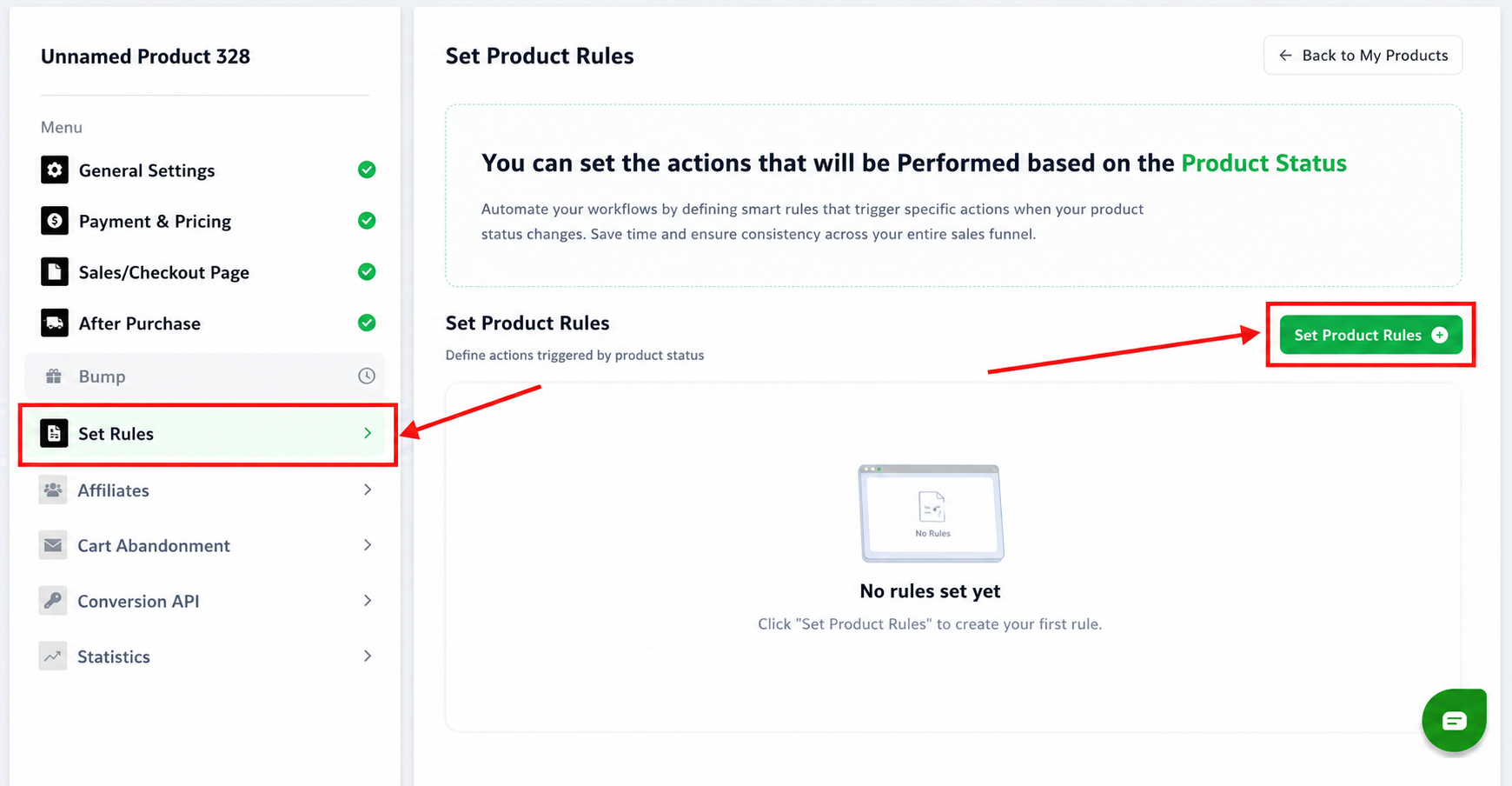
Step 1 — Open Your Product
Go to Products and click on the product you want to set rules for. You should see a tab or section labeled "Set Product Rules" or "Rules."
Step 2 — Click "Set Product Rules"
Click the "Set Product Rules" button to create a new rule. A form appears.
Step 3 — Configure the Rule
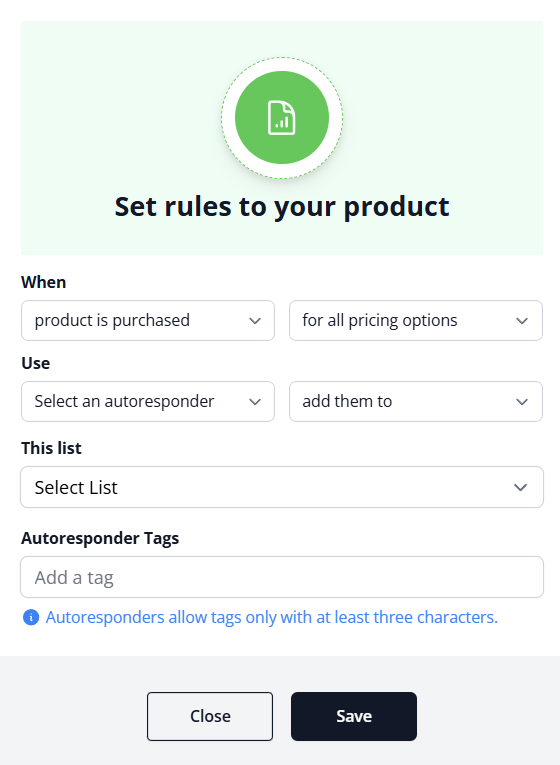
The form has several fields. Fill them in:
When — Set the trigger condition
This is when the rule fires.
Option A: "Product is purchased" This is the most common choice. The rule triggers the moment someone completes checkout and pays for this product.
? This is what you want 99% of the time. The other options are rare edge cases.
For all pricing options vs. For a specific pricing option
If your product has multiple price tiers (e.g., a course at $97, $197, or $397):
- For all pricing options — the rule triggers regardless of which price tier they bought. Use this to add all buyers to the same email list.
- For a specific pricing option — the rule triggers only if they bought at a specific price. Use this if you want $397 buyers in a different list than $97 buyers.
? Start with "For all pricing options" unless you specifically need different lists by price.
Use — Pick your autoresponder
A dropdown shows all autoresponders you've connected in Integration Settings (Mailchimp, ActiveCampaign, etc.).
Select the autoresponder you want to send buyer data to.
? Important: the autoresponder must be connected in Integration Settings first, or it won't appear here. See the Prerequisites section above.
Add them to — Pick the email list
After selecting the autoresponder, another dropdown appears labeled "This list" (or similar).
Select the list where you want this buyer added. Examples:
- "Course Buyers"
- "Paid Customers"
- "VIP Members"
- Any list you've created in your autoresponder
The buyer's data (name, email, phone, etc. from the checkout form) is automatically sent to this list.
? The list must exist in your autoresponder already. If you don't have a "Course Buyers" list, create it in your email platform first, then come back and select it here.
Autoresponder Tags — (Optional) Assign tags
Tags are labels you put on the contact in your autoresponder. They're useful for segmenting buyers later.
Examples:
- Tag: "Paid Customer" (so you know they've bought something)
- Tag: "Course-Buyers" (so you can target them with course-related emails)
- Tag: "High-Value" (if this is an expensive product)
When the buyer is added to the list, they automatically get these tags. Later, you can filter by tags in your autoresponder ("Send email to all contacts tagged 'Course-Buyers'").
? Skip this if unsure. Tags are helpful but optional. You can always add them later.
Step 4 — Save the Rule
Click "Save" to activate the rule.
How It Works — A Real Example
Setup:
- Product: "Social Media Mastery Course" ($97)
- Autoresponder: Mailchimp
- Rule: "When product is purchased, add to 'Course Buyers' list, tag 'Course-Buyers' and 'Paid'"
What happens:
- Customer visits your sales page.
- Customer clicks "Buy Now," fills checkout form (Name: Sarah, Email: sarah@example.com, Phone: 555-1234).
- Customer pays $97.
- Instantly, the rule fires:
- Sarah's data (sarah@example.com, etc.) is added to your Mailchimp "Course Buyers" list.
- She's automatically tagged "Course-Buyers" and "Paid" in Mailchimp.
- Your Mailchimp automations kick in (e.g., welcome email, course access email, etc.).
- In Mailchimp, you can see Sarah with both tags → you know she's a paying customer.
No manual work needed. Everything happens automatically.
Common Use Cases
Use Case 1: Lead Nurturing → Customer Segmentation
- Main product: Free lead magnet
- Bump: Paid course
- Rule: "When the course is purchased, move them from 'Leads' list to 'Customers' list, tag 'Paid'"
- Why: You want to send different emails to free subscribers vs. paying customers.
Use Case 2: Tiered Access
- Product 1: Basic course ($97) → adds to "Basic-Course" list
- Product 2: Premium course ($297) → adds to "Premium-Course" list
- Rule: Set different rules for each product
- Why: Premium customers get premium support emails; basic customers get basic emails.
Use Case 3: CRM Integration
- Product: Service package ($5,000)
- Autoresponder: Zapier (which connects to your CRM)
- Rule: "When service is purchased, send contact data to Zapier → creates lead in CRM"
- Why: Your sales team gets a notification automatically.
Testing Your Rule
Before relying on it, test:
- Make a test purchase using a test email address.
- Wait 5 minutes (it can take a moment to sync).
- Check your autoresponder — did the contact appear in the list you specified?
- Check the tags — do they have the tags you set?
If the contact doesn't appear, see the Troubleshooting section below.
Common Situations & Quick Fixes
"I set up a rule but the buyer didn't get added to the email list."
Checklist:
- Is the autoresponder connected in Integration Settings? If not, the rule won't work. Go to Settings → Integrations and connect it.
- Did you click Save after setting up the rule?
- Did you publish/re-publish the checkout page? Rules don't take effect on unpublished pages.
- Did you test with a real purchase on the live page (not editor preview)? Editor preview doesn't trigger rules.
- Wait 5–10 minutes — syncing can take a moment. Check again.
- In your autoresponder, does the list exist? If you deleted the list, the rule fails silently.
"The buyer was added but the tags didn't apply."
- Are the tags entered correctly in the rule? (Check spelling, capitalization.)
- Do the tags exist in your autoresponder, or are they new? Some platforms require you to create tags first.
- In your autoresponder, check the contact's details — are the tags there under a different name or section?
"I want different rules for different price tiers."
Create multiple rules:
- Rule 1: "For $97 pricing option → add to 'Budget-Course' list, tag 'Budget'"
- Rule 2: "For $297 pricing option → add to 'Premium-Course' list, tag 'Premium'" Each rule has its own trigger and destination.
"I want to send them to multiple lists at once."
Most autoresponders only allow one list per rule. Workaround: set up an automation in the autoresponder itself that says "If contact is added to List A, also add to List B." This happens on the email platform's side.
"The rule fires but customer data looks wrong (missing phone, etc.)."
The rule sends whatever data the customer entered in the checkout form. If the field wasn't on the form, it won't be sent. Check your order form fields — make sure you're capturing all the data you need. See Form Element Settings.
"I have multiple products with different rules — can I manage them all in one place?"
Each product has its own rules. If you have 10 products, you set rules in each product's settings. There's no "master rules" dashboard, but you can use your autoresponder to segment and organize contacts once they're in.
Best Practices
- Use clear list names. "Course Buyers" is better than "List 1."
- Use consistent tagging. If one product uses "Paid," don't use "Customer" for another. Consistent tags make filtering easier.
- Test the rule before going live. Make a test purchase, verify the list and tags appear.
- Keep rules simple. One product → one list + tags is easier to manage than multiple destinations per product.
- Use your autoresponder's automation. Rules get them into the list; automations handle the emails. See your email platform's automation docs.
What Happens After the Rule Fires?
The rule adds them to the list. That's it. The rule doesn't send emails; it doesn't enroll them in a course; it doesn't trigger a thank-you page.
For those next steps, use:
- After Purchase Settings (in the product) — deliver the course, send a thank-you page, email a digital asset.
- Autoresponder Automation (in your email platform) — send welcome email, trigger an email sequence, etc.
A rule is just the connector. Other settings do the actual delivery.
Was this article helpful?
That’s Great!
Thank you for your feedback
Sorry! We couldn't be helpful
Thank you for your feedback
Feedback sent
We appreciate your effort and will try to fix the article