Setting a product's price is where you decide how much customers pay — or whether they pay at all (free products are welcome too). This guide walks you through the three payment types, when to use each, and the payment processor setup you'll need.
Check this quick video to create a Product using MCP/Flexi Genie:
Where to find Price Settings
- Log into FlexiFunnels.
- Go to Products section.
- Create a new product or edit an existing one.
- Click the "Price Settings" tab (not General Settings — that's the product name/description).
- Click the "Set Product Price" button.
A form appears where you'll choose your payment type and enter the details.
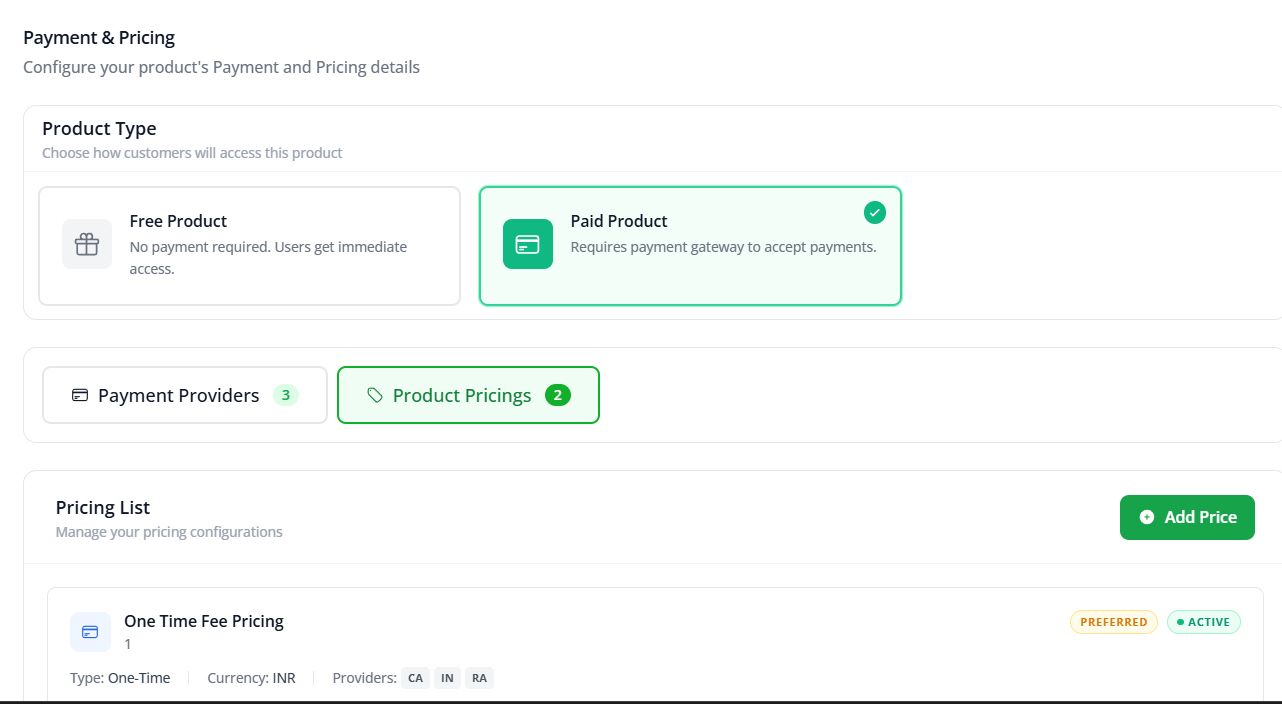
Step 1 — Click "Add Price"
Click the "Add Price" button to open the pricing form.
Step 2 — Choose Your Payment Type
A page appears with three options. Here's what each one does and when to use it:
Option 1: One-Time Fee
Customers pay once for the product. This is the most common option.
How to set it up:
- Select "One-Time Fee".
- Enter the price in the field (e.g., 29.99, 99, 199).
- Make sure you've set up a payment processor — FlexiFunnels needs to know where to send the payment. See the "Payment Processor Requirements" section below.
When to use: ebooks, courses, templates, software licenses, or any product you sell once. A customer pays $49, they own it forever.
? Pricing tip: round numbers like $29, $49, $99 often convert better than $29.99. Also, consider anchoring — showing a higher original price crossed out next to your sale price (e.g.,
$99$49) can boost perceived value.
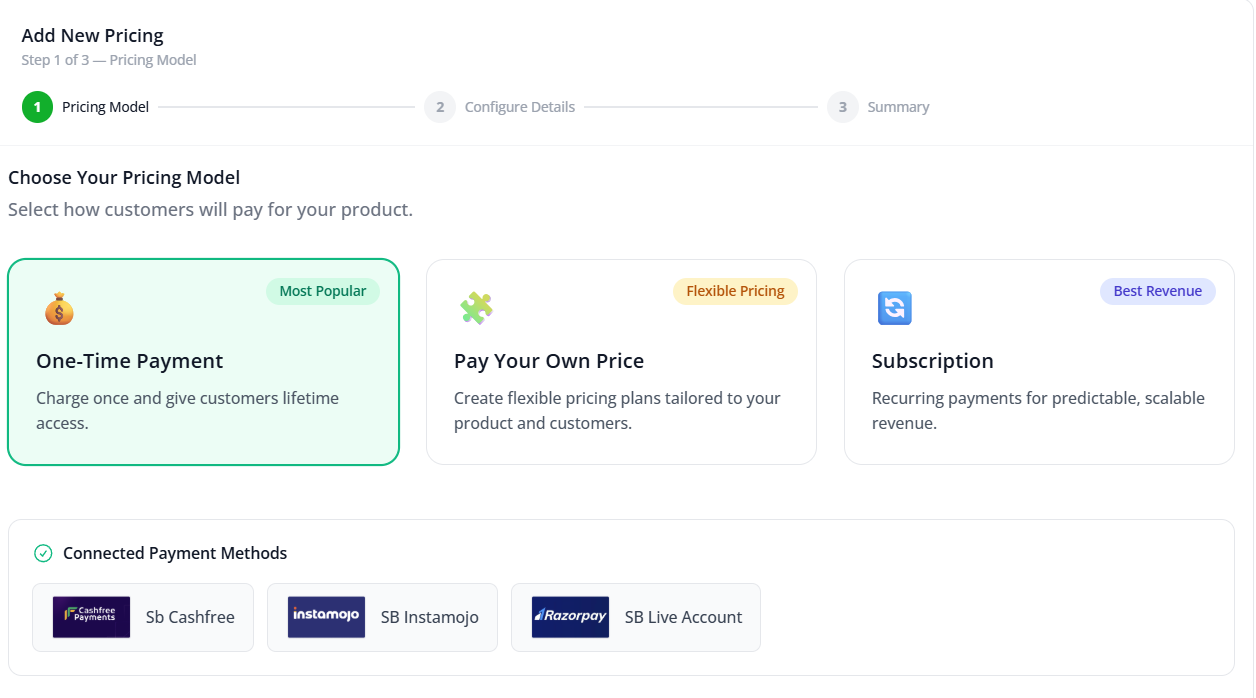
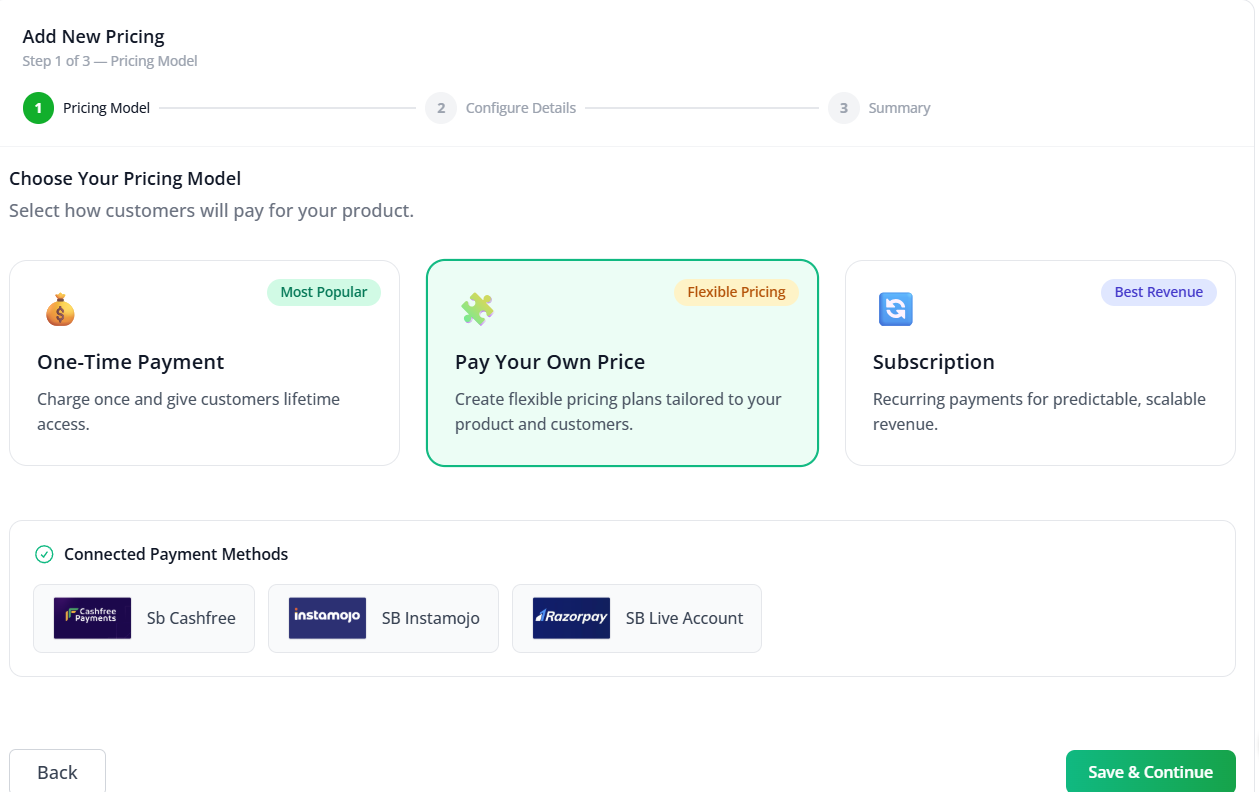
Option 2: Pay Your Own Price (PYOP)
Customers decide how much to pay — you set the minimum (or let them pay anything). They enter their own price at checkout.
How to set it up:
- Select "Pay Your Own Price".
- Set a minimum price (e.g., $1, $5, $0 for a "name your price" tip jar).
- You can optionally show a suggested price to guide customers.
When to use:
- "Pay what you can" products (sliding scale for accessibility).
- Upsells or add-ons (let existing customers choose to tip extra).
- Building goodwill (free or low-cost, hoping for donations).
- Testing price sensitivity (see what customers actually pay and adjust later).
? Psychology tip: when using PYOP, research shows that suggesting a price increases what customers actually pay. If you leave it blank, many people pay the minimum. A visible suggestion anchors them upward.
Option 3: Subscription Fee
Customers pay recurring — monthly, yearly, or whatever interval you set. The payment repeats automatically until they cancel. This feature only works with currency USD wiith Paypal and Stripe.
⚠️ Note: To know more about this feature in detail follow this article: How to Use Subscription Payments in FlexiFunnels.
When to use: membership sites, courses with ongoing access, SaaS tools, monthly services, or recurring deliverables (e.g., "$10/month for weekly templates").
Payment Processor Requirements
A price means nothing without a payment processor. You can't just ask for $49 — you need a gateway (Stripe, Razorpay, Cashfree, PayPal) connected to actually collect the money.
Before your product goes live:
- Check the Payment Options tab in your product (should be right next to Price Settings).
- Make sure a payment provider is selected and authorized.
- If no provider is set, add one (see PAYMENT OPTIONS In Product Settings for the full list).
Without this step, customers can't pay and your sales go nowhere.
Creating a Free Product (Price = $0)
Want to offer a free product (lead magnet, free trial, etc.)? Simple:
- Select "One-Time Fee".
- Enter the price as 0 (zero).
- You do not need a payment processor — no payment to collect.
- Continue to After Purchase Settings to deliver what they get (send an email with access, add them to a list, etc.).
Free products are great for building your email list. See Steps to create a Free Product for the full walkthrough.
Common Situations & Quick Fixes
"I set the price but customers can't buy — they see a payment error."
Checklist:
- Is a payment processor authorized in Payment Options? If not, add one.
- Is the processor connected to an actual account (Stripe, Razorpay, etc.), or just added but not activated?
- Is the product set to Live (not Draft)? See General Settings In Products.
- Have you published your sales/checkout page? Drafts don't work.
"I want to change the price later."
Go back to Price Settings, click "Set Product Price" again, and update the amount. Click Save. It applies to future purchases immediately.
? Note: if you've already charged customers, the old price remains in their receipt. Only new purchases use the new price.
"I'm not sure what price to charge."
Research your market — what do competitors charge? Can you survey customers? Test with a lower price first to build social proof (reviews, testimonials), then raise it. Some FlexiFunnels users also offer a limited-time discount to first customers, then move to regular price.
"I want to offer different prices to different people."
Use Different Pricing Options — create separate checkout pages with different prices, or use discount codes / coupon codes. See Different Pricing Option For your Products.
"The price field won't accept my input."
Make sure you're entering a valid number (e.g., 29.99, not "twenty dollars"). If it still won't accept it, your payment processor may have limits (e.g., some don't allow prices under $0.50). Check the processor's rules.
"Can I offer a trial or free period?"
That depends on your payment processor and subscription setup. For one-time purchases, no trial built-in — but you can offer a free product first, then link a low-cost paid product. For subscriptions, some processors (Stripe, Razorpay) support trial periods. See How to Use Subscription Payments.
Quick Recap
- Go to Products → your product.
- Click Price Settings tab.
- Click "Set Product Price".
- Choose your payment type:
- One-Time Fee for single purchases
- Subscription for recurring (if available)
- PYOP for customer-decided pricing
- Enter the price.
- Click Next.
- Set up a payment processor in Payment Options.
- Move to After Purchase Settings to finish.
Was this article helpful?
That’s Great!
Thank you for your feedback
Sorry! We couldn't be helpful
Thank you for your feedback
Feedback sent
We appreciate your effort and will try to fix the article