When you create a product in FlexiFunnels — a digital course, ebook, software, or any digital good you're selling — the General Settings tab is where you give it a name, select currencv and a logo. Think of it like the front cover of a book: it's what makes people recognize your product at a glance.
This guide walks you through each field, explains what each one controls, and shows you how to move a product from Draft (private, not yet ready) to Live (public, ready to sell).
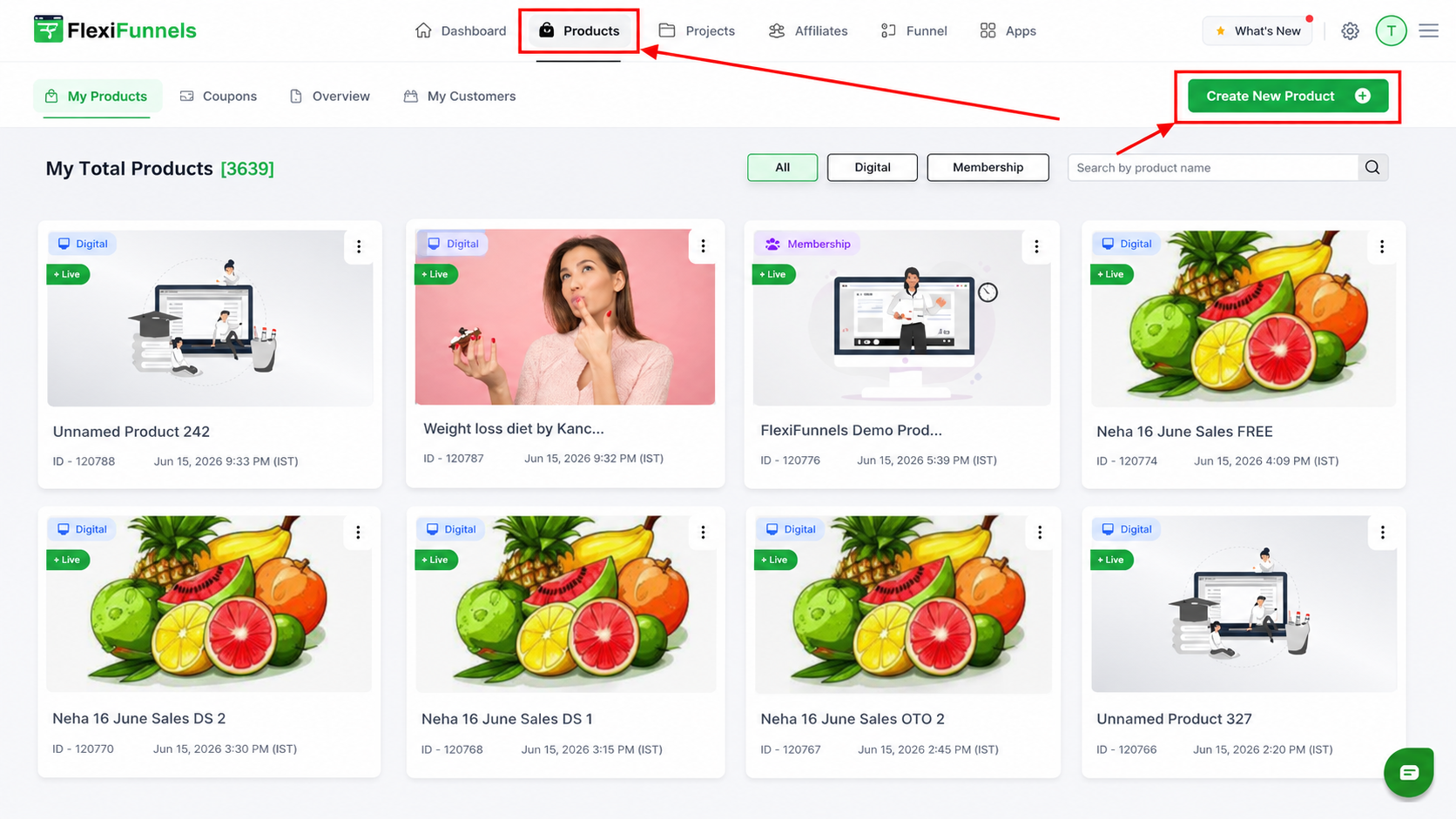
Where to find General Settings
- Log into your FlexiFunnels dashboard.
- Go to Products section.
- Either create a new product (click "Add New Product") or edit an existing one.
- The General Settings tab opens by default — that's this page.
The Three Fields
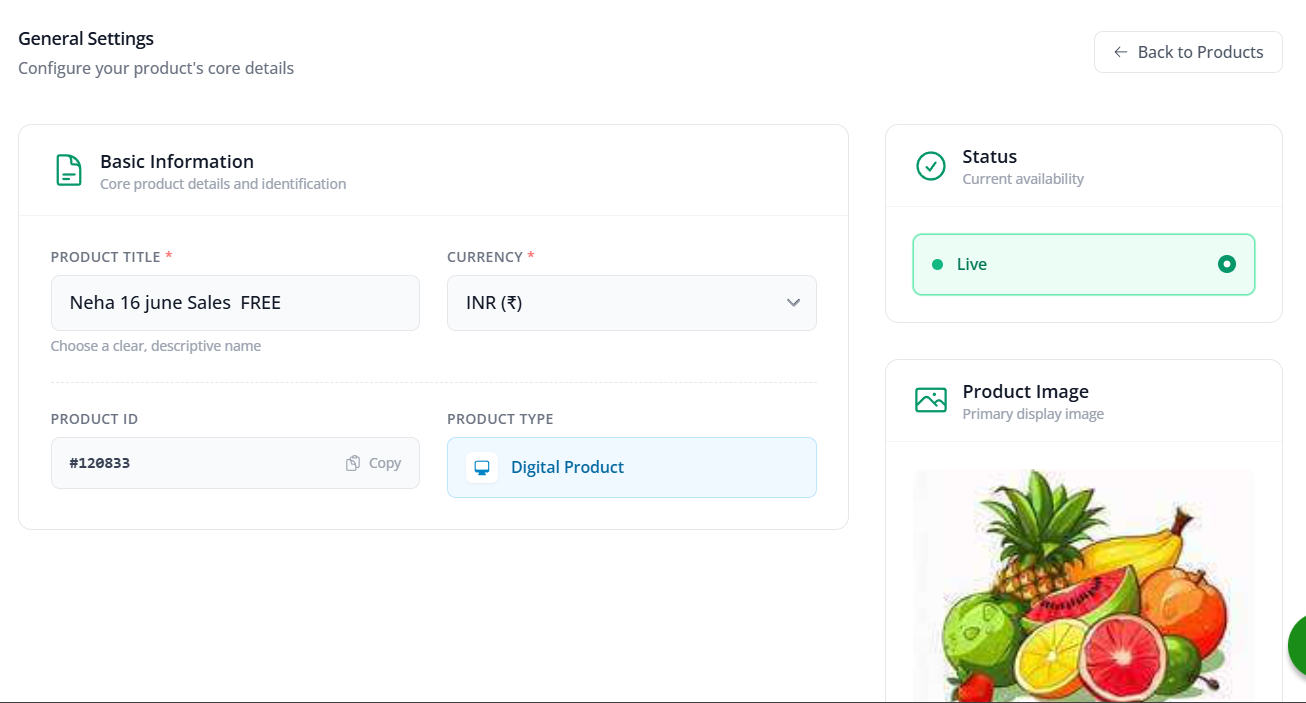
Field 1 — Product Title (Name)
This is the name of your product. It's displayed:
- On your sales page (if you add a "Buy Now" button that links to it).
- In your customer dashboard (after they buy).
- In your order emails.
- In your reports and analytics.
Best practice: make it clear and descriptive. "Complete Social Media Course" is better than "Course #1" because it tells people what they're buying.
? Note: this is not the same as your page title (the SEO title). This is the product name customers see everywhere inside your funnel.
Field 2 — Product Logo / Thumbnail Image
The small picture that represents your product. It shows:
- In the customer dashboard next to the product name.
- In order emails.
- In some reports.
Best practice: use a square image (same width and height), around 200 × 200 pixels or larger. A clean, simple logo or product icon works best. Avoid tiny images (they'll be blurry) and avoid text-heavy designs (they'll be unreadable at small sizes).
To upload: click the "upload photo" button and select your image file from your computer.
Product Status — Making Your Product Live
The Product Status setting controls whether your product is visible and sellable or hidden (draft mode).
Status Options
- Live — the product is public and ready to sell. Customers who find the checkout page can buy it. Orders are processed, payments are collected, and delivery/access happens. Use this when your product is complete and you want people to buy it.
⚠️ Important: a product must be set to Live for customers to buy it. If your checkout page exists but people can't complete a purchase, check this status first — it's likely set to Draft.
Quick Recap
- Product Title — the name customers see; be clear and specific.
- Product Logo — upload a square image, 200+ pixels, for the dashboard and emails.
- Product Status — set to Live when ready to sell, Draft while building.
- Save Product after each change.
- Then move to Price Settings, After Purchase Settings, etc. to finish the setup.
Was this article helpful?
That’s Great!
Thank you for your feedback
Sorry! We couldn't be helpful
Thank you for your feedback
Feedback sent
We appreciate your effort and will try to fix the article