What Is a Coupon Code, and Why Should You Use One?
The Simple Version
A coupon code is a special discount code that customers enter at checkout to get a lower price.
Real-world example:
You want to run a Black Friday sale.
You create a coupon code: BLACKFRIDAY20
You tell customers: "Use code BLACKFRIDAY20 for 20% off"
Customer enters the code at checkout
Their price drops from $99 → $79
✅ They complete the purchase
When Should You Use Coupon Codes?
Use coupons for:
- ✅ Limited-time promotions (Black Friday, holiday sales, seasonal offers)
- ✅ Customer acquisition (first-time customer discount to drive trials)
- ✅ Loyalty rewards (give existing customers exclusive codes)
- ✅ Partner/affiliate deals ("Use code PARTNER50 for $50 off from my partner")
- ✅ Email list rewards (subscribers get a special discount)
- ✅ Testing pricing (before raising your price, offer a discount code to see impact)
Don't use coupons for:
- ❌ Permanent price reductions (just lower your price instead)
- ❌ Every customer (defeats the purpose; erodes perceived value)
Before You Start: What You'll Need
✅ A FlexiFunnels account
✅ At least one digital product or membership set up
✅ Know your discount strategy (what % off? How many people can use it? How long?)
✅ About 10 minutes to set up a coupon
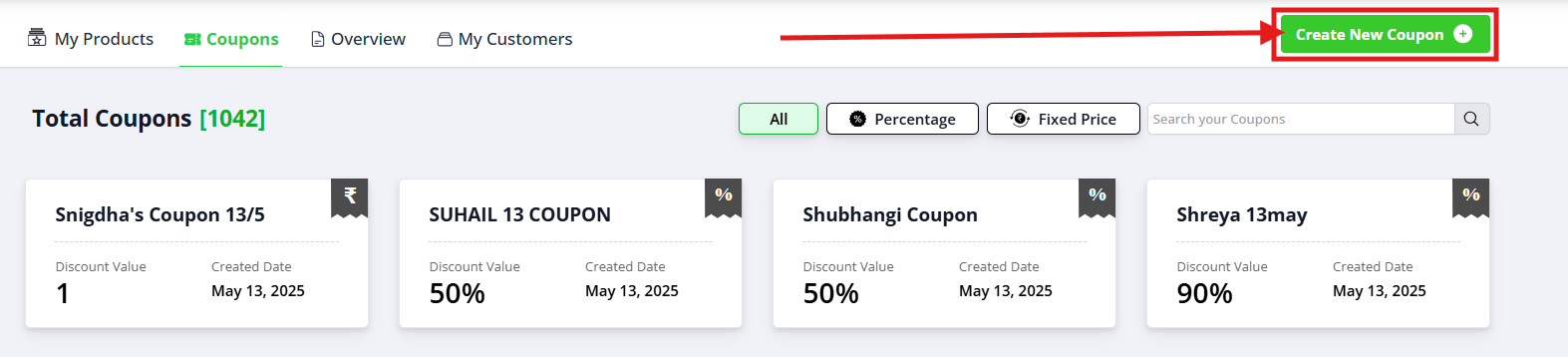
Step 1: Go to the Coupons Section
- Log into FlexiFunnels
- Click Products in the left sidebar
- Find and click Coupons (usually below the Products list, or in a submenu)
- A list of existing coupons (if any)
- A Create New Coupon button

Step 2: Create a New Coupon
- Click + Create New Coupon
- A form will appear with several sections
✅ You're now in the coupon setup wizard.
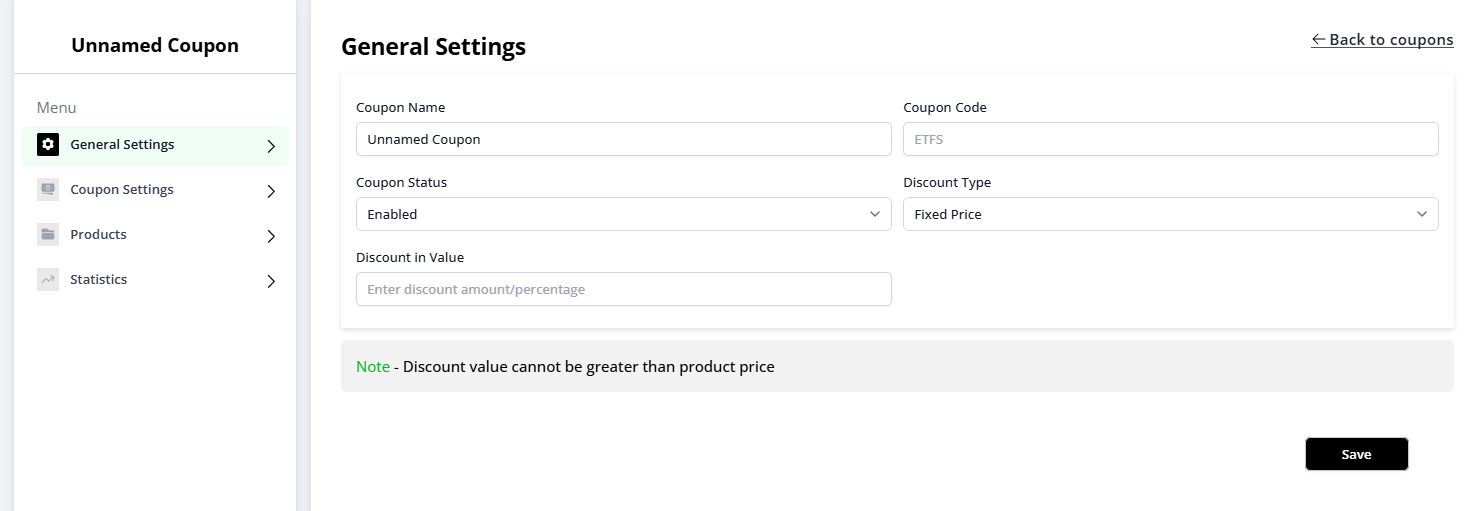
Step 3: Set the Coupon Code Name & Basic Settings
What to Fill In:
| Field | What It Means | Example |
|---|---|---|
| Coupon Code | The code customers will enter at checkout | BLACKFRIDAY20, SAVE50, EARLYBIRD |
| Display Name | What you call it internally (customers don't see this) | "Black Friday 20% Off" |
| Description | Internal note about this coupon | "November 2026 Black Friday sale" |
Tips for coupon code names:
- Make them easy to type (no special characters)
- Make them memorable (SAVE50 instead of XYZABC123)
- Make them relevant (BLACKFRIDAY instead of DISCOUNT1)
- Make them case-insensitive (so it works if someone types "blackfriday20" or "BLACKFRIDAY20")
Step 4: Set the Discount Amount
This is where you decide how much off customers get.
Option A: Percentage Discount
What it does: Gives customers a percentage off the price.
When to use:
- Most common approach
- Works across products of different prices
- Fair-feeling to customers
Setup:
- Find the Discount Type dropdown
- Select Percentage
- Enter the percentage (e.g., 20)
- This means customers get 20% off the product price
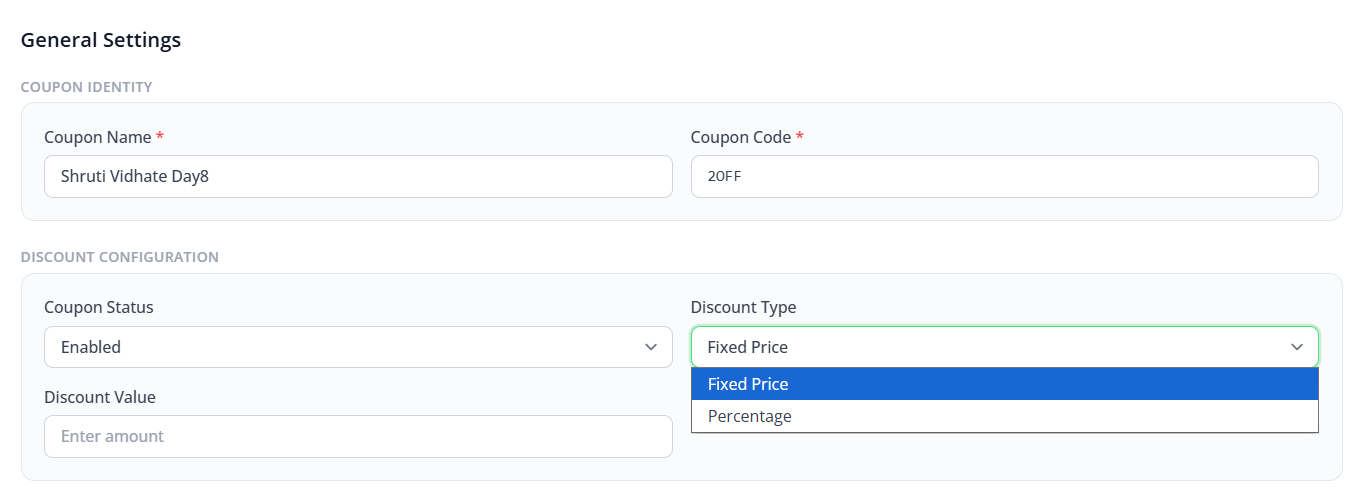
Option B: Flat Discount (Fixed Amount)
What it does: Gives customers a fixed dollar/amount off.
When to use:
- You want a specific dollar amount off (e.g., "$20 off any purchase")
- Works better for marketing ("Get $20 Off Today")
- Easier to communicate
Setup:
- Find the Discount Type dropdown
- Select Fixed Amount or Flat Value
- Enter the amount (e.g., 20)
- Specify the currency (USD, INR, etc.)
- This means customers get $20 off
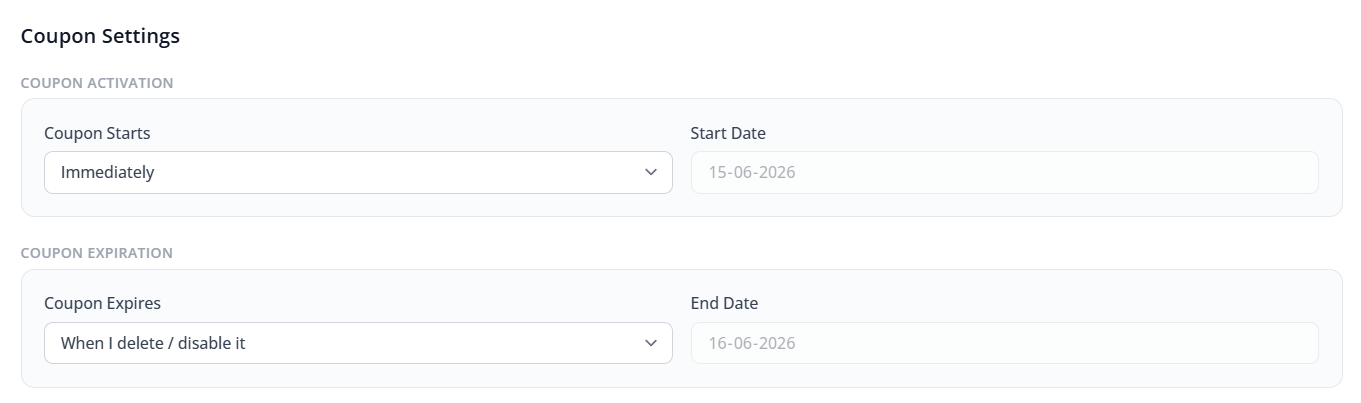
Step 5: Set Coupon Validity (Dates & Limits)
This section controls when the coupon works and who can use it
5.1 Set Validity Dates
What it does: Makes the coupon active only during a specific time period.
Setup:
- Find Start Date
- When the coupon becomes active
- Example: November 1, 2026 (Black Friday sale begins)
- Find End Date
- When the coupon expires
- Example: November 30, 2026 (Black Friday sale ends)
What happens:
- Before start date: Coupon doesn't work ("Invalid coupon")
- Between dates: Coupon works ✅
- After end date: Coupon doesn't work ("Coupon expired")
5.2 Set Maximum Usage Limit (Optional)
What it does: Limits how many times the coupon can be used in total.
Setup:
- Find Maximum Uses or Usage Limit
- Enter a number (e.g., 100)
- This means only 100 customers can use this coupon
Why use this?
- You want to control your revenue impact ("20% off on 100 purchases = $X lost revenue")
- You want exclusivity ("Only 50 people get this code")
- You want to manage inventory ("Only 50 copies of this course available")

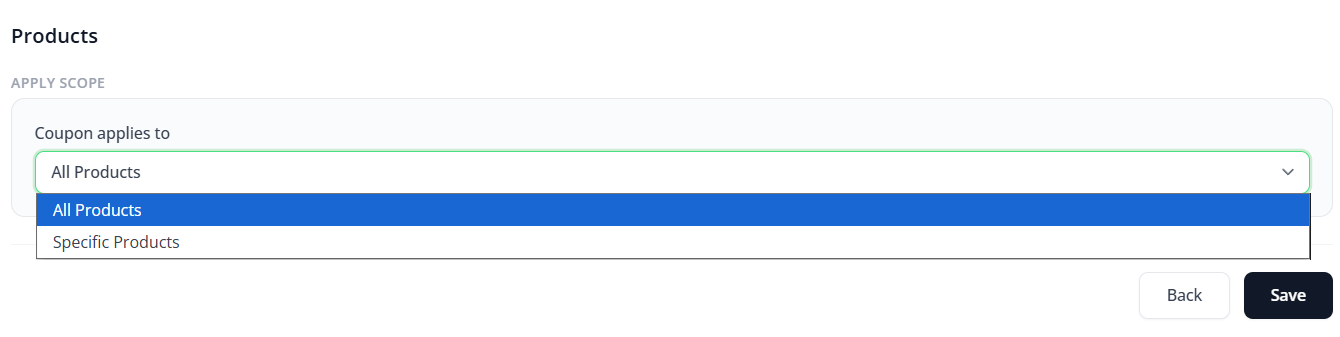
Step 6: Choose Which Products This Coupon Works On
Now you decide which products can use this coupon.
Setup:
- Find the Products tab or section
- You'll see two options:
- Apply to All Products ← The coupon works on every product you sell
- Apply to Specific Products ← The coupon only works on selected products
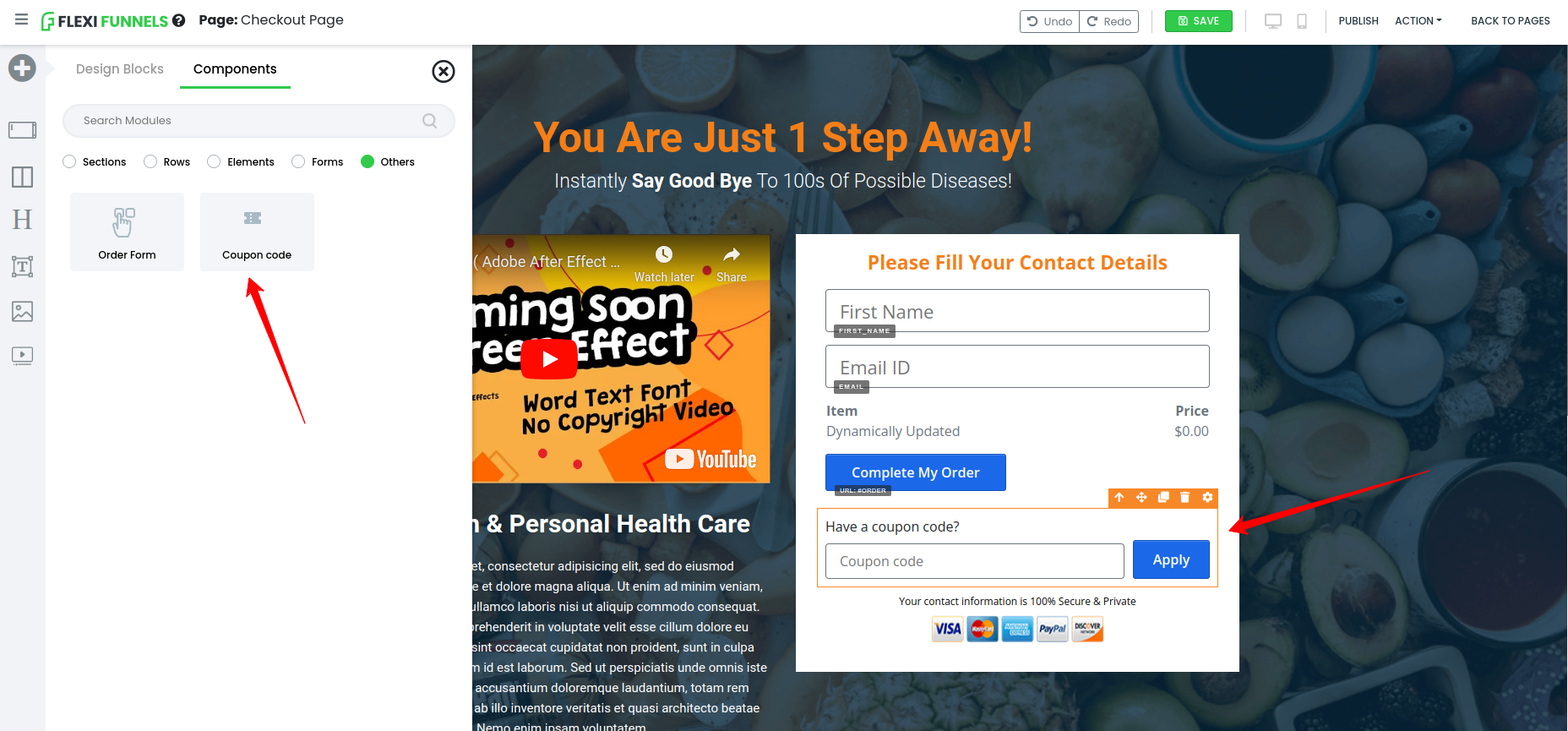
Add the Coupon Code Box to Your Checkout Page
Critical: Customers need a place to enter their coupon code. You must add this to your checkout page.
- Open the project containing your product
- Click on your Checkout Page to edit it
- In the page editor, find the + Add Element button (or drag-and-drop panel)
- You'll find Coupon Code element under Others category
When the right coupon is applied in the checkout page, discount is applied on the product.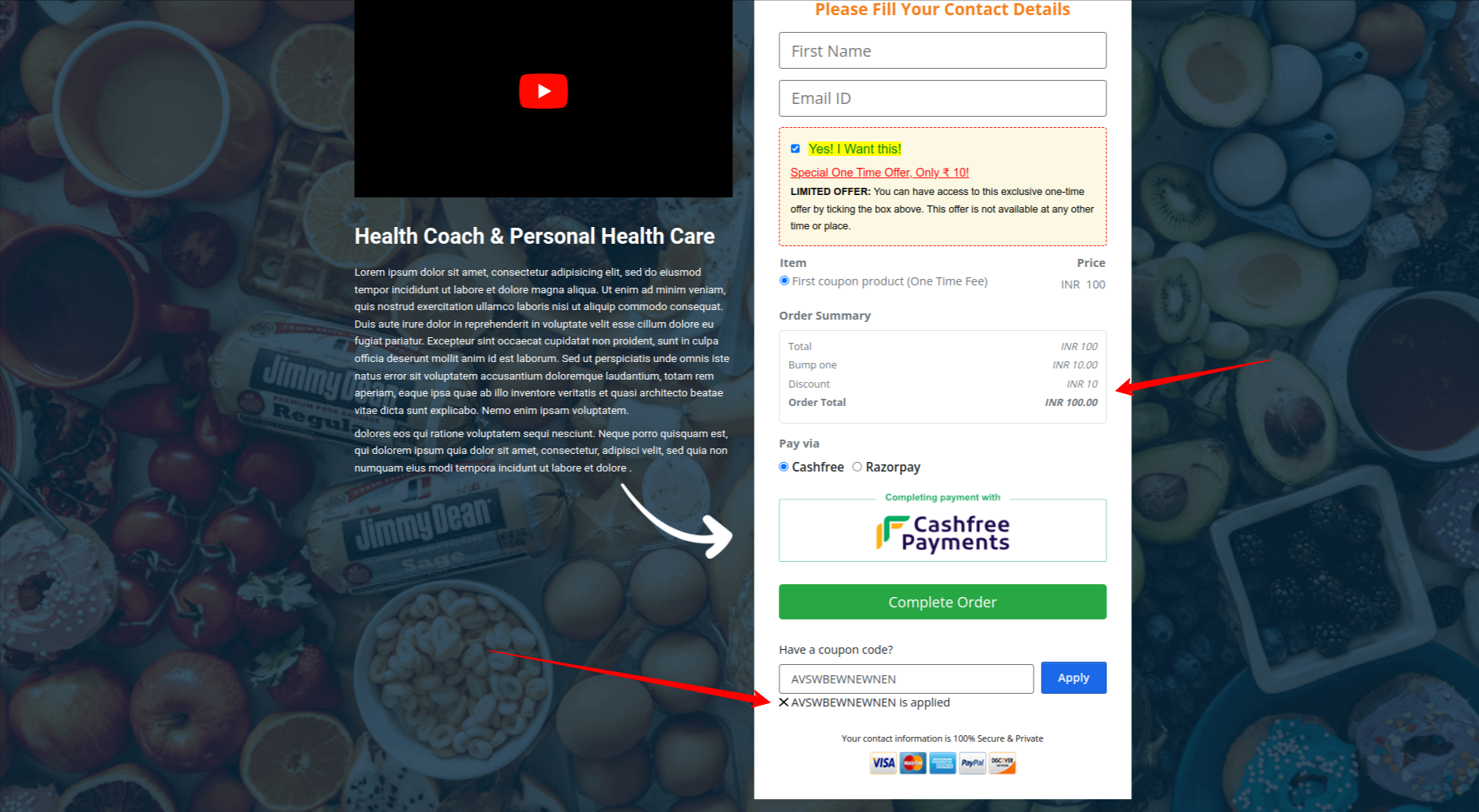
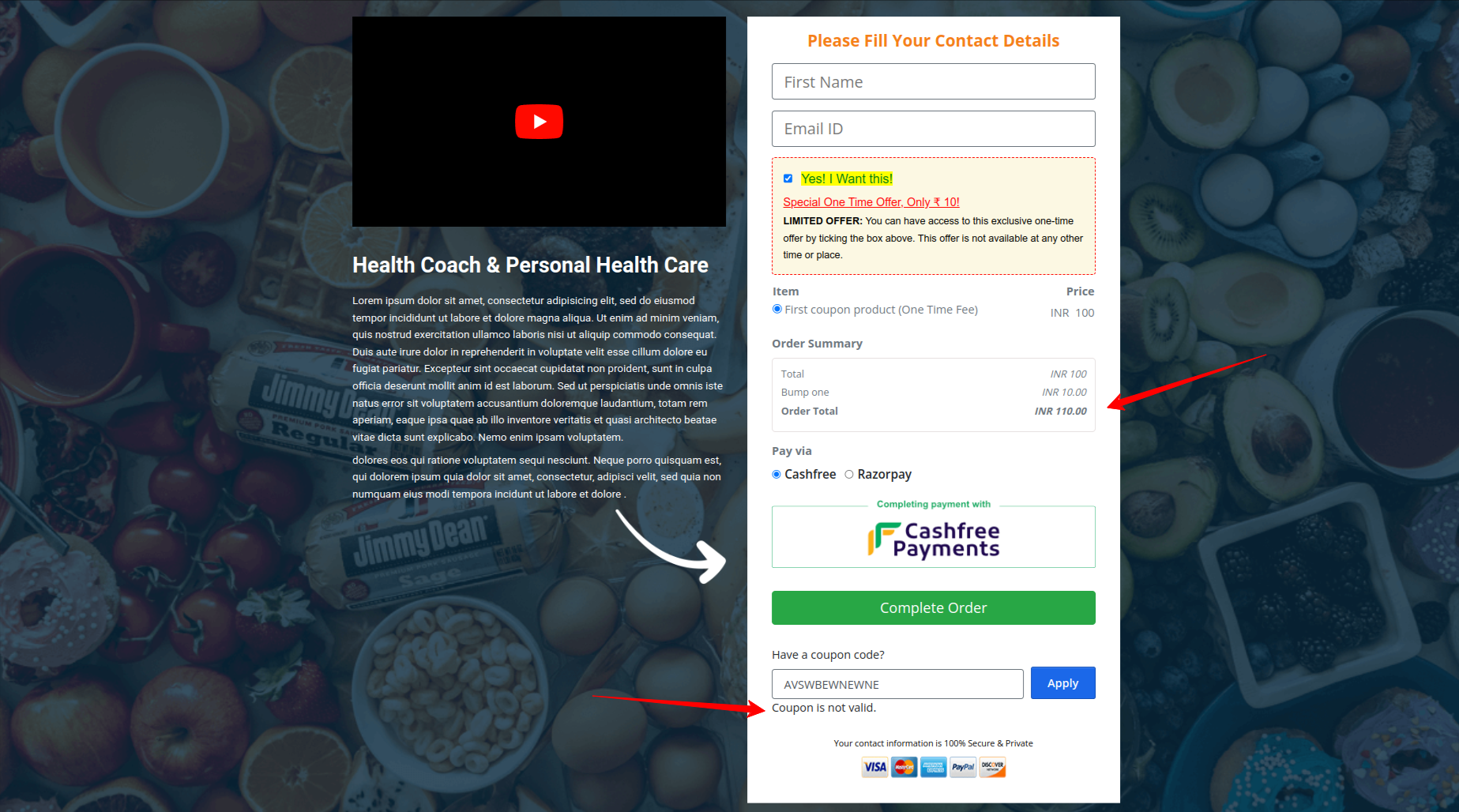
If wrong coupon is applied by the user, no discount is applied on the price.
Final Step Instructions:
Once all the necessary steps are completed, please make the setup live. After that, to track the performance, go to the "Coupon Code Available" section — there you'll find the "Statistics" option where you can monitor the results.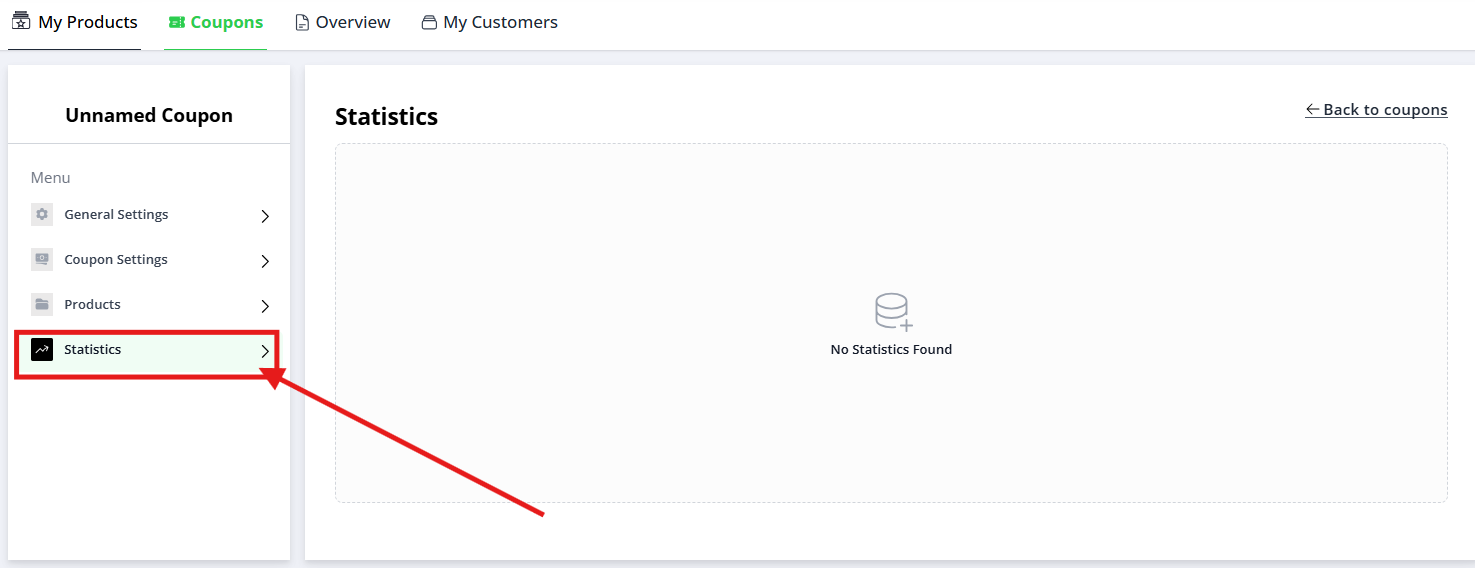
Test Your Coupon Before Promoting It
Never promote a coupon without testing. Takes 2 minutes, saves you from embarrassment.
10.1 Test a Purchase With the Coupon
- Go to your published Sales Page
- Click "Buy Now"
- You're on the Checkout Page
- Fill in your test information:
- Name: "Test Customer"
- Email: "test@example.com"
- Address: Any address
- Look for the coupon code field
- Enter your coupon code (e.g., "BLACKFRIDAY20")
- Watch for the discount to apply
- The price should drop
- You should see "Discount applied: $X" or "20% off"
- Complete the payment with a test card
- Verify the Thank You page shows the discounted price
✅ Coupon is working.
10.2 Test Invalid Scenarios
Test 1: Wrong coupon code
- At checkout, enter a wrong code (e.g., "WRONGCODE")
- Try to apply it
- Verify: Error message appears ("Invalid coupon" or "Coupon not found")
- Price stays full price ✅
Test 2: Expired coupon (if applicable)
- Wait until the end date passes (or manually test)
- Try to use the coupon
- Verify: Error message appears ("Coupon expired")
Test 3: Exceeded usage limit (if applicable)
- If your coupon has a usage limit, use it that many times
- On the next use, try to apply it
- Verify: Error message appears ("Coupon limit reached")
Test 4: Wrong product
- If your coupon only applies to specific products, try using it on a different product
- Verify: Error message appears or discount doesn't apply
Promote Your Coupon Code
Now that it's tested and working, share it with customers.
How to Promote:
Email List:
- Send an email: "Black Friday sale! Use code BLACKFRIDAY20 for 20% off"
- Include it in your email signature
- Add it to automated email sequences
Social Media:
- Post on Facebook, Instagram, LinkedIn: "Only 3 days left! Use code BLACKFRIDAY20"
- Include it in your bio or pinned post
- Share in stories/status
Website/Blog:
- Add to your homepage banner
- Include in blog posts about the promotion
- Add to your FAQ
Paid Ads:
- Facebook/Google ads: "Use code BLACKFRIDAY20 for 20% off"
- Make it a focal point of your ad copy
Sales Page:
- Add a banner at the top: "Black Friday Special: Use code BLACKFRIDAY20 for 20% off"
- Mention in your sales copy: "At checkout, use code BLACKFRIDAY20"
Track Your Coupon Performance
Now that customers are using your coupon, monitor how it's performing.
Where to Find Coupon Statistics:
- Go to Products → Coupons
- Click on your coupon from the list
- Look for a Statistics tab or section
- You'll see metrics like:
- Total Uses: How many times it's been used
- Remaining Uses: If you set a limit (e.g., 50 max, 35 remaining)
- Revenue Impact: How much discount was given
- Usage Trend: Graph showing usage over time
Key Metrics to Track:
| Metric | What It Means | What's Good? |
|---|---|---|
| Coupon Uses | Times the code was entered | More = successful promotion |
| Conversion Rate with Coupon | % of people using code who buy | 40%+ is typical |
| Revenue Lost to Discount | Total value of all discounts | Track against sales increase |
| New Customers via Coupon | First-time buyers who used code | Measure acquisition cost |
| Repeat Customers via Coupon | Existing customers using code | High = good loyalty building |
Example analysis:
Coupon: BLACKFRIDAY20 (20% off)
Uses: 150
Full price: $99
Discounted price: $79
Revenue lost: 150 × $20 = $3,000

But: These 150 customers might spend $5,000+ on future products
Net impact: +$2,000 (customer acquisition cost = $20)
Common Situations & Quick Fixes
❌ "Coupon code box isn't showing on my checkout page"
The problem: You didn't add the coupon element to the checkout page.
How to fix:
- Go to Projects → your project
- Click your Checkout Page to edit it
- Look for the coupon element on the page
- If it's not there:
- Click + Add Element
- Search for "coupon" or "discount code"
- Add the coupon field
- Position it before the payment field
- Publish your page
Now test: Go to checkout again. Coupon box should appear.
❌ "Customer enters the coupon but nothing happens (no discount)"
Diagnostic steps:
Step 1: Verify the coupon exists and is active
- Go to Products → Coupons
- Find your coupon in the list
- Check its Status — it should say "Active" (not "Inactive" or "Expired")
- If inactive, click to edit and toggle Status: Active
Step 2: Check the coupon validity dates
- Click on your coupon to view details
- Check Start Date and End Date
- If today is before start date or after end date, coupon won't work
- Update the dates if needed
Step 3: Check the product is included
- Click on your coupon
- Find the Products tab
- Verify your product is checked/included
- If not, add it
Step 4: Have the customer try again
- Tell them to refresh the page
- Clear browser cache (sometimes old data cached)
- Try the coupon code again in a new checkout session
Still not working? Submit a support ticket with your coupon code name.
❌ "Coupon code field is showing but customers say 'Invalid Coupon' error"
Diagnostic steps:
Step 1: Check the coupon code spelling
- Go to Products → Coupons
- Click on your coupon
- Look at the Coupon Code field
- Is it spelled correctly?
- Is there a space or typo?
- Copy the exact code customers should use
Step 2: Check coupon status
- Is the coupon Active? (not archived or paused)
- Is today between the Start Date and End Date?
- If either is wrong, fix it
Step 3: Check product assignment
- Click on your coupon
- Find Products tab
- Is the customer's product checked?
- If not, add it
Step 4: Communicate the correct code to customers
- Tell them the exact code to use (with correct spelling)
- Tell them to try typing it manually (not copy-paste, in case formatting issues)
- Tell them to try without spaces
❌ "Coupon worked for some customers but not others"
The problem: Your coupon might have a usage limit that's been reached.
How to check:
- Go to Products → Coupons
- Click your coupon
- Look at Maximum Uses or Usage Limit
- Check Total Uses — if it equals the limit, no more customers can use it
- To fix:
- Increase the usage limit, or
- Create a new coupon with the same discount
❌ "Customer paid full price even though they entered the coupon"
The problem: The coupon didn't apply to that product, or there was a technical issue.
How to investigate:
- Ask the customer:
- What coupon code did they use?
- What product did they buy?
- What error (if any) appeared?
- Check the coupon:
- Go to Products → Coupons
- Find the coupon they used
- Check Products tab — is their product listed?
- If not, add it and tell the customer to try again
- Manual refund option:
- If the coupon should have applied, refund the difference manually
- Process a partial refund through your payment gateway
❌ "I want to disable a coupon without deleting it"
The problem: You want to turn off the coupon temporarily, not permanently delete it.
How to do it:
- Go to Products → Coupons
- Click on the coupon
- Look for Status toggle or Active/Inactive
- Toggle it to Inactive
- Save
Result: Coupon no longer works ("Invalid coupon" error), but the coupon still exists in your system.
To reactivate: Toggle it back to Active.
❌ "I exceeded my profit margin with this discount"
The problem: Your 50% discount is too deep. Customers are buying but you're losing money.
How to fix going forward:
- For existing coupon: Disable it (toggle Inactive)
- Create a new coupon with a smaller discount (e.g., 15% instead of 50%)
- Communicate to customers: "We're updating our offer. New code: NEWOFFER15"
For future coupons: Use this formula:
Maximum discount = (Profit Margin × 80%) / Customer Lifetime ValueExample:
Product price: $99
Your profit margin: 70% ($69 profit)
Max sustainable discount: 28% off ($28)
New price: $71 (still profitable)
Coupon Strategy: Best Practices
What Discount % Should You Offer?
| Discount | Best For | Risk |
|---|---|---|
| 5–10% | New customer acquisition | Too small, doesn't motivate |
| 15–25% | Standard promotions | Good balance |
| 30–50% | Product launch / clear inventory | High discount, lower profit |
| 50%+ | Desperation move / liquidation | Dangerous for margins |
Recommendation: Start with 20% off for promotions. Track results. Adjust up or down based on conversion rates.
How Many Uses Should You Allow?
| Max Uses | Best For | Why |
|---|---|---|
| Unlimited | Permanent or ongoing | No artificial scarcity |
| 100+ uses | Popular promotion | Still feels special, won't run out |
| 50 uses | Limited-time offer | Creates urgency |
| 10 uses | VIP/exclusive | High perceived value |
| 1 use per person | Abuse prevention | One discount per customer |
How Long Should the Coupon be Active?
| Duration | Best For | Example |
|---|---|---|
| 1–3 days | Flash sales, creating urgency | "48-hour sale only!" |
| 1 week | Weekly promotions | Monday launch, Sunday end |
| 1 month | Seasonal promotions | "October offer" |
| Always | Permanent discount structure | "First-time customer: 25% off" |
Real-World Coupon Strategies
Strategy 1: New Customer Acquisition
Coupon: WELCOME25
Discount: 25% off
Duration: Always active
Max Uses: Unlimited
Target: "First-time customers only" (market it as such)
Result: Attracts first buyers, converts skeptics
Strategy 2: Limited-Time Flash Sale
Coupon: FLASH50
Discount: 50% off
Duration: 48 hours only
Max Uses: 100
Target: Email list + social media
Result: Creates urgency, drives immediate sales
Strategy 3: Loyalty Reward
Coupon: LOYAL30
Discount: 30% off next purchase
Duration: 60 days after first purchase
Max Uses: Unlimited
Target: Email to past customers only
Result: Encourages repeat purchases
Strategy 4: Partner/Affiliate Commission
Coupon: PARTNER20
Discount: 20% off
Duration: Always
Max Uses: Unlimited
Products: Specific product only
Target: Share with partners
Result: Affiliate can promote and track conversions
FAQ: Common Questions
Q: Can the same customer use multiple coupons on one purchase? A: No. Customers can enter one code per checkout. Once one is applied, they can't add another.
Q: What if a customer uses a coupon and then requests a refund? A: Refund the discounted price (what they paid), not the full price. They got the deal they agreed to.
Q: Can I change a coupon's discount after it's active? A: Yes. Edit the coupon and change the percentage/amount. New uses will reflect the new discount. Previous purchases stay the same.
Q: What if someone screenshots a coupon code and shares it publicly? A: Set a usage limit. Once it hits the limit, no one else can use it. Or deactivate it and create a new code.
Q: Can I see which customers used which coupons? A: Yes, in the Statistics/Reports section. You can see coupon usage, but actual customer names depend on your analytics setup.
Q: Should I offer free products instead of discounts? A: Free reduces your revenue more than a discount. A $99 product at 50% off = $50 revenue. Free = $0 revenue. Discount is better for your bottom line.
Q: Can I use coupons with payment plans/subscriptions? A: Yes, if your product supports it. The discount applies to the first payment. Check your payment gateway settings.
Q: What's the difference between a coupon and just lowering my price? A: Coupon: Creates urgency (limited time), rewards promotion (email subscribers), selective (only certain customers). Price drop: Permanent for everyone. Use coupons for strategic marketing, not permanent reductions.
Performance Checklist Before Going Live
Before promoting your coupon, verify each of these:
Coupon Setup
- Coupon code is created and active
- Discount amount is correct (% or flat value)
- Validity dates are correct (hasn't expired, hasn't started yet)
- Maximum usage limit is set (if desired)
- Correct products are selected
Checkout Page
- Coupon code field is visible on checkout page
- Field is positioned before payment field
- Field label is clear ("Coupon Code" or "Promo Code")
- Checkout page is published
Testing
- You tested the coupon yourself (entered code, saw discount apply)
- You tested an incorrect code (got error message)
- You tested on mobile (field visible, works correctly)
- Discount calculation is correct
- Thank You page shows discounted price
Promotion Ready
- You know exactly what to tell customers ("Use code BLACKFRIDAY20")
- You have promotion channels identified (email, social, ads)
- Launch timing is set
- You're monitoring statistics after launch
✅ Ready to promote!
Submit a Ticket
If you've tried the troubleshooting steps above and still need help, mail us at help@flexifunnels.com with:
- Your coupon code name
- The specific issue (code not applying, not showing on checkout, etc.)
- A screenshot of your coupon settings
- What you've already tried
- The exact error message customers are seeing (if any)
Our team will help you fix it within 24 hours.
Was this article helpful?
That’s Great!
Thank you for your feedback
Sorry! We couldn't be helpful
Thank you for your feedback
Feedback sent
We appreciate your effort and will try to fix the article