Overview
The Cart Abandonment feature lets you create and assign automated follow-up emails for customers who start a checkout but do not complete their purchase. You can configure multiple emails and define the time interval for each follow-up.
Use Cart Abandonment to remind potential customers about their unfinished purchase, provide relevant follow-up information, and support conversion recovery for individual products.
Before You Begin
- Sign in to your FlexiFunnels account.
- Ensure that the product you want to configure is available in your FlexiFunnels account.
- Prepare the email content you want to send to customers with an abandoned cart.
- Decide the sequence and delay interval for each follow-up email.
- Ensure that your email settings are configured before creating the email sequence.
Video Tutorial
Step 1: Open Email Settings
Navigate to the settings area in your FlexiFunnels account and open Email Settings. This is where you create the email templates used in the cart abandonment sequence.
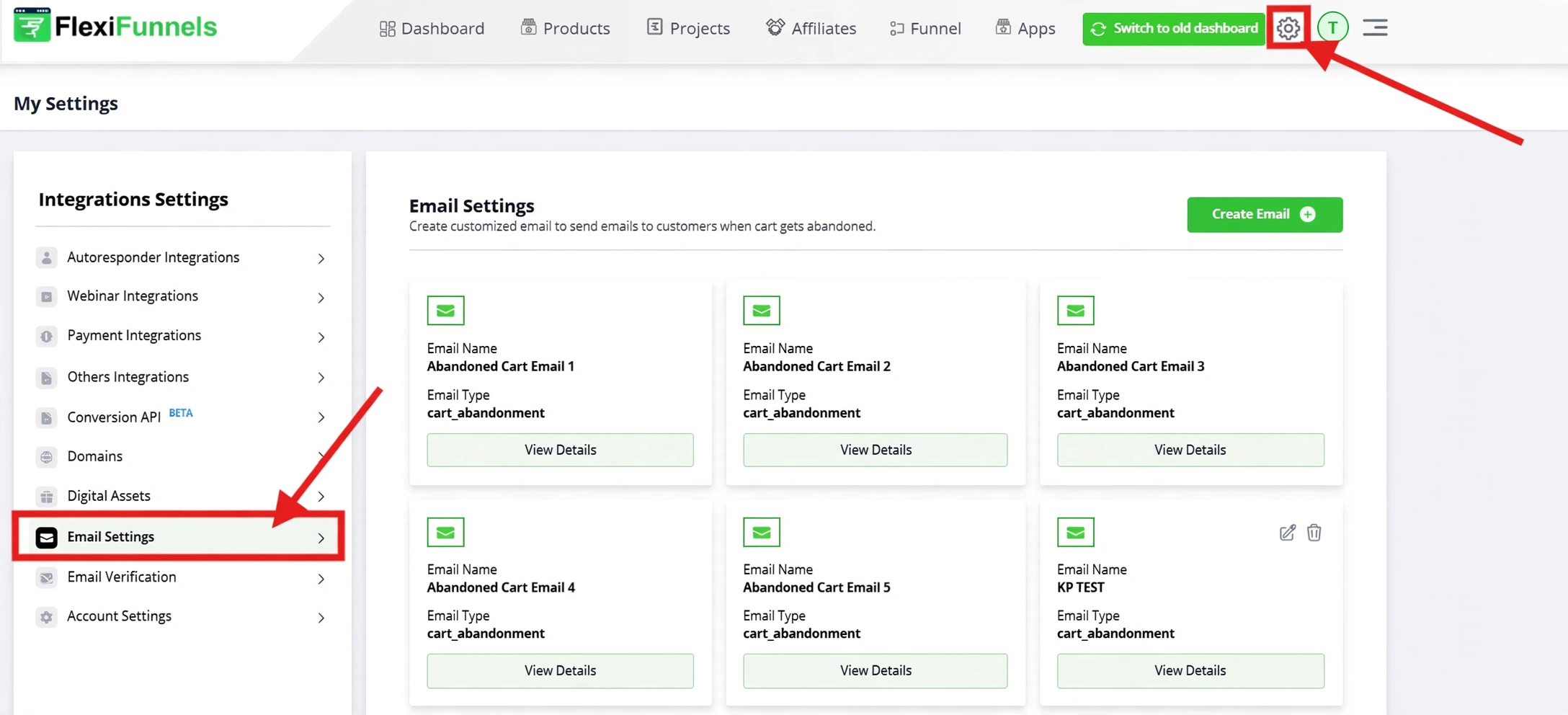
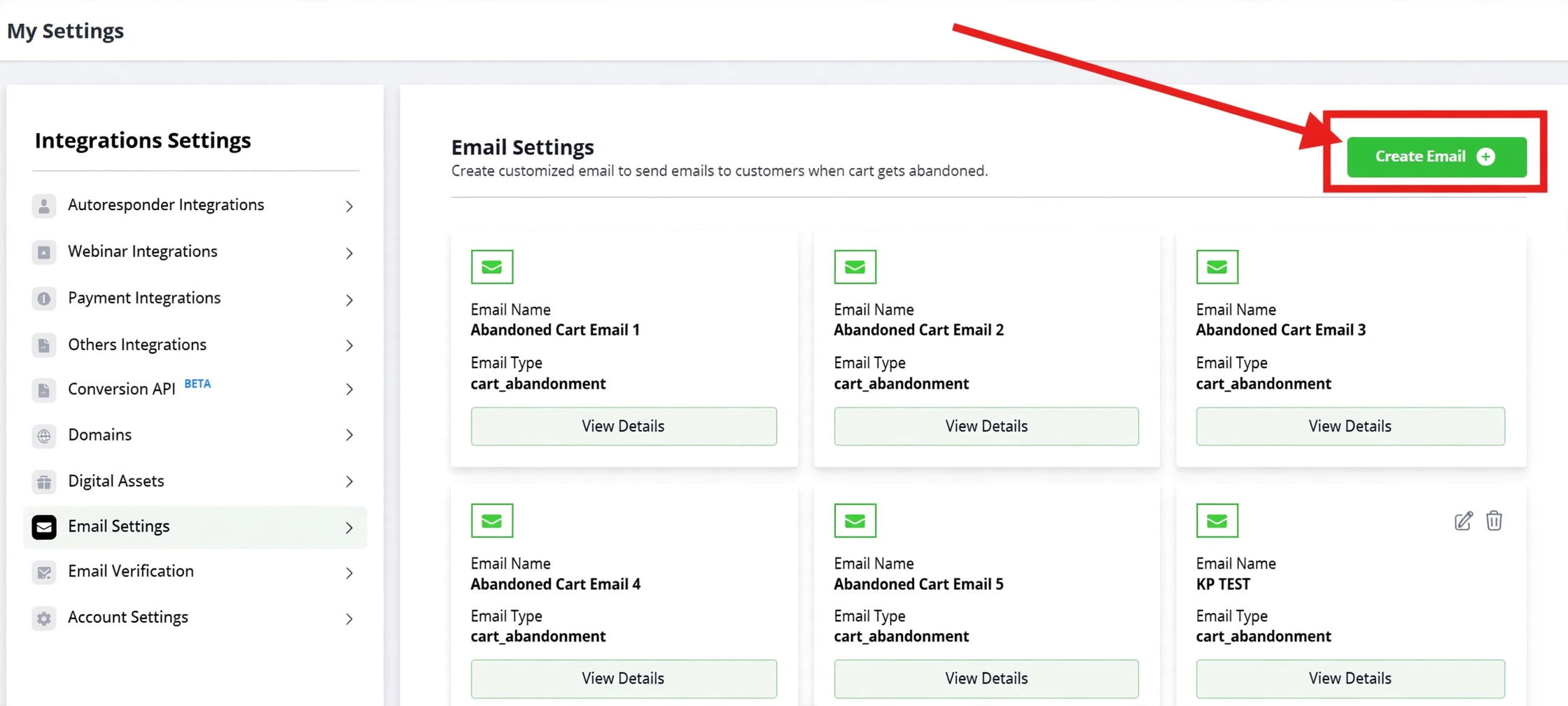
Step 2: Create Cart Abandonment Email Templates
In Email Settings, select Create Email. Create the email templates that will be used in your product’s cart abandonment follow-up sequence.
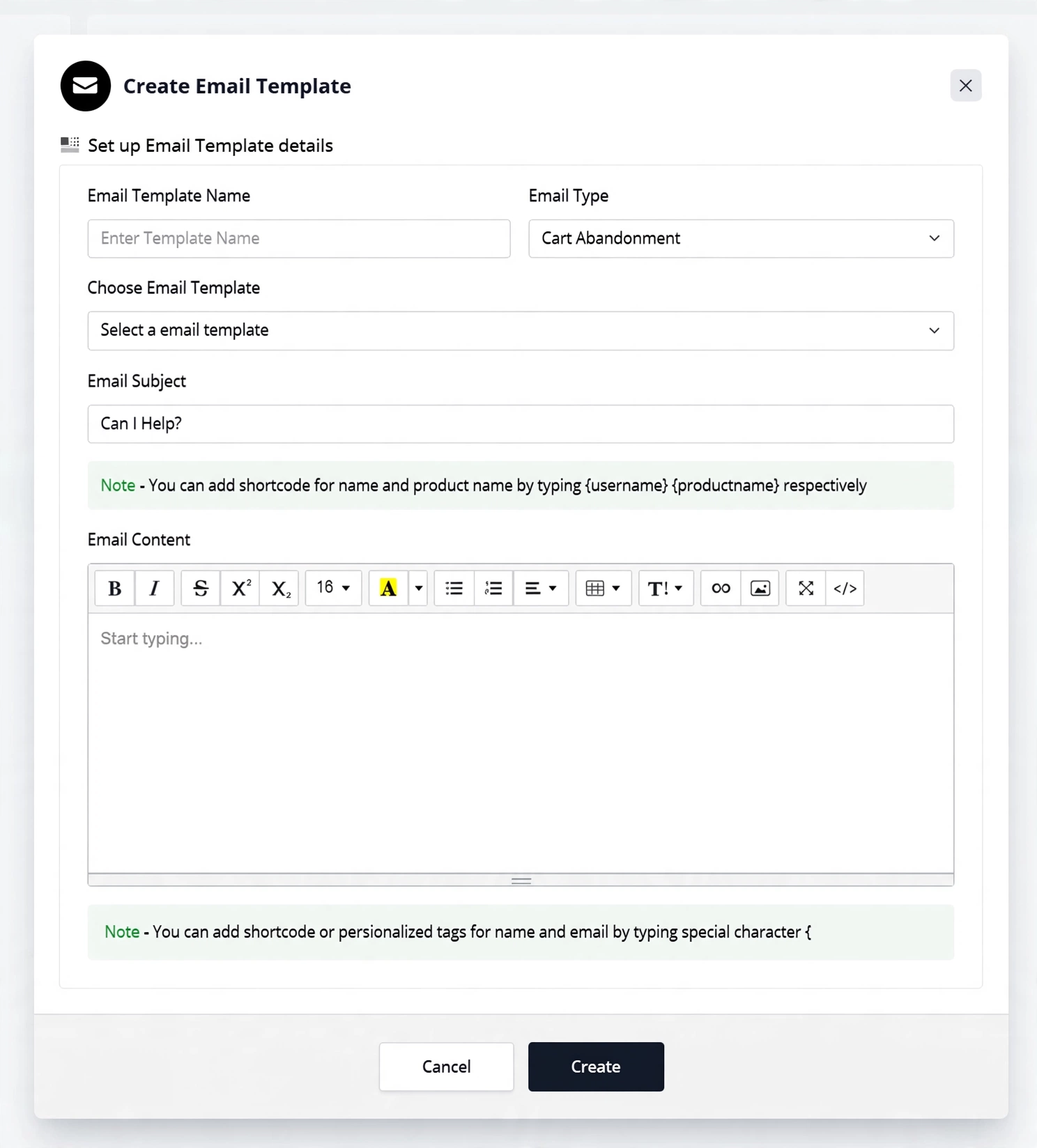
Step 3: Design and Save the Email Templates
After selecting Create Email, an email template window opens. Create the content for each follow-up email, then save the templates. You will select these saved templates when configuring the product’s Cart Abandonment sequence.
Step 4: Open the Product Settings
After creating and saving the email templates, open the product for which you want to enable cart abandonment follow-up. The email sequence is configured separately for each product.
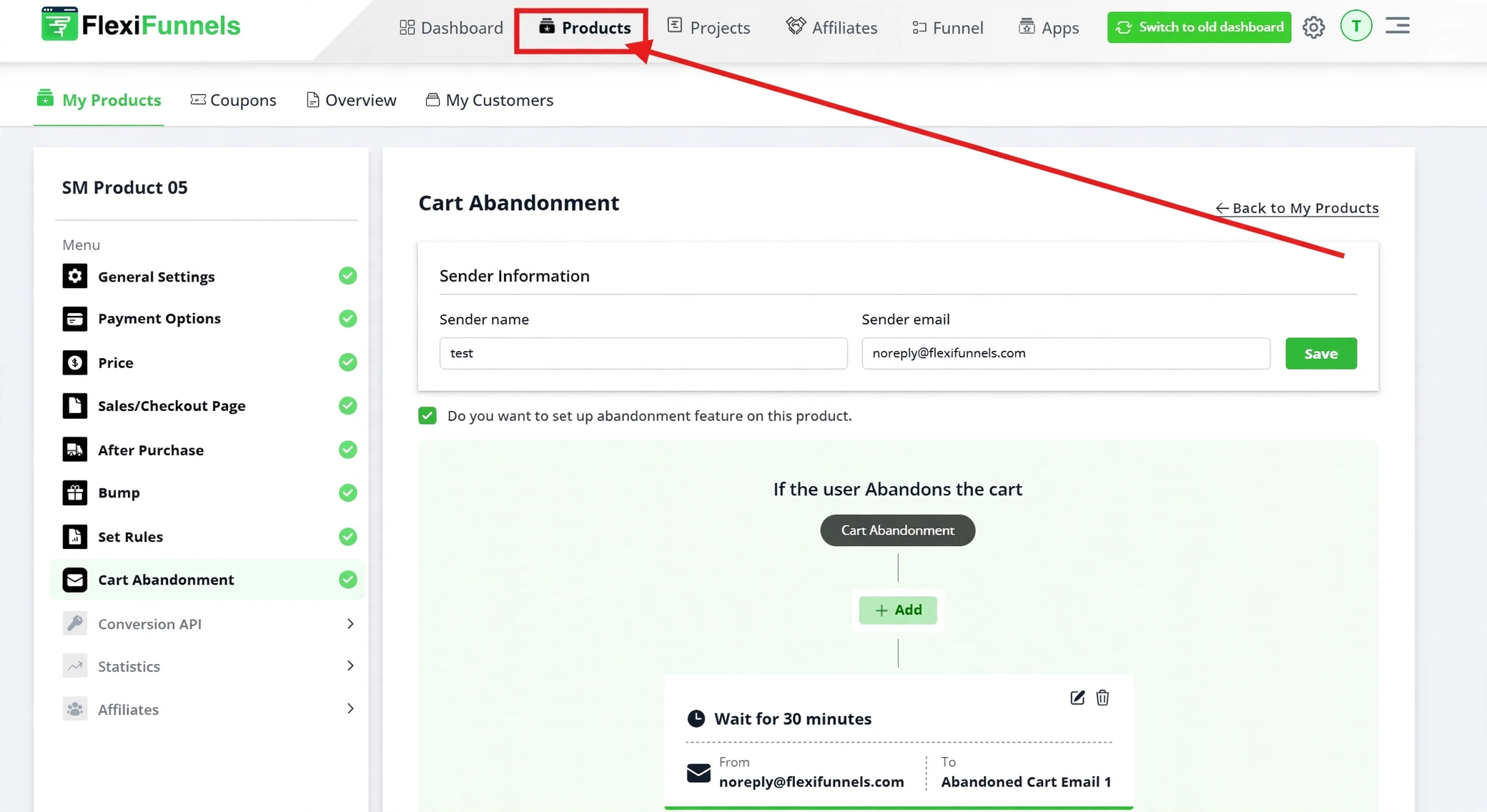
Step 5: Open Cart Abandonment Settings
Within the product settings, select Cart Abandonment. This opens the controls used to enable and configure the automated email sequence for that product.
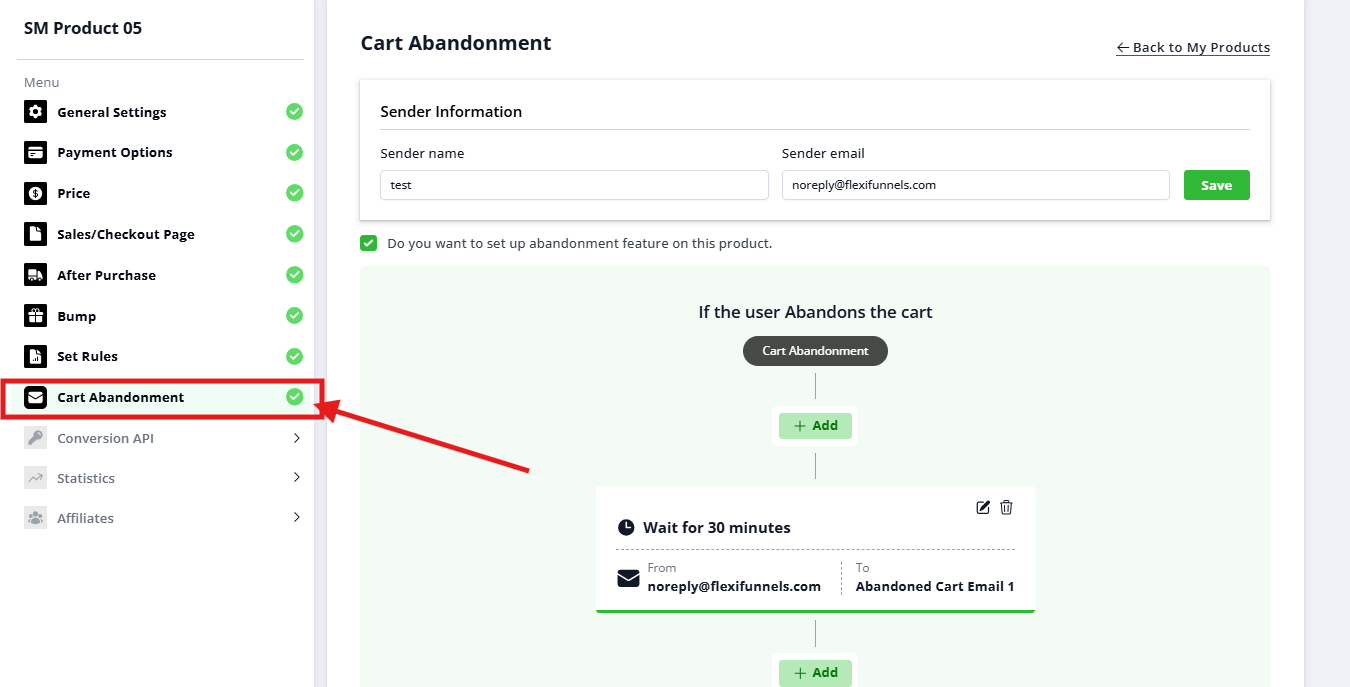
Step 6: Enable Cart Abandonment and Add a Sequence Step
Enable the Cart Abandonment checkbox. Then select the + icon to add a follow-up email step to the sequence.
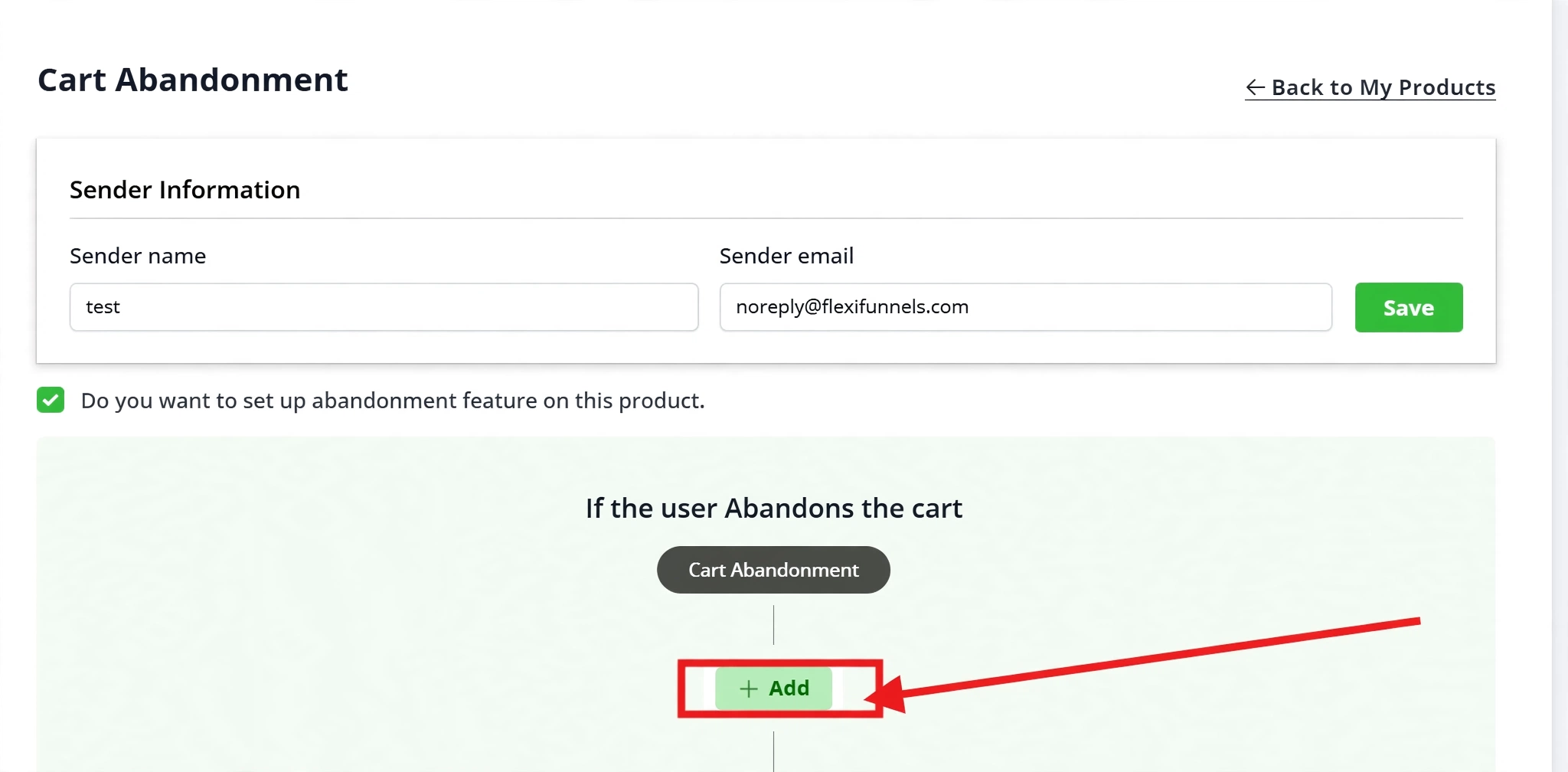
Step 7: Select the Email and Set the Interval
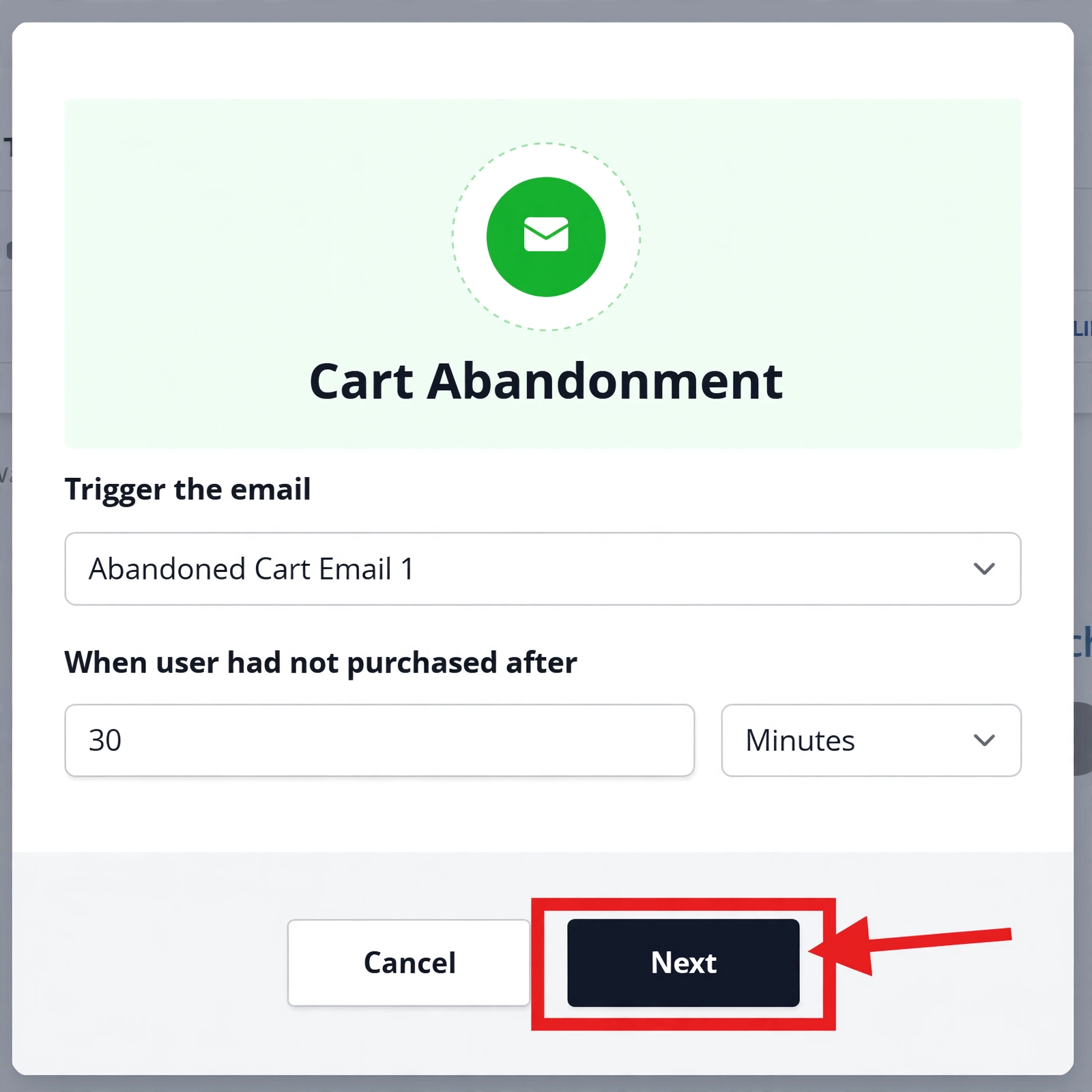
After selecting the + icon, a configuration window opens. Choose the email template to send and enter the interval for that sequence step. Repeat this process to add additional follow-up emails, then select Save.
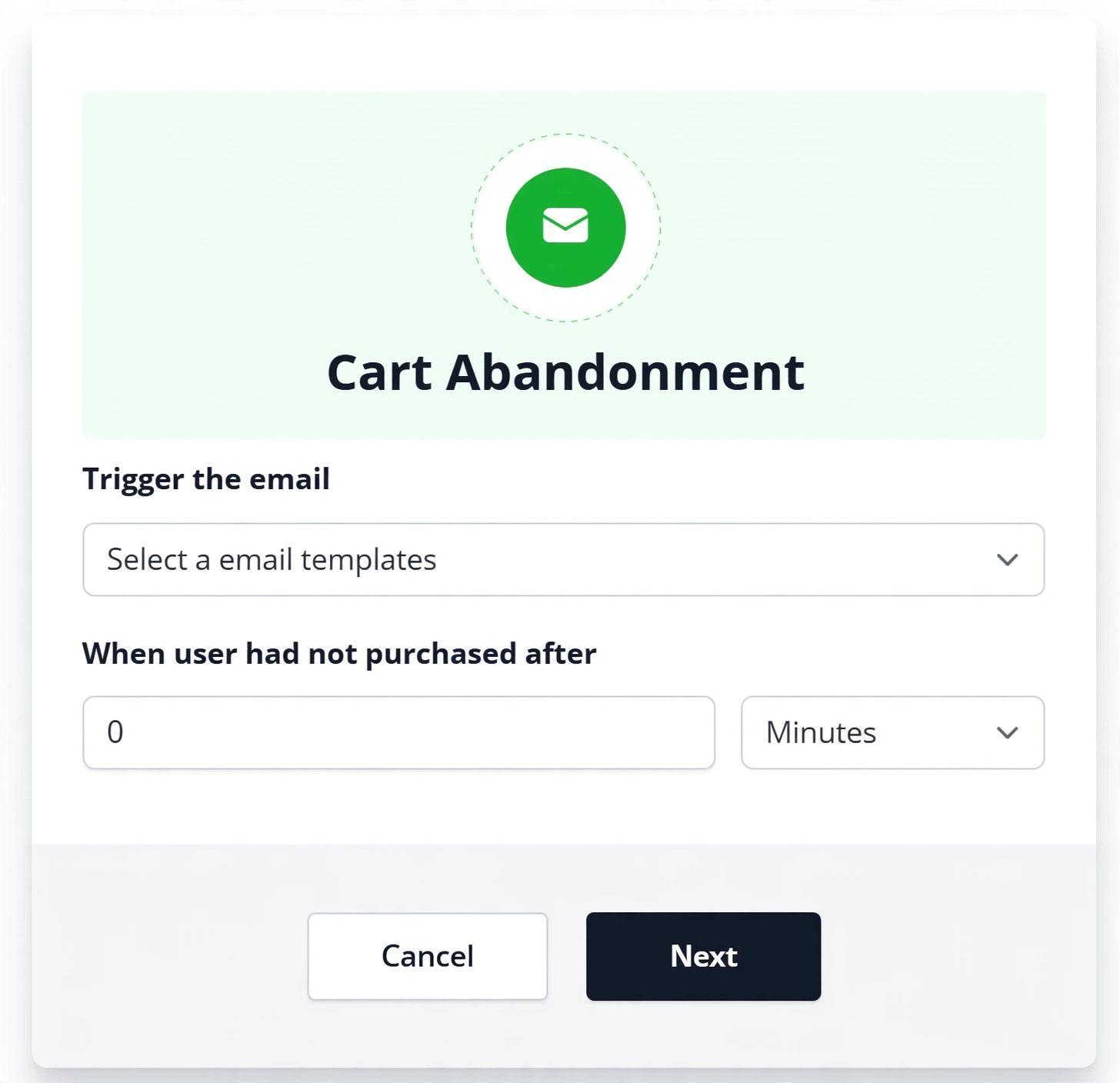
Step 8: Review and Save the Sequence
Review the email order, selected templates, and intervals. Save the Cart Abandonment configuration to apply the sequence to the product.
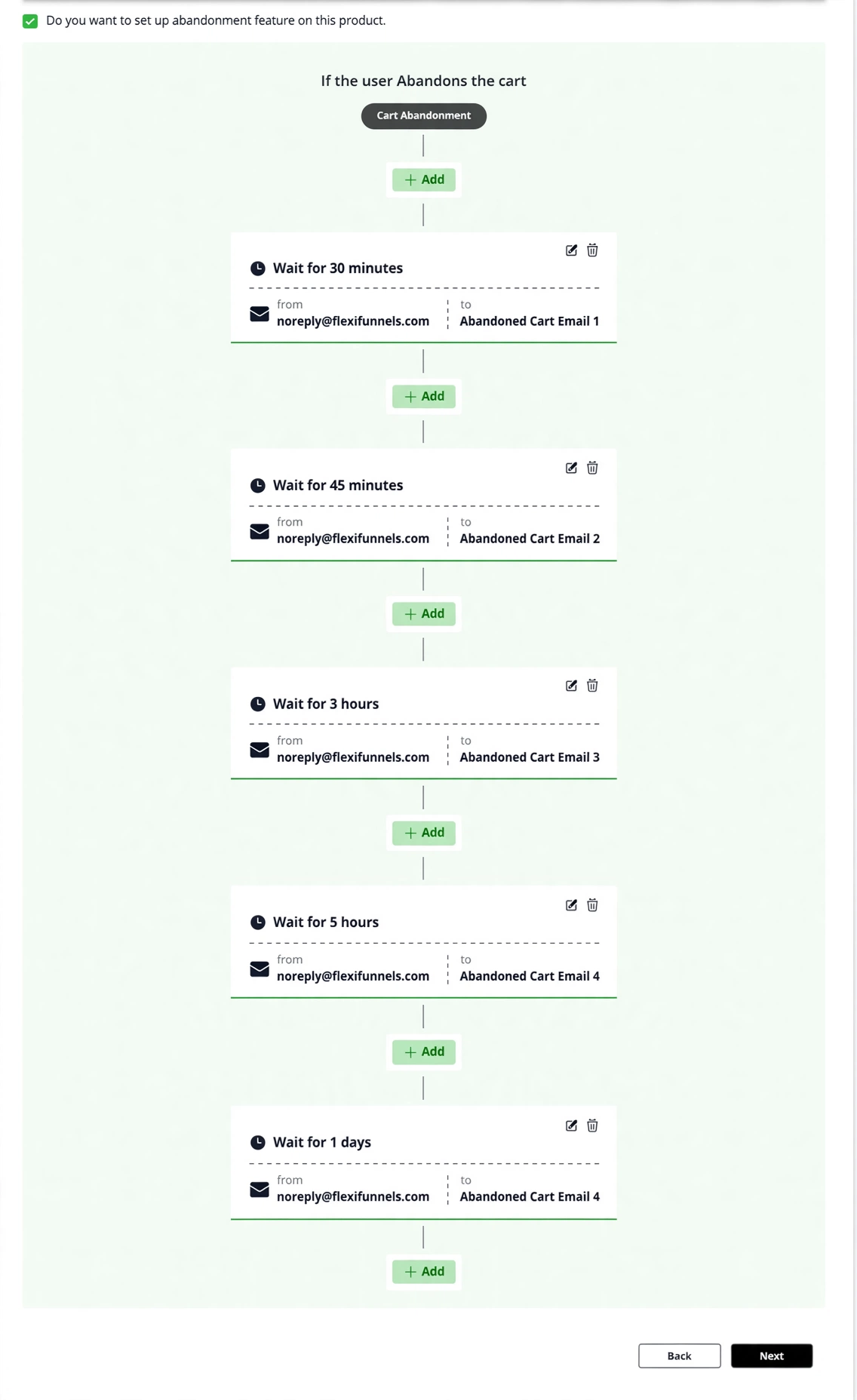
How Sequence Intervals Work
Each interval is added to the timing of the previous sequence step. For example, if you configure five emails with intervals of 30 minutes, 45 minutes, 3 hours, 5 hours, and 1 day, FlexiFunnels sends the sequence as follows:
- First email: 30 minutes after cart abandonment.
- Second email: 30 minutes + 45 minutes after cart abandonment.
- Third email: 30 minutes + 45 minutes + 3 hours after cart abandonment.
- Fourth email: 30 minutes + 45 minutes + 3 hours + 5 hours after cart abandonment.
- Fifth email: 30 minutes + 45 minutes + 3 hours + 5 hours + 1 day after cart abandonment.
Important: Review cumulative timing carefully to make sure each follow-up is sent at the intended time.
Verify the Configuration
Open the product’s Cart Abandonment settings and confirm that the feature is enabled, each sequence step has the intended email template, and the intervals are correct. Perform a test checkout where appropriate and verify that follow-up emails are scheduled according to the configured cumulative intervals.
Common Scenarios
- Incomplete checkout: Send a reminder shortly after a customer leaves before completing a purchase.
- Limited-time offer: Follow up with customers using an email that highlights an active offer or deadline.
- Payment completion: Remind customers to return to the checkout and complete payment.
- Product information: Send additional details that help a customer make a purchase decision.
- Final follow-up: Send a final reminder after a longer interval when the cart remains incomplete.
Best Practices
- Use clear, product-specific subject lines and email content.
- Set intervals that provide useful reminders without sending excessive emails.
- Review cumulative sequence timing before saving the configuration.
- Include a clear call to action that returns customers to the checkout page.
- Keep product pricing, offer details, and availability information accurate in all emails.
- Test each email template before adding it to a live sequence.
- Review performance periodically and update the sequence when campaign requirements change.
Before Contacting Support
- Confirm that the Cart Abandonment checkbox is enabled for the correct product.
- Verify that every sequence step has an assigned email template.
- Check the configured intervals and their cumulative timing.
- Confirm that all email templates are saved and available in Email Settings.
- Review the product configuration and save the latest changes.
- Perform a test checkout if available.
Expected Outcome
After configuration, FlexiFunnels automatically schedules the selected follow-up emails for customers who abandon checkout for the configured product. Each email is sent according to the cumulative intervals in your Cart Abandonment sequence.
Related Articles
- Cart Abandonment
- Creating email templates in FlexiFunnels
- Managing products in FlexiFunnels
Was this article helpful?
That’s Great!
Thank you for your feedback
Sorry! We couldn't be helpful
Thank you for your feedback
Feedback sent
We appreciate your effort and will try to fix the article